MACRIUM REFLECT - Create Bootable Rescue USB Drive

MACRIUM REFLECT - Create Bootable Rescue USB Flash Drive

How to Create a Bootable Rescue USB Flash Drive for Macrium Reflect


   Information
In order to restore a Macrium image when your Windows operating system cannot be started, you are required to boot from a rescue CD, which holds a compact Linux operating system. The Linux operating system on this rescue CD allows you to quickly browse the disks and partitions of your PC, and select the image you wish to restore.

Within Macrium reflect, there is no direct way to create a bootable USB drive, but there is a very simple workaround to create bootable rescue USB drives. This tutorial will show you how to do that, so you can forgo the stack of rescue CD's sitting on your desk. If you manage Macrium images for multiple computers, you will find this technique extremely useful.

This tutorial is based on Macrium Reflect Free Edition Version 4.2 Build 3141


:note: Requirements:

You will need the following in order to create a bootable rescue USB drive:-

1. A USB flash drive
2. YUMI Multiboot USB Creator


:note: Step 1 - Create the RESCUE ISO

Open Macrium Reflect as normal, and then from the menu, select the option Other Tasks > Create Rescue CD.

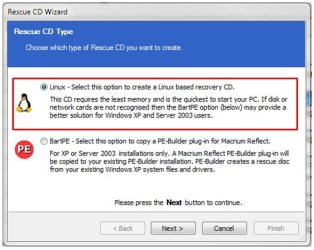
The 1st panel of the Rescue CD Wizard will be be displayed as shown below:
1.JPG

The default option is Linux. Accept that by clicking on Next, and proceeding to the 2nd panel of the Rescue CD Wizard.

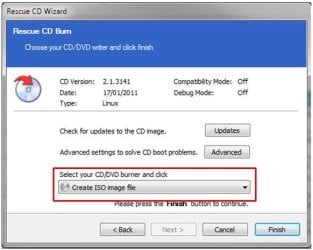
From the pull-down list, select the option Create ISO image file, as shown below:
2.JPG

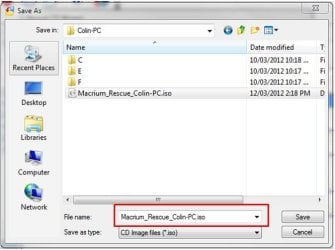
Click Finish, and now provide a name and location for the rescue ISO file that is about to be created, as shown below:
3.JPG

   Warning
Do not include spaces in the ISO name or YUMI will fail to boot from it.

Once the file has been saved, close Macrium Reflect as normal.


:note: Step 2 - Create the bootable RESCUE USB drive


Download YUMI Multiboot USB Creator to your desktop - its a single executable that requires no installation.

Insert the USB flash drive you want to use, into an available USB port on your computer.

Open YUMI by double-clicking it, and when prompted by Windows UAC, click Yes. You will be prompted to accept the Licence Agreement. Click I Agree to proceed.

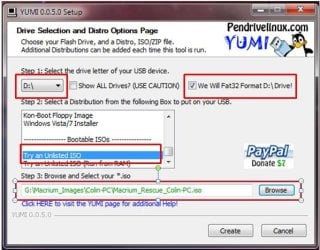
Now follow thse steps and refer to the image shown below:

1. From the drop-down list, select the letter of the USB you wish to use.

2. The USB drive is required to be formatted as FAT32. If this is not the case, check the format option, which will format the entire USB drive before copying any information to it. If the USB drive is already formatted as FAT32, ignore this option.

3. In the distribution box, scroll to the very bottom and hlighlight the Try an Unlisted ISO.

4. Click Browse to locate and select the rescue ISO you create previously.
4.JPG

5. Now click Create to create the bootable rescue USB drive.

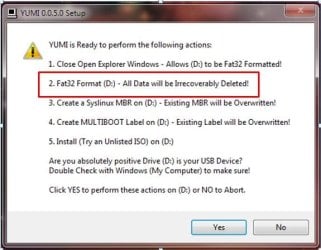
If you opted to format the USB drive, please take careful note of the warning panel that appears, and is shown below. Click Yes to proceed.
5.JPG

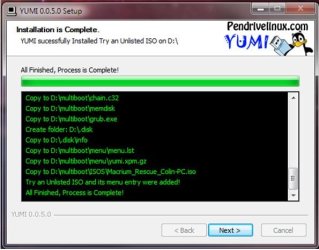
The rescue ISO file will now be copied to the USB drive. If successful, you will see the progress panel as shown below:
6.JPG

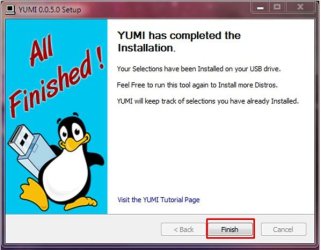
Click Next to proceed. You will be prompted if you wish to add more ISO's/Distros. Click No to close this pop-up, and then click Finish to exit YUMI.
7.JPG

You have now created a Macrium Bootable Rescue USB and can safely remove the USB drive.


:note: Step 3 - Test the bootable RESCUE USB drive


One of critical elements of imaging, is to ensure that you can boot from the rescue USB drive. In fact, the same holds true if you choose to use the traditional bootable rescue CD method.

To do this, turn off your computer, plug in your USB drive and reboot your computer as normal. During the POST screen, press the DEL key repeatedly to enter your BIOS, and then find the setting that allows you to boot from a USB drive and place it first in the device boot sequence. Alternatively, during POST keeping pressing the F8 function key to bring up the one-time boot menu, and then select the USB device from that menu.

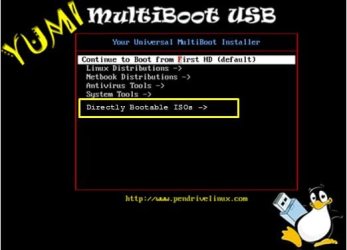
Once the PC boots from the USB device you will see the YUMI boot menu, as shown in the example below:
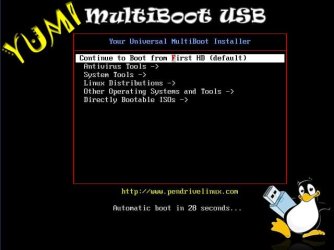
a.JPG

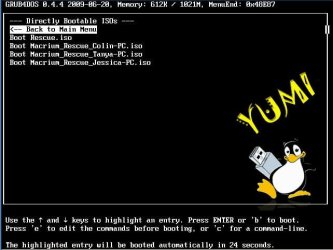
If you select the option called Directly Bootable ISO's you will then be presented with the rescue ISO you created earlier. In the example shown below, I have a choice of 4 rescue ISO files (refer to the tip below):
b.JPG

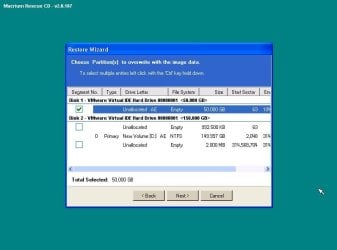
Once you select that ISO, the Linux operating system will boot the ISO, and then allow you to select the Macrium image to restore, as shown in this example below:
9.JPG

   Tip

If you manage multiple computers, you can add as many Macrium rescue ISO's as you require. I manage 4 different computers and each one's rescue item is bootable from a single USB flash drive - refer to the image above.

If you already have a YUMI multiboot USB drive with other ISO's and/or distros on it, simple add the Macrium rescue ISO's as normal. This makes for a very handy USB toolkit.


I hope you find this tutorial useful, and remember : you saw it first at Sevenforums.

Regards,
Golden

   Note
Special thanks to kado897 who provided the information for capturing the YUMI screens.


Related Tutorials


Attachments

  • 8.JPG
    8.JPG
    27.7 KB · Views: 191
Last edited:
Good Job

This looks like it should be handy.
Do you have any recommendations/suggestions for other bootable ISOs that could be included?

I'd Rep you, but apparently I'm not allowed to. :cry:
 

My Computer

Computer type
PC/Desktop
Computer Manufacturer/Model Number
n/a
OS
W7 Ultimate SP1, LM19.2 MATE, W10 Home 1703, W10 Pro 1703 VM, #All 64 bit
CPU
AMD Phenom II x6 1100T, 3.3 GHz
Motherboard
ASUS M4A88T-M/USB3 (AM3)
Memory
12GB DDR3 1333 G-Skill (4GB x 2), G-Skill (2GB x 2)
Graphics Card(s)
NVIDIA GeForce GTX 660
Sound Card
Realtek?
Monitor(s) Displays
Samsung S23B350
Screen Resolution
1920x1080
Hard Drives
WD Green 2TB (SATA), WD Green 3TB (SATA), WD Blue 4TB (SATA), WD Blue 6TB (SATA)
PSU
Cooler Master
Case
Antec GX300 Tower
Cooling
3x Antec TRICOOL 120mm Fans
Mouse
Wired Optical
Internet Speed
DSL
Antivirus
Avast
Browser
Pale Moon (64 bit)
Other Info
2018-12-27 Upgraded HDDs
2015-12-10 Upgraded case, graphics card, storage
2015-08-15 Upgraded motherboard & RAM
2015-07-15 Upgraded LM17.1 to LM17.2
No worries Lehnerus - thanks. :)

My personal favorites are:

  • Several flavours of Linux ISO (Debian, Mint12, Ubuntu 10.04 LTS)
  • Windows 7 installation ISO
  • MiniTool Partition Wizard Home Edition v7.0 ISO
  • F-Secure Rescue CD ISO
When you select which ISO you want from that scrollable list, YUMI has a little link that takes you straight to the download link for the ISO you selected - very handy.
 

My Computer

Computer type
PC/Desktop
Computer Manufacturer/Model Number
Golden Mk. I.4
OS
Windows 10 Pro x64 ; Xubuntu x64
CPU
Intel i7 860 @ 2.80 GHz O/C'ed to 4.0GHz
Motherboard
Gigabyte P55A-UD3R Rev.1. Award BIOS F13
Memory
16GB Corsair Vengance DDR3 @ 661 MHz Dual Channel (9-9-9-24)
Graphics Card(s)
EVGA NVidia GTX 560 1024MB
Sound Card
Realtek Integrated
Monitor(s) Displays
Dual Samsung SyncMaster 2494HS
Screen Resolution
1920*1080 and 1920*1080
Hard Drives
1*Samsung 840 EVO 120GB SSD;
1*OCZ Vertex 2 60GB SSD;
2*Samsung F3 SpinPoint 1TB in RAID0;
1*Samsung F1 SpinPoint 1TB;
2*Western Digital 1TB External USB 3.0
1*Western Digital 500GB External USB 3.0
1*Seagate 500GB External USB 2.0
PSU
Thermaltake ToughPower QFan 750W
Case
Thermaltake Element S VK60001W2Z
Cooling
Corsair H60 Water Cooling, 2*230mm and 2*80mm case fans
Keyboard
Logitech G110
Mouse
Logitech MX518
Thanks for those suggestions. :)

It looks like I'll need to get myself a bigger USB stick.
 

My Computer

Computer type
PC/Desktop
Computer Manufacturer/Model Number
n/a
OS
W7 Ultimate SP1, LM19.2 MATE, W10 Home 1703, W10 Pro 1703 VM, #All 64 bit
CPU
AMD Phenom II x6 1100T, 3.3 GHz
Motherboard
ASUS M4A88T-M/USB3 (AM3)
Memory
12GB DDR3 1333 G-Skill (4GB x 2), G-Skill (2GB x 2)
Graphics Card(s)
NVIDIA GeForce GTX 660
Sound Card
Realtek?
Monitor(s) Displays
Samsung S23B350
Screen Resolution
1920x1080
Hard Drives
WD Green 2TB (SATA), WD Green 3TB (SATA), WD Blue 4TB (SATA), WD Blue 6TB (SATA)
PSU
Cooler Master
Case
Antec GX300 Tower
Cooling
3x Antec TRICOOL 120mm Fans
Mouse
Wired Optical
Internet Speed
DSL
Antivirus
Avast
Browser
Pale Moon (64 bit)
Other Info
2018-12-27 Upgraded HDDs
2015-12-10 Upgraded case, graphics card, storage
2015-08-15 Upgraded motherboard & RAM
2015-07-15 Upgraded LM17.1 to LM17.2
Nice tutorial golden. It looks like that is for V4. V5 allows you to create the USB directly without YUMI but I think it is better to use something like YUMI so that you can include other recovery tools.
 

My Computer

Computer type
Laptop
Computer Manufacturer/Model Number
Hewlett-Packard/G62-107SA Notebook
OS
Microsoft Windows 7 Home Premium 64-bit Service Pack 1
CPU
Intel(R) Core(TM) i3 CPU M 330 @ 2.13GHz
Motherboard
Hewlett-Packard 1425
Memory
8 GB DDR3
Graphics Card(s)
Intel(R) HD Graphics
Sound Card
Realtek High Definition Audio
Monitor(s) Displays
Builtin
Screen Resolution
1366 x 768 x 32 bits (4294967296 colors) @ 60 Hz
Hard Drives
250 GB SATA Hard Disk Drive 7200 rpm
2TB Seagate GoFlex USB 2 Drive
1TB Iomega Prestige USB 2 Drive
1.5TB Iomega Prestige USB 2 Drive (Samsung)
2TB WD MyBook Live NAS.
Mouse
Logitech Anywhere MX
Internet Speed
152 Mbs download 10 Mbs upload
Antivirus
Norton 360
Browser
Chrome
Hi Kado,

Thanks. Correct, this is for V4. I wondered about V5, thanks for pointing that out...do you know whether it can write multiple rescue ISO's to the same USB, or whether you need a single USB per rescue ISO?

Regards,
Golden
 

My Computer

Computer type
PC/Desktop
Computer Manufacturer/Model Number
Golden Mk. I.4
OS
Windows 10 Pro x64 ; Xubuntu x64
CPU
Intel i7 860 @ 2.80 GHz O/C'ed to 4.0GHz
Motherboard
Gigabyte P55A-UD3R Rev.1. Award BIOS F13
Memory
16GB Corsair Vengance DDR3 @ 661 MHz Dual Channel (9-9-9-24)
Graphics Card(s)
EVGA NVidia GTX 560 1024MB
Sound Card
Realtek Integrated
Monitor(s) Displays
Dual Samsung SyncMaster 2494HS
Screen Resolution
1920*1080 and 1920*1080
Hard Drives
1*Samsung 840 EVO 120GB SSD;
1*OCZ Vertex 2 60GB SSD;
2*Samsung F3 SpinPoint 1TB in RAID0;
1*Samsung F1 SpinPoint 1TB;
2*Western Digital 1TB External USB 3.0
1*Western Digital 500GB External USB 3.0
1*Seagate 500GB External USB 2.0
PSU
Thermaltake ToughPower QFan 750W
Case
Thermaltake Element S VK60001W2Z
Cooling
Corsair H60 Water Cooling, 2*230mm and 2*80mm case fans
Keyboard
Logitech G110
Mouse
Logitech MX518
It just allows the one and, I have just checked, only for the PE disk. I also used the YUMI route even for the PE disk.
 

My Computer

Computer type
Laptop
Computer Manufacturer/Model Number
Hewlett-Packard/G62-107SA Notebook
OS
Microsoft Windows 7 Home Premium 64-bit Service Pack 1
CPU
Intel(R) Core(TM) i3 CPU M 330 @ 2.13GHz
Motherboard
Hewlett-Packard 1425
Memory
8 GB DDR3
Graphics Card(s)
Intel(R) HD Graphics
Sound Card
Realtek High Definition Audio
Monitor(s) Displays
Builtin
Screen Resolution
1366 x 768 x 32 bits (4294967296 colors) @ 60 Hz
Hard Drives
250 GB SATA Hard Disk Drive 7200 rpm
2TB Seagate GoFlex USB 2 Drive
1TB Iomega Prestige USB 2 Drive
1.5TB Iomega Prestige USB 2 Drive (Samsung)
2TB WD MyBook Live NAS.
Mouse
Logitech Anywhere MX
Internet Speed
152 Mbs download 10 Mbs upload
Antivirus
Norton 360
Browser
Chrome
Thanks Kado. I'll also make bold the version that I based this on to make it more clearer it was in V4.
 

My Computer

Computer type
PC/Desktop
Computer Manufacturer/Model Number
Golden Mk. I.4
OS
Windows 10 Pro x64 ; Xubuntu x64
CPU
Intel i7 860 @ 2.80 GHz O/C'ed to 4.0GHz
Motherboard
Gigabyte P55A-UD3R Rev.1. Award BIOS F13
Memory
16GB Corsair Vengance DDR3 @ 661 MHz Dual Channel (9-9-9-24)
Graphics Card(s)
EVGA NVidia GTX 560 1024MB
Sound Card
Realtek Integrated
Monitor(s) Displays
Dual Samsung SyncMaster 2494HS
Screen Resolution
1920*1080 and 1920*1080
Hard Drives
1*Samsung 840 EVO 120GB SSD;
1*OCZ Vertex 2 60GB SSD;
2*Samsung F3 SpinPoint 1TB in RAID0;
1*Samsung F1 SpinPoint 1TB;
2*Western Digital 1TB External USB 3.0
1*Western Digital 500GB External USB 3.0
1*Seagate 500GB External USB 2.0
PSU
Thermaltake ToughPower QFan 750W
Case
Thermaltake Element S VK60001W2Z
Cooling
Corsair H60 Water Cooling, 2*230mm and 2*80mm case fans
Keyboard
Logitech G110
Mouse
Logitech MX518
The YUMI screens really add to the tutorial. Thanks for the acknowledgement.
 

My Computer

Computer type
Laptop
Computer Manufacturer/Model Number
Hewlett-Packard/G62-107SA Notebook
OS
Microsoft Windows 7 Home Premium 64-bit Service Pack 1
CPU
Intel(R) Core(TM) i3 CPU M 330 @ 2.13GHz
Motherboard
Hewlett-Packard 1425
Memory
8 GB DDR3
Graphics Card(s)
Intel(R) HD Graphics
Sound Card
Realtek High Definition Audio
Monitor(s) Displays
Builtin
Screen Resolution
1366 x 768 x 32 bits (4294967296 colors) @ 60 Hz
Hard Drives
250 GB SATA Hard Disk Drive 7200 rpm
2TB Seagate GoFlex USB 2 Drive
1TB Iomega Prestige USB 2 Drive
1.5TB Iomega Prestige USB 2 Drive (Samsung)
2TB WD MyBook Live NAS.
Mouse
Logitech Anywhere MX
Internet Speed
152 Mbs download 10 Mbs upload
Antivirus
Norton 360
Browser
Chrome
Thanks Kado - your help with that was invaluable :)
 

My Computer

Computer type
PC/Desktop
Computer Manufacturer/Model Number
Golden Mk. I.4
OS
Windows 10 Pro x64 ; Xubuntu x64
CPU
Intel i7 860 @ 2.80 GHz O/C'ed to 4.0GHz
Motherboard
Gigabyte P55A-UD3R Rev.1. Award BIOS F13
Memory
16GB Corsair Vengance DDR3 @ 661 MHz Dual Channel (9-9-9-24)
Graphics Card(s)
EVGA NVidia GTX 560 1024MB
Sound Card
Realtek Integrated
Monitor(s) Displays
Dual Samsung SyncMaster 2494HS
Screen Resolution
1920*1080 and 1920*1080
Hard Drives
1*Samsung 840 EVO 120GB SSD;
1*OCZ Vertex 2 60GB SSD;
2*Samsung F3 SpinPoint 1TB in RAID0;
1*Samsung F1 SpinPoint 1TB;
2*Western Digital 1TB External USB 3.0
1*Western Digital 500GB External USB 3.0
1*Seagate 500GB External USB 2.0
PSU
Thermaltake ToughPower QFan 750W
Case
Thermaltake Element S VK60001W2Z
Cooling
Corsair H60 Water Cooling, 2*230mm and 2*80mm case fans
Keyboard
Logitech G110
Mouse
Logitech MX518
Didn't know this wasn't provided by Macrium program. Thanks, now I know.

Good work, Golden!
 
Thanks Greg. Version 5 of macrium will burn a RESCUE ISO straight to a USB stick, but I find YUMI useful for storing multiple RESCUE ISO's on a single USB stick - very handy if you manage multiple PC's.
 

My Computer

Computer type
PC/Desktop
Computer Manufacturer/Model Number
Golden Mk. I.4
OS
Windows 10 Pro x64 ; Xubuntu x64
CPU
Intel i7 860 @ 2.80 GHz O/C'ed to 4.0GHz
Motherboard
Gigabyte P55A-UD3R Rev.1. Award BIOS F13
Memory
16GB Corsair Vengance DDR3 @ 661 MHz Dual Channel (9-9-9-24)
Graphics Card(s)
EVGA NVidia GTX 560 1024MB
Sound Card
Realtek Integrated
Monitor(s) Displays
Dual Samsung SyncMaster 2494HS
Screen Resolution
1920*1080 and 1920*1080
Hard Drives
1*Samsung 840 EVO 120GB SSD;
1*OCZ Vertex 2 60GB SSD;
2*Samsung F3 SpinPoint 1TB in RAID0;
1*Samsung F1 SpinPoint 1TB;
2*Western Digital 1TB External USB 3.0
1*Western Digital 500GB External USB 3.0
1*Seagate 500GB External USB 2.0
PSU
Thermaltake ToughPower QFan 750W
Case
Thermaltake Element S VK60001W2Z
Cooling
Corsair H60 Water Cooling, 2*230mm and 2*80mm case fans
Keyboard
Logitech G110
Mouse
Logitech MX518
I can't get this to work for my son's Asus netbook. I follow your instructions and the instructions in the Macrium forum.
v4: Create a Bootable Linux USB device (Linux, v4)

I keep getting the following error when using Yumi and unetbootin 282.
ip: SIOCGIFFLAGS: No such device
I also have Paragon Backup and Recovery free installed on this netbook. Paragon's rescue media builder makes a rescue USB, and that works. But I like Macrium better.
Any ideas?
 
Last edited:

My Computer

OS
Win 7 Pro x 64, Win 7 Starter
Hi gugarci. I am not sure what that error is but a quick Google suggests it is a Linux Unternet Protocol error. Have you tried with the PE rescue disk? Unfortunately it involves a 1.7GB download of the WAIK but it is much more reliable.
 

My Computer

Computer type
Laptop
Computer Manufacturer/Model Number
Hewlett-Packard/G62-107SA Notebook
OS
Microsoft Windows 7 Home Premium 64-bit Service Pack 1
CPU
Intel(R) Core(TM) i3 CPU M 330 @ 2.13GHz
Motherboard
Hewlett-Packard 1425
Memory
8 GB DDR3
Graphics Card(s)
Intel(R) HD Graphics
Sound Card
Realtek High Definition Audio
Monitor(s) Displays
Builtin
Screen Resolution
1366 x 768 x 32 bits (4294967296 colors) @ 60 Hz
Hard Drives
250 GB SATA Hard Disk Drive 7200 rpm
2TB Seagate GoFlex USB 2 Drive
1TB Iomega Prestige USB 2 Drive
1.5TB Iomega Prestige USB 2 Drive (Samsung)
2TB WD MyBook Live NAS.
Mouse
Logitech Anywhere MX
Internet Speed
152 Mbs download 10 Mbs upload
Antivirus
Norton 360
Browser
Chrome
Hi,

ip: SIOCGIFFLAGS: No such device
is definately Unix network-type error. Are you trying to backup from a VM by any chance? I've used this tutorial on several occasions on several systems now and have never seen this error before.

Regards,
Golden
 

My Computer

Computer type
PC/Desktop
Computer Manufacturer/Model Number
Golden Mk. I.4
OS
Windows 10 Pro x64 ; Xubuntu x64
CPU
Intel i7 860 @ 2.80 GHz O/C'ed to 4.0GHz
Motherboard
Gigabyte P55A-UD3R Rev.1. Award BIOS F13
Memory
16GB Corsair Vengance DDR3 @ 661 MHz Dual Channel (9-9-9-24)
Graphics Card(s)
EVGA NVidia GTX 560 1024MB
Sound Card
Realtek Integrated
Monitor(s) Displays
Dual Samsung SyncMaster 2494HS
Screen Resolution
1920*1080 and 1920*1080
Hard Drives
1*Samsung 840 EVO 120GB SSD;
1*OCZ Vertex 2 60GB SSD;
2*Samsung F3 SpinPoint 1TB in RAID0;
1*Samsung F1 SpinPoint 1TB;
2*Western Digital 1TB External USB 3.0
1*Western Digital 500GB External USB 3.0
1*Seagate 500GB External USB 2.0
PSU
Thermaltake ToughPower QFan 750W
Case
Thermaltake Element S VK60001W2Z
Cooling
Corsair H60 Water Cooling, 2*230mm and 2*80mm case fans
Keyboard
Logitech G110
Mouse
Logitech MX518
No I'm not trying this on a VM. I have not considered doing a PE bootable usb drive because the Macrium installed on this netbook is the free version. I only have the paid version of Macrium in my main family desktop.

Is there another way I can make a PE usb device for the netbook? I doubt this would work, but if i make one in my family desktop will it work on the netbook?

Also this netbook is an Asus Eee with Win 7 Starter.

Just found this thread, I'm going to try this later on today or over the weekend.
http://www.sevenforums.com/tutorials/132259-windows-pe-disk-create.html
 
Last edited:

My Computer

OS
Win 7 Pro x 64, Win 7 Starter
You can make a PE from the free version Just chose Custom as the option and follow the wizard. As I said earlier the wizard will do a download of the WAIK this is rather large at 1.7GB.
 

My Computer

Computer type
Laptop
Computer Manufacturer/Model Number
Hewlett-Packard/G62-107SA Notebook
OS
Microsoft Windows 7 Home Premium 64-bit Service Pack 1
CPU
Intel(R) Core(TM) i3 CPU M 330 @ 2.13GHz
Motherboard
Hewlett-Packard 1425
Memory
8 GB DDR3
Graphics Card(s)
Intel(R) HD Graphics
Sound Card
Realtek High Definition Audio
Monitor(s) Displays
Builtin
Screen Resolution
1366 x 768 x 32 bits (4294967296 colors) @ 60 Hz
Hard Drives
250 GB SATA Hard Disk Drive 7200 rpm
2TB Seagate GoFlex USB 2 Drive
1TB Iomega Prestige USB 2 Drive
1.5TB Iomega Prestige USB 2 Drive (Samsung)
2TB WD MyBook Live NAS.
Mouse
Logitech Anywhere MX
Internet Speed
152 Mbs download 10 Mbs upload
Antivirus
Norton 360
Browser
Chrome
No that is a different disk. Macrium takes the WAIK and creates its own customized version with only the Macrium restore system plus a few other goodies.

You can chose to create either an ISO which you can include as an unsupported ISO in YUMI or it will crete a dedicated bootable USB for you.
 

My Computer

Computer type
Laptop
Computer Manufacturer/Model Number
Hewlett-Packard/G62-107SA Notebook
OS
Microsoft Windows 7 Home Premium 64-bit Service Pack 1
CPU
Intel(R) Core(TM) i3 CPU M 330 @ 2.13GHz
Motherboard
Hewlett-Packard 1425
Memory
8 GB DDR3
Graphics Card(s)
Intel(R) HD Graphics
Sound Card
Realtek High Definition Audio
Monitor(s) Displays
Builtin
Screen Resolution
1366 x 768 x 32 bits (4294967296 colors) @ 60 Hz
Hard Drives
250 GB SATA Hard Disk Drive 7200 rpm
2TB Seagate GoFlex USB 2 Drive
1TB Iomega Prestige USB 2 Drive
1.5TB Iomega Prestige USB 2 Drive (Samsung)
2TB WD MyBook Live NAS.
Mouse
Logitech Anywhere MX
Internet Speed
152 Mbs download 10 Mbs upload
Antivirus
Norton 360
Browser
Chrome
Back
Top