Solved Macrium Reflect How Do I Use It?

XP VM User

New member
Member
VIP
Local time
7:41 AM
Messages
279
Hi everyone!

Thanks for all the prior assistance!!!

Now that I got Macrium (standard paid version) downloaded and installed.....

(see my prior discussions of how this was done on::

http://www.sevenforums.com/backup-r...-virus-adware-malware-prog-5.html#post2997772

and

http://www.sevenforums.com/backup-restore/357684-need-new-backup-storage-program-4.html

I need help in using it for the first time....

Yes, I'm confused........

Yes, as first time is the most critical saving time....

If I do NOT make the right choices..... what happens next is not the fault of the program as the computer will automatically follow whatever commands I tell it to do.....

INCLUDING! Copying from the Empty External HDD back over and replace the "not saved for one year!!" Original HDD inside the Laptop!

That is not the direction I want the backups to be made in...

Again (to beat a dead horse----I know mjf sounds like your "broken record" phrase too), I do not have instant phone help with Macrium, where someone can walk me slowly... carefully through the various menus until I get the hang of it (not just once I usually need several calls to get it right and committed to memory or notes that I can read and follow)

Yes I read the Macrium online manual a few times...

Yes I saw whs? or who he directed me to view, You Tube video a few times.....

Somehow its not what I'm seeing... as this is the first time.... I have not set up any preferences in the list of tasks for Macrium, so its showing me ALL the possible choices...

"choose wisely" As someone said here before to me.....

As if I make the wrong choice, in an unfamiliar program screen...... I lose everything... nothing to back up if I mistakingly copy back onto the full Hard Drive the brand new, Empty one!!

Yes, I will get same "warning" about the drive I'm copying into will erase all data.... but that does not help me to determine WHAT direction am I copying!

I guess I'm writing here as I'm lazy? or stupid?

In Mac's (yeah I know I have an Apple or two), there is a SIMPLE "ARROW" showing which way it goes from a graphic of computer to a graphic of an "external HDD"... you can click on arrow to make it go either way for their "sync" program= instant backup---no need to buy a separate program (its old Apple, today they have Time Machine just to let anyone know before they write back and tell me about that method vs my old old Tiger method).

In Windows, on PC's I always used Norton Ghost...

They had a simple end of the programming phase screen for the first ever backup (or for each subsequent time) backup.

I don't have a Screenshot from Norton Ghost to display here, [I'm looking, I'm certain I took one but its at least over a year ago when I went from Norton 14 to 15 (I always follow what I do via screen shots in case I had to show the guys on the phone what went wrong, and probably never had time to delete that one--) ]

But as I remember it.........Norton Ghost 15 clearly shows a very easy to follow the logic in a list:

SOURCE DRIVE: ________ Drive Letter and etc information serial number of the Drive, capacity etc

TARGET DRIVE: ________ Drive Letter and etc information serial number of the Drive, capacity etc.

Compare that history I have of backup /sync programs with what this screen looks like from MACRIUM's own online help pages:::

See Screenshot 1 "Summary"
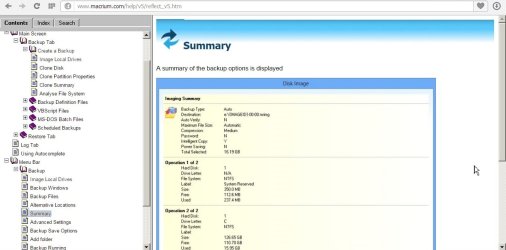
W 7 Forum Macrium Summary page example from manual PS17351.jpg

I never got that far I got confused when I attached my External HDD and did not know for "100% certain" on a new program (Macrium Reflect) what I am doing!

Here are comparative screen shots.... showing my many choices I see the blue line under each of three partitions on the HDD inside the Laptop (I know I can check or uncheck the whole drive or individual partitions within the drive--there are TWO types of checkmarks!! Again not clear no explanation in the tutorial nor in the manual exactly what to do

(Yes the video I know shows checking and unchecking them but I can't ask the guy (whs did it---to stop and explain that better than he did at that point)-------but I have no idea what that changes---no information, no update, I have to send it off to the ACTION part of the program and risk accidentally starting the copying process....see first the 4 screenshots below.....

Screenshots 2 and 3 and 4 (note red arrows on the thin blue line as to what partition of 3 is selected)
and I see the same blue line if I select the External Hard Drive
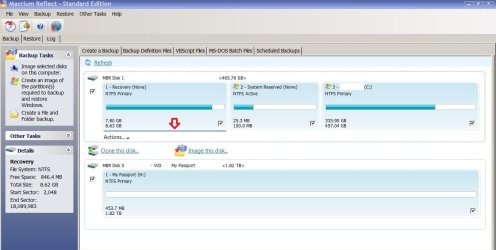
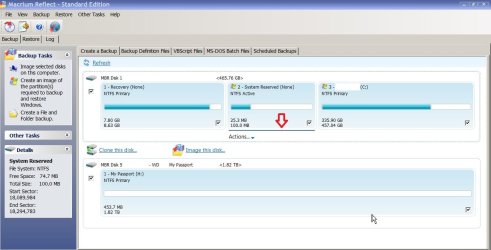
W 7 Forum Macrium Screenshot 2 PS17353.jpg

W 7 Forum Macrium Screenshot 3 PS17354.jpg

W 7 Forum Macrium Screenshot 4 PS17355.jpg

Screenshot 5 ( see the red arrow for the blue line and note the two choices now drop down to this next level..... in the green arrow... for me that is frightening!!! This clicking back and forth ability-----indicates I could copy accidentally in the wrong direction and not realize it , either today or in future!!)
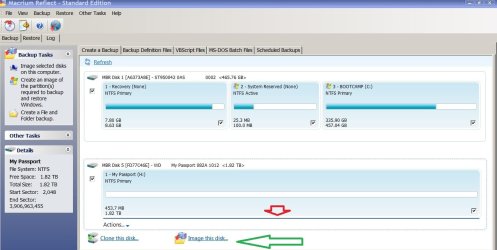
W 7 Forum Macrium Screenshot 5 PS17356.jpg

And I can't tell until I make my irrevocable choice (I don't know what to do if its wrong) which way to go as there is no further screen according to the Instrucitons on online help except the "Summary" screen (Screenshot 1) above... (and press "go etc" to do the process..

I'm just adrift and wondering how to choose and if I want to just do the whole C Drive, I also must do the MBR and System Reserved, but I want them dated and filed until the same folder (I guess I could create one, but again it warns AGAINST changing the names as the system might not recognize them to do a restore!

Remember earlier in my post here I said... "I'm confused"

Well Macrium Help has a page for me... right at the beginning::::::::::::

Here is what they say to do if you are "confused" about what to do:::

Screenshot 6 "confused"
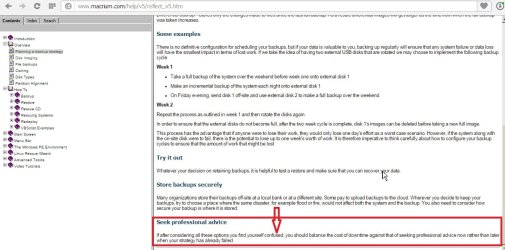
W 7 Forum Macrium Confused PS17343.jpg

SO again I'm reading everything.

Understanding, nothing...

Thanks for reading my writing...

Signing myself today (I can't change my user name)...

as "Confused".......
 
Last edited:

My Computer My Computer

Computer type
Laptop
Computer Manufacturer/Model Number
SONY VAIO VPCS111FM
OS
Windows7 Professional 64bit
CPU
Intel(R) Core (TM) i5 CPU M 430 @2.27 Ghz
Memory
8.0 GB
Hard Drives
Seagate 500GB Momentus
Cooling
Internal fan
Mouse
Logitech bluetooth trackball
Browser
Pale Moon Browser for x64

My Computer My Computer

Computer type
PC/Desktop
Computer Manufacturer/Model Number
Custom Build
OS
Win 7 Ultimate 64 bit
CPU
Intel i7-3930K
Motherboard
ASUS P9X79 WS
Memory
Kingston HyperX Genesis 32GB Kit (8x4GB Modules) 1600MHz DDR
Graphics Card(s)
MSI R7850 Twin Frozr 2GD5/OC Radeon HD 7850 2GB 256-bit GDDR
Sound Card
Asus Xonar Essence STX
Monitor(s) Displays
3x Asus VG248QE 24", Vizio 32" TV
Screen Resolution
1920 x 1080, ?
Hard Drives
Samsung 128GB 840 Pro SSD (1),
Samsung 4TB 850 EVO SSDs (4)
Samsung 4TB 850 EVO SSDs (16) external backup drives used in 2.5" hot swap bays in the computer.
PSU
Corsair HX750w
Case
Antec Two Hundred v2 (modified)
Cooling
Cooler Master GeminII S524 120mm (fan replaced with a 140mm)
Keyboard
Logitech G510s
Mouse
Logitech M525 (two in use)
Internet Speed
=< 32Mbps down, 8Mbps up
Antivirus
AVAST!, MBAM, SAS, Spybot S&D (all but MBAM free) Glary Util
Browser
IE11
Other Info
LSI 9211-8i HBA card (8 SATA III ports), 2.5" & 3.5" Hot Swap Bays, HooToo HT-CR001 PCI-E to USB 3.0 Internal Hub + 6 Slot Card Reader, and LG Model CH12LS28 BD-ROM Optical Drive. Also, ScanSnap S1500 ADF duplexing scanner, Canon 9000F flat bed scanner, Corsair SP2500 2.1 speakers, Samsung CLP 415nw laser color printer, Cyberpower PP2200SW UPS
Thank you for reading me

Hi Lady Fitzgerald:

Thank you for reading my long tedious computer messages.... I know I can't shorten them, just don't have that ability..... I'll try to keep this short and to the point.

1. Yes, I read both items and saw the video.......

2. I clicked on what I think is the proper check boxes...

3. Now its not fear or paranoia, but no matter how carefully I read the manuals, etc... I slowly work, no rushing.... I still make errors.... Its the first time I'm worried about.. got to make sure its going in the right direction (once I have one copy saved, if I mess up and accidentally re-copy that one saved drive back over the existing one, I just lost at most a month/a week or two/ of work... right now, I worry I could lose everything and have empty drive...

4. I used RAID for years.. (yes I read your signature with message about RAID)....

Backup, backup, backup! And RAID is NOT a backup!

I worry only in that I've done these errors over the years, copied wrong stuff to wrong stuff unless I set up automatic backup/ RAID 0, 1 1+0, 6, etc to do it for me.. its a computer.. let it do the work..

That's all.

For now I'll re -read everything and select the top three drives, (Screenshots 2 3 4) and hope that works....

By the way, I'll rep you for this and your reading later, it says I have to still finish doing 10 others before I come back to you again...

Thanks again.
 

My Computer My Computer

Computer type
Laptop
Computer Manufacturer/Model Number
SONY VAIO VPCS111FM
OS
Windows7 Professional 64bit
CPU
Intel(R) Core (TM) i5 CPU M 430 @2.27 Ghz
Memory
8.0 GB
Hard Drives
Seagate 500GB Momentus
Cooling
Internal fan
Mouse
Logitech bluetooth trackball
Browser
Pale Moon Browser for x64
Considering your inability to understand simple directions, you may be better off going to a computer shop to have everything set up for you.
 

My Computer My Computer

Computer type
PC/Desktop
Computer Manufacturer/Model Number
Custom Build
OS
Win 7 Ultimate 64 bit
CPU
Intel i7-3930K
Motherboard
ASUS P9X79 WS
Memory
Kingston HyperX Genesis 32GB Kit (8x4GB Modules) 1600MHz DDR
Graphics Card(s)
MSI R7850 Twin Frozr 2GD5/OC Radeon HD 7850 2GB 256-bit GDDR
Sound Card
Asus Xonar Essence STX
Monitor(s) Displays
3x Asus VG248QE 24", Vizio 32" TV
Screen Resolution
1920 x 1080, ?
Hard Drives
Samsung 128GB 840 Pro SSD (1),
Samsung 4TB 850 EVO SSDs (4)
Samsung 4TB 850 EVO SSDs (16) external backup drives used in 2.5" hot swap bays in the computer.
PSU
Corsair HX750w
Case
Antec Two Hundred v2 (modified)
Cooling
Cooler Master GeminII S524 120mm (fan replaced with a 140mm)
Keyboard
Logitech G510s
Mouse
Logitech M525 (two in use)
Internet Speed
=< 32Mbps down, 8Mbps up
Antivirus
AVAST!, MBAM, SAS, Spybot S&D (all but MBAM free) Glary Util
Browser
IE11
Other Info
LSI 9211-8i HBA card (8 SATA III ports), 2.5" & 3.5" Hot Swap Bays, HooToo HT-CR001 PCI-E to USB 3.0 Internal Hub + 6 Slot Card Reader, and LG Model CH12LS28 BD-ROM Optical Drive. Also, ScanSnap S1500 ADF duplexing scanner, Canon 9000F flat bed scanner, Corsair SP2500 2.1 speakers, Samsung CLP 415nw laser color printer, Cyberpower PP2200SW UPS
I have no idea what you are trying to do. :confused:

I can see why you are confused by this tutorial, as it is showing pictures from Reflect v4.
IMO v4 was laid out better than the current version (v5) and used a Backup/Restore Wizard, which made the procedure basically foolproof.

Reflect v5 has hidden settings and no Backup/Restore Wizard.
The video tutorial shows Reflect v5.

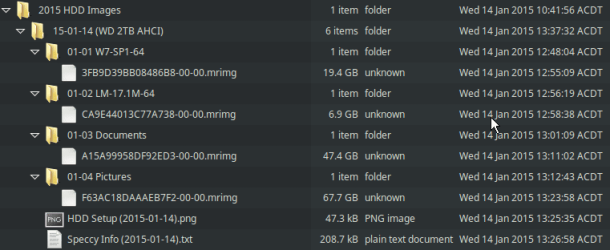
When I create backups with Macrium, I image each partition individually.
I repeat the process until I have created a backup image of each partition (e.g. W7, LM17.1, Documents, Pictures).

I store each image in a separate folder.
MR - Backup Folder Structure.png
(this screenshot is from Caja in Linux Mint 17.1)
I suggest that you try this:

  • Click on "Actions" below the blue line (your screenshot #2)
  • Choose "Image this partition only" from the list
  • Choose a destination folder to store your image in
  • Click "Next"
  • On this screen, you can click on the "Advanced Options" link (bottom left corner). I recommend that you don't change any of the settings, however you may wish to add a comment to your image by choosing "Comment".
  • Click "Finish"
  • In the final popup window, I deselect "Save this backup as a XML Backup Definition File" because of how I label and store my images (see picture above)
  • Click "OK"
  • Repeat the procedure until you have created images of all of your partitions.
I can't post any Macrium Reflect screenshots, as I am using Linux Mint at the moment.

If you are having difficulty, I would suggest that you practice on a spare HDD.
 
Last edited:

My Computer My Computer

Computer type
PC/Desktop
Computer Manufacturer/Model Number
n/a
OS
W7 Ultimate SP1, LM19.2 MATE, W10 Home 1703, W10 Pro 1703 VM, #All 64 bit
CPU
AMD Phenom II x6 1100T, 3.3 GHz
Motherboard
ASUS M4A88T-M/USB3 (AM3)
Memory
12GB DDR3 1333 G-Skill (4GB x 2), G-Skill (2GB x 2)
Graphics Card(s)
NVIDIA GeForce GTX 660
Sound Card
Realtek?
Monitor(s) Displays
Samsung S23B350
Screen Resolution
1920x1080
Hard Drives
WD Green 2TB (SATA), WD Green 3TB (SATA), WD Blue 4TB (SATA), WD Blue 6TB (SATA)
PSU
Cooler Master
Case
Antec GX300 Tower
Cooling
3x Antec TRICOOL 120mm Fans
Mouse
Wired Optical
Internet Speed
DSL
Antivirus
Avast
Browser
Pale Moon (64 bit)
Other Info
2018-12-27 Upgraded HDDs
2015-12-10 Upgraded case, graphics card, storage
2015-08-15 Upgraded motherboard & RAM
2015-07-15 Upgraded LM17.1 to LM17.2
Trying to respond quickly to your post

Hi lehnerus2000!

Thanks for your reply!

I'll answer the last line first....

If you are having difficulty, I would suggest that you practice on a spare HDD.

1. limited funds.... I had to replace my current HDD with Norton Ghosts on it a year old----and this was it.. its a relative's computer---so its their funds (I can't afford one)....

2. Same problem would still occur! If I practiced on a brand new empty HDD, its just what I have and I'm worried that I would copy in the wrong direction! Replacing the Laptop's HDD with the contents of the now Empty New HDD! I guess the computer would fail at some point when Windows 7 registry, etc is replaced by "nothing" during the copying process...

----------------

Back to the rest of your post..

I have no idea what you are trying to do. :confused:

I can see why you are confused by this tutorial, as it is showing pictures from Reflect v4.
IMO v4 was laid out better than the current version (v5) and used a Backup/Restore Wizard, which made the procedure basically foolproof.

Reflect v5 has hidden settings and no Backup/Restore Wizard.

The video tutorial shows Reflect v5.


I think I always saw the v5 one (I read everything---I know there was a v 4 a while ago and I made sure its always v5 I was viewing (whs did the viedo---Lady Fitzgerald reposted it for me in the post 3 above this one) I'm sorry I did not get it earlier when the interface was more intuitive, like Norton Ghost it appears from your screenshot) of it above...

That is why I was directed to Macrium... most people here know it and say it works well. and I need that.... To know it has hidden settings that I cannot access is both good and bad... It means I can't alter them and mess my backups up.... but then again, if something goes wrong, there is no option for "advanced view" to get to those settings and fix things???

Here is the rest of your posting (words only).....


When I create backups with Macrium, I image each partition individually.
I repeat the process until I have created a backup image of each partition (e.g. W7, LM17.1, Documents, Pictures).

I store each image in a separate folder.
View attachment 348671
(this screenshot is from Caja in Linux Mint 17.1)
I suggest that you try this:

  • Click on "Actions" below the blue line (your screenshot #2)
  • Choose "Image this partition only" from the list
  • Choose a destination folder to store your image in
  • Click "Next"
  • On this screen, you can click on the "Advanced Options" link (bottom left corner). I recommend that you don't change any of the settings, however you may wish to add a comment to your image by choosing "Comment".
  • Click "Finish"
  • In the final popup window, I deselect "Save this backup as a XML Backup Definition File" because of how I label and store my images (see picture above)
  • Click "OK"
  • Repeat the procedure until you have created images of all of your partitions.

I can't post any Macrium Reflect screenshots, as I am using Linux Mint at the moment.

Your concept of the separate files is perfect....

I Like it and it appears like my years of Ghost backups appear (ones I can open and scan with Windows Explorer, Preview, etc to make sure/certain that the programs all copied perfectly--not just for size but as much as for content as well).. That is what Norton Ghost used to let me do.... it prompted me to write "a comment" which became my folder name/cover for the save I was doing and it would automatically do it...
I agree with the process... will try (as I told Lady Fitzgerald) checking off the 3 drives (I should have said there one by one as of course this program is not Norton Ghost and I can't seem to image/backup a whole physical "disk 0" location, which would simplify things... (someone here has a signature about keeping things simple).

I will do the three partitions one by one and make enclosing folders so I know they are as of today's date (so I can manually erase them when the HDD gets fuller of backup images..

But it again is that "first" one.... until I'm certain of the system (looked again at the v5 You Tube tutorial by whs..... still uncertain..... the first one either works or it doesn't .... either I get the contents of the HDD saved to the external HDD in a folder...


OR I end up; with the empty HDD being transferred and written over the contents of the HDD inside the laptop----leaving me with zero inside the laptop....

I know all these programs warn you that doing this will "erase all data of the destination drive".... but again I want to be certain I have selected the correct destination drive...

Someone (ignatzatsonic) .... suggested I go and just make a 1:1 non compressed copy of entire HDD C: as it is...

But again I hesitated as even if I did do that... I read about this process and was warned that without copying the MBR, which just copying the "contents" of the HDD seems to not include that by default, only the contents (I had a long long posting about this here: http://www.sevenforums.com/backup-r...use-copy-files-disk-image-still-confused.html

but again there was a mention about how the files must be formally "restored" to make them useful, else they are just files.... so I abandoned that path for the moment as it would not be a true backup in case I destroy my Laptop HDD by inadvertently copying backwards over it.

I'll keep my post short so you can respond... I'm trying to type less---but tis confusing to me, if I force myself to type just less so others would be more likely to read it...

Thanks for reading this!

Thanks for your help!
 
Last edited:

My Computer My Computer

Computer type
Laptop
Computer Manufacturer/Model Number
SONY VAIO VPCS111FM
OS
Windows7 Professional 64bit
CPU
Intel(R) Core (TM) i5 CPU M 430 @2.27 Ghz
Memory
8.0 GB
Hard Drives
Seagate 500GB Momentus
Cooling
Internal fan
Mouse
Logitech bluetooth trackball
Browser
Pale Moon Browser for x64
XP VM User,
I think you do need to keep your posts a bit briefer or else people will just stop responding.
Here are 2 Macrium tutorials you need to keep going over until you understand.
CREATE THE IMAGE:
v5: How to create a disk image (Backup, Image, v5)
RESTORE THE IMAGE:
v5: How to restore a backup image (Restore, v5)
For a system restore go to step 8 and watch the video.

It has been pointed out that you need to create a Macrium restore pe CD and the member WHS (see his tutorial) has a download for this. If you need more info on burning a CD from an ISO then ask. You need to boot from the restore pe CD and make sure you can browse to any image.
 

My Computer My Computer

Computer type
PC/Desktop
Computer Manufacturer/Model Number
Own build
OS
Windows 7x64 Home Premium SP1
CPU
Intel i7 2600k
Motherboard
ASUS P8Z68 Deluxe
Memory
G.Skill Ripjaws (DDR3-1600) 2x4GB
Graphics Card(s)
Nvidia GeForce GTS 450; Intel HD Graphics 3000(GT2+)
Monitor(s) Displays
Dell Ultrasharp IPS panel U2311H, Samsung SyncMaster P2350
Screen Resolution
1920x1080
Hard Drives
Samsung 850 Pro SSD 256GB, Samsung SSD 840 120GB, Seagates 1TB Barracuda ST31000528AS x2
PSU
Seasonic M12II 520W
Case
Lian Li Lancool PC-K60
Cooling
Case: 1x120mm, 3x140mm CPU: Hyper 212+
Keyboard
Logitech MK520 (wireless)
Mouse
Logitech MK520
Internet Speed
6-7 Mbps
Antivirus
Norton Security Premium, Malwarebytes on 2 (MSE on 3rd PC)
Browser
FireFox
Other Info
Audio: Logitech Z523 2.1
Thanks for honest opinion

Hi Lady Fitzgerald!

I'm not trying to be difficult.. I've just had a long history of experiences (like yourself) but many negative ones... I'll be real short..

I did do what you suggested... 1 year ago! when I Norton Ghost program/download files vanished off the Laptop (they could not find it either at both computer stores) (I went to two.. private one..local, and "big box" store where my relative originally purchased the computer)

BOTH of them tried to push onto us their own small branded, "backup program" (none of the ones we have discussed here on Windows Seven Forum---nor on the top ten, etc reviews of computer backup programs on web etc etc) I had no comparisons, no way to evaluate EITHER backup solution presented to me......... only pay their price and we will install the program and it does it for you... I asked if they would do one of the major backup programs that were not Norton Ghost----both said they would "not" do third party program installation as they were pushing their own products! (They have big signs "we install programs $29, so price was right--yet they refused to do backup programs as they had their own competing for higher costs than $29)... They said if they installed a third party they would not help me set it up for backup either.... so I was cast adrift.......

So I was stuck back then and it took me a year to work around to this point consulting with you nice people online as I assume a consensus of opinion was better than one guy in each store's advice....
Got my unfortunate experience?

Thanks for reading it...(Its more complicated than I made it to appear---but trying to type less, so certainly some questions were not answered by my explanation there)....

Thanks all!
 

My Computer My Computer

Computer type
Laptop
Computer Manufacturer/Model Number
SONY VAIO VPCS111FM
OS
Windows7 Professional 64bit
CPU
Intel(R) Core (TM) i5 CPU M 430 @2.27 Ghz
Memory
8.0 GB
Hard Drives
Seagate 500GB Momentus
Cooling
Internal fan
Mouse
Logitech bluetooth trackball
Browser
Pale Moon Browser for x64

My Computer My Computer

Computer Manufacturer/Model Number
HP, Dell, Gateway, Toshiba - 4 laptops and 2 desktops
OS
Vista, Windows7, Mint Mate, Zorin, Windows 8
CPU
from 1.6GHz Duo to i7
Monitor(s) Displays
2x HP w2207
Hard Drives
5x HDD, 7x SSD, 12x Externals
Keyboard
with trackball - no mices
Mouse
Trackball mice
Internet Speed
DSL 6000
If you are having difficulty, I would suggest that you practice on a spare HDD.

1. limited funds.... I had to replace my current HDD with Norton Ghosts on it a year old----and this was it.. its a relative's computer---so its their funds (I can't afford one)....
I realise not every one has spare working HDDs lying around (I don't).

If you create the Macrium PE disc and store your image on a different physical HDD to your OS, then you can physically disconnect your OS HDD and it will be safe from any changes.

If you image an empty drive the file size of the image will be tiny (if not zero).
With the standard Macrium settings your OS image will be ~50% of the size of your actual install.

For example:
My W7 Ultimate (64 bit) + Programs partition is ~34 GB.
My image of that partition is ~18 GB.
 
Last edited:

My Computer My Computer

Computer type
PC/Desktop
Computer Manufacturer/Model Number
n/a
OS
W7 Ultimate SP1, LM19.2 MATE, W10 Home 1703, W10 Pro 1703 VM, #All 64 bit
CPU
AMD Phenom II x6 1100T, 3.3 GHz
Motherboard
ASUS M4A88T-M/USB3 (AM3)
Memory
12GB DDR3 1333 G-Skill (4GB x 2), G-Skill (2GB x 2)
Graphics Card(s)
NVIDIA GeForce GTX 660
Sound Card
Realtek?
Monitor(s) Displays
Samsung S23B350
Screen Resolution
1920x1080
Hard Drives
WD Green 2TB (SATA), WD Green 3TB (SATA), WD Blue 4TB (SATA), WD Blue 6TB (SATA)
PSU
Cooler Master
Case
Antec GX300 Tower
Cooling
3x Antec TRICOOL 120mm Fans
Mouse
Wired Optical
Internet Speed
DSL
Antivirus
Avast
Browser
Pale Moon (64 bit)
Other Info
2018-12-27 Upgraded HDDs
2015-12-10 Upgraded case, graphics card, storage
2015-08-15 Upgraded motherboard & RAM
2015-07-15 Upgraded LM17.1 to LM17.2
Shorter replies!

Hi lehnerus2000:

Concetrating on this part... to keep it short...

You said:
If you image an empty drive the file size of the image will be tiny (if not zero).
With the standard Macrium settings your OS image will be ~50% of the size of your actual install.

So my new WD HDD just has the standard WD programs on it (not erased I just put them in one folder for convenience in finding them again if I should need one of their utilities when Drive gets older---otherwise they are about 500MB? in size, so drive is not "empty".

My question derives from how I understand read/write processes (old knowledge) that it begins from the center of the drive outwards.. the center part being the one that has the MBR on it. (I kept this part from being 10 pages long but my summary may be faulty---I know how it works, can't explain better in one sentence)

So I am worried, that even if I mistakingly copy just "nothing" or 500 MB of programs back into the Laptop HDD, it will begin at the center and record outward, destroying the MBR and ability to use that drive, can't anyone see that? Or is my knowledge of how drives record over data wrong?

Remember----all these programs (see online manual of Macrium) indicate they will "warn you" if they are copying over data! So no matter which way it goes since there is "data" on both drives (500 MB new one, 140 GB on old) I will get the warning... but the screens are not clear as to which way I'm doing the copying------

.............that's the point.... . "the Macrium Summary Screens are not clear as to which way I'm doing the copying over" so accidental erasure of the Source Drive is potentially possible!!! Especially on the first try (after that I should get the hang of things).....

Ending shorter posting here.. leaving other comments for later...

Thanks!
 

My Computer My Computer

Computer type
Laptop
Computer Manufacturer/Model Number
SONY VAIO VPCS111FM
OS
Windows7 Professional 64bit
CPU
Intel(R) Core (TM) i5 CPU M 430 @2.27 Ghz
Memory
8.0 GB
Hard Drives
Seagate 500GB Momentus
Cooling
Internal fan
Mouse
Logitech bluetooth trackball
Browser
Pale Moon Browser for x64
Separate response to spare drives comment

Hi lehnerus2000:

Short response to your

I realise not every one has spare working HDDs lying around (I don't).
If you create the Macrium PE disc and store your image on a different physical HDD to your OS, then you can physically disconnect your OS HDD and it will be safe from any changes.

So while I do have a "spare" drive.... its tied up at the moment almost full (400 GB) with my "one year old" backup of Norton Ghost---I can't access it as no Norton Ghost on this laptop anymore----but for money I'm certain someone can---so its my backup in case everything goes wrong here..... but then I get one chance like I described in prior post to make the error.... if I accidentally erase the whole Laptop HDD (not the whole! one I know but I'll be corrupting at least 500 MB randomly of it and maybe its MBR maybe its the Windows .ini or boot file or whatever, and it does not work after that I need to come up with the money to get the 1 yr old drive replaced back into the Laptop...

Even if I take a chance and that all occurs....

I'm right back here on Forum again... having one backup a year old---- and one inside the Laptop now a year old---lost 1 year of everything done---no backup to it.....

So once I make the backup on the new HDD I can do the same process on the Norton HDD (Smaller one) and make one extra backup I'll always keep detached safely on a shelf away from the Laptop (I usually keep them all detached)

Ok, enough typing!

Thanks for reading this too....
 

My Computer My Computer

Computer type
Laptop
Computer Manufacturer/Model Number
SONY VAIO VPCS111FM
OS
Windows7 Professional 64bit
CPU
Intel(R) Core (TM) i5 CPU M 430 @2.27 Ghz
Memory
8.0 GB
Hard Drives
Seagate 500GB Momentus
Cooling
Internal fan
Mouse
Logitech bluetooth trackball
Browser
Pale Moon Browser for x64
Concerning Post #9 by whs

Re Post #9, for all those following this thread....

Thanks whs for the re-posting of the video... its VERY helpful, no doubt about that... I just have this one concern that the video can't answer not because of your efforts, but because of the nature of the screens and reporting/summary screens of Macrium v5.

I've been told that v4 had a better screen that would have addressed my issue, but I did not get or use the earlier version, so this is my first experience with Macrium, I hope you understand...

So again, for those who may be reading this in the future, please see and use whs' s Posted Links in #9, its really good and helpful in addition to the standard stuff on the Macrium online manual.

I think Lady Fitzgerald edited the link so it shows v5 only now, so no errors in that....

Thanks!
 
Last edited:

My Computer My Computer

Computer type
Laptop
Computer Manufacturer/Model Number
SONY VAIO VPCS111FM
OS
Windows7 Professional 64bit
CPU
Intel(R) Core (TM) i5 CPU M 430 @2.27 Ghz
Memory
8.0 GB
Hard Drives
Seagate 500GB Momentus
Cooling
Internal fan
Mouse
Logitech bluetooth trackball
Browser
Pale Moon Browser for x64
My question derives from how I understand read/write processes (old knowledge) that it begins from the center of the drive outwards.. the center part being the one that has the MBR on it.
No. The MBR is on the first sector, first track for what it matters.
 

My Computer My Computer

Computer type
PC/Desktop
Computer Manufacturer/Model Number
Own build
OS
Windows 7x64 Home Premium SP1
CPU
Intel i7 2600k
Motherboard
ASUS P8Z68 Deluxe
Memory
G.Skill Ripjaws (DDR3-1600) 2x4GB
Graphics Card(s)
Nvidia GeForce GTS 450; Intel HD Graphics 3000(GT2+)
Monitor(s) Displays
Dell Ultrasharp IPS panel U2311H, Samsung SyncMaster P2350
Screen Resolution
1920x1080
Hard Drives
Samsung 850 Pro SSD 256GB, Samsung SSD 840 120GB, Seagates 1TB Barracuda ST31000528AS x2
PSU
Seasonic M12II 520W
Case
Lian Li Lancool PC-K60
Cooling
Case: 1x120mm, 3x140mm CPU: Hyper 212+
Keyboard
Logitech MK520 (wireless)
Mouse
Logitech MK520
Internet Speed
6-7 Mbps
Antivirus
Norton Security Premium, Malwarebytes on 2 (MSE on 3rd PC)
Browser
FireFox
Other Info
Audio: Logitech Z523 2.1
Thank you!

Thank you mjf for the correction.

I got to figure out how to update old knowledge....
 

My Computer My Computer

Computer type
Laptop
Computer Manufacturer/Model Number
SONY VAIO VPCS111FM
OS
Windows7 Professional 64bit
CPU
Intel(R) Core (TM) i5 CPU M 430 @2.27 Ghz
Memory
8.0 GB
Hard Drives
Seagate 500GB Momentus
Cooling
Internal fan
Mouse
Logitech bluetooth trackball
Browser
Pale Moon Browser for x64
I think you confused MBR and MFT which indeed is somewhere in the middle of a partition.
 

My Computer My Computer

Computer Manufacturer/Model Number
HP, Dell, Gateway, Toshiba - 4 laptops and 2 desktops
OS
Vista, Windows7, Mint Mate, Zorin, Windows 8
CPU
from 1.6GHz Duo to i7
Monitor(s) Displays
2x HP w2207
Hard Drives
5x HDD, 7x SSD, 12x Externals
Keyboard
with trackball - no mices
Mouse
Trackball mice
Internet Speed
DSL 6000
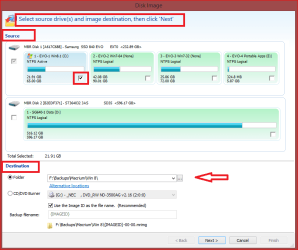
When you create a Backup Image, you select the Source and Destination.
The Source is where you are copying from.
The Destination is where you are copying to.

Every backup program has this basic concept.

Do you understand copy from/to ?

In my screen print example, I am creating a backup image of my Win 8.1 partition (Source) and saving the image to a folder on my Backup HD (Destination) ...

Macrium_01.PNG
 

My Computer My Computer

Computer type
PC/Desktop
Computer Manufacturer/Model Number
home built
OS
Multi-Boot W7_Pro_x64 W8.1_Pro_x64 W10_Pro_x64 +Linux_VMs +Chromium_VM
CPU
AMD Athlon II x4 620
Motherboard
Gigabyte GA-MA785G-UD3H
Memory
6GB GSkill DDR2 800
Graphics Card(s)
AMD 4670 GPU + AMD 4200 IGP
Sound Card
on board Realtek ALC889A
Monitor(s) Displays
RCA 40" LCD TV, Insignia 32" LCD TV, HP 15" LCD monitor
Screen Resolution
1680 x 1050
Hard Drives
OCZ Vertex 3 120GB,
Samsung F3 1TB (3),
Several others - WD, Seagate, Hitachi, ...
PSU
Corsair 500 W
Case
Rosewill mid tower
Cooling
CM 90mm rifle
Keyboard
Gyration wireless, Logitech wireless, Dell USB wired
Mouse
Gyration wireless, Logitech wireless, V7 USB wired
Internet Speed
Spectrum - 100Mbps D / 10Mbps U
Antivirus
Avast, MBAM3, EMET, WinPatrol
Browser
Pale Moon, Firefox, IE
Other Info
2 multi-boot PC's
Mainly HTPC/Office/Gen purpose (no gaming).
Trendnet USB KVM.
LG DVD burner/Blue Ray Player.
Tray system for removable SATA backup drives.

Not currently OCd, under-volted.
I use Hybrid sleep, rarely re-boot or shutdown.

Hauppauge HD-PVR, Avermedia PCIe TV Tuner, Hauppauge PCI TV Tuner.
How old the knowledge is doesn't matter.
If one follows DavidE post #17 the programs does all the work.

Years ago doing a backup took a lot of user input but today the program does the work for you.

You just tell the program to copy this (C)
Put copy of (C) here (F)

In a few minutes (Done)

Don't you just love it.
 

My Computer My Computer

Computer type
PC/Desktop
Computer Manufacturer/Model Number
Home made Desktop
OS
Windows 10 Pro. 64/ version 1709 Windows 7 Pro/64
CPU
Intel i7-6800K @ 4.3
Motherboard
ASUS X-99 Deluxe II
Memory
Corsair Platinum 16 gig @2400
Graphics Card(s)
EVGA GTX 1070 OC
Monitor(s) Displays
Asus 27" LED LCD/VE278Q
Screen Resolution
1920-1080 or 1280-720 HDMI
Hard Drives
INTEL SSD 730-240 Gb Sata 3.0/
PSU
EVGA Platium 1200W
Case
Phanteks Luxe Tempered Glass 8 fans/ one radiator
Cooling
XSPC/ Water Cooled CPU
Keyboard
Das 4 Professional
Mouse
Logitech M705/MX Anywhere 2-S
Internet Speed
100 mbits
Antivirus
Microsoft Security Essentials/ Malwarebytes Premium 3.0/ SAS
Browser
I.E. 11 default/Firefox/ ISP Time Warner Cable/Spectrum
Other Info
LG BluRay Burner/
Sound system-KLipsch-THX/
Icy Dock ssd Hot Swap bays.
Quick reply to Layback Bear before I do others that take longer

Hi Layback Bear!

How old the knowledge is doesn't matter.

Thanks! Makes me feel better (not as old fashioned)....

If one follows DavidE post #17 the programs does all the work.

Yes, I'm responding to his very informative post with many items I'm happy he is showing me so I can comment on the and maybe solve everything...

Years ago doing a backup took a lot of user input but today the program does the work for you.

Yes, I'm aware of this, I've had many versions of Norton Ghost, from a totally DOS line by line entry version to latest v15 where it can be scheduled to do everything in background and just never have to think about it... I've done it all.... just now with Macrium its somehow different than I'm used to.... can't find the items I'm looking for on its screens...=confusing!

You just tell the program to copy this (C)
Put copy of (C) here (F)

In a few minutes (Done)

Yes (hoping others are reading this...Thanks everyone for highly recommending the program, I know its going to work, when I learn how....

Don't you just love it.

Everything but the final "Summary" screen which of course is not my famliar Norton Ghost with a clear "Source Drive" "Target Drive" in the summary....
Maybe you're not seeing what I see... I will go over DavidE's presentation and describe it better. HOPEFULLY I'll type shorter so everyone can read it and help.


Thanks again (I think I have to wait for 10 other reps to do yours again, but I'll record this number post and come back later to it)
 

My Computer My Computer

Computer type
Laptop
Computer Manufacturer/Model Number
SONY VAIO VPCS111FM
OS
Windows7 Professional 64bit
CPU
Intel(R) Core (TM) i5 CPU M 430 @2.27 Ghz
Memory
8.0 GB
Hard Drives
Seagate 500GB Momentus
Cooling
Internal fan
Mouse
Logitech bluetooth trackball
Browser
Pale Moon Browser for x64
Sorry it turned into a longer posting when I used all your quoted word

Hi DavidE:

Thanks for your very clear presentation..

I'll keep it short (may mean you don't get the point of my comments, but that is what happens when I type shorter/edited material)

You said: and posted screen shot images:

When you create a Backup Image, you select the Source and Destination.
The Source is where you are copying from.
The Destination is where you are copying to.

Every backup program has this basic concept.

Of course I understand... Been doing it for decades now that way....

Do you understand copy from/to ?

Yes, I know how to do most of the computer tasks (manual and automated, clipboard too if that is what you mean here)

In my screen print example, I am creating a backup image of my Win 8.1 partition (Source) and saving the image to a folder on my Backup HD (Destination) ...

NO problem I get it.... But on my example... I have one check box to the left of the "DISK 0" [your Disk 1 in screenshot ] just like you do... and each of the boxes under each one of the partitions I have checked to make copies too...

But what totally throws me here...

Is that no where on that diagram do you see (visually or otherwise) the mysterious "F" Drive (I assume its your external HDD somewhere) that all of this is going to !

That is what concerns me....

Especially when I have not gone beyond that back and forth early screens as the Summary Screens I get are confusing as to whether it is the Source Drive I'm copying FROM

Or is it the SOURCE Drive I'm copying TO!

I know I can check off what the little boxes and blue underline (see my own Screenshots 2,3,4 earlier in Post # 1 )

I know I can do click on to next screen...

But what I clicked on and what I read are confusing me...

I wish it had a summary screen with more clarity (Like I saw in v 4 no longer available).

That is closer to my older Norton Ghost Summary Screen... which clearly indicated not only where everything was coming FROM but exactly where it was going TO

and due to its advanced techniques, it gave me hours to completion before I press the "ACTION/GO" button that sets it in motion..

This is not occurring here... if I see 10 seconds time, I'd know before I press the button that somewhere I messed it up and copying over just a few MB from almost empty drive as the INCORRECT SOURCE DRIVE to the INCORRECT TARGET drive is going to take shorter time than the real 470 GB drive would....

Ok, stopping to see what you think of that....

Thanks again (I'm certain your explanations here will help others trying to do this too so its definitely excellent... I just needed some more confirmation from the program) not somthing you can do without reprogramming it!)

I'm going to do it...

after these threads are completed...

just figuring out what is the first one I do....

Thanks.
 
Last edited:

My Computer My Computer

Computer type
Laptop
Computer Manufacturer/Model Number
SONY VAIO VPCS111FM
OS
Windows7 Professional 64bit
CPU
Intel(R) Core (TM) i5 CPU M 430 @2.27 Ghz
Memory
8.0 GB
Hard Drives
Seagate 500GB Momentus
Cooling
Internal fan
Mouse
Logitech bluetooth trackball
Browser
Pale Moon Browser for x64
Back
Top