Solved Macrium Reflect Pro

huffman

New member
Pro User
Local time
1:25 AM
Messages
715
I have installed Macrium Reflect Pro to take advantage of being able to backup not only drives (or partitions) but also Folders and Files.

When I created an image of my OS drive (C), with compression set to medium, the original size was 20.2gb and the compressed file was 7.23. The ratio is 35.8%. Does that seem fairly reasonable?

When using the Folder and File option shown below:
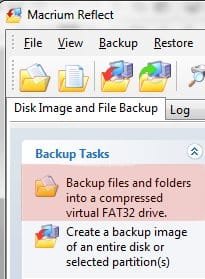
mac1.jpg

NOTE it say it "will compress to a virtual FAT32 drive". I am not sure exactly what this means and what I would get if I had to restore it. I would appreciate it if someone can enlighten me on this.

Before I made the image, I took ownership of the folder and set permissions to maximum. I also made sure that I was showing Hidden Files and Folders.
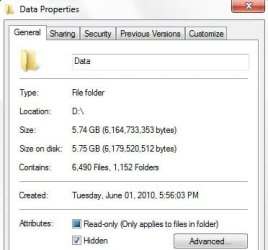
mac2.jpg

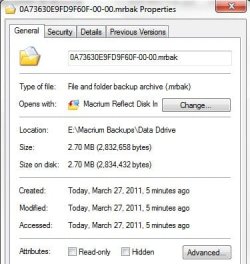
mac3.jpg

Note the folder size is 5.74 gb before compression and the compressed image is 2.70 mb. The compression was set to medium as before and the ratio of compression is .04%. This seems very unrealistic to me. I would have expected the ratio to be 35-50%.

I was wondering if anyone else using the pro version had sees this a typical.

Thank You.
 

My Computer

OS
Windows 7 Pro
CPU
Intel(R) Pentium(R) Duel CPU E2200 2.20 Ghz
Motherboard
GA-G41M-ES2L
Memory
4 gb 2.96 Usable
Graphics Card(s)
Onboard
Sound Card
Onboard
Hard Drives
2 - 1TB WD Sata Drives
Hi Huffman. It's early morning and my math. might be off but - going from 5.74gb to 2.70gb appears to be 47%.

Am I missing something.

Cheers
JohnnyA
 

My Computer

Computer Manufacturer/Model Number
Toshiba C650
OS
Windows Home Premium 64bit
CPU
T61-- 2.0ghz
Motherboard
Toshiba
Memory
4 GB
Graphics Card(s)
On board
Sound Card
On board
Monitor(s) Displays
15.6"
Hard Drives
500 GB
Sorry about the typo. The size went from 5.74 gb to 2.70mb which is .04%
 

My Computer

OS
Windows 7 Pro
CPU
Intel(R) Pentium(R) Duel CPU E2200 2.20 Ghz
Motherboard
GA-G41M-ES2L
Memory
4 gb 2.96 Usable
Graphics Card(s)
Onboard
Sound Card
Onboard
Hard Drives
2 - 1TB WD Sata Drives
...
NOTE it say it "will compress to a virtual FAT32 drive". I am not sure exactly what this means and what I would get if I had to restore it. I would appreciate it if someone can enlighten me on this.
...

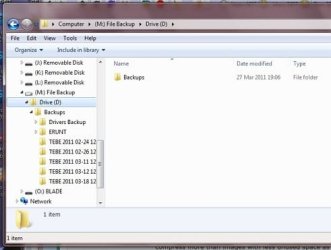
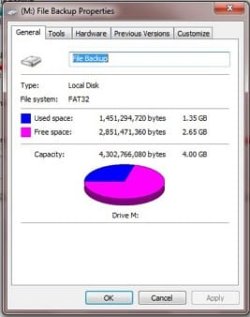
this is for a file & folder backup, not an image. you can restore individual files or folders to their original locations en-mass, or you can mount the backup as if it were a real fat32 hard disk with it's own unique drive letter, and copy the files individually using the normal windows copy/move from there to wherever you wanted. this is most useful for your data and documents, program installers, images, music, videos etc that are not protected system files. it appears to be a fat32 disk, so does not retain the extended file & folder attributes of ntfs if the original backed up location was ntfs. using this is like copying files to a fat32 disk from an ntfs disk and later back again, with the same loss of security info. it is limited, but will be smaller than an entire image as you can set it to only back up the items you change regularly. attached below is my file and folder backup of my D: drive's backup folder, mounted as drive M:, along with it's 'drive' properties
Capture 000.jpg Capture 001.jpg
the 'used' space corresponds to the backup file size, where the extra free space comes from i don't know...you can't copy TO it, it appears to be right protected.

the other option produces an image of the entire disk or partition that can be used to restore the entire disk in one shot, along with the system files, boot items, and security permissions that the file & folder backup cannot. it sets your system back to exactly like it was at the time of backup. it too can be mounted as if it were a hard disk and you can use the std. windows utilities to copy individual files in that mode it cannot restore locked system files. it will appear formatted as whatever format the original source disk was formatted in, ie. in my case, ntfs. & retain all the extended attributes and security of the original source.

the compression depends on what you are backing up, images of a 100gb disk with a lot of unused space will compress more than images with less unused space as macrium effectively does not back up the free space, page file, hyberfile; it just backs up the actually used bits. erased data in erased free sectors is not backed up or restored.

you can however set it to do a bit by bit backup which will backup the free space, hyberfile, pagefile, recycle bin, remnants of erased files and erased mft entries, etc. as well. this will result in a larger image with less apparent compression. it's like a forensic copy, you could use recovery tools to recover erased files & look at old un-overwritten data in erased disk sectors.
 

My Computer

Computer type
PC/Desktop
Computer Manufacturer/Model Number
Custom build Nanu by 3SX
OS
Win 7 ultimate x64 sp1
CPU
Intel i7 4 core 3770k ivy bridge o/c to 4.2ghz
Motherboard
Asus p8z77-i Deluxe
Memory
16 GB
Graphics Card(s)
Nvidia geforce GTX650
Sound Card
Realtek on mb
Monitor(s) Displays
24in. lcd/led
Screen Resolution
1920x1080
Hard Drives
128GB Kingston SSD
500GB seagate maximus xt hybrid
500GB hitachi HD
500GB external WD Passport usb3
PSU
Silverstone 450 watt
Case
Silverstone FT03 Black Fortress
Cooling
Water cooler
Keyboard
Logitech wireless kbd/mouse mk300
Mouse
Logitech wireless kbd/mouse mk300
Internet Speed
8mb adsl (actuall speed is around 6mb)
Other Info
Asus DSL-N55U wireless router
SONY BC-5850H 6X BLURAY writer
OUTPOST Security Suite
You can also recover individual file from the image backup by right clicking on the image and selecting explore. It mounts the image and assigns a drive letter to it and opens it with explorer. You can then copy any file you want.
 

My Computer

Computer type
Laptop
Computer Manufacturer/Model Number
Hewlett-Packard/G62-107SA Notebook
OS
Microsoft Windows 7 Home Premium 64-bit Service Pack 1
CPU
Intel(R) Core(TM) i3 CPU M 330 @ 2.13GHz
Motherboard
Hewlett-Packard 1425
Memory
8 GB DDR3
Graphics Card(s)
Intel(R) HD Graphics
Sound Card
Realtek High Definition Audio
Monitor(s) Displays
Builtin
Screen Resolution
1366 x 768 x 32 bits (4294967296 colors) @ 60 Hz
Hard Drives
250 GB SATA Hard Disk Drive 7200 rpm
2TB Seagate GoFlex USB 2 Drive
1TB Iomega Prestige USB 2 Drive
1.5TB Iomega Prestige USB 2 Drive (Samsung)
2TB WD MyBook Live NAS.
Mouse
Logitech Anywhere MX
Internet Speed
152 Mbs download 10 Mbs upload
Antivirus
Norton 360
Browser
Chrome
This has all got my head spinning.

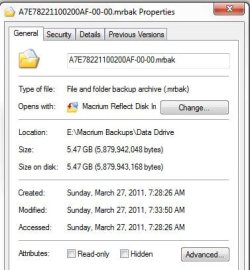
I think I have finally got Macrium to make a reliable image of a Data Folder with Properties shown below.

mac4.jpg

Note there is NO compression.

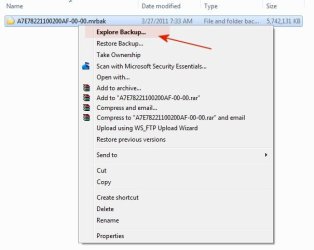
If I right-click on the file, here are my options:

mac5.jpg

Since I would want to restore the whole file at once, I believe selecting "Restore Backup" would be the best selection. Still not completely sure of that.

If I select "Explore Backup" here is what I see:

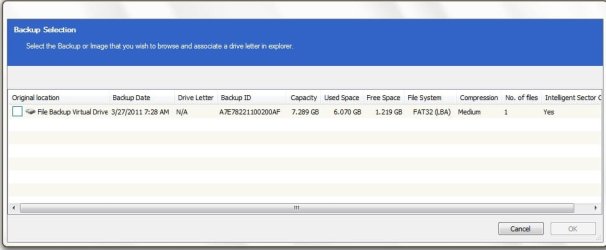
mac6.jpg

If I read the responsed correctly, then I can check the "Original Location" box and restore any file within the image. Again I need clarification of this.

:D I really did not mean for this to become so complicated.

A couple more notes. I created the Rescue Disk for Macrium and booted to it.

It does see the Image made for my OS partition but NOT the image made for the Data folder. The confusing thing is that the partitions (2 HDD's with 3 partitions each) are scrambled. This makes it really difficult to as to where to restore the OS partition image to.

If I disconnect the secondary HDD, then make the image I am not sure this will happen. I do think to restore the image would require disconnecting the secondary HDD each time if I go this route. This is not something I wanted to have to do.
 

My Computer

OS
Windows 7 Pro
CPU
Intel(R) Pentium(R) Duel CPU E2200 2.20 Ghz
Motherboard
GA-G41M-ES2L
Memory
4 gb 2.96 Usable
Graphics Card(s)
Onboard
Sound Card
Onboard
Hard Drives
2 - 1TB WD Sata Drives
1. You only need to use the explore option if you want to restore part of the file backup.
2. The compression won't show on the properties as it's not Windows compression.
3. With the explore option check the box will assign a drive letter and open Windows Explorer on the drive.
4. Rescue disks always assign new drive letters. You can usually Id the one you want from the partition name and the size. The folder backup doesn't need to be in the rescue disk. Only the image restore needs to be done from the rescue disk because you can't restore an image to an active system. The folder restore can be done from within Windows.

Hope this helps. please come back if you have further questions
 

My Computer

Computer type
Laptop
Computer Manufacturer/Model Number
Hewlett-Packard/G62-107SA Notebook
OS
Microsoft Windows 7 Home Premium 64-bit Service Pack 1
CPU
Intel(R) Core(TM) i3 CPU M 330 @ 2.13GHz
Motherboard
Hewlett-Packard 1425
Memory
8 GB DDR3
Graphics Card(s)
Intel(R) HD Graphics
Sound Card
Realtek High Definition Audio
Monitor(s) Displays
Builtin
Screen Resolution
1366 x 768 x 32 bits (4294967296 colors) @ 60 Hz
Hard Drives
250 GB SATA Hard Disk Drive 7200 rpm
2TB Seagate GoFlex USB 2 Drive
1TB Iomega Prestige USB 2 Drive
1.5TB Iomega Prestige USB 2 Drive (Samsung)
2TB WD MyBook Live NAS.
Mouse
Logitech Anywhere MX
Internet Speed
152 Mbs download 10 Mbs upload
Antivirus
Norton 360
Browser
Chrome
it seems like you might benefit from reading macrium's on line tutorials <-linky

the xplore backup image picture in your last post allows you to select which backup from many (you have only one so far) you wish to explore. it will when ok'd allow you to select a drive letter from those not yet in use, and it will mount the back up as if it were a hard disk. you can then copy files from it as you would from any real hard disk. when done you should use the menu option to detach the image.

windows can wind up with multiple hard disk partitions, not necessarily in alphabetical order on their assigned drive letters. sounds like you need a more intense understanding of partitioning, and how windows boots from them. in general, you need to restore a partition image to the same partition it came from originally.

edited:
i see kado posted as i was typing this. GMTA, so there is some overlap. ;)
 

My Computer

Computer type
PC/Desktop
Computer Manufacturer/Model Number
Custom build Nanu by 3SX
OS
Win 7 ultimate x64 sp1
CPU
Intel i7 4 core 3770k ivy bridge o/c to 4.2ghz
Motherboard
Asus p8z77-i Deluxe
Memory
16 GB
Graphics Card(s)
Nvidia geforce GTX650
Sound Card
Realtek on mb
Monitor(s) Displays
24in. lcd/led
Screen Resolution
1920x1080
Hard Drives
128GB Kingston SSD
500GB seagate maximus xt hybrid
500GB hitachi HD
500GB external WD Passport usb3
PSU
Silverstone 450 watt
Case
Silverstone FT03 Black Fortress
Cooling
Water cooler
Keyboard
Logitech wireless kbd/mouse mk300
Mouse
Logitech wireless kbd/mouse mk300
Internet Speed
8mb adsl (actuall speed is around 6mb)
Other Info
Asus DSL-N55U wireless router
SONY BC-5850H 6X BLURAY writer
OUTPOST Security Suite
Again thanks for the responses.

kronckew the tutorials were helpful as far as creating images but never got into restoring them.

I am going to try a couple different things including disconnecting my secondary HDD. I believe that will help in Macrium seeing the partitions as they truely are.

I know I can use the built-in imager to do both a full partition image and "Files and Folder" image. This may be the best way to go anyway.

I will muddle through this one way or another :D.
 

My Computer

OS
Windows 7 Pro
CPU
Intel(R) Pentium(R) Duel CPU E2200 2.20 Ghz
Motherboard
GA-G41M-ES2L
Memory
4 gb 2.96 Usable
Graphics Card(s)
Onboard
Sound Card
Onboard
Hard Drives
2 - 1TB WD Sata Drives
To bring this to a conclusion, here is what I decided to do.

I have used the built-in imager in Windows 7 and created an image onto an external HDD. I have the repair disk made should the HDD fail.

I have also made an image using Macrium to the external HDD. The rescue disk has been made for Macrium.

Instead of trying to image data folders I decided it was just as easy and quicker to copy the data folders I wanted to be able to back up to the external HDD.

I tested the Macrium Rescue Disk with only a single HDD and found it still scrambles the Partitions, but I believe I can determain what goes where.

I now have a backup system that I have confidence in and plan to use.

Thanks for all the help.
 

My Computer

OS
Windows 7 Pro
CPU
Intel(R) Pentium(R) Duel CPU E2200 2.20 Ghz
Motherboard
GA-G41M-ES2L
Memory
4 gb 2.96 Usable
Graphics Card(s)
Onboard
Sound Card
Onboard
Hard Drives
2 - 1TB WD Sata Drives
Back
Top