"Mail to" shortcut in Send To context menu fails command line argument

stuckatwork

New member
Local time
6:40 PM
Messages
3
"Mail to" shortcut in Send To context menu fails command line argument

Hi All,

Previous PC was an XP and we had a shortcut within the Send To context menu called "Mail To" which when clicked on a file would open a new email with the file attached and with the default email (as done from within Outlook), not the crappy text "mail recipient" one that is standard in the Send To context menu.

The target string in the shortcut was
"C:\Program Files\Microsoft Office\Office11\OUTLOOK.EXE" /c ipm.note

When trying to set up the same shortcut in Win 7 using the same string (but with Office14) we get an error which states. "The command line argument is invalid. Verify the switch you are using."
"C:\Program Files\Microsoft Office\Office14\OUTLOOK.EXE" /c ipm.note

If I navigate to the SendTo folder and double click the shortcut, it works. It opens up a new email as if I click New E-mail from within Outlook. But when selecting via the context menu, it fails everytime.

What can we do to fix this? We have to email a lot of files manually and opening a new email then attaching(or even drag/drop takes a lot of extra time.

Thanks for any advice.
 

My Computer My Computer

At a glance

Win 7 Enterprise 32bit
OS
Win 7 Enterprise 32bit
Hello StuckatWork, and welcome to Seven Forums.


Double check in Default Programs to make sure that Microsoft Outlook is set as the default email client.

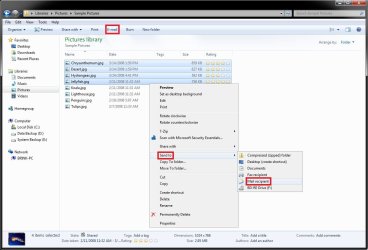
Are you able to select the files you want to attach and click on the E-mail command bar button for this to work that way instead?

explorer.jpg

Hope this helps,
Shawn
 

My Computer My Computer

At a glance

64-bit Windows 11 Pro for WorkstationsIntel i7-8700K OC'd to 5 GHz64 GB (4x16GB) G.SKILL TridentZ RGB DDR4 3600...ASUS ROG-STRIX-GTX1080TI-O11G-GAMING
Computer type
PC/Desktop
Computer Manufacturer/Model Number
Self built custom
OS
64-bit Windows 11 Pro for Workstations
CPU
Intel i7-8700K OC'd to 5 GHz
Motherboard
ASUS ROG Maximus XI Formula Z390
Memory
64 GB (4x16GB) G.SKILL TridentZ RGB DDR4 3600 MHz
Graphics Card(s)
ASUS ROG-STRIX-GTX1080TI-O11G-GAMING
Sound Card
Integrated
Monitor(s) Displays
2 x Samsung Odyssey G7 27"
Screen Resolution
2560x1440
Hard Drives
1TB Samsung 990 PRO M.2,
4TB Samsung 990 PRO PRO M.2,
TerraMaster F8 SSD Plus NAS
PSU
Seasonic Prime Titanium 850W
Case
Thermaltake Core P3
Cooling
Corsair Hydro H115i
Keyboard
Logitech wireless K800
Mouse
Logitech MX Master 4
Internet Speed
2 Gb/s Download and 100 Mb/s Upload
Antivirus
Malwarebyte Anti-Malware Premium
Browser
Google Chrome
Other Info
Logitech Z625 speaker system,
Logitech BRIO 4K Pro webcam,
HP Color LaserJet Pro MFP M477fdn,
APC SMART-UPS RT 1000 XL - SURT1000XLI,
Galaxy S23 Plus phone
Hi Brink Shawn,
and thank you for your welcome.

Yes, Outlook is the default. It's the only client we use.

Yes we can use the E-mail command bar button that you have shown in your image. That is the one I termed the crappy text Mail recipient one. It doesn't look very professional by any standards.

Here's the one we have created showing it in the menu.

emailcontextmenu.jpg
 

My Computer My Computer

At a glance

Win 7 Enterprise 32bit
OS
Win 7 Enterprise 32bit
I found this last post at the link below that should work as a workaround for you.
You would basically just create a .vbs file with the code below, and save it somewhere (ex: C:\Windows). Create a shortcut of the .vbs file with the name and icon you want, and move that shortcut into Send to. When you change the icon of the shortcut, you would browse to the same "C:\Program Files\Microsoft Office\Office14\OUTLOOK.EXE" path for the Outlook icon.


(create VBS file with this)
Code:
On Error Resume Next
Set App = GetObject(, "Outlook.Application")
If Err <> 0 Then Set App = CreateObject("Outlook.Application")
Set AppItem = App.CreateItem(0)
 
If WScript.Arguments.Count > 0 then
For FileName = 0 to (WScript.Arguments.Count - 1)
AppItem.Attachments.Add WScript.Arguments(FileName)
Next
 
AppItem.Display
End If
 
Set App = Nothing
Set AppItem = Nothing
 

My Computer My Computer

At a glance

64-bit Windows 11 Pro for WorkstationsIntel i7-8700K OC'd to 5 GHz64 GB (4x16GB) G.SKILL TridentZ RGB DDR4 3600...ASUS ROG-STRIX-GTX1080TI-O11G-GAMING
Computer type
PC/Desktop
Computer Manufacturer/Model Number
Self built custom
OS
64-bit Windows 11 Pro for Workstations
CPU
Intel i7-8700K OC'd to 5 GHz
Motherboard
ASUS ROG Maximus XI Formula Z390
Memory
64 GB (4x16GB) G.SKILL TridentZ RGB DDR4 3600 MHz
Graphics Card(s)
ASUS ROG-STRIX-GTX1080TI-O11G-GAMING
Sound Card
Integrated
Monitor(s) Displays
2 x Samsung Odyssey G7 27"
Screen Resolution
2560x1440
Hard Drives
1TB Samsung 990 PRO M.2,
4TB Samsung 990 PRO PRO M.2,
TerraMaster F8 SSD Plus NAS
PSU
Seasonic Prime Titanium 850W
Case
Thermaltake Core P3
Cooling
Corsair Hydro H115i
Keyboard
Logitech wireless K800
Mouse
Logitech MX Master 4
Internet Speed
2 Gb/s Download and 100 Mb/s Upload
Antivirus
Malwarebyte Anti-Malware Premium
Browser
Google Chrome
Other Info
Logitech Z625 speaker system,
Logitech BRIO 4K Pro webcam,
HP Color LaserJet Pro MFP M477fdn,
APC SMART-UPS RT 1000 XL - SURT1000XLI,
Galaxy S23 Plus phone
I'm back again, as this is still bugging me a bit.

Thanks for you advice Shawn much appreciated, and it does what we are after, if a just tad clunky.

At the moment the email goes to the taskbar and we have to click it to bring it up so we can type in it. Is there a way that we can make the newly created email the active window. I know nothing of scripts and have tried googling for it but cannot find the command.

if anyone could help, that would be great.
 

My Computer My Computer

At a glance

Win 7 Enterprise 32bit
OS
Win 7 Enterprise 32bit
Back
Top