
Make bootable iso from student d/l

How to Create a Bootable ISO from a Student Windows 7 Download


If you get the student d/l and have 3 files :


Here's how:

1. Rt click each file, Properties > Unblock>Apply>OK.
NOTE: Make sure read only boxes are clear.

2. Rt click and run as admin on the .exe. You will get a folder called expandedsetup on your dektop with these inside:
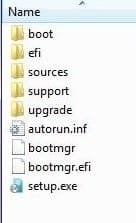
EXPANDEDSETUPCONTENTS-2009-10-22_061340.jpg
   Note

If you receive this error:

We are unable to create or save new files in the folder in which this application was downloaded. Please check the folder properties to make sure that you have security permission on the folder to write files and that the folder is not read-only.

Continue.


3. D/L this zip, extract it and copy/move oscdimg.exe into C:\Windows\system32.
View attachment oscdimg.zip
4. Assuming expandedsetup is on your Desktop:

Vista/7 users open an elevated command prompt ( rt click cmd and run as admin) and type :

Code:
Oscdimg.exe –u2 –b"C:\Users\your_username\Desktop\expandedSetup\boot\etfsboot.com" –h "C:\Users\your_username\Desktop\expandedSetup" C:\7.iso


XP users commands are:

Code:
cd /d C:\windows\system32


Code:
oscdimg -u2 -b"C:\Documents and Settings\USER\Desktop\expandedSetup\boot\etfsboot.com" -h "C:\Documents and Settings\USER\Desktop\expandedSetup" C:\7.iso


5. You can copy and paste the above into elevated cmd.

Vista/7 users- replace your_username with your actual username.

XP users - replace USER with your actual username

6. Then press enter. Xp users press enter after each of their two commands.

7. If the expandedsetup folder is not on your desktop, replace with appropriate paths.

   Tip
You may wish to copy the expandedsetup folder directly onto the root of C:

The paths will be shorter and the command will be:

Code:
Oscdimg.exe –u2 –bC:\expandedSetup\boot\etfsboot.com –h C:\expandedSetup C:\7.iso

If your folder is elsewhere, to get the paths easily, press shift and rt click on etfsboot.com - select copy as path ( paste into notepad )

Shift and rt click on expanded setup - select copy as path - paste into notepad ) Use those instead of the above.

The spacing needs to be exact.
   Warning
When the .iso is created you will get this message:

WARNING: This image contains UDF file system structures.

That is normal as you are creating the udf filesystem.


8. A) You can burn the .iso to dvd as an image with an isoburner.
View attachment isoburner.zip
OR

B) You can use the Microsoft DVD/USB tool to burn the .iso to dvd or to use the .iso to make a bootable flash drive. Download the tool:
View attachment Windows7-USB-DVD-tool.exe
   Tip
To make a copy of your Windows 7 ISO file:

1. Click the Start button, and click Windows 7 USB/DVD Download tool in the All Programs list to open the USB/DVD Download tool.
2. Click Browse and select the file in the Open dialog box.
3. Select USB to create a copy on a USB flash drive or DVD to create a copy on a DVD disk, then click Next.
4. If you are copying the file to a USB flash drive, select your USB device in the dropdown list and click Begin copying. If you are copying the file up to a DVD, click Begin burning.

Microsoft Store: Download Manager Help

   Note

Microsoft’s ISO Image for Windows 7 Now Available

There is additional information regarding the Windows 7 64-bit download process. For those customers of the Student Offer, who wish to install the 64-bit version of Windows 7, but are currently running a 32-bit Operating System, there is now an optional downloadable ISO file of Windows 7 64-bit to allow for install.

- If you have already purchased the 64-bit version of Windows 7 from the Windows 7 Student Offer Online Store, please contact Digital River at the following link: http://windows7.digitalriver.com/servlet/PromoServlet/promoID.46354000
· In the Web form select the Download Option in the drop down menu and include "64-bit Windows 7 Solution" in the first line of your problem description.


Have fun.


Last edited by a moderator:
I downloaded XP 32-bit on to my Windows XP PC (student upgrade), used the fantastic instructions above to create the ISO via oscdimg. After burning the image to DVD, I inserted it into my laptop that had Windows Vista Home Basic (OEM).

Booted straight from the DVD (not inside the OS), and selected the clean install route. When prompted, I opted to delete the partition which had Vista, and clean-installed on to that partition.

I entered the product key when requested, and it was accepted. Once Win7 was set up, I activated it and all is fine....

It's all been pretty straightforward.......
 

My Computer

OS
Various
You cannot format the partition that vista(or xp) is on while installing. If you format your key will not work as it does not see it as an upgrade if there is no OS on the hard disk.

So now I have to reinstall vista then try again. Problem is I cannot get my vista OS disc to boot (its a gateway OEM OS disc) Every time it boots it just brings me to the serial key screen for windows 7 and my key does not work so I'm stuck.


I have now formatted drives during the install from both a windows xp 32 and a vista 32 machine (in each case going to a windows 7 64 install) and the upgrade key worked fine both times.

I don't have an oem xp/vista key to try upgrading from but I would be surprised if that results in a different outcome. I suspect that your problems are unrelated to formatting the drive (either your key is bad or you formatted outside of the install program).

With respect to your current situation you should be able to force the machine to boot from the cd in the bios (e.g. set the boot order so that the cd is first) and then reinstall vista.
 

My Computer

OS
Windows 7
Ok I followed the first post, I got the unpacking error due to having xp 32 bit, but I continued, I was able to burn an iso dvd, it booted from the dvd loaded setup files, had the little windows logo pop up and then changed to a blue screen with the cursor on it but thats as far as it goes, I can move the mouse around and thats it. Anyone else having this issue? I have burned the iso on 3 dvd to see if that was the problem but its the same thing. Any one?

I'm having the same problem:confused:
 

My Computer

OS
xp
Ok I followed the first post, I got the unpacking error due to having xp 32 bit, but I continued, I was able to burn an iso dvd, it booted from the dvd loaded setup files, had the little windows logo pop up and then changed to a blue screen with the cursor on it but thats as far as it goes, I can move the mouse around and thats it. Anyone else having this issue? I have burned the iso on 3 dvd to see if that was the problem but its the same thing. Any one?

I have the same... only difference is I've burnt 4 disks

Any advice would be gratefully received....

Cheers...
 

My Computer

OS
xp
actually now...

I have used 4 now as well, lol this is such a pain in the ass, leave it to microsoft to not properly test
 

My Computer

OS
XP
I seem to have a slightly different problem, whereas I can't even get to the progress bar. The moment I double-click the exe file when it's downloaded, I immediately get the message

Unloading the Box

The application cannot find one of its required files, possibly because it was unable to create it in the folder. Please make sure that the folder in which this application was downloaded is accessible and not read only.

I've now tried this on all 5 disks connected to my computer (My Samsung RAID array, my 320GB internal SATA drive, my 80GB Windows 7 RC drive, and my 1TB and 120GB external drives and none work) and nothing is set to be read only.

In upgrading from Vista Ultimate 64-bit SP2 to Windows 7 Professional x64, but the unpacking fails whether I do it on 7 or Vista.

One thing I can see as being wrong is that while my exe file and setup2.box files are roughly the right sizes, my setup2.box file seems to be almost twice the size everyone else seems to have, the file itself being 5.5GB.

Any help greatly appreciated!
 

My Computer

OS
Windows 7
CPU
Intel Core 2 Quad Q6600 B3
Motherboard
ASUS P5N32-E SLI
Memory
4GB OCZ ReaperX
Graphics Card(s)
Palit GeForce GTX275
Sound Card
Creative X-Fi
Monitor(s) Displays
Dell 20" LCD, HP 20" LCD
Hard Drives
4 drives totalling 3TB (inc. 1.5TB RAID Array)
PSU
Antec TruPower Trio TP3-650
Case
Antec 900
Cooling
Arctic Cooling Freezer 7 Pro
Ok I'm in a funky situation right now. I'm on XP 32 and one of my HD's in my raid 5 setup had an error so now the raid is degraded. If I have to install 7 on top of XP, I would have to rebuild the array, then on top of that, boot off the dvd and do a custom install? I just want to verify.
 

My Computer

OS
Win 7 64bit
One thing I can see as being wrong is that while my exe file and setup2.box files are roughly the right sizes, my setup2.box file seems to be almost twice the size everyone else seems to have, the file itself being 5.5GB.

Can you open it up and see what's in there?

Try Uniextract - Universal Extractor | LegRoom.net
 

My Computers

System One System Two

  • Computer type
    PC/Desktop
    OS
    7 X64
    CPU
    i5 8400
    Motherboard
    gigabyte b365m ds3h
    Memory
    2x8gb 3200mhz
    Hard Drives
    various
    PSU
    pure power 11 400w cm
    Case
    Coolermaster
    Cooling
    cryorig m9i
  • Computer type
    PC/Desktop
    OS
    7x64
    CPU
    g5400
    Motherboard
    ga b365m ds3h
    Memory
    8gb ddr4 2400
    PSU
    xfx pro 450w
One thing I can see as being wrong is that while my exe file and setup2.box files are roughly the right sizes, my setup2.box file seems to be almost twice the size everyone else seems to have, the file itself being 5.5GB.

Can you open it up and see what's in there?

Try Uniextract - Universal Extractor | LegRoom.net

I try and open it up and it says the .box file extension isn't supported.
 

My Computer

OS
Windows 7
CPU
Intel Core 2 Quad Q6600 B3
Motherboard
ASUS P5N32-E SLI
Memory
4GB OCZ ReaperX
Graphics Card(s)
Palit GeForce GTX275
Sound Card
Creative X-Fi
Monitor(s) Displays
Dell 20" LCD, HP 20" LCD
Hard Drives
4 drives totalling 3TB (inc. 1.5TB RAID Array)
PSU
Antec TruPower Trio TP3-650
Case
Antec 900
Cooling
Arctic Cooling Freezer 7 Pro
I did a clean install of my xp laptop with the downloaded digital river xp pro upgrade and the installation accepted the product key.

so are you saying you did a format before loading win 7? i thought the drive had to have a version of windows previously installed
 

My Computer

OS
xp pro
I have used 4 now as well, lol this is such a pain in the ass, leave it to microsoft to not properly test


Not sure what you used to burn it - I used imgburn so I know that works. If you used another prog you might want to try imgburn and see if the result is the same.
 

My Computer

OS
Windows 7
I've tried several of those Command's in my Command Prompt Window; none of them have worked, the furthest I've got is "A required privilege is not held by the client"

Edit:

For anyone interested; the Command I entered; which worked was:
oscdimg -bC:\Users\James\Desktop\expandedSetup\boot\etfsboot.com -h -u2 -m -lWIN_EN_DVD C:\Users\James\Desktop\expandedSetup\ C:\Users\James\Desktop\7.iso

The underlined parts you will need to change to your username, if the file is actually on your desktop, and the bold part is where you want the .iso to save to.
 

My Computer

Computer Manufacturer/Model Number
HP Pavillion Dv5 1009ea Notebook PC
OS
Windows 7 Professional 64bit
CPU
Intel Core 2 Duo P8400 @ 2.26GHz
Memory
4GB
Graphics Card(s)
NVIDIA GeForce 9200M GS
Screen Resolution
1280x800
I also was waiting at the blue screen with leaves and hummingbird and mouse pointer. I ended up trying again. The second time, I waited 5 minutes or more. I was then able to select keyboard language. After that, there was another delay and I was waiting twice as long on another screen but I just waited. Installation went smoothly after that. :)
 

My Computer

OS
Windows 7 Pro 64 bit
so can anyone confirm that the win7 student version can be activated on a clean hdd?
 

My Computer

OS
win 7
Vista Business 32-bit to Windows 7 Pro 64-bit

I've already tried the steps listed before and am successful in creating an ISO image from the files I downloaded for Windows 7 Pro 64-bit. The only problem is the ISO that it creates is only 210MB, and not even near the 3GB I've seen other people able to create. I'm currently downloading the files again on another computer to make sure I have them all but currently the file sizes I have are:
Win7-P-Retail-en-us-x64.exe 77,779KB
Setup1.box 2,793,790KB
Setup2.box 163,883KB

This is the following dialogue in the cmd prompt:
C:\Program Files\Windows AIK\Tools\PETools>oscdimg -bC:\expandedSetup\boot\etfsboot.com -h -u2 -m -lWIN_EN_DVD C:\expandedSetup\ C:\Win7Pro.iso

OSCDIMG 2.55 CD-ROM and DVD-ROM Premastering Utility
Copyright (C) Microsoft, 1993-2007. All rights reserved.
Licensed only for producing Microsoft authorized content.


Scanning source tree (500 files in 46 directories)
Scanning source tree complete (872 files in 200 directories)

Computing directory information complete

Image file is 213483520 bytes

Writing 872 files in 200 directories to C:\Win7Pro.iso

100% complete

Final image file is 215666688 bytes

Done.

C:\Program Files\Windows AIK\Tools\PETools>
 

My Computer

OS
Windows 7 Professional 64-bit
Can we clarify some basic assumptions/definitions here?

I'm upgrading from XP 32-bit to Windows 7 64-bit (using the digital river student download). I'm interested in doing as clean an installation as possible.

I'm sensing we don't have a clear working definition of "formatting a drive" and "clean install". So I'd like some clarification:

  • Booting from the DVD, Can "formatting" be accomplished from within the installer, or only outside of the installer?
  • Will either option/both options remove the registration key of your previous OS?
  • Running the installer from Windows, can formatting be accomplished on a drive?
  • Is it even possible to run the 64-bit installer from 32-bit WinXP?
  • Does "clean install" simply mean that you are formatting the OS drive?
  • Is there such a thing as a "not-clean install" when upgrading to a new OS?
I've read this thread pretty thoroughly, but I apologize if I missed the response to my questions somewhere. Thanks, -k
 
Last edited:

My Computer

OS
XP
so can anyone confirm that the win7 student version can be activated on a clean hdd?

I could not activate it on a clean hard drive. On my first attempt I formatted my partition in which vista was on and It would not accept my key. I had to reinstall vista then install 7 professional without formatting and my key was accepted.

To recap

I recieved this error message after "unloading the box"

"We are unable to create or save new files in the folder in which this application was downloaded. Please check the folder properties to make sure that you have security permission on the folder to write files and that the folder is not read-only"


but I Used the OP's method to make a bootable iso out of the expanded setup folder anyway and burned it to a dvd. Booted from the dvd and did a custom install. Sucessfully went from 32 bit Vista home premium to W7 64 bit pro.

Thanks for the great info. I'm now using W7. :) Would've been great if they just could've given us an iso!! Now time to reinstall everything
 

My Computer

OS
Windows 7
The following is based upon my experience. I hope it helps. YMMV

I'm upgrading from XP 32-bit to Windows 7 64-bit (using the digital river student download). I'm interested in doing as clean an installation as possible.

I'm sensing we don't have a clear working definition of "formatting a drive" and "clean install". So I'd like some clarification:

  • Booting from the DVD, Can "formatting" be accomplished from within the installer, or only outside of the installer?
It can be accomplished if you click advanced disk options or something similar while on the partition screen within the installer.

  • Will either option/both options remove the registration key of your previous OS?
I believe if you format it will remove the previous OS key. This happened with my install. If you format your upgrade key will not work as it does not see it as an upgrade if there is no OS on the hard disk. I had to reinstall vista then try again with 7 but did not format the second time around and my upgrade key was accepted. others have had different results

  • Running the installer from Windows, can formatting be accomplished on a drive?
You can't format a drive while it is running windows.

  • Is it even possible to run the 64-bit installer from 32-bit WinXP?
Not from within XP. you will need to boot from the iso disc.

  • Does "clean install" simply mean that you are formatting the OS drive? Not sure.
  • Is there such a thing as a "not-clean install" when upgrading to a new OS? Not sure
I've read this thread pretty thoroughly, but I apologize if I missed the response to my questions somewhere. Thanks, -k
 

My Computer

OS
Windows 7
Hey im having a problem with my student install,

I downloaded the pre-installation file and got to the point where it was "opening the box" when it gets to the end an error comes up and says "We are unable to create or save news files in the folder in which the [COLOR=#0072BC ! important][COLOR=#0072BC ! important]application[/COLOR][/COLOR] was downloaded. Please check the [COLOR=#0072BC ! important][COLOR=#0072BC ! important]folder[/COLOR][/COLOR] propeties to make sure that you have [COLOR=#0072BC ! important][COLOR=#0072BC ! important]security[/COLOR][/COLOR] permission on the folder to write files and that the folder is not read-only"

is there a method around the write protection just so i can perform an install?

Many Thanks

Adam
 

My Computer

Computer Manufacturer/Model Number
Alienware (now all new parts so onlt AW case!)
OS
XP Pro
CPU
i7 920 D0
Motherboard
Asus P6T V2
Memory
Corsair
Graphics Card(s)
Nvidia GTX 295
Here's my success story...

down loaded the student Win 7 64 bit and was initially dismayed to see it was an .exe as I wanted to do a fresh install on a new machine I'd just built.

So I transferred the down loaded files to an existing Vista machine and followed the process documented by Audio and others at the start of this thread to make an iso file which I then burnt with Nero.

I used the DVD to install on my new machine with out any problems.

I used the command posted by AUDIO on page 1 post #10 of this thread exactly - couldn't be happier with the outcome.

Bottom line - it is possible to do a clean install on a virgin machine / hard drive.
 

My Computer

OS
linux
Back
Top