
Make bootable iso from student d/l

How to Create a Bootable ISO from a Student Windows 7 Download


If you get the student d/l and have 3 files :


Here's how:

1. Rt click each file, Properties > Unblock>Apply>OK.
NOTE: Make sure read only boxes are clear.

2. Rt click and run as admin on the .exe. You will get a folder called expandedsetup on your dektop with these inside:
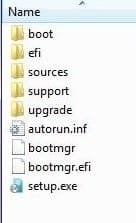
EXPANDEDSETUPCONTENTS-2009-10-22_061340.jpg
   Note

If you receive this error:

We are unable to create or save new files in the folder in which this application was downloaded. Please check the folder properties to make sure that you have security permission on the folder to write files and that the folder is not read-only.

Continue.


3. D/L this zip, extract it and copy/move oscdimg.exe into C:\Windows\system32.
View attachment oscdimg.zip
4. Assuming expandedsetup is on your Desktop:

Vista/7 users open an elevated command prompt ( rt click cmd and run as admin) and type :

Code:
Oscdimg.exe –u2 –b"C:\Users\your_username\Desktop\expandedSetup\boot\etfsboot.com" –h "C:\Users\your_username\Desktop\expandedSetup" C:\7.iso


XP users commands are:

Code:
cd /d C:\windows\system32


Code:
oscdimg -u2 -b"C:\Documents and Settings\USER\Desktop\expandedSetup\boot\etfsboot.com" -h "C:\Documents and Settings\USER\Desktop\expandedSetup" C:\7.iso


5. You can copy and paste the above into elevated cmd.

Vista/7 users- replace your_username with your actual username.

XP users - replace USER with your actual username

6. Then press enter. Xp users press enter after each of their two commands.

7. If the expandedsetup folder is not on your desktop, replace with appropriate paths.

   Tip
You may wish to copy the expandedsetup folder directly onto the root of C:

The paths will be shorter and the command will be:

Code:
Oscdimg.exe –u2 –bC:\expandedSetup\boot\etfsboot.com –h C:\expandedSetup C:\7.iso

If your folder is elsewhere, to get the paths easily, press shift and rt click on etfsboot.com - select copy as path ( paste into notepad )

Shift and rt click on expanded setup - select copy as path - paste into notepad ) Use those instead of the above.

The spacing needs to be exact.
   Warning
When the .iso is created you will get this message:

WARNING: This image contains UDF file system structures.

That is normal as you are creating the udf filesystem.


8. A) You can burn the .iso to dvd as an image with an isoburner.
View attachment isoburner.zip
OR

B) You can use the Microsoft DVD/USB tool to burn the .iso to dvd or to use the .iso to make a bootable flash drive. Download the tool:
View attachment Windows7-USB-DVD-tool.exe
   Tip
To make a copy of your Windows 7 ISO file:

1. Click the Start button, and click Windows 7 USB/DVD Download tool in the All Programs list to open the USB/DVD Download tool.
2. Click Browse and select the file in the Open dialog box.
3. Select USB to create a copy on a USB flash drive or DVD to create a copy on a DVD disk, then click Next.
4. If you are copying the file to a USB flash drive, select your USB device in the dropdown list and click Begin copying. If you are copying the file up to a DVD, click Begin burning.

Microsoft Store: Download Manager Help

   Note

Microsoft’s ISO Image for Windows 7 Now Available

There is additional information regarding the Windows 7 64-bit download process. For those customers of the Student Offer, who wish to install the 64-bit version of Windows 7, but are currently running a 32-bit Operating System, there is now an optional downloadable ISO file of Windows 7 64-bit to allow for install.

- If you have already purchased the 64-bit version of Windows 7 from the Windows 7 Student Offer Online Store, please contact Digital River at the following link: http://windows7.digitalriver.com/servlet/PromoServlet/promoID.46354000
· In the Web form select the Download Option in the drop down menu and include "64-bit Windows 7 Solution" in the first line of your problem description.


Have fun.


Last edited by a moderator:
is there a method around the write protection just so i can perform an install?

Many Thanks

Adam

Assuming you are upgrading from a 32 bit xp/vista install to a 64 bit win 7 install the problem is not the write protection, it's just a bad error message. The 64 bit installer cannot run in a 32 bit os - you must burn the iso and install as per all the messages in this thread.

If you really want to remove the read only bit (it won't help) feel free to go to your command prompt and use attrib -r c:\INSERTYOURDIRHERE /d /s
The read only will be cleared but you will get the same error message.

I'm upgrading from XP 32-bit to Windows 7 64-bit (using the digital river student download). I'm interested in doing as clean an installation as possible.

I'm sensing we don't have a clear working definition of "formatting a drive" and "clean install". So I'd like some clarification:

  • Booting from the DVD, Can "formatting" be accomplished from within the installer, or only outside of the installer?
Agree with prior poster here, it can be accomplished within the installer by selecting advanced options at the screen where you are prompted to select the hard drive to install to.

  • Will either option/both options remove the registration key of your previous OS?

Disagree with prior poster here although obviously his experience should give some cause for concern. I have upgraded both a win 32 and a vista 32 machine to win 7 64 and in both instances I've formatted the drive from within the installer. In both instances my upgrade key worked fine - I'm still finding it hard to believe that MS would be stupid enough to not allow this to work.

  • Running the installer from Windows, can formatting be accomplished on a drive?

I'm not sure what the process looks like when running the installer from Windows but it wouldn't be able to format the drive the installation files are on and at the same time complete the install. Might be possible to format a separate drive and do the install from within windows.

  • Is it even possible to run the 64-bit installer from 32-bit WinXP?

No.

  • Does "clean install" simply mean that you are formatting the OS drive?

I would use clean install to mean that you formatted the drive but in this case there is actually some cause for confusion. When the win 7 installer starts two options are presented, (1) Upgrade; (2) Custom Install.

As I understand it the upgrade option will allow you to maintain files and settings but is only available when (1) you are going from Vista SP1/SP2 to Windows 7 AND (2) you are upgrading to the same bit operating system (e.g. 64 bit Vista -> 64 bit Win 7).

All other users must choose custom install. If you choose custom install AND you don't format, Win 7 will backup some of your files to a windows.old folder - your progs will not be usable though. If you choose custom install AND you do format then Win 7 will not backup any of your files.

Note that if you're running XP and you want to migrate your files and settings MS has some easy transfer tool - I've never tried it as it seemed like more effort then it was worth so I don't know how it works.

  • Is there such a thing as a "not-clean install" when upgrading to a new OS?

Same as above really - if you're selecting the upgrade option or not formatting you're arguably doing a "not-clean" install. Note though that in the custom install / no formatting scenario you're still really getting a "clean" os install as win 7 isn't using/upgrading any of your old os files (it's just backing some files up to a windows.old directory).
 
Last edited:

My Computer

OS
Windows 7
EDIT: Okay, I've been reading this thread throughout the day, and I should have read the last couple of posts before I posted this question. It looks like the error I'm seeing is confirmed as a non-issue as long as you install via the ISO. I still think MD5 checksums would benefit everyone, however.

ORIGINAL POST:
I have downloaded my copy of Win7 Pro 64-bit from Digital River, and I followed the initial post, and now have a 3.02 GB ISO. I performed this procedure on a machine running 32-bit Vista Business. Everything seemed to work fine, but I did receive an error at the end of the "Unpacking box" procedure (the step that creates the "expandedSetup" folder). The error was as follows:

"We are unable to create or save new files in the folder in which this application was downloaded. Please check the folder properties to make sure that you have security
permission on the folder to write files and that the folder is not read-only"

Despite the error, the extraction appeared to complete successfully. My ISO is exactly 3,244,328,960 bytes in size. I'm wondering if someone who managed to create the ISO with zero errors, would be so kind as to post the MD5SUM of both the 64-bit ISO and the MD5 of their extracted "expandedSetup" folder. I think it would benefit everyone if we could get MD5's for both the 64-bit and 32-bit ISO's and downloads, so we'd have something for comparison.
 

My Computer

OS
Windows 7 Pro
So guys I'm getting the Error 5: Access Denied as well. I have right clicked on expandedSetup and tried to un-check read only, but it always goes back. I also downloaded the program Attribute Changer but it doesn't work either. Any other ideas?
 

My Computer

OS
vista
so can anyone confirm that the win7 student version can be activated on a clean hdd?

I could not activate it on a clean hard drive. On my first attempt I formatted my partition in which vista was on and It would not accept my key. I had to reinstall vista then install 7 professional without formatting and my key was accepted.

To recap

I recieved this error message after "unloading the box"

"We are unable to create or save new files in the folder in which this application was downloaded. Please check the folder properties to make sure that you have security permission on the folder to write files and that the folder is not read-only"


but I Used the OP's method to make a bootable iso out of the expanded setup folder anyway and burned it to a dvd. Booted from the dvd and did a custom install. Sucessfully went from 32 bit Vista home premium to W7 64 bit pro.

Thanks for the great info. I'm now using W7. :) Would've been great if they just could've given us an iso!! Now time to reinstall everything

+1... I got the error message a few times too, but decided to ignore it...burnt the image on DVD, and windows 7 64-bit installed easily with no errors...have been suing it all day and have installed tons of software already and it is working just fine..

I originally have a Vista 32...and had installed a windows 7 RC on a different hard drive...I installed Windows 7 64-bit on this secondary drive (on top of the Windows 7 RC), using the clean install option, but fif NOT format the drive...do NOT format the drive as the key you have will be useless.
 

My Computer

OS
Windows 7
Here are some relevant MD5 Hashes of the 64-bit Digital River download. (I purchased the Pro version but I think it is identical to the Home Premium 64-bit download. Only the 32-bit download should differ from this). I haven't installed yet so someone needs to confirm these.

Filename / MD5 Hash / File size (bytes)

7.iso / 34ee387528f15668cf9de8ee91427466 / 3244328960
setup1.box / 7b29e21b7f6bc0850e65085205b5eafe / 2860840667
setup2.box / 87dcc913a7bbbfcfa2c2526c2e894f97 / 167815816

more to come as I run the sums...
 

My Computer

OS
Windows 7 Pro
@ timf

@timf

Bottom line - it is possible to do a clean install on a virgin machine / hard drive.
The majority of this entire thread denies that this is possible. Can anyone else confirm this for me? I would like to install this on a completely new hard drive and do not have an older windows install CD.

someone please confirm whether this is possible - thanks!
 

My Computer

OS
Vista
Hi guys,

Been reading this forum over the last few days and its great! Thanks to the great advice here, I have managed to download Win7 Pro 32 Bit from Digital River (Student Version) and create a bootable DVD which I’m just getting ready to use and take the plunge!

Can some one please clarify if I can do an install from boot and format the current windows (Vista) drive and then install 7 pro?

Will my product key work if I format? I'm going from Vista Home Premium 32 bit to Win7 Pro 32 bit.

If i can’t format my drive what’s the best way to install to get the cleanest and freshest install, as i don’t like the sound of this Windows.old stuff.

Thanks again!
:D
 

My Computer

OS
Win 7 Pro!
Isn't it possible to achieve a clean install without booting from the DVD? i.e., just running the setup.exe from within Vista after the files are expanded?

Yes, but you can't do that if you're bits don't much.

"...you're bits don't much." - I'm confused, what does that mean??

Are you saying that it's not possible if you are going from say 32 bit Vista to 64 bit Win7??

LOL sorry, I meant match. It was early in the morning. I am saying, I can't initiate the installation from within Windows because I am using 32bit and my upgrade disc is 64bit.
 

My Computer

OS
windows 7
Hmm... Here is what I got using MD5 Check:
My first time doing this so I hope I did it right.

WIN_7.iso / D0CBF3C1ADAA4D4FB100352E7F8E2A92 / 3,244,328,960 bytes
 

My Computer

OS
Windows 7 Pro 64 bit
kk, I keep doing post 1 exactly how it say and I still get an error when attempting to make the ISO.

first this is what is being entered

Oscdimg.exe –u2 –bC:\Users\Greg\Desktop\expandedSetup\boot\etfsboot.com –h C:\Users\Greg\Desktop\expandedSetup C:\7.iso

these are the errors it gives me

ERROR: Could not delete existing file "ûbC:\Users\Greg\Desktop\expandedSetup\boot\etfsboot.com"
Error 123: The filename, directory name, or volume label syntax is incorrect.


any help would be greatly appreciated.


EDIT: if it matters I am using XP Pro 32 bit
 

My Computer

Computer Manufacturer/Model Number
Dell Vostro 400
OS
Windows 7 Professional 64 bit
CPU
Intel Core 2 Duo E8500 @ 3.16 GHz
Memory
4GB Dual Channel DDR2 SDRAM 800MHz - 4DIMMs
Graphics Card(s)
512MB NVIDIA GeForce 8800 GT
Sound Card
Integrated 7.1 Channel Audio
Monitor(s) Displays
Dell 22 inch Widescreen E228WFP Analog Flat Panel Display
Screen Resolution
1680x1050
Hard Drives
250GB Serial ATA Hard Drive (7200RPM) w/DataBurst Cache
80GB Serial ATA Hard Drive (7200RPM) w/DataBurst Cache
kk, I keep doing post 1 exactly how it say and I still get an error when attempting to make the ISO.

first this is what is being entered

Oscdimg.exe –u2 –bC:\Users\Greg\Desktop\expandedSetup\boot\etfsboot.com –h C:\Users\Greg\Desktop\expandedSetup C:\7.iso

these are the errors it gives me

ERROR: Could not delete existing file "ûbC:\Users\Greg\Desktop\expandedSetup\boot\etfsboot.com"
Error 123: The filename, directory name, or volume label syntax is incorrect.


any help would be greatly appreciated.


EDIT: if it matters I am using XP Pro 32 bit

Try this:
oscdimg.exe –u2 –b"C:\Users\Greg\Desktop\expandedSetup\boot\etfsboot.com" –h C:\Users\Greg\Desktop\expandedSetup C:\7.iso

Added quotation marks.
 

My Computer

OS
Windows 7 Pro 64 bit
So has anyone actually upgraded from Windows 7 RC 32bit to Windows 7 Home Preimum? If so, how?

This is the error I get:
---------------------------
Windows Setup
---------------------------
This installation disc isn’t compatible with your version of Windows. To upgrade, you need the correct installation disc. For more information, check your computer’s system information. To install a new copy of Windows, restart (boot) your computer using the installation disc, and then select Custom (advanced).
---------------------------
OK
---------------------------

I feel like I am in a catch 22. I can't upgrade off my Windows 7, and if I boot installation then I would my product key input wouldn't work. So I have to re-install Vista and then upgrade windows 7.
 

My Computer

OS
windows 7
Windows 7 Student Edition

Im sure the forumn has been littered with these today but I didnt see any helpful ones. I use Vista 32 I bought the W7 64. Digitalriver is the online company I purchased the product from they claimed you would be able to do a clean install loosing all previous information, which Im fine with. However they sent only an exe which a 32 bit system cannot open with out a disk. To make matters worse they did not include an ISO so you could burn it to a Disk. Any solutions as to making an ISO?:sick:
 

My Computer

Computer Manufacturer/Model Number
Cutsom
OS
Vista
CPU
3.ghz
I've gotten everything to work and burned the .iso to a dvd. When i boot from the dvd it goes into the Starting Windows thing and loads and all, but when I get to the part with the blue and green background (where you can see your mouse for the first time) nothing ever loads. I can move my mouse around so I know my computer isn't freezing, but no menus or anythign come up.

Does anyone know have any idea what is causing this problem?
 

My Computer

OS
Windows XP
ok so has anyone been successful burning the ISO, formatting and then installing?? From what I have read, if you format first, then the product key will not work

This is false. I successfully burned the image, wiped the harddrive, and installed.
 

My Computer

OS
Windows
ok so has anyone been successful burning the ISO, formatting and then installing?? From what I have read, if you format first, then the product key will not work

This is false. I successfully burned the image, wiped the harddrive, and installed.

Hold on, I don't think that statement is false. Did you boot from disc when the computer started or did you boot in windows?
 

My Computer

OS
windows 7
Im sure the forumn has been littered with these today but I didnt see any helpful ones. I use Vista 32 I bought the W7 64. Digitalriver is the online company I purchased the product from they claimed you would be able to do a clean install loosing all previous information, which Im fine with. However they sent only an exe which a 32 bit system cannot open with out a disk. To make matters worse they did not include an ISO so you could burn it to a Disk. Any solutions as to making an ISO?:sick:

How big was this EXE file, what was the name?
 

My Computer

Computer Manufacturer/Model Number
Self-Built in July 2009
OS
Windows 7 Ultimate x64
CPU
Intel Q9550 2.83Ghz OC'd to 3.40Ghz
Motherboard
Gigabyte GA-EP45-UD3R rev. 1.1, F12 BIOS
Memory
8GB G.Skill PI DDR2-800, 4-4-4-12 timings
Graphics Card(s)
EVGA 1280MB Nvidia GeForce GTX570
Sound Card
Realtek ALC899A 8 channel onboard audio
Monitor(s) Displays
23" Acer x233H
Screen Resolution
1920x1080
Hard Drives
Intel X25-M 80GB Gen 2 SSD
Western Digital 1TB Caviar Black, 32MB cache. WD1001FALS
PSU
Corsair 620HX modular
Case
Antec P182
Cooling
stock
Keyboard
ABS M1 Mechanical
Mouse
Logitech G9 Laser Mouse
Internet Speed
15/2 cable modem
Other Info
Windows and Linux enthusiast. Logitech G35 Headset.
ANy one able to tell me how to first establish the ISO???
 

My Computer

Computer Manufacturer/Model Number
Cutsom
OS
Vista
CPU
3.ghz
Yeah but it just save in the folder or what I followed the first post and it uploaded but I couldnt find it any where?????
 

My Computer

Computer Manufacturer/Model Number
Cutsom
OS
Vista
CPU
3.ghz
Back
Top