
 Anti-Malware Free
Malwarebytes Anti-Malware Free (Mbam) version 2.0 is an on-demand scanner that, in addition to your real-time Anti-Virus (AV) software, protects your system against malware.
Malwarebytes is not an Anti-Virus (AV) program, it addresses other types of malware often overlooked by AV programs. No single application can identify and eradicate all types of malware.
Your first line of defense against infection is a real time AV program with an up-to-date engine and virus definitions actively protecting your system with periodic scans scheduled.
Your second line of defense against malware are on-demand scanners. If it is suspected that malware is on your system, an n-demand scanners can check for and clean any malware it detects.
It is good practice to run Mbam once a week.
![tb00_Prep[SF].png](https://www.sevenforums.com/data/attachments/170/170173-8409098ec843ebfd5d5f210a2bcddba6.jpg?hash=gf1MqCIiUF "tb00_Prep[SF].png")
1. Read the online documentation for Malwarebytes:
- FAQs (link is also available in Mbam Settings
 Help)
Help) - Malwarebytes User Guide
- Malwarebytes Support: Guides and Videos
- your user profile must be an administrator, or
- you must elevate the privileges when you launch Mbam.
See: How to attach files and screen shots
![tb01_Dnld[SF].png](https://www.sevenforums.com/data/attachments/170/170176-a0da64bcbbcc9ffb78b856721a3b9dd8.jpg?hash=wEUioyEw64 "tb01_Dnld[SF].png") Malwarebytes Anti-Malware Free
Malwarebytes Anti-Malware Free4. On the Do you want to run or save ... Action Bar
Select Save
The file is placed in your default save location, normally the Downloads folder under your user profile.

5. On the The ... download has completed Action Bar
- If your user profile is an Administrator User Account:
Select Run

- If your user profile is a Standard User Account:
- Select Open folder

- Launch Mbam with elevated privileges (Right click, pick Run as administrator from the context menu)
- Select Open folder
![tb02_Acpt[Mwb].png](https://www.sevenforums.com/data/attachments/178/178096-83526e53555198ce9c961179d19bfc4d.jpg?hash=MiZjBr9jH4 "tb02_Acpt[Mwb].png")
Allow the application to run (Yes or Run) if Windows User Access Control (UAC) requests permission
- Read the End User Licenses Agreement, then
Tick I accept... and press the Next button
- Read the Information window and press press the Next button
- Accept the default install location and press the Next button
- Accept the default Start Menu folder and press the Next button
- Accept Create a desktop icon and press the Next button
- Verify the install parameters and press the Install button
Set the final install options as shown below:
 Enable free trial... Launch Malwarebytes Anti-Malware
Press the Finish button to launch Mbam and update the database definitions.
:note:If the malware prevents launching Mbam, watch: How to use Malwarebytes Chameleon from the Malwarebytes Youtube channel
![tb04_Scan[Mwb].png](https://www.sevenforums.com/data/attachments/178/178098-eb1b4f2b1ed664cecbcc151370878bd3.jpg?hash=oLOCuHcFZw "tb04_Scan[Mwb].png")
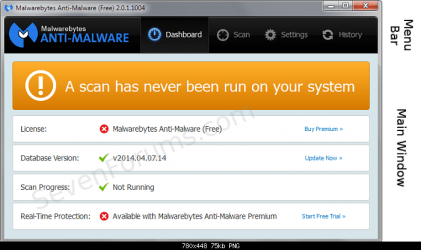
6. After the Mbam database definitions are updated, the Dashboard Main window presents the initial status:
![02%20MWB_a1c%20[fixNow].png](https://www.sevenforums.com/data/attachments/178/178135-0e3f94772f1c7cdcc0fcd0f486c7737c.jpg?hash=0nmZfahLYU "02%20MWB_a1c%20[fixNow].png")
Press the Fix Now >> button to run the initial scan on your system with the default Mbam settings.
![tb05_Revw[Mwb].png](https://www.sevenforums.com/data/attachments/178/178138-16d966ba00febab12fd0392b658d63e2.jpg?hash=HdxSGEKZXG "tb05_Revw[Mwb].png")
7. Threat detection results are presented in the main window of the Scan menu.
If no threats were are detected, you can close the utility. This does not mean that your system is clean, it only means that Mbam did not detect any malware. Additional scans using different on-demand scanners might be advised by SF members. Each scanner has a particular focus of design and detects malware using different criteria.
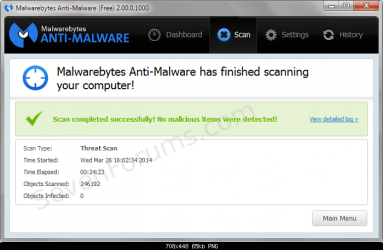
If SF members are assisting you, let them know that Mbam did not find any threats
Threats detected during an Mbam scan are reported and automatically moved into quarantine. The threat(s) are isolated in the Mbam quarantine and can remain there until you are certain of the correct disposition of the file(s). Note that other malware scanners or AV applications might report the quarantined file as a threat.
Mbam Scanning History Log | Detected threat table.

![Stop![30].png](https://www.sevenforums.com/data/attachments/180/180492-33d92d80ba0002f4d633f3dbc2dd32ec.jpg?hash=BpZjqxob_b "Stop![30].png") If there are more than just a few objects stop here and seek the assistance of a SF member knowledgeable in malware remediation.
If there are more than just a few objects stop here and seek the assistance of a SF member knowledgeable in malware remediation.![tb05b_Analyze[VT].png](https://www.sevenforums.com/data/attachments/170/170407-790151770955bfd983f37056505c8954.jpg?hash=MNrtbgRgaa "tb05b_Analyze[VT].png")
Occasionally a scanner will identify a legitimate file as malware (false positive).
Check each suspicious file by following the instructions in:
Analyze suspicious files with VirusTotal
![tb06_Clean[Mwb].png](https://www.sevenforums.com/data/attachments/178/178157-e7aec1a483d2668ab7b5ea9937635b36.jpg?hash=8M-FCV9PB7 "tb06_Clean[Mwb].png")
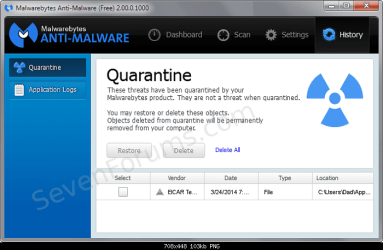
8. Disposition of malicious objectsIn the above analyze phase of the review scan results, you used VirusTotal to determine if the threat detected was a true threat or a false positive. Use the VirusTotal analysis information to determine whether you Restore, Delete, or Retain the object in the
Mbam
History Quarantine widowTick
the checkbox next to the file(s) that VirusTotal confirmed as a true threat.Clear
the checkbox for any file that VirusTotal reported as probably harmless or the analysis was inconclusive. Press the delete button.
:warn: Caution!! Do not press Delete All
After you have processed (deleted, restored, or retained in quarantine) all of the files detected, it is advised that you restart your machine.
Restart your machine to complete the Mbam malware removal process
![tb07_Repair[SF].png](https://www.sevenforums.com/data/attachments/170/170180-f044854d65e3e5664c37800ec0c97fa2.jpg?hash=UzKh2APpBk "tb07_Repair[SF].png")
9. Run the Windows System File Checker (SFC) to repair any system files that the malware might have corrupted.
See: How to Repair Windows 7 System Files with System File Checker
If SF members are assisting you, attach the sfc_detail.txt file as described in the System File Checker tutorial.
![tb08_Atch[SF].png](https://www.sevenforums.com/data/attachments/170/170189-ce42540e122cc84714fb4fb9dc40a60c.jpg?hash=jW6C69JwsT "tb08_Atch[SF].png")
10. Attach any logs, reports, or screen shots that were created during this exercise to a new post on your thread.
See: How to attach files and screen shots
Mbam logs: C:\ProgramData\Malwarebytes\Malwarebytes Anti-Malware\Logs
Mbam log naming convention:
mbam-log-YYYY-MM-DD (HH-MM-SS).xml
example: C:\ProgramData\Malwarebytes\Malwarebytes Anti-Malware\Logs\mbam-log-2014-03-17 (18-11-35).xml
protection-log-YYYY-MM-DD.xml
example: C:\ProgramData\Malwarebytes\Malwarebytes Anti-Malware\Logs\protection-log-2014-03-17.xml
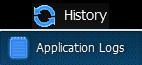
- The log files are in XML format and must be viewed inside the utility (History menu Application Logs)
- Protection Logs contain update information (database, program, etc)
- Scan Logs contain the results of a scan
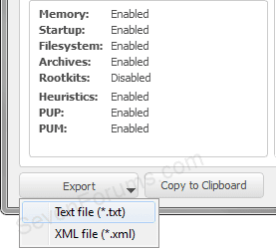
Once you open the log for viewing, you can export it to a text file.
- Export the log, select Text file(*.txt) as the output format
- Specify a filename and location for the exported log and press save
Related Tutorials
- http://www.sevenforums.com/tutorials/338681-virustotal-uploader.html
- http://www.sevenforums.com/tutorials/38779-microsoft-security-essentials.html
- http://www.sevenforums.com/tutorials/24076-malicious-software-removal-tool.html
- http://www.sevenforums.com/tutorials/157118-microsoft-safety-scanner.html
- How to Scan Suspicious Files using Online Scanners
- http://www.sevenforums.com/tutorial...r-detect-repair-tdss-rookits.html#post2836778
Last edited:


