Microsoft Backup is crap...according to The Register

The main reason I don't use the Microsoft image backup is the restore function. On my system disk I have multiple partitions. If I want to restore just the system partition, MS will erase the other partitions on the disk. I now use Macrium and it will not affect the other partitions on the disk during restore.

Jim :geek:

Definitely understandable. The Windows Image Backup really is for people who want to restore their ENTIRE system.
 

My Computer My Computer

At a glance

Windows 7 Home Premium x64Intel Core i7-2600 @3.40GHz8.00GB DDR3NVIDIA GeForce GTX 555 w/1.0GB RAM
Computer Manufacturer/Model Number
Alienware X51
OS
Windows 7 Home Premium x64
CPU
Intel Core i7-2600 @3.40GHz
Memory
8.00GB DDR3
Graphics Card(s)
NVIDIA GeForce GTX 555 w/1.0GB RAM
Monitor(s) Displays
BenQ XL2420TX
Screen Resolution
1920x1080@120Hz
Hard Drives
1TB
PSU
330-watt
Keyboard
Logitech Wireless Illuminated Keyboard K800
Mouse
Razer Orochi
Internet Speed
Campus Internet
Perhaps I am in the minority with this opinion, but I feel it is an extreme waste of space to have a 500 GB hard drive, with disk management showing that 94% of the hard drive is free, yet I still have to buy an external hard drive to create a complete backup of my system, in the event that a system restore would ever be needed.

In the old Win98 days, one could simply backup C: drive to D: drive and use the built in system restore function. Simple and effective. Used it several times over the 10-year life span of my Win98SE OS.

Now..Windows 7..new OS..new mindset. All recovery data must be stored on a separate external drive. Such is progress..if you wish to look at it as such. I do not.
 

My Computer My Computer

At a glance

Windows 7 Home Premium x64AMD Athlon II X2 215 Dual-Core Processor (2.7...3 GB DDR2 SDRAM
OS
Windows 7 Home Premium x64
CPU
AMD Athlon II X2 215 Dual-Core Processor (2.7 GHz)
Memory
3 GB DDR2 SDRAM
Hard Drives
500 GB SATA 3G
Perhaps I am in the minority with this opinion, but I feel it is an extreme waste of space to have a 500 GB hard drive, with disk management showing that 94% of the hard drive is free, yet I still have to buy an external hard drive to create a complete backup of my system, in the event that a system restore would ever be needed.

In the old Win98 days, one could simply backup C: drive to D: drive and use the built in system restore function. Simple and effective. Used it several times over the 10-year life span of my Win98SE OS.

Now..Windows 7..new OS..new mindset. All recovery data must be stored on a separate external drive. Such is progress..if you wish to look at it as such. I do not.

Many people consider external drives to be safer for backup purposes. And incidentally, you don't have to use the external drive *exclusively* for the system image, you can store other things on it too.
 

My Computer My Computer

At a glance

Windows 7 Home Premium x64Intel Core i7-2600 @3.40GHz8.00GB DDR3NVIDIA GeForce GTX 555 w/1.0GB RAM
Computer Manufacturer/Model Number
Alienware X51
OS
Windows 7 Home Premium x64
CPU
Intel Core i7-2600 @3.40GHz
Memory
8.00GB DDR3
Graphics Card(s)
NVIDIA GeForce GTX 555 w/1.0GB RAM
Monitor(s) Displays
BenQ XL2420TX
Screen Resolution
1920x1080@120Hz
Hard Drives
1TB
PSU
330-watt
Keyboard
Logitech Wireless Illuminated Keyboard K800
Mouse
Razer Orochi
Internet Speed
Campus Internet
Does this backup drive have to be "external", or can it just be a second physical hard drive in the computer?

I'm all for not letting people back up to a second partition. That's just a false sense of security in the event that drive dies.
 

My Computer My Computer

At a glance

Windows 7 Ultimate x64Intel Q9550 2.83Ghz OC'd to 3.40Ghz8GB G.Skill PI DDR2-800, 4-4-4-12 timingsEVGA 1280MB Nvidia GeForce GTX570
Computer Manufacturer/Model Number
Self-Built in July 2009
OS
Windows 7 Ultimate x64
CPU
Intel Q9550 2.83Ghz OC'd to 3.40Ghz
Motherboard
Gigabyte GA-EP45-UD3R rev. 1.1, F12 BIOS
Memory
8GB G.Skill PI DDR2-800, 4-4-4-12 timings
Graphics Card(s)
EVGA 1280MB Nvidia GeForce GTX570
Sound Card
Realtek ALC899A 8 channel onboard audio
Monitor(s) Displays
23" Acer x233H
Screen Resolution
1920x1080
Hard Drives
Intel X25-M 80GB Gen 2 SSD
Western Digital 1TB Caviar Black, 32MB cache. WD1001FALS
PSU
Corsair 620HX modular
Case
Antec P182
Cooling
stock
Keyboard
ABS M1 Mechanical
Mouse
Logitech G9 Laser Mouse
Internet Speed
15/2 cable modem
Other Info
Windows and Linux enthusiast. Logitech G35 Headset.
Does this backup drive have to be "external", or can it just be a second physical hard drive in the computer?

I'm all for not letting people back up to a second partition. That's just a false sense of security in the event that drive dies.

Either or on ? #1
I like external so if computer fries and can save a ton of stuff for the new one!
 

My Computer My Computer

At a glance

Windows 7 Home Premium 64bitIntel(R)Core(TM)2 quad [email protected] 2.39GHz6GB DDR2 6400GeForce 8500/512MB
Computer Manufacturer/Model Number
HP M9077c
OS
Windows 7 Home Premium 64bit
CPU
Intel(R)Core(TM)2 quad [email protected] 2.39GHz
Motherboard
ASUSeK
Memory
6GB DDR2 6400
Graphics Card(s)
GeForce 8500/512MB
Sound Card
Realtek High Def Audio
Monitor(s) Displays
HP w2408 LCD 24" widescreen
Screen Resolution
1920x1200
Cooling
6 pack of Bud
Keyboard
MS wireless Inteli
Mouse
MS wireless Inteli
Does this backup drive have to be "external", or can it just be a second physical hard drive in the computer?

I'm all for not letting people back up to a second partition. That's just a false sense of security in the event that drive dies.

Mine will let me pick another physical internal drive, but I'm running Pro, etalmar is running Home.
 

My Computer My Computer

At a glance

Windows 7 Home Premium x64Intel Core i7-2600 @3.40GHz8.00GB DDR3NVIDIA GeForce GTX 555 w/1.0GB RAM
Computer Manufacturer/Model Number
Alienware X51
OS
Windows 7 Home Premium x64
CPU
Intel Core i7-2600 @3.40GHz
Memory
8.00GB DDR3
Graphics Card(s)
NVIDIA GeForce GTX 555 w/1.0GB RAM
Monitor(s) Displays
BenQ XL2420TX
Screen Resolution
1920x1080@120Hz
Hard Drives
1TB
PSU
330-watt
Keyboard
Logitech Wireless Illuminated Keyboard K800
Mouse
Razer Orochi
Internet Speed
Campus Internet
I think it allows separate physical drives...but I think the person concerned here wants to backup to their second partition on the same physical disk. While convenient, this really isn't a safe practice and I would consider this more or a feature than a limitation.
 

My Computer My Computer

At a glance

Windows 7 Ultimate x64Intel Q9550 2.83Ghz OC'd to 3.40Ghz8GB G.Skill PI DDR2-800, 4-4-4-12 timingsEVGA 1280MB Nvidia GeForce GTX570
Computer Manufacturer/Model Number
Self-Built in July 2009
OS
Windows 7 Ultimate x64
CPU
Intel Q9550 2.83Ghz OC'd to 3.40Ghz
Motherboard
Gigabyte GA-EP45-UD3R rev. 1.1, F12 BIOS
Memory
8GB G.Skill PI DDR2-800, 4-4-4-12 timings
Graphics Card(s)
EVGA 1280MB Nvidia GeForce GTX570
Sound Card
Realtek ALC899A 8 channel onboard audio
Monitor(s) Displays
23" Acer x233H
Screen Resolution
1920x1080
Hard Drives
Intel X25-M 80GB Gen 2 SSD
Western Digital 1TB Caviar Black, 32MB cache. WD1001FALS
PSU
Corsair 620HX modular
Case
Antec P182
Cooling
stock
Keyboard
ABS M1 Mechanical
Mouse
Logitech G9 Laser Mouse
Internet Speed
15/2 cable modem
Other Info
Windows and Linux enthusiast. Logitech G35 Headset.
Perhaps I am in the minority with this opinion, but I feel it is an extreme waste of space to have a 500 GB hard drive, with disk management showing that 94% of the hard drive is free, yet I still have to buy an external hard drive to create a complete backup of my system, in the event that a system restore would ever be needed.

In the old Win98 days, one could simply backup C: drive to D: drive and use the built in system restore function. Simple and effective. Used it several times over the 10-year life span of my Win98SE OS.

Now..Windows 7..new OS..new mindset. All recovery data must be stored on a separate external drive. Such is progress..if you wish to look at it as such. I do not.
etalmar;

I am not sure why you say you cannot backup C: drive to D:? I've done that. The Windows 7 backup strategy is three parts. 1) is system restore. Very easy (almost automatic) for the non-tech user, and one can limit the amount of space used to hold the individual restore points. 2) Backup - backup C: to a separate partition ie D: with the ability to restore individual files. 3) System Image - image the entire hard drive or partition and place it on a separate partition.

For a built-in Windows utility it provides most features the non-techie type Windows user is likely to want and use. (That does not diminish the value of third party utilities others like to use, or the amusement of reading fanatical religious-like posts dissing Microsoft and promoting other software.) ;)

The risk of relying on a "backup of C: to D:" is the event that precedes the need to restore the backup. The most catastrophic is the hard drive crashing. Since the backup is also on the hard drive that is crashing, essentially you have lost your backup as well.

My desktop strategy is to install Windows 7 on a small hard drive (60 GB) and create the backups and images on the second larger hard drive. Like JonathanKing, I do not even notice the backup system working. But when the wife's hard drive crashed replacing the hard drive and running the restore took maybe 30 minutes and she had her computer back again.

Hard drives are so cheap these days, 40 to 60 GB drives go for as little as $10 to $20 USD. And many have invested in a SSD drive for their Windows and seen a marked performance improvement.

I do agree with your statement: "but I feel it is an extreme waste of space to have a 500 GB hard drive" for your Windows OS, but probably not for the same reasons as you. Windows 7 is quite happy with 60 to 100 GB. I would suggest to you that you could save some of your money with a second hard drive smaller than 500 GB.

Cheers!
Robert
 

My Computer My Computer

At a glance

...
OS
...
Hello pparks1,

While I do see your point about the need for an external hard drive as a safety net for extreme situations, I was mainly referring to being able to make a basic backup as more of a system restore function, similar to what you could easily do in Win98SE. In the event one would encounter spyware or malware, you could easily revert back to a copy of your system that was conveniently stored on your D: drive. That is no longer the case, as MS has decided to store the OEM factory image there.

I am going to invest in an external hard drive and have been looking at one from Western Digital that has 500 GB storage.


I fully agree with the general consensus here that it's a very good plan to keep a complete set of backups on another physical HDD or external HDD.

My recovery plan is actually overkill, I have a 80GB partition on my main HDD (ready for another OS when required) that I keep a recent backup on, the second OS is on the first partition (Primary OS on a small SSD).
My second HDD has storage and backup partitions, with several backups.
My two external HDDs have backups partitions, these holds backups for 5 computers.

BTW, I use Acronis and Macrium Reflect.

Perhaps I am in the minority with this opinion, but I feel it is an extreme waste of space to have a 500 GB hard drive, with disk management showing that 94% of the hard drive is free, yet I still have to buy an external hard drive to create a complete backup of my system, in the event that a system restore would ever be needed.

In the old Win98 days, one could simply backup C: drive to D: drive and use the built in system restore function. Simple and effective. Used it several times over the 10-year life span of my Win98SE OS.

Now..Windows 7..new OS..new mindset. All recovery data must be stored on a separate external drive. Such is progress..if you wish to look at it as such. I do not.

You mentioned that "I feel it is an extreme waste of space to have a 500 GB hard drive, with disk management showing that 94% of the hard drive is free", I would have to agree with that.

You can add another partition after your D partition, use this for a convenient place to keep 'some' of your backups.

The amount of backups you decide to use is, of coarse, your choice.
As no one likes to re-install an OS from scratch, backups are a very good solution to recover your OS and personal files.

We see a lot of people that lose everything. This is why most members here recommend an image backup, the safest and most secure is on another physical HDD.

Everyone will decide what's appropriate for them.
 

My Computer My Computer

At a glance

Windows 7 Ult x64 - SP1/ Windows 8 Pro x64Intel Core i5-3570K 4.6GHz8GB (2X4GB) DDR3 1600 Corsair Vengeance CL8 1.5vSapphire HD 7770 Vapor-X OC 1GB DDR5
Computer type
PC/Desktop
Computer Manufacturer/Model Number
76~2.0
OS
Windows 7 Ult x64 - SP1/ Windows 8 Pro x64
CPU
Intel Core i5-3570K 4.6GHz
Motherboard
Gigabyte GA-Z77X UD3H, f18
Memory
8GB (2X4GB) DDR3 1600 Corsair Vengeance CL8 1.5v
Graphics Card(s)
Sapphire HD 7770 Vapor-X OC 1GB DDR5
Sound Card
Onboard VIA VT2021
Monitor(s) Displays
22" LCD Dell
Screen Resolution
1680x1050
Hard Drives
Samsung 840Pro 128GB SSD,
Seagate Barracuda 500GB SATA2 7200rpm 32MB cache, Seagate Barracuda 1TB SATA2 7200rpm 32MB cache,
PSU
Corsair HX650W
Case
Cooler Master Storm Scout
Cooling
Corsair H80 2x12cm Noctua NF P12 , 2x14cm case fans
Keyboard
Logitech Wave
Mouse
CM Sentinel
Internet Speed
Dismal
Antivirus
Avast
Browser
Opera Next
Other Info
Haswell laptop: HP Envy 17t-j, i7-4700MQ, GeForce 740M 2GB DDR3, 17.3" Full HD 1920x1080, 16GB RAM, Samsung 840 Pro 128GB, 1TB Hitachi 7200 HDD,
Desktop: eSATA ports,
External eSATA Seagate 500GB SATA2 7200rpm,
External WD USB 500GB
You can add another partition after your D partition, use this for a convenient place to keep 'some' of your backups. Everyone will decide what's appropriate for them.

Hello Dave,

So, exactly how does one add another partition after the D partition, keeping in mind that I have never attempted anything like this before and therefore I am extremely apprehensive about inadvertently nuking all or part of my OS in the process?
 

My Computer My Computer

At a glance

Windows 7 Home Premium x64AMD Athlon II X2 215 Dual-Core Processor (2.7...3 GB DDR2 SDRAM
OS
Windows 7 Home Premium x64
CPU
AMD Athlon II X2 215 Dual-Core Processor (2.7 GHz)
Memory
3 GB DDR2 SDRAM
Hard Drives
500 GB SATA 3G
Since installing W7 I ditched my old backup software and decided to try out Microsoft backup built into W7. I back up quite regularly (every few weeks) and it doesn't take that long at all, around 10-15 minis at maximum. But saying that the only thing I back up is my windows installation and my program file partition. All my documents are stored on an external HDD anyway and I just copy all hose documents to another HDD for a back up of them.So far I have not had to restore from a microsoft backup.
 

My Computer My Computer

At a glance

Vista/Windows 7
OS
Vista/Windows 7
You can add another partition after your D partition, use this for a convenient place to keep 'some' of your backups. Everyone will decide what's appropriate for them.

Hello Dave,

So, exactly how does one add another partition after the D partition, keeping in mind that I have never attempted anything like this before and therefore I am extremely apprehensive about inadvertently nuking all or part of my OS in the process?

Looking over your posts, we need to clarify your disk layout.
Can you post a snip of your Disk Management?

Usually OEMs put the recovery partition first and the OS second. That would be from left to right in Disk Management.
If your recovery partition D is on the left, then next (to the right) is your C partition.
You can shrink the C partition, which will give you un-allocated space on the right side. This can then be made into a new partition.

Just so you know, there is a known issue with shrinking the C partition, sometimes it will only let you shrink it by a small amount. This can be easily overcome with a free third party disk management program.

As mentioned previously, make a backup first, it's always better to be safe than sorry.
Many have recommended Windows Backup, a good free alternative is Macrium Reflect.
You can keep the backup on your C partition, better to have one there than none at all. This can be moved later if needed.

Windows Disk Manager should be able do that for you.

These Seven Forums tutorials will explain it.

How to Shrink a Partition or Volume in Windows 7

How to Create a New Partition or Volume in Windows 7

If you have any questions, just ask.
 
Last edited:

My Computer My Computer

At a glance

Windows 7 Ult x64 - SP1/ Windows 8 Pro x64Intel Core i5-3570K 4.6GHz8GB (2X4GB) DDR3 1600 Corsair Vengeance CL8 1.5vSapphire HD 7770 Vapor-X OC 1GB DDR5
Computer type
PC/Desktop
Computer Manufacturer/Model Number
76~2.0
OS
Windows 7 Ult x64 - SP1/ Windows 8 Pro x64
CPU
Intel Core i5-3570K 4.6GHz
Motherboard
Gigabyte GA-Z77X UD3H, f18
Memory
8GB (2X4GB) DDR3 1600 Corsair Vengeance CL8 1.5v
Graphics Card(s)
Sapphire HD 7770 Vapor-X OC 1GB DDR5
Sound Card
Onboard VIA VT2021
Monitor(s) Displays
22" LCD Dell
Screen Resolution
1680x1050
Hard Drives
Samsung 840Pro 128GB SSD,
Seagate Barracuda 500GB SATA2 7200rpm 32MB cache, Seagate Barracuda 1TB SATA2 7200rpm 32MB cache,
PSU
Corsair HX650W
Case
Cooler Master Storm Scout
Cooling
Corsair H80 2x12cm Noctua NF P12 , 2x14cm case fans
Keyboard
Logitech Wave
Mouse
CM Sentinel
Internet Speed
Dismal
Antivirus
Avast
Browser
Opera Next
Other Info
Haswell laptop: HP Envy 17t-j, i7-4700MQ, GeForce 740M 2GB DDR3, 17.3" Full HD 1920x1080, 16GB RAM, Samsung 840 Pro 128GB, 1TB Hitachi 7200 HDD,
Desktop: eSATA ports,
External eSATA Seagate 500GB SATA2 7200rpm,
External WD USB 500GB
Looking over your posts, we need to clarify your disk layout. Can you post a snip of your Disk Management?

Usually OEMs put the recovery partition first and the OS second. That would be from left to right in Disk Management. If your recovery partition D is on the left, then next (to the right) is your C partition. You can shrink the C partition, which will give you un-allocated space on the right side. This can then be made into a new partition.

Just so you know, there is a known issue with shrinking the C partition, sometimes it will only let you shrink it by a small amount. This can be easily overcome with a free third party disk management program.

As mentioned previously, make a backup first, it's always better to be safe than sorry. Many have recommended Windows Backup, a good free alternative is Macrium Reflect. You can keep the backup on your C partition, better to have one there than none at all. This can be moved later if needed.

Windows Disk Manager should be able do that for you.

These Seven Forums tutorials will explain it.

How to Shrink a Partition or Volume in Windows 7

How to Create a New Partition or Volume in Windows 7

If you have any questions, just ask.

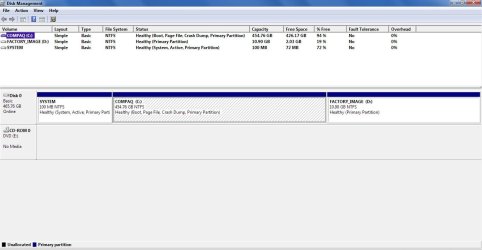
Thanks for the info. Here's a screenshot of my disk management:
DiskMgmnt.jpg

After considering your suggestions, I've decided to leave well enough alone and just proceed with purchasing an external hard drive.
 

My Computer My Computer

At a glance

Windows 7 Home Premium x64AMD Athlon II X2 215 Dual-Core Processor (2.7...3 GB DDR2 SDRAM
OS
Windows 7 Home Premium x64
CPU
AMD Athlon II X2 215 Dual-Core Processor (2.7 GHz)
Memory
3 GB DDR2 SDRAM
Hard Drives
500 GB SATA 3G
I find windows 7 backup very convenient. I don't sit and wait either, but usually just downsize it and do something online.
 

My Computer My Computer

At a glance

Windows 7 Ultimate x64 Signature EditionIntel Core i7 TurboBoost to 2.9Ghz8GBATI Radeon HD 6770M
Computer Manufacturer/Model Number
hp Pavilion dv7-6187cl
OS
Windows 7 Ultimate x64 Signature Edition
CPU
Intel Core i7 TurboBoost to 2.9Ghz
Memory
8GB
Graphics Card(s)
ATI Radeon HD 6770M
Sound Card
BeatsAudio with subwoofer
Monitor(s) Displays
17.3" 1080p Matte (upgraded)
Screen Resolution
1080p
Hard Drives
2x 640GB
Keyboard
Microsoft wireless keyboard 3000
Mouse
Microsoft wireless mouse 6000
Internet Speed
~~~FAST~~~~~~~~`
Other Info
1GB readyboost in my SD slot, fingerprint reader
Looking over your posts, we need to clarify your disk layout. Can you post a snip of your Disk Management?

Usually OEMs put the recovery partition first and the OS second. That would be from left to right in Disk Management. If your recovery partition D is on the left, then next (to the right) is your C partition. You can shrink the C partition, which will give you un-allocated space on the right side. This can then be made into a new partition.

Just so you know, there is a known issue with shrinking the C partition, sometimes it will only let you shrink it by a small amount. This can be easily overcome with a free third party disk management program.

As mentioned previously, make a backup first, it's always better to be safe than sorry. Many have recommended Windows Backup, a good free alternative is Macrium Reflect. You can keep the backup on your C partition, better to have one there than none at all. This can be moved later if needed.

Windows Disk Manager should be able do that for you.

These Seven Forums tutorials will explain it.

How to Shrink a Partition or Volume in Windows 7

How to Create a New Partition or Volume in Windows 7

If you have any questions, just ask.

Thanks for the info. Here's a screenshot of my disk management:
View attachment 80774

After considering your suggestions, I've decided to leave well enough alone and just proceed with purchasing an external hard drive.

The recovery partition is better at the end, right side.

If you want to give it a try, or maybe after you get your external HD and make a backup.

You should be able to shrink the C partition, your used space is 28.6GB.
I would try to make the C partition 80GB, you can make it 60GB if you like, but wouldn't go much smaller than that.

If that works, you will have un-allocated space between the C and D partitions, use the tutorial previously posted to make a new partition from all of the space available.

If Disk Manager doesn't want to shrink the C partition by that much, you can take what it gives you or use a free program called Partition Wizard, that will do it easily.

If you decide to just get an external HD, I think you mentioned a WD, these work very well.
Personally I always get an internal HDD and buy a external enclosure. These are useful, the HDD can be used in your computer if needed, or if you need to extract anything from a different HD you can put it in the enclosure.

Let us know if you have any questions on arranging the C partition, or anything else.
 

My Computer My Computer

At a glance

Windows 7 Ult x64 - SP1/ Windows 8 Pro x64Intel Core i5-3570K 4.6GHz8GB (2X4GB) DDR3 1600 Corsair Vengeance CL8 1.5vSapphire HD 7770 Vapor-X OC 1GB DDR5
Computer type
PC/Desktop
Computer Manufacturer/Model Number
76~2.0
OS
Windows 7 Ult x64 - SP1/ Windows 8 Pro x64
CPU
Intel Core i5-3570K 4.6GHz
Motherboard
Gigabyte GA-Z77X UD3H, f18
Memory
8GB (2X4GB) DDR3 1600 Corsair Vengeance CL8 1.5v
Graphics Card(s)
Sapphire HD 7770 Vapor-X OC 1GB DDR5
Sound Card
Onboard VIA VT2021
Monitor(s) Displays
22" LCD Dell
Screen Resolution
1680x1050
Hard Drives
Samsung 840Pro 128GB SSD,
Seagate Barracuda 500GB SATA2 7200rpm 32MB cache, Seagate Barracuda 1TB SATA2 7200rpm 32MB cache,
PSU
Corsair HX650W
Case
Cooler Master Storm Scout
Cooling
Corsair H80 2x12cm Noctua NF P12 , 2x14cm case fans
Keyboard
Logitech Wave
Mouse
CM Sentinel
Internet Speed
Dismal
Antivirus
Avast
Browser
Opera Next
Other Info
Haswell laptop: HP Envy 17t-j, i7-4700MQ, GeForce 740M 2GB DDR3, 17.3" Full HD 1920x1080, 16GB RAM, Samsung 840 Pro 128GB, 1TB Hitachi 7200 HDD,
Desktop: eSATA ports,
External eSATA Seagate 500GB SATA2 7200rpm,
External WD USB 500GB
Figured I'd post what my setup looks like partition and backup wise. I can usually create a system image in 10-15 mins for 40 gigs.

I have two internal drives. I am using windows backup right now.

74 gig from back in 2004
600 gig I purchased little over a year ago

Ideally I'd use the 74 gig as my OS, but it's slow and I game so no go there. Alot of games like to install config folders into your my docs, so that's why even though the games are on a different partition.

I have 5 partitions
On the 600 gig
Drive X:7 gig pagefile on the very front of the 600 gig
Drive C: 74 gig OS
Drive D: 200 gig for games
Drive E: The left overs - Storage - music, video, ect

On the old and slow 74 gig
Drive Z: Archive - backups and system Image - as I never allow my used space to get above 80%, my image wont get too big as to not allow windows backup files. Diskeeper gets fussy when it's too full.

I used Partition Wizard to create this scheme. My image is mainly there so I don't have to manually configure everything. I don't really care about saving documents, and if I do I keep them on a 8 gig flash drive in my desk for backup.

I've done one Image restore so far, and it only effected my C drive. I kept all my data on my other partitions just fine, but I only imaged my C drive to begin with. Idk, how it does it in home, but in Pro it seems to work great.
 
Last edited:

My Computer My Computer

At a glance

Windows 7 Pro x64Duo Core 2 2.66 ghz E67504 GB Muskin DDR2 800EVGA 8800 GT 512 GDDR3 256 bit PCIe 2.0
Computer Manufacturer/Model Number
Me Myself & I
OS
Windows 7 Pro x64
CPU
Duo Core 2 2.66 ghz E6750
Motherboard
MSI P6N SLI Platnium LGA 775
Memory
4 GB Muskin DDR2 800
Graphics Card(s)
EVGA 8800 GT 512 GDDR3 256 bit PCIe 2.0
Sound Card
Realtek HD Audio 7.1
Monitor(s) Displays
Asus 22 inch LCD
Screen Resolution
1280 x 720
Hard Drives
600 gig WD Cavalier Blue 32MB cache 7200 rpm
PSU
Rosewill Xtreme Series RX850-D-B 850W
Internet Speed
30 Mbit down / 4 MBit up Cable
well another big issue with Windows 7 backup is the multiple error codes concerning reparse points (or junction points). No clue what it is despite many googles, moreover, no clue what to do.

So went back to Nero Backitup, which doesn't complain at all concerning any reparse points.

BRGDS
 

My Computer My Computer

At a glance

Win7 pro 64Core i5-7504GB Patriot DDR3ATI RADEON HD5450
Computer Manufacturer/Model Number
Home made
OS
Win7 pro 64
CPU
Core i5-750
Motherboard
GA-P55M-UD4
Memory
4GB Patriot DDR3
Graphics Card(s)
ATI RADEON HD5450
Hard Drives
SSD Crucial CT250BX100SSD1 ATA
Internet Speed
DSL
Antivirus
Avast free
Back
Top