thank you
the problem is that both settings (windows and office/excel) appear to deal with the display format.
what I am troubled by is the input format...for example, I want march 14 to display as 14-mar, but to input/type as "3/14".
my regional settings are "english (united states)".
Lets see if I understand you correctly,
When you select a cell and type in 3/14, you are expecting to see 14-mar as the result in that cell??
What version of Excel do you have??
This link explains Excel 2010, and expands on Kari's suggestion:
Format numbers as dates or times | Office-Microsoft-Support; Click on
Create a custom date or time format at "In this article" to see more.
Actually, the format you desire should be listed in the Format Cells function, it doesn't show in Kari's tutorial, maybe because the choices weren't scrolled down far enough, but it should be there, it is in the Support article.
If it isn't, make sure you are on the cell you want then go to Format Cells, click on User-Defined and type in dd-mmm.
Make sure you use the hyphen, and not the slant! Then click on Apply and or OK.
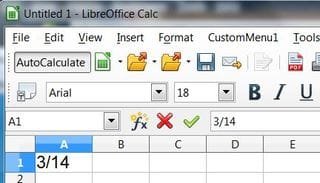
I use Libre Office and that's what I had to do; my examples from Calc:
You can use either the Input line or enter directly into the cell:
The result after touching the Enter key or moving off of the cell:
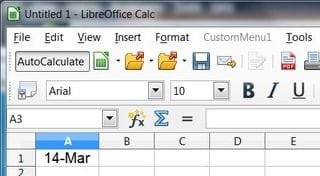
It looks like what you are after should be set as: ddmmm or dd-mmm in user defined to give you 14-mar, but because March is a proper noun Windows and Libre treats it as such and you will see 14-Mar.
Make sure you save the workbook or you will lose the user-defined setting.
~~~ ~~~~ ~~~
If that still doesn't work for you, you may be able to do what you want with
Windows PowerShell (How to Open)
Disclaimer:
I am not proficient with Windows Power Shell (WPS), but I do know enough to be considered "dangerous".

Following this Technet Blog:
How Can I Create a Custom Date Format in Microsoft Excel? - TechNet Blogs it shows how to set specific dates in Excel with WPS.
The two lines highlighted in these WPS CMDs from "How can I create...." would be the ones you would "tinker" with.
Code:
Set objExcel = CreateObject("Excel.Application")
objExcel.Visible = True

objExcel.Workbooks.Add    [B][COLOR=Blue]

objExcel.Cells(1,1).Value = "01/01/2006"[/COLOR]
[/B][COLOR=Navy][B]objExcel.Cells(1,1).NumberFormat = "yyyymmdd"[/B][/COLOR]
Warning
Before you begin I would hope you have backups to your OS and Apps, it is possible to corrupt either your OS or an app when using incorrect Power Shell CMDs. Some CMDs won't be recognized by Power Shell and it will tell you so just like a CMD prompt will so your okay there, but if you enter an incorrect one in the wrong place that it does recognize, oh-well.......:shock:
This would be a possible alternative while "tinkering"
http://www.sevenforums.com/tutorials/8254-windows-virtual-pc-create-virtual-machine.html
More:
Scripting for Microsoft Office
Scripting with Windows PowerShell
Windows PowerShell Owner's Manual
Windows PowerShell Tip: Formatting Dates and Times
Windows PowerShell Tip: More Fun with Dates (and Times)
Apply Windows Power Shell to Excel Time and Date Formats | Google Search
Scripting for Microsoft Office | Google Search


