Missing 2nd hard drive

Athos

New member
Local time
10:17 AM
Messages
6
Hi,

I just installed Win 7 on an old Compaq pc that had been running XP. The computer has two 160GB hard drives on it. When going through the installation process I formatted both drives and deleted any partitions that I found. There were more partitions than I expected but I deleted them all. Win 7 installed perfectly and is working fine except that the 2nd drive isn't showing up. After searching a bit online it seems a 100MB partition is created during installation. By deleting the partitions I may have caused the setup to use the entire 2nd drive for whatever is in that 100MB partition and now I can't access the drive from Windows.

Does any of this make sense? From what I have read it sounds like I may have to reinstall but I'd like a second opinion before I go do something like that.

Thanks
 

My Computer

OS
Windows XP
Can you see the 2nd drive in Computer Management > Disk Management ?
 

My Computer

Computer type
PC/Desktop
Computer Manufacturer/Model Number
Built them myself, Science Experiments !
OS
Win7 Enterprise, Win7 x86 (Ult 7600), Win7 x64 Ult 7600, TechNet RTM on AMD x64 (2.8Ghz)
CPU
AMD fx8350 4ghz, AMD-32 2400mhz, AMD-64 3200mhz, AMDx64 2.8G
Motherboard
SIS 755, ECS-K8M890M-M (Ult 7600), GigaByte & others
Memory
2gb, 4gb on the Ult 7600, 4gb on Technet RTM, 32gb on FX8350
Graphics Card(s)
Draw my own Graphics, several nVidia cards
Sound Card
on motherboard
Monitor(s) Displays
19" flat scr, 28" I-Inc widescr,22" Emprex Widescr, 23" Acer
Screen Resolution
1280 x 1024, 1440 x 900, 1920 x 1080
Hard Drives
6 pata Ide HD's & 2 Sata HD's
added 80gb external on Ult 7600 computer,
numerous extra 1tb, 2TB, 3Tb SATA HD's
A collection of ext HD Docks w/ HDs
PSU
430w, 550w, 600w, 700, 800, etc
Case
All Generic Full Towers
Cooling
Open Air & a few fans, some w/ colored LEDs
Keyboard
Compaq & Dell recycled from GoodWill
Mouse
Made in China Optical Wired Mouse
Internet Speed
Fast Cable InterNet
Antivirus
AVG Free on 24 different Desktops, NO Problems!
Browser
IE 8 is preferred, but use FireFox sometimes
Other Info
Linksys Routers, switches, & Hubs
Too Many USB Flash Drives to count, Biggest is 64GB !
Eight computers in my home network.
Sixteen computers at my business network.
Linked via TeamViewer !
Lots of old used spare computer parts everywhere!
You did enable it to create the 100mb boot/repair partition by deleting the partitions that existed, since that 100mb won't be created on a pre-formatted HD. However, it is not likely responsible for your second HD being unseen at this time.

That 100mb if marked system active in Disk Management now holds the MBR for your installation. It also should make repair tools which are on the DVD available by tapping F8 at bootup, which is a convenience worth keeping IMO.

As Doc suggests, look for your second HD in Disk management. Assign it a letter if it is missing one and it should show up.
 
Thanks for the advice guys. I went into Disk Management and could see that Windows had partitioned the second drive (100mb partition) so I assigned a letter to the larger partition and now I can access the drive again.

Cheers!
 

My Computer

OS
Windows XP
Something still doesn't sound right.

Can you post back a screenshot of your full Disk Management map, using Snipping tool in start menu and attaching file using paper clip in reply box?

Let's make sure the MBR wasn't somehow derailed to the second drive, or confirm it's all good.
 
Will do but it might be a day or two before I have a chance as I'll be away from home for a bit. I'll post the screenshot as soon as I get a chance.
 

My Computer

OS
Windows XP
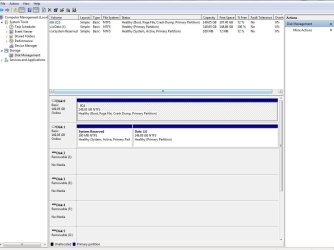
Ok screenshot attached. Is there something wrong with this?
 

Attachments

  • Disk Management.JPG
    Disk Management.JPG
    102.1 KB · Views: 333

My Computer

OS
Windows XP
Ok screenshot attached. Is there something wrong with this?


Well, yes and no. It obviously works, but....

I haven't seen this before, but the installer put the 100mb system partition on another HD with the data drive. I'm not sure how that could happen.

Normally the System partition would be established in the space to the immediate left of the Win7 partition. This way the HD is independent from any others.

The way it is now, you must have both HD's to start Win7.

The fix for this depends on whether you want the 100mb System Reserved partition, which contains the MBR that would otherwise be within the Win7 partition, but also often gives you the Repair tools which are on your DVD available by tapping F8 at startup (Check and see).

If you want to keep the 100mb partition, then I would move the data off of that drive, use free Partition Wizard CD to delete data drive, shrink the Win7 partition, copy it into deleted data drive space, then delete the old Win7 drive, create new partition(s) as desired, format logical and copy your data there. Make sure this drive is now set to boot first in BIOS setup, after DVD.

If you want to get rid of the 100mb partition, then mark the Win7 drive active, unplug the data drive temporarily, set the Win7 drive to boot first in BIOS setup (after DVD) then boot into Win7 DVD Repair console and run Startup Repair 3 times to write the MBR to Win7 partition.

Now plug the data drive back in to delete and format before copying data back. This may require setting the drive inactive first in order to delete; use Partition Wizard CD or DISKPART commands from Win7 DVD.
 
When I was installing I deleted some paritions and as I mentioned before there were more than I expected so its possible that I was seeing the 100mb partition and without knowing what it was Windows then went ahead and created it on the second disk. That is the only thing I can think of that might have caused it. Anyway from reading your post would I be correct in thinking that there is no real problem with the partition being on the 2nd drive? It doesn't bother me and if it isn't going to impact on performance or stability then I don't see any reason to change it. Or is this something that might cause problems somewhere down the line?
 

My Computer

OS
Windows XP
It could be a problem if that data drive gets marked active, or becomes disconnected, since the Win7 boot partition is somehow on that drive also.

I personally would not want my Win7 installation dependent upon another data drive.

If it was formatted logical (as a data drive really should be) then it couldn't become active, but I don't think that is a risk unless further installs are done.

Copy the steps I gave above so if you have any problems you have the way to fix it.

Essentially removing the data drive requires running Startup Repair 3 times to write the MBR to Win7 drive once it is marked active.
 
Last edited:
I have done over 25 installs of Windows 7. It always best to disconnect any extra hard drives until you finish the install of the OS. When you have finished the install, reconnect the hard drives and your good to go.

I noticed that you have two 160GB drives. For the primary drive I would recommend that you make one partition of 64.1 GB or 65639MB, and then the remainder of the drive as the other partition. When you install Windows 7 to the 64.1GB partition it will automatically create the 100MB partition and leave a 64GB partition on which it will install itself. For the other hard drive, after the install is complete and you've hooked it back up, make a small partition on it for your Paging File. It should at least be a little bigger than the total RAM you have. Such as if you have 4GB of RAM, make the Paging File partition 5GB and then transfer the Paging File from the primary drive to the second drive.

Windows likes it better when the Paging File is on a separate drive, and you want it at the front of the drive where the platter speed is greatest and access if fastest. I have had very good success in doing it this way.

Good Luck!
 

My Computer

Computer Manufacturer/Model Number
Custom Build by Nibiru2008 Computer Shop
OS
Windows 7 Professional X64 Build 7600.16385 (win7_rtm.090713-1255)
CPU
Intel Core 2 Duo E8400 Wolfdale 3.0GHz 6MB L2 Cache
Motherboard
Gigabyte GA-EP45-UD3R F12 BIOS
Memory
Mushkin Enhanced Blackline PC8500 DDR2 6 GB (2x2GB & 2x1GB)
Graphics Card(s)
XFX Radeon HD 5770 1 GB DDR5
Sound Card
Onboard Realtek Azalia HD Audio
Monitor(s) Displays
ViewSonic VX2250wm 22" Widescreen LED Backlight LCD
Screen Resolution
1920 X 1080p HD
Hard Drives
OCZ Vertex 2 60GB SSD, Samsung F3 HD502HJ 500GB, Samsung F1 HD502IJ 500GB, Samsung HD102SJ 1TB, Western Digital WD500AAKS 500GB
PSU
Bgears B-Tarantula 550 watt with Pigtail Modular Cabling
Case
Lian Li PC-7F Black Anodized All Aluminum bottom PSU mount
Cooling
Xigmatek Nepartak S983 3-Pipe HDT CPU Cooler & 92mm PWM Fan
Keyboard
KeyTronic Lifetime Series Model: LT Designer Black Full Size
Mouse
Logitech Wireless Trackman Wheel
Internet Speed
30 Mbps Down 2 Mbps Up Turbo RoadRunner
Other Info
G DATA Internet Security
Back
Top