My Computer
At a glance
win7
- OS
- win7


thanks for the reply andrew129260,
- Have you added or disconnected any new drives lately?
- Are you able to manually create a system restore point?
- Can you turn off system protection completely on all drives, restart and then enable system protection on drive C?
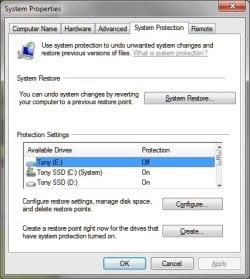
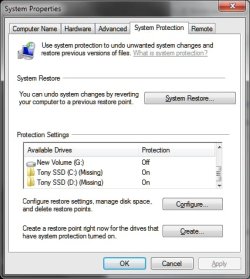
Your first screen print has an [E] drive and your second screen print has a [G] drive.
I think it would help if you post a Disk Management screen print.
http://www.sevenforums.com/tutorials/274797-disk-management-post-screen-capture-image.html
has anyone seen missing drives in the system restore settings screen? both my C and D drives are showing as missing at the bottom, and identical drives show at the top. Is this something to be concerned about?
thanks
Please select the (C) (Missing) Drive and select the button to configure the settings for this drive in the System Protection tab.
- Please follow this tutorial and post the results:
http://www.sevenforums.com/tutorials/274797-disk-management-post-screen-capture-image.html
- Please try the following:
Select the Radio Button to turn off system restore for this (spurious) drive.
The (C) (Missing) item on the list of drives will then disappear.
Now select the correct Local Disk (C) (System) disk in the list. Hit the Configure Button.
Now change the settings, as you wish. Press OK.
Source: Windows 7: System Restore Disk Space Configuration, missing line, local disk c
3.) Try http://www.sevenforums.com/tutorials/1538-sfc-scannow-command-system-file-checker.html
Use option 2, what are the results?