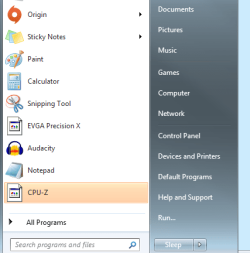
Hi guys so I have been having a few problems recently. First off is that my start menu icons won't appear fr the correct program (see attached picture) Second is that my desktop icon size always resets on a restart. I have tried finding resolutions to these problems and do not know how to fix them, if you could help em I would greatly appreciate it.
This is what I have to do with my computer to stop the problem I understand you have with desktop icons. I have to turn on the screen first. Just for a few seconds and then start the computer. If I start the computer first and then the screen all the icons are changed and rearranged. I have no idea why. I use different surge protectors to turn different things on. I this case I turn the screen surge protector on then the screen. Next surge protector to the PC and then the PC and all works well. I have tried many things and so far I haven't out the cause.
My Computer
Computer type
PC/Desktop
Computer Manufacturer/Model Number
Home made Desktop
OS
Windows 10 Pro. 64/ version 1709 Windows 7 Pro/64
CPU
Intel i7-6800K @ 4.3
Motherboard
ASUS X-99 Deluxe II
Memory
Corsair Platinum 16 gig @2400
Graphics Card(s)
EVGA GTX 1070 OC
Monitor(s) Displays
Asus 27" LED LCD/VE278Q
Screen Resolution
1920-1080 or 1280-720 HDMI
Hard Drives
INTEL SSD 730-240 Gb Sata 3.0/
PSU
EVGA Platium 1200W
Case
Phanteks Luxe Tempered Glass 8 fans/ one radiator
Cooling
XSPC/ Water Cooled CPU
Keyboard
Das 4 Professional
Mouse
Logitech M705/MX Anywhere 2-S
Internet Speed
100 mbits
Antivirus
Microsoft Security Essentials/ Malwarebytes Premium 3.0/ SAS
Browser
I.E. 11 default/Firefox/ ISP Time Warner Cable/Spectrum
Other Info
LG BluRay Burner/
Sound system-KLipsch-THX/
Icy Dock ssd Hot Swap bays.
If that does not solve the issue, then there is still a few more things to try... like updating or reapplying the video drivers - and/or preventing changes to that reg key via the permissions settings.
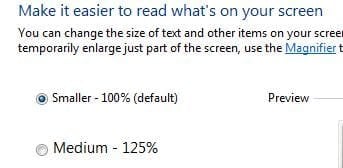
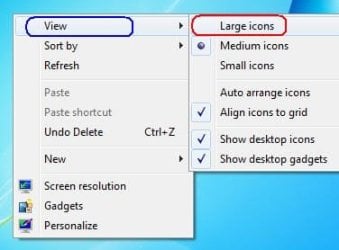
Nope, I am talking about the icons on the desktop. If you right click the desktop and go to view you can choose large medium or small icons. well I want large but it will only use medium, the default size.
Sorry - it is I that should apologize for being too brief.
Keep in mind that working in the registry is dangerous.
I'm working inside a virtual machine - so I have nothing to lose.
I cannot even be positive that these steps will resolve your issue. I'll explain how I found that area of the registry and let you decide if you want to give my steps a try.
W7 will recreate it and will rebuild some of the info inside of it.
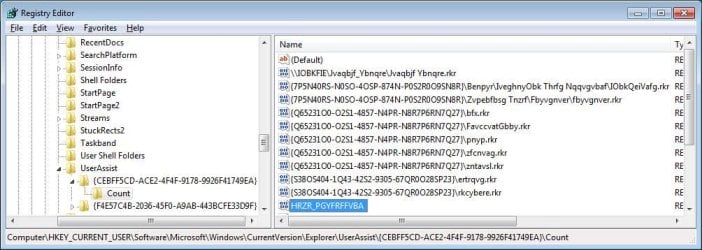
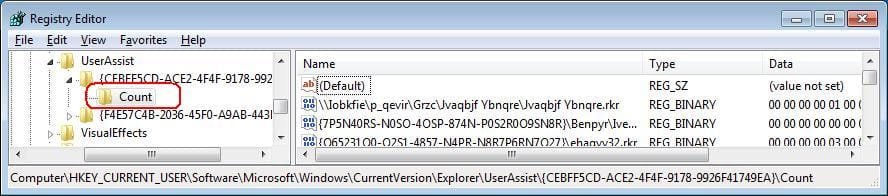
When I changed the icon view from small to medium or from large to medium, Process Monitor showed info inside that count key being set. When I changed the icon view from medium to large or from medium to small, info inside that count key was being deleted by Explorer.
So --- I figured --- that is the key to play with. And that is one of the nice things about virtual machines: you can mess with stuff all you want and then tell them to revert back to the state that they were in before you messed with them,
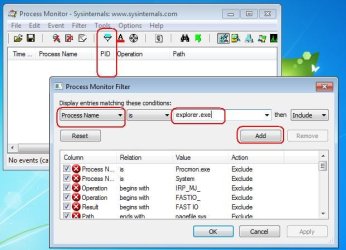
This shows Explorer via a Process Monitor window (bottom of screenshot and in the background) setting some info in that count key.
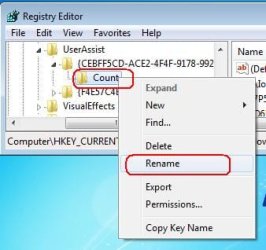
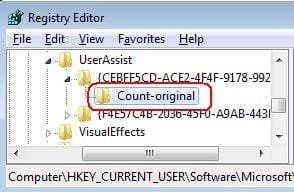
So - rename that count key to count-original or anything that you want to call it.
Change the icon view:
Close regedit
log off
log back on
open regedit
Notice that a lot of info has not been rebuilt into that newly created count key. More info will be put in there as you change stuff that pertains to User Assistance (Ease of Access features).
If you don't like the idea of not having all of the other info inside of that count key - then don't rename it... rename the applicable objects under the Name column in the right pane... if you can figure out what they are.
This video is an attempt to show that most of the original info will get put into the new count key as you make use of User Assistance (Ease of Access features).
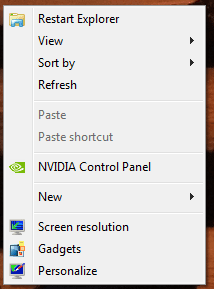
Still not working for me, logged back on and they were small again. Could it be because I have added a restart explorer shortcut to my desktop as seen here? Also, how do I get that diagnostic window on the bottom like yours that shows changes when I change the icon view size?
If you are talking about the Process Monitor window - then take a look at my post again. Each place where I mentioned Process Monitor is blue text. That blue text is a link to the website where you can get Process Monitor.
Download the zipped (compressed) file
Open the zipped (compressed) file (folder)
Copy the files somewhere
Run the exe
Agree to the EULA
When it starts for the first time, it automatically starts gathering data.
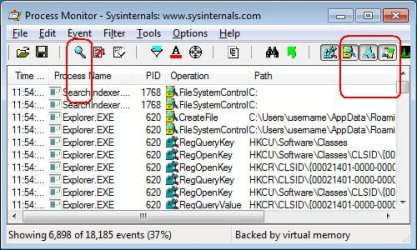
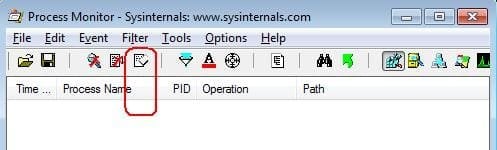
You can stop that via the button/icon with the magnifying glass.
Then de-select the buttons/icons shown in the right part of this image:
Clear the screen:
Add a filter for the Windows (file) Explorer:
Start the data collection process.
(Use the same button/icon that you see in screenshot #1.)
Make the changes to the desktop icons.
Stop the data collection process.
Happy reading
Notice the column with the time stamps.
(You might need to widen that column.)
You can:
...clear any data in the Process Monitor window
...right click on the desktop
...select view
...wait for the computer's time to change one minute
...(e.g from 12:20 to 12:21)
...then select then option for large icons
...stop the data collection process
Scroll thru the data until you see the place where the minute changed - most of the entries after that point should be the ones of interest.
I'm sure that there are people in these forums who know how to use the Process Monitor app better than I do.
The start menu icons are missing again, as seen in the picture below. Using a .bat file to rebuild the icon cache used to work, now it doesn't. All the programs are on the C:\ drive.
What happens when you manually try to correct one icon by pointing it to a different (wrong) icon and then pointing it back to the correct one? I've seen desktop shortcuts lose their icon info, but I've never bothered to chase down a reason. Maybe others in the forum have a clue
What happens when you manually try to correct one icon by pointing it to a different (wrong) icon and then pointing it back to the correct one? I've seen desktop shortcuts lose their icon info, but I've never bothered to chase down a reason. Maybe others in the forum have a clue
I'm not quite sure how I would go about doing that. Sorry for the late response. My house has been crazy the past ten days and I haven't been able to get behind a computer.