

- Local time
- 9:54 AM
- Messages
- 16,784
A lot of you are using this, and here is how you mount and manage your existing backup images.
1. To Manage
They are usually listed under the Home tab. The dropdowns provide the functions
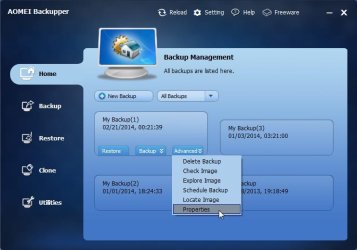
If an image is not listed ( if you have just restored, or repartitioned, then it may not be), you just browse to it and then it will added.
2. To Mount
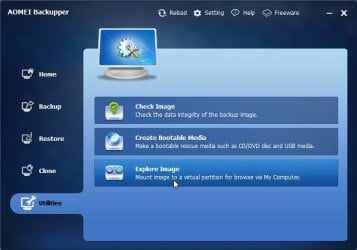
Select Utilities>Explore image.

You can select any of those listed, or click the "path" button and browse to the image you want to mount.
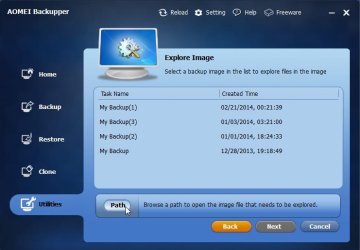
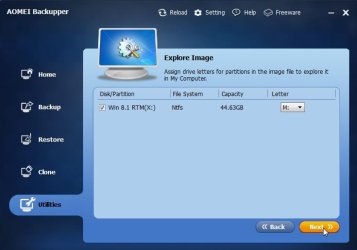
When you have selected the image, click Next and it suggests a drive letter - or you can pick your own.
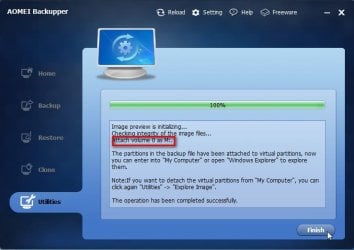
It mounts very quickly, and you can see it in windows explorer, etc
3.To Unmount
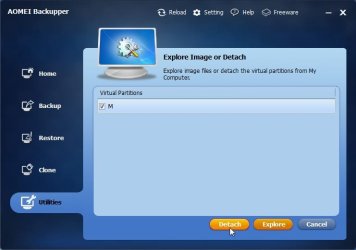
Select Utilities>Explore Image.
Tick the mounted image you want to unmount or "Detach" and click detach. That is virtually instant.
1. To Manage
They are usually listed under the Home tab. The dropdowns provide the functions
If an image is not listed ( if you have just restored, or repartitioned, then it may not be), you just browse to it and then it will added.
2. To Mount
Select Utilities>Explore image.
You can select any of those listed, or click the "path" button and browse to the image you want to mount.
When you have selected the image, click Next and it suggests a drive letter - or you can pick your own.
It mounts very quickly, and you can see it in windows explorer, etc
3.To Unmount
Select Utilities>Explore Image.
Tick the mounted image you want to unmount or "Detach" and click detach. That is virtually instant.
My Computers
System One System Two
-
- Computer type
- PC/Desktop
- OS
- 7 X64
- CPU
- i5 8400
- Motherboard
- gigabyte b365m ds3h
- Memory
- 2x8gb 3200mhz
- Hard Drives
- various
- PSU
- pure power 11 400w cm
- Case
- Coolermaster
- Cooling
- cryorig m9i
-
- Computer type
- PC/Desktop
- OS
- 7x64
- CPU
- g5400
- Motherboard
- ga b365m ds3h
- Memory
- 8gb ddr4 2400
- PSU
- xfx pro 450w


