Mouse Pointers - Change

How to Change the Mouse Pointers in Windows 7

   Information
This will show you how to change and customize the mouse pointers in Windows 7.

   Note
Windows 7 uses .ani (animated cursor) and .cur (cursor) files for the mouse pointers.

The default Cursor folder in Windows 7 is located at C:\Windows\Cursors. It would be best to keep your pointers saved in this folder as well.

   Tip
For all you left handed folks out there, here are some left handed Aero cursors for you in a .zip file below. :)


Download


OPTION ONE

To Change Pointers in Mouse Properties

1. Open the Control Panel (icons view), and click on the Mouse icon.

2. Close the Control Panel window.

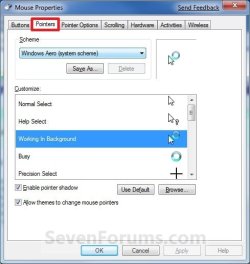
3. Click on the Pointers tab, then do either step 4 or 5 below for how you would like to change them. (see screenshot below)Properties-1.jpg

4. To Select a Mouse Pointer Scheme (theme)
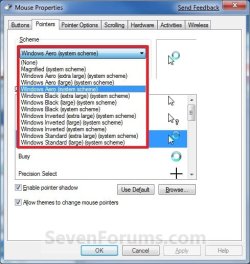
NOTE: This will let you select a default Windows 7 scheme, or a custom scheme saved by you from step 6 below.A) Under Scheme, select a scheme that you want to use for all of the pointers from the drop down menu. (see screenshot above and below)Properties-2.jpg

B) If you do not want to customize any of these pointers, then go to step 8.

5. To Customize and Change a Mouse Pointer
NOTE: This will allow you to change any individual pointer event in a scheme to whatever pointer that you want instead.A) Under Customize, select the event that you want to change the pointer for, and click on the Browse button. (see screenshot below step 3)
NOTE: If you want to use the default pointer for that event, click on the Use Default button instead. This can be handy if you have already changed pointer from it's default pointer.

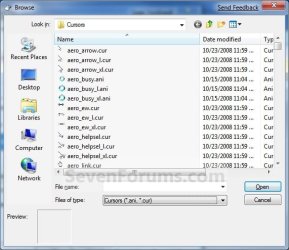
B) Navigate to where you have your pointer saved to, then select it and click on the Open button. (see screenshow below)
   Note
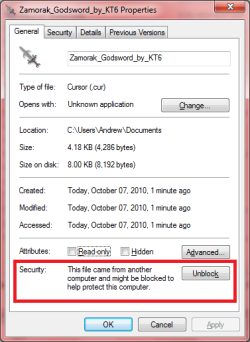
For custom mouse pointer .cur or .ani file that you have downloaded and saved to your computer, be sure that you right click on the .cur or .ani file, click on Properties, General tab, and click on the Unblock button if there as below. Not making sure that the .cur file is unblocked already will prevent the image from being used and displayed.

Unblock.png
Browse.jpg

C) If you do not want to save your new custom pointers scheme, then go to step 8.

6. To Save a Mouse Pointer Scheme (theme)
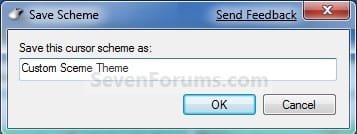
NOTE: This will allow you to save your custom scheme so that it will be available to select from step 4 above.A) Under Scheme, click on the Save As button. (see screenshot below step 4)

B) Type in a name for your pointers scheme and click on OK. (see screenshot below)Save.jpg


7. To Delete a Mouse Pointer Scheme (theme)
NOTE: This will allow you to delete a custom scheme that you have saved from step 6 above. You cannot delete a default Windows 7 pointers scheme.A) Under Scheme, select a scheme from the drop down menu that you want to delete, and click on the Delete button. (see screenshots below step 3 and 4A)
NOTE: If the Delete button is grayed out, then you have a default Windows 7 pointers theme selected. You will need to select one that you had saved from step 6 before instead.

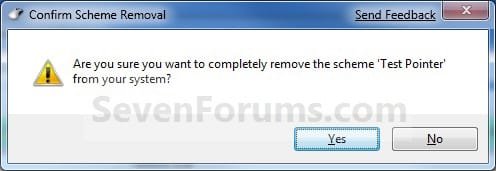
B) Click on Yes to confirm the deletion. (see screenshot below)Confirm.jpg


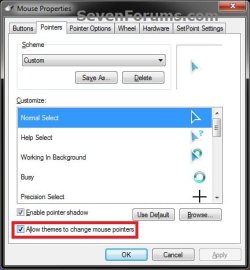
8. When done, check the Allow themes to change mouse pointers box and click on OK. (see screenshot below)Check.jpg

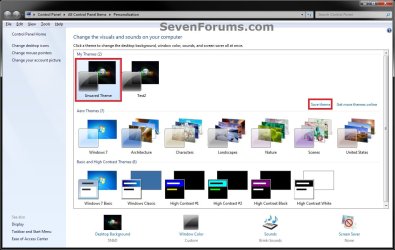
9. Now, save your new Windows theme. (see screenshots below)
NOTE: Since your new mouse pointer theme is also part of your Windows theme, you will need to re-save your Windows theme so that the changes you made to your mouse pointers are applied again the next time you log off and log on or restart the computer.Theme.jpg

Theme-2.jpg


OPTION TWO

To Change Pointers in Registy Editor

1. Open the Start Menu, then type regedit in the search box and press Enter.

2. If prompted by UAC, then click on Yes.

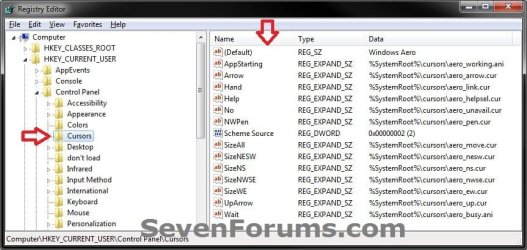
3. In regedit, navigate to the location below, then do either step 4 or 5 below for how you would like to change them. (see screenshot below)HKEY_CURRENT_USER\Control Panel\Cursors

Reg1.jpg

4. To Select a Mouse Pointer Scheme (theme)A) In the right pane of Cursors, right click on (Default) and click on Modify. (see screenshot above)

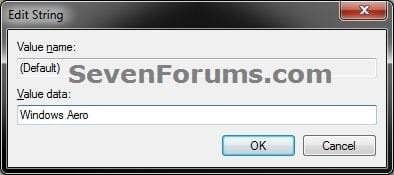
B) Type in the Data value exactly as is below for the pointer Scheme that you would like to use, and click on OK. (see screenshow below)Modify1.jpg

Data Values:


  • (leave empty in Modify for None)
  • Magnified
  • Windows Aero (extra large)
  • Windows Aero (large)
  • Windows Aero
  • Windows Black (extra large)
  • Windows Black (large)
  • Windows Black
  • Windows Inverted (extra large)
  • Windows Inverted (large)
  • Windows Inverted
  • Windows Standard (extra large)
  • Windows Inverted (large)
B) If you do not want to customize any of these pointers, then go to step 6.

5. To Customize and Change a Mouse Pointer
NOTE: This will allow you to change any individual pointer event in a scheme to whatever pointer that you want instead.A) In the right pane of Cursors, right click on the string value Name (see table below) for the mouse pointer that you want to change, then click on Modify. (see screenshot below step 3)
NOTE: The string value names in red below are not listed by default, and will need to be added. To do so, right click in a empty space in the right pane and click on New and String Value, then type in the string value name below and press enter.

Mouse PointerString Value Name
Normal SelectArrow
Help SelectHelp
Working in BackgroundAppStarting
BusyWait
Precision SelectCrosshair
Text SelectIBeam
HandwritingNWPen
UnavailableNo
Vertical ResizeSizeNS
Horizontal ResizeSizeWE
Diagonal Resize 1SizeNWSE
Diagonal Resize 2SizeNESW
MoveSizeAll
Alternate SelectUpArrow
Link SelectHand

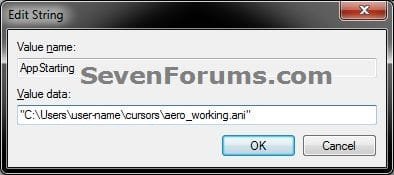
B) Type in the full path to the location of your saved .ani or .cur file within quotes, and click on OK. (see screenshot below)
   Note
For custom mouse pointer .cur or .ani file that you have downloaded and saved to your computer, be sure that you right click on the .cur or .ani file, click on Properties, General tab, and click on the Unblock button if there as below. Not making sure that the .cur file is unblocked already will prevent the image from being used and displayed.
Unblock.png
Modify.jpg


6. Close regedit.

7. Now, save your new desktop theme. (see screenshots below)
NOTE: Since your new mouse pointer theme is also part of your desktop theme, you will need to re-save your desktop theme so that the changes you made to your mouse pointers are applied again the next time you log off and log on or restart the computer.Theme.jpg

Theme-2.jpg


That's it,
Shawn Brink


Attachments

Last edited:
I followed all steps to change my cursor to one from my game (a sword) and it works fine as long as I don't shut down.After shutting down and restart the next day I have to change because its back to win7 cursor and I have to change it again. Any Ideas
 

My Computer

OS
windows 7

My Computer

Computer type
PC/Desktop
Computer Manufacturer/Model Number
Self built custom
OS
64-bit Windows 11 Pro for Workstations
CPU
Intel i7-8700K OC'd to 5 GHz
Motherboard
ASUS ROG Maximus XI Formula Z390
Memory
64 GB (4x16GB) G.SKILL TridentZ RGB DDR4 3600 MHz
Graphics Card(s)
ASUS ROG-STRIX-GTX1080TI-O11G-GAMING
Sound Card
Integrated
Monitor(s) Displays
2 x Samsung Odyssey G7 27"
Screen Resolution
2560x1440
Hard Drives
1TB Samsung 990 PRO M.2,
4TB Samsung 990 PRO PRO M.2,
TerraMaster F8 SSD Plus NAS
PSU
Seasonic Prime Titanium 850W
Case
Thermaltake Core P3
Cooling
Corsair Hydro H115i
Keyboard
Logitech wireless K800
Mouse
Logitech MX Master 4
Internet Speed
2 Gb/s Download and 100 Mb/s Upload
Antivirus
Malwarebyte Anti-Malware Premium
Browser
Google Chrome
Other Info
Logitech Z625 speaker system,
Logitech BRIO 4K Pro webcam,
HP Color LaserJet Pro MFP M477fdn,
APC SMART-UPS RT 1000 XL - SURT1000XLI,
Galaxy S23 Plus phone
I have the same exact problem. I changed all my mouse pointers, unchecked the box that says Allow themes to change mouse pointers, saved the theme, clicked apply and OK, and every time I restart my computer I have to go back into the control panel - personalization and click OK again to bring back my saved scheme.
 

My Computer

OS
windows 7
Hello DarthMauler, and welcome to Seven Forums.

You saved the Mouse pointers theme, but did you also save your complete Windows 7 theme in Personalization?
 

My Computer

Computer type
PC/Desktop
Computer Manufacturer/Model Number
Self built custom
OS
64-bit Windows 11 Pro for Workstations
CPU
Intel i7-8700K OC'd to 5 GHz
Motherboard
ASUS ROG Maximus XI Formula Z390
Memory
64 GB (4x16GB) G.SKILL TridentZ RGB DDR4 3600 MHz
Graphics Card(s)
ASUS ROG-STRIX-GTX1080TI-O11G-GAMING
Sound Card
Integrated
Monitor(s) Displays
2 x Samsung Odyssey G7 27"
Screen Resolution
2560x1440
Hard Drives
1TB Samsung 990 PRO M.2,
4TB Samsung 990 PRO PRO M.2,
TerraMaster F8 SSD Plus NAS
PSU
Seasonic Prime Titanium 850W
Case
Thermaltake Core P3
Cooling
Corsair Hydro H115i
Keyboard
Logitech wireless K800
Mouse
Logitech MX Master 4
Internet Speed
2 Gb/s Download and 100 Mb/s Upload
Antivirus
Malwarebyte Anti-Malware Premium
Browser
Google Chrome
Other Info
Logitech Z625 speaker system,
Logitech BRIO 4K Pro webcam,
HP Color LaserJet Pro MFP M477fdn,
APC SMART-UPS RT 1000 XL - SURT1000XLI,
Galaxy S23 Plus phone
yes. I saved my theme after changing my sound scheme, mouse pointers, and desktop theme pictures. But I still have the problem. This is the only little annoyance I have with Windows 7. Everything else seems to work fine.
 

My Computer

OS
windows 7
I'm afraid that I'm not sure why it keeps resetting on you like this either. :(
 

My Computer

Computer type
PC/Desktop
Computer Manufacturer/Model Number
Self built custom
OS
64-bit Windows 11 Pro for Workstations
CPU
Intel i7-8700K OC'd to 5 GHz
Motherboard
ASUS ROG Maximus XI Formula Z390
Memory
64 GB (4x16GB) G.SKILL TridentZ RGB DDR4 3600 MHz
Graphics Card(s)
ASUS ROG-STRIX-GTX1080TI-O11G-GAMING
Sound Card
Integrated
Monitor(s) Displays
2 x Samsung Odyssey G7 27"
Screen Resolution
2560x1440
Hard Drives
1TB Samsung 990 PRO M.2,
4TB Samsung 990 PRO PRO M.2,
TerraMaster F8 SSD Plus NAS
PSU
Seasonic Prime Titanium 850W
Case
Thermaltake Core P3
Cooling
Corsair Hydro H115i
Keyboard
Logitech wireless K800
Mouse
Logitech MX Master 4
Internet Speed
2 Gb/s Download and 100 Mb/s Upload
Antivirus
Malwarebyte Anti-Malware Premium
Browser
Google Chrome
Other Info
Logitech Z625 speaker system,
Logitech BRIO 4K Pro webcam,
HP Color LaserJet Pro MFP M477fdn,
APC SMART-UPS RT 1000 XL - SURT1000XLI,
Galaxy S23 Plus phone
I am also having this happen to me and would any help I can get. Please find a fix and let us all know what it is.
 

My Computer

OS
windows 7
   Note

Tutorial Update:

Added Option Two to help show how to be able to change the Mouse Pointers through Registry Editor.


My Computer

Computer type
PC/Desktop
Computer Manufacturer/Model Number
Self built custom
OS
64-bit Windows 11 Pro for Workstations
CPU
Intel i7-8700K OC'd to 5 GHz
Motherboard
ASUS ROG Maximus XI Formula Z390
Memory
64 GB (4x16GB) G.SKILL TridentZ RGB DDR4 3600 MHz
Graphics Card(s)
ASUS ROG-STRIX-GTX1080TI-O11G-GAMING
Sound Card
Integrated
Monitor(s) Displays
2 x Samsung Odyssey G7 27"
Screen Resolution
2560x1440
Hard Drives
1TB Samsung 990 PRO M.2,
4TB Samsung 990 PRO PRO M.2,
TerraMaster F8 SSD Plus NAS
PSU
Seasonic Prime Titanium 850W
Case
Thermaltake Core P3
Cooling
Corsair Hydro H115i
Keyboard
Logitech wireless K800
Mouse
Logitech MX Master 4
Internet Speed
2 Gb/s Download and 100 Mb/s Upload
Antivirus
Malwarebyte Anti-Malware Premium
Browser
Google Chrome
Other Info
Logitech Z625 speaker system,
Logitech BRIO 4K Pro webcam,
HP Color LaserJet Pro MFP M477fdn,
APC SMART-UPS RT 1000 XL - SURT1000XLI,
Galaxy S23 Plus phone
Hi, I have changed my cursors successfully using the control panel method in as I did in XP. The only problem is that whenever I log out or reboot the cursor resets itself to the standard Windows Aero. I have tried turning off "Allow themes to change cursors". This doesn't work, nor does changing the cursor and saving the theme with the "Allow themes to change cursors" option on. I'm not entirely sure why htis keeps happening, it's quite annoying and I've had this problem since I first got 7.
 

My Computer

Computer Manufacturer/Model Number
ASUS K70IO-TY002C
OS
Windows 7
CPU
INtel Pentium Dual Core 2Ghz
Motherboard
-
Memory
4gb
Graphics Card(s)
Nvidia Geforce GT120M
Sound Card
-
Monitor(s) Displays
17.3 inch laptop display
Hard Drives
Western Digital Scorpio Blue 500gb.
PSU
-
Case
-
Cooling
-
Hello Kjell,

As a test to see if it's just with this user account, create a new administrator account to see if the new mouse pointers will stick in it.
 

My Computer

Computer type
PC/Desktop
Computer Manufacturer/Model Number
Self built custom
OS
64-bit Windows 11 Pro for Workstations
CPU
Intel i7-8700K OC'd to 5 GHz
Motherboard
ASUS ROG Maximus XI Formula Z390
Memory
64 GB (4x16GB) G.SKILL TridentZ RGB DDR4 3600 MHz
Graphics Card(s)
ASUS ROG-STRIX-GTX1080TI-O11G-GAMING
Sound Card
Integrated
Monitor(s) Displays
2 x Samsung Odyssey G7 27"
Screen Resolution
2560x1440
Hard Drives
1TB Samsung 990 PRO M.2,
4TB Samsung 990 PRO PRO M.2,
TerraMaster F8 SSD Plus NAS
PSU
Seasonic Prime Titanium 850W
Case
Thermaltake Core P3
Cooling
Corsair Hydro H115i
Keyboard
Logitech wireless K800
Mouse
Logitech MX Master 4
Internet Speed
2 Gb/s Download and 100 Mb/s Upload
Antivirus
Malwarebyte Anti-Malware Premium
Browser
Google Chrome
Other Info
Logitech Z625 speaker system,
Logitech BRIO 4K Pro webcam,
HP Color LaserJet Pro MFP M477fdn,
APC SMART-UPS RT 1000 XL - SURT1000XLI,
Galaxy S23 Plus phone
Ok, this is strange, I just made the second admin changed the cursor relogged and it was still changed. After this worked I decided to try it again on my account. I changed the cursors to the (none) scheme relogged and they were still there. So it seems as though it's only the custom downloaded cursor packs that don't stay...
 

My Computer

Computer Manufacturer/Model Number
ASUS K70IO-TY002C
OS
Windows 7
CPU
INtel Pentium Dual Core 2Ghz
Motherboard
-
Memory
4gb
Graphics Card(s)
Nvidia Geforce GT120M
Sound Card
-
Monitor(s) Displays
17.3 inch laptop display
Hard Drives
Western Digital Scorpio Blue 500gb.
PSU
-
Case
-
Cooling
-
Hopefully you will find some individual cursors that will work for you instead.
 

My Computer

Computer type
PC/Desktop
Computer Manufacturer/Model Number
Self built custom
OS
64-bit Windows 11 Pro for Workstations
CPU
Intel i7-8700K OC'd to 5 GHz
Motherboard
ASUS ROG Maximus XI Formula Z390
Memory
64 GB (4x16GB) G.SKILL TridentZ RGB DDR4 3600 MHz
Graphics Card(s)
ASUS ROG-STRIX-GTX1080TI-O11G-GAMING
Sound Card
Integrated
Monitor(s) Displays
2 x Samsung Odyssey G7 27"
Screen Resolution
2560x1440
Hard Drives
1TB Samsung 990 PRO M.2,
4TB Samsung 990 PRO PRO M.2,
TerraMaster F8 SSD Plus NAS
PSU
Seasonic Prime Titanium 850W
Case
Thermaltake Core P3
Cooling
Corsair Hydro H115i
Keyboard
Logitech wireless K800
Mouse
Logitech MX Master 4
Internet Speed
2 Gb/s Download and 100 Mb/s Upload
Antivirus
Malwarebyte Anti-Malware Premium
Browser
Google Chrome
Other Info
Logitech Z625 speaker system,
Logitech BRIO 4K Pro webcam,
HP Color LaserJet Pro MFP M477fdn,
APC SMART-UPS RT 1000 XL - SURT1000XLI,
Galaxy S23 Plus phone
After awhile of struggling and troubleshooting, I finally managed to get my custom cursor to stay active, even after reboot.

The 2 things I think played the biggest role are a follows:

1) Saved all custom cursor images to C:\Windows\Cursors

2) In the Properties of each cursor, I found a little extra security setting on my dowloaded cursors (I attached a picture with the extra section outlined in red). A simple little feature that potentially blocks the file from being used to protect the computer. Simply click the "Unblock" button to ensure your cursors don't get blocked.

Initially I had just unblocked the cursors and still had the problem with my cursors resetting. It wasn't until I moved them into the Cursors folder that they stayed. Not sure if this will work for everyone, but so far it's worked for me and I felt I should pass it on.
 

Attachments

  • Cursor Security.png
    Cursor Security.png
    47.2 KB · Views: 469

My Computer

OS
Windows 7 Professional x64
CPU
AMD Phenom II X2 545
Motherboard
MSI 770-C45
Memory
8GB DDR3
Graphics Card(s)
Sapphire ATI Radeon HD 4350
Monitor(s) Displays
19" LCD
Hard Drives
500GB SATA
PSU
Diablotek 650W
Case
Raidmax Hurricane
Cooling
2x80mm and 1x120mm case fans and stock CPU fan & heatsnk
Hello ShadowTwisted, and welcome to Seven Forums.

Thank you for posting back with your findings and results. I have added a note in the tutorial to help other avoid this same issue. :)

Thank you again,
Shawn
 

My Computer

Computer type
PC/Desktop
Computer Manufacturer/Model Number
Self built custom
OS
64-bit Windows 11 Pro for Workstations
CPU
Intel i7-8700K OC'd to 5 GHz
Motherboard
ASUS ROG Maximus XI Formula Z390
Memory
64 GB (4x16GB) G.SKILL TridentZ RGB DDR4 3600 MHz
Graphics Card(s)
ASUS ROG-STRIX-GTX1080TI-O11G-GAMING
Sound Card
Integrated
Monitor(s) Displays
2 x Samsung Odyssey G7 27"
Screen Resolution
2560x1440
Hard Drives
1TB Samsung 990 PRO M.2,
4TB Samsung 990 PRO PRO M.2,
TerraMaster F8 SSD Plus NAS
PSU
Seasonic Prime Titanium 850W
Case
Thermaltake Core P3
Cooling
Corsair Hydro H115i
Keyboard
Logitech wireless K800
Mouse
Logitech MX Master 4
Internet Speed
2 Gb/s Download and 100 Mb/s Upload
Antivirus
Malwarebyte Anti-Malware Premium
Browser
Google Chrome
Other Info
Logitech Z625 speaker system,
Logitech BRIO 4K Pro webcam,
HP Color LaserJet Pro MFP M477fdn,
APC SMART-UPS RT 1000 XL - SURT1000XLI,
Galaxy S23 Plus phone
After awhile of struggling and troubleshooting, I finally managed to get my custom cursor to stay active, even after reboot.

The 2 things I think played the biggest role are a follows:

1) Saved all custom cursor images to C:\Windows\Cursors

2) In the Properties of each cursor, I found a little extra security setting on my dowloaded cursors (I attached a picture with the extra section outlined in red). A simple little feature that potentially blocks the file from being used to protect the computer. Simply click the "Unblock" button to ensure your cursors don't get blocked.

Initially I had just unblocked the cursors and still had the problem with my cursors resetting. It wasn't until I moved them into the Cursors folder that they stayed. Not sure if this will work for everyone, but so far it's worked for me and I felt I should pass it on.


Thank you so much for this!! I feel so stupid for not having done this earlier but I had the cursors saved in my documents! Thank you Brink and ShadowTwisted for all the help!
 

My Computer

Computer Manufacturer/Model Number
ASUS K70IO-TY002C
OS
Windows 7
CPU
INtel Pentium Dual Core 2Ghz
Motherboard
-
Memory
4gb
Graphics Card(s)
Nvidia Geforce GT120M
Sound Card
-
Monitor(s) Displays
17.3 inch laptop display
Hard Drives
Western Digital Scorpio Blue 500gb.
PSU
-
Case
-
Cooling
-
I'm happy to hear that you got it sorted Kjell. :)
 

My Computer

Computer type
PC/Desktop
Computer Manufacturer/Model Number
Self built custom
OS
64-bit Windows 11 Pro for Workstations
CPU
Intel i7-8700K OC'd to 5 GHz
Motherboard
ASUS ROG Maximus XI Formula Z390
Memory
64 GB (4x16GB) G.SKILL TridentZ RGB DDR4 3600 MHz
Graphics Card(s)
ASUS ROG-STRIX-GTX1080TI-O11G-GAMING
Sound Card
Integrated
Monitor(s) Displays
2 x Samsung Odyssey G7 27"
Screen Resolution
2560x1440
Hard Drives
1TB Samsung 990 PRO M.2,
4TB Samsung 990 PRO PRO M.2,
TerraMaster F8 SSD Plus NAS
PSU
Seasonic Prime Titanium 850W
Case
Thermaltake Core P3
Cooling
Corsair Hydro H115i
Keyboard
Logitech wireless K800
Mouse
Logitech MX Master 4
Internet Speed
2 Gb/s Download and 100 Mb/s Upload
Antivirus
Malwarebyte Anti-Malware Premium
Browser
Google Chrome
Other Info
Logitech Z625 speaker system,
Logitech BRIO 4K Pro webcam,
HP Color LaserJet Pro MFP M477fdn,
APC SMART-UPS RT 1000 XL - SURT1000XLI,
Galaxy S23 Plus phone
Ok I change the normal select. How can I change the Link select (the hand) as the same cursor?
 

My Computer

Computer type
Laptop
Computer Manufacturer/Model Number
compaq
OS
windows Ultimate
Hello Rose,

You should be able to scroll down to select the Link Select option, click the Browse button, and select the same cursor using the the same method.

Hope this helps,
Shawn
 

My Computer

Computer type
PC/Desktop
Computer Manufacturer/Model Number
Self built custom
OS
64-bit Windows 11 Pro for Workstations
CPU
Intel i7-8700K OC'd to 5 GHz
Motherboard
ASUS ROG Maximus XI Formula Z390
Memory
64 GB (4x16GB) G.SKILL TridentZ RGB DDR4 3600 MHz
Graphics Card(s)
ASUS ROG-STRIX-GTX1080TI-O11G-GAMING
Sound Card
Integrated
Monitor(s) Displays
2 x Samsung Odyssey G7 27"
Screen Resolution
2560x1440
Hard Drives
1TB Samsung 990 PRO M.2,
4TB Samsung 990 PRO PRO M.2,
TerraMaster F8 SSD Plus NAS
PSU
Seasonic Prime Titanium 850W
Case
Thermaltake Core P3
Cooling
Corsair Hydro H115i
Keyboard
Logitech wireless K800
Mouse
Logitech MX Master 4
Internet Speed
2 Gb/s Download and 100 Mb/s Upload
Antivirus
Malwarebyte Anti-Malware Premium
Browser
Google Chrome
Other Info
Logitech Z625 speaker system,
Logitech BRIO 4K Pro webcam,
HP Color LaserJet Pro MFP M477fdn,
APC SMART-UPS RT 1000 XL - SURT1000XLI,
Galaxy S23 Plus phone
Hello Rose,

You should be able to scroll down to select the Link Select option, click the Browse button, and select the same cursor using the the same method.

Hope this helps,
Shawn
Yes, but I can't the same custom cursor on the same one though.
Thanks ☺
 

My Computer

Computer type
Laptop
Computer Manufacturer/Model Number
compaq
OS
windows Ultimate
Rose,

I'm not sure if I may be understanding what you are wanting. Please explain more if I'm not.

You can select and use the same single .cur file for both the Normal Select and Link Select pointer items at step 5.
 

My Computer

Computer type
PC/Desktop
Computer Manufacturer/Model Number
Self built custom
OS
64-bit Windows 11 Pro for Workstations
CPU
Intel i7-8700K OC'd to 5 GHz
Motherboard
ASUS ROG Maximus XI Formula Z390
Memory
64 GB (4x16GB) G.SKILL TridentZ RGB DDR4 3600 MHz
Graphics Card(s)
ASUS ROG-STRIX-GTX1080TI-O11G-GAMING
Sound Card
Integrated
Monitor(s) Displays
2 x Samsung Odyssey G7 27"
Screen Resolution
2560x1440
Hard Drives
1TB Samsung 990 PRO M.2,
4TB Samsung 990 PRO PRO M.2,
TerraMaster F8 SSD Plus NAS
PSU
Seasonic Prime Titanium 850W
Case
Thermaltake Core P3
Cooling
Corsair Hydro H115i
Keyboard
Logitech wireless K800
Mouse
Logitech MX Master 4
Internet Speed
2 Gb/s Download and 100 Mb/s Upload
Antivirus
Malwarebyte Anti-Malware Premium
Browser
Google Chrome
Other Info
Logitech Z625 speaker system,
Logitech BRIO 4K Pro webcam,
HP Color LaserJet Pro MFP M477fdn,
APC SMART-UPS RT 1000 XL - SURT1000XLI,
Galaxy S23 Plus phone
Back
Top