Solved Moving "System Reserved" partition

andrewbt

New member
Local time
3:43 PM
Messages
7
Hi all

I've two Windows 7 installations as a multi boot on two physical drives:

Disk 1 - 100 MB System reserved partition and a windows partition with my first (not genuine I later found) installation
Disk 2 - Second "genuine" installation

I'll eventually delete the first installation and would like also to shift the System reserved partition to the second disk so that it "stands alone" as a boot drive. I'm comfortable enough with creating/copying/moving partitions but guess that it won't be as simple as "inserting" a copy of the system reserved partition at the start of the second disk and switching the boot order of the drives.

I can't find any tutorials/posts on the topic, nearest hint suggested I might be looking at a repair install, but before I go down the trial and error route I thought I'd check to see if anyone knew.

Thanks

Andrew
 

My Computer

OS
Windows 7 Home Premium 64bit
Welcome to SF!

I did all this using Partition Wizard and changing the Boot Sequence in BIOS.

I didn't have any problems- just make some backups first. ;)
 

My Computer

Computer Manufacturer/Model Number
OEM - Me
OS
Windows 7 Home Premium x64
CPU
AMD Phenom II X6 1600T
Motherboard
GigaByte GZ-990FXA-UD3
Memory
16GB PC3-10700 (1342MHz)
Graphics Card(s)
ATI Radeon 5770 HD (x2) CrossFire
Sound Card
On-board RealTek chipset
Monitor(s) Displays
3x Hanns-G 1920x1080 Monitors
Screen Resolution
3x Hanns-G 1920x1080 Monitors
Hard Drives
Intel 25-V SSD 40GB: 218 MB/s AT: 0.1ms
Intel X-25M SSD 80GB: 230MB/s AT: 0.1ms
Seagate 750GB: 133 MB/s AT: 13ms (perpendicular storage)
Buffalo HD-PCTU3 1TB External drive
PSU
OCZ Stealth X Stream 750W
Case
Cheap (unknown)
Cooling
Stock
Keyboard
HP USB
Mouse
LogiTech USB
Internet Speed
1.5 Mbps - Slow - At the tail-end of a rural network
Other Info
Printer: Epson Stylus C-84
Scanner: HP 3500C Flatbed
DVD-RW: Plextor
DVD-ROM: Unknown
WEI: 7.4
Does the legal second installation boot and operate fine when the other drive is totally disconnected???

If it does, you could just do that--ignore the first drive and reformat it or throw it in the closet. As I understand it, the 100 MB "reserved partition" is there to assist recovery, but it offers you nothing for recovery that you can't find on a legit Windows 7 install disc anyway.

I don't have the 100 MB system reserved partition on my PC and I deliberately chose not to install it.

I'm assuming you have a legit install disc.
 

My Computer

Computer type
PC/Desktop
Computer Manufacturer/Model Number
Ignatz Special; 4 speed manual gearbox; factory air conditioning; one of one
OS
Windows 7 Home Premium SP1, 64-bit
CPU
Intel Skylake i5-6600K, not overclocked
Motherboard
AsRock Z170M Extreme 4, micro ATX
Memory
8 GB HyperX DDR4-2666 (2 x 4 GB)
Graphics Card(s)
none; graphics are integrated on CPU
Sound Card
onboard: Realtek ALC1150; external: USB Behringer UF0-202
Monitor(s) Displays
Dell S2340M 23 inch IPS
Screen Resolution
1600 x 900
Hard Drives
System: Crucial MX100 series SSD, 128 GB;
Data: Samsung Spinpoint 103SJ, 1 TB;
Backup: WD Caviar Green WD30EZRX-00D8PB0, 3 TB
PSU
Rosewill SilentNight 500 watt fanless, semi-modular
Case
Antec Solo II
Cooling
Noctua NH-U12S; Noctua F12 intake, Noctua S12A exhaust
Keyboard
Microsoft 200 6JH-00001 USB
Mouse
Dell or Microsoft optical wired; USB
Antivirus
Microsoft Security Essentials and Malwarebytes Premium
Browser
Pale Moon
Other Info
All fans PWM; speeds at idle: CPU circa 500 rpm; intake circa 600 rpm; exhaust circa 600 rpm; CPU temps 27 idle and 47 C load in a warm room (27 C/81 F) when running Intel Extreme Tuning Utility stress test.
As I understand it, the 100 MB "reserved partition" is there to assist recovery, but it offers you nothing for recovery that you can't find on a legit Windows 7 install disc anyway.
It serves recovery, boot and bitlocker purposes as far as I know.
If you decide not to create it during install, however, I guess/assume that all those features are installed in the "default" C:\ drive (I don't have that 100MB partition at the beginning of the disk but I'm able to launch the startup recovery without the DVD anyway so I assume the necessary files for it have just been stored in C:\).
 

My Computer

Computer type
PC/Desktop
Computer Manufacturer/Model Number
I've made it myself :)
OS
Windows 10 1703
CPU
intel Core i7 920
Motherboard
ASUS P6T
Memory
12GB DDR3 Corsair XMS3
Graphics Card(s)
Sapphire AMD R9 270X
Sound Card
onboard
Monitor(s) Displays
My living room TV
Screen Resolution
Too high for that card
Hard Drives
If they're that hard, why do they break so often?
PSU
LC Power GP3 650W
Case
CoolerMaster Centurion
Cooling
Still lots of fans :(
Keyboard
Logitech K400r
Mouse
Mice are overrated
Internet Speed
I'd rather use travelling pigeons
Your way should work but make sure your "new" drive is the only one connected and you may need to run system/startup repair up to 3 times to rebuild the MBR, Boot sector and BCD.
Have a look at these tutorials first
http://www.sevenforums.com/tutorials/119151-system-reserved-create-using-disk-management.html?ltr=S

http://www.sevenforums.com/tutorials/105541-startup-repair-run-3-separate-times.html

The system reserved partition can be useful for multiboot situations. If the system reserved is not present one of the multi OSs needs to take on a multibooting role. I think it's best to keep the OSs as independent as possible. To dispense with it make your new drive active, make old system reserved inactive. With the new drive alone connected run the system repair up to 3 times to incorporate the boot functions into the one OS (Windows 7) partition.

If you decide to keep the system reserved partition now would be an ideal time to make it 200MB (which is what MS originally planned it to be). The system reserved requires 50MB free for shadow copy purposes when using Windows imaging. Unfortunately this partition can occasionally and temporarily fill to over 50 MB prevent imaging. Therefore, make it 200MB.
 

My Computer

Computer type
PC/Desktop
Computer Manufacturer/Model Number
Own build
OS
Windows 7x64 Home Premium SP1
CPU
Intel i7 2600k
Motherboard
ASUS P8Z68 Deluxe
Memory
G.Skill Ripjaws (DDR3-1600) 2x4GB
Graphics Card(s)
Nvidia GeForce GTS 450; Intel HD Graphics 3000(GT2+)
Monitor(s) Displays
Dell Ultrasharp IPS panel U2311H, Samsung SyncMaster P2350
Screen Resolution
1920x1080
Hard Drives
Samsung 850 Pro SSD 256GB, Samsung SSD 840 120GB, Seagates 1TB Barracuda ST31000528AS x2
PSU
Seasonic M12II 520W
Case
Lian Li Lancool PC-K60
Cooling
Case: 1x120mm, 3x140mm CPU: Hyper 212+
Keyboard
Logitech MK520 (wireless)
Mouse
Logitech MK520
Internet Speed
6-7 Mbps
Antivirus
Norton Security Premium, Malwarebytes on 2 (MSE on 3rd PC)
Browser
FireFox
Other Info
Audio: Logitech Z523 2.1
Thanks for all your quick replies.

Does the legal second installation boot and operate fine when the other drive is totally disconnected???

Unfortunately not. I'll give the repair install a try with just the new drive attached and with a 200MB partition.

I don't want to lose the original installation just yet as I had over 6 months invested in it before Microsoft decided it wasn't a genuine copy. Is it easy to add the original installation as an afterthought?

Thanks

Andrew
 

My Computer

OS
Windows 7 Home Premium 64bit
Hello andrewbt, welcome to Seven Forums!


It can be a very useful little partition/tool and if you wanted to place the System Reserved partition in the first position on the Hard Disk Drive (HDD) to keep it out of the way, have a look at this one also and be sure to post back with any further questions you may have and to keep us informed.


System Reserved : Create for Dual Boot
 

My Computer

Computer Manufacturer/Model Number
* BFK Customs *
OS
W 7 64-bit Ultimate
CPU
Intel Q9550 Yorkfield
Motherboard
ASUS P5Q Pro
Memory
8GB Dominator 8500C5D
Graphics Card(s)
ATI : XFX 5870
Sound Card
Realtek HD Audio 7-1
Monitor(s) Displays
1x 47" LCD HDMI & 3x 26" LCD HDMI
Screen Resolution
1920x1080P & 1920x1200
Hard Drives
1x 80GB Intel X25-M G2 SSD : 1x 500GB & 1x 640GB WD Caviar Black(s)
PSU
Corsair 620HX
Case
Cooler Master RC-690
Cooling
Tuniq Tower 120, 2x 140mm and 3x 120mm case fans
Keyboard
Microsoft 500
Mouse
Razer Diamondback 3G
Internet Speed
14 Mb/s
Other Info
1x Koutech 3Gb/s SATA HDD Hot Swap Rack
Nearly there now.

After disconnecting drive 1 I tried setting up the reserved partition and repairing the installation on drive 2 along the lines that were suggested in the linked articles. After a few reboots it reported it was repaired, but it didn't work. Not sure what the problem was exactly... some problem reported with the boot/bcd file and retrying the repair install didn't pick this up.

I also tried copying the original system reserved partition across as rap3302 suggested but that didn't solve it.

In the end I did a custom/clean install using the home premium family upgrade pack with just disk 2 connected. Luckily it recognised the existing install on disk 2 as qualifying me for the upgrade and archived it as it overwrote it. I'd struggled with this yesterday as the upgrade wouldn't accept the product key without an earlier windows version installed. Curiously installing from the non genuine W7 seemed to qualify me for the upgrade but left me split over 2 disks.

Incidentally, I must have had one of the first copies of XP which wouldn't go near reinstalling on my latest PC otherwise I'd have saved a lot of time yesterday.

Anyway, thanks for the various tips and I've learned a bit along the way. I would still like to add a pointer to the non genuine windows on disk 1 for my boot (from disk 2 now). I can get there by juggling disk boot order in the BIOS but it's cumbersome. I've seen some posts suggesting Vista software for this... not sure if it also works for W7 but I'll hunt a little more.

Cheers

Andrew
 

My Computer

OS
Windows 7 Home Premium 64bit
The installer will allow Upgrade version key during install if it sees any OS on the system.

However I would be concerned about not wiping the HD of all code before installing Win7 over a bootleg Win7 installation. http://www.sevenforums.com/tutorials/91339-ssd-hdd-optimize-windows-reinstallation.html

The registry edit workaround to get it to accept Upgrade key after install to a clean HD is quite easy and fully legit: http://www.sevenforums.com/tutorials/31402-clean-install-upgrade-windows-7-version.html

It seems you went to a lot of trouble to try to construct the 100mb SysReserved partition for your reinstall. Did you mark it Active before running Startup Repair from the booted DVD Repair console/Repair CD 3 full times with reboots, with all other HD's unplugged? This will normally construct it.

If you installed over the bootleg without using Custom>Drive Options to delete, repartition and format before install it might not have replaced or even used the old 100mb SysReserved partition. Is it currently marked System Active in Disk mgmt? Do you have the Repair console on Advanced Boot Tools accessed by tapping F8 at bootup?

You can post back a screenshot of full Disk Mgmt drive map and listings if you want us to look it over.
 
For future reference if the automatic startup repair function doesn't seem to do everything right then under the repair disk command prompt use the "bootrec" command.
History probably now but
bootrec /RebuildBcd
may have helped your BCD repair problem.
 

My Computer

Computer type
PC/Desktop
Computer Manufacturer/Model Number
Own build
OS
Windows 7x64 Home Premium SP1
CPU
Intel i7 2600k
Motherboard
ASUS P8Z68 Deluxe
Memory
G.Skill Ripjaws (DDR3-1600) 2x4GB
Graphics Card(s)
Nvidia GeForce GTS 450; Intel HD Graphics 3000(GT2+)
Monitor(s) Displays
Dell Ultrasharp IPS panel U2311H, Samsung SyncMaster P2350
Screen Resolution
1920x1080
Hard Drives
Samsung 850 Pro SSD 256GB, Samsung SSD 840 120GB, Seagates 1TB Barracuda ST31000528AS x2
PSU
Seasonic M12II 520W
Case
Lian Li Lancool PC-K60
Cooling
Case: 1x120mm, 3x140mm CPU: Hyper 212+
Keyboard
Logitech MK520 (wireless)
Mouse
Logitech MK520
Internet Speed
6-7 Mbps
Antivirus
Norton Security Premium, Malwarebytes on 2 (MSE on 3rd PC)
Browser
FireFox
Other Info
Audio: Logitech Z523 2.1
Thanks mjf - hopefully I won't be needing that now but useful for anyone else who finds themselves in the same situation. Similarly in response to gregrocker in case it helps someone else (I'm happy with it now)...

The registry edit workaround to get it to accept Upgrade key after install to a clean HD is quite easy and fully legit: http://www.sevenforums.com/tutorials/31402-clean-install-upgrade-windows-7-version.html

I looked at the post but my installation process seemed to differ, or I misread the post or terminology. I wasn't able to get into windows doing a vanilla install (ie just a blank hdd in the machine). I was asked for the product key during the install and irrespective of whether I selected validate now or later it wouldn't go further with the key (so I couldn't get into windows to adjust the registry). I could only get beyond entering the key if I booted with a disk connected that had a windows installation, then my best option was to install onto the second (blank) HDD which is what I did.

It seems you went to a lot of trouble to try to construct the 100mb SysReserved partition for your reinstall. Did you mark it Active before running Startup Repair from the booted DVD Repair console/Repair CD 3 full times with reboots, with all other HD's unplugged? This will normally construct it.

Yes, I had to set it as active and I ran the DVD repair console 4 times. The first two times it reported it had done something and when I looked at the details it looked like it was making progress. The third time it reported it had fixed something but when I looked at the details it didn't indicate any changes - just said something like "confirmed it looks ok". I also ran it again after the BCD error booting from the HDD at which point it said it couldn't find any errors.

If you installed over the bootleg without using Custom>Drive Options to delete, repartition and format before install it might not have replaced or even used the old 100mb SysReserved partition. Is it currently marked System Active in Disk mgmt? Do you have the Repair console on Advanced Boot Tools accessed by tapping F8 at bootup?

You can post back a screenshot of full Disk Mgmt drive map and listings if you want us to look it over.

Just to recap what's where, disk 1 had a 100MB reserved partition and the original non genuine windows. From there I set up a "clean" W7 install on a reformatted drive 2 (albeit booting from disk 1). Then to get a clean install booting from disk 2 I disconnected disk 1, created a 200MB reserved partition at the start of disk 2 then reinstalled W7 over the first clean install (which was save in a windows.old folder).

With just disk 2 connected it shows both the 200MB reserved and windows partitions as primary but only windows partition is active... so maybe it's not using the reserved partition (and perhaps I didn't set it to active originally, although I thought I remembered doing so)? Tapping F8 during install I have a repair install option.

With both disks connected, and booting from disk 2 again, I see all 4 partitions as primary, my windows partition on disk 2 is active and (seems odd to me) the reserved partition on disk 1 is active (windows on disk 1 isn't active).

I'm not sure whether I've explained that well, but I've several other data partitions on the disks and it's really difficult to look at the screen shots from disk management and make any sense of them which is why I've not posted them.

So maybe setting up that 200MB partition was a waste of time as it's not being used, but then if it's not needed either (I can boot from the install or recovery/backup disks) then nothing is lost (except me, I'm now confused!).

Thanks

Andrew

 

My Computer

OS
Windows 7 Home Premium 64bit
Which partition is marked System? This is the one which contains your boot files and is booting Win7 now.

May I ask why you are saving the bootleg Win7 installation? I would wipe the HD after moving any data you want saved off of it. Any Active partitions on that HD are a risk to derail your Win7 System MBR if you ever need to repair it.

Again, if you want to post back a screenshot of your full Disk Mgmt drive map with listings we can help you sort this a lot easier.
 
Please post a snip of Winfows disk management for us to look at.


In the Windows start menu right click computer and click manage, in the left pane of the "Computer Management" window that opens click disk management and post a snip of that.

How to Upload and Post a Screenshot and File in Seven Forums
 

My Computer

Computer Manufacturer/Model Number
* BFK Customs *
OS
W 7 64-bit Ultimate
CPU
Intel Q9550 Yorkfield
Motherboard
ASUS P5Q Pro
Memory
8GB Dominator 8500C5D
Graphics Card(s)
ATI : XFX 5870
Sound Card
Realtek HD Audio 7-1
Monitor(s) Displays
1x 47" LCD HDMI & 3x 26" LCD HDMI
Screen Resolution
1920x1080P & 1920x1200
Hard Drives
1x 80GB Intel X25-M G2 SSD : 1x 500GB & 1x 640GB WD Caviar Black(s)
PSU
Corsair 620HX
Case
Cooler Master RC-690
Cooling
Tuniq Tower 120, 2x 140mm and 3x 120mm case fans
Keyboard
Microsoft 500
Mouse
Razer Diamondback 3G
Internet Speed
14 Mb/s
Other Info
1x Koutech 3Gb/s SATA HDD Hot Swap Rack
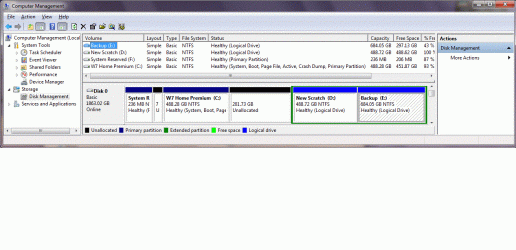
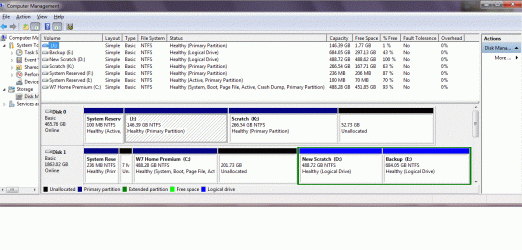
Here are the images.

First when booting with just the new disk/installation connected:

One disk.gif

Second with both disks connected:

Two disks.gif

May I ask why you are saving the bootleg Win7 installation? I would wipe the HD after moving any data you want saved off of it. Any Active partitions on that HD are a risk to derail your Win7 System MBR if you ever need to repair it.

It's not a long term plan but it will take me some time to reinstall everything. I'm keeping a log of everything I install this time... the main apps are easy as I've the disks or download install files but I've a lot of small freeware utilities & codecs for video work which took a lot of playing with to get right. It's easy to forget one and then be stuck when you're trying to get something finished.

Thanks for all your support.
 

My Computer

OS
Windows 7 Home Premium 64bit
OK here's what to do if you want to get this SysResv as the boot partition.

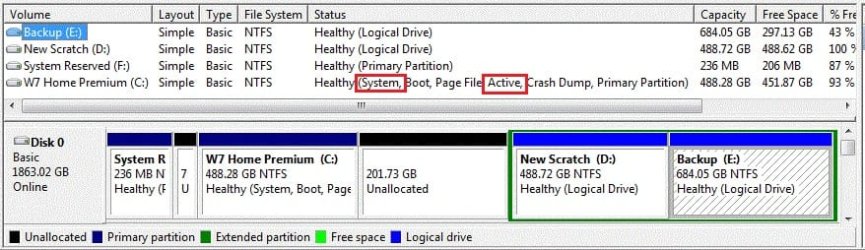
With this as the only HDD connected, first using Windows disk management, remove the drive letter from the SysResv partition, then mark the SysResv as "Active" (right click, mark active) then boot the Windows 7 disk to do the 3 separate startup repairs with restarts.

Startup Repair - Run 3 Separate Times


You see how the Windows 7 partition is marked "System, Active" this is what you need the SysResv partition to be using the instructions I posted above.
click to enlarge
5445.jpg
 

My Computer

Computer Manufacturer/Model Number
* BFK Customs *
OS
W 7 64-bit Ultimate
CPU
Intel Q9550 Yorkfield
Motherboard
ASUS P5Q Pro
Memory
8GB Dominator 8500C5D
Graphics Card(s)
ATI : XFX 5870
Sound Card
Realtek HD Audio 7-1
Monitor(s) Displays
1x 47" LCD HDMI & 3x 26" LCD HDMI
Screen Resolution
1920x1080P & 1920x1200
Hard Drives
1x 80GB Intel X25-M G2 SSD : 1x 500GB & 1x 640GB WD Caviar Black(s)
PSU
Corsair 620HX
Case
Cooler Master RC-690
Cooling
Tuniq Tower 120, 2x 140mm and 3x 120mm case fans
Keyboard
Microsoft 500
Mouse
Razer Diamondback 3G
Internet Speed
14 Mb/s
Other Info
1x Koutech 3Gb/s SATA HDD Hot Swap Rack
I didn't realize the new disk was a 2TB - doesn't matter.

A couple of things seem odd
1) Why doesn't the new disk remain disk 0 when you add the new disk? Have you swapped cables?
2) I still think with the new disk connected to the disk 0 sata connector (by itself). You should be able to achieve your goal. You could try:
Using the boot CD version of partition wizard,
- move the right of the first partition to absorbed the bit of unallocated space.
- set the first partition (system reserved) as active. The second partition should become inactive.
- run the system repair 3 times.

If this doesn't work then delete the bootmgr and boot folder from the second partition and repeat the above procedure. It may be that the system repair sees the presence of the bootmgr and Boot folders on the second partition and decides that's what it's going to repair as the system, boot partition.
 

My Computer

Computer type
PC/Desktop
Computer Manufacturer/Model Number
Own build
OS
Windows 7x64 Home Premium SP1
CPU
Intel i7 2600k
Motherboard
ASUS P8Z68 Deluxe
Memory
G.Skill Ripjaws (DDR3-1600) 2x4GB
Graphics Card(s)
Nvidia GeForce GTS 450; Intel HD Graphics 3000(GT2+)
Monitor(s) Displays
Dell Ultrasharp IPS panel U2311H, Samsung SyncMaster P2350
Screen Resolution
1920x1080
Hard Drives
Samsung 850 Pro SSD 256GB, Samsung SSD 840 120GB, Seagates 1TB Barracuda ST31000528AS x2
PSU
Seasonic M12II 520W
Case
Lian Li Lancool PC-K60
Cooling
Case: 1x120mm, 3x140mm CPU: Hyper 212+
Keyboard
Logitech MK520 (wireless)
Mouse
Logitech MK520
Internet Speed
6-7 Mbps
Antivirus
Norton Security Premium, Malwarebytes on 2 (MSE on 3rd PC)
Browser
FireFox
Other Info
Audio: Logitech Z523 2.1
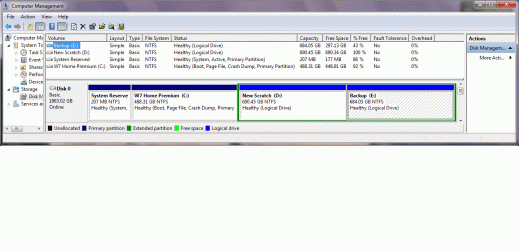
I followed the steps Bare Foot Kid outlined, then tidied up the partitions as mjf suggested and all seems to be well:

One disk new.gif

Many thanks again

Andrew
 

My Computer

OS
Windows 7 Home Premium 64bit
Is the old Win7 on J? Does it still boot using one-time BIOS Boot Menu key when you plug it back in after doing the repair on the other HD?

The reason I ask is because in the screenshot of both HD's it shows no System partition on former DISK0 containing J:


If J will boot using the one-time BIOS Boot Menu key then I wouldn't worry about it, however if not it may require the same Repairs as done to the other HD when only it is plugged in.

With separate HD's, you want to boot by setting preferred HD as first HD to boot in BIOS setup (after DVD drive) then boot the other HD using one-time BIOS Boot menu key.
 
Hello again Andrew, I'm glad that sorted it for you and thanks for the update.
 

My Computer

Computer Manufacturer/Model Number
* BFK Customs *
OS
W 7 64-bit Ultimate
CPU
Intel Q9550 Yorkfield
Motherboard
ASUS P5Q Pro
Memory
8GB Dominator 8500C5D
Graphics Card(s)
ATI : XFX 5870
Sound Card
Realtek HD Audio 7-1
Monitor(s) Displays
1x 47" LCD HDMI & 3x 26" LCD HDMI
Screen Resolution
1920x1080P & 1920x1200
Hard Drives
1x 80GB Intel X25-M G2 SSD : 1x 500GB & 1x 640GB WD Caviar Black(s)
PSU
Corsair 620HX
Case
Cooler Master RC-690
Cooling
Tuniq Tower 120, 2x 140mm and 3x 120mm case fans
Keyboard
Microsoft 500
Mouse
Razer Diamondback 3G
Internet Speed
14 Mb/s
Other Info
1x Koutech 3Gb/s SATA HDD Hot Swap Rack
Good to see it worked out for you but I'd follow up on Greg's comment. Any problems with attaching the 2nd disk should be easy to fix.
 

My Computer

Computer type
PC/Desktop
Computer Manufacturer/Model Number
Own build
OS
Windows 7x64 Home Premium SP1
CPU
Intel i7 2600k
Motherboard
ASUS P8Z68 Deluxe
Memory
G.Skill Ripjaws (DDR3-1600) 2x4GB
Graphics Card(s)
Nvidia GeForce GTS 450; Intel HD Graphics 3000(GT2+)
Monitor(s) Displays
Dell Ultrasharp IPS panel U2311H, Samsung SyncMaster P2350
Screen Resolution
1920x1080
Hard Drives
Samsung 850 Pro SSD 256GB, Samsung SSD 840 120GB, Seagates 1TB Barracuda ST31000528AS x2
PSU
Seasonic M12II 520W
Case
Lian Li Lancool PC-K60
Cooling
Case: 1x120mm, 3x140mm CPU: Hyper 212+
Keyboard
Logitech MK520 (wireless)
Mouse
Logitech MK520
Internet Speed
6-7 Mbps
Antivirus
Norton Security Premium, Malwarebytes on 2 (MSE on 3rd PC)
Browser
FireFox
Other Info
Audio: Logitech Z523 2.1
Back
Top