MS-DOS Bootable Flash Drive - Create

How to Make a MS-DOS Bootable Flash Drive

   Information
This will show you how to create a flash drive that is able to boot your computer into a MS-DOS environment. This will be accomplished by using the HP Flash Utility and the Windows 98 MS-DOS System Files
   Warning
The flash drive being used in this process will be formatted. Please backup all of your data on the drive beforehand!


Here's How:
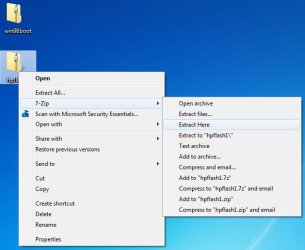
1. Download the HP Flash Utility View attachment hpflash1.zip and also download the Windows 98 MS-DOS System Files View attachment win98boot.zip. Extract hpflash1 to a location readily accessible
Pic1.jpg
Pic1-1.jpg
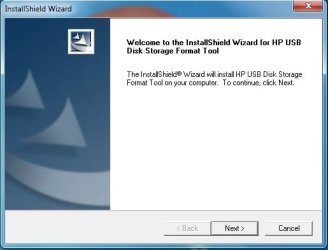
2. Run the installer and follow the simple on-screen instructions
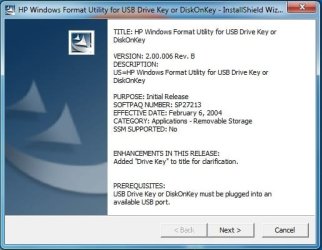
Pic2.jpg


Pic3.jpg
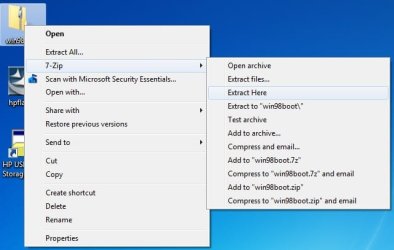
3. Extract the contents of "win98boot" to a location readily accessible
Pic4.jpg
4. Run the HP USB Disk Storage Format Tool that was just installed. Choose your flash drive from the drop down list at the top. Also make sure that the file system is set to FAT32.
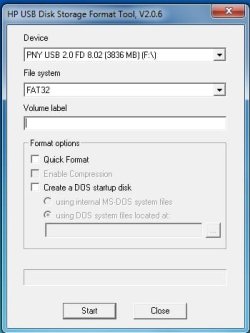
Pic5.jpg
5. Under Format Options tick the "Create a DOS startup disk" option. Click the "..." button near the empty text box to browse to the location of where you extracted the Windows 98 MS-DOS System Files (see step 3).

   Tip
Tick "Quick Format" under Format Options to speed the process up (if you don't want a comprehensive format). You may also want to give the drive a label by typing one in the Volume Label text field
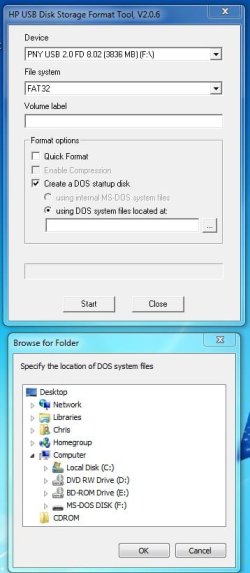
Pic6.jpg
6. Click the "Start" button.

   Warning
After you click the "Start" button , you will be given one final prompt that warns you that the flash drive selected will be formatted. This is your last chance to backup data on the drive; after you click yes it will be too late
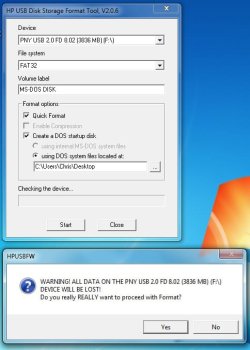
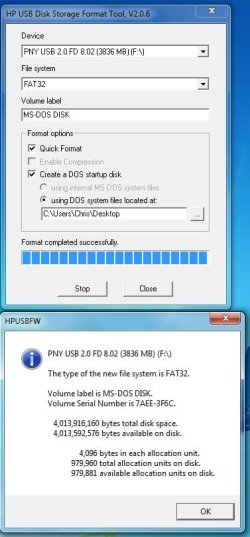
Pic7.jpg
Pic8.jpg

   Tip
You may remove the files extracted from the archive "win98boot", they are not needed anymore

Frequently Asked Questions

Q: Why would a MS-DOS USB Drive be useful today? Wasn't that included in older Operating Systems?
A: MS-DOS was the underlying layer of the Windows 9x series of Operating Systems (Windows 1-ME) that was the "functionality" of the system. A MS-DOS bootable disc can be used to run many recovery tools (still used today) and also update the BIOS of the computer. If you are running an x64 system with no floppy drive and a manufactuer who only provides a 16-bit BIOS updater, this method is the only way to update your BIOS.

Q: I checked my flash drive after applying the steps above and it is empty? What gives?!
A: Unless the option to show protected operating system files is checked in folder options, Windows will hide these files due to their attributes matching that of system files. Don't worry, the relevant files are still there

Q: Alright I successfully completed the steps above, now what do I do?
A: Now you can download the tool you wanted to run (such as CHKDSK) or your BIOS update application (from the manufactuer) and place the files on to the root of the flash drive. You can find most tools by doing a simple google search

   Tip
The Windows 98 MS-DOS System Files archive (win98boot) above has some system tools already included (ex. FORMAT, FDISK, SYS). Just drag and drop these files onto your flash drive


Q: My flash drive has been converted to the MS-DOS System Disc and I have some tools/BIOS revisions on the drive as well, how do I boot up MS-DOS?
A: This will largely depend on your model of computer but you will need to restart you computer with the flash drive plugged in and boot to the drive by means of a boot menu or by modifying your BIOS to boot to the flash drive first. Consult the manual of your computer or the respective manufactuer's website for further details.

Q: I have no further need for the MS-DOS System Disc, how can I remove it from my flash drive?
A: You may format the flash drive with the built in Windows format utility or you may format it by using the HP USB Disk Storage Format Tool that was used above.

Hope it helps,
Chris


Last edited by a moderator:
Thanks for the quick reply Brink! I think maybe I wasn't being clear. When I load up fdisk and try to change the current fixed disk drive it only shows the thumb drive. I've tried to cd to everything from a: to z: from the prompt to no avail.
 

My Computer

Computer type
Laptop
Computer Manufacturer/Model Number
Dell
OS
Windows 7

My Computer

Computer type
PC/Desktop
Computer Manufacturer/Model Number
Self built custom
OS
64-bit Windows 11 Pro for Workstations
CPU
Intel i7-8700K OC'd to 5 GHz
Motherboard
ASUS ROG Maximus XI Formula Z390
Memory
64 GB (4x16GB) G.SKILL TridentZ RGB DDR4 3600 MHz
Graphics Card(s)
ASUS ROG-STRIX-GTX1080TI-O11G-GAMING
Sound Card
Integrated
Monitor(s) Displays
2 x Samsung Odyssey G7 27"
Screen Resolution
2560x1440
Hard Drives
1TB Samsung 990 PRO M.2,
4TB Samsung 990 PRO PRO M.2,
TerraMaster F8 SSD Plus NAS
PSU
Seasonic Prime Titanium 850W
Case
Thermaltake Core P3
Cooling
Corsair Hydro H115i
Keyboard
Logitech wireless K800
Mouse
Logitech MX Master 4
Internet Speed
2 Gb/s Download and 100 Mb/s Upload
Antivirus
Malwarebyte Anti-Malware Premium
Browser
Google Chrome
Other Info
Logitech Z625 speaker system,
Logitech BRIO 4K Pro webcam,
HP Color LaserJet Pro MFP M477fdn,
APC SMART-UPS RT 1000 XL - SURT1000XLI,
Galaxy S23 Plus phone
No drives other than the USB stick on A:

I have the same problem where the only drive that shows up is the A drive which is my USB stick. No other drive letters exist. I have 3 drives in addition to the USB stick. 1 is a 597MB USB external drive. One is a SATA RAID with 2 SSD drives. One is single SATA drive. None of these drives show up although the BIOS recognizes them.

Sager 9260 which is a Clevo D900C motherboard. 6GB ram.
 

My Computer

Computer type
PC/Desktop
Computer Manufacturer/Model Number
SAGER!, StinkPad, Dell and others.
OS
windows 7 64 bit
Hey Shawn, I'm interested in making a bare bones bootable USB DOS prompt tool for basic repairs and tests. However, if my memory serves me correctly Win98 does not support NTFS. So, if you have any NTFS partitions (as most of us do), they won't be viewable/accessible from a Win98 DOS prompt. Isn't that right? If so, is there some means of allowing access to NTFS partitions?

Ultimately if it's not feasible or would require too much tweaking, I guess I could always boot into command mode from a Windows 7 installation disk to get access. But the convenience of a durable USB drive is more appealing than a fragile CD/DVD.

Seems that by default Win98 does not support NTFS, but there's a program called "NTFS reader" that enables you to access and manipulate files. But it uses a separate program executed from the command line, so you can't use other DOS commands through it.
 
Last edited:

My Computer

Computer type
Laptop
Computer Manufacturer/Model Number
HP Pavillion dv6 (dv6-6165dx)
OS
Windows 7 Home Premium x64
CPU
AMD Vision A8-3500M 4 Core
Motherboard
AMD
Memory
8Gb
Graphics Card(s)
AMD Radeon HD 6620G
Screen Resolution
1366x768
Hard Drives
Hitachi Travelstar 500Gb
Internet Speed
Realtek RTL8188CE 802.11b/g/n
Doesn't Work

I put my USB stick in the USB port, and HP USB Disk Storage Format Tool reads "SanDisk Cruzer Pattern 7.01 (476939 MB) (C:\D:\)

I click FAT and quick format, then try to format and it says the specified device is currently used by other applications please close them before formatting the device.

so I try another stick, it calls it PNY (476939 MB) (C:\D:\) and says the same error.

this stuff is annoying dude, why isn't there a method that just works out there? I tried Rufus but Rufus even doesn't work.
 

My Computer

Computer type
PC/Desktop
Computer Manufacturer/Model Number
whatever
OS
MULTIOS
CPU
idk
Motherboard
who cares
Memory
not important
Graphics Card(s)
blablabla
Hard Drives
so many questions
Antivirus
none
Browser
firefox
Tutorioal on Bootable Flash drive for Win7 not working

I downloaded the files and installed the HP USB storage tool on my SSD drive. Then I inserted a SanDisk Cruzer and tried to format it.

The first thing was the Windows-based HPUSBFW utility simply would not run. It kept saying that I needed administrator rights, but I AM an administrator! :shock: I am the only user on the system and it clearly has me categorized as an admin.

So then I tried using the command line tool to do the same thing with more typing. But I get...

***ERROR*** \\.\PhysicalDrive1: Access is denied.:sick:


BUT, if I use the built-in format command (from Win7) right there in the same command window below this error, it will do it. Trouble is, that thing won't install DOS.


So what is going on here? Is this utility just too old? My guess is that it doesn't understand current Win7 security.
 
Last edited by a moderator:

My Computer

Computer type
PC/Desktop
Computer Manufacturer/Model Number
custom
OS
Windows 7 Home Premium
CPU
AMD A6-6400
Motherboard
ASUS A88x-pro
Memory
8GB
Graphics Card(s)
n/a
Hard Drives
Samsung 840 Pro 128
Antivirus
Avira
Browser
IE
Tutorial on Bootable Flash drive for Win7 not working

Right click it and select 'run as administrator' it should work if you give admin permission. If that does not work try right clicking it, select properties and 'unblock' at the bottom, then run as administrator.
 

My Computers

System One System Two

  • Computer type
    PC/Desktop
    Computer Manufacturer/Model Number
    ALWAYS UNDER CONSTRUCTION
    OS
    Windows 11 Pro
    CPU
    Ryzen 9 5900X
    Motherboard
    Asus X570 Crosshair Viii Hero
    Memory
    32GB G Skill DDR4-3600
    Graphics Card(s)
    EVGA RTX 3080 FTW 3 Ultra
    Sound Card
    On Board/Sennheiser PC37X Headset
    Monitor(s) Displays
    3 X Asus 27"
    Screen Resolution
    2560x1440
    Hard Drives
    2 X 1 TB NVME drives
    PSU
    EVGA 850
    Case
    Phanteks Eclipse P400A
    Cooling
    EVGA 280 AIO
    Keyboard
    Logitech G510s/ Logitech G13
    Mouse
    Logitech G502
    Internet Speed
    24/1
    Antivirus
    ESET/MBAM Pro/SAS Pro
    Browser
    Chrome/ Firefox/ Edge
  • Computer type
    Laptop
    System Manufacturer/Model Number
    Dell 16 Plus
    OS
    Windows 11 Pro
    CPU
    Intel Ultra 9 288V
    Memory
    32 GB LPDDR5X 8533
    Monitor(s) Displays
    16" Mini-LED HDR600 Touch 90 Hz
    Screen Resolution
    2560X1600
    Hard Drives
    1 TB NVME
Hello Bobby, and welcome to Seven Forums.

See if right clicking on the HPUSBFW utility and clicking on Run as administrator may allow it to run.

Hope this helps, :)
Shawn
 

My Computer

Computer type
PC/Desktop
Computer Manufacturer/Model Number
Self built custom
OS
64-bit Windows 11 Pro for Workstations
CPU
Intel i7-8700K OC'd to 5 GHz
Motherboard
ASUS ROG Maximus XI Formula Z390
Memory
64 GB (4x16GB) G.SKILL TridentZ RGB DDR4 3600 MHz
Graphics Card(s)
ASUS ROG-STRIX-GTX1080TI-O11G-GAMING
Sound Card
Integrated
Monitor(s) Displays
2 x Samsung Odyssey G7 27"
Screen Resolution
2560x1440
Hard Drives
1TB Samsung 990 PRO M.2,
4TB Samsung 990 PRO PRO M.2,
TerraMaster F8 SSD Plus NAS
PSU
Seasonic Prime Titanium 850W
Case
Thermaltake Core P3
Cooling
Corsair Hydro H115i
Keyboard
Logitech wireless K800
Mouse
Logitech MX Master 4
Internet Speed
2 Gb/s Download and 100 Mb/s Upload
Antivirus
Malwarebyte Anti-Malware Premium
Browser
Google Chrome
Other Info
Logitech Z625 speaker system,
Logitech BRIO 4K Pro webcam,
HP Color LaserJet Pro MFP M477fdn,
APC SMART-UPS RT 1000 XL - SURT1000XLI,
Galaxy S23 Plus phone
tutorial too old?

Thanks you guys for the responses, but it did something strange after running as admin. I can't remember exactly now, but it messed up the flash drive and I had to start all over. I found that the Rufus utility was MUCH better.

I think maybe the real point I wanted to make is that this tutorial is quite old and presenting problems for many people and so should either be updated or marked as questionable. Otherwise people have to waste time finding out that it doesn't work for them and then go through all the responses to figure out what does.

While I really did benefit from coming here, there was a lot of avoidable frustration, too.
 

My Computer

Computer type
PC/Desktop
Computer Manufacturer/Model Number
custom
OS
Windows 7 Home Premium
CPU
AMD A6-6400
Motherboard
ASUS A88x-pro
Memory
8GB
Graphics Card(s)
n/a
Hard Drives
Samsung 840 Pro 128
Antivirus
Avira
Browser
IE
Does anyone know why this Drivekey app installer "hpflash1.exe" would access my other than boot or install drive when installing? Seems suspicious to me.
 

My Computer

OS
Windows 7
usb key locks up on windows98 screen

followed directions on this thread to build a simple dos prompt tool on a usb stick for upgrading BIOS.

using a Lenovo Z575 laptop with AMD A4 processor. comes up on the windows98 splash screen and freezes there.

usb stick works fine on my HP desktop with I5 Intel cpu. what is wrong?
 

My Computer

Computer type
Laptop
Computer Manufacturer/Model Number
Lenovo
OS
windows7 Home Premium 64bit
CPU
AMD A4-3300M
Memory
4G
Graphics Card(s)
Radeon HD
Hard Drives
Hitachi 320G
I followed these steps to a tee on two flash drives. It corrupted both flash drives. I am a technician in need of updating the BIOS on my server rack, and now my only two flash drives are dead. What gives? Is this unsafe for Windows 10?
 

My Computer

Computer type
PC/Desktop
Computer Manufacturer/Model Number
Custom Build
OS
Windows 10 Pro
CPU
Intel i7-4790k @ Stock Clock
Motherboard
MSI Z97 Gaming X
Memory
G.Skill Ripjaws Series 16GB (4 x 4GB) DDR3-1866
Graphics Card(s)
MSI GTX 1070 Gaming X 8GB
Monitor(s) Displays
ASUS VG248QE Gaming Monitor
Screen Resolution
1920x1080
Hard Drives
Crucial CT250MX200SSD4 (C:)
Samsung 850 EVO (MMO & Online Gaming SSD)
Crucial CT250BX100SSD1 (Alternate Gaming SSD)
Seagate FireCuda ST1000DX002-2DV162 (Emulation and Other Gaming)
Western Digital Blue WD10EZEX-00WN4A0 (User/Home Folders and Storage)
PSU
Corsair CX750M
Case
Cooler Master HAF 912 (Original)
Cooling
Corsair H90 CLC
Keyboard
Logitech G710+ Brown Mechanical Keyboard
Mouse
Logitech G600 MMO Gaming Mouse
Internet Speed
150mbps down 25mbps up
Antivirus
Avira Free Antivirus + Malwarebytes 3.0
Browser
Google Chrome
Back
Top