My laptop keeps changing the desktop picture every time I turn it on.

Kadri

New member
Local time
11:56 PM
Messages
4
Location
Tallinn, Estonia
Hey guys,
I've been having an annoying problem for a while, so I thought to look for some help and advice.
I bought a laptop about 2 months ago and it had the OS Windows 7 on it. At first, everything with the desktop changes were OK, but after a while, when I wanted to change the picture again, it would do it, but when I would turn my laptop off and on again, then the picture would change to that picture I first chose when I just had bought my laptop. I don't understand what I'm doing wrong, since I'm doing everything as I did in the beginning when it actually worked!

Hope you can help me.

Thanks,
Kadri
 

My Computer My Computer

At a glance

Windows 7
OS
Windows 7
Please take us through the exact steps involved in "changing the picture again" and turning "off and on again" and we'll have a better chance!
 

My Computer My Computer

At a glance

Windows 7
OS
Windows 7
Right click on the desktop and select Personalization and down the bottom click on desktop background and you will be able to make any changes you like from there
 

My Computer My Computer

At a glance

Windows 10 Pro x64i7-4770K16Gig DDR3-2400Gigabyte GT740
Computer type
PC/Desktop
Computer Manufacturer/Model Number
Self Built Custom Computer.
OS
Windows 10 Pro x64
CPU
i7-4770K
Motherboard
Asus Z87 Sabertooth
Memory
16Gig DDR3-2400
Graphics Card(s)
Gigabyte GT740
Sound Card
Onboard
Monitor(s) Displays
Benq 27" - Dell 23' - Benq 22"
Screen Resolution
1680x1050
Hard Drives
Samsung 840 Pro 128g SSD
1xWestern Digital Caviar Green 1tb
2xWestern Digital Caviar Green 2 tb
PSU
Seasonic 760 watt Platinum
Case
Coolermaster Haf - X
Cooling
Noctua NH-C12P CPU Cooler
Keyboard
Logitech illuminated keyboard
Mouse
Logitech Perfomance MX
Internet Speed
Cable = speeds to 20Mbps downsteam and 512kbps upsteam
Antivirus
Avast Internet Security
Browser
Firefox
@dunfiddlin: So, when I just had bought the laptop, I changed the desktop picture (I did it by: right click on the desktop -> personalization -> desktop background) to, let's say.. "Picture 1". After a while, I wanted another desktop picture, so I changed it to Picture 2. But now, every time I turn on my laptop, the desktop picture is again Picture 1. I've tried changing the picture to different pictures not just this Picture 2, but still, when I turn on my laptop, the desktop picture is Picture 1.

@kodi: I've done it exactly as you said, but my laptop still keeps changing the picture back to the first one every time I turn it on.
 

My Computer My Computer

At a glance

Windows 7
OS
Windows 7
Did you click on save changes (bottom right side) after you set it how you want it.
 

My Computer My Computer

At a glance

Windows 10 Pro x64i7-4770K16Gig DDR3-2400Gigabyte GT740
Computer type
PC/Desktop
Computer Manufacturer/Model Number
Self Built Custom Computer.
OS
Windows 10 Pro x64
CPU
i7-4770K
Motherboard
Asus Z87 Sabertooth
Memory
16Gig DDR3-2400
Graphics Card(s)
Gigabyte GT740
Sound Card
Onboard
Monitor(s) Displays
Benq 27" - Dell 23' - Benq 22"
Screen Resolution
1680x1050
Hard Drives
Samsung 840 Pro 128g SSD
1xWestern Digital Caviar Green 1tb
2xWestern Digital Caviar Green 2 tb
PSU
Seasonic 760 watt Platinum
Case
Coolermaster Haf - X
Cooling
Noctua NH-C12P CPU Cooler
Keyboard
Logitech illuminated keyboard
Mouse
Logitech Perfomance MX
Internet Speed
Cable = speeds to 20Mbps downsteam and 512kbps upsteam
Antivirus
Avast Internet Security
Browser
Firefox
Did you click on save changes (bottom right side) after you set it how you want it.

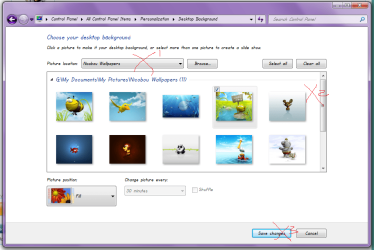
..... was my next question ... see cross 3 on the pic! It's very easy to forget to do this! :o

Also ...

X1 Are both pictures in the same location?
X2 Have you remembered to deselect the one you don't want?
 

Attachments

  • pic.png
    pic.png
    52.8 KB · Views: 123

My Computer My Computer

At a glance

Windows 7
OS
Windows 7
Yes, I always click save. And both pictures are Windows desktop pictures which came with the program.
 

My Computer My Computer

At a glance

Windows 7
OS
Windows 7
Well the quick and dirty solution is simply to delete the picture you don't want or move it to another folder if you think you might have some other use for it. Even if your Windows is faulty it can't show a picture that isn't there!
 

My Computer My Computer

At a glance

Windows 7
OS
Windows 7
first are you using default theme of windows?
if you do,try changing the wallpaper in it. You could track it from
C:windows>resources>theme and indicate theme folder that you want to change it's wallpaper


feel free to ask :)
 

My Computer My Computer

At a glance

window's 7core 2 quad2gb corsairati hd4850
OS
window's 7
CPU
core 2 quad
Motherboard
gigabyte
Memory
2gb corsair
Graphics Card(s)
ati hd4850
Monitor(s) Displays
lg
Screen Resolution
1600 X 900
Case
power logic
Other Info
none of the spec above is accurate
first are you using default theme of windows?
if you do,try changing the wallpaper in it. You could track it from
C:windows>resources>theme and indicate theme folder that you want to change it's wallpaper


feel free to ask :)

How can I indicate the theme folder that I want to change it's wallpaper?

And about deleting the picture - it's a Windows desktop picture and I can't seem to find the location of the picture, thus I cannot delete it either.
 

My Computer My Computer

At a glance

Windows 7
OS
Windows 7
C:windows>resources>theme>(name of the theme folder)

custom theme usually have their wallpaper folders inside

and to locate directly location of wallpapers in any theme. you can

Right click>personalize>desktop background>and you'll see the wallpaper folder root. You can track it from there

fell free to ask:)
 

My Computer My Computer

At a glance

window's 7core 2 quad2gb corsairati hd4850
OS
window's 7
CPU
core 2 quad
Motherboard
gigabyte
Memory
2gb corsair
Graphics Card(s)
ati hd4850
Monitor(s) Displays
lg
Screen Resolution
1600 X 900
Case
power logic
Other Info
none of the spec above is accurate
How can I indicate the theme folder that I want to change it's wallpaper?

And about deleting the picture - it's a Windows desktop picture and I can't seem to find the location of the picture, thus I cannot delete it either.

Ok. This would be a lot easier if you could post a screenshot of your Control Panel > All Control Panel Items >Personalization > Desktop Background so ...

Alt+PrintScreen

Open Paint

Paste

Save as png

Attach to your next post!

:geek:

The wallpapers are usually found in ...

C:\Windows\Web\Wallpaper\Windows

(with copies of some in the winsxs folder though it's not immediately apparent why!)

You may need to unhide files to find the one you want.
 

My Computer My Computer

At a glance

Windows 7
OS
Windows 7
Back
Top