My music library folder gone nuts!!!

androl

New member
Local time
1:57 PM
Messages
3
I had all songs in correct albums folders.
My singles were in a folder entitled my singles.

I was having problems with duplictes in WMP and so I deleted the songs from it and then readded them.

When I went back to my music folder it was all over the place:

A) songs were out of there album folders

B)songs were not only in there album folders but they were ramndomly scattered around in the my music main folder.

I tried to manually put the songs back into there folders but it JUST WONT WOTK songs will simply just double up (in album folder and also my music folder)

I have searched high and low on the web for a sollution which I simply cant find, please can someone tell me WHY I AM NOT ALLOWED ORGANISE MY MUSIC FOLDER

and WHY WHERE THEY MOVED FROM THE FOLDERS IN THE FIRST PLACE?

Thanks for your help
 

My Computer My Computer

At a glance

Windows 7 Ultimate x64
OS
Windows 7 Ultimate x64
Hi, and welcome to SevenForums.

The problem is frustrating but probably not too difficult to fix. Here's what you need to:
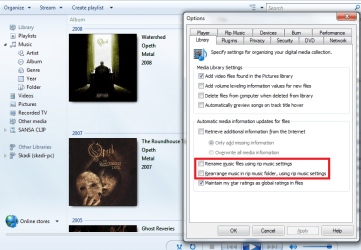
Open WMP, go to Organize -> Options and go to the Library tab, then uncheck the highlighted options:

WMP.PNG

Additionally, you can uncheck the option above and prevent WMP from changing your tags by downloading data from the internet (isn't relevant to your problem but can save you frustration if you manually, or via another software, add metadata to your music).

Hope this helps, post back with the results ;)
 

My Computer My Computer

At a glance

Windows 7 Home Premium x64Intel Core i5 2500K8GB DDR3nVidia GeForce GTX650 Ti BOOST
Computer type
Laptop
Computer Manufacturer/Model Number
Custom
OS
Windows 7 Home Premium x64
CPU
Intel Core i5 2500K
Motherboard
MSI MS-7750
Memory
8GB DDR3
Graphics Card(s)
nVidia GeForce GTX650 Ti BOOST
Sound Card
Realtek
Monitor(s) Displays
21' Philips
Screen Resolution
Full HD
Hard Drives
1TB
PSU
500W
They are already unchecked!!

Same problem.
 

My Computer My Computer

At a glance

Windows 7 Ultimate x64
OS
Windows 7 Ultimate x64

My Computer My Computer

At a glance

Windows 7 Home Premium x64Intel Core i5 2500K8GB DDR3nVidia GeForce GTX650 Ti BOOST
Computer type
Laptop
Computer Manufacturer/Model Number
Custom
OS
Windows 7 Home Premium x64
CPU
Intel Core i5 2500K
Motherboard
MSI MS-7750
Memory
8GB DDR3
Graphics Card(s)
nVidia GeForce GTX650 Ti BOOST
Sound Card
Realtek
Monitor(s) Displays
21' Philips
Screen Resolution
Full HD
Hard Drives
1TB
PSU
500W
I just experienced this the other day.

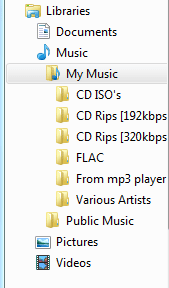
Go into your music libraries and expand your music directory in the left panel. Look to see if there are any duplicate folders. To remove a particular directory, rt. click and select remove location from library.

What happens are your files are still located in your original folders, but are displayed in your main music library. You can check this by hovering the pointer over the file in the main music folder, but the directory still points to it's original folder.

Hopefully this makes a little sense. If I can remember correctly, the directory I rt. clicked and removed was listed under the public music directory. That should return your music folder back to normal.
 

Attachments

  • Capture.PNG
    Capture.PNG
    4.2 KB · Views: 491

My Computer My Computer

At a glance

Windows 8 ProIntel Centrino Dual Core P7450 2.13GHz4gbATI Mobility Raedon HD3650
Computer Manufacturer/Model Number
Toshiba P300
OS
Windows 8 Pro
CPU
Intel Centrino Dual Core P7450 2.13GHz
Memory
4gb
Graphics Card(s)
ATI Mobility Raedon HD3650
Hard Drives
Toshiba MK3252GSX ATA
Internet Speed
Wish it were faster
Thanks for all the replies, none of the above were alble to solve my problem eventually i solved it myself and it was so easy:

Go to Libaries > My music and on the column on the left hand side right click on my music and go to properties and in properties there is an option that says restore to default and just click that!

Hey presto
 

My Computer My Computer

At a glance

Windows 7 Ultimate x64
OS
Windows 7 Ultimate x64
Back
Top