
Need Help Fixing Split Hard Disk install Problem

Foz

New member
Local time
10:35 AM
Messages
3
Hi all

I recently built a new machine and installed Windows 7. Install went flawlessly and everything has been working great.

Now that I have most of my software on the new machine I attempted to make a clone of my c drive (1 tb samsung spinpoint) to an identical second drive in my machine.

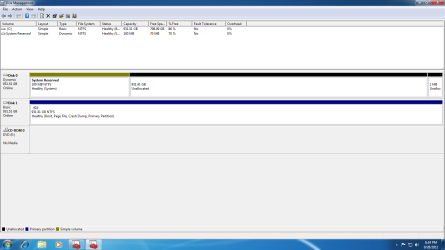
However, when I looked I did not have a second drive listed as a installed D: drive in my windows installation. Both new drives were installed straight out of the box before the OS was installed. Check out Disk management screen shot
disk1.png

As you can see my bios and windows see there are two physical hard drives installed, but for some reason it split the system volume data from the rest of the OS data. It places them on two separate hard drives.

The problem with this is I typically clone my c drive onto my d drive to serve as a complete bootable backup of my main drive. In its current state, if I clone my C drive onto my second physical drive I will wipe most of my windows install.

Therefore I am looking for help in getting all the data on one drive without doing a complete reinstall. From my simplistic perspective it appears all I need to do is make a D: partition on Disk0 and transfer the contents of the C: drive(disk1) to the D: Drive(disk0).

I have attempted this but some files would not transfer because they were in use. I was also concerned with disk0 boot issues using this method. Also with this partition (disk0) labeled disk D: wouldn't that cause boot issues?

At any rate, I am looking for any suggestions on the best way to correct this issue.

Thanks for the help

Foz
 
Last edited:

My Computer

OS
Windows 7 64
CPU
i7-2600k
Motherboard
Gigabyte z68xp-ud3
Memory
8 GB g.skill
Graphics Card(s)
Radeon 6850
Sound Card
on board
Monitor(s) Displays
Asus 24
Screen Resolution
1920x1080
Hard Drives
2x samsung Spinpoint F3 1 TB
PSU
Silverstone 750w
Case
Cooler Master 932 HAF Advanced
Cooling
Noctua NH-d14
Technically, you only have one usable hard drive as the second identical hard drive is unallocated space. So you don't really have a D: drive, only a C: drive for your OS. What you would want to do is make a new partition using the 931.41GB unallocated space. This will allow you to use that space and should fix at least some of your problems.
www.sevenforums.com/tutorials/2674-partition-volume-create-new.html
 

My Computer

Computer Manufacturer/Model Number
Custom Build
OS
Windows 7 Ultimate x64/Windows 8 Consumer Preview x64/Ubuntu 11.04
CPU
Intel Pentium Dual Core E6700 3.2GHz
Motherboard
ASUS P5G41T-M LX
Memory
Strontium 8192MB DDR3 1333Mhz
Graphics Card(s)
msi GeForce N560GTX-M2D1GD5 1GB
Sound Card
Realtek HD Audio
Monitor(s) Displays
CHIMEI CMV 221D 22"
Screen Resolution
1680x1050
Hard Drives
Seagate Barracuda LP Green 3.5'' 2TB Internal HDD 5900RPM + WD Elements Desktop 1TB External HDD 7200RPM
PSU
SHAW Viper-1500w Gaming PSU
Case
Black eMaxx ATX Mini Tower Case
Keyboard
Microsoft Wireless Keyboard 1000
Mouse
Microsoft Wireless Optical Mouse 2000
Internet Speed
100GB @ 4.76Mbps
Hiya Jaidynm

Thanks for the response.

It doesn't show it in the disk management pic i posted but I have basically done as you suggested before I made this post. I turned the unalocated space on disk0 into a partition and gave it a drive letter D.

That works fine but I then need to move the data on Drive C: to Drive D: or move the system partition to drive C: That is where I need the help on getting the data moved and getting the one disk to boot without the additional disk.

The goal is one physical disk with all os and system data on it so I can make a duplicate of the first physical disk on the second physical disk as a backup.

If I would have known there might be an issue I would have only installed one physical drive before the os installation instead of both of them

Foz
 

My Computer

OS
Windows 7 64
CPU
i7-2600k
Motherboard
Gigabyte z68xp-ud3
Memory
8 GB g.skill
Graphics Card(s)
Radeon 6850
Sound Card
on board
Monitor(s) Displays
Asus 24
Screen Resolution
1920x1080
Hard Drives
2x samsung Spinpoint F3 1 TB
PSU
Silverstone 750w
Case
Cooler Master 932 HAF Advanced
Cooling
Noctua NH-d14
I think I'd use Easeus Partition Master from a bootable CD (or other favorite partition manager) and either move the OS partition on Disk 1 a bit to the right, then copy the 100MB boot partition from Disk 0 over to Disk 1 in front of the OS.
Or: just copy the whole OS partition from Disk 1 to the empty space on Disk 0 and leave the boot partition in place.
(I'm not sure which of your drives is which, so I'm going by what your screenshot shows). Once that's done, be sure to mark the disk you're going to use for backups as not active (maybe quick-format the partitions on it too).

After that I would shut down the PC, temporarily unplug the second drive (whichever one you'll be using to backup later), restart with the Windows 7 DVD in your CDROM drive and perform the startup repair so the OS will boot properly. When that's out of the way you can reconnect the second drive and things should be the way you want them.
 

My Computer

Computer type
PC/Desktop
Computer Manufacturer/Model Number
Custom-built
OS
Windows 7 Professional SP1 32-bit
CPU
Intel Core 2 Duo E6600 2.4GHz
Motherboard
Asus PL5D2
Memory
4GB DDR2-667 (4x1GB in dual-channel config)
Graphics Card(s)
nVidia GeForce 9800 GT
Sound Card
Creative X-Fi XtremeMusic
Monitor(s) Displays
Acer P236H
Screen Resolution
1920x1200 (DVI)
Hard Drives
OCZ SSD Vertex Plus 60GB SATA (Firmware 3.55), 64MB cache
Hitachi HD321KJ SATA, 320GB, 7200rpm, 16MB cache
PSU
Antec TruePower 2.0
Case
Cooler Master Centurion
Cooling
Too many fans
Keyboard
Standard
Mouse
Microsoft wireless optical mouse
Internet Speed
AT&T U-verse (18mbit/sec)
Antivirus
Microsoft Security Essentials
Browser
Firefox
Other Info
Other devices:
Compaq CQ-60 laptop
Google Nexus 7 (2012) tablet
Nvidia SHIELD tablet (US/LTE)
Hardkernel ODROID-XU single-board computer (Samsung Exynos 5420)
I would clone the first hard drive using one of the programs below. Personally, I would recommend software like Acronis True Image or if you want something free, EaseUS Todo Backup Free.
Acronis True Image
EaseUS Todo Backup Free
Clonezilla
Macrium Reflect FREE

You could then use Windows Easy Transfer to transfer your user files and settings from the original OS to the backup one.
http://www.sevenforums.com/tutorials/11470-windows-easy-transfer-transfer-computers.html
Windows Easy Transfer - Windows 7 features - Microsoft Windows


Now, if the OS is fully functional, I would run every possible repair option including an sfc/scannow command, Repair Install and Startup Repair.
SFC /SCANNOW Command - System File CheckerRepair Install
Startup Repair
 

My Computer

Computer Manufacturer/Model Number
Custom Build
OS
Windows 7 Ultimate x64/Windows 8 Consumer Preview x64/Ubuntu 11.04
CPU
Intel Pentium Dual Core E6700 3.2GHz
Motherboard
ASUS P5G41T-M LX
Memory
Strontium 8192MB DDR3 1333Mhz
Graphics Card(s)
msi GeForce N560GTX-M2D1GD5 1GB
Sound Card
Realtek HD Audio
Monitor(s) Displays
CHIMEI CMV 221D 22"
Screen Resolution
1680x1050
Hard Drives
Seagate Barracuda LP Green 3.5'' 2TB Internal HDD 5900RPM + WD Elements Desktop 1TB External HDD 7200RPM
PSU
SHAW Viper-1500w Gaming PSU
Case
Black eMaxx ATX Mini Tower Case
Keyboard
Microsoft Wireless Keyboard 1000
Mouse
Microsoft Wireless Optical Mouse 2000
Internet Speed
100GB @ 4.76Mbps
If I may, I'd like to ask why is disk 0 dynamic and disk 1 Basic ??? The answer may be simple and I just don't
understand. If so forgive me for intruding.

TJG :)
 

My Computer

Computer Manufacturer/Model Number
Dell Dimension E510
OS
Windows 7 Home Premium 32bits
CPU
Intel Pentium 4 521
Motherboard
Dell Inc. ORD203
Memory
DDR2 4096MBytes
Graphics Card(s)
ATI Radeon HD 2400 Series
Sound Card
On-Board Sigma Tel High Definition Audio
Monitor(s) Displays
Dell ST2210 1920x1080x60 hertz
Hard Drives
320 SATA
500 SATA
PSU
Antec 430 Watts
Case
Dell
Cooling
Standard Fans
Hi all

Thanks for all the suggestions.

I moved the os install off of disk1 to disk0 so I had the system volume and the os on disk0

I then tried to use the windows disk to repair my windows installation. However, when I got to the part where I pick an os to repair during the repair process, I did not have any os listed. I tried loading various hd drivers and such to no avail.

I eventually just started from scratch..I took out one of the drives and formatted the one drive left in the machine. I then reinstalled windows and now I do not have a system volume at all. After reading the advantages and disadvantages of having a system volume, I have decided to leave it as is.

I assume that the original problem occurred because I installed windows on a machine containing two out-of-the-box hard drives instead of just one? I still don't understand why the install program would want to split the system volume from the os portion.

At any rate, live and learn.

Thanks for all the suggestions and help.

Foz
 

My Computer

OS
Windows 7 64
CPU
i7-2600k
Motherboard
Gigabyte z68xp-ud3
Memory
8 GB g.skill
Graphics Card(s)
Radeon 6850
Sound Card
on board
Monitor(s) Displays
Asus 24
Screen Resolution
1920x1080
Hard Drives
2x samsung Spinpoint F3 1 TB
PSU
Silverstone 750w
Case
Cooler Master 932 HAF Advanced
Cooling
Noctua NH-d14
Having the System Reserved derailed to the first HD during install is not unusual as we fix it here a lot. However having it strangely appear as Dynamic requires correction using the known methods which we use here regularly.

Mark the Win7 partition Active in Disk Management or using Diskpart: Partition - Mark as Active

Power down to Unplug DISK0 and swap its cable to the Win7 HD, make sure that HD remains first HD to boot in BIOS setup - after DVD drive.

Now boot the Win7 DVD Repair console or System Repair Disc - Create to run Startup Repair - Run 3 Separate Times until Win7 boots on its own - to write the System boot files to Win7 partition.

Then replace the other HD as Disk1 and clean it to remove the Dynamic formatting: Clean and Clean All with Diskpart Command
 
Having the System Reserved derailed to the first HD during install is not unusual as we fix it here a lot. However having it strangely appear as Dynamic requires correction using the known methods which we use here regularly.

Mark the Win7 partition Active in Disk Management or using Diskpart: Partition - Mark as Active

Power down to Unplug DISK0 and swap its cable to the Win7 HD, make sure that HD remains first HD to boot in BIOS setup - after DVD drive.

Now boot the Win7 DVD Repair console or System Repair Disc - Create to run Startup Repair - Run 3 Separate Times until Win7 boots on its own - to write the System boot files to Win7 partition.

Then replace the other HD as Disk1 and clean it to remove the Dynamic formatting: Clean and Clean All with Diskpart Command


Why?
OP has already reinstalled to a MBR Hd Drive setup.

Hi all

Thanks for all the suggestions.

I moved the os install off of disk1 to disk0 so I had the system volume and the os on disk0

I then tried to use the windows disk to repair my windows installation. However, when I got to the part where I pick an os to repair during the repair process, I did not have any os listed. I tried loading various hd drivers and such to no avail.

I eventually just started from scratch..I took out one of the drives and formatted the one drive left in the machine. I then reinstalled windows and now I do not have a system volume at all. After reading the advantages and disadvantages of having a system volume, I have decided to leave it as is.

I assume that the original problem occurred because I installed windows on a machine containing two out-of-the-box hard drives instead of just one? I still don't understand why the install program would want to split the system volume from the os portion.

At any rate, live and learn.

Thanks for all the suggestions and help.

Foz
 

My Computer

OS
ME/XP/Vista/Win7
I missed his last post as I had my post window open for over an hour due to an interruption. Sorry.

Anyway the actual fix for the state it was in at OP remains as given for others who need it.
 
I missed his last post as I had my post window open for over an hour due to an interruption. Sorry.

Anyway the actual fix for the state it was in at OP remains as given for others who need it.

I personally would say, NO, as we are not in the days of Windows 98.
Not a problem setting up Windows x64 on GPT HD Drive setup, this is today & the future.
 

My Computer

OS
ME/XP/Vista/Win7
The issue was System Reserved inadvertantly installed on another HD, so System boot files needed writing to the Win7 partition itself.

As has been done here hundreds of times before, the fix is to mark Win7 partition Active then run Startup Repair up to 3 separate times with reboots. Unplug the errant HD if it interferes.

Always best to have Win7 target HD in DISK0 to avoid problems like these.
 
The issue was System Reserved inadvertantly installed on another HD, so System boot files needed writing to the Win7 partition itself.

As has been done here hundreds of times before, the fix is to mark Win7 partition Active then run Startup Repair up to 3 separate times with reboots. Unplug the errant HD if it interferes.

Always best to have Win7 target HD in DISK0 to avoid problems like these.

NO, not the issue.
The issue was the OP installed to a GPT HD Drive setup over two HD Drive, & not on one HD drive.
 

My Computer

OS
ME/XP/Vista/Win7
Ray maybe you can enlighten us better as to what indicates this is such a GPT setup with Dynamic disks spanning both HD's.

From the Disk Mgmt screenshot I see only the SysReserved strangely marked Dynamic, the other HD is Basic with Primary partitions.

So the steps to write System boot files to Win7 then wipe DISK0 should, as normal, set both HD's back to Basic with Win7 partition booting off of itself, should it not?
 
Ray maybe you can enlighten us better as to what indicates this is such a GPT setup with Dynamic disks spanning both HD's.

From the Disk Mgmt screenshot I see only the SysReserved strangely marked Dynamic, the other HD is Basic with Primary partitions.

So the steps to write System boot files to Win7 then wipe DISK0 should, as normal, set both HD's back to Basic with Win7 partition booting off of itself, should it not?

All info from post 1.
1) The OP's Gigabyte z68xp-ud3 has a uEFI-BIOS.
2) OP installed (or tried) to two unallocated space Hd Drives.
3) Windows x64 setup will make a GPT HD Drive setup to unallocated space Hd Drives.
4) The System Reserved partition you can see, is a EFI-BIOS System Reserved partition.
5) OP did not format partition 2, format partition 3.
 

My Computer

OS
ME/XP/Vista/Win7
Back
Top