Solved Need help getting back my once great but now LOST internet! asap

Can you access your router's configuration pages and check which DNS servers it's using?

Then ping the servers from each machine to check timings?

By the way, I'm not seeing anything on the ipconfig's that's causing this...
 

My Computer My Computer

At a glance

Windows 7 Ultimate x64
OS
Windows 7 Ultimate x64
Thanks for the speedtest results, and they don't look good at all.
Is this your signed up speed from your ISP? or others are utilizing the bandwidth heavily as well?
Having this low bandwidth might be an issue.

Speedtest results:

http://www.speedtest.net/result/1893382630.png ------ SAFE MODE

http://www.speedtest.net/result/1893389467.png ------ NORMAL

My wifi did function a small bit better overall on safe mode...

and I will post my ipconfigs in a sec I just gotta screen cap em'!

Nope! Nobody else was on the network except me, myself and I! My upload has always been pretty lousy but I remember when my download was 20mb (a long time ago)... i don't really know what happened. either way though I still get amazing speeds on my laptop but really bad speeds on my desktop ~still same location and same network~
 

My Computer My Computer

At a glance

Windows 7 Professional 64bit
OS
Windows 7 Professional 64bit
Can you access your router's configuration pages and check which DNS servers it's using?

Then ping the servers from each machine to check timings?

By the way, I'm not seeing anything on the ipconfig's that's causing this...

erm... how do I "ping" the dns servers?

Primary = 64.59.144.18
Secondary = 64.59.144.19

when you said causing this... what is "this..."?
 

My Computer My Computer

At a glance

Windows 7 Professional 64bit
OS
Windows 7 Professional 64bit
First do one speedtest from your fast machine and post and i'll get to your last post...
 

My Computer My Computer

At a glance

Windows 7 Ultimate x64
OS
Windows 7 Ultimate x64
erm... how do I "ping" the dns servers?

Primary = 64.59.144.18
Secondary = 64.59.144.19

when you said causing this... what is "this..."?

Although I'm not sure if this is an issue, it's worth looking at:

From command prompt type:

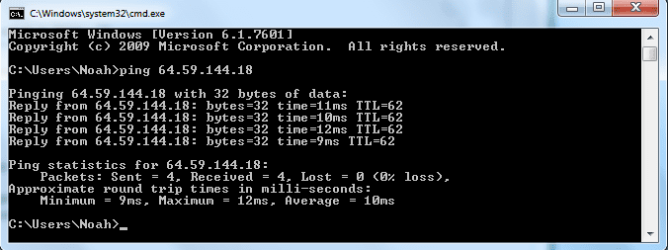
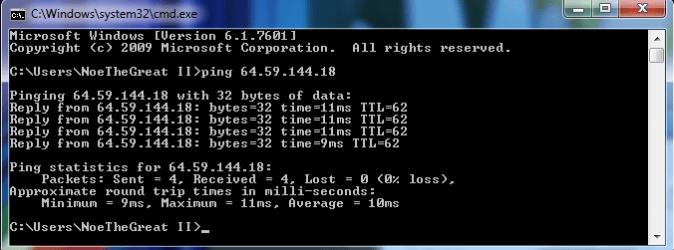
ping 64.59.144.18

Do from each machine a note times (ms). Just do primary.

the what is "this" meant: I no longer see anything on the ipconfig pages you've posted lately that could be causing the problem. It was obvious on the very first one you posted in this thread that there was no way you could connect.

You haven't done anything with the adapters in Device Manager regarding this issue, have you?

Is everything else on the sick machine working okay?

What kind of activity do you see on the network tab of Task Manager? And the other tabs?

You have the luxury of comparing your sick machine with a healthy one...
 

My Computer My Computer

At a glance

Windows 7 Ultimate x64
OS
Windows 7 Ultimate x64
  • Like
Reactions: 2xg
I will say it again, this is the same place and the same router. only different computers. :)

Yes, understand that. But your first ipconfig indicated it couldn't get an address from the router, whereas your other one apparently was.
 

My Computer My Computer

At a glance

Windows 7 Ultimate x64
OS
Windows 7 Ultimate x64
Noe766 - I can't find anywhere in your Thread if it has been suggested to change the Wireless Mode from your router, usually it is default to a Mixed mode, you are using an N router, does your router supports N?
Try changing the Mode to an N/G or G, see then test your wireless connection again.
 

My Computer My Computer

At a glance

Win7 & Win8 64bitIntel i5
Computer Manufacturer/Model Number
Lenovo Desktop/Samsung Laptop
OS
Win7 & Win8 64bit
CPU
Intel i5
Internet Speed
Charter-20 Mbps
Antivirus
Avast
Browser
FF, IE9 and Chrome
erm... how do I "ping" the dns servers?

Primary = 64.59.144.18
Secondary = 64.59.144.19

when you said causing this... what is "this..."?

Although I'm not sure if this is an issue, it's worth looking at:

From command prompt type:

ping 64.59.144.18

Do from each machine a note times (ms). Just do primary.

the what is "this" meant: I no longer see anything on the ipconfig pages you've posted lately that could be causing the problem. It was obvious on the very first one you posted in this thread that there was no way you could connect.

You haven't done anything with the adapters in Device Manager regarding this issue, have you?

Is everything else on the sick machine working okay?

What kind of activity do you see on the network tab of Task Manager? And the other tabs?

You have the luxury of comparing your sick machine with a healthy one...

First Pic = LAPTOP ping

Second Pic = DESKTOP ping

Third Pic = Desktop network (task manager)

The adapter looks all good and drivers are up to date.

Everything else on the sick machine is working just fine it is just my need for faster internet speeds and curiosity as to why my laptop would be faster than the desktop.

As you can see in the task manager there are big spikes of internet unlike the one continuous stream of 130mbps from my laptop (no pic). and all other tabs look fine.

...and yes I am very lucky that I have 2 machines I can compare with. :D

Anything else you need to know? Oh and are you starting to think it might just be the difference in network cards... although this may be true, my speeds never went this slow before so hmmmm. This is a true puzzler. ~TOTAL time attempting to fix internet 7hours allocated~
 

Attachments

  • CMD PING LAPTOP.png
    CMD PING LAPTOP.png
    10.6 KB · Views: 2
  • CMD PING DESKTOP.png
    CMD PING DESKTOP.png
    13.8 KB · Views: 2
  • Task manger.png
    Task manger.png
    27.8 KB · Views: 2

My Computer My Computer

At a glance

Windows 7 Professional 64bit
OS
Windows 7 Professional 64bit
Noe766 - I can't find anywhere in your Thread if it has been suggested to change the Wireless Mode from your router, usually it is default to a Mixed mode, you are using an N router, does your router supports N?
Try changing the Mode to an N/G or G, see then test your wireless connection again.
It is in fact on mixed mode *Mixed 802.11n, 802.11g and 802.11b* but um... what do all of these numbers mean?
 

My Computer My Computer

At a glance

Windows 7 Professional 64bit
OS
Windows 7 Professional 64bit
Link speed shows 1 mb/s in task manager... not good.
 

My Computer My Computer

At a glance

Windows 7 Ultimate x64
OS
Windows 7 Ultimate x64
Is it true that these two machines have historically had great access?

Was this a sudden drop after an update of some type?

I would go to Device Manager, right click on the apprpriate interface, select properties, and check the Advanced tab to see if there is anything there that can be changed relating to link speed. If you do find something and change it, you may have to reboot to take effect.

If still no good, in Device Manager, I'd uninstall the interface, reboot, then reinstall (have driver handy).
 

My Computer My Computer

At a glance

Windows 7 Ultimate x64
OS
Windows 7 Ultimate x64
Alright so get comfy while you read this quick back story...

First off I have had my laptop for a year and the internet has had great range as well as great connectivity. The network had only ever dropped because of the router being temp. down or something like that.

Second is that my desktop (sick computer) started off with a USB WiFi stick with horrible range. So I upgraded to a network card (the one im using right now) that has been doing fantastic. Preety decent range and always 4-5 bars not to mention that it has had great connectivity almost all the time except of coarse when 2 people were on it. So what has recently happened since my internet got screwed up for my desktop. It was wedensday and I had just gotten my shipment of my new monitor and my create bamboo tablet. So I hooked up my new monitor (no big deal) and installed my tablet with all of it's drivers. Whether it be a coincidence or not when I used my tablet with photoshop I felt as if my internet slowed down or even DC'd. I am almost certain it was coincidence but up until then my WiFi had been fine.

Oh and BTW which "interface" do you want me to check? under network adapters or human interface devices? or something else?
 

My Computer My Computer

At a glance

Windows 7 Professional 64bit
OS
Windows 7 Professional 64bit
Didn't you say previously that you had done a system restore? If so, did you restore to a date/time prior to that bamboo install?
 

My Computer My Computer

At a glance

Windows 7 Ultimate x64
OS
Windows 7 Ultimate x64
Didn't you say previously that you had done a system restore? If so, did you restore to a date/time prior to that bamboo install?

YES! erm... yes I actually restored to 2 days before wedensday and bamboo install if I went any further back it would be a bit over kill to restore to the system image. :P but what was that interface you were talking about???

OH and i believe there might have been a windows update sooooooo... hmmm possibly a recent windows update could have messed things up. but thats just a thought.
 

My Computer My Computer

At a glance

Windows 7 Professional 64bit
OS
Windows 7 Professional 64bit
Hang on a sec before doing device mgr.

So did you reinstall bamboo after the restore?
 

My Computer My Computer

At a glance

Windows 7 Ultimate x64
OS
Windows 7 Ultimate x64
Nope not yet. oh and when i was frustrated with this whole internet thing i remember I changed some rules in windows firewall but i set them back to default so does that have anything to do with my problem you think? (outbound rules)
 

My Computer My Computer

At a glance

Windows 7 Professional 64bit
OS
Windows 7 Professional 64bit
So the restore was truly successful and the it appears as though the bamboo install never took place, right?
 

My Computer My Computer

At a glance

Windows 7 Ultimate x64
OS
Windows 7 Ultimate x64
Noe766 - I can't find anywhere in your Thread if it has been suggested to change the Wireless Mode from your router, usually it is default to a Mixed mode, you are using an N router, does your router supports N?
Try changing the Mode to an N/G or G, see then test your wireless connection again.
It is in fact on mixed mode *Mixed 802.11n, 802.11g and 802.11b* but um... what do all of these numbers mean?

Basically the oldest/slowest to newest/fastest versions of wireless protocols: "b" -> "g" -> "n". If all wireless devices you ever intend to connect to the router are 802.11n capable then you can select 802.11n only. This way the router can maintain maximum throughput without dividing its time trying to accomodate the other protocols.

So what 2xg is recommending is a way for you to optimize your router settings to allow for maximum throughput.
 

My Computer My Computer

At a glance

Windows 7 Ultimate x64
OS
Windows 7 Ultimate x64
I'm very sorry for the inconvienience... I fell asleep, it was quite late. Any who YES at this moment bamboo is NOT installed by any means. and the restore WAS successful in removing that.

Also I can change my wireless mode on the computer from b ---> b & g -----> b & g & n but I can not select only N?


With B selected = a very stable 11mbps connection

With B & G selected = a very stable 36mbps connection

With B & G & N selected (regular mixed) = Fluctuatiing 1,6.5,26,56,65 not stable at all
 
Last edited:

My Computer My Computer

At a glance

Windows 7 Professional 64bit
OS
Windows 7 Professional 64bit
Back
Top