Need help repairing the administrative tools

nakedbamboo

New member
Local time
5:44 AM
Messages
13
I was messing around trying to clean up my start menu when I think I made a mistake. I wanted to get the administrative tools on the right hand side so it could be expanded, but I did not want it in the All Programs section (who knows why). Anyway, so I right clicked on the All Programs and opened All Users, then I deleted the Administrative tools. I don't know what I was thinking, but when I went back to the start menu, it no longer showed up under All Programs but was on the right side, so I thought I was all set. When I tried to expand it though, it gives a long error that basically says "Location is not available..." So I know why this happened; my question is how do I repair it? Thanks.
 

My Computer My Computer

Computer Manufacturer/Model Number
Dell XPS 400
OS
7
Graphics Card(s)
Nvidia 7900 GTX
Sound Card
X-FI
Right-click on the taskbar, and click on Properties. Go to the Start Menu tab and hit Customize. Administrative Tools should be in there.
 

My Computer My Computer

Computer Manufacturer/Model Number
Custom
OS
Windows 7 Professional x64
CPU
Intel i7 2600K OC'd @ 4620 MHz
Motherboard
Asus P8Z68-V Pro
Memory
16GB GSkill Sniper 2133 Mhz (4x4GB)
Graphics Card(s)
EVGA GeForce GTX 480 SuperClocked+
Sound Card
Realtek High Definition Audio
Monitor(s) Displays
2x Acer S273HLbmii 27"
Screen Resolution
2 x 1920x1080
Hard Drives
64GB Crucial M4 SSD

Storage: Hitachi 1TB 5400RPM, Samsung 1.5TB 5400RPM
PSU
Corsair HW Series 750w (modular)
Case
Cooler Master HAF 932 Advanced Blue Edition
Cooling
CM Hyper 212+ CPU cooler, 3x 230mm + 1x 140mm case fans
Keyboard
Logitech MK320 (wireless)
Mouse
Logitech MK320 (wireless)
Internet Speed
30 Mb/s : 2 Mb/s
Most of, if not all of the administrative tools can be found in your system32 folder, so don't worry, they're not lost forever!
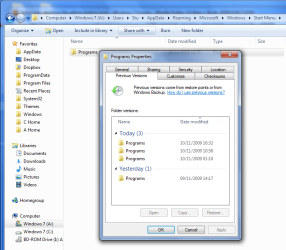
Can you restore a previous version of folder you deleted the tools from? ie. %appdata%\Microsoft\Windows\Start Menu\Programs ??

10-11-2009 17-05-00.png

I know it's obvious, but what about the recycle bin, have you checked to make sure that the folder's not in there?
 

My Computer My Computer

Computer Manufacturer/Model Number
HP Touchsmart IQ771.uk
OS
Windows 7 Ultimate x64
CPU
AMD Turion(tm) 64 X2 Mobile Technology TL-56
Motherboard
ASUS Pheonix
Memory
3GB Nanya PC2-6400 DDR2-SDRAM SO-DIM (400MHz)
Graphics Card(s)
NVIDIA GeForce Go 7600 256MB GDDR3 SDRAM
Sound Card
High Definition Intergrated NVIDIA MCP51
Monitor(s) Displays
46" Sony Bravia HDTV
Screen Resolution
1600x1200
Hard Drives
1.5TB Samsug
320GB Seagate ST3320820AS - SATA 3Gb/s 8MB
500GB Maxtor Basics STM305003EHD301-RK
Internet Speed
↓6.32 Mb/s ↑0.35 Mb/s ↔26ms
Other Info
BIOS - American Megatrends Inc. 5.07
Ethernet Port - NVIDIA nForce 10/100/1000 Mbps
DVD Drive - TSSTcorp DVDR/RW TS-T632L
Ok, I found out how to do it. I couldn't do a restore, because I had already installed too much stuff to want to do that. I was looking around on google and actually came across a post in these forums titled: Administrative Tools: Restore Shortcuts. It provides a down-loadable file to replace the one I deleted. I must not be the only person messing where he shouldn't. Thanks for the help.

http://www.sevenforums.com/tutorials/29965-administrative-tools-restore-shortcuts.html
 
Last edited by a moderator:

My Computer My Computer

Computer Manufacturer/Model Number
Dell XPS 400
OS
7
Graphics Card(s)
Nvidia 7900 GTX
Sound Card
X-FI
I am, too, bedeviled by this issue. I don't want the "Administrative Tools" in the Start Menu, but there's no option in "Tasskbar and Start Menu Properties" to have it appear ONLY in the Control Panel, where it belongs (in my judgment). It can be in 1) only in "All Programs" (Start) menu, or 2) in both "All Program" (Start") and the right-side add-on Start menu, or 3) neither.

When I remove that folder from the Start Manu and use the Control Panel "Administrative Tools" option, it reports "Location is not available" and reports it expects to find the folder at "C:\ProgramData\Microsoft\Windows\Start Menu\Programs\Administrative Tools".

I have been utterly unable to find where this original destination specification is stored to change it so I can put Administrative Tools where I'd like it. It seems to be stored under "Control Panel\All Control Panel Items", but there's no "...\Control Panel" anywhere I can find.

Anybody got a solution for where I can can this apparently static reference to the folder, so I can move the folder and change the reference to it?
 

My Computer My Computer

Computer Manufacturer/Model Number
Dell Optiplex GX960
OS
Windows 7 Pro

My Computer My Computer

Computer type
PC/Desktop
Computer Manufacturer/Model Number
Self built custom
OS
64-bit Windows 11 Pro for Workstations
CPU
Intel i7-8700K OC'd to 5 GHz
Motherboard
ASUS ROG Maximus XI Formula Z390
Memory
64 GB (4x16GB) G.SKILL TridentZ RGB DDR4 3600 MHz
Graphics Card(s)
ASUS ROG-STRIX-GTX1080TI-O11G-GAMING
Sound Card
Integrated
Monitor(s) Displays
2 x Samsung Odyssey G7 27"
Screen Resolution
2560x1440
Hard Drives
1TB Samsung 990 PRO M.2,
4TB Samsung 990 PRO PRO M.2,
TerraMaster F8 SSD Plus NAS
PSU
Seasonic Prime Titanium 850W
Case
Thermaltake Core P3
Cooling
Corsair Hydro H115i
Keyboard
Logitech wireless K800
Mouse
Logitech MX Master 4
Internet Speed
2 Gb/s Download and 100 Mb/s Upload
Antivirus
Malwarebyte Anti-Malware Premium
Browser
Google Chrome
Other Info
Logitech Z625 speaker system,
Logitech BRIO 4K Pro webcam,
HP Color LaserJet Pro MFP M477fdn,
APC SMART-UPS RT 1000 XL - SURT1000XLI,
Galaxy S23 Plus phone
Thank you, Shawn. I was about to write a long rebuttal of your suggestion (because you were offering me the shortcut I already had in place), but I was humble enough to try the second part of your suggestion by moving it. What I discovered is that the same strategy we used to used with XP is the ONLY way it now works in Win 7.

Take that shortcut to "Administrative Tools" in it's default location at "C:\ProgramData\Microsoft\Windows\Start Menu\Programs\Administrative Tools"
and, as you suggest, drag-and-drop it to the place you want it to appear. (I'd tried cut-and-paste, in the past, to no success; apparently is the Dragon-Drop that does the trick.)

Apparently, for Control Panel objects, that's the only proper way to move them, and it causes their references to be updated by implication. So, it's now working, and it worked through a full, cold reboot, and irrespective of whether the Control Panel is access as "menu" or "link."

Thanks.
 

My Computer My Computer

Computer Manufacturer/Model Number
Dell Optiplex GX960
OS
Windows 7 Pro
You're most welcome Carol. I'm happy to hear that it works for you wanted it for. :)
 

My Computer My Computer

Computer type
PC/Desktop
Computer Manufacturer/Model Number
Self built custom
OS
64-bit Windows 11 Pro for Workstations
CPU
Intel i7-8700K OC'd to 5 GHz
Motherboard
ASUS ROG Maximus XI Formula Z390
Memory
64 GB (4x16GB) G.SKILL TridentZ RGB DDR4 3600 MHz
Graphics Card(s)
ASUS ROG-STRIX-GTX1080TI-O11G-GAMING
Sound Card
Integrated
Monitor(s) Displays
2 x Samsung Odyssey G7 27"
Screen Resolution
2560x1440
Hard Drives
1TB Samsung 990 PRO M.2,
4TB Samsung 990 PRO PRO M.2,
TerraMaster F8 SSD Plus NAS
PSU
Seasonic Prime Titanium 850W
Case
Thermaltake Core P3
Cooling
Corsair Hydro H115i
Keyboard
Logitech wireless K800
Mouse
Logitech MX Master 4
Internet Speed
2 Gb/s Download and 100 Mb/s Upload
Antivirus
Malwarebyte Anti-Malware Premium
Browser
Google Chrome
Other Info
Logitech Z625 speaker system,
Logitech BRIO 4K Pro webcam,
HP Color LaserJet Pro MFP M477fdn,
APC SMART-UPS RT 1000 XL - SURT1000XLI,
Galaxy S23 Plus phone
Back
Top