
Solved need help with basic maintenance steps & utilities

dpwoodpecker

New member
Local time
11:25 AM
Messages
38
I've gotten help from here awhile back to do a clean install of Windows 7 and recently, I’ve been able to install the GWX console to deal with the “get Windows 10” problems & finally able to install all security updates up to July; lagged in August thru November but got hold of some help from Woody website to navigate the complicated new way to keep Win7 updated. I’ve now gotten the necessary security-only updates for Oct and Nov – am waiting for ‘green lights’ on December ones.

I’ve used Macrium to image backups (OS and data) before and after installing these major WUs. But it has been a long while since I’ve check system health etc. and have recently gotten a couple of BSOD while unplugging external USB hard drives.

So I would appreciate much needed help on the basics for maintenance using utilities already available in Windows 7 and freeware first before having to buy programs. I’ve made a list of things I’ve read about in the Performance & Maintenance and would appreciate help with advice on where to start and the effective sequence (available links to tutorials or step-by-step instructions are greatly appreciated). Please do suggest others that I haven’t read enough to include. Please also note whenever System Restore Points or backup imaging will be needed before certain procedures are to be done. Please also advise on how to maintain the backup images – when would the older ones be considered ‘obsolete’?


Macrium backup of OS and of data partitions
Check disk health (see attached image; this seemed odd when I went to “create a restore point”)

SFC /scannow (should I allow automatic repair or just verify only?)
disk cleanup
system health report (how to generate one & understanding results to proceed with resolutions)
CCleaner
How to occasionally check / maintain only necessary processes and services as new programs are installed
Weekly data backup and maintaining backup schedule
 

Attachments
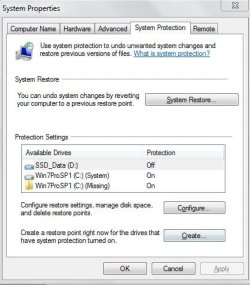
  • 2016 Dec-odd drive create restore point.JPG
    2016 Dec-odd drive create restore point.JPG
    49.7 KB · Views: 45

My Computer

Computer type
Laptop
Computer Manufacturer/Model Number
Dell XPS 13 (L321X) x64
OS
Windows 7 Pro Version 6.1.7601 Service Pack 1 Build 7601, clean OEM re-install
CPU
Intel core i5-2467M CPU @160GHz
Motherboard
Dell Inc. 085X6F A00
Memory
4Gb installed RAM
Graphics Card(s)
Intel HD Graphics 3000
Hard Drives
SAMSUNG SSD PM830 mSATA 128GB ATA Device, ACHI enabled
SEAGATE FREEAGENT USB HDD - 640GB
Antivirus
Kaspersky Internet Security 2014 G patch
Browser
Firefox 29.1
Welcome

Several years ago, when I had more time, I put together a quide for proper maintenance. If you read post number 2 and follow the instructions, you will have a puter that is maintained properly and will give you years of enjoyment.
Clean Win 7 install - functionality suggestions
 

My Computer

Computer type
PC/Desktop
Computer Manufacturer/Model Number
Dell XPS 420
OS
Windows 10, Home Clean Install
CPU
Intel Core2 processsor Q8200(2.33Ghz 1333FSB) Quad Core Tech
Motherboard
Dell
Memory
6 gb
Graphics Card(s)
ATI Radeon 256MB HD3650
Sound Card
Intergrated 7.1 Channel Audio
Monitor(s) Displays
Dell SP2009W 20"
Hard Drives
640 GB Serial ATA Hard drive
Cooling
Fan
Keyboard
Dell USB Keyboard
Mouse
Dell Premium Optical USB
Internet Speed
DSL 2.85
1. you might want to solve the BSOD issue, there is a dedicated section on this forum for that with specific instructions on what to post and how to do that.
2. Have you already used a system restore point? That missing folder would indicate this. Turn off system protection for the missing folder
3. Are C and D on the same drive?
4. sfc options: depends if you want to know what's wrong or if you just want to give windows a chance to fix things. It's not really a maintenance tool
5. generate system health report As to understanding the results, that depends on the results. The most important ones will be listed at the top and for me they are all utterly not relevant: tells me a driver is not installed and that windows update is disabled which is how I want both and that it has not detected an antivirus product while Panda is purring along without problems...You will have five sections of more detailed data, most of it quite technical. Again this is not really a maintenance tool
6. not sure what you want to know about ccleaner
7.
How to occasionally check / maintain only necessary processes and services as new programs are installed
again not sure what you mean. Don't install garbage, of course. When installing something pay attention to the options and make sure you untick any unnecessary extras (yahoo getting installed or norton toolbar...). I use Anvirtask manager to prevent programs from adding themselves to automatic startup if I don't need them there
8.
Weekly data backup and maintaining backup schedule
If you use Macrium: schedule a backup and let it do it's thing. What to backup and how often depends on how you use your computer. I backup documents on file change to Dropbox, every day to a second local harddrive and weekly via Macrium to a third local drive. They are also synchronized to my laptop whenever it's on line and i have System restore enabled on the documents partition so I have Shadow copies available. I alos have a task to create a system restore point every day at 8 pm. Foe my music and pictures, since I don't modify them as often they still get backed up to Dropbox on file change but the local backup is done weekly and the Macrium one monthly. There again I have Shadow copies available to protect against my own stupiditiy if I delete/modify a file and then change my mind. I am far less concerned about windows where Macrium just backs it up once/month, incremental backups, but I don't have any personal data on the system partition: Docs, pics, music, browser backups, email archive are on a separate drive and the downloads and temp folders are on a separate partition which doesn't get backed up, nor does it have system restore enabled.
9.
Please also advise on how to maintain the backup images – when would the older ones be considered ‘obsolete’?
the second you changed a file that is included in the backup...
Seriously, have a think about how you use your computer. From the slight annoyances like a bad driver install simply requiring a system restore to a major disaster aka the cumputer burns down. What will you loose? How bad will that be? I use gmail for emails so they'll still be there and my docs/pics/music are on Dropbox, or at least their most recent version is. Once/year I move the most recent Macrium backups of my personal stuff on an external drive and I keep the image I created just after the clean install, but all the inbetween backups get deleted to create new space...
 

My Computer

Computer type
PC/Desktop
OS
windows 7 ultimate x64

My Computer

Computer type
Laptop
Computer Manufacturer/Model Number
Dell XPS 13 (L321X) x64
OS
Windows 7 Pro Version 6.1.7601 Service Pack 1 Build 7601, clean OEM re-install
CPU
Intel core i5-2467M CPU @160GHz
Motherboard
Dell Inc. 085X6F A00
Memory
4Gb installed RAM
Graphics Card(s)
Intel HD Graphics 3000
Hard Drives
SAMSUNG SSD PM830 mSATA 128GB ATA Device, ACHI enabled
SEAGATE FREEAGENT USB HDD - 640GB
Antivirus
Kaspersky Internet Security 2014 G patch
Browser
Firefox 29.1
1. I'll search the forum for the BSOD section for anything similar to problems I'm getting
2. I may have used a system restore point long ago but that missing folder already showed up after I did the clean install. Yes...I'll turn off system protection for the missing folder.
3. Are C and D on the same drive? Yes, both are on the same SSD.
4. SFC options: For future reference, if it's not a maintenance tool, then in which cases would I be using it?
5. Thanks for the link to generating the report - will update afterwards
6. When would I use CCleaner? have read a bit about it but have not tried using it before.
7. I'm probably using wrong terms here - attempting to be clearer...it's just that sometimes I'd see the CPU usage spike up to 50% while all I'm using is Word or Outlook or just reading an article on Firefox. Just want to know and have the control that programs I've installed only run what needs to be used and not extras.
8. This great...I haven't been able to setup a backup schedule after I got updated to Win7 after decades with XP.
a) what program to you use for the daily backup (of data) to the 2nd local hard drive? I only have the one SSD on the laptop so my backups are on external HDs.
b) Would turning System Restore on the data partition take up a large chunk disk space eventually? Could you show me how to setup "a task to create a system restore point every day"?
c) I don't have personal data on C(system partition) either. However, temp folders (I am assuming that these are associated with the programs installed, such as MS Office suite, antivirus/malware, printers) are on C and the downloads are on D (data partition). Do I need to create another partition? and how would I find and redirect these folders to their new location designation? Is there a rule of thumb to keep the downloads folder uncluttered? I seem to have 'packrat'-tendency:(
9. Your inputs are very helpful - how I use my laptop will dictate what/how the backups are needed/setup. Is there a forum etc for tips on using Dropbox? Is Google Drive similar? Many thanks!
 

My Computer

Computer type
Laptop
Computer Manufacturer/Model Number
Dell XPS 13 (L321X) x64
OS
Windows 7 Pro Version 6.1.7601 Service Pack 1 Build 7601, clean OEM re-install
CPU
Intel core i5-2467M CPU @160GHz
Motherboard
Dell Inc. 085X6F A00
Memory
4Gb installed RAM
Graphics Card(s)
Intel HD Graphics 3000
Hard Drives
SAMSUNG SSD PM830 mSATA 128GB ATA Device, ACHI enabled
SEAGATE FREEAGENT USB HDD - 640GB
Antivirus
Kaspersky Internet Security 2014 G patch
Browser
Firefox 29.1
On your system specs you mention a 128GB mSATA SSD. Isn't a little small for OS and data?
I've seen that you're very concerned about backups and data security.
I've seen many people in this forum complaining about data lost on external USB HDD. Just a little impact and your disk is gone forever.
- Keep the drive on a safe place. NEVER take it with you.
- Put it horizontally on a flat surface near the laptop. Never vertical on the edge. Just a fall from vertical to horizontal will ruined it.
- Once it's running, DON'T touch it, move it, bend it.

For maintenance:
- Once a month or when you have to hard shutdown, BSOD etc, schedule a check disk (chkdsk c: /f).
- Once a month do a sfc /scannow.
- Every 3 moths, delete all files and folders from C:\Windows\SoftwareDistribution\Download
- Once a week do a disk ckeanup.
- Open msconfig and look for startup programs and services. Many programs loads a update program every time you boot (like Java). Disable them (you can always enable them back).
- Once a week do a data backup. Your data is very important as you can't loose it. OS and programs you can always reinstall.
I have a 1 OS image taken just after a clean installation, with MS Office, and updated and before all other programs. If I begin to get any issue, I restore the image and reinstall the other programs.
For my data, I have a backup program that I run every Friday morning. Don't trust compactors for my data.
- Don't trust free clouds storage as Dropbox, Google Drive, one drive etc. Use it only as a second backup (one in a HDD and one at the cloud).
- Don't use System Restore for data, only for system. Let it work in automatic.
- Don't trust Win password. It's only to prevent curios people. Some with a little skill will unlock it in 15 min. If you encrypt your drive, you can have a issue that even you won't open it.
 
Last edited:

My Computers

System One System Two

  • Computer type
    PC/Desktop
    Computer Manufacturer/Model Number
    custom build
    OS
    Windows 7 HP 64
    CPU
    i5 6600K - 800MHz to 4200MHz
    Motherboard
    GA-Z170-HD3P
    Memory
    4+4G GSkill DDR4 3000
    Graphics Card(s)
    IG - Intel 530
    Monitor(s) Displays
    Samsung 226BW
    Screen Resolution
    1680x1050
    Hard Drives
    (1) -1 SM951 – 128GB M.2 AHCI PCIe SSD drive for Windows 7 and Lubuntu
    (2) -1 WD SATA 3 - 1T for Data
    (3) -1 WD SATA 3 - 1T for backup
    PSU
    Thermaltake 450W TR2 gold
    Keyboard
    Old and good Chicony mechanical keyboard
    Mouse
    Logitech mX performance - 9 buttons (had to disable some)
    Internet Speed
    500Mb/s
    Browser
    Firefox 64
    Other Info
    TinyWall firewall
  • Computer type
    Laptop
    System Manufacturer/Model Number
    Asus Q550LF
    OS
    Windows 7 Pro
    CPU
    i7-4500U 800MHz to 3.0GHz
    Motherboard
    Asus Q550LF
    Memory
    (4+4)G DDR3 1600
    Graphics Card(s)
    IG intel 4400 + NVIDIA GeForce GT 745M
    Sound Card
    Realtek
    Monitor(s) Displays
    LG Display LP156WF4-SPH1
    Screen Resolution
    1920 x 1080
    Hard Drives
    BX500 120G SSD for Windows and programs +
    1T HDD for data
    Internet Speed
    500 Mb/s
    Browser
    Firefox
    Other Info
    TinyWall firewall
Thank you everyone for your clear guidance - I'm marking this solved!
 

My Computer

Computer type
Laptop
Computer Manufacturer/Model Number
Dell XPS 13 (L321X) x64
OS
Windows 7 Pro Version 6.1.7601 Service Pack 1 Build 7601, clean OEM re-install
CPU
Intel core i5-2467M CPU @160GHz
Motherboard
Dell Inc. 085X6F A00
Memory
4Gb installed RAM
Graphics Card(s)
Intel HD Graphics 3000
Hard Drives
SAMSUNG SSD PM830 mSATA 128GB ATA Device, ACHI enabled
SEAGATE FREEAGENT USB HDD - 640GB
Antivirus
Kaspersky Internet Security 2014 G patch
Browser
Firefox 29.1
I always back up my har drives

I've gotten help from here awhile back to do a clean install of Windows 7 and recently, I’ve been able to install the GWX console to deal with the “get Windows 10” problems & finally able to install all security updates up to July; lagged in August thru November but got hold of some help from @Woody website to navigate the complicated new way to keep Win7 updated. I’ve now gotten the necessary security-only updates for Oct and Nov – am waiting for ‘green lights’ on December ones.

I’ve used Macrium to image backups (OS and data) before and after installing these major WUs. But it has been a long while since I’ve check system health etc. and have recently gotten a couple of BSOD while unplugging external USB hard drives.

So I would appreciate much needed help on the basics for maintenance using utilities already available in Windows 7 and freeware first before having to buy programs. I’ve made a list of things I’ve read about in the Performance & Maintenance and would appreciate help with advice on where to start and the effective sequence (available links to tutorials or step-by-step instructions are greatly appreciated). Please do suggest others that I haven’t read enough to include. Please also note whenever System Restore Points or backup imaging will be needed before certain procedures are to be done. Please also advise on how to maintain the backup images – when would the older ones be considered ‘obsolete’?


Macrium backup of OS and of data partitions
Check disk health (see attached image; this seemed odd when I went to “create a restore point”)

SFC /scannow (should I allow automatic repair or just verify only?)
disk cleanup
system health report (how to generate one & understanding results to proceed with resolutions)
CCleaner
How to occasionally check / maintain only necessary processes and services as new programs are installed
Weekly data backup and maintaining backup schedule

This may not be the right place to reply but I willgive it a trie. I was up most of the night.
Anyway, I hav had very hi anxiety and this has helped me by having at least 3 (C ) drives as standbys. Go to Farstone.com Download Driveclone II. I think you can use it with a nag screen. I bought the program several years ago for $50 dollars buth was worthless. About 2 years ago, with all my documents I told them the program at tht time was worthless. They inturn gave the updated copy. It has been working like a champ for 1-1/2 years!
 

My Computer

Computer type
PC/Desktop
Computer Manufacturer/Model Number
Velocity Micro gaming PC
OS
Windows 7 64 bit
Hard Drives
Sata drive on rails that slip into a circuit board.
Antivirus
Norton
Browser
IE 11
Back
Top