Solved network adapter is enabled but cannot view available networks

Desertia

New member
Local time
2:45 PM
Messages
7
Hi

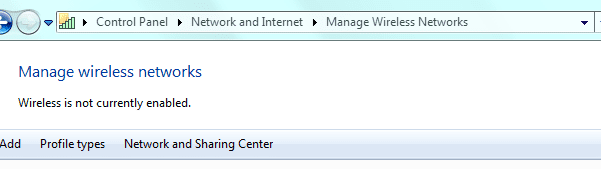
I currently cannot get access to the internet on my dekstop. I've checked my network adapter and it says it is enabled but when I go to 'manage wireless networks' it tells me that wireless is not currently enabled. I don't really understand how it can be enabled and not enabled at the same time :(

I have re-set my modem and router and I can successfully pick up the internet on my laptop, it's just the desktop I'm having this problem with.


please help
 

My Computer

OS
windows 7 home
Hi Desertia,

Please share the make/model of the 'network adapter' that you are using. Is it a 'USB adapter'? Also check 'Device Manager' (Control Panel > Device Manager); expand 'Network Adapters' category to check for the presence of the 'Adapter'. Check if it has a 'question mark/exclamation mark' besides it.

Also share a screenshot of 'Manage Wireless Networks' page which claims that the 'Adapter' is disabled. You may also try to temporarily 'disable/remove' the 'anti-virus software' to see if that matters.

Do reply with the information; would be glad to assist.
 

My Computer

OS
Windows 7 64bit
Hi and thanks for getting back to me. Apologies for my late reply, here is the information you asked for :

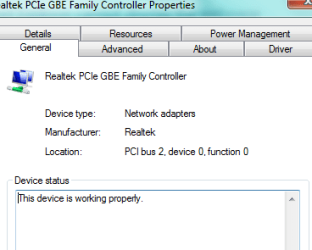
The device is a Realtek PCIe GBE Family Controller and is internal to the PC. There is no question/exclamation mark next to it in the Device Manager, but in the bottom toolbar on my desktop there is black exclamation mark on a yellow triangle on the network icon

I haven't tried to disable/remove my anti-virus as I'm not actually sure how to do that and there has been no change to the anti-virus that i'm aware of.

I've attached the screenshot you asked for and also the one where it says the network adapter is working. Thanks and hope you can help!
 

Attachments

  • adapter working.PNG
    adapter working.PNG
    7.6 KB · Views: 4
  • manage wireless network.PNG
    manage wireless network.PNG
    6.2 KB · Views: 5

My Computer

OS
windows 7 home
Hi Desertia,

The 'network card' in the 'screenshot is an 'Ethernet adapter' (Wired) and it wouldn't show up in 'Manage Wireless networks'. A separate wireless adapter' needs to be installed in the system (apart from the Ethernet Card); only then it may reflect its presence in 'Windows'.

If you have a 'wireless card' installed as well, please ensure that it is properly seated (PCI or USB). Once done, you may confirm its presence in the 'Device Manager' (and ensure that its drivers are installed). Once done, the card's activity is likely to be seen in 'manage Wireless Networks'. Also share if you've used 'Wireless' on this computer before. If yes, when did it last work?

It appears that you are trying to use a 'wired internet' connection currently. Please check the following and share the relevant details:
- Is the computer connected to a 'Router or a modem'? Mention the make/model related details of the modem & the router in use.
- Is it a cable modem or a DSL?
- Open 'Command prompt' (Start > Type 'cmd' in search text-box > Tap 'Enter') > Type 'ipconfig /all' (Without quotations) and tap 'Enter'
- Capture and share the details
- Try using another computer on this network (if available), to see if that works

Hope this helps. Do reply with the findings; will take it forward.


My Computer

OS
Windows 7 64bit
Hi

I must have a wireless adapter, as my desktop connected to the internet via the modem and router just fine until just before I made this post. I downloaded a game and soon afterwards I lost my internet connection mid-session. The first thing I did was do a system restore but still it wasn't picking up the internet. So maybe something happened when I was downloading the game? Is that possible?

I am not sure what you mean about ensuring the wireless adapter is seated properly, as I presume it's inside my PC and I haven't moved the box or anything.

Please see below answers to your questions in red. Thanks again for investigating.

Is the computer connected to a 'Router or a modem'? Mention the make/model related details of the modem & the router in use. Yes, I have a modem from my ISP (virgin media) and my router is Netgear
- Is it a cable modem or a DSL? It's a cable modem

- Open 'Command prompt' (Start > Type 'cmd' in search text-box > Tap 'Enter') > Type 'ipconfig /all' (Without quotations) and tap 'Enter'
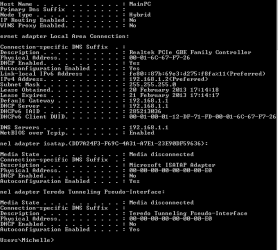
- Capture and share the details Attached
- Try using another computer on this network (if available), to see if that works. I can currently connect via this modem/router on a laptop and netbook.
 

Attachments

  • IPconfig.PNG
    IPconfig.PNG
    6.5 KB · Views: 7

My Computer

OS
windows 7 home
Hi Desertia,

Thank you for the detailed information.

Since your laptop & netbook are currently connected to the internet, it points at a possible issue with the computer. It appears that the PC is wired to the 'Netgear Router'; and reflects a valid IP (192.168.1.2).

Please try the following steps:
1. Try using an alternate browser to see if that helps. (If you currently use 'Internet Explorer', try using 'Mozilla Firefox/Google Chrome', if available' and share results)

2. Check if 'Link LEDs' are blinking at the computer's end. (Follow the network cable from router to the port where it is plugged into the computer; link-lights will be visible where the cable is plugged in). If no activity light is seen, you may try performing a power cycle. Unplug the modem and router for 30 seconds. Plug the modem back in, wait wait for two minutes and then plug the router back in.

3. Run command 'Netsh Winsock reset' (without quotations) in an elevated command prompt http://www.sevenforums.com/tutorials/783-elevated-command-prompt.html

4. If the issue persists, try to plug the modem directly to the computer to check if that makes any difference (Bypass Router)

Do reply with the findings; would be glad to assist.


My Computer

OS
Windows 7 64bit
Hi

Thank you so much for helping. Please see the answers to your questions in red :

1. Try using an alternate browser to see if that helps. (If you currently use 'Internet Explorer', try using 'Mozilla Firefox/Google Chrome', if available' and share results) I tried to launch Safari and it said there was no internet connection (Actually the little internat access icon in the bottom right toolbar always has the black exclamation mark on a yellow triangle even when you first start the pc before launching a browser)

2. Check if 'Link LEDs' are blinking at the computer's end. (Follow the network cable from router to the port where it is plugged into the computer; link-lights will be visible where the cable is plugged in). If no activity light is seen, you may try performing a power cycle. Unplug the modem and router for 30 seconds. Plug the modem back in, wait wait for two minutes and then plug the router back in. Yes, the Link LED links are blinking

3. Run command 'Netsh Winsock reset' (without quotations) in an elevated command prompt
http://www.sevenforums.com/tutorials...nd-prompt.html Ran the command and re-started pc but still no internet access


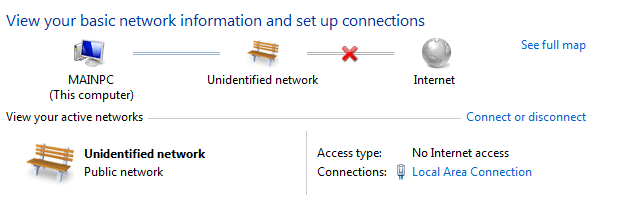
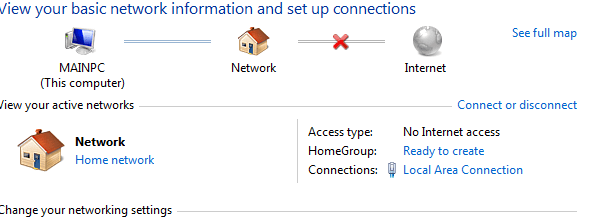
4. If the issue persists, try to plug the modem directly to the computer to check if that makes any difference (Bypass Router) Plugged the modem directly into PC but still no internet access. There are differences in the network and sharing centre depending on whether the router is bypassed or not. I have included screenshots. One with modem connected directly to PC and one with the router connected
 

Attachments

  • with modem directly to PC.PNG
    with modem directly to PC.PNG
    8.4 KB · Views: 6
  • With Router connected.PNG
    With Router connected.PNG
    9 KB · Views: 6

My Computer

OS
windows 7 home
In order for your machine to see this missing wireless network adaptor, try shutting down the machine completely, unplug the power cord and push the start button to bleed off all power. Plug back in and power up, check in Device Manager to see if the wireless adaptor is there.

Until you can see the wireless adaptor in Device Manger there is no way it's going to connect to your router. :)
 

My Computer

Computer type
PC/Desktop
Computer Manufacturer/Model Number
Home built
OS
Windows 7 Ult, Windows 8.1 Pro,
CPU
Q9650-4.275GHz, E8600 4.5GHz, E6750-3.8GHz
Motherboard
Evga 780i FTW
Memory
G.Skill PC2 9600 1200Mhz 5 5 5 15 2T
Graphics Card(s)
GTX480
Sound Card
Asus Xonar D2
Monitor(s) Displays
HannsG
Screen Resolution
1680X1050
Hard Drives
GSkill Phoenix Pro 120GB SSD
PSU
ThermalTake Toughpower 1000Watt modular
Case
ThermalTake XaserV
Cooling
Xigmatek S1283
Keyboard
Logitech G15
Mouse
Logitech G9
Internet Speed
T1
Hi Desertia,

Useful tips by 'chev65'; are likely help to recover the 'wireless adapter'. Please check if they work.

To troubleshoot the 'wired connection', please run the following 'ping commands'; may produce some useful information:
Note: Please temporarily remove the 'anti-virus' from the system before attempting these commands. The firewall may cause issues.

- Launch 'Command Prompt' http://www.sevenforums.com/tutorials/783-elevated-command-prompt.html
- Ping the local host to confirm that the 'local TCP/IP stack' is functioning correctly; type ping 127.0.0.1 and tap 'Enter' (share if the ping is successful)
- Ping the 'Default Gateway' to verify if the 'IP packets' can reach your 'network’s default gateway'; type ping 192.168.1.1 (Share results)
- Ping the 'DNS Server' to check if the host can communicate with your 'DNS server'; type ping 74.125.224.72 (Check results)
- Ping the 'website'; type ping Google

Do reply with the findings; will take it forward from there.


My Computer

OS
Windows 7 64bit
ok so I did the whole unplugging the power code thing but nothing changed.

After running the command prompts I now have full internet access! I'm not sure after which of the commands it worked but something certainly did work!

I can't thank you enough for all your help and assistance, as well as Chev65 with the helpful hints.

If you both have a favourite charity, please let me know and I will make a donation in return for the assistance.
 

My Computer

OS
windows 7 home
ok so I did the whole unplugging the power code thing but nothing changed.

After running the command prompts I now have full internet access! I'm not sure after which of the commands it worked but something certainly did work!

I can't thank you enough for all your help and assistance, as well as Chev65 with the helpful hints.

If you both have a favourite charity, please let me know and I will make a donation in return for the assistance.

I'm wondering how a ping command can fix a networking problem and make a wireless adaptor reappear. :confused:

I'd wager a guess that the hard shut down fixed something.
 

My Computer

Computer type
PC/Desktop
Computer Manufacturer/Model Number
Home built
OS
Windows 7 Ult, Windows 8.1 Pro,
CPU
Q9650-4.275GHz, E8600 4.5GHz, E6750-3.8GHz
Motherboard
Evga 780i FTW
Memory
G.Skill PC2 9600 1200Mhz 5 5 5 15 2T
Graphics Card(s)
GTX480
Sound Card
Asus Xonar D2
Monitor(s) Displays
HannsG
Screen Resolution
1680X1050
Hard Drives
GSkill Phoenix Pro 120GB SSD
PSU
ThermalTake Toughpower 1000Watt modular
Case
ThermalTake XaserV
Cooling
Xigmatek S1283
Keyboard
Logitech G15
Mouse
Logitech G9
Internet Speed
T1
Hi Desertia,

Glad that the internet is back; thank you for the confirmation.

Would like to know if you removed the 'security software' from the computer before running the commands. Its removal may have worked. Also share the current network details of your system: Open 'Command prompt' (Start > Type 'cmd' in search text-box > Tap 'Enter') > Type 'ipconfig /all' (Without quotations) and tap 'Enter'.

As shared by 'chev65', 'Hard Shut Down' may also have worked by restoring the 'wireless card'.


My Computer

OS
Windows 7 64bit
Yes will I'm probably the most confused :confused:. To confirm, I did disable the firewall before running the commands, but it is enabled again and I re-booted and everything is still okay.

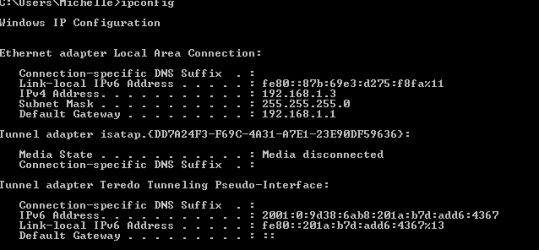
Here is the ipconfig screenshot after issue resolved. Thanks a million!
 

Attachments

  • IPConfig 22-feb.PNG
    IPConfig 22-feb.PNG
    2.8 KB · Views: 5

My Computer

OS
windows 7 home
Yes will I'm probably the most confused :confused:. To confirm, I did disable the firewall before running the commands, but it is enabled again and I re-booted and everything is still okay.

Here is the ipconfig screenshot after issue resolved. Thanks a million!

We need to see the ipconfig/all not just ipconfig.

It's not showing the wireless adaptor which is what we were trying to fix I believe.

The wired connection is the one showing now, maybe there never was a wireless NIC. :sarc:
 

My Computer

Computer type
PC/Desktop
Computer Manufacturer/Model Number
Home built
OS
Windows 7 Ult, Windows 8.1 Pro,
CPU
Q9650-4.275GHz, E8600 4.5GHz, E6750-3.8GHz
Motherboard
Evga 780i FTW
Memory
G.Skill PC2 9600 1200Mhz 5 5 5 15 2T
Graphics Card(s)
GTX480
Sound Card
Asus Xonar D2
Monitor(s) Displays
HannsG
Screen Resolution
1680X1050
Hard Drives
GSkill Phoenix Pro 120GB SSD
PSU
ThermalTake Toughpower 1000Watt modular
Case
ThermalTake XaserV
Cooling
Xigmatek S1283
Keyboard
Logitech G15
Mouse
Logitech G9
Internet Speed
T1
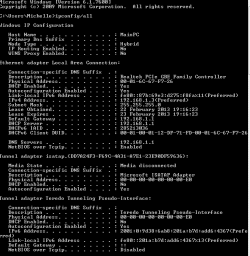
here you go :
 

Attachments

  • ipconfig all 22-Feb.PNG
    ipconfig all 22-Feb.PNG
    8.6 KB · Views: 3

My Computer

OS
windows 7 home
Hi Desertia,

Thank you for posting the results.

It appears that internet is currently functional through the wired connection. It is likely that disabling the 'firewall' may have done the trick. A corrupt firewall may cause such internet issues. I would do a complete 'anti-virus re-install' to ensure that the issue does not re-occur.


My Computer

OS
Windows 7 64bit
Back
Top