
Network Connections - Create Shortcut

How to Create a"Network Connections" Shortcut in Windows 7 and Windows 8

   Information
This tutorial will show you how to create or download a Network Connections shortcut that opens directly to change adapter settings in the Network and Sharing Center in Windows 7 and Windows 8.

   Note
The Network Connections folder stores all of your network connections. A network connection is a set of information that enables your computer to connect to the Internet, a network, or another computer. When you install a network adapter in your computer, Windows creates a connection for it in the Network Connections folder. A local area connection is created for an Ethernet network adapter. A wireless network connection is created for a wireless network adapter.

In the Network Connections folder, you can select a connection and view status information, such as connection duration, speed, and amounts of data transmitted and received; and you can use any diagnostic tools available for a particular connection. Depending on the status of the connection, the icon changes appearance in the Network Connections folder.


EXAMPLE: Network Connections folder
NOTE: This is with two ethernet network adapters.
Network_Connections.jpg


OPTION ONE

To Download a "Network Connections" Shortcut


1. Click/tap on the download button below to download the file below.
Network_Connections.zip

Download


2. Save the .zip file to the desktop.

3. Open the .zip file and extract the Network Connections shortcut to the desktop.

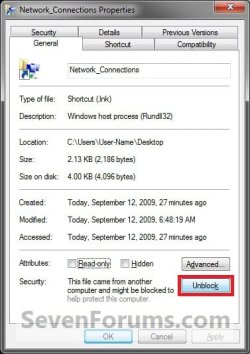
4. Right click or press and hold on the Network Connections shortcut, and click/tap on Properties, General tab, and on the Unblock button. (see screenshot below)
NOTE: If you do not have a Unblock button under the General tab, then the shortcut is already unblocked and you can continue on to step 5.
Unblock.jpg
5. In Windows 7, you can now Pin to Taskbar or Pin to Start Menu, add to Quick Launch, assign a keyboard shortcut to it, or move this shortcut to where you like for easy use.

6. In Windows 8, you can Pin to Taskbar on desktop, Pin to Start screen, add to Quick Launch, assign a keyboard shortcut to it, or move this shortcut to where you like for easy use.

7. When done, you can delete the downloaded .zip file if you like.


OPTION TWO

To Manually Create a "Network Connections" Shortcut


1. Right click or press and hold on a empty area on the desktop, and click/tap on New and Shortcut.

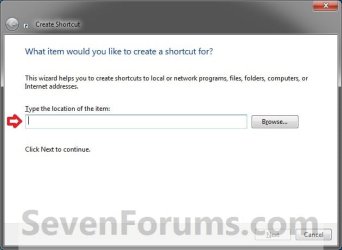
2. Copy and paste either location below into the location area, and click/tap on the Next button. (see screenshot below)
rundll32.exe shell32.dll,Control_RunDLL ncpa.cpl

OR

explorer.exe /e ::{7007ACC7-3202-11D1-AAD2-00805FC1270E}
Step1.jpg
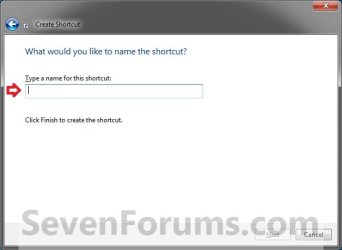
3. Type Network Connections for the name, and click/tap on the Finish button. (see screenshot below)
NOTE: You can name this anything you would like though.
Step2.jpg
4. Right click or press and hold on the new Network Connections shortcut on the Desktop, and click/tap on Properties.

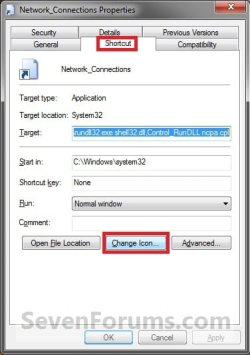
5. Click/tap on the Shortcut tab, then click/tap on the Change Icon button. (see screenshot below)
Step3.jpg
6. In the line under "Look for icons in this file", copy and paste the path below and press Enter. (see screenshot below)
%SystemRoot%\System32\netshell.dll
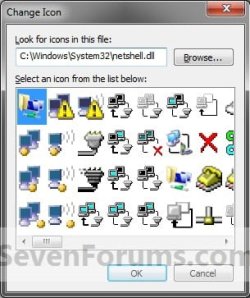
Step4.jpg
7. Select the icon highlighted in blue above, and click/tap on OK. (see screenshot above)
NOTE: You can use any icon that you would like instead though.

8. Click/tap on OK. (see screenshot below)
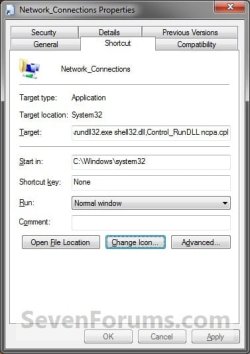
Step5.jpg
9. In Windows 7, you can now Pin to Taskbar or Pin to Start Menu, add to Quick Launch, assign a keyboard shortcut to it, or move this shortcut to where you like for easy use.

10. In Windows 8, you can Pin to Taskbar on desktop, Pin to Start screen, add to Quick Launch, assign a keyboard shortcut to it, or move this shortcut to where you like for easy use.
That's it,
Shawn


Attachments

Last edited:
Thanks

Thanks, I was going crazy trying to set up a shortcut to the VPN connection I needed until I read your tutorial...had no problem with XP, but this is our first remote PC with Windows 7...Thanks again, MikeH
 

My Computer

OS
windows 7 professional x32
You're most welcome Mike, and welcome to Seven Forums. :)
 

My Computer

Computer type
PC/Desktop
Computer Manufacturer/Model Number
Self built custom
OS
64-bit Windows 11 Pro for Workstations
CPU
Intel i7-8700K OC'd to 5 GHz
Motherboard
ASUS ROG Maximus XI Formula Z390
Memory
64 GB (4x16GB) G.SKILL TridentZ RGB DDR4 3600 MHz
Graphics Card(s)
ASUS ROG-STRIX-GTX1080TI-O11G-GAMING
Sound Card
Integrated
Monitor(s) Displays
2 x Samsung Odyssey G7 27"
Screen Resolution
2560x1440
Hard Drives
1TB Samsung 990 PRO M.2,
4TB Samsung 990 PRO PRO M.2,
TerraMaster F8 SSD Plus NAS
PSU
Seasonic Prime Titanium 850W
Case
Thermaltake Core P3
Cooling
Corsair Hydro H115i
Keyboard
Logitech wireless K800
Mouse
Logitech MX Master 4
Internet Speed
2 Gb/s Download and 100 Mb/s Upload
Antivirus
Malwarebyte Anti-Malware Premium
Browser
Google Chrome
Other Info
Logitech Z625 speaker system,
Logitech BRIO 4K Pro webcam,
HP Color LaserJet Pro MFP M477fdn,
APC SMART-UPS RT 1000 XL - SURT1000XLI,
Galaxy S23 Plus phone
Local Area Connection icon on the Windows 7 Task Bar

But, Brink, your final step is to imply that the created shortcut can be placed wherever one wishes. But this does not seem to be true.

I would like to place it ON the Task Bar.

But the closest position to the Task Bar that I can get the "Local Area Connection" icon to is inside the nest of Quick Launch, and that means that to Enable/Disable my Internet Connection I must first click on Quick Launch, to open the menu, then click on "Local Area Connection", and then click on Enable or Disable as the case may be.

I can't drag the "Local Area Connection" icon onto the Task Bar. And right-clicking on "Local Area Connection" does not offer the "Pin to Task Bar" option.

Is there a solution?
 

My Computer

OS
Windows 7 Home Premium 64 bit

My Computer

Computer type
PC/Desktop
Computer Manufacturer/Model Number
Self built custom
OS
64-bit Windows 11 Pro for Workstations
CPU
Intel i7-8700K OC'd to 5 GHz
Motherboard
ASUS ROG Maximus XI Formula Z390
Memory
64 GB (4x16GB) G.SKILL TridentZ RGB DDR4 3600 MHz
Graphics Card(s)
ASUS ROG-STRIX-GTX1080TI-O11G-GAMING
Sound Card
Integrated
Monitor(s) Displays
2 x Samsung Odyssey G7 27"
Screen Resolution
2560x1440
Hard Drives
1TB Samsung 990 PRO M.2,
4TB Samsung 990 PRO PRO M.2,
TerraMaster F8 SSD Plus NAS
PSU
Seasonic Prime Titanium 850W
Case
Thermaltake Core P3
Cooling
Corsair Hydro H115i
Keyboard
Logitech wireless K800
Mouse
Logitech MX Master 4
Internet Speed
2 Gb/s Download and 100 Mb/s Upload
Antivirus
Malwarebyte Anti-Malware Premium
Browser
Google Chrome
Other Info
Logitech Z625 speaker system,
Logitech BRIO 4K Pro webcam,
HP Color LaserJet Pro MFP M477fdn,
APC SMART-UPS RT 1000 XL - SURT1000XLI,
Galaxy S23 Plus phone
Thanks for the help, Shawn.

If I create a shortcut for any of my programs and then right-click on any one of those shortcuts, then "Pin to TaskBar" and "Pin to Start Menu" appear in the list, and by using both I have pinned things to both TaskBar and Start Menu.

However, the list that appears when I right-click on the "Local Area Connection" shortcut is a different list. It goes exactly as follows, from top to bottom:

Open File Location
Disable
Status
------------------
Restore Previous Versions
------------------
Send to
------------------
Cut
Copy
------------------
Create Shortcut
Delete
Rename
------------------
Sort by Name
Properties

Does this suggest any way of forcing the other list to be applied to the "Local Area Connections" shortcut?

It seems to me that Windows 7 analyses the nature of the object to which every shortcut points, and that it then gives you one menu for what it analyses as ordinary programs (of your own) and perhaps certain other executables, and that it gives you another menu for things which it perceives are a part of Windows 7 itself.

Thanks.
David.
 

My Computer

OS
Windows 7 Home Premium 64 bit
David,

Go ahead and use the tutorial above to see if it may help restore them. It's not going to hurt anything since it only restores the default registry entries for them. One may have been removed for this.
 

My Computer

Computer type
PC/Desktop
Computer Manufacturer/Model Number
Self built custom
OS
64-bit Windows 11 Pro for Workstations
CPU
Intel i7-8700K OC'd to 5 GHz
Motherboard
ASUS ROG Maximus XI Formula Z390
Memory
64 GB (4x16GB) G.SKILL TridentZ RGB DDR4 3600 MHz
Graphics Card(s)
ASUS ROG-STRIX-GTX1080TI-O11G-GAMING
Sound Card
Integrated
Monitor(s) Displays
2 x Samsung Odyssey G7 27"
Screen Resolution
2560x1440
Hard Drives
1TB Samsung 990 PRO M.2,
4TB Samsung 990 PRO PRO M.2,
TerraMaster F8 SSD Plus NAS
PSU
Seasonic Prime Titanium 850W
Case
Thermaltake Core P3
Cooling
Corsair Hydro H115i
Keyboard
Logitech wireless K800
Mouse
Logitech MX Master 4
Internet Speed
2 Gb/s Download and 100 Mb/s Upload
Antivirus
Malwarebyte Anti-Malware Premium
Browser
Google Chrome
Other Info
Logitech Z625 speaker system,
Logitech BRIO 4K Pro webcam,
HP Color LaserJet Pro MFP M477fdn,
APC SMART-UPS RT 1000 XL - SURT1000XLI,
Galaxy S23 Plus phone
Sorry, Shawn, I forgot to say before that (1) I already have a dozen items pinned to my TaskBar and a number of items pinned to my StartMenu, and that (2) I downloaded and ran the lnk registry option but it made no difference.
 

My Computer

OS
Windows 7 Home Premium 64 bit
David,

I'm not sure why you would have Pin to Start Menu and Pin to Taskbar in all your other shortcut context menus, and not this one. Do you have Classic Shell or something installed that may have altered/removed these context menu items?

If you have not already, did you try both options in the tutorial to see if one over the other may work instead for some odd reason?
 

My Computer

Computer type
PC/Desktop
Computer Manufacturer/Model Number
Self built custom
OS
64-bit Windows 11 Pro for Workstations
CPU
Intel i7-8700K OC'd to 5 GHz
Motherboard
ASUS ROG Maximus XI Formula Z390
Memory
64 GB (4x16GB) G.SKILL TridentZ RGB DDR4 3600 MHz
Graphics Card(s)
ASUS ROG-STRIX-GTX1080TI-O11G-GAMING
Sound Card
Integrated
Monitor(s) Displays
2 x Samsung Odyssey G7 27"
Screen Resolution
2560x1440
Hard Drives
1TB Samsung 990 PRO M.2,
4TB Samsung 990 PRO PRO M.2,
TerraMaster F8 SSD Plus NAS
PSU
Seasonic Prime Titanium 850W
Case
Thermaltake Core P3
Cooling
Corsair Hydro H115i
Keyboard
Logitech wireless K800
Mouse
Logitech MX Master 4
Internet Speed
2 Gb/s Download and 100 Mb/s Upload
Antivirus
Malwarebyte Anti-Malware Premium
Browser
Google Chrome
Other Info
Logitech Z625 speaker system,
Logitech BRIO 4K Pro webcam,
HP Color LaserJet Pro MFP M477fdn,
APC SMART-UPS RT 1000 XL - SURT1000XLI,
Galaxy S23 Plus phone
Hi Shawn. Thanks again for your help.

No, I don't have "Classic Shell" installed on my system, but when I set up the system I did strip it right back, getting rid of many of the "glamorous" aspects of Windows 7, like opting out of the Aero interface, and taking advantage of all the tweaks that Windows 7 offers so that the interface is much the same as the basic "Classic" look.

Perhaps this is responsible for removing from some of my right-click menus the "Pin to TaskBar" and "Pin to StartMenu" options?

Maybe I'll just put up with the extra click I have to "endure" by needing to visit the "Local Area Connection" shortcut that I've made on my desktop!

Regards,
David.
 

My Computer

OS
Windows 7 Home Premium 64 bit
Hi Shawn. Thanks again for your help.

No, I don't have "Classic Shell" installed on my system, but when I set up the system I did strip it right back, getting rid of many of the "glamorous" aspects of Windows 7, like opting out of the Aero interface, and taking advantage of all the tweaks that Windows 7 offers so that the interface is much the same as the basic "Classic" look.

Perhaps this is responsible for removing from some of my right-click menus the "Pin to TaskBar" and "Pin to StartMenu" options?

Maybe I'll just put up with the extra click I have to "endure" by needing to visit the "Local Area Connection" shortcut that I've made on my desktop!

Regards,
David.

David,

That alone shouldn't have affected it. If you like as a workaround for now, you could also enable Quick Launch, and place the "Network Connections" shortcut in it to have it on your taskbar.
 
Last edited:

My Computer

Computer type
PC/Desktop
Computer Manufacturer/Model Number
Self built custom
OS
64-bit Windows 11 Pro for Workstations
CPU
Intel i7-8700K OC'd to 5 GHz
Motherboard
ASUS ROG Maximus XI Formula Z390
Memory
64 GB (4x16GB) G.SKILL TridentZ RGB DDR4 3600 MHz
Graphics Card(s)
ASUS ROG-STRIX-GTX1080TI-O11G-GAMING
Sound Card
Integrated
Monitor(s) Displays
2 x Samsung Odyssey G7 27"
Screen Resolution
2560x1440
Hard Drives
1TB Samsung 990 PRO M.2,
4TB Samsung 990 PRO PRO M.2,
TerraMaster F8 SSD Plus NAS
PSU
Seasonic Prime Titanium 850W
Case
Thermaltake Core P3
Cooling
Corsair Hydro H115i
Keyboard
Logitech wireless K800
Mouse
Logitech MX Master 4
Internet Speed
2 Gb/s Download and 100 Mb/s Upload
Antivirus
Malwarebyte Anti-Malware Premium
Browser
Google Chrome
Other Info
Logitech Z625 speaker system,
Logitech BRIO 4K Pro webcam,
HP Color LaserJet Pro MFP M477fdn,
APC SMART-UPS RT 1000 XL - SURT1000XLI,
Galaxy S23 Plus phone
Local Area Connection on Taskbar!

Thanks, Shawn! You've got me to where I wanted to be! I wanted the enable/disable internet icon on my TaskBar for easy and constant access and now that's where it is!

I already had QuickLaunch set up, and I had reconciled myself to having to click open QuickLaunch in order to then click on the internet icon (Local Area Connection) from the menu which the QuickLaunch icon brings up.

What your message made me do is think, "What if I move that icon right to the very top of the QuickLaunch menu, and then, with QuickLaunch collapsed, drag the QuickLaunch menu just a couple of millimetres along the TaskBar to the left, so that only the Internet (LAC) icon gets to show?" That's what I then did, so now I have the Internet icon at the right side of my TaskBar, as follows:

My Tools, [Internet icon], >>, and the others . . .

And then I locked the toolbar so that it will always stay like this.

So, many thanks to you, again!

Keeping my computer inaccessible to hackers, viruses, trojans, and goodness-knows-what is once again easy.

David.
UK.
 

My Computer

OS
Windows 7 Home Premium 64 bit
You're most welcome David. I'm glad that will work for you. :)
 

My Computer

Computer type
PC/Desktop
Computer Manufacturer/Model Number
Self built custom
OS
64-bit Windows 11 Pro for Workstations
CPU
Intel i7-8700K OC'd to 5 GHz
Motherboard
ASUS ROG Maximus XI Formula Z390
Memory
64 GB (4x16GB) G.SKILL TridentZ RGB DDR4 3600 MHz
Graphics Card(s)
ASUS ROG-STRIX-GTX1080TI-O11G-GAMING
Sound Card
Integrated
Monitor(s) Displays
2 x Samsung Odyssey G7 27"
Screen Resolution
2560x1440
Hard Drives
1TB Samsung 990 PRO M.2,
4TB Samsung 990 PRO PRO M.2,
TerraMaster F8 SSD Plus NAS
PSU
Seasonic Prime Titanium 850W
Case
Thermaltake Core P3
Cooling
Corsair Hydro H115i
Keyboard
Logitech wireless K800
Mouse
Logitech MX Master 4
Internet Speed
2 Gb/s Download and 100 Mb/s Upload
Antivirus
Malwarebyte Anti-Malware Premium
Browser
Google Chrome
Other Info
Logitech Z625 speaker system,
Logitech BRIO 4K Pro webcam,
HP Color LaserJet Pro MFP M477fdn,
APC SMART-UPS RT 1000 XL - SURT1000XLI,
Galaxy S23 Plus phone
Network Connection Shortcut

In addition to creating a Network Connections shortcut, you can also (or alternatively) create a Desktop Context Item using regedit by creating a new key named Network Connections under the
HKEY_CLASSES_ROOT\DesktopBackground\Shell Key — then creating for this key, a string value named Icon which is assigned the value %SystemRoot%\System32\netshell.dll,0 — then creating a subkey under the Network Connections key, which is named Command, and assigning it the value rundll32.exe shell32.dll,Control_RunDLL ncpa.cpl

DesktopBackground
---Shell
-----Network Settings ----(Default)----REG_SZ -----(value not set)
------------------------------Icon --------REG_SZ ----%SystemRoot%\System32\netshell.dll,0
-------Command-----------(Default)----REG_SZ-----rundll32.exe shell32.dll,Control_RunDLL ncpa.cp
 

My Computer

OS
Windows 7 Home Premium 64 bit
Thank you this is exactly what I was looking for!
 

My Computer

Computer type
PC/Desktop
OS
Windows 7 64 bit
Back
Top