
How to Turn Network Discovery On or Off in Windows 7
Information
When you connect to a network, you must choose a network location. There are four network locations: Home, Work, Public, and Domain. Based on the network location you choose, Windows assigns a network discovery state to the network and opens the appropriate Windows Firewall ports for that state.
Network discovery is a network setting that affects whether your computer can find other computers and devices on the network and whether other computers on the network can find your computer.
This tutorial will show you how to to turn Network Discovery on or off in Windows 7.
You must be logged in as an administrator to be able to do the steps in this tutorial.
Network discovery is a network setting that affects whether your computer can find other computers and devices on the network and whether other computers on the network can find your computer.
This tutorial will show you how to to turn Network Discovery on or off in Windows 7.
You must be logged in as an administrator to be able to do the steps in this tutorial.
Note
There are three network discovery states:
- On
This state allows your computer to see other network computers and devices and allows people on other network computers to see your computer. This makes it easier to share files and printers. - Off
This state prevents your computer from seeing other network computers and devices and prevents people on other network computers from seeing your computer. - Custom
This is a mixed state in which some settings related to network discovery are enabled, but not all of them. For example, network discovery could be turned on, but you or your system administrator might have changed firewall settings that affect network discovery. If some but not all of these below are true, then the network discovery state will be shown as Custom.- Network discovery requires that the DNS Client (Automatic), Function Discovery Resource Publication (Automatic), SSDP Discovery (Manual), and UPnP Device Host (Manual) services are set to be started.
- Network Discovery needs to be allowed to communicate (add as exception) through Windows Firewall for the network type that the computer or device is connected to.
- If you have a 3rd party firewall installed, then you will also need to allow Network Discovery to communicate through it as well.
- Option One: Turn Network Discovery On or Off in Network and Sharing Center
- Option Two: Turn Network Discovery On or Off in Command Prompt
OPTION ONE
Turn Network Discovery On or Off in Network and Sharing Center
1. Open the Control Panel (icons view), and click on the Network and Sharing Center icon.
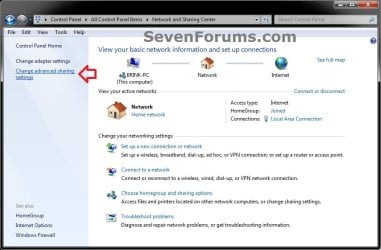
2. In the left pane, click on the Change advanced sharing settings link. (see screenshot below)
3. Click on the
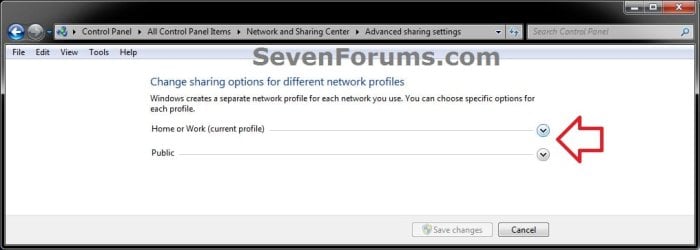
 to expand the network that you want to turn network discovery on or off for. (see screenshot below)
 NOTE: Normally this would be your current profile.
4. To Turn On Network Discovery
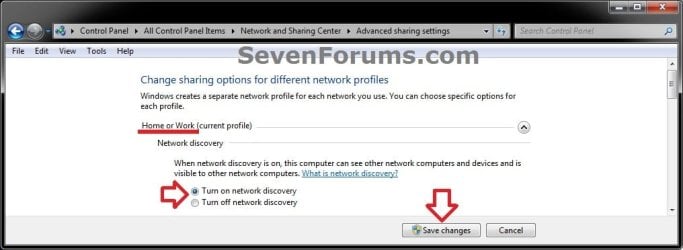
A) Select (dot) Turn on network discovery. (see screenshots below step 6)
B) Go to step 6.
5. To Turn Off Network Discovery
A) Select (dot) Turn off network discovery. (see screenshots below step 6)
6. Click on the Save Changes button. (see screenshots below)

7. If prompted by UAC, then click on Yes.
8. When finished, you can close the Network and Sharing Center.
OPTION TWO
Turn Network Discovery On or Off in Command Prompt
1. Open an elevated command prompt.
2. Do step 3 or 4 below for what you would like to do.
3. To Turn On Network Discovery for Private and Public Network Profiles
NOTE: This is the default setting for private network profiles.
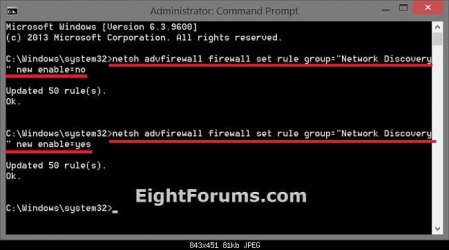
A) In the elevated command prompt, copy and paste the command below, press Enter, and go to step 5 below.
netsh advfirewall firewall set rule group="Network Discovery" new enable=Yes
4. To Turn Off Network Discovery for Private and Public Network Profiles
NOTE: This is the default setting for public network profiles.
A) In the elevated command prompt, copy and paste the command below, press Enter, and go to step 5 below.
netsh advfirewall firewall set rule group="Network Discovery" new enable=No
5. When finished, you can close the elevated command prompt.
That's it,
Shawn
Related Tutorials
- How to Set the Windows 7 Network Location Type
- How to Add or Remove a Windows Firewall Exception in Windows 7
- How to Turn Media Streaming Using Windows Media Player On or Off in Windows 7
- How to Join or Add a Computer to a Windows 7 Homegroup
- How to Create a Homegroup in Windows 7
- How to Turn Public Folder Sharing On or Off in Windows 7
- How to Turn Password Protected Sharing On or Off in Windows 7
Last edited:


