Network Map - View Networked Devices

How to See Full Map of Network Computers and Devices in Windows 7

   Information
The Windows 7 network map is a useful graphical representation of all the devices that connect to the same network. The network map can show you the names of the devices (e.g. computer, router) the type of connection between them (wired or wireless), and the ultimate path to the internet.

The network map also has a useful "hover over" functionality that allows you to easily gather information for a device such as IPv4, IPv6 and MAC addresses.


   Note
Requirements

In order for networked devices to display on the network map, they must meet four requirements:
  • Must belong to a HOME or WORK network
The network map can only show devices connected to a HOME or WORK network location. Devices connected to a PUBLIC or DOMAIN network cannot be displayed using the network map.

  • Devices must be DISCOVERABLE
The network discovery setting allows devices to be able to be seen by other devices on the same network. In order to enable Network Discovery please refer to the instructions in this tutorial:

http://www.sevenforums.com/tutorials/185237-network-discovery-turn-off-windows-7-a.html

  • Devices must conform to LINK LAYER TOPOLOGY DISCOVERY Protocol
Link Layer Topology Discovery (LLTD) is a protocol developed by Microsoft to allow networked devices to "discover" one another. If a device does not make use of the LLTD protocol then it cannot be displayed on the network map (e.g. Windows XP 64bit computer). All Windows Vista and Windows 7 computers have the LLTD protocol implemented.

  • LLTD must be enabled on your LAN Connection Properties

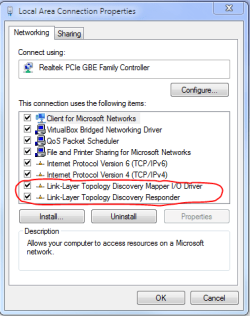
    The Link Layer Topology Discovery Mapper I/O Driver and the Link Layer Topology Discovery Responder must be enabled on your Local Area Connections Properties Panel.
To check that this is activated, follow these steps:

1. Select Open Network and Sharing Centre by clicking on your network icon at the lower right-hand corner of your taskbar:

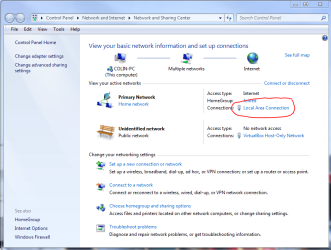
2. Now click on your current Local Area Connection:
Capture1.PNG
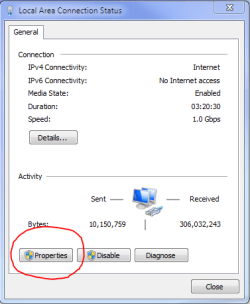
3. Now click on Properties:
Capture2.PNG

4. Ensure that the two LLTD options shown below are checked:
Capture3.PNG

By default, these options are always enabled in Windows 7.


:note: Viewing the Network Map

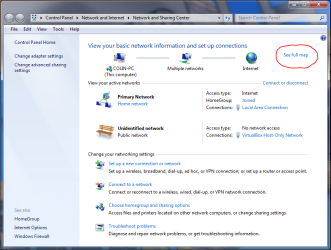
Open the Network and Sharing Center,and click on See Full Map:
Capturea.PNG

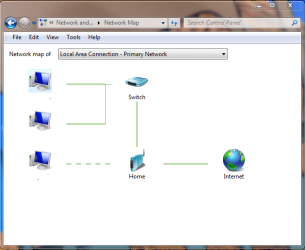
You should now see a graphical representation of the devices connected to your network. Here is an example:
Captureb.PNG

In the map above, you can see I have three computers in my network, and all of them are LLTD compliant since they show in the map. Two of them connect via ethernet cable (double solid green lines) through a switch to my router, and then eventually out to the internet via a wired (double solid green lines) ADSL2 connection. The third computer connects to my router via a wireless connection (double dashed green lines), and then out to the internet via the wired ADSL2 connection.

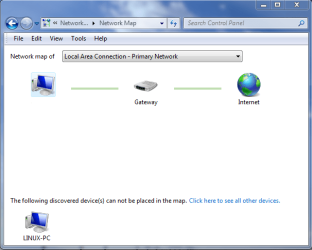
Here is another example of a network map, but this time you can see that the Linux-PC, which is discoverable but not LLTD compliant, does not display on the network work. Any device that is not LLTD compliant always displays at the bottom of the network map.

Capturec.PNG

   Tip

You can hover your mouse over any of these computers to display some handy IP and MAC address info - very useful when troubleshooting network connection issues.


I hope this tutorial will help you to visualise your network better, and that it proves useful if you ever need to troubleshoot network connection issues.

Regards,

Golden


Last edited:
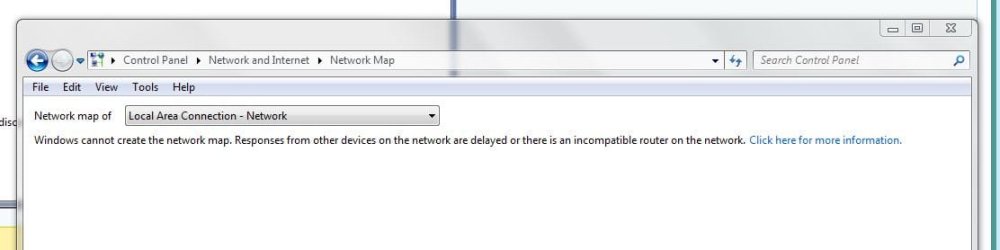
What does it mean, apart from what it says, when I get this? (Appears to be the only thing that doesn't work properly since I upgraded Vista Ult SP2 x64 to Win 7 Ult SP1 x64).
Sorry, I don't believe half the error responses Windows gives, they're always so vague. My other 7 OS does the same. I had no trouble in Vista and I can get the 8 versions of it to work also.
 

Attachments

  • Capture.JPG
    Capture.JPG
    31 KB · Views: 953
Last edited:

My Computer

Computer type
PC/Desktop
Computer Manufacturer/Model Number
Alienware® ALX X58
OS
Win 7 Ult SP1/Win 10 Pro (all x64)
CPU
Intel® Core™ i7-975 Extreme O/C to 4.02 GHz, 8MB Cache
Motherboard
Asus® P6T Deluxe V2 X58 LGA1366
Memory
24GB Corsair Vengeance DDR3 SDRAM at 1600MHz - 6 x 4096MB
Graphics Card(s)
1792 MB NVIDIA® GeForce® GTX 295 Dual Core
Sound Card
Onboard Soundmax® High-Definition 7.1 Performance Audio
Monitor(s) Displays
Samsung XL2370 LED backlit 23" W/S 2ms response time
Screen Resolution
1920 X 1080
Hard Drives
2 x 500gb SATA II
1 x 1TB SATA II
1 external eSATA LaCie 3TB
(Non-RAID)
PSU
Alienware® 1200 Watt Multi-GPU
Case
Alienware® P2 ALX Chassis with AlienIce™ 3.0 Video Cooling
Cooling
Alienware® High-Perf. Liquid Cooling + Acoustic Dampening
Keyboard
Microsoft® Wireless Entertainment 8000 + Logitech® G15 Wired
Mouse
Microsoft® Wireless Laser 8000 + Logitech® G9 Wired
Internet Speed
1Gb/s
Antivirus
McAfee LiveSafe
Browser
Firefox - latest
Other Info
Using non-RAID on purpose as I find RAID to be too temperamental.
Now set to AHCI
Ignore the above, it now works. The only other anomalies after the upgrade are a flood of sidebyside errors on EV, but they don't seem to be causing any malfunctions, as far as I can see.

Edit: the errors were cured with the installation of various Visual C+++ back versions.
 
Last edited:

My Computer

Computer type
PC/Desktop
Computer Manufacturer/Model Number
Alienware® ALX X58
OS
Win 7 Ult SP1/Win 10 Pro (all x64)
CPU
Intel® Core™ i7-975 Extreme O/C to 4.02 GHz, 8MB Cache
Motherboard
Asus® P6T Deluxe V2 X58 LGA1366
Memory
24GB Corsair Vengeance DDR3 SDRAM at 1600MHz - 6 x 4096MB
Graphics Card(s)
1792 MB NVIDIA® GeForce® GTX 295 Dual Core
Sound Card
Onboard Soundmax® High-Definition 7.1 Performance Audio
Monitor(s) Displays
Samsung XL2370 LED backlit 23" W/S 2ms response time
Screen Resolution
1920 X 1080
Hard Drives
2 x 500gb SATA II
1 x 1TB SATA II
1 external eSATA LaCie 3TB
(Non-RAID)
PSU
Alienware® 1200 Watt Multi-GPU
Case
Alienware® P2 ALX Chassis with AlienIce™ 3.0 Video Cooling
Cooling
Alienware® High-Perf. Liquid Cooling + Acoustic Dampening
Keyboard
Microsoft® Wireless Entertainment 8000 + Logitech® G15 Wired
Mouse
Microsoft® Wireless Laser 8000 + Logitech® G9 Wired
Internet Speed
1Gb/s
Antivirus
McAfee LiveSafe
Browser
Firefox - latest
Other Info
Using non-RAID on purpose as I find RAID to be too temperamental.
Now set to AHCI
I have a computer (GA-EG45M) in my network that can connect to all the other computers in the network, but none of the other can connect to it. GA-EG45M is visible on the other computers but when you try to connect to GA-EG45M, no credentials box (enter name/password) comes up, only a message that says "\\GA-EG45M is not accessible. You might not have permission to use this network resource.... Logon failure: the user has not been granted the requested logon type at this computer."

All of the other computers receive this message. All the computers are setup with Network Discovery on, File and Printer sharing on, etc. (same setup on all computers). So what's going on with GA-EG45M? Why is it different. It's a Win7 Pro x64 machine.
 

Attachments

  • NetworkMap w-question.PNG
    NetworkMap w-question.PNG
    84.7 KB · Views: 44,157

My Computer

OS
Windows 7 Home Premium
CPU
i3 2100T
Motherboard
ASRock H67M-ITX
Also, here's a network map view from the Laptop. There is a "bridge" (wireless router connected to my FireTV) called wnce2001, which is a Netgear "wireless port". It doesn't show in the Network Map above, but it shows on the other computer's maps. Maybe this is related somehow - but this wireless router is not connected to GA-EG45M.
 

Attachments

  • NetworkMap_view from Laptop.JPG
    NetworkMap_view from Laptop.JPG
    41.6 KB · Views: 20,684

My Computer

OS
Windows 7 Home Premium
CPU
i3 2100T
Motherboard
ASRock H67M-ITX
After hours of reading and checking settings - I found the solution. I had to go to Control Panel>System>System Protection>Computer Name>Network ID.
I followed the setup for Network ID and everything is working now. I never went this route before (maybe something changed on this computer from an update/upgrade). Anyways, it's fixed!


EDIT: Not fixed.
When I go to system>computer name>network ID and select either work or home use computer the next screen asks if the computer is in a domain. I choose No. Exit the window and do a Restart. After the restart I go back and check and the "computer is part of a domain" is still checked. I tried changing from a Work group to a Home group (in Network Sharing)but the setting doesn't stick. It stays as a Work group. I want it to be a Work group (not Home group) but I don't want to be in a domain.
 
Last edited:

My Computer

OS
Windows 7 Home Premium
CPU
i3 2100T
Motherboard
ASRock H67M-ITX
Back
Top