

Kids Mode is a convenient browsing mode inside Microsoft Edge that’s designed for kids. With its kid-friendly features and safety guardrails in place, Kids Mode is a great place for children to safely explore the web. Kids Mode includes features like custom browser themes, kid-friendly content, browsing based on an allow list, Bing SafeSearch set to strict, and a password requirement to exit. Also, Kids Mode doesn't require a child account or profile.
Currently, Kids Mode is limited to US English on Windows and MacOS.
Start Kids Mode
1. Open the profile switcher in the browser frame and select Browse in Kids Mode.
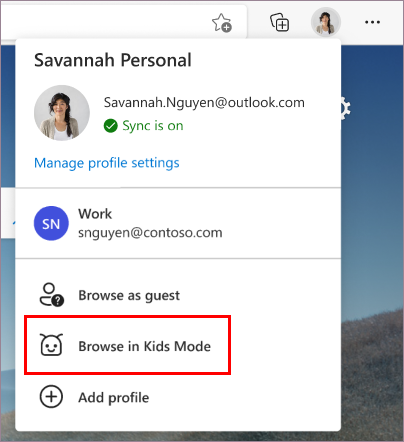
You don't have to be signed into the browser to do this, but signing in will allow the Kids Mode settings to sync across your devices.
If this is your first time launching Kids Mode, you'll see an explanation of what the feature is.
2. Choose the appropriate age range to launch Kids Mode in.

Otherwise, Kids Mode will now open in full screen.
Things to note:
- You can always change your age selection in edge://settings/family
- After you select the appropriate age, your current browsing window will be saved and closed and a new window for Kids Mode opens in full screen.
- Until you exit Kids Mode, Microsoft Edge will always launch in Kids Mode.
Exit Kids Mode
You need your device password (the same password used to unlock your computer) to exit Kids Mode and resume browsing.
1. Select the Kids Mode icon at the top of the browser.
2. Select Exit Kids Mode Window.

3. Enter your credentials.
Note: If you close the window through the taskbar or Close button at the top of the browser, Microsoft Edge will ask for your device credentials.
Choose a theme inside Kids Mode
Kids can choose their own themes to personalize Kids Mode. The themes they apply in Kids Mode won't be applied to your normal browsing windows.
1. Select Choose background and colors.

2. Choose a theme and select Done.
Grant website permissions in Kids Mode
When a child visits a website not on the allow list, they'll encounter a block page.
Make changes to the allow list or Kids Mode settings
- To visit the website during the browsing session, select Get permission.
- The owner of the device will need to enter the device credentials.
- The block page will refresh and the website will be allowed for the current browsing session. To add the website onto the allow list, go to the next section.
You can only make changes to the allow list when you're outside of the Kids Mode browsing window and only from the profile that launches Kids Mode.
We're continuously improving the experience in Kids Mode to make it the best place for Kids to explore the web. If you have any feedback, go to Settings and more menu > Help and feedback > Send feedback.
- Go to Settings and More > Settings > Family.
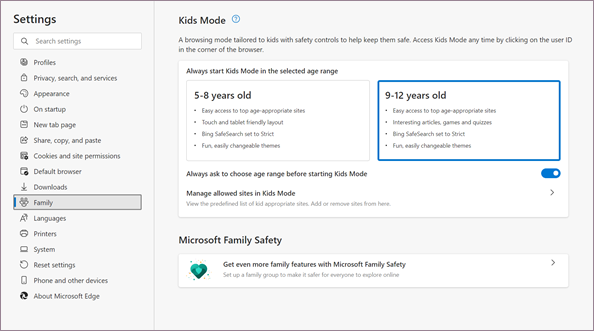
- Select Manage allowed sites in Kids Mode. You’ll see the pre-defined allow list that's applied to Kids Mode. The list is listed in alphabetical order.
- To remove a site, click on the Close icon (X) beside it in the list. To add a website, select Add website.
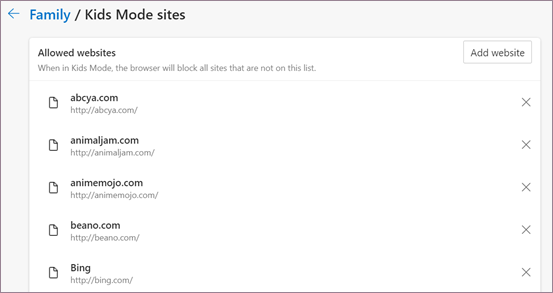
Source: Learn more about Kids Mode in Microsoft Edge - Office Support
Tip
Browsers and Mail - How to Start and Exit Kids Mode Browsing in Microsoft Edge | Windows Questions
Browsers and Mail - How to Turn On or Off Ask Age Range before Starting Kids Mode in Microsoft Edge | Windows Questions
Browsers and Mail - How to Change Age Range to Always Start Kids Mode in Microsoft Edge | Windows Questions
Browsers and Mail - How to Allow or Block Websites for Kids Mode in Microsoft Edge | Windows Questions
Browsers and Mail - How to Turn On or Off Ask Age Range before Starting Kids Mode in Microsoft Edge | Windows Questions
Browsers and Mail - How to Change Age Range to Always Start Kids Mode in Microsoft Edge | Windows Questions
Browsers and Mail - How to Allow or Block Websites for Kids Mode in Microsoft Edge | Windows Questions
Last edited:
My Computer
At a glance
64-bit Windows 11 Pro for WorkstationsIntel i7-8700K OC'd to 5 GHz64 GB (4x16GB) G.SKILL TridentZ RGB DDR4 3600...ASUS ROG-STRIX-GTX1080TI-O11G-GAMING
- Computer type
- PC/Desktop
- Computer Manufacturer/Model Number
- Self built custom
- OS
- 64-bit Windows 11 Pro for Workstations
- CPU
- Intel i7-8700K OC'd to 5 GHz
- Motherboard
- ASUS ROG Maximus XI Formula Z390
- Memory
- 64 GB (4x16GB) G.SKILL TridentZ RGB DDR4 3600 MHz
- Graphics Card(s)
- ASUS ROG-STRIX-GTX1080TI-O11G-GAMING
- Sound Card
- Integrated
- Monitor(s) Displays
- 2 x Samsung Odyssey G7 27"
- Screen Resolution
- 2560x1440
- Hard Drives
- 1TB Samsung 990 PRO M.2,
4TB Samsung 990 PRO PRO M.2,
TerraMaster F8 SSD Plus NAS
- PSU
- Seasonic Prime Titanium 850W
- Case
- Thermaltake Core P3
- Cooling
- Corsair Hydro H115i
- Keyboard
- Logitech wireless K800
- Mouse
- Logitech MX Master 4
- Internet Speed
- 2 Gb/s Download and 100 Mb/s Upload
- Antivirus
- Malwarebyte Anti-Malware Premium
- Browser
- Google Chrome
- Other Info
- Logitech Z625 speaker system,
Logitech BRIO 4K Pro webcam,
HP Color LaserJet Pro MFP M477fdn,
APC SMART-UPS RT 1000 XL - SURT1000XLI,
Galaxy S23 Plus phone


