Solved No network connections shown.

Domexce

New member
Member
Local time
4:31 PM
Messages
10
Good day,

Since a couple of days I'm experiencing this strange issue.

The first thing I noticed was the connection sign on the bottem right. It had a red X in it, yet I was browsing on the system at that time. I started looking up some stuff about it and came to the following conclusions.

  • The connections symbol shows the red X
  • The network drivers are enabled and work fine in the device manager
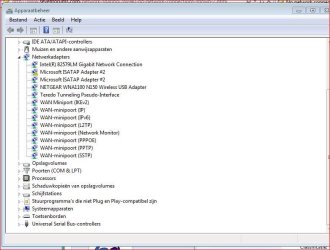
  • In device manager there is a Teredo Tunneling Pseudo-interface / Microsoft ISATAP / Microsoft ISATAP #2 and a Microsoft ISATAP #2 with yellow exclamation mark
  • Browsing works fine both wired and wireless
  • Reinstalling the drivers won't fix the issue
  • Restoring the system to a previous state didn't solve it
In other words. I'm at a loss. I have no clue what causes the issue.

Since I have no clue what information you guys want me to add ask me and I'll upload it.

The system is running on W7 HP 64 bit using Intel(R) 82579LM Gigabit Network Connection and NETGEAR WNA1100 N150 Wireless USB Adapter
I hope we can get this issue solved.

Thanks in advance
 

My Computer

Computer type
PC/Desktop
OS
W7
If its a laptop your using, it might have a switch to turn on wireless.
 

My Computer

Computer Manufacturer/Model Number
Look in my Signature.
OS
Win7 H.Prem. 32bit+SP1
If it was a laptop I was using I wouldn't have to use a Netgear Wireless receiver do I? And like I stated. It is for both wired and wireless.. Thanks for the reply tough.
 

My Computer

Computer type
PC/Desktop
OS
W7
If it was a laptop I was using I wouldn't have to use a Netgear Wireless receiver do I?
NO

And like I stated. It is for both wired and wireless.. Thanks for the reply though.
If your pc is wired, there is no need to make it wireless.
 

My Computer

Computer Manufacturer/Model Number
Look in my Signature.
OS
Win7 H.Prem. 32bit+SP1
You are correct on the fact that it is a Desktop.
As I stated in my original post I said that I do have connection. Both wired and wireless work.
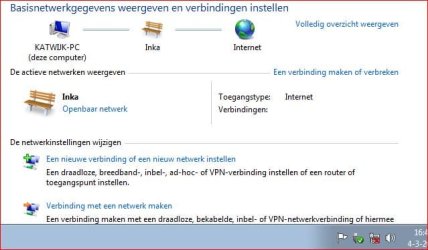
The issue is that the connections don't show up in the adapter section of the network panel, and thus it shows a red X on the wireless symbol on the bottem right.

I did use other wireless receivers and ethernet controllers to see if those would show up in the system but they don't. They do work however because I can install them without problems and they do show up normally in the device manager.

Edit;
Roderunner; The pc is used as a show model in a store using kiosk software to display the store's webshop. The pc is placed in a movable stand with a touchscreen attached to it. Since there isn't a wired connection possible everywhere the system goes it also needs the wireless connection
 
Last edited:

My Computer

Computer type
PC/Desktop
OS
W7
What type of network icon is displayed? This is my Laptop.

GB.JPG
 

My Computer

Computer Manufacturer/Model Number
Look in my Signature.
OS
Win7 H.Prem. 32bit+SP1
You are correct on the fact that it is a Desktop.
As I stated in my original post I said that I do have connection. Both wired and wireless work.
The issue is that the connections don't show up in the adapter section of the network panel, and thus it shows a red X on the wireless symbol on the bottem right.

I did use other wireless receivers and ethernet controllers to see if those would show up in the system but they don't. They do work however because I can install them without problems and they do show up normally in the device manager.

Edit;
Roderunner; The pc is used as a show model in a store using kiosk software to display the store's webshop. The pc is placed in a movable stand with a touchscreen attached to it. Since there isn't a wired connection possible everywhere the system goes it also needs the wireless connection


Sorry for my previous posts. I have deleted them as they were not on target.
 

My Computer

Computer type
Laptop
Computer Manufacturer/Model Number
ASUS G60-RBBX05
OS
Win7 Home Premium 64x
CPU
Intel Core 2 Duo P7450 / 2.13 GHz (2.29 with Extreme Turbo)
Memory
4 GB PC-6400 Hyundai (2X2) at 800Mhz
Graphics Card(s)
NVIDIA GeForce GTX 260M 1GB DDR3 VRAM
Monitor(s) Displays
16" LED Backlit
Screen Resolution
1366 x 768 on laptop 1600x1050 max res on 22" external mon
Hard Drives
OCZ Agility 3 60GB SSD / 320 GB - Serial ATA-150 - 7200 rpm
PSU
6-cell Lithium ion { lasts 1.5 hours }
Case
ASUS G60 Laptop
Keyboard
Chicklet type back-lit (white light) keyboard
Mouse
Logitech G9 Laser Mouse 3200dpi and 1000 reports per minute
Internet Speed
Comcast 8.60mb/s up - 3.11mb/s down
Antivirus
MSE
Browser
Firefox
Other Info
General mid-budget gaming Comp. Low batterylife - High FrameRates - currently overheating problems :(

2nd Rig: Case: Rosewill BLACKHAWK Gaming ATX Mid Tower Computer Case

Mobo: GIGABYTE GA-990FXA-UD3
CPU: AMD FX-6200 Zambezi 3.8GHz (4.1GHz Turbo)
Heatsink: COOLER MASTER V8 CPU Cooler
RAM: Patriot Viper 3 8GB (2 x 4GB) 240-Pin DDR3 SDRAM 1866 (PC3 15000)
GPU: SAPPHIRE Radeon HD 6850 1GB 2
Network_Icon.JPG

There you can see I have a working connection and yet a cross in the icon
 

My Computer

Computer type
PC/Desktop
OS
W7
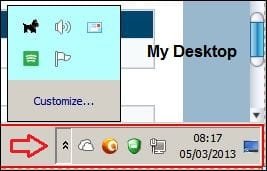
Click the twin up arrows in my image, post #6 and click customize, select hide your current icon & show the wireless icon.
 

My Computer

Computer Manufacturer/Model Number
Look in my Signature.
OS
Win7 H.Prem. 32bit+SP1
I don't see the twin arrow up, neither do I understand what you mean.
 

My Computer

Computer type
PC/Desktop
OS
W7
Click 'Customize' to see what I mean.

Capture.JPG w.JPG
 

My Computer

Computer Manufacturer/Model Number
Look in my Signature.
OS
Win7 H.Prem. 32bit+SP1
@Domexce,
Let me see if I can explain what Roadrunner is attempting to convey:

In post #6, he posted what appears to be a screenshot from his desktop's notification area. The default settings for this area will hide icons that don't have any info for the user. The "twin up arrows" (otherwise known as double chevrons) should bring up a screen where you can hide the icon that shows the red X.

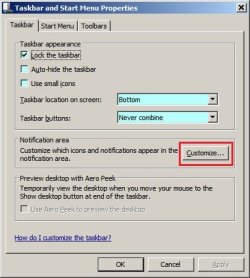
Your screenshot in post #8 indicates that you do not have the double chevron that Roadrunner was talking about. That is fine; it will not be there for everyone. If you want to follow Roadrunner's advice to hide the network icon, then right click between the icons and select Properties. It is kind of hard to click in just the right spot - so you might want to abandon that method and use the control panel:

Open the Control Panel
Change the view to large or small icons
Select Notification Area Icons

In the lower left corner of that window is a link named "Turn system icons on or off"
Click on that link.
Find the system icon named Network and select "Off" from the drop down menu to its right.

Again, I'm just clarifying what I think that Roadrunner is attempting to convey.

If you want to see if you can get the red X to go away, there are a few things to try.
Connect to the internet using a LAN cable (wired) and run the code mentioned in this post:
http://www.sevenforums.com/network-...will-not-recognize-new-modem.html#post2311267

Please attach the text file to your next post.
 

My Computer

Computer type
Laptop
Computer Manufacturer/Model Number
Employer provided Dell Latitude
OS
W7 Pro SP1 64bit
CPU
i7
Memory
8GB
Graphics Card(s)
Intel HD Graphics
Hard Drives
crappy SSD
Antivirus
Employer mandated Symantec Endpoint Protection
Browser
Pale Moon 64bit, IE11 64bit & Chrome 64bit
Another method is to right click anywhere on the Taskbar & select Properties.

RR.jpg
 

My Computer

Computer Manufacturer/Model Number
Look in my Signature.
OS
Win7 H.Prem. 32bit+SP1
I understand what you mean right now Roderunner, however I don't see how that would solve my problem. Only thing it does is make the symbol dissapear instead of making my network connections visible again.

@UsernameIssues I attached the file you've asked for.View attachment IP.txt
 

My Computer

Computer type
PC/Desktop
OS
W7
thx for the file

Using the same wired connection, please post a screenshot of...
...your device manager that shows the problem areas
...your network connections (detail view)*

*go to the screen shown in post #8 and select "Change adapter settings"
there should be a list of network adapters in the window that should appear
please select the detailed view and post a screenshot of that

edit: btw, can you please find the post where you marked this thread as solved and un-mark it?
At least I think that you can toggle the solved status.
 

My Computer

Computer type
Laptop
Computer Manufacturer/Model Number
Employer provided Dell Latitude
OS
W7 Pro SP1 64bit
CPU
i7
Memory
8GB
Graphics Card(s)
Intel HD Graphics
Hard Drives
crappy SSD
Antivirus
Employer mandated Symantec Endpoint Protection
Browser
Pale Moon 64bit, IE11 64bit & Chrome 64bit
If your using both wired & wireless, there should be 2 network icons when you open the 'Customize' page.
 

My Computer

Computer Manufacturer/Model Number
Look in my Signature.
OS
Win7 H.Prem. 32bit+SP1
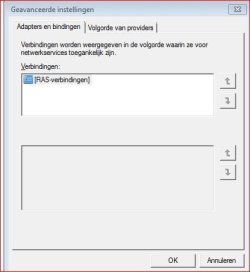
@UsernameIssues Must've pressed that button by accident.. Unmarked it again. Also added the 2 screens you've asked for.
Adapter_Settings.JPG
Device_Manager.JPG

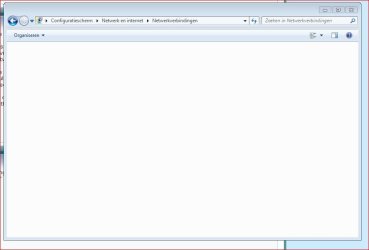
@Roderunner As you can see in the picture only the RAS connection is shown, not the ethernet or wireless.
Advanced_Settings_Network_Connections.JPG
 

My Computer

Computer type
PC/Desktop
OS
W7
Thanks you for the screenshot of the empty list of network adapters. I apologize for even asking to see it since you stated in post #5 that it was empty. I thought that you had stated that and I scanned back thru the thread to see if I was remembering the correct info from the correct thread... I just missed the info in post #5... so I asked for the screenshot. Sorry.

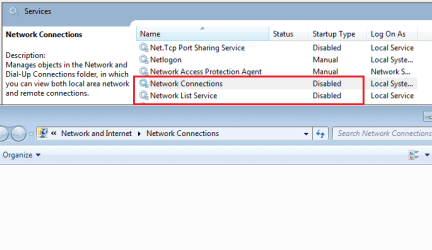
Since you also mentioned that this computer is running as a kiosk, has someone or some program been turning off services? It is possible to break the enumeration of network adapters by turning off various services. I just don't recall the exact combo of services that causes an empty list like you see.

edit: disabling these two services will cause an empty list:
services.png
There may be other combinations that cause this too.
 
Last edited:

My Computer

Computer type
Laptop
Computer Manufacturer/Model Number
Employer provided Dell Latitude
OS
W7 Pro SP1 64bit
CPU
i7
Memory
8GB
Graphics Card(s)
Intel HD Graphics
Hard Drives
crappy SSD
Antivirus
Employer mandated Symantec Endpoint Protection
Browser
Pale Moon 64bit, IE11 64bit & Chrome 64bit
@Roderunner & UsernameIssues

Thank you both for your help, but we decided to reinstall windows since the system was unable to function for to long. Thanks again for your help.
 

My Computer

Computer type
PC/Desktop
OS
W7
Back
Top