Solved NOOB: Move system partition to a different partition on the SAME disk

robber89

New member
Local time
1:19 AM
Messages
4
Hi there!

First of all, I am a noob, so don't be too evil :)

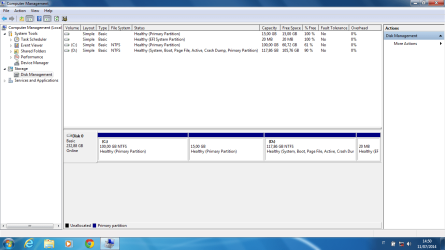
I have installed a new windows 7 on my laptop (in D: ), but there is still the old win 7 (in C: ). I want to delete C: (there are only programs and virus in it ) but it is the system partition. Can I do it? If not, what can I do to delete or at least format C:? I want that 100GB of space in D: and not in C:

(I have no CD reader in this laptop)
 

Attachments
  • Untitled.png
    Untitled.png
    47.3 KB · Views: 7

My Computer My Computer

At a glance

Windows 7 Home PremiumAMD
Computer type
PC/Desktop
Computer Manufacturer/Model Number
Asus Eee
OS
Windows 7 Home Premium
CPU
AMD
I have installed a new windows 7 on my laptop (in D: ), but there is still the old win 7 (in C: ). I want to delete C:

If your intention was to delete/format "C", why did you installed OS on the second partition ?. You could simply format the first partition and use it during the install.

Since there is no data to be saved, i would recommend a clean install as per this guide - http://www.sevenforums.com/tutorials/1649-clean-install-windows-7-a.html

Basically you boot from the install disk, delete all existing partitions, create two partitions ( one for OS and other for data ) and choose first partition for install. If your OS is retail version, use the key for net based auto activation.

If your Windows is OEM, please follow this guide - http://www.sevenforums.com/tutorials/219487-clean-reinstall-factory-oem-windows-7-a.html


It is possible to format the "C" and run "Startp Repair" from install disc to fix the boot but it is always better to install and keep OS on the first partition. A clean install will also help you reclaim the space occupied by the 15 GB partition ( probably OEM recovery ).
 

My Computer My Computer

At a glance

Windows 7 Ultimate x64
Computer type
PC/Desktop
OS
Windows 7 Ultimate x64
D is your active partition so C is really not needed. If D works OK, you can get rid of C.
 

My Computer My Computer

At a glance

Vista, Windows7, Mint Mate, Zorin, Windows 8from 1.6GHz Duo to i7
Computer Manufacturer/Model Number
HP, Dell, Gateway, Toshiba - 4 laptops and 2 desktops
OS
Vista, Windows7, Mint Mate, Zorin, Windows 8
CPU
from 1.6GHz Duo to i7
Monitor(s) Displays
2x HP w2207
Hard Drives
5x HDD, 7x SSD, 12x Externals
Keyboard
with trackball - no mices
Mouse
Trackball mice
Internet Speed
DSL 6000
Oh my god guys, I don't know what I have done, I have only made active my D: partition, but now nothing works. When i switch the computer on it says:

BOOTMGR is missing
Press Ctrl+Alt+Del to restart

I have read some forums on this error, but I can't even press f8 or f12! It does not work!! What can I do? Oh my god
 

My Computer My Computer

At a glance

Windows 7 Home PremiumAMD
Computer type
PC/Desktop
Computer Manufacturer/Model Number
Asus Eee
OS
Windows 7 Home Premium
CPU
AMD

My Computer My Computer

At a glance

Windows 7 Ultimate x64
Computer type
PC/Desktop
OS
Windows 7 Ultimate x64
You did not tell us that you yourself activated the D partition. If the C partition was active before, you can deactivate D and reactivate C. Then it should boot and you can copy the bootmgr to D. Then the system should boot from D.

http://www.sevenforums.com/tutorials/209885-bootmgr-move-c-easybcd.html

Alternatively you can try what Anshad suggested. That should work too.
 

My Computer My Computer

At a glance

Vista, Windows7, Mint Mate, Zorin, Windows 8from 1.6GHz Duo to i7
Computer Manufacturer/Model Number
HP, Dell, Gateway, Toshiba - 4 laptops and 2 desktops
OS
Vista, Windows7, Mint Mate, Zorin, Windows 8
CPU
from 1.6GHz Duo to i7
Monitor(s) Displays
2x HP w2207
Hard Drives
5x HDD, 7x SSD, 12x Externals
Keyboard
with trackball - no mices
Mouse
Trackball mice
Internet Speed
DSL 6000
Ok, thanks to you windows was recovered. thank you!

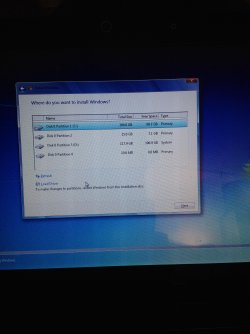
But for the first issue I didn't find a solution. You say to delete all existing partitions, that is what I want to do. And to do so, basically, I have to reinstall win7 and during the installation delete the partitions. But at that point of the installation I am not able to delete anything: look at the picture, there is no Advanced options. Am I missing something?
I am trying to install win 7 home premium from a usb drive.
 

Attachments

  • 2014-07-10 23.06.30.jpg
    2014-07-10 23.06.30.jpg
    906.4 KB · Views: 6

My Computer My Computer

At a glance

Windows 7 Home PremiumAMD
Computer type
PC/Desktop
Computer Manufacturer/Model Number
Asus Eee
OS
Windows 7 Home Premium
CPU
AMD
Try starting with that bottom partition and work your way up, deleting each partition.

That is really strange how those 2 partitions are labeled C and D already, don`t think I`ve ever seen that before :shock:

If all else fails you can make and use a partition wizard boot CD to delete the partitions and create a new partition, and mark active. That`s what I do, it`s just so simple and fast ;)

http://www.partitionwizard.com/partition-wizard-bootable-cd.html

Someone may show you how to do it with your install dvd using command prompt, it`s easy enough but I`m no Command Prompt expert, I`ll try and find the proper tutorial.

Option 2 of this tutorial.

http://www.sevenforums.com/tutorials/2668-partition-volume-delete.html
 

My Computer My Computer

At a glance

Windows 10 Pro x64Intel Core i7 6700KGSkill TridentZ RGB 16GB 3600 16-16-16-36EVGA GTX 980 Ti SC x2
Computer type
PC/Desktop
Computer Manufacturer/Model Number
Skylake Special #666
OS
Windows 10 Pro x64
CPU
Intel Core i7 6700K
Motherboard
Asus Sabertooth Z170 Mark 1
Memory
GSkill TridentZ RGB 16GB 3600 16-16-16-36
Graphics Card(s)
EVGA GTX 980 Ti SC x2
Sound Card
Realtek High Definition
Monitor(s) Displays
AOC G2460PG
Screen Resolution
1920 x 1080 144Hz
Hard Drives
Samsung 860 Pro 256GB, Seagate Barracuda 4TB x2
PSU
EVGA 1000 P2, EVGA White Custom Braided Cables
Case
Corsair Vengeance C70 Gunmetal Black
Cooling
Corsair H100i v2, Corsair ML120 x2, Thermal Grizzly Kryonaut
Keyboard
Logitech G910 Orion Spectrum
Mouse
Logitech G700s
Internet Speed
Verizon Fios Quantum Gateway 75/75
Antivirus
Windows Defender, Malwarebytes Free 3.8.3
Browser
Chrome
Other Info
Corsair SP120 x4, LG Blu-ray Drive, Durabrand HT-395 100 Watt Dolby Digital Amp, Corsair H2100 Wireless 7.1 Headset
That is really strange how those 2 partitions are labeled C and D already, don`t think I`ve ever seen that before

OP is running Windows setup from within Windows without booting from the USB.

@Robber89

For a clean install, you should boot from the DVD/USB. Then the delete partitions option will appear.

1. Prepare a USB install disk as per http://www.sevenforums.com/tutorials/2432-usb-windows-7-installation-key-drive-create.html

2. While the USB plugged in, reboot the machine. Keep pressing Esc key on the logo screen to open boot selection menu. "Esc" is the default boot selection menu key for Asus laptops.

3. Select your USB disk from the menu and the install process will begin.
 

My Computer My Computer

At a glance

Windows 7 Ultimate x64
Computer type
PC/Desktop
OS
Windows 7 Ultimate x64
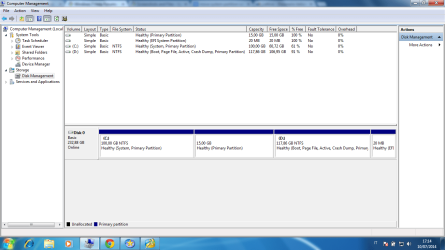
Ok Anshad Edavana, thanks a lot for your help. One last step. I am able to boot the system from my USB (it was not ESC, but F2 and TAB), and now I can delete the partition. But before doing something wrong again, I would like to be sure of the partition I can delete. You can see the image: now the active partition is D: . Can I delete D: and install everything on C:? If yes, C: will be formatted and installed with the new windows7 or what? And also can I delete the 15 GB partition?

Thanks a lot
Roberto
 

Attachments

  • Untitled2.png
    Untitled2.png
    43.8 KB · Views: 0

My Computer My Computer

At a glance

Windows 7 Home PremiumAMD
Computer type
PC/Desktop
Computer Manufacturer/Model Number
Asus Eee
OS
Windows 7 Home Premium
CPU
AMD
Hi

As long there is no data to save, i would recommend deleting all partitions including the two main partitions, 15 GB ecovery and 20 MB partition. You will see a single unalloacted space like in the below picture.

2440d1231630464-clean-install-windows-7-step7.jpg


Click the "New" button and create first partition sized 100 GB ( 102500 MB).

2441d1379261910t-clean-install-windows-7-step8.jpg


Windows will also create a 100 MB partition to be used as a boot drive. Then select the rest of unallocated space and create another partition to store data. When partitioning complete, select the first 100 GB partition and press "Next". Installation will begin.


I would recommend watching this video tutorial - http://www.youtube.com/watch?v=PsveMWRdNxo
 
Last edited:

My Computer My Computer

At a glance

Windows 7 Ultimate x64
Computer type
PC/Desktop
OS
Windows 7 Ultimate x64
Back
Top