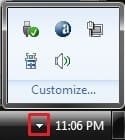
Notification Area Icons - Hide or Show System Icons and Notifications

How to Hide or Show System Icons and Notifications in Windows 7 and Windows 8

   Information
The notification area is a part of the taskbar that provides a temporary source for notifications and status. It can also be used to display icons for system and program features that are not on the desktop. The notification area was known historically as the system tray or status area.

By default, the only icons that will be visible in this area are some system icons. However, you can select which icons appear on the taskbar, and which icons hide in the overflow section.

This will show you how to hide or show your choice of the system icons and their notifications on the taskbar in Windows 7 and Windows 8.

   Note
Each system icon will have the choice to Only show notifications, Show icon and notifications, Hide icon and notifications, or Always show all icons on the taskbar with notifications.

   Tip
Microsoft has made available a hotfix that will resolve a problem where the taskbar customizations are lost and reset to defaults when automatic logon is enabled in Windows 7 and Windows Server 2008 R2. More details are available at:

FIX: The Taskbar is reset to the default settings when you use the "Automatically Log On" feature in Windows 7 and in Windows Server 2008 R2.


EXAMPLE: Show All System Icons and Hide System Icons on the Taskbar
NOTE: To view icons that are hidden, click on the arrow in the notification area on the taskbar. (Right screenshot below)
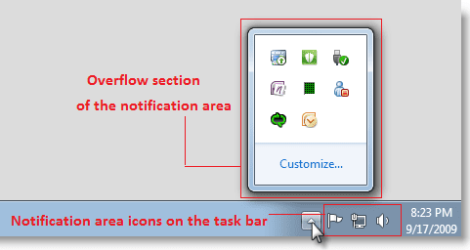
Notfication_Area_Icons.png


OPTION ONE

Through Notification Area Icons Settings


1. Do step 2, 3, or 4 below for what you would like to do.

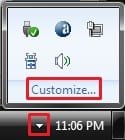
2. Click on the arrow in the notification area on the taskbar, and click on Customize, and go to step 5 below. (See screenshot below)
NOTE: You will not see this arrow unless you already have hidden system icons.
213d1225691787-notification-area-icons-hide-show-system-icons-notifications-hidden_icons-2.jpg

3. Open the Control Panel (icons view), click/tap on the Notification Area Icons icon, and go to step 5 below.

4. Right click or press and hold on the taskbar, and click/tap on Properties.
A) Click/tap on the Customize button to the right of "Notification area". (see screenshot below)

B) Click on Cancel to close the Taskbar and Start Menu Properties window, and go to step 5 below.
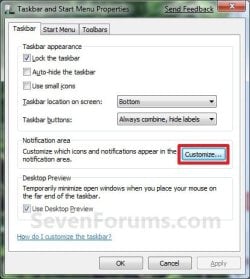
Taskbar_Properties.jpg
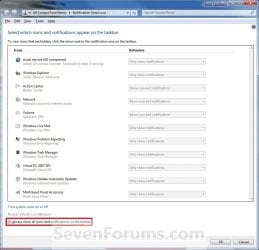
5. To Always Show All System Icons and Notifications
A) Check the Always show all icons and notifications on the taskbar box, and go to step 11 below. (See screenshot below)
NOTE: This will only gray out all of the Behaviors for the Icons. It will not change how the Behaviors are set if you wanted to uncheck this box later.
Customize-1.jpg
6. To Show a System Icon and its Notifications
A) Uncheck the Always show all icons and notifications on the taskbar box. (See screenshot above)
WARNING: Unchecking this box will also have all of the other listed system icons act as they are set in their Behaviors options.

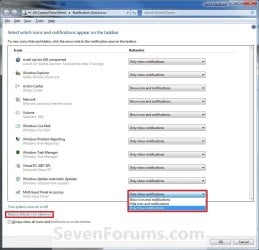
B) Click/tap on the Behaviors drop down arrow menu to the right of the icon you want this behavior for. (See screenshot below step 11)

C) Click/tap on Show icon and notifications to select it.
7. To Hide a System Icon and its Notifications
A) Uncheck the Always show all icons and notifications on the taskbar box. (See screenshot below step 5A)
WARNING: Unchecking this box will also have all of the other listed system icons act as they are set in their Behaviors options.

B) Click/tap on the Behaviors drop down arrow menu to the right of the icon you want this behavior for. (See screenshot below step 11)

C) Click/tap on Hide icon and notifications to select it.
8. To Only Show a System Icon's Notifications
A) Uncheck the Always show all icons and notifications on the taskbar box. (See screenshot below step 2)
WARNING: Unchecking this box will also have all of the other listed system icons act as they are set in their Behaviors options.

B) Click/tap on the Behaviors drop down arrow menu to the right of the icon you want this behavior for. (See screenshot below step 10)

C) Click/tap on Only show notifications to select it.
9. Repeat steps 6 to 8 until you have set the system icon Behaviors to how you want them for each icon.

10. To Restore the Default System Icon's Behaviors
A) Uncheck the Always show all icons and notifications on the taskbar box. (See screenshot below step 2)
WARNING: Unchecking this box will also have all of the other listed system icons act as they are set in their Behaviors options.

B) Click/tap on the Restore default icon behaviors link. (See screenshot below)
11. When done, click/tap on OK. (See screenshot below)
Customize-2.jpg
12. Click/tap on OK. (See screenshot below)
NOTE: You will not see this unless you had opened the System Icons window from the Control Panel above.


OPTION TWO

Using a REG File Download


NOTE: This will only turn on or off Always show icons and notifications on the taskbar.
1. To Turn On Always show all taskbar icons and notifcations
A) Click/tap on the download button below to download the file below.
Turn_On_Always_show_all_taskbar_icons_and_notifcations.reg


Download


B) Go to step 3.
2. To Turn Off Always show all taskbar icons and notifcations
A) Click/tap on the download button below to download the file below.
Turn_Off_Always_show_all_taskbar_icons_and_notifcations.reg

Download


3. Save the .reg file to the desktop.

4. Double click/tap on the downloaded .reg to merge it.

6. Click/tap on Run, Yes (UAC), Yes, and OK when prompted.

7. Log off and log on, or restart the computer to apply the changes.

8. When done, you can delete the downloaded .reg file if you like.


OPTION THREE

Manually in Registry Editor


NOTE: This will only turn on or off Always show icons and notifications on the taskbar.
1. Press the Windows+R keys to open the Run dialog, type regedit, and press Enter.

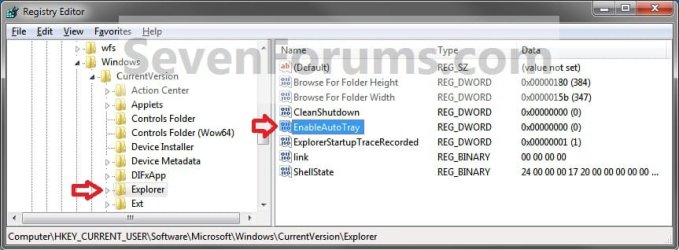
2. In regedit, navigate to the location below. (See screenshot below step 3)
HKEY_CURRENT_USER\Software\Microsoft\Windows\CurrentVersion\Explorer
3. In the right pane, double click/tap on EnableAutoTray to modify it. (See screenshot above)
Regedit.jpg
4. To Turn On "Always show all taskbar icons and notifcations"
A) Type in 0 (zero) and click/tap on OK. (see screenshot below)
Modify.jpg
B) Go to step 6.
5. To Turn Off "Always show all taskbar icons and notifcations"
A) Type in 1 and click/tap on OK. (see screenshot above)
6. Close Regedit.

7. Log off and log on, or restart the computer to apply the changes.
That's it,
Shawn


Related Tutorials


Attachments

Last edited:

My Computer My Computer

At a glance

64-bit Windows 11 Pro for WorkstationsIntel i7-8700K OC'd to 5 GHz64 GB (4x16GB) G.SKILL TridentZ RGB DDR4 3600...ASUS ROG-STRIX-GTX1080TI-O11G-GAMING
Computer type
PC/Desktop
Computer Manufacturer/Model Number
Self built custom
OS
64-bit Windows 11 Pro for Workstations
CPU
Intel i7-8700K OC'd to 5 GHz
Motherboard
ASUS ROG Maximus XI Formula Z390
Memory
64 GB (4x16GB) G.SKILL TridentZ RGB DDR4 3600 MHz
Graphics Card(s)
ASUS ROG-STRIX-GTX1080TI-O11G-GAMING
Sound Card
Integrated
Monitor(s) Displays
2 x Samsung Odyssey G7 27"
Screen Resolution
2560x1440
Hard Drives
1TB Samsung 990 PRO M.2,
4TB Samsung 990 PRO PRO M.2,
TerraMaster F8 SSD Plus NAS
PSU
Seasonic Prime Titanium 850W
Case
Thermaltake Core P3
Cooling
Corsair Hydro H115i
Keyboard
Logitech wireless K800
Mouse
Logitech MX Master 4
Internet Speed
2 Gb/s Download and 100 Mb/s Upload
Antivirus
Malwarebyte Anti-Malware Premium
Browser
Google Chrome
Other Info
Logitech Z625 speaker system,
Logitech BRIO 4K Pro webcam,
HP Color LaserJet Pro MFP M477fdn,
APC SMART-UPS RT 1000 XL - SURT1000XLI,
Galaxy S23 Plus phone
One way that often works to force settings save without killing Explorer or rebooting is to log off. Of course once you log off there's no convenient way to log in under script or batch control. But I guess it could be presented as an option to the user. Like "log off instead of reboot? (you may have to log back in manually)"

or some such.
 

My Computer My Computer

At a glance

Windows 7 32 bitAMD 5200+ dual core2 GBNVidia GeForce 6150SE 128 MB
Computer Manufacturer/Model Number
HP Media Center
OS
Windows 7 32 bit
CPU
AMD 5200+ dual core
Memory
2 GB
Graphics Card(s)
NVidia GeForce 6150SE 128 MB
Monitor(s) Displays
CRT
Screen Resolution
1280x1024
Hard Drives
500 GB Sata internal :

SIIG USB 3.0 docking stations w/WD Caviar Black 6 Gb/s drives
Keyboard
PS/2
Mouse
PS/2 Wheel Mouse
Other Info
SIIG USB 3.0 PCIexpress card.
Yeah, that would work as well, but just thought that a restart would be easier.
 

My Computer My Computer

At a glance

64-bit Windows 11 Pro for WorkstationsIntel i7-8700K OC'd to 5 GHz64 GB (4x16GB) G.SKILL TridentZ RGB DDR4 3600...ASUS ROG-STRIX-GTX1080TI-O11G-GAMING
Computer type
PC/Desktop
Computer Manufacturer/Model Number
Self built custom
OS
64-bit Windows 11 Pro for Workstations
CPU
Intel i7-8700K OC'd to 5 GHz
Motherboard
ASUS ROG Maximus XI Formula Z390
Memory
64 GB (4x16GB) G.SKILL TridentZ RGB DDR4 3600 MHz
Graphics Card(s)
ASUS ROG-STRIX-GTX1080TI-O11G-GAMING
Sound Card
Integrated
Monitor(s) Displays
2 x Samsung Odyssey G7 27"
Screen Resolution
2560x1440
Hard Drives
1TB Samsung 990 PRO M.2,
4TB Samsung 990 PRO PRO M.2,
TerraMaster F8 SSD Plus NAS
PSU
Seasonic Prime Titanium 850W
Case
Thermaltake Core P3
Cooling
Corsair Hydro H115i
Keyboard
Logitech wireless K800
Mouse
Logitech MX Master 4
Internet Speed
2 Gb/s Download and 100 Mb/s Upload
Antivirus
Malwarebyte Anti-Malware Premium
Browser
Google Chrome
Other Info
Logitech Z625 speaker system,
Logitech BRIO 4K Pro webcam,
HP Color LaserJet Pro MFP M477fdn,
APC SMART-UPS RT 1000 XL - SURT1000XLI,
Galaxy S23 Plus phone
Yeah, that would work as well, but just thought that a restart would be easier.

I was just thinking out loud, so to speak. :)
 

My Computer My Computer

At a glance

Windows 7 32 bitAMD 5200+ dual core2 GBNVidia GeForce 6150SE 128 MB
Computer Manufacturer/Model Number
HP Media Center
OS
Windows 7 32 bit
CPU
AMD 5200+ dual core
Memory
2 GB
Graphics Card(s)
NVidia GeForce 6150SE 128 MB
Monitor(s) Displays
CRT
Screen Resolution
1280x1024
Hard Drives
500 GB Sata internal :

SIIG USB 3.0 docking stations w/WD Caviar Black 6 Gb/s drives
Keyboard
PS/2
Mouse
PS/2 Wheel Mouse
Other Info
SIIG USB 3.0 PCIexpress card.
:thumbsup:
 

My Computer My Computer

At a glance

64-bit Windows 11 Pro for WorkstationsIntel i7-8700K OC'd to 5 GHz64 GB (4x16GB) G.SKILL TridentZ RGB DDR4 3600...ASUS ROG-STRIX-GTX1080TI-O11G-GAMING
Computer type
PC/Desktop
Computer Manufacturer/Model Number
Self built custom
OS
64-bit Windows 11 Pro for Workstations
CPU
Intel i7-8700K OC'd to 5 GHz
Motherboard
ASUS ROG Maximus XI Formula Z390
Memory
64 GB (4x16GB) G.SKILL TridentZ RGB DDR4 3600 MHz
Graphics Card(s)
ASUS ROG-STRIX-GTX1080TI-O11G-GAMING
Sound Card
Integrated
Monitor(s) Displays
2 x Samsung Odyssey G7 27"
Screen Resolution
2560x1440
Hard Drives
1TB Samsung 990 PRO M.2,
4TB Samsung 990 PRO PRO M.2,
TerraMaster F8 SSD Plus NAS
PSU
Seasonic Prime Titanium 850W
Case
Thermaltake Core P3
Cooling
Corsair Hydro H115i
Keyboard
Logitech wireless K800
Mouse
Logitech MX Master 4
Internet Speed
2 Gb/s Download and 100 Mb/s Upload
Antivirus
Malwarebyte Anti-Malware Premium
Browser
Google Chrome
Other Info
Logitech Z625 speaker system,
Logitech BRIO 4K Pro webcam,
HP Color LaserJet Pro MFP M477fdn,
APC SMART-UPS RT 1000 XL - SURT1000XLI,
Galaxy S23 Plus phone
What is it with this OS that so many little mods/fixes require a restart? Unlike a normal brat that learns with a stern reprimand, this OS seems to behave like the proverbial stubborn red-headed stepchild that requires a firm slap up the side of his head.
 

My Computer My Computer

At a glance

Microsoft Windows 7 Home Premium 64-bit 7601 ...Pentium(R) Dual-Core CPU E5300 @ 2.60GHz6.00 GBIntel(R) G33/G31 Express Chipset Family
Computer type
PC/Desktop
Computer Manufacturer/Model Number
HP (HP-P6212F)
OS
Microsoft Windows 7 Home Premium 64-bit 7601 Multiprocessor Free Service Pack 1
CPU
Pentium(R) Dual-Core CPU E5300 @ 2.60GHz
Motherboard
PEGATRON CORPORATION Benicia
Memory
6.00 GB
Graphics Card(s)
Intel(R) G33/G31 Express Chipset Family
Sound Card
Realtek High Definition Audio
Monitor(s) Displays
24'' HP WS LCD
Screen Resolution
1920 x 1080 x 32 bits (4294967296 colors) @ 60 Hz
Hard Drives
(1) ATA Hitachi HDT72106 SCSI Disk Device (2) Generic- Compact Flash USB Device (3) Generic- MS/MS-Pro USB Device (4) Generic- SD/MMC USB Device (5) Generic- SM/xD-Picture USB Device (6) Verbatim STORE N GO USB Device
Keyboard
Logitech G510s
Mouse
Logitech Trackball M570
Antivirus
Microsoft Security Essentials / Malwarebytes
Browser
IE / Firefox / Chrome
Not sure, but it would be nice if a simple restart of explorer would be enough.
 

My Computer My Computer

At a glance

64-bit Windows 11 Pro for WorkstationsIntel i7-8700K OC'd to 5 GHz64 GB (4x16GB) G.SKILL TridentZ RGB DDR4 3600...ASUS ROG-STRIX-GTX1080TI-O11G-GAMING
Computer type
PC/Desktop
Computer Manufacturer/Model Number
Self built custom
OS
64-bit Windows 11 Pro for Workstations
CPU
Intel i7-8700K OC'd to 5 GHz
Motherboard
ASUS ROG Maximus XI Formula Z390
Memory
64 GB (4x16GB) G.SKILL TridentZ RGB DDR4 3600 MHz
Graphics Card(s)
ASUS ROG-STRIX-GTX1080TI-O11G-GAMING
Sound Card
Integrated
Monitor(s) Displays
2 x Samsung Odyssey G7 27"
Screen Resolution
2560x1440
Hard Drives
1TB Samsung 990 PRO M.2,
4TB Samsung 990 PRO PRO M.2,
TerraMaster F8 SSD Plus NAS
PSU
Seasonic Prime Titanium 850W
Case
Thermaltake Core P3
Cooling
Corsair Hydro H115i
Keyboard
Logitech wireless K800
Mouse
Logitech MX Master 4
Internet Speed
2 Gb/s Download and 100 Mb/s Upload
Antivirus
Malwarebyte Anti-Malware Premium
Browser
Google Chrome
Other Info
Logitech Z625 speaker system,
Logitech BRIO 4K Pro webcam,
HP Color LaserJet Pro MFP M477fdn,
APC SMART-UPS RT 1000 XL - SURT1000XLI,
Galaxy S23 Plus phone

My Computer My Computer

At a glance

Microsoft Windows 7 Home Premium 64-bit 7601 ...Pentium(R) Dual-Core CPU E5300 @ 2.60GHz6.00 GBIntel(R) G33/G31 Express Chipset Family
Computer type
PC/Desktop
Computer Manufacturer/Model Number
HP (HP-P6212F)
OS
Microsoft Windows 7 Home Premium 64-bit 7601 Multiprocessor Free Service Pack 1
CPU
Pentium(R) Dual-Core CPU E5300 @ 2.60GHz
Motherboard
PEGATRON CORPORATION Benicia
Memory
6.00 GB
Graphics Card(s)
Intel(R) G33/G31 Express Chipset Family
Sound Card
Realtek High Definition Audio
Monitor(s) Displays
24'' HP WS LCD
Screen Resolution
1920 x 1080 x 32 bits (4294967296 colors) @ 60 Hz
Hard Drives
(1) ATA Hitachi HDT72106 SCSI Disk Device (2) Generic- Compact Flash USB Device (3) Generic- MS/MS-Pro USB Device (4) Generic- SD/MMC USB Device (5) Generic- SM/xD-Picture USB Device (6) Verbatim STORE N GO USB Device
Keyboard
Logitech G510s
Mouse
Logitech Trackball M570
Antivirus
Microsoft Security Essentials / Malwarebytes
Browser
IE / Firefox / Chrome
(1.) It'd be great if Windows at least had an option to show icons and notifications by default, rather than hiding them by default. Average non-technical users are more likely not to know how to show hidden system-tray icons—so wouldn't it be a better idea to show them by default, until the user hides them? Otherwise, most users never see them until their apps need their attention. It's tedious having to manually change this setting for every app we install that uses the system tray. I'm not sure what Microsoft was thinking on that one. Windows 8 also has a habit of "forgetting" some of these settings, and I find myself having to re-set some of them every week or so.

(2.) Guys, you should learn the difference between its and it's. It's—with an apostrophe—means "it is". If you don't mean "it is", use its. Otherwise, when you say something like this:

> To Hide a System Icon and it's Notifications


...you're actually saying:

> To Hide a System Icon and it is Notifications


...which doesn't make much sense.
 

My Computer My Computer

At a glance

Windows 7, of course
OS
Windows 7, of course
When restart is complete the Network and Volume icons are displayed and I always have to go in and redo the settings. Anybody else have this issue? Can fix?

The problem of this notification/icon reset on re-boot has been reported by at least two other people in this thread and has now also affected me for the last four or five starts. I usually leave the computer running for days and only turn it off if I won't use it for a longer time or windows update is asking for it. Have outlook and live mail icons enabled to show which disappear and are replaced by network and volume. This is annoying and seems to creep up occasionally. As there is a registry approach explained I wonder if it should be possible to export the registry and then just have the key run in autoexec to fix the notifications/icons. This may be a work around, but a real solution would be much better to prevent this from happening in the first place.
 

My Computer My Computer

At a glance

Win 7 Professional 64bitP87004GbATI Mobility Radeon HD 3650
Computer Manufacturer/Model Number
Lenovo T500 2081CTO
OS
Win 7 Professional 64bit
CPU
P8700
Memory
4Gb
Graphics Card(s)
ATI Mobility Radeon HD 3650
Sound Card
Conexant 20561 SmartAudio HD

My Computer My Computer

At a glance

64-bit Windows 11 Pro for WorkstationsIntel i7-8700K OC'd to 5 GHz64 GB (4x16GB) G.SKILL TridentZ RGB DDR4 3600...ASUS ROG-STRIX-GTX1080TI-O11G-GAMING
Computer type
PC/Desktop
Computer Manufacturer/Model Number
Self built custom
OS
64-bit Windows 11 Pro for Workstations
CPU
Intel i7-8700K OC'd to 5 GHz
Motherboard
ASUS ROG Maximus XI Formula Z390
Memory
64 GB (4x16GB) G.SKILL TridentZ RGB DDR4 3600 MHz
Graphics Card(s)
ASUS ROG-STRIX-GTX1080TI-O11G-GAMING
Sound Card
Integrated
Monitor(s) Displays
2 x Samsung Odyssey G7 27"
Screen Resolution
2560x1440
Hard Drives
1TB Samsung 990 PRO M.2,
4TB Samsung 990 PRO PRO M.2,
TerraMaster F8 SSD Plus NAS
PSU
Seasonic Prime Titanium 850W
Case
Thermaltake Core P3
Cooling
Corsair Hydro H115i
Keyboard
Logitech wireless K800
Mouse
Logitech MX Master 4
Internet Speed
2 Gb/s Download and 100 Mb/s Upload
Antivirus
Malwarebyte Anti-Malware Premium
Browser
Google Chrome
Other Info
Logitech Z625 speaker system,
Logitech BRIO 4K Pro webcam,
HP Color LaserJet Pro MFP M477fdn,
APC SMART-UPS RT 1000 XL - SURT1000XLI,
Galaxy S23 Plus phone
Back
Top