OEM Partition

ramonas

New member
Local time
10:43 PM
Messages
20
Hi everyone,

couple days ago i have bought Lenovo G460E laptop and installed win7. I want to make 3 HDD partitions but due that there is OEM partition created i cant so i want to delete it...but before deleting i want to sniff what is in there, and make a backup copy. I have installed provided backup utility by lenovo but seems i cannot open OEM partition. How to use that partition? how to open? i really want to make a backup before deleting it, but since its the first time im dealing with such thing i dont know how to open it (nor found answer while googling).

Anyone can help me ? :)
 

My Computer

OS
Windows 7 Home Premium 32bit
Hello ramonas, welcome to Seven Forums!


Perhaps you don't have to delete/remove the OEM partition right away to create additional storage space, have a look at Method Two of this tutorial at the link below and be sure to post back with any further questions you may have and to keep us informed.


Partition / Extended : Logical Drives


.
 
Last edited:

My Computer

Computer Manufacturer/Model Number
* BFK Customs *
OS
W 7 64-bit Ultimate
CPU
Intel Q9550 Yorkfield
Motherboard
ASUS P5Q Pro
Memory
8GB Dominator 8500C5D
Graphics Card(s)
ATI : XFX 5870
Sound Card
Realtek HD Audio 7-1
Monitor(s) Displays
1x 47" LCD HDMI & 3x 26" LCD HDMI
Screen Resolution
1920x1080P & 1920x1200
Hard Drives
1x 80GB Intel X25-M G2 SSD : 1x 500GB & 1x 640GB WD Caviar Black(s)
PSU
Corsair 620HX
Case
Cooler Master RC-690
Cooling
Tuniq Tower 120, 2x 140mm and 3x 120mm case fans
Keyboard
Microsoft 500
Mouse
Razer Diamondback 3G
Internet Speed
14 Mb/s
Other Info
1x Koutech 3Gb/s SATA HDD Hot Swap Rack
thanks, i will check it out! but still my main goal is to be able to check what there is in that partition :)
 

My Computer

OS
Windows 7 Home Premium 32bit
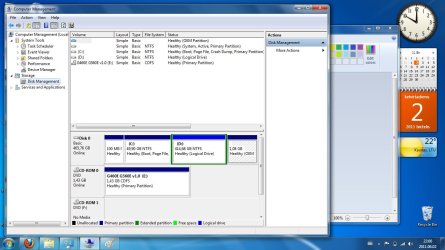
If you will please post a snip/screen-shot of the entire disk management drive map with a full description as to which drive/partition is which, so we can see what you have going on as there may be a fairly simple way to resolve the situation.

In the Windows start menu right click computer and click manage, in the left pane of the "Computer Management" window that opens click disk management and post a maximized snip of that.


How to Upload and Post a Screenshot and File in Seven Forums
 

My Computer

Computer Manufacturer/Model Number
* BFK Customs *
OS
W 7 64-bit Ultimate
CPU
Intel Q9550 Yorkfield
Motherboard
ASUS P5Q Pro
Memory
8GB Dominator 8500C5D
Graphics Card(s)
ATI : XFX 5870
Sound Card
Realtek HD Audio 7-1
Monitor(s) Displays
1x 47" LCD HDMI & 3x 26" LCD HDMI
Screen Resolution
1920x1080P & 1920x1200
Hard Drives
1x 80GB Intel X25-M G2 SSD : 1x 500GB & 1x 640GB WD Caviar Black(s)
PSU
Corsair 620HX
Case
Cooler Master RC-690
Cooling
Tuniq Tower 120, 2x 140mm and 3x 120mm case fans
Keyboard
Microsoft 500
Mouse
Razer Diamondback 3G
Internet Speed
14 Mb/s
Other Info
1x Koutech 3Gb/s SATA HDD Hot Swap Rack
If you will please post a snip/screen-shot of the entire disk management drive map with a full description as to which drive/partition is which, so we can see what you have going on as there may be a fairly simple way to resolve the situation.

In the Windows start menu right click computer and click manage, in the left pane of the "Computer Management" window that opens click disk management and post a maximized snip of that.


How to Upload and Post a Screenshot and File in Seven Forums

here it is
 

Attachments

  • Untitled.jpg
    Untitled.jpg
    113.8 KB · Views: 885

My Computer

OS
Windows 7 Home Premium 32bit
thanks, i will check it out! but still my main goal is to be able to check what there is in that partition :)
Theres no treasure there, it just has one or more .wim or .swm files- these are image files used to restore your computer to factory default when you choose that option. These same files are used to create the oem recovery disk set.

If you want to view them, you can boot from the install dvd or system repair disk or any windows pe, then navigate to that partition and copy off everything you find there to an external drive.
 

My Computer

Computer Manufacturer/Model Number
Too many to describe...
OS
Windows 7 x64 pro/ Windows 7 x86 Pro/ XP SP3 x86
You should be able to view the contents if you give it a drive letter in disk management.


I see you already have an Extended partition so another can't be created but you could create as many Logical drives for storage, within that Extended as there are available drive letters.
 

My Computer

Computer Manufacturer/Model Number
* BFK Customs *
OS
W 7 64-bit Ultimate
CPU
Intel Q9550 Yorkfield
Motherboard
ASUS P5Q Pro
Memory
8GB Dominator 8500C5D
Graphics Card(s)
ATI : XFX 5870
Sound Card
Realtek HD Audio 7-1
Monitor(s) Displays
1x 47" LCD HDMI & 3x 26" LCD HDMI
Screen Resolution
1920x1080P & 1920x1200
Hard Drives
1x 80GB Intel X25-M G2 SSD : 1x 500GB & 1x 640GB WD Caviar Black(s)
PSU
Corsair 620HX
Case
Cooler Master RC-690
Cooling
Tuniq Tower 120, 2x 140mm and 3x 120mm case fans
Keyboard
Microsoft 500
Mouse
Razer Diamondback 3G
Internet Speed
14 Mb/s
Other Info
1x Koutech 3Gb/s SATA HDD Hot Swap Rack
You should be able to view the contents if you give it a drive letter in disk management.


I see you already have an Extended partition so another can't be created but you could create as many Logical drives for storage, within that Extended as there are available drive letters.

I cant set the letter on OEM partition, i have tried already, only option i can select is "Help".

I cant create any more hard disk partition even if there is space, i if make lets say 200gb partition and 214 left, i cant use it, i get error, something like "there is not enought space..." or something.
 

My Computer

OS
Windows 7 Home Premium 32bit
If you want to view them, you can boot from the install dvd or system repair disk or any windows pe, then navigate to that partition and copy off everything you find there to an external drive.

Use the method Bill2 posted to view the contents.

How to Copy & Paste in Recovery Console on Windows 7 or Vista

I see you already have an Extended partition so another can't be created but you could create as many Logical drives for storage, within that Extended as there are available drive letters.

Use this one to shrink the Extended D:, then additional Logical drives can be created inside the Extended, see Method One #2 of the first tutorial I posted above.

How to Shrink a Partition or Volume in Windows 7
 

My Computer

Computer Manufacturer/Model Number
* BFK Customs *
OS
W 7 64-bit Ultimate
CPU
Intel Q9550 Yorkfield
Motherboard
ASUS P5Q Pro
Memory
8GB Dominator 8500C5D
Graphics Card(s)
ATI : XFX 5870
Sound Card
Realtek HD Audio 7-1
Monitor(s) Displays
1x 47" LCD HDMI & 3x 26" LCD HDMI
Screen Resolution
1920x1080P & 1920x1200
Hard Drives
1x 80GB Intel X25-M G2 SSD : 1x 500GB & 1x 640GB WD Caviar Black(s)
PSU
Corsair 620HX
Case
Cooler Master RC-690
Cooling
Tuniq Tower 120, 2x 140mm and 3x 120mm case fans
Keyboard
Microsoft 500
Mouse
Razer Diamondback 3G
Internet Speed
14 Mb/s
Other Info
1x Koutech 3Gb/s SATA HDD Hot Swap Rack
If you want to view them, you can boot from the install dvd or system repair disk or any windows pe, then navigate to that partition and copy off everything you find there to an external drive.

Use the method Bill2 posted to view the contents.

How to Copy & Paste in Recovery Console on Windows 7 or Vista

I see you already have an Extended partition so another can't be created but you could create as many Logical drives for storage, within that Extended as there are available drive letters.

Use this one to shrink the Extended D:, then additional Logical drives can be created inside the Extended, see Method One #2 of the first tutorial I posted above.

How to Shrink a Partition or Volume in Windows 7

thanks, unfortunetly, it doesnt show OEM partition ;/
 

My Computer

OS
Windows 7 Home Premium 32bit
Have a go at the Partition Wizard Bootable Disk (PWBD) to see if it will assign a drive letter to the OEM partition or if you can view the contents of the partition from the Partition Wizard boot program.


First download the PWBD ISO file to the desktop, be sure to get the PWBD and not the installed version; scroll down to see the download link for the bootable CD ISO file at this link below.

Partition Wizard Free Bootable CD


Then use ImgBurn to burn the ISO to a CD, at no greater than 4x speed with a verify; it was designed for use and works best from a CD rather that a DVD then boot the created CD to make the changes.

ImgBurn Free ISO Burning Software
 

My Computer

Computer Manufacturer/Model Number
* BFK Customs *
OS
W 7 64-bit Ultimate
CPU
Intel Q9550 Yorkfield
Motherboard
ASUS P5Q Pro
Memory
8GB Dominator 8500C5D
Graphics Card(s)
ATI : XFX 5870
Sound Card
Realtek HD Audio 7-1
Monitor(s) Displays
1x 47" LCD HDMI & 3x 26" LCD HDMI
Screen Resolution
1920x1080P & 1920x1200
Hard Drives
1x 80GB Intel X25-M G2 SSD : 1x 500GB & 1x 640GB WD Caviar Black(s)
PSU
Corsair 620HX
Case
Cooler Master RC-690
Cooling
Tuniq Tower 120, 2x 140mm and 3x 120mm case fans
Keyboard
Microsoft 500
Mouse
Razer Diamondback 3G
Internet Speed
14 Mb/s
Other Info
1x Koutech 3Gb/s SATA HDD Hot Swap Rack
Partition Wizard's "Explore Partition" is more powerful for exploring partitions with special permissions and no letter assigned. Even assigning a letter and giving yourself hidden files, system files permission, will hide much useful information.

You can use the installed minTool version for this. The Bootable version is best for performing major partition operations.

I would suggest you know what your deleting before getting rid of the OEM partition. It's not big enough on its own to do a factory restore.

Addition: You have one extended partition containing one logical at this stage. Depending on available space you should be able to make other logicals if you want.
 
Last edited:

My Computer

Computer type
PC/Desktop
Computer Manufacturer/Model Number
Own build
OS
Windows 7x64 Home Premium SP1
CPU
Intel i7 2600k
Motherboard
ASUS P8Z68 Deluxe
Memory
G.Skill Ripjaws (DDR3-1600) 2x4GB
Graphics Card(s)
Nvidia GeForce GTS 450; Intel HD Graphics 3000(GT2+)
Monitor(s) Displays
Dell Ultrasharp IPS panel U2311H, Samsung SyncMaster P2350
Screen Resolution
1920x1080
Hard Drives
Samsung 850 Pro SSD 256GB, Samsung SSD 840 120GB, Seagates 1TB Barracuda ST31000528AS x2
PSU
Seasonic M12II 520W
Case
Lian Li Lancool PC-K60
Cooling
Case: 1x120mm, 3x140mm CPU: Hyper 212+
Keyboard
Logitech MK520 (wireless)
Mouse
Logitech MK520
Internet Speed
6-7 Mbps
Antivirus
Norton Security Premium, Malwarebytes on 2 (MSE on 3rd PC)
Browser
FireFox
Other Info
Audio: Logitech Z523 2.1
Hello again.


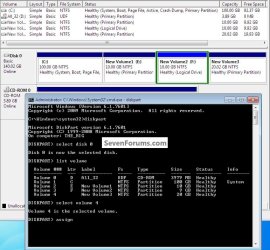
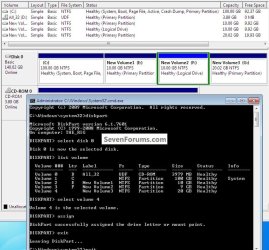
I've been working on this for you in diskpart and it should work; be sure to keep me posted.

Just be sure to run the commands from an elevated command window.

click to enlarge
assign _1.jpg
assign_2.jpg
 

My Computer

Computer Manufacturer/Model Number
* BFK Customs *
OS
W 7 64-bit Ultimate
CPU
Intel Q9550 Yorkfield
Motherboard
ASUS P5Q Pro
Memory
8GB Dominator 8500C5D
Graphics Card(s)
ATI : XFX 5870
Sound Card
Realtek HD Audio 7-1
Monitor(s) Displays
1x 47" LCD HDMI & 3x 26" LCD HDMI
Screen Resolution
1920x1080P & 1920x1200
Hard Drives
1x 80GB Intel X25-M G2 SSD : 1x 500GB & 1x 640GB WD Caviar Black(s)
PSU
Corsair 620HX
Case
Cooler Master RC-690
Cooling
Tuniq Tower 120, 2x 140mm and 3x 120mm case fans
Keyboard
Microsoft 500
Mouse
Razer Diamondback 3G
Internet Speed
14 Mb/s
Other Info
1x Koutech 3Gb/s SATA HDD Hot Swap Rack
Have a go at the Partition Wizard Bootable Disk (PWBD) to see if it will assign a drive letter to the OEM partition or if you can view the contents of the partition from the Partition Wizard boot program.


First download the PWBD ISO file to the desktop, be sure to get the PWBD and not the installed version; scroll down to see the download link for the bootable CD ISO file at this link below.

Partition Wizard Free Bootable CD


Then use ImgBurn to burn the ISO to a CD, at no greater than 4x speed with a verify; it was designed for use and works best from a CD rather that a DVD then boot the created CD to make the changes.

ImgBurn Free ISO Burning Software

i have tried this, i was able to sneak what is in there, but i wasnt able to make a backup or assign a letter.
 

My Computer

OS
Windows 7 Home Premium 32bit
Over to you BFK - creating extra logicals is trivial without deleting the OEM partition.
 

My Computer

Computer type
PC/Desktop
Computer Manufacturer/Model Number
Own build
OS
Windows 7x64 Home Premium SP1
CPU
Intel i7 2600k
Motherboard
ASUS P8Z68 Deluxe
Memory
G.Skill Ripjaws (DDR3-1600) 2x4GB
Graphics Card(s)
Nvidia GeForce GTS 450; Intel HD Graphics 3000(GT2+)
Monitor(s) Displays
Dell Ultrasharp IPS panel U2311H, Samsung SyncMaster P2350
Screen Resolution
1920x1080
Hard Drives
Samsung 850 Pro SSD 256GB, Samsung SSD 840 120GB, Seagates 1TB Barracuda ST31000528AS x2
PSU
Seasonic M12II 520W
Case
Lian Li Lancool PC-K60
Cooling
Case: 1x120mm, 3x140mm CPU: Hyper 212+
Keyboard
Logitech MK520 (wireless)
Mouse
Logitech MK520
Internet Speed
6-7 Mbps
Antivirus
Norton Security Premium, Malwarebytes on 2 (MSE on 3rd PC)
Browser
FireFox
Other Info
Audio: Logitech Z523 2.1
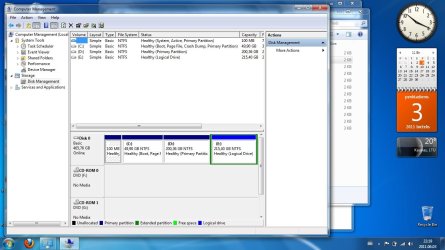
well never mind, i just deleted the oem partition after exploring whats in it :)
 

My Computer

OS
Windows 7 Home Premium 32bit
Post another snip of the maximized disk management so we can have a look, if you please.
 

My Computer

Computer Manufacturer/Model Number
* BFK Customs *
OS
W 7 64-bit Ultimate
CPU
Intel Q9550 Yorkfield
Motherboard
ASUS P5Q Pro
Memory
8GB Dominator 8500C5D
Graphics Card(s)
ATI : XFX 5870
Sound Card
Realtek HD Audio 7-1
Monitor(s) Displays
1x 47" LCD HDMI & 3x 26" LCD HDMI
Screen Resolution
1920x1080P & 1920x1200
Hard Drives
1x 80GB Intel X25-M G2 SSD : 1x 500GB & 1x 640GB WD Caviar Black(s)
PSU
Corsair 620HX
Case
Cooler Master RC-690
Cooling
Tuniq Tower 120, 2x 140mm and 3x 120mm case fans
Keyboard
Microsoft 500
Mouse
Razer Diamondback 3G
Internet Speed
14 Mb/s
Other Info
1x Koutech 3Gb/s SATA HDD Hot Swap Rack
here it is :)
 

Attachments

  • Untitled.jpg
    Untitled.jpg
    111.8 KB · Views: 172

My Computer

OS
Windows 7 Home Premium 32bit
Back
Top