Old program doesn't run at same speed

johnsr65

New member
Local time
4:22 AM
Messages
8
Am using an old program (ProEngineer) that doesn't perform at the same speed in Widows 7 Pro XP mode as it did on old XP machine. Don't know why.
 

My Computer

Computer Manufacturer/Model Number
Dell XPS8500
OS
windows 7 professional 64 bit & Virtual PC XP mode
CPU
Xeon E3-1200 v2/3rd gen
Motherboard
Intel 7 Series/C216 chipset
Memory
12 GB
Graphics Card(s)
NVIDIA GeForce GT-640
Monitor(s) Displays
Dell ST2420L (HDMI)
Hard Drives
1TB SATA
Case
Desktop
Because it is running in a virtual machine. A computer running inside of a computer.
 

My Computer

Computer type
PC/Desktop
Computer Manufacturer/Model Number
Alienware Aurora ALX R4
OS
Windows 10 Pro (x64)
CPU
Intel Core i7-3930K (3.2GHz - 4.5GHz)
Motherboard
Alienware Aurora-R4 x79
Memory
4x Samsung 4GB PC3-12800 DDR3 (16GB 1600MHz)
Graphics Card(s)
Nvidia Geforce GTX 690
Sound Card
SteelSeries Siberia Elite
Monitor(s) Displays
Dell UltraSharp U3011
Screen Resolution
2560x1600
Hard Drives
Samsung 850 Pro 256 GB, Seagate 1TB Desktop Hybrid HDD, 2x Western Digital 4TB Green HDD
PSU
875W Some Dell PSU <.<
Case
Alienware Aurora ALX
Cooling
Custom Liquid Cooling (EK CPU & GPU blocks) dual EK 480RAD
Keyboard
Logitech G710+ Mechanical
Mouse
Logitech G700s
Internet Speed
Verizon Fios (50 mbps average)
Other Info
Server: Intel NUC D54250WYK: i5-4250U, 16GB, 256 GB mSATA, Windows Server 2012 R2
After more searching have determined the problem is with the video. It takes forever to repaint the screen. Why is the windows system video not used in the virtual pc mode? Can it be changed? Windows system uses nvidia Geforce and the virtual pc mode uses S3-trio.
 

My Computer

Computer Manufacturer/Model Number
Dell XPS8500
OS
windows 7 professional 64 bit & Virtual PC XP mode
CPU
Xeon E3-1200 v2/3rd gen
Motherboard
Intel 7 Series/C216 chipset
Memory
12 GB
Graphics Card(s)
NVIDIA GeForce GT-640
Monitor(s) Displays
Dell ST2420L (HDMI)
Hard Drives
1TB SATA
Case
Desktop
Virtual machines are always slower than a real one, it's normal. Programs with video effects are mostly affected, particularly games, but any serious program that makes intensive use of the GPU will run sluggish on virtual machines in comparison with the real one. Question is, why not run it directly on the real machine under Win7?
 

My Computer

Computer type
Laptop
Computer Manufacturer/Model Number
Toshiba Sattelite A665-S6092
OS
Windows 7 Ultimate x64
CPU
Intel Core i7-740QM
Memory
8 GB DDR3
Graphics Card(s)
NVIDIA GeForce 330GT
Screen Resolution
1366x768
Hard Drives
Samsung 840 SSD 500GB
1TB USB3 external HD
Cooling
Coolermaster Notepal U3 notebook cooling pad
Internet Speed
3mbps ASDL
Antivirus
ClamWin 0.98.7
Browser
Opera 12.17 x86 (main), Firefox 38 (sec), IE11 (last resort)
Program won't run in Windows 7. It is a high end commercial cad program from 2001. I am retired now and no longer have access to maintenance help for this CAD program. It starts with a batch program and I don't know how to fix it for Windows 7 or even if its possible. When I check the device manager in Windows 7 and Virtual PC the video card description is not the same. Why? Can it be made the same? The program runs fine with small parts but with a large assembly the repaint time is worse than my old 2001 PC, 800Mhz, 512 MB memory. I'm thinking my only solution is dual boot for Windows XP
 

My Computer

Computer Manufacturer/Model Number
Dell XPS8500
OS
windows 7 professional 64 bit & Virtual PC XP mode
CPU
Xeon E3-1200 v2/3rd gen
Motherboard
Intel 7 Series/C216 chipset
Memory
12 GB
Graphics Card(s)
NVIDIA GeForce GT-640
Monitor(s) Displays
Dell ST2420L (HDMI)
Hard Drives
1TB SATA
Case
Desktop
Hi John, welcome to the Seven Forums.

First, read this post about emulated S3 Trio GPU which Virtual PC and XP Mode use: http://www.sevenforums.com/virtuali...s-win7-32bit-virtual-machine.html#post2068626

Could you please post the batch file you mentioned, the one needed to run your CAD program here so we could take a look and see if there's something you could try to get your program running on Windows 7. Instructions on how to attach a file to your post: http://www.sevenforums.com/tutorials/9733-screenshots-files-upload-post-seven-forums.html

Kari
 

My Computer

Computer type
Laptop
Computer Manufacturer/Model Number
HP ENVY 17-1150eg
OS
Windows 10 Pro x64 EN-GB
CPU
1.6 GHz Intel Core i7-720QM Processor
Memory
6 GB
Graphics Card(s)
ATI Mobility Radeon HD 5850 Graphics
Sound Card
Beats sound system with integrated subwoofer
Monitor(s) Displays
17" laptop display, 22" LED and 32" Full HD TV through HDMI
Screen Resolution
1600*900 (1), 1920*1080 (2&3)
Hard Drives
Internal: 2 x 500 GB SATA Hard Disk Drive 7200 rpm
External: 2TB for backups, 3TB USB3 network drive for media
Cooling
As Envy runs a bit warm, I have it on a Cooler Master pad
Keyboard
Logitech diNovo Media Desktop Laser (bluetooth)
Mouse
Logitech Performance Mouse MX
Internet Speed
50/10 Mbps VDSL
Antivirus
Windows Defender 4.3.9431.0
Browser
Maxthon 3.5.2., IE11
View attachment proe2001-stu.batThere is a directory c:\Proe\bin with 25 batch files including the one listed in the desktop icon to start the application. I hope the attachment procedure worked. I am comming to the conclusion that I will have to install Windows XP in a dual boot enviroment.
 

My Computer

Computer Manufacturer/Model Number
Dell XPS8500
OS
windows 7 professional 64 bit & Virtual PC XP mode
CPU
Xeon E3-1200 v2/3rd gen
Motherboard
Intel 7 Series/C216 chipset
Memory
12 GB
Graphics Card(s)
NVIDIA GeForce GT-640
Monitor(s) Displays
Dell ST2420L (HDMI)
Hard Drives
1TB SATA
Case
Desktop
OK, John, the batch file shows your application is from pre-XP era, meant to be run on Win95 and NT environments. As such I believe there's no way to set it up so it could be run on Windows 7 or make it run faster and better on XP Mode.

You could try to install XP on VirtualBox instead of using XP Mode. Some older legacy applications run better on VirtualBox virtual machines than on same OS (XP) on Virtual PC. Free VirtualBox download here, you also need an XP install media, CD or ISO.

However, I think the dual boot idea would be the best thing to do.

Let us know what you decide, if the application finally works for you as you wanted.

Kari
 

My Computer

Computer type
Laptop
Computer Manufacturer/Model Number
HP ENVY 17-1150eg
OS
Windows 10 Pro x64 EN-GB
CPU
1.6 GHz Intel Core i7-720QM Processor
Memory
6 GB
Graphics Card(s)
ATI Mobility Radeon HD 5850 Graphics
Sound Card
Beats sound system with integrated subwoofer
Monitor(s) Displays
17" laptop display, 22" LED and 32" Full HD TV through HDMI
Screen Resolution
1600*900 (1), 1920*1080 (2&3)
Hard Drives
Internal: 2 x 500 GB SATA Hard Disk Drive 7200 rpm
External: 2TB for backups, 3TB USB3 network drive for media
Cooling
As Envy runs a bit warm, I have it on a Cooler Master pad
Keyboard
Logitech diNovo Media Desktop Laser (bluetooth)
Mouse
Logitech Performance Mouse MX
Internet Speed
50/10 Mbps VDSL
Antivirus
Windows Defender 4.3.9431.0
Browser
Maxthon 3.5.2., IE11
I'm going with the dual boot method. I already started by shrinking the HD and adding new partition D, changed CD drive to E. Have not completed total transition. Need to use virtual PC, but now won't recognize CD drive. Went in and changed drive letter in virtual mode but no difference. Only thing I know to do is go back to Win 7 and change CD back to D and new partition to E.
 

My Computer

Computer Manufacturer/Model Number
Dell XPS8500
OS
windows 7 professional 64 bit & Virtual PC XP mode
CPU
Xeon E3-1200 v2/3rd gen
Motherboard
Intel 7 Series/C216 chipset
Memory
12 GB
Graphics Card(s)
NVIDIA GeForce GT-640
Monitor(s) Displays
Dell ST2420L (HDMI)
Hard Drives
1TB SATA
Case
Desktop
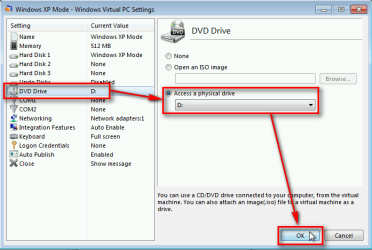
Open XP Mode Settings:
  • Browse to folder C:\Users\Your_Username\Virtual Machines (default location)
  • Select Windows XP Mode, right click it and select Settings
When Settings dialog opens:
  • Select DVD Drive on the left pane
  • Select Access a physical drive on the right pane
  • Select the new drive letter of your CD/DVD drive from the drop down menu
  • Click OK to save settings
2012-10-23_195456.png

This tells XP Mode that you have changed the host system CD/DVD drive letter, no reason to go back disabling changes you have already made.

Kari
 

My Computer

Computer type
Laptop
Computer Manufacturer/Model Number
HP ENVY 17-1150eg
OS
Windows 10 Pro x64 EN-GB
CPU
1.6 GHz Intel Core i7-720QM Processor
Memory
6 GB
Graphics Card(s)
ATI Mobility Radeon HD 5850 Graphics
Sound Card
Beats sound system with integrated subwoofer
Monitor(s) Displays
17" laptop display, 22" LED and 32" Full HD TV through HDMI
Screen Resolution
1600*900 (1), 1920*1080 (2&3)
Hard Drives
Internal: 2 x 500 GB SATA Hard Disk Drive 7200 rpm
External: 2TB for backups, 3TB USB3 network drive for media
Cooling
As Envy runs a bit warm, I have it on a Cooler Master pad
Keyboard
Logitech diNovo Media Desktop Laser (bluetooth)
Mouse
Logitech Performance Mouse MX
Internet Speed
50/10 Mbps VDSL
Antivirus
Windows Defender 4.3.9431.0
Browser
Maxthon 3.5.2., IE11
Kari: Thank you. When I pulled up the settings it already had the right letter, just needed an OK I guess. Works fine now.
 

My Computer

Computer Manufacturer/Model Number
Dell XPS8500
OS
windows 7 professional 64 bit & Virtual PC XP mode
CPU
Xeon E3-1200 v2/3rd gen
Motherboard
Intel 7 Series/C216 chipset
Memory
12 GB
Graphics Card(s)
NVIDIA GeForce GT-640
Monitor(s) Displays
Dell ST2420L (HDMI)
Hard Drives
1TB SATA
Case
Desktop
OK. Good luck with your dual boot installation :).

Kari
 

My Computer

Computer type
Laptop
Computer Manufacturer/Model Number
HP ENVY 17-1150eg
OS
Windows 10 Pro x64 EN-GB
CPU
1.6 GHz Intel Core i7-720QM Processor
Memory
6 GB
Graphics Card(s)
ATI Mobility Radeon HD 5850 Graphics
Sound Card
Beats sound system with integrated subwoofer
Monitor(s) Displays
17" laptop display, 22" LED and 32" Full HD TV through HDMI
Screen Resolution
1600*900 (1), 1920*1080 (2&3)
Hard Drives
Internal: 2 x 500 GB SATA Hard Disk Drive 7200 rpm
External: 2TB for backups, 3TB USB3 network drive for media
Cooling
As Envy runs a bit warm, I have it on a Cooler Master pad
Keyboard
Logitech diNovo Media Desktop Laser (bluetooth)
Mouse
Logitech Performance Mouse MX
Internet Speed
50/10 Mbps VDSL
Antivirus
Windows Defender 4.3.9431.0
Browser
Maxthon 3.5.2., IE11
Last edited:

My Computer

Computer type
Laptop
Computer Manufacturer/Model Number
HP ENVY 17-1150eg
OS
Windows 10 Pro x64 EN-GB
CPU
1.6 GHz Intel Core i7-720QM Processor
Memory
6 GB
Graphics Card(s)
ATI Mobility Radeon HD 5850 Graphics
Sound Card
Beats sound system with integrated subwoofer
Monitor(s) Displays
17" laptop display, 22" LED and 32" Full HD TV through HDMI
Screen Resolution
1600*900 (1), 1920*1080 (2&3)
Hard Drives
Internal: 2 x 500 GB SATA Hard Disk Drive 7200 rpm
External: 2TB for backups, 3TB USB3 network drive for media
Cooling
As Envy runs a bit warm, I have it on a Cooler Master pad
Keyboard
Logitech diNovo Media Desktop Laser (bluetooth)
Mouse
Logitech Performance Mouse MX
Internet Speed
50/10 Mbps VDSL
Antivirus
Windows Defender 4.3.9431.0
Browser
Maxthon 3.5.2., IE11
Kari: I have been studying the tutorial you mentioned. I have been experimenting with different computers and configurations. I have an old laptop: ACER, T2060 Processor @ 1.60 GHz, 1.0 GB memory, 32 bit Windows 7 Home Premium. ProE CAD runs fine , slow but a little faster than my old 800MHz and 512 MB memorywith Win XP. My new computer that I am trying to make work is: Dell XPS-8500, Intel Core i7-3770 @ 3.40GHz, 12 GB memory, 64 bit Windows 7 Professional. Is the problem 32 bit versus 64 bit? Do I need to install 32 bit Win XP as my dual boot? Is this possible?
 

My Computer

Computer Manufacturer/Model Number
Dell XPS8500
OS
windows 7 professional 64 bit & Virtual PC XP mode
CPU
Xeon E3-1200 v2/3rd gen
Motherboard
Intel 7 Series/C216 chipset
Memory
12 GB
Graphics Card(s)
NVIDIA GeForce GT-640
Monitor(s) Displays
Dell ST2420L (HDMI)
Hard Drives
1TB SATA
Case
Desktop
There's absolutely no problems to have a 64-bit Windows 7 and a 32-bit Windows XP dual booting on a PC with 64-bit architecture.

A 32-bit Windows OS can only use 4 GB of RAM, so just remember that if you install a 32-bit Windows on that new computer, be it 7 or XP, it can not use "the last 8GB" (you mentioned it has 12 GB).

Like many other old school geeks I find dual boot easier to set up by starting from older OS i.e. install XP first, create partitions for Seven and then install Seven.

I ask some of our resident installation / dual boot geeks to take a look of this thread to get some fresh ideas for you.

Kari

EDIT: I noticed the tutorial link in my previous post did not work. It is fixed now.
 

My Computer

Computer type
Laptop
Computer Manufacturer/Model Number
HP ENVY 17-1150eg
OS
Windows 10 Pro x64 EN-GB
CPU
1.6 GHz Intel Core i7-720QM Processor
Memory
6 GB
Graphics Card(s)
ATI Mobility Radeon HD 5850 Graphics
Sound Card
Beats sound system with integrated subwoofer
Monitor(s) Displays
17" laptop display, 22" LED and 32" Full HD TV through HDMI
Screen Resolution
1600*900 (1), 1920*1080 (2&3)
Hard Drives
Internal: 2 x 500 GB SATA Hard Disk Drive 7200 rpm
External: 2TB for backups, 3TB USB3 network drive for media
Cooling
As Envy runs a bit warm, I have it on a Cooler Master pad
Keyboard
Logitech diNovo Media Desktop Laser (bluetooth)
Mouse
Logitech Performance Mouse MX
Internet Speed
50/10 Mbps VDSL
Antivirus
Windows Defender 4.3.9431.0
Browser
Maxthon 3.5.2., IE11
Kari: You will not believe what I just did. I installed a copy of Win 7 home premium 32 bit in my new partition and my CAD program works fine, way better than in virtual PC. I can load my whole house model and now it repaints in less than a second. The graphics drivers need to be loaded in the new partition and printers and such yet. However the bcdedit would not open for me, I have not searched for an answer yet. When the computer starts I have two boot options, Windows 7 and Windows 7. I know the first is Home and the second is Pro but I would like to change the names so that it is more descriptive
 

My Computer

Computer Manufacturer/Model Number
Dell XPS8500
OS
windows 7 professional 64 bit & Virtual PC XP mode
CPU
Xeon E3-1200 v2/3rd gen
Motherboard
Intel 7 Series/C216 chipset
Memory
12 GB
Graphics Card(s)
NVIDIA GeForce GT-640
Monitor(s) Displays
Dell ST2420L (HDMI)
Hard Drives
1TB SATA
Case
Desktop
That's good news!
 

My Computer

Computer type
Laptop
Computer Manufacturer/Model Number
HP ENVY 17-1150eg
OS
Windows 10 Pro x64 EN-GB
CPU
1.6 GHz Intel Core i7-720QM Processor
Memory
6 GB
Graphics Card(s)
ATI Mobility Radeon HD 5850 Graphics
Sound Card
Beats sound system with integrated subwoofer
Monitor(s) Displays
17" laptop display, 22" LED and 32" Full HD TV through HDMI
Screen Resolution
1600*900 (1), 1920*1080 (2&3)
Hard Drives
Internal: 2 x 500 GB SATA Hard Disk Drive 7200 rpm
External: 2TB for backups, 3TB USB3 network drive for media
Cooling
As Envy runs a bit warm, I have it on a Cooler Master pad
Keyboard
Logitech diNovo Media Desktop Laser (bluetooth)
Mouse
Logitech Performance Mouse MX
Internet Speed
50/10 Mbps VDSL
Antivirus
Windows Defender 4.3.9431.0
Browser
Maxthon 3.5.2., IE11
Hi there

performance of a VM depends on many things but usually the amount of RAM available is generally the most important factor followed by the quality of disc drives -- for example if you are running a vm stored on a USB2 disc it could take a long time to start up.


Windows XP mode itself is a HORRIBLE solution -- performance is a DOG and graphics are a disaster zone.

Download VMware vmplayer --latest version is really good (and FREE) and with a decent computer your XP virtual machine can run at almost true native speed. The graphics have been fixed too so DVD playing on your VM is possible and a lot more "legacy" games playable too.

The only drawback to using VMware is you'll have to install an XP system as your virtual machine --but the effort is definitely worth while.

I'm currently running a Virtual 2003 server using VMware's latest software and the performance of my applications running on it are fine.

I've attached an old HP plotter on it --works brilliantly -- this hardware is of course no longer available --modern stuff would cost around 20,000 USD so I'm not getting rid of it any time soon. Even on the W2003 server I'm using the Windows 2000 driver for it (that was its last update !!).

(Another advantage of using latest version of VMware is that VM's can run in the background --and remote users can log on to applications without even having to have an account on the HOST --very useful for my windows 2003 virtual server.

Unity mode is also fully enabled too if you like that feature in XP mode.

I really say again for using a VM forget XP mode - it's HORRIBLE. It was a quick cludge made by Ms in a hope to get people to move away from XP quickly.

(Thank goodness Ms haven't done the same trick with Windows 8 running in "W7 Mode" !! although reading lot's of posts on the W9 forum perhaps Ms should have done this too !!).

I see you've fixed your immediate problem - but dual booting is usually inconvenient and best avoided if possible -- run a Vm with the latest version of VMware player -- then you only need to start the vm when you need it and it will run at almost Native speed !!!!!. VMware have done an EXCELLENT job on the latest versions --VMware workstation 9 (Paid) and VMware player (Free).

Cheers
jimbo
 

My Computer

Computer type
PC/Desktop
Computer Manufacturer/Model Number
Custom built, several laptops HP/ASUS
OS
Linux CENTOS 7 / various Windows OS'es and servers
CPU
Intel i7 Intel i5
Memory
8GB, 16GB
Graphics Card(s)
On Motherboard
Sound Card
Realtek HD audio
Monitor(s) Displays
Apple Cinema display, Samsung LCD
Screen Resolution
1920 X 1080
Hard Drives
4 X 1TB SATA
Mouse
Toshiba wireless laser
Internet Speed
> 20MB up
Back
Top