Open Windows Explorer with Admin rights

uidl7526

New member
Local time
3:48 AM
Messages
25
Hi there,

I have the following scenario:
- Windows 7
- User Account Control UAC enabled (level 3 out of 4)
- User account is member of the Administrator's group

I open the Windows Explorer and want to change an .ini file located in the C:\Program Files (x86)\... folder. The file always opens as read-only. This is because Windows Explorer is started with normal user rights (not admin rights).

How can I start the Windows Explorer with admin rights (without changing the UAC settings)? Or is there a user-friendly way of changing contents of files located under protected folders? The only way I found until now is: Open Notepad with elevated rights and open the .ini file from there.
 

My Computer

Computer Manufacturer/Model Number
HP 8560p
OS
Windows 7 Enterprise x64
CPU
Intel Core i5 2520M @2,5 GHz
Memory
4 GB
Graphics Card(s)
Radeon HD 6470M
Sound Card
IDT High Definition Audio
Monitor(s) Displays
17"
Screen Resolution
1600 x 900
Hard Drives
320 GB
uidl,

Right click the program and click "Run as Administrator".

This goes for near anything
 

My Computer

Computer type
PC/Desktop
Computer Manufacturer/Model Number
Custom Asus Build
OS
Microsoft Windows 8.1 Pro 64-bit
CPU
Intel(R) Core(TM) i3-4130 CPU @ 3.40GHz
Motherboard
B85M-E
Memory
8.00 GB
Graphics Card(s)
None
Sound Card
Realtek High Definition Audio
Monitor(s) Displays
Asus 23.6" Monitor
Screen Resolution
1920 x 1080 x 32 bits (4294967296 colors) @ 60 Hz
Hard Drives
INTEL SSDSC2BW180A4
Samsung SSD 840 PRO Series
PSU
Seasonic S12II-380Bronze
Case
Lian Li
Cooling
Fan, Passive
Keyboard
Logitech K120
Mouse
Microsoft Touch Mouse
Internet Speed
4ms Ping, 19.0 Mbps Download, 19.0 Mbps Upload
Antivirus
Eset Endpoint
Browser
Internet Explorer, Chrome
Well, it doesn't work when opening .ini files. There is no "Run as" when opening .ini files.
 

My Computer

Computer Manufacturer/Model Number
HP 8560p
OS
Windows 7 Enterprise x64
CPU
Intel Core i5 2520M @2,5 GHz
Memory
4 GB
Graphics Card(s)
Radeon HD 6470M
Sound Card
IDT High Definition Audio
Monitor(s) Displays
17"
Screen Resolution
1600 x 900
Hard Drives
320 GB
If you were to do this to the explorer window before you opened it? I am supposing this doesn't work?
 

My Computer

Computer type
PC/Desktop
Computer Manufacturer/Model Number
Custom Asus Build
OS
Microsoft Windows 8.1 Pro 64-bit
CPU
Intel(R) Core(TM) i3-4130 CPU @ 3.40GHz
Motherboard
B85M-E
Memory
8.00 GB
Graphics Card(s)
None
Sound Card
Realtek High Definition Audio
Monitor(s) Displays
Asus 23.6" Monitor
Screen Resolution
1920 x 1080 x 32 bits (4294967296 colors) @ 60 Hz
Hard Drives
INTEL SSDSC2BW180A4
Samsung SSD 840 PRO Series
PSU
Seasonic S12II-380Bronze
Case
Lian Li
Cooling
Fan, Passive
Keyboard
Logitech K120
Mouse
Microsoft Touch Mouse
Internet Speed
4ms Ping, 19.0 Mbps Download, 19.0 Mbps Upload
Antivirus
Eset Endpoint
Browser
Internet Explorer, Chrome
There is also no "Run as" function for the Windows Explorer.
 

My Computer

Computer Manufacturer/Model Number
HP 8560p
OS
Windows 7 Enterprise x64
CPU
Intel Core i5 2520M @2,5 GHz
Memory
4 GB
Graphics Card(s)
Radeon HD 6470M
Sound Card
IDT High Definition Audio
Monitor(s) Displays
17"
Screen Resolution
1600 x 900
Hard Drives
320 GB
Interestingly enough, when I right click the wording of "Windows Explorer", I only get "Properties", but when I right click its icon, I get the "Run as Administrator" option :confused:
Does this help? You would need to navigate to the location of the file.
Also, holding Ctrl+Shift and left clicking it should do the same thing
 

My Computer

Computer type
PC/Desktop
Computer Manufacturer/Model Number
Custom Asus Build
OS
Microsoft Windows 8.1 Pro 64-bit
CPU
Intel(R) Core(TM) i3-4130 CPU @ 3.40GHz
Motherboard
B85M-E
Memory
8.00 GB
Graphics Card(s)
None
Sound Card
Realtek High Definition Audio
Monitor(s) Displays
Asus 23.6" Monitor
Screen Resolution
1920 x 1080 x 32 bits (4294967296 colors) @ 60 Hz
Hard Drives
INTEL SSDSC2BW180A4
Samsung SSD 840 PRO Series
PSU
Seasonic S12II-380Bronze
Case
Lian Li
Cooling
Fan, Passive
Keyboard
Logitech K120
Mouse
Microsoft Touch Mouse
Internet Speed
4ms Ping, 19.0 Mbps Download, 19.0 Mbps Upload
Antivirus
Eset Endpoint
Browser
Internet Explorer, Chrome
All right, right click and "Run as Administrator" opens the Windows Explorer with admin rights. That works fine until here.
But still, when I open the .ini file located under the Program Files folder, the file opens in read-only mode. I mean, Notepad is still opening with standard user rights.
 

My Computer

Computer Manufacturer/Model Number
HP 8560p
OS
Windows 7 Enterprise x64
CPU
Intel Core i5 2520M @2,5 GHz
Memory
4 GB
Graphics Card(s)
Radeon HD 6470M
Sound Card
IDT High Definition Audio
Monitor(s) Displays
17"
Screen Resolution
1600 x 900
Hard Drives
320 GB
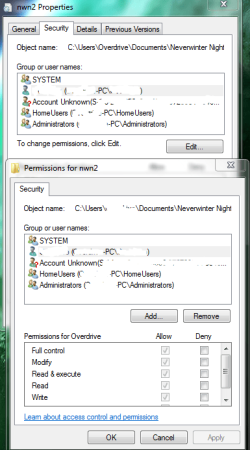
Perhaps we are going about this all wrong. Right click the .ini file and select the security tab. Click the first edit (to change permissions). Select your user account name from the list, and if it doesn't have full control, give it full control:
Capture.PNG

Let me know if you are unable to change its permissions

Just an added precaution, make sure you know what you are doing in modifying this file (I don't know what it is or what its for, but this is all up to you).

PS. can anyone find out what my user account name is? lol... nevermind
 

My Computer

Computer type
PC/Desktop
Computer Manufacturer/Model Number
Custom Asus Build
OS
Microsoft Windows 8.1 Pro 64-bit
CPU
Intel(R) Core(TM) i3-4130 CPU @ 3.40GHz
Motherboard
B85M-E
Memory
8.00 GB
Graphics Card(s)
None
Sound Card
Realtek High Definition Audio
Monitor(s) Displays
Asus 23.6" Monitor
Screen Resolution
1920 x 1080 x 32 bits (4294967296 colors) @ 60 Hz
Hard Drives
INTEL SSDSC2BW180A4
Samsung SSD 840 PRO Series
PSU
Seasonic S12II-380Bronze
Case
Lian Li
Cooling
Fan, Passive
Keyboard
Logitech K120
Mouse
Microsoft Touch Mouse
Internet Speed
4ms Ping, 19.0 Mbps Download, 19.0 Mbps Upload
Antivirus
Eset Endpoint
Browser
Internet Explorer, Chrome
Thanks for the tip. What we want to change is an .ini file of a 3rd party app. We are trying new features, so there is no need to worry about editing the file.
But this is going into the wrong direction. I mean, even if changing the permissions would work, this is still way too complicated. I assume that would work, but isn't there any easy way of editing files under Program Files? Like it used to be in Windows XP: just open Windows Explorer with adminrights, browse to the needed location, open the file, change it and simply save?
 

My Computer

Computer Manufacturer/Model Number
HP 8560p
OS
Windows 7 Enterprise x64
CPU
Intel Core i5 2520M @2,5 GHz
Memory
4 GB
Graphics Card(s)
Radeon HD 6470M
Sound Card
IDT High Definition Audio
Monitor(s) Displays
17"
Screen Resolution
1600 x 900
Hard Drives
320 GB
Well, I just may not be aware of it, but it doesn't mean it isn't possible. Someone else may know of such a way. It may be harder for you if you want to keep the UAC settings on. I would recommend turning it off when you need to. It is as easy as typing "uac" without quotes into the start search, clicking the program, and moving a slider a few points.

Win7 and XP are definately different. Perhaps they were trying to make Win7 a little bit more secure. Win some features, and lose some.

I am out of ideas, but I am not the only person here. Someone else may have some knowledge on this area.
 

My Computer

Computer type
PC/Desktop
Computer Manufacturer/Model Number
Custom Asus Build
OS
Microsoft Windows 8.1 Pro 64-bit
CPU
Intel(R) Core(TM) i3-4130 CPU @ 3.40GHz
Motherboard
B85M-E
Memory
8.00 GB
Graphics Card(s)
None
Sound Card
Realtek High Definition Audio
Monitor(s) Displays
Asus 23.6" Monitor
Screen Resolution
1920 x 1080 x 32 bits (4294967296 colors) @ 60 Hz
Hard Drives
INTEL SSDSC2BW180A4
Samsung SSD 840 PRO Series
PSU
Seasonic S12II-380Bronze
Case
Lian Li
Cooling
Fan, Passive
Keyboard
Logitech K120
Mouse
Microsoft Touch Mouse
Internet Speed
4ms Ping, 19.0 Mbps Download, 19.0 Mbps Upload
Antivirus
Eset Endpoint
Browser
Internet Explorer, Chrome
Thanks for the effort Dusty.
I have a bad feeling.....I think it will be hard to find a solution.
 

My Computer

Computer Manufacturer/Model Number
HP 8560p
OS
Windows 7 Enterprise x64
CPU
Intel Core i5 2520M @2,5 GHz
Memory
4 GB
Graphics Card(s)
Radeon HD 6470M
Sound Card
IDT High Definition Audio
Monitor(s) Displays
17"
Screen Resolution
1600 x 900
Hard Drives
320 GB
Hope you find what you're looking for.

If it is only a single ini file you are editing, or only a few, the permissions settings may work for the long run (only have to do that once). Perhaps the reason it isn't working is because you cannot edit it with it being stuck in read-only mode?

However, if there are a lot of ini files you need to edit, then the above would be disastrous.. Are you able to select the whole program and change all of its permissions? May work. ah, well...

Good luck then
 

My Computer

Computer type
PC/Desktop
Computer Manufacturer/Model Number
Custom Asus Build
OS
Microsoft Windows 8.1 Pro 64-bit
CPU
Intel(R) Core(TM) i3-4130 CPU @ 3.40GHz
Motherboard
B85M-E
Memory
8.00 GB
Graphics Card(s)
None
Sound Card
Realtek High Definition Audio
Monitor(s) Displays
Asus 23.6" Monitor
Screen Resolution
1920 x 1080 x 32 bits (4294967296 colors) @ 60 Hz
Hard Drives
INTEL SSDSC2BW180A4
Samsung SSD 840 PRO Series
PSU
Seasonic S12II-380Bronze
Case
Lian Li
Cooling
Fan, Passive
Keyboard
Logitech K120
Mouse
Microsoft Touch Mouse
Internet Speed
4ms Ping, 19.0 Mbps Download, 19.0 Mbps Upload
Antivirus
Eset Endpoint
Browser
Internet Explorer, Chrome
In my company, there are thousands of programmers and developers. They will need to change a lot of files located in protected folders (like Program Files). So, we need an easy way for them to be able to do so.
 

My Computer

Computer Manufacturer/Model Number
HP 8560p
OS
Windows 7 Enterprise x64
CPU
Intel Core i5 2520M @2,5 GHz
Memory
4 GB
Graphics Card(s)
Radeon HD 6470M
Sound Card
IDT High Definition Audio
Monitor(s) Displays
17"
Screen Resolution
1600 x 900
Hard Drives
320 GB
Solution!

I know this is a very old thread, but it's first in the search results and there is no solution, so I thought I would post it for the next guy. Instead of trying to open windows explorer as administrator, simply open notepad or whatever editor you are using as administrator.

Right click on notepad, run as administrator, then open the .ini file you wish to edit.

That's it!
 

My Computer

Computer type
PC/Desktop
OS
Windows 8.1 Home 64 bit
Back
Top