Partition or Volume - Create New

How to Create a New Partition or Volume in Windows 7

   Information
This will show you how to create a new primary partition using Disk Management or Diskpart in Windows 7 from a empty unallocated partition or volume.
   Note
A primary partition is a type of partition created on a hard drive that can have a operating system installed on it. A primary partition functions as though it were a physically separate hard drive.

By default on a basic MBR disk, you can create a maximum of 4 Primary partitions, or 3 Primary partitions and 1 Extended partition with up to 128 logical volumes in the extended partition on a single hard disk.

*You must be logged on in an administrator account to be able to do this tutorial.
   Warning
If you disable the Disk Defragmenter service, then you will get the error below when you try to do anything in Disk Management. If you get this error, then make sure that the Disk Defragmenter service is set to only Manual.

Error.jpg


OPTION ONE

Create Primary Partition using Disk Management

1. You will first need to shrink a partition or volume from the free space on a disk to create unallocated space on that disk to use to create the new partition or volume with on the same disk.

   Note
If this is a disk that is unallocated, then skip this step and go straight to step 2.


2. Open the Control Panel (icons view), and click on the Administrative Tools icon. then close the Control Panel window.

3. Click on Computer Management in Administrative Tools, then close the Administrative Tools window.

4. In the left pane under Storage, click on Disk Management. (See screenshot below) Create_Step1.jpg
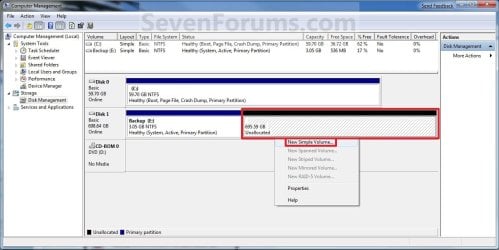
5. In the middle pane, right click on the empty unallocated partition or volume and click on New Simple Volume. (See screenshot above)

6. Click on the Next button. (See screenshot below) Create_Step2.jpg
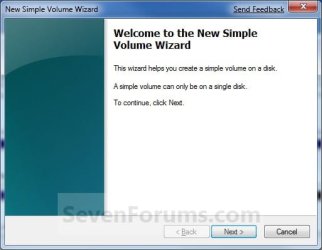
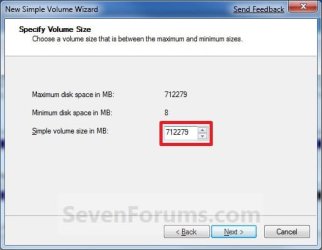
7. Type in how many MB (1 GB = 1024 MB) you want to use from the unallocated partition to create the new partition with, then click on the Next button. (See screenshot below)
NOTE: If you want to use all of the unallocated partition to create the new partition with, then type all of the maximum disk space shown for the unallocated partition. If you do not use all of the maximum disk space, then you can use the left over space from the unallocted partition to create another new partition with. Create_Step3.jpg
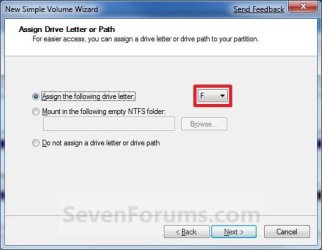
8. Select an available drive letter that you want to be assigned to the new partition in Computer, then click on the Next button. (See screenshot below) Create_Step4.jpg
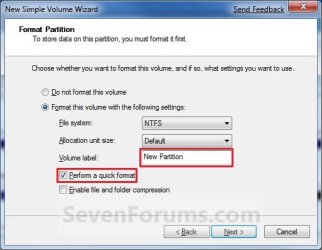
9. Type in a volume label name that you want for the new partition, check the Perform a quick format box, and click on the Next button. (See screenshot below) Create_Step5.jpg
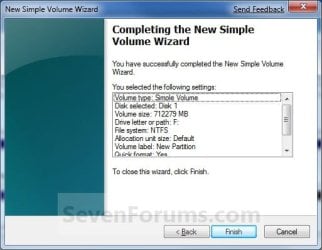
10. Click on the Finish button. (See screenshot below)

   Warning
If you get a pop-up with the message below, then click on No. You DO NOT want to convert the disk to dynamic. Doing so could render Windows 7 unbootable. A clean install of Windows 7 would be the only way to fix this afterwards if you were to click on Yes.

The operation selected will convert the disk to dynamic... are you sure you want to continue?
Create_Step6.jpg
11. The new primary partition or volume has now been created with the assigned unallocted partition space (step 7). (See screenshot below) Create_Step7.jpg
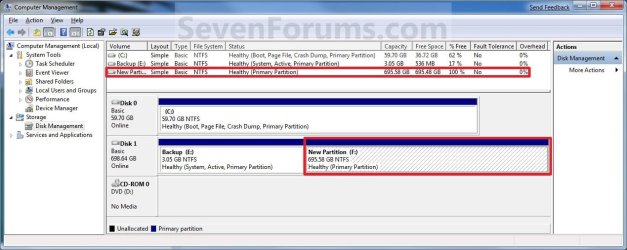
12. Close the Computer Management window. (See screenshot above)


OPTION TWO

Create Primary Partition using Diskpart in Elevated Command Prompt

1. You will first need to shrink a partition or volume to create a unallocated partition to use to create the new partition or volume with.

2. Open an elevated command prompt, or a command prompt at boot.

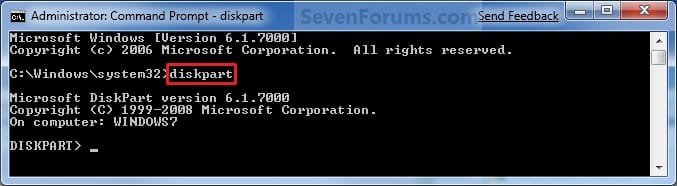
3. In the elevated command prompt, type diskpart and press Enter. (See screenshot below) CMD_Create_Step1.jpg
4. In the elevated command prompt, type list disk and press Enter. (See screenshot below)
NOTE: This is to help you ID the disk number that has Free unallocated space that you want to create a new partition with. For example, Disk 1 with 80 GB of free space. CMD_Create_Step2.jpg
5. In the elevated command prompt, type select disk # and press Enter. (See screenshot below)
NOTE: You would substitute # for the disk number listed that you want to create a new partition with the free unallocated space there. For example, I want to create a new partition with the 80 GB of free space, so I would type select disk 2 and press Enter. CMD_Create_Step3.jpg
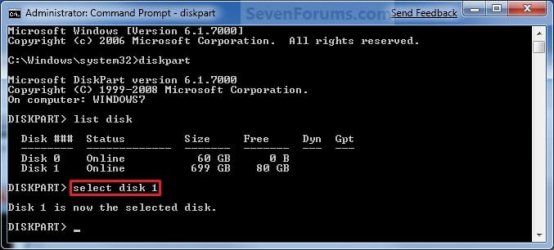
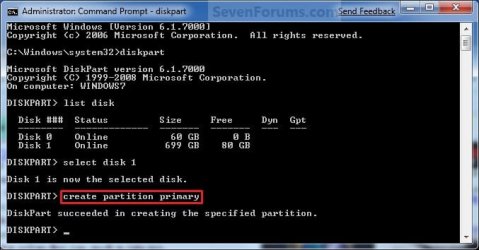
6. In the elevated command prompt, type create partition primary and press Enter. (See screenshot below)
NOTE: This will create a new blank RAW partition with selected disk (step 5) that contains the unallocated partition free space. CMD_Create_Step4.jpg
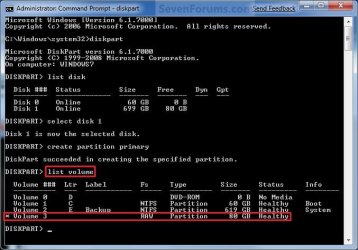
7. In the elevated command prompt, type list volume and press Enter. (See screenshot below)
NOTE: Look for the volume number that has the same Size as from the Free space in step 4. For example, Volume 3. CMD_Create_Step5.jpg
8. To Format the Partition or Disk as a NTFS File System
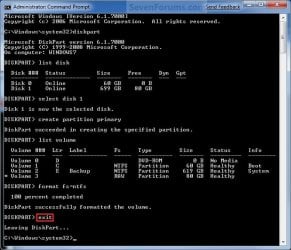
NOTE: This would be good for using with a HDD as an example. A) In the elevated command prompt, type format fs=ntfs quick and press Enter. (See screenshot below)
NOTE: Having quick added at the end of the command will do a quick format instead of a full format on the new blank RAW partition (step 6) to make it a new partition. CMD_Create_Step6.jpg
B) Go to step 10.
9. To Format the Partition or Disk as a FAT32 File System
NOTE: This would be good for using with a USB key drive as an example. The FAT32 file system has size limitations. You cannot create a FAT32 partition greater than 32 GB. In addition, you cannot store a file larger than 4 GB on a FAT32 partition. For more information, see Comparing NTFS and FAT file systems. A) In the elevated command prompt, type format fs=fat32 quick and press Enter. (See screenshot below)
NOTE: Having quick added at the end of the command will do a quick format instead of a full format on the new blank RAW partition (step 6) to make it a new partition.
10. When it is finished formatting, type exit in the elevated command prompt and press Enter. (See screenshot below) CMD_Create_Step7.jpg
11. Close the elevated command prompt.

12. The new primary partition has now been created. You can now see the new partition in Computer with a drive letter.
That's it,
Shawn


Last edited:
Wolfgang...thank you for your message

So I understand that:

the individual file folders (Documents, Pictures, Music, and Videos) must first be created in the D Drive

The contents of those individual data folders on the C Drive are then moved to their respective D Drive folders by using the folder Properties > Location tab > Move (to the newly created folders)

Will that only move the files in the respective folders and not the old folder itself?

What will happen to the user file and its contents on the C drive??

Will the Windows 7 libraries folders remain on the C drive but when opened will contain the respective files which reside on the D drive??
Thank you for your help
 

My Computer

OS
w7
Wolfgang...thank you for your message

So I understand that:

the individual file folders (Documents, Pictures, Music, and Videos) must first be created in the D Drive

The contents of those individual data folders on the C Drive are then moved to their respective D Drive folders by using the folder Properties > Location tab > Move (to the newly created folders)

Will that only move the files in the respective folders and not the old folder itself?

What will happen to the user file and its contents on the C drive??

Will the Windows 7 libraries folders remain on the C drive but when opened will contain the respective files which reside on the D drive??
Thank you for your help

I think you understood the principle. It will physically move the folders and its content. They will no more be on C. Libraries will not be touched - they are not really folders. They are just an index concept.
If you ever decided to move the folders back to C, you do that again with the Location tab (which btw. you would lose if you did not create those named folders on the data partition first and only moved to the partition itself - that is a minor mess). Then the original folders will be recreated on C.
 

My Computer

Computer Manufacturer/Model Number
HP, Dell, Gateway, Toshiba - 4 laptops and 2 desktops
OS
Vista, Windows7, Mint Mate, Zorin, Windows 8
CPU
from 1.6GHz Duo to i7
Monitor(s) Displays
2x HP w2207
Hard Drives
5x HDD, 7x SSD, 12x Externals
Keyboard
with trackball - no mices
Mouse
Trackball mice
Internet Speed
DSL 6000
Need Way to Create Restroe Points

I Got a new Asus G72 Notebook with Win 7 Home 64-bit yesterday with a 500 gb hard drive. It only has drive C:\

I would like to know how to create drive D:\ to create restore points or can I just use an 8 gb flash drive for this? I would rather use a Flash Drive. Creating partitions would probably give me head ache. :)
 

My Computer

OS
Windows Vista
1. The first thing I would do is shrink this 500GB partition - it will probably let you shrink about 240GBs off. There is no need to have such a huge C partition. Even if you have no use for the space you shrunk, leave it unallocated for now until you know what to do with it - maybe a seperate data partition. Watch my 12 min video tutorial on the matter. It is archy simple to create a partition.

2. For the restore points you need no seperate partition. In fact they always reside in the partition to which they belong. This is different for images. They go on a seperate partition or drive - preferably on an external disk.

3. USB sticks are of no use in this whole context.
 

My Computer

Computer Manufacturer/Model Number
HP, Dell, Gateway, Toshiba - 4 laptops and 2 desktops
OS
Vista, Windows7, Mint Mate, Zorin, Windows 8
CPU
from 1.6GHz Duo to i7
Monitor(s) Displays
2x HP w2207
Hard Drives
5x HDD, 7x SSD, 12x Externals
Keyboard
with trackball - no mices
Mouse
Trackball mice
Internet Speed
DSL 6000
Trying to shrink my c drive & create llogical partition

I have a Dell 1520 Inspiron Laptop (VISTA) with a 136GB C Drive.


The C Drive is showing 56GB free in "my Computer"


When I attempt to shrink my C Drive in Disk Management it shows
Total Size 139,715MB (appr 136GB)

Available Shrink Space 4,331MB (appr 4GB)

Total Size after shrink 135,384MB (appr 132GB)


Why the discrepancy?? Shouldn't the Available shrink space be in the vicinity of the 56GB that "My Computer" shows???
 

My Computer

OS
w7
I have a Dell 1520 Inspiron Laptop (VISTA) with a 136GB C Drive.


The C Drive is showing 56GB free in "my Computer"


When I attempt to shrink my C Drive in Disk Management it shows
Total Size 139,715MB (appr 136GB)

Available Shrink Space 4,331MB (appr 4GB)

Total Size after shrink 135,384MB (appr 132GB)


Why the discrepancy?? Shouldn't the Available shrink space be in the vicinity of the 56GB that "My Computer" shows???

One would think so, but that is not the case. High up on the disk resides the MFT (master file table). And you cannot shrink beyond that - at least not with windows facilities. Read more here.
 

My Computer

Computer Manufacturer/Model Number
HP, Dell, Gateway, Toshiba - 4 laptops and 2 desktops
OS
Vista, Windows7, Mint Mate, Zorin, Windows 8
CPU
from 1.6GHz Duo to i7
Monitor(s) Displays
2x HP w2207
Hard Drives
5x HDD, 7x SSD, 12x Externals
Keyboard
with trackball - no mices
Mouse
Trackball mice
Internet Speed
DSL 6000
Problem to create a partition

Hello guys,

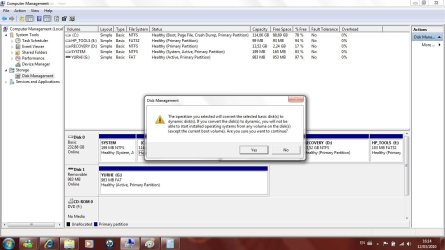
this image shows what happened to me
i do all the steps when I go to click "finish" this message shows up to me...

What should I do ???

Its a Compaq Presario cq61
I will appreciate your help
Thanks !!!!!
 

Attachments

  • Untitled10.jpg
    Untitled10.jpg
    232.9 KB · Views: 266

My Computer

OS
Windows 7
Hello Yurhi, and welcome to Seven Forums.

If you are doing this with Disk 0, then you are getting this warning since you already have the limit of 4 primary partitions on a hard disk and trying to shrink a partition in the middle to create another one. Since it is really not recommended to convert the disk that Windows 7 is on to dynamic, then you will not be able to do this using Disk Management.

You might see if you can using the free Partition Wizard Home Edition instead to create a logical or extended partition for a new partition. However, with 2 OEM recovery partitions and the other 2 that you cannot delete, you may still not be able to on Disk 0.
 

My Computer

Computer type
PC/Desktop
Computer Manufacturer/Model Number
Self built custom
OS
64-bit Windows 11 Pro for Workstations
CPU
Intel i7-8700K OC'd to 5 GHz
Motherboard
ASUS ROG Maximus XI Formula Z390
Memory
64 GB (4x16GB) G.SKILL TridentZ RGB DDR4 3600 MHz
Graphics Card(s)
ASUS ROG-STRIX-GTX1080TI-O11G-GAMING
Sound Card
Integrated
Monitor(s) Displays
2 x Samsung Odyssey G7 27"
Screen Resolution
2560x1440
Hard Drives
1TB Samsung 990 PRO M.2,
4TB Samsung 990 PRO PRO M.2,
TerraMaster F8 SSD Plus NAS
PSU
Seasonic Prime Titanium 850W
Case
Thermaltake Core P3
Cooling
Corsair Hydro H115i
Keyboard
Logitech wireless K800
Mouse
Logitech MX Master 4
Internet Speed
2 Gb/s Download and 100 Mb/s Upload
Antivirus
Malwarebyte Anti-Malware Premium
Browser
Google Chrome
Other Info
Logitech Z625 speaker system,
Logitech BRIO 4K Pro webcam,
HP Color LaserJet Pro MFP M477fdn,
APC SMART-UPS RT 1000 XL - SURT1000XLI,
Galaxy S23 Plus phone
You have to get rid of one of those primaries - possibly the recovery partition after you burnt your recovery DVDs and made an image of your system. Then you need to create an Extended partition to get back to creating more partitions. But as Brink says, 4 primaries gets you stuck - ideally you want 3 primaries and 1 extended.
 

My Computer

Computer Manufacturer/Model Number
HP, Dell, Gateway, Toshiba - 4 laptops and 2 desktops
OS
Vista, Windows7, Mint Mate, Zorin, Windows 8
CPU
from 1.6GHz Duo to i7
Monitor(s) Displays
2x HP w2207
Hard Drives
5x HDD, 7x SSD, 12x Externals
Keyboard
with trackball - no mices
Mouse
Trackball mice
Internet Speed
DSL 6000
thanks guys...

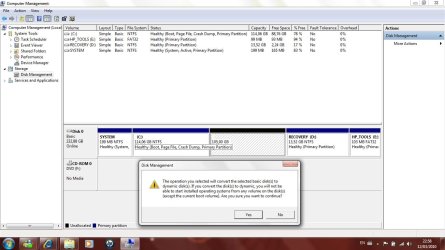
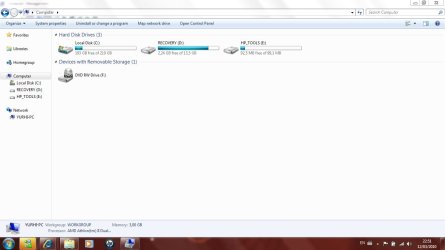
But the problem is that I just got last sunday the laptop, i havent done anything to it yet and it is a HP as you can see in the first picture. a windows explore screen shows that I have 3 primaries partitions:

1-local disk
2-recovery
3-hp-tools

and the second screen shows that I have 4 primaries partitions

1-local disk
2-hp-tools
3-recovery
4-SYSTEM

all those 4 partitions already came in the laptop, cause the windows 7 was already installed.

my questions are:

1- Can I just CUT what is inside of the Hp-tools partition and COPY to the Recovery partition and then use this partition for all my files and rename the partition later on ?

2- What the heck is the SYSTEM partition, can I just delete that ?

3-Please, can you give me step by step tutorial to help me be able to create more partitions ?

Thank you very much !
 

Attachments

  • Untitled12.jpg
    Untitled12.jpg
    232.3 KB · Views: 251
  • Untitled11.jpg
    Untitled11.jpg
    115.9 KB · Views: 248

My Computer

OS
Windows 7
1. It might be safe to delete this partition since it would be anyhow far too small for a data partition.
2. That SYSTEM partition you better leave alone. It may contain the master boot record.
3. I have made a 12 minute video how to deal with creating and deleting partitions - have a look.
 

My Computer

Computer Manufacturer/Model Number
HP, Dell, Gateway, Toshiba - 4 laptops and 2 desktops
OS
Vista, Windows7, Mint Mate, Zorin, Windows 8
CPU
from 1.6GHz Duo to i7
Monitor(s) Displays
2x HP w2207
Hard Drives
5x HDD, 7x SSD, 12x Externals
Keyboard
with trackball - no mices
Mouse
Trackball mice
Internet Speed
DSL 6000
thanks guys...

But the problem is that I just got last sunday the laptop, i havent done anything to it yet and it is a HP as you can see in the first picture. a windows explore screen shows that I have 3 primaries partitions:

1-local disk
2-recovery
3-hp-tools

and the second screen shows that I have 4 primaries partitions

1-local disk
2-hp-tools
3-recovery
4-SYSTEM

all those 4 partitions already came in the laptop, cause the windows 7 was already installed.

my questions are:

1- Can I just CUT what is inside of the Hp-tools partition and COPY to the Recovery partition and then use this partition for all my files and rename the partition later on ?

2- What the heck is the SYSTEM partition, can I just delete that ?

3-Please, can you give me step by step tutorial to help me be able to create more partitions ?

Thank you very much !

Yurhi,

You can create yourself a set of HP Windows 7 recovery disks to use to restore your computer back to a factory installation of Windows 7 instead of using the partitions. One disc will be a "Windows 7 Recovery Disc" and the other a "Applications and Drivers Disc". The link below from HP will show you how to using the HP Recovery Manager.

Using HP Backup and Recovery Manager in Vista - HP Customer Care (United States - English)http://h10025.www1.hp.com/ewfrf/wc/document?lc=en&dlc=en&cc=us&docname=c00809678#WhenCreate

Afterwards you can delete the Recovery D: and HP_Tools E: partitions. Afterwards, you should be able to create a new partition with the unallocated space left.

   Warning
Be sure to create a set of Windows 7 Recovery discs before you delete these partitions. If you do not, you will have no way of reinstalling Windows 7 again.
 

My Computer

Computer type
PC/Desktop
Computer Manufacturer/Model Number
Self built custom
OS
64-bit Windows 11 Pro for Workstations
CPU
Intel i7-8700K OC'd to 5 GHz
Motherboard
ASUS ROG Maximus XI Formula Z390
Memory
64 GB (4x16GB) G.SKILL TridentZ RGB DDR4 3600 MHz
Graphics Card(s)
ASUS ROG-STRIX-GTX1080TI-O11G-GAMING
Sound Card
Integrated
Monitor(s) Displays
2 x Samsung Odyssey G7 27"
Screen Resolution
2560x1440
Hard Drives
1TB Samsung 990 PRO M.2,
4TB Samsung 990 PRO PRO M.2,
TerraMaster F8 SSD Plus NAS
PSU
Seasonic Prime Titanium 850W
Case
Thermaltake Core P3
Cooling
Corsair Hydro H115i
Keyboard
Logitech wireless K800
Mouse
Logitech MX Master 4
Internet Speed
2 Gb/s Download and 100 Mb/s Upload
Antivirus
Malwarebyte Anti-Malware Premium
Browser
Google Chrome
Other Info
Logitech Z625 speaker system,
Logitech BRIO 4K Pro webcam,
HP Color LaserJet Pro MFP M477fdn,
APC SMART-UPS RT 1000 XL - SURT1000XLI,
Galaxy S23 Plus phone
shrink volume limit unavailable

Hi,
The shrink volume limit is not avaialble in my system. Also mine is a 220 GB hard Disk out of which my data is 40GB. But the free space avbl is only 120 gb.

How do i partition my drive?
How do i get that extra space?
 

My Computer

OS
Win 7
Hello itsmesir, and welcome to Seven Forums.

Could you post a screenshot of your Disk Management showing your drive layout? This will help us determine what may be happening.
 

My Computer

Computer type
PC/Desktop
Computer Manufacturer/Model Number
Self built custom
OS
64-bit Windows 11 Pro for Workstations
CPU
Intel i7-8700K OC'd to 5 GHz
Motherboard
ASUS ROG Maximus XI Formula Z390
Memory
64 GB (4x16GB) G.SKILL TridentZ RGB DDR4 3600 MHz
Graphics Card(s)
ASUS ROG-STRIX-GTX1080TI-O11G-GAMING
Sound Card
Integrated
Monitor(s) Displays
2 x Samsung Odyssey G7 27"
Screen Resolution
2560x1440
Hard Drives
1TB Samsung 990 PRO M.2,
4TB Samsung 990 PRO PRO M.2,
TerraMaster F8 SSD Plus NAS
PSU
Seasonic Prime Titanium 850W
Case
Thermaltake Core P3
Cooling
Corsair Hydro H115i
Keyboard
Logitech wireless K800
Mouse
Logitech MX Master 4
Internet Speed
2 Gb/s Download and 100 Mb/s Upload
Antivirus
Malwarebyte Anti-Malware Premium
Browser
Google Chrome
Other Info
Logitech Z625 speaker system,
Logitech BRIO 4K Pro webcam,
HP Color LaserJet Pro MFP M477fdn,
APC SMART-UPS RT 1000 XL - SURT1000XLI,
Galaxy S23 Plus phone
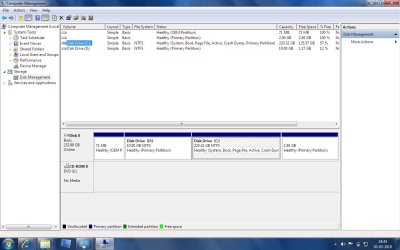
disk management screen shots

Hi,

Have attacehd the disk management screen shots. I am allowed to shrink only 203mb of the total.
 

Attachments

  • dm ss1.jpg
    dm ss1.jpg
    196.3 KB · Views: 499
  • dm ss2.jpg
    dm ss2.jpg
    207.4 KB · Views: 408
  • dm ss3.jpg
    dm ss3.jpg
    217.2 KB · Views: 465

My Computer

OS
Win 7
Itsmesir,

Since the C: drive will have allocated space for items like the page file, restore points, etc..., this will limit the amount of free space available on that partition.

Disk Management is limited to what it can do, so you might try the free Partition Wizard Home Edition to see if it may allow you to shrink the C: drive more for you.

Hope this helps,
Shawn
 

My Computer

Computer type
PC/Desktop
Computer Manufacturer/Model Number
Self built custom
OS
64-bit Windows 11 Pro for Workstations
CPU
Intel i7-8700K OC'd to 5 GHz
Motherboard
ASUS ROG Maximus XI Formula Z390
Memory
64 GB (4x16GB) G.SKILL TridentZ RGB DDR4 3600 MHz
Graphics Card(s)
ASUS ROG-STRIX-GTX1080TI-O11G-GAMING
Sound Card
Integrated
Monitor(s) Displays
2 x Samsung Odyssey G7 27"
Screen Resolution
2560x1440
Hard Drives
1TB Samsung 990 PRO M.2,
4TB Samsung 990 PRO PRO M.2,
TerraMaster F8 SSD Plus NAS
PSU
Seasonic Prime Titanium 850W
Case
Thermaltake Core P3
Cooling
Corsair Hydro H115i
Keyboard
Logitech wireless K800
Mouse
Logitech MX Master 4
Internet Speed
2 Gb/s Download and 100 Mb/s Upload
Antivirus
Malwarebyte Anti-Malware Premium
Browser
Google Chrome
Other Info
Logitech Z625 speaker system,
Logitech BRIO 4K Pro webcam,
HP Color LaserJet Pro MFP M477fdn,
APC SMART-UPS RT 1000 XL - SURT1000XLI,
Galaxy S23 Plus phone
Hi,

Have attacehd the disk management screen shots. I am allowed to shrink only 203mb of the total.

This is a little unusual because it normally lets you shrink about half of the space (mainly because of the MFT sitting in the middle of the partition). But in your case, there may be a problem (as Brink says) with the shadowstorage (restore points). That cannot be seen from the Disk Management shots. I suggest you go into elevated Command Prompt and run the vssadmin list shadowstorage command. Look for the number associated with allocated - if that is excessive (e.g. more than 10 to 15% of the partition space), you may want to reduce the shadowstorage size. After reduction (which would delete all your current restore points), you can try your luck again with Disk Management.

http://www.sevenforums.com/tutorials/335-system-protection-change-disk-space-usage.html
 
Last edited by a moderator:

My Computer

Computer Manufacturer/Model Number
HP, Dell, Gateway, Toshiba - 4 laptops and 2 desktops
OS
Vista, Windows7, Mint Mate, Zorin, Windows 8
CPU
from 1.6GHz Duo to i7
Monitor(s) Displays
2x HP w2207
Hard Drives
5x HDD, 7x SSD, 12x Externals
Keyboard
with trackball - no mices
Mouse
Trackball mice
Internet Speed
DSL 6000
Reason MS places the MFT where it does????

After reading through this informative thread about the cycle of steps needed to reduce the C partition I was wondering-


what is the reason Microsoft puts the Master File Table (MFT) where it does on the C partition???


If there is a good reason, is there any possible risk to moving it through successive shrinking required to get the C Partition down to a smaller size??
Thanks for your help!!
 

My Computer

OS
w7
Hi everyone, I am new here.
I use this "Quick Reply" as I can't find where should I post my problem.
I bought a brand new Acer Aspire 5740G with Window 7 Home premium installed.I want to have dual boot feature with Linux distro Mandriva 2010.
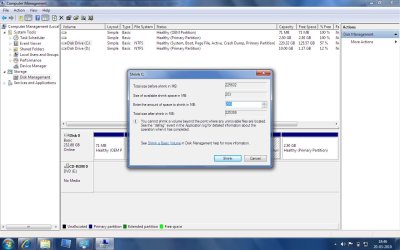
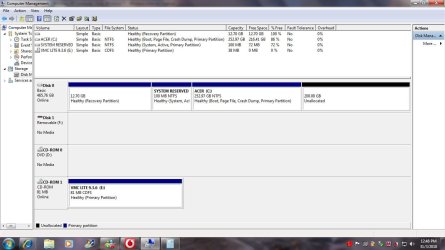
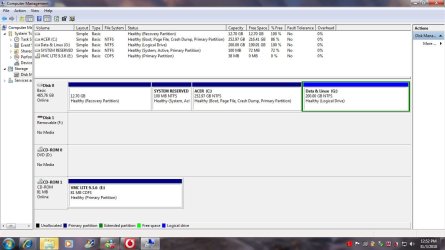
Thus , I want to use existing "Disk Management" to shrink my C drive to create an extra primary partition(G drive: Data & Linux) of 200GB . And then I will further shrink this G drive to create a 20GB unallocated partition for later Linux OS Mandriva installation, to achieve dual boot feature.
My issue is I can't get a primary partition G drive after shrinking C drive. It gives me logical drive in G drive which I worry not suitable for later Linux OS installation. Is this statement of Linux OS must use contagious primary partition, true?
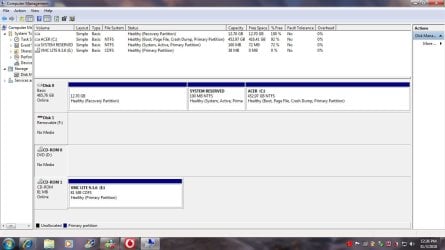
Attached pls find the original disk situation(before shrinking),
disk before shrink.jpg

after shrinking
disk after shrink.jpg

and after formatted screenshots.
disk after formatted.jpg

Appreciate any help or advice , all are welcome.
Thank You.
Best rgds.
 

My Computer

Computer Manufacturer/Model Number
Acer Aspire 5740G
OS
WINDOW 7 HOME PREMIUM
CPU
Intel Core i5 520M(2.4Ghz, 3MB L3 cache)
Memory
4 GB
Graphics Card(s)
ATI Mobility Radeon HD 5470 upto 2234MB Hypermemory
Monitor(s) Displays
15.6 HD LED LCD
Hard Drives
500GB HDD
PSU
6-cell Li-on Battery
Case
381 (W) x 253 (D) x 25/34 (H) mm (15 x 9.9 x 0.98/1.3 inches
An NT based OS would work on a logical drive because the BCD ( boot configuration data ) would be written into the root of your boot drive. I think the same is true for the Grub - but I am not 100% sure.
 

My Computer

Computer Manufacturer/Model Number
HP, Dell, Gateway, Toshiba - 4 laptops and 2 desktops
OS
Vista, Windows7, Mint Mate, Zorin, Windows 8
CPU
from 1.6GHz Duo to i7
Monitor(s) Displays
2x HP w2207
Hard Drives
5x HDD, 7x SSD, 12x Externals
Keyboard
with trackball - no mices
Mouse
Trackball mice
Internet Speed
DSL 6000
Back
Top