Partition or Volume - Create New

How to Create a New Partition or Volume in Windows 7

   Information
This will show you how to create a new primary partition using Disk Management or Diskpart in Windows 7 from a empty unallocated partition or volume.
   Note
A primary partition is a type of partition created on a hard drive that can have a operating system installed on it. A primary partition functions as though it were a physically separate hard drive.

By default on a basic MBR disk, you can create a maximum of 4 Primary partitions, or 3 Primary partitions and 1 Extended partition with up to 128 logical volumes in the extended partition on a single hard disk.

*You must be logged on in an administrator account to be able to do this tutorial.
   Warning
If you disable the Disk Defragmenter service, then you will get the error below when you try to do anything in Disk Management. If you get this error, then make sure that the Disk Defragmenter service is set to only Manual.

Error.jpg


OPTION ONE

Create Primary Partition using Disk Management

1. You will first need to shrink a partition or volume from the free space on a disk to create unallocated space on that disk to use to create the new partition or volume with on the same disk.

   Note
If this is a disk that is unallocated, then skip this step and go straight to step 2.


2. Open the Control Panel (icons view), and click on the Administrative Tools icon. then close the Control Panel window.

3. Click on Computer Management in Administrative Tools, then close the Administrative Tools window.

4. In the left pane under Storage, click on Disk Management. (See screenshot below) Create_Step1.jpg
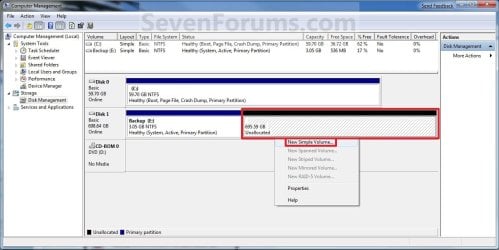
5. In the middle pane, right click on the empty unallocated partition or volume and click on New Simple Volume. (See screenshot above)

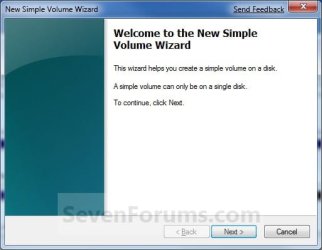
6. Click on the Next button. (See screenshot below) Create_Step2.jpg
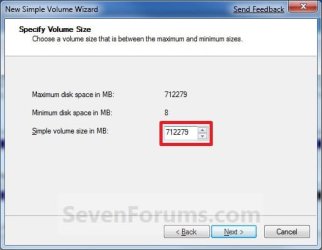
7. Type in how many MB (1 GB = 1024 MB) you want to use from the unallocated partition to create the new partition with, then click on the Next button. (See screenshot below)
NOTE: If you want to use all of the unallocated partition to create the new partition with, then type all of the maximum disk space shown for the unallocated partition. If you do not use all of the maximum disk space, then you can use the left over space from the unallocted partition to create another new partition with. Create_Step3.jpg
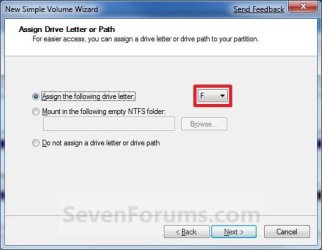
8. Select an available drive letter that you want to be assigned to the new partition in Computer, then click on the Next button. (See screenshot below) Create_Step4.jpg
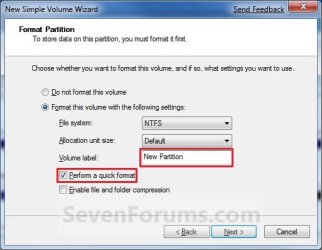
9. Type in a volume label name that you want for the new partition, check the Perform a quick format box, and click on the Next button. (See screenshot below) Create_Step5.jpg
10. Click on the Finish button. (See screenshot below)

   Warning
If you get a pop-up with the message below, then click on No. You DO NOT want to convert the disk to dynamic. Doing so could render Windows 7 unbootable. A clean install of Windows 7 would be the only way to fix this afterwards if you were to click on Yes.

The operation selected will convert the disk to dynamic... are you sure you want to continue?
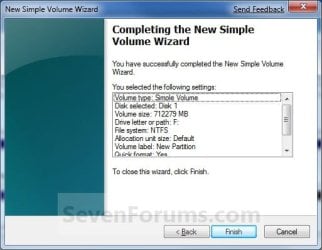
Create_Step6.jpg
11. The new primary partition or volume has now been created with the assigned unallocted partition space (step 7). (See screenshot below) Create_Step7.jpg
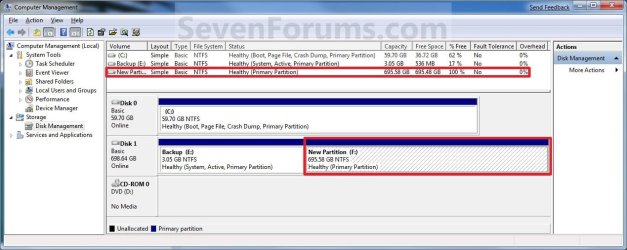
12. Close the Computer Management window. (See screenshot above)


OPTION TWO

Create Primary Partition using Diskpart in Elevated Command Prompt

1. You will first need to shrink a partition or volume to create a unallocated partition to use to create the new partition or volume with.

2. Open an elevated command prompt, or a command prompt at boot.

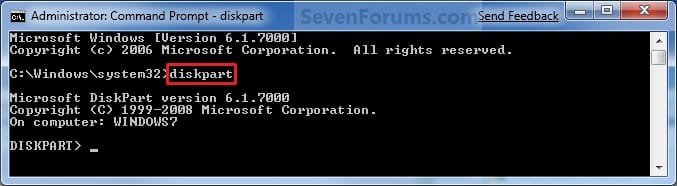
3. In the elevated command prompt, type diskpart and press Enter. (See screenshot below) CMD_Create_Step1.jpg
4. In the elevated command prompt, type list disk and press Enter. (See screenshot below)
NOTE: This is to help you ID the disk number that has Free unallocated space that you want to create a new partition with. For example, Disk 1 with 80 GB of free space. CMD_Create_Step2.jpg
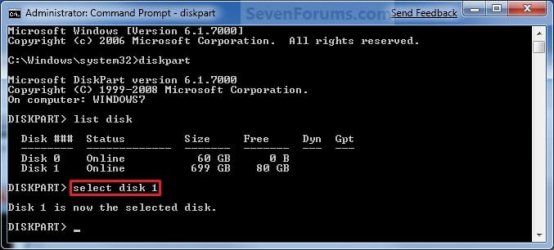
5. In the elevated command prompt, type select disk # and press Enter. (See screenshot below)
NOTE: You would substitute # for the disk number listed that you want to create a new partition with the free unallocated space there. For example, I want to create a new partition with the 80 GB of free space, so I would type select disk 2 and press Enter. CMD_Create_Step3.jpg
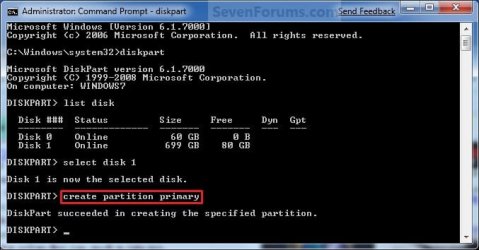
6. In the elevated command prompt, type create partition primary and press Enter. (See screenshot below)
NOTE: This will create a new blank RAW partition with selected disk (step 5) that contains the unallocated partition free space. CMD_Create_Step4.jpg
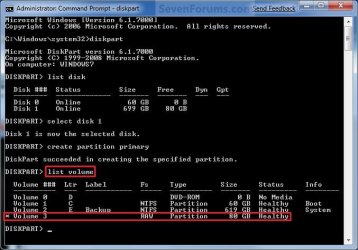
7. In the elevated command prompt, type list volume and press Enter. (See screenshot below)
NOTE: Look for the volume number that has the same Size as from the Free space in step 4. For example, Volume 3. CMD_Create_Step5.jpg
8. To Format the Partition or Disk as a NTFS File System
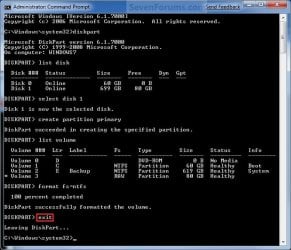
NOTE: This would be good for using with a HDD as an example. A) In the elevated command prompt, type format fs=ntfs quick and press Enter. (See screenshot below)
NOTE: Having quick added at the end of the command will do a quick format instead of a full format on the new blank RAW partition (step 6) to make it a new partition. CMD_Create_Step6.jpg
B) Go to step 10.
9. To Format the Partition or Disk as a FAT32 File System
NOTE: This would be good for using with a USB key drive as an example. The FAT32 file system has size limitations. You cannot create a FAT32 partition greater than 32 GB. In addition, you cannot store a file larger than 4 GB on a FAT32 partition. For more information, see Comparing NTFS and FAT file systems. A) In the elevated command prompt, type format fs=fat32 quick and press Enter. (See screenshot below)
NOTE: Having quick added at the end of the command will do a quick format instead of a full format on the new blank RAW partition (step 6) to make it a new partition.
10. When it is finished formatting, type exit in the elevated command prompt and press Enter. (See screenshot below) CMD_Create_Step7.jpg
11. Close the elevated command prompt.

12. The new primary partition has now been created. You can now see the new partition in Computer with a drive letter.
That's it,
Shawn


Last edited:
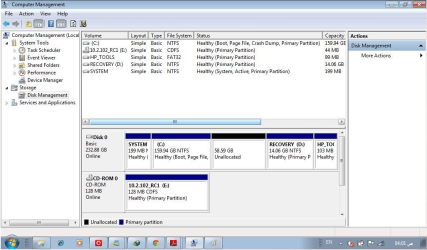
first i have 2 thank u about ur comments and reply .... i gain a HUGE info from it :) ... i red all the 34 pages :D
i notice that my problem is common and not just me :D
the Dynamic disc thing :mad:
i have 4 partition already so i have to delete one of them
first i have to say that i'm creating a new partition to copy my data ( music , movies ...etc ) from drive C to another 1 so i can install windows 7 unlimited as i have starter which i dont like it :confused:
since i dont have any external HDD i have to do this .... the point is when i red athors comment ... many recommend to instal the backup recovery to DVD's and delet this drive ... the question is sinse i will install a new windowse do i need this drive any more ??
also i don't have a CD.ROM :confused: ( it's a mini laptop )
so i can't back it up to DVD's
so what do u think ??? do i need that drive ?? :rolleyes:
THANKS :):)
 

Attachments

  • 9-1-2011 8-47-21 AM.png
    9-1-2011 8-47-21 AM.png
    122.2 KB · Views: 237

My Computer

Computer Manufacturer/Model Number
HP pavilion dv5 1116em
OS
Windows 7 unlimited 32 bit
CPU
T5800**@*2.00GHz*(2*CPUs),*~2
Motherboard
Intel(R) Core(TM)2 Duo CPU
Memory
3 GB
Graphics Card(s)
NVIDIA GeForce 9200M GS
Hard Drives
WDC WD2500BEVS-60UST0 [Hard drive] (250.06 GB)
Hello Ron, and welcome to Seven Forums.

If by "new Windows", you mean that you have a new retail Windows 7 installation disc to use to install Windows 7 with instead of using the HP "Recovery" and "HP Tools" partitions to do so, then no you do not need it.
 

My Computer

Computer type
PC/Desktop
Computer Manufacturer/Model Number
Self built custom
OS
64-bit Windows 11 Pro for Workstations
CPU
Intel i7-8700K OC'd to 5 GHz
Motherboard
ASUS ROG Maximus XI Formula Z390
Memory
64 GB (4x16GB) G.SKILL TridentZ RGB DDR4 3600 MHz
Graphics Card(s)
ASUS ROG-STRIX-GTX1080TI-O11G-GAMING
Sound Card
Integrated
Monitor(s) Displays
2 x Samsung Odyssey G7 27"
Screen Resolution
2560x1440
Hard Drives
1TB Samsung 990 PRO M.2,
4TB Samsung 990 PRO PRO M.2,
TerraMaster F8 SSD Plus NAS
PSU
Seasonic Prime Titanium 850W
Case
Thermaltake Core P3
Cooling
Corsair Hydro H115i
Keyboard
Logitech wireless K800
Mouse
Logitech MX Master 4
Internet Speed
2 Gb/s Download and 100 Mb/s Upload
Antivirus
Malwarebyte Anti-Malware Premium
Browser
Google Chrome
Other Info
Logitech Z625 speaker system,
Logitech BRIO 4K Pro webcam,
HP Color LaserJet Pro MFP M477fdn,
APC SMART-UPS RT 1000 XL - SURT1000XLI,
Galaxy S23 Plus phone
thank u .. i really appreciate ur reply :)
 

My Computer

Computer Manufacturer/Model Number
HP pavilion dv5 1116em
OS
Windows 7 unlimited 32 bit
CPU
T5800**@*2.00GHz*(2*CPUs),*~2
Motherboard
Intel(R) Core(TM)2 Duo CPU
Memory
3 GB
Graphics Card(s)
NVIDIA GeForce 9200M GS
Hard Drives
WDC WD2500BEVS-60UST0 [Hard drive] (250.06 GB)

My Computer

Computer type
PC/Desktop
Computer Manufacturer/Model Number
Self built custom
OS
64-bit Windows 11 Pro for Workstations
CPU
Intel i7-8700K OC'd to 5 GHz
Motherboard
ASUS ROG Maximus XI Formula Z390
Memory
64 GB (4x16GB) G.SKILL TridentZ RGB DDR4 3600 MHz
Graphics Card(s)
ASUS ROG-STRIX-GTX1080TI-O11G-GAMING
Sound Card
Integrated
Monitor(s) Displays
2 x Samsung Odyssey G7 27"
Screen Resolution
2560x1440
Hard Drives
1TB Samsung 990 PRO M.2,
4TB Samsung 990 PRO PRO M.2,
TerraMaster F8 SSD Plus NAS
PSU
Seasonic Prime Titanium 850W
Case
Thermaltake Core P3
Cooling
Corsair Hydro H115i
Keyboard
Logitech wireless K800
Mouse
Logitech MX Master 4
Internet Speed
2 Gb/s Download and 100 Mb/s Upload
Antivirus
Malwarebyte Anti-Malware Premium
Browser
Google Chrome
Other Info
Logitech Z625 speaker system,
Logitech BRIO 4K Pro webcam,
HP Color LaserJet Pro MFP M477fdn,
APC SMART-UPS RT 1000 XL - SURT1000XLI,
Galaxy S23 Plus phone
i used to install new windows from the same link by the way u have a great forum :)
but since awhile i found another way ... i used a tool called (( Windows 7 USB DVD Download Tool ))
it's quit easy and simple all u need is a .ISO version and 3 steps to do it :D
 

My Computer

Computer Manufacturer/Model Number
HP pavilion dv5 1116em
OS
Windows 7 unlimited 32 bit
CPU
T5800**@*2.00GHz*(2*CPUs),*~2
Motherboard
Intel(R) Core(TM)2 Duo CPU
Memory
3 GB
Graphics Card(s)
NVIDIA GeForce 9200M GS
Hard Drives
WDC WD2500BEVS-60UST0 [Hard drive] (250.06 GB)
Yep, Option One at the link. It's a great program. :)
 

My Computer

Computer type
PC/Desktop
Computer Manufacturer/Model Number
Self built custom
OS
64-bit Windows 11 Pro for Workstations
CPU
Intel i7-8700K OC'd to 5 GHz
Motherboard
ASUS ROG Maximus XI Formula Z390
Memory
64 GB (4x16GB) G.SKILL TridentZ RGB DDR4 3600 MHz
Graphics Card(s)
ASUS ROG-STRIX-GTX1080TI-O11G-GAMING
Sound Card
Integrated
Monitor(s) Displays
2 x Samsung Odyssey G7 27"
Screen Resolution
2560x1440
Hard Drives
1TB Samsung 990 PRO M.2,
4TB Samsung 990 PRO PRO M.2,
TerraMaster F8 SSD Plus NAS
PSU
Seasonic Prime Titanium 850W
Case
Thermaltake Core P3
Cooling
Corsair Hydro H115i
Keyboard
Logitech wireless K800
Mouse
Logitech MX Master 4
Internet Speed
2 Gb/s Download and 100 Mb/s Upload
Antivirus
Malwarebyte Anti-Malware Premium
Browser
Google Chrome
Other Info
Logitech Z625 speaker system,
Logitech BRIO 4K Pro webcam,
HP Color LaserJet Pro MFP M477fdn,
APC SMART-UPS RT 1000 XL - SURT1000XLI,
Galaxy S23 Plus phone
ooops it's there !! :o
that's mean it's not the link i used to open ..... it wasn't there :D
but this forum still my NO.1 :)
 

My Computer

Computer Manufacturer/Model Number
HP pavilion dv5 1116em
OS
Windows 7 unlimited 32 bit
CPU
T5800**@*2.00GHz*(2*CPUs),*~2
Motherboard
Intel(R) Core(TM)2 Duo CPU
Memory
3 GB
Graphics Card(s)
NVIDIA GeForce 9200M GS
Hard Drives
WDC WD2500BEVS-60UST0 [Hard drive] (250.06 GB)
LOL :p
 

My Computer

Computer type
PC/Desktop
Computer Manufacturer/Model Number
Self built custom
OS
64-bit Windows 11 Pro for Workstations
CPU
Intel i7-8700K OC'd to 5 GHz
Motherboard
ASUS ROG Maximus XI Formula Z390
Memory
64 GB (4x16GB) G.SKILL TridentZ RGB DDR4 3600 MHz
Graphics Card(s)
ASUS ROG-STRIX-GTX1080TI-O11G-GAMING
Sound Card
Integrated
Monitor(s) Displays
2 x Samsung Odyssey G7 27"
Screen Resolution
2560x1440
Hard Drives
1TB Samsung 990 PRO M.2,
4TB Samsung 990 PRO PRO M.2,
TerraMaster F8 SSD Plus NAS
PSU
Seasonic Prime Titanium 850W
Case
Thermaltake Core P3
Cooling
Corsair Hydro H115i
Keyboard
Logitech wireless K800
Mouse
Logitech MX Master 4
Internet Speed
2 Gb/s Download and 100 Mb/s Upload
Antivirus
Malwarebyte Anti-Malware Premium
Browser
Google Chrome
Other Info
Logitech Z625 speaker system,
Logitech BRIO 4K Pro webcam,
HP Color LaserJet Pro MFP M477fdn,
APC SMART-UPS RT 1000 XL - SURT1000XLI,
Galaxy S23 Plus phone
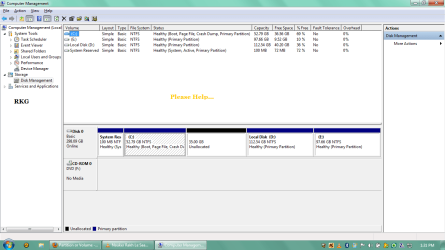
Dear ADMIN, thanks for such a nice tutorial, As per your Tutorial I succesfully shrinked 35GB from my C:/ drive then I wanted to create a new drive with that 35GB Space, According to your tutorial I did the same but in the end I got the Warning-

"The operation selected will convert the disk to dynamic... are you sure you want to continue?"

I clicked on NO as suggested by you in the end of tutorial, But the New drive with that 35GB space was not created, now what to do, plz help me......

Either help me to create New Drive with that 35GB Unallocated space or Help me to combine that 35Gb Space to any of my Exixsting drives....
21dhf6u.png


Thanks in Advance......

Here is the new screenshot Sir, plz help me now to use that unallocated space of 35GB.....
 
Last edited by a moderator:

My Computer

Computer Manufacturer/Model Number
Lenovo G460
OS
Windows 7 Ultimate 32bit
Hello RK,

Could you post a screenshot of your Disk Management window showing all of your drive's layout?

This will better help to determine what your options may be. :)
 

My Computer

Computer type
PC/Desktop
Computer Manufacturer/Model Number
Self built custom
OS
64-bit Windows 11 Pro for Workstations
CPU
Intel i7-8700K OC'd to 5 GHz
Motherboard
ASUS ROG Maximus XI Formula Z390
Memory
64 GB (4x16GB) G.SKILL TridentZ RGB DDR4 3600 MHz
Graphics Card(s)
ASUS ROG-STRIX-GTX1080TI-O11G-GAMING
Sound Card
Integrated
Monitor(s) Displays
2 x Samsung Odyssey G7 27"
Screen Resolution
2560x1440
Hard Drives
1TB Samsung 990 PRO M.2,
4TB Samsung 990 PRO PRO M.2,
TerraMaster F8 SSD Plus NAS
PSU
Seasonic Prime Titanium 850W
Case
Thermaltake Core P3
Cooling
Corsair Hydro H115i
Keyboard
Logitech wireless K800
Mouse
Logitech MX Master 4
Internet Speed
2 Gb/s Download and 100 Mb/s Upload
Antivirus
Malwarebyte Anti-Malware Premium
Browser
Google Chrome
Other Info
Logitech Z625 speaker system,
Logitech BRIO 4K Pro webcam,
HP Color LaserJet Pro MFP M477fdn,
APC SMART-UPS RT 1000 XL - SURT1000XLI,
Galaxy S23 Plus phone
Sir here is the screenshot, now plz help me, read my previous post also.......
Problem.png
 

My Computer

Computer Manufacturer/Model Number
Lenovo G460
OS
Windows 7 Ultimate 32bit
RK,

Since you already have 4 primary partitions, you will need to extend C: back into the unallocated space.

Do you remember which drive letter(s) that you shrunk space from before to create the D and E from, and in what order you did it?
 

My Computer

Computer type
PC/Desktop
Computer Manufacturer/Model Number
Self built custom
OS
64-bit Windows 11 Pro for Workstations
CPU
Intel i7-8700K OC'd to 5 GHz
Motherboard
ASUS ROG Maximus XI Formula Z390
Memory
64 GB (4x16GB) G.SKILL TridentZ RGB DDR4 3600 MHz
Graphics Card(s)
ASUS ROG-STRIX-GTX1080TI-O11G-GAMING
Sound Card
Integrated
Monitor(s) Displays
2 x Samsung Odyssey G7 27"
Screen Resolution
2560x1440
Hard Drives
1TB Samsung 990 PRO M.2,
4TB Samsung 990 PRO PRO M.2,
TerraMaster F8 SSD Plus NAS
PSU
Seasonic Prime Titanium 850W
Case
Thermaltake Core P3
Cooling
Corsair Hydro H115i
Keyboard
Logitech wireless K800
Mouse
Logitech MX Master 4
Internet Speed
2 Gb/s Download and 100 Mb/s Upload
Antivirus
Malwarebyte Anti-Malware Premium
Browser
Google Chrome
Other Info
Logitech Z625 speaker system,
Logitech BRIO 4K Pro webcam,
HP Color LaserJet Pro MFP M477fdn,
APC SMART-UPS RT 1000 XL - SURT1000XLI,
Galaxy S23 Plus phone
RK,

Since you already have 4 primary partitions, you will need to extend C: back into the unallocated space.

Do you remember which drive letter(s) that you shrunk space from before to create the D and E from, and in what order you did it?

Sorry Sir, I don't remember that because my uncle did that for me and he is away, I can't ask him but I think E:/ was created 1st and then D:/ was created out of C:/ Drive (I am not sure though)...
I am newbie in all this, My uncle suggested me this forum to Learn all this things because it's a great Forum, I learned much from it....

SIr now plz help me to use that 35GB space anywhere, tell me how to add back those 35GB Back to c:/ drive.....

Thankz in advance......
 

My Computer

Computer Manufacturer/Model Number
Lenovo G460
OS
Windows 7 Ultimate 32bit
Hello Brink,
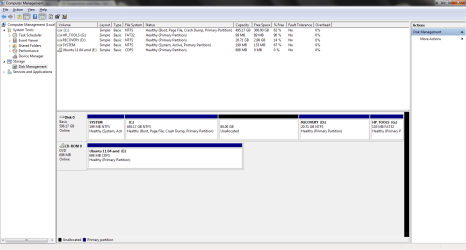
I am in the same boat as RK. I used your tutorial to create space for a planned Ubuntu/Win7 dual-boot, but due to the pre-configuration on my laptop, I can't use the space I set aside. I would greatly appreciate any help or advice you can give, and thanks in advance.
-bejoe905
Attached: screencap of Disk Management
 

Attachments

  • part.png
    part.png
    31.2 KB · Views: 246

My Computer

Computer Manufacturer/Model Number
HP Pavilion dv7
OS
Windows 7 Home Premium 64bit
CPU
AMD Phenom II N850
Motherboard
Hewlett-Packard 1443
Memory
4.00 GB Dual-Channel DDR3 @ 664MHz
Graphics Card(s)
ATI Mobility Radeon HD 5470
Sound Card
ATI High Definition Audio Device
Screen Resolution
1600x900
Hard Drives
625GB Seagate ST9640320AS ATA Device (SATA)
RK,

Since you already have 4 primary partitions, you will need to extend C: back into the unallocated space.

Do you remember which drive letter(s) that you shrunk space from before to create the D and E from, and in what order you did it?

Sorry Sir, I don't remember that because my uncle did that for me and he is away, I can't ask him but I think E:/ was created 1st and then D:/ was created out of C:/ Drive (I am not sure though)...
I am newbie in all this, My uncle suggested me this forum to Learn all this things because it's a great Forum, I learned much from it....

SIr now plz help me to use that 35GB space anywhere, tell me how to add back those 35GB Back to c:/ drive.....

Thankz in advance......


You would just need to extend (click on link) C: back into the unallocated space to add the 35GB back to C. :)
 

My Computer

Computer type
PC/Desktop
Computer Manufacturer/Model Number
Self built custom
OS
64-bit Windows 11 Pro for Workstations
CPU
Intel i7-8700K OC'd to 5 GHz
Motherboard
ASUS ROG Maximus XI Formula Z390
Memory
64 GB (4x16GB) G.SKILL TridentZ RGB DDR4 3600 MHz
Graphics Card(s)
ASUS ROG-STRIX-GTX1080TI-O11G-GAMING
Sound Card
Integrated
Monitor(s) Displays
2 x Samsung Odyssey G7 27"
Screen Resolution
2560x1440
Hard Drives
1TB Samsung 990 PRO M.2,
4TB Samsung 990 PRO PRO M.2,
TerraMaster F8 SSD Plus NAS
PSU
Seasonic Prime Titanium 850W
Case
Thermaltake Core P3
Cooling
Corsair Hydro H115i
Keyboard
Logitech wireless K800
Mouse
Logitech MX Master 4
Internet Speed
2 Gb/s Download and 100 Mb/s Upload
Antivirus
Malwarebyte Anti-Malware Premium
Browser
Google Chrome
Other Info
Logitech Z625 speaker system,
Logitech BRIO 4K Pro webcam,
HP Color LaserJet Pro MFP M477fdn,
APC SMART-UPS RT 1000 XL - SURT1000XLI,
Galaxy S23 Plus phone
Hello Brink,
I am in the same boat as RK. I used your tutorial to create space for a planned Ubuntu/Win7 dual-boot, but due to the pre-configuration on my laptop, I can't use the space I set aside. I would greatly appreciate any help or advice you can give, and thanks in advance.
-bejoe905
Attached: screencap of Disk Management

Hello Bejoe, and welcome to Seven Forums.

You would just need to extend (click on link) C: back into the unallocated space to add the 80GB back to C. :)
 

My Computer

Computer type
PC/Desktop
Computer Manufacturer/Model Number
Self built custom
OS
64-bit Windows 11 Pro for Workstations
CPU
Intel i7-8700K OC'd to 5 GHz
Motherboard
ASUS ROG Maximus XI Formula Z390
Memory
64 GB (4x16GB) G.SKILL TridentZ RGB DDR4 3600 MHz
Graphics Card(s)
ASUS ROG-STRIX-GTX1080TI-O11G-GAMING
Sound Card
Integrated
Monitor(s) Displays
2 x Samsung Odyssey G7 27"
Screen Resolution
2560x1440
Hard Drives
1TB Samsung 990 PRO M.2,
4TB Samsung 990 PRO PRO M.2,
TerraMaster F8 SSD Plus NAS
PSU
Seasonic Prime Titanium 850W
Case
Thermaltake Core P3
Cooling
Corsair Hydro H115i
Keyboard
Logitech wireless K800
Mouse
Logitech MX Master 4
Internet Speed
2 Gb/s Download and 100 Mb/s Upload
Antivirus
Malwarebyte Anti-Malware Premium
Browser
Google Chrome
Other Info
Logitech Z625 speaker system,
Logitech BRIO 4K Pro webcam,
HP Color LaserJet Pro MFP M477fdn,
APC SMART-UPS RT 1000 XL - SURT1000XLI,
Galaxy S23 Plus phone
You would just need to extend (click on link) C: back into the unallocated space to add the 80GB back to C. :)

So I gather that there is no way to add another partition once you have 4 on one physical drive?
 

My Computer

Computer Manufacturer/Model Number
HP Pavilion dv7
OS
Windows 7 Home Premium 64bit
CPU
AMD Phenom II N850
Motherboard
Hewlett-Packard 1443
Memory
4.00 GB Dual-Channel DDR3 @ 664MHz
Graphics Card(s)
ATI Mobility Radeon HD 5470
Sound Card
ATI High Definition Audio Device
Screen Resolution
1600x900
Hard Drives
625GB Seagate ST9640320AS ATA Device (SATA)
Bejoe,

The problem is the way that HP and OEMs setup the HDD to have 4 primary partitions in the order that they did that prevents creating new partitions.

Normally as an example, say you have the C partition to start out with. You would shrink it by how much you want to use to create the other partitions as unallocated space, say 500GB. From this 500GB unallocated space, you would create say the D partition with what you like, say 200GB. From the now 300GB unallocated space, you would create say the E partition with say 100GB. Using this order, you now have 3 primary partitions. The next one you create would be a logical partition, and you can create as many logical partitions as you like until you run out of unallocated space to use.

Since you have a OEM (HP) computer that came with factory recovery partitions that are used to reinstall Windows 7 if ever needed, I would recommend that you do not try to delete or do anything to these partitions on that hard drive. If you do, you risk not being able to reinstall Windows 7 unless you purchased a new copy. Instead, what would be best, is to add a second HDD to be able to create partitions on like in the example above.

Hope this helps,
Shawn
 

My Computer

Computer type
PC/Desktop
Computer Manufacturer/Model Number
Self built custom
OS
64-bit Windows 11 Pro for Workstations
CPU
Intel i7-8700K OC'd to 5 GHz
Motherboard
ASUS ROG Maximus XI Formula Z390
Memory
64 GB (4x16GB) G.SKILL TridentZ RGB DDR4 3600 MHz
Graphics Card(s)
ASUS ROG-STRIX-GTX1080TI-O11G-GAMING
Sound Card
Integrated
Monitor(s) Displays
2 x Samsung Odyssey G7 27"
Screen Resolution
2560x1440
Hard Drives
1TB Samsung 990 PRO M.2,
4TB Samsung 990 PRO PRO M.2,
TerraMaster F8 SSD Plus NAS
PSU
Seasonic Prime Titanium 850W
Case
Thermaltake Core P3
Cooling
Corsair Hydro H115i
Keyboard
Logitech wireless K800
Mouse
Logitech MX Master 4
Internet Speed
2 Gb/s Download and 100 Mb/s Upload
Antivirus
Malwarebyte Anti-Malware Premium
Browser
Google Chrome
Other Info
Logitech Z625 speaker system,
Logitech BRIO 4K Pro webcam,
HP Color LaserJet Pro MFP M477fdn,
APC SMART-UPS RT 1000 XL - SURT1000XLI,
Galaxy S23 Plus phone
Well, for what I want to do, it doesn't help at all. But i will look into getting another hard drive when I get the money to. Thanks anyways :)
 

My Computer

Computer Manufacturer/Model Number
HP Pavilion dv7
OS
Windows 7 Home Premium 64bit
CPU
AMD Phenom II N850
Motherboard
Hewlett-Packard 1443
Memory
4.00 GB Dual-Channel DDR3 @ 664MHz
Graphics Card(s)
ATI Mobility Radeon HD 5470
Sound Card
ATI High Definition Audio Device
Screen Resolution
1600x900
Hard Drives
625GB Seagate ST9640320AS ATA Device (SATA)
You're welcome. Luckily, you can get HDDs pretty cheap these days.
 

My Computer

Computer type
PC/Desktop
Computer Manufacturer/Model Number
Self built custom
OS
64-bit Windows 11 Pro for Workstations
CPU
Intel i7-8700K OC'd to 5 GHz
Motherboard
ASUS ROG Maximus XI Formula Z390
Memory
64 GB (4x16GB) G.SKILL TridentZ RGB DDR4 3600 MHz
Graphics Card(s)
ASUS ROG-STRIX-GTX1080TI-O11G-GAMING
Sound Card
Integrated
Monitor(s) Displays
2 x Samsung Odyssey G7 27"
Screen Resolution
2560x1440
Hard Drives
1TB Samsung 990 PRO M.2,
4TB Samsung 990 PRO PRO M.2,
TerraMaster F8 SSD Plus NAS
PSU
Seasonic Prime Titanium 850W
Case
Thermaltake Core P3
Cooling
Corsair Hydro H115i
Keyboard
Logitech wireless K800
Mouse
Logitech MX Master 4
Internet Speed
2 Gb/s Download and 100 Mb/s Upload
Antivirus
Malwarebyte Anti-Malware Premium
Browser
Google Chrome
Other Info
Logitech Z625 speaker system,
Logitech BRIO 4K Pro webcam,
HP Color LaserJet Pro MFP M477fdn,
APC SMART-UPS RT 1000 XL - SURT1000XLI,
Galaxy S23 Plus phone
Back
Top