Partition or Volume - Create New

How to Create a New Partition or Volume in Windows 7

   Information
This will show you how to create a new primary partition using Disk Management or Diskpart in Windows 7 from a empty unallocated partition or volume.
   Note
A primary partition is a type of partition created on a hard drive that can have a operating system installed on it. A primary partition functions as though it were a physically separate hard drive.

By default on a basic MBR disk, you can create a maximum of 4 Primary partitions, or 3 Primary partitions and 1 Extended partition with up to 128 logical volumes in the extended partition on a single hard disk.

*You must be logged on in an administrator account to be able to do this tutorial.
   Warning
If you disable the Disk Defragmenter service, then you will get the error below when you try to do anything in Disk Management. If you get this error, then make sure that the Disk Defragmenter service is set to only Manual.

Error.jpg


OPTION ONE

Create Primary Partition using Disk Management

1. You will first need to shrink a partition or volume from the free space on a disk to create unallocated space on that disk to use to create the new partition or volume with on the same disk.

   Note
If this is a disk that is unallocated, then skip this step and go straight to step 2.


2. Open the Control Panel (icons view), and click on the Administrative Tools icon. then close the Control Panel window.

3. Click on Computer Management in Administrative Tools, then close the Administrative Tools window.

4. In the left pane under Storage, click on Disk Management. (See screenshot below) Create_Step1.jpg
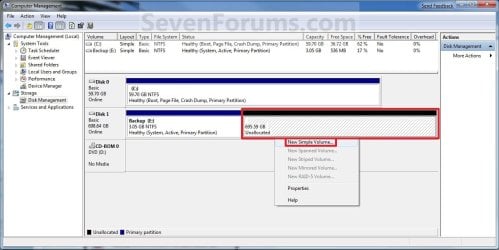
5. In the middle pane, right click on the empty unallocated partition or volume and click on New Simple Volume. (See screenshot above)

6. Click on the Next button. (See screenshot below) Create_Step2.jpg
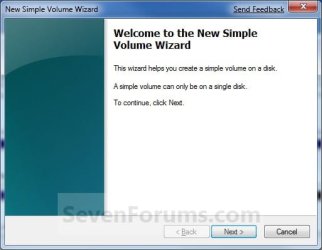
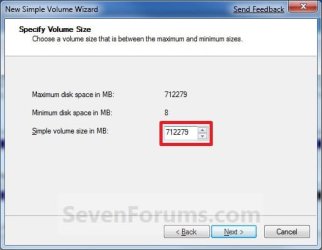
7. Type in how many MB (1 GB = 1024 MB) you want to use from the unallocated partition to create the new partition with, then click on the Next button. (See screenshot below)
NOTE: If you want to use all of the unallocated partition to create the new partition with, then type all of the maximum disk space shown for the unallocated partition. If you do not use all of the maximum disk space, then you can use the left over space from the unallocted partition to create another new partition with. Create_Step3.jpg
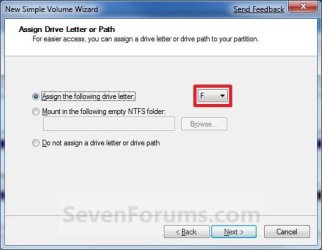
8. Select an available drive letter that you want to be assigned to the new partition in Computer, then click on the Next button. (See screenshot below) Create_Step4.jpg
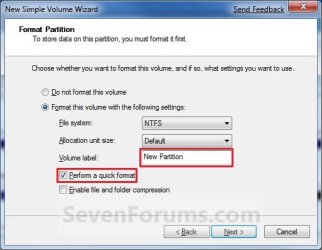
9. Type in a volume label name that you want for the new partition, check the Perform a quick format box, and click on the Next button. (See screenshot below) Create_Step5.jpg
10. Click on the Finish button. (See screenshot below)

   Warning
If you get a pop-up with the message below, then click on No. You DO NOT want to convert the disk to dynamic. Doing so could render Windows 7 unbootable. A clean install of Windows 7 would be the only way to fix this afterwards if you were to click on Yes.

The operation selected will convert the disk to dynamic... are you sure you want to continue?
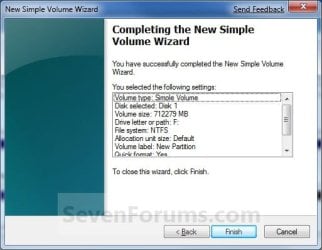
Create_Step6.jpg
11. The new primary partition or volume has now been created with the assigned unallocted partition space (step 7). (See screenshot below) Create_Step7.jpg
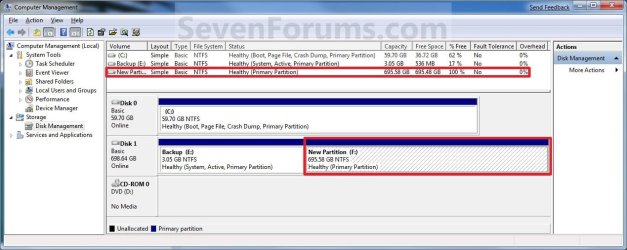
12. Close the Computer Management window. (See screenshot above)


OPTION TWO

Create Primary Partition using Diskpart in Elevated Command Prompt

1. You will first need to shrink a partition or volume to create a unallocated partition to use to create the new partition or volume with.

2. Open an elevated command prompt, or a command prompt at boot.

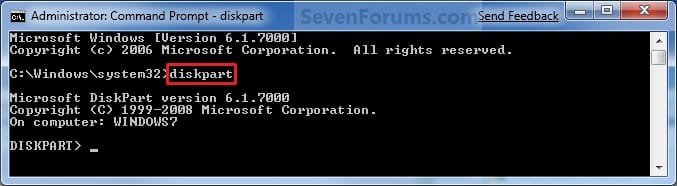
3. In the elevated command prompt, type diskpart and press Enter. (See screenshot below) CMD_Create_Step1.jpg
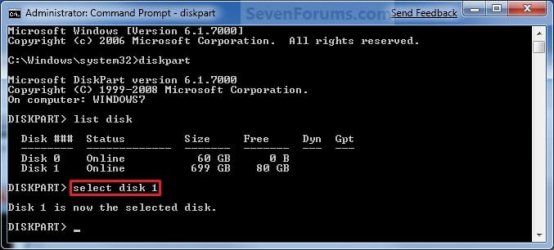
4. In the elevated command prompt, type list disk and press Enter. (See screenshot below)
NOTE: This is to help you ID the disk number that has Free unallocated space that you want to create a new partition with. For example, Disk 1 with 80 GB of free space. CMD_Create_Step2.jpg
5. In the elevated command prompt, type select disk # and press Enter. (See screenshot below)
NOTE: You would substitute # for the disk number listed that you want to create a new partition with the free unallocated space there. For example, I want to create a new partition with the 80 GB of free space, so I would type select disk 2 and press Enter. CMD_Create_Step3.jpg
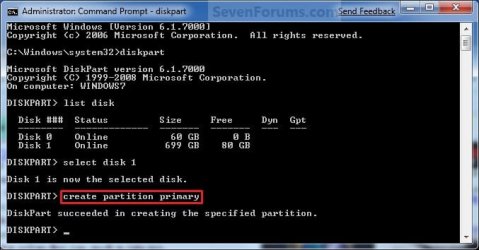
6. In the elevated command prompt, type create partition primary and press Enter. (See screenshot below)
NOTE: This will create a new blank RAW partition with selected disk (step 5) that contains the unallocated partition free space. CMD_Create_Step4.jpg
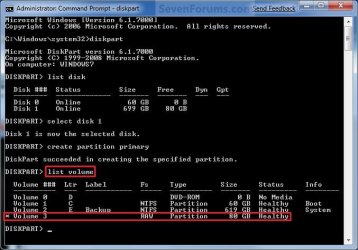
7. In the elevated command prompt, type list volume and press Enter. (See screenshot below)
NOTE: Look for the volume number that has the same Size as from the Free space in step 4. For example, Volume 3. CMD_Create_Step5.jpg
8. To Format the Partition or Disk as a NTFS File System
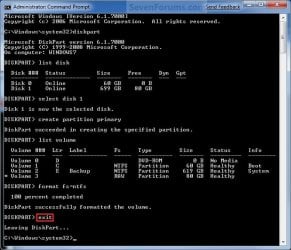
NOTE: This would be good for using with a HDD as an example. A) In the elevated command prompt, type format fs=ntfs quick and press Enter. (See screenshot below)
NOTE: Having quick added at the end of the command will do a quick format instead of a full format on the new blank RAW partition (step 6) to make it a new partition. CMD_Create_Step6.jpg
B) Go to step 10.
9. To Format the Partition or Disk as a FAT32 File System
NOTE: This would be good for using with a USB key drive as an example. The FAT32 file system has size limitations. You cannot create a FAT32 partition greater than 32 GB. In addition, you cannot store a file larger than 4 GB on a FAT32 partition. For more information, see Comparing NTFS and FAT file systems. A) In the elevated command prompt, type format fs=fat32 quick and press Enter. (See screenshot below)
NOTE: Having quick added at the end of the command will do a quick format instead of a full format on the new blank RAW partition (step 6) to make it a new partition.
10. When it is finished formatting, type exit in the elevated command prompt and press Enter. (See screenshot below) CMD_Create_Step7.jpg
11. Close the elevated command prompt.

12. The new primary partition has now been created. You can now see the new partition in Computer with a drive letter.
That's it,
Shawn


Last edited:
Unfortunately there isn't. Also keep in mind that a basic disk cannot have more than 4 primary partitions. If you want to create more than 4 altogether, then once you already have 3 primary partitions the next step is to create an extended partion and place two or more logical volumes within it (however many you want).
 

My Computer

Computer type
PC/Desktop
Computer Manufacturer/Model Number
Custom-built
OS
Windows 7 Professional SP1 32-bit
CPU
Intel Core 2 Duo E6600 2.4GHz
Motherboard
Asus PL5D2
Memory
4GB DDR2-667 (4x1GB in dual-channel config)
Graphics Card(s)
nVidia GeForce 9800 GT
Sound Card
Creative X-Fi XtremeMusic
Monitor(s) Displays
Acer P236H
Screen Resolution
1920x1200 (DVI)
Hard Drives
OCZ SSD Vertex Plus 60GB SATA (Firmware 3.55), 64MB cache
Hitachi HD321KJ SATA, 320GB, 7200rpm, 16MB cache
PSU
Antec TruePower 2.0
Case
Cooler Master Centurion
Cooling
Too many fans
Keyboard
Standard
Mouse
Microsoft wireless optical mouse
Internet Speed
AT&T U-verse (18mbit/sec)
Antivirus
Microsoft Security Essentials
Browser
Firefox
Other Info
Other devices:
Compaq CQ-60 laptop
Google Nexus 7 (2012) tablet
Nvidia SHIELD tablet (US/LTE)
Hardkernel ODROID-XU single-board computer (Samsung Exynos 5420)
If I plan for a dual boot in the future, should I be having 2 primary drives?
BTW, whats the need to create partitions, technically other than to store things separately.
 

My Computer

OS
Windows 7
partitioning problems

Hi Guys

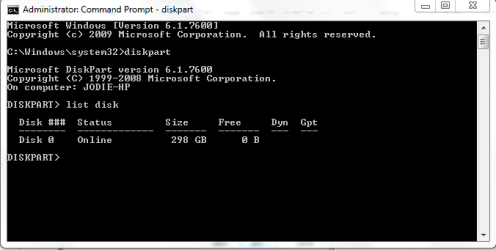
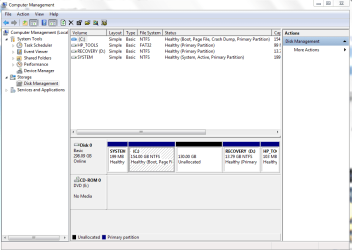
I have just purchased an HP pavilion g series laptop. I want to create a new partition, for my data. I have followed the instructions to shrink the C partition. Computer Management is saying I now have 130GB of unallocated space. But when I try to create a new simple volume, i get the warning box every time about it becoming a dynamic drive, and have to click no, and so it wont create the partition.

I tried using method 2, but when i do list disks, it says that there are no disks with free space.
Capture 1.PNG
Capture 2.PNG

What do I do now?

Thanks in advance for your help,

Jodsbods
 

My Computer

Computer Manufacturer/Model Number
HP Pavilion G series
OS
Windows 7 Home Premium 64-bit
Hello Jodsbods, and welcome to Seven Forums.

The problem is that you already had the limit of 4 primary partitions which doesn't allow you to create a new partition.

You could use what was posted here (see link) to set your C: partition to be a "logical" partition instead of "primary" to be able to create another partition.

Hope this helps,
Shawn
 

My Computer

Computer type
PC/Desktop
Computer Manufacturer/Model Number
Self built custom
OS
64-bit Windows 11 Pro for Workstations
CPU
Intel i7-8700K OC'd to 5 GHz
Motherboard
ASUS ROG Maximus XI Formula Z390
Memory
64 GB (4x16GB) G.SKILL TridentZ RGB DDR4 3600 MHz
Graphics Card(s)
ASUS ROG-STRIX-GTX1080TI-O11G-GAMING
Sound Card
Integrated
Monitor(s) Displays
2 x Samsung Odyssey G7 27"
Screen Resolution
2560x1440
Hard Drives
1TB Samsung 990 PRO M.2,
4TB Samsung 990 PRO PRO M.2,
TerraMaster F8 SSD Plus NAS
PSU
Seasonic Prime Titanium 850W
Case
Thermaltake Core P3
Cooling
Corsair Hydro H115i
Keyboard
Logitech wireless K800
Mouse
Logitech MX Master 4
Internet Speed
2 Gb/s Download and 100 Mb/s Upload
Antivirus
Malwarebyte Anti-Malware Premium
Browser
Google Chrome
Other Info
Logitech Z625 speaker system,
Logitech BRIO 4K Pro webcam,
HP Color LaserJet Pro MFP M477fdn,
APC SMART-UPS RT 1000 XL - SURT1000XLI,
Galaxy S23 Plus phone
Hello djdusmanta, and welcome to Seven Forums.

I'm sorry, but we are going to need screenshots of Disk Management and a lot more information about what you cannot do before we may be able to help you with it.
 

My Computer

Computer type
PC/Desktop
Computer Manufacturer/Model Number
Self built custom
OS
64-bit Windows 11 Pro for Workstations
CPU
Intel i7-8700K OC'd to 5 GHz
Motherboard
ASUS ROG Maximus XI Formula Z390
Memory
64 GB (4x16GB) G.SKILL TridentZ RGB DDR4 3600 MHz
Graphics Card(s)
ASUS ROG-STRIX-GTX1080TI-O11G-GAMING
Sound Card
Integrated
Monitor(s) Displays
2 x Samsung Odyssey G7 27"
Screen Resolution
2560x1440
Hard Drives
1TB Samsung 990 PRO M.2,
4TB Samsung 990 PRO PRO M.2,
TerraMaster F8 SSD Plus NAS
PSU
Seasonic Prime Titanium 850W
Case
Thermaltake Core P3
Cooling
Corsair Hydro H115i
Keyboard
Logitech wireless K800
Mouse
Logitech MX Master 4
Internet Speed
2 Gb/s Download and 100 Mb/s Upload
Antivirus
Malwarebyte Anti-Malware Premium
Browser
Google Chrome
Other Info
Logitech Z625 speaker system,
Logitech BRIO 4K Pro webcam,
HP Color LaserJet Pro MFP M477fdn,
APC SMART-UPS RT 1000 XL - SURT1000XLI,
Galaxy S23 Plus phone
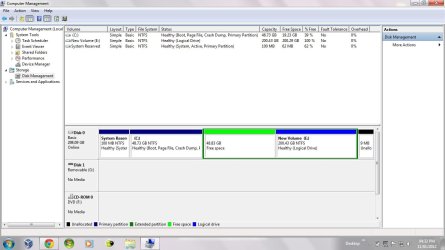
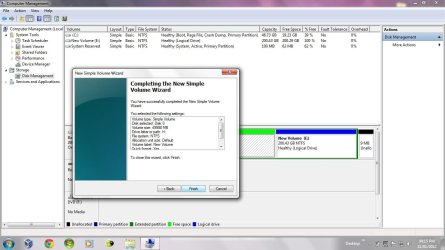
i am having a problem. i had three partitions to my disk. i deleted one of the partitions and now i have about 48GB free space.
scr0.jpg
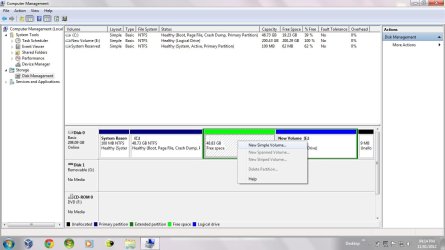
i wanted to merge it with c drive but later i thought to create a new volume. so i right clicked and selected 'New Simple Volume"(since it was the only option that could be clicked!!!)
scr1.jpg

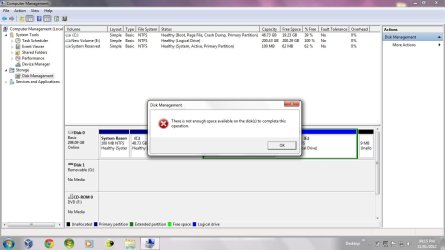
then i followed the instructions but it showed an error!
scr2.jpg
scr3.jpg

what should i do?
i cant access the 48GB memory from anywhere!

PLEASE HELP !!!
 

My Computer

OS
Windows 7 Home Premium 64bit
Hello Aamod, and welcome to Seven Forums.

You might see if you may be able to use the free program MiniTool Partition Wizard Home Edition to delete the 48.83 GB space and extend C: into the then unallocated space. If you get any type of message to convert the disk to dynamic, be sure to say NO.

Hope this helps,
Shawn
 

My Computer

Computer type
PC/Desktop
Computer Manufacturer/Model Number
Self built custom
OS
64-bit Windows 11 Pro for Workstations
CPU
Intel i7-8700K OC'd to 5 GHz
Motherboard
ASUS ROG Maximus XI Formula Z390
Memory
64 GB (4x16GB) G.SKILL TridentZ RGB DDR4 3600 MHz
Graphics Card(s)
ASUS ROG-STRIX-GTX1080TI-O11G-GAMING
Sound Card
Integrated
Monitor(s) Displays
2 x Samsung Odyssey G7 27"
Screen Resolution
2560x1440
Hard Drives
1TB Samsung 990 PRO M.2,
4TB Samsung 990 PRO PRO M.2,
TerraMaster F8 SSD Plus NAS
PSU
Seasonic Prime Titanium 850W
Case
Thermaltake Core P3
Cooling
Corsair Hydro H115i
Keyboard
Logitech wireless K800
Mouse
Logitech MX Master 4
Internet Speed
2 Gb/s Download and 100 Mb/s Upload
Antivirus
Malwarebyte Anti-Malware Premium
Browser
Google Chrome
Other Info
Logitech Z625 speaker system,
Logitech BRIO 4K Pro webcam,
HP Color LaserJet Pro MFP M477fdn,
APC SMART-UPS RT 1000 XL - SURT1000XLI,
Galaxy S23 Plus phone
Is it effective to Windows 7 Starter?
 

My Computer

Computer Manufacturer/Model Number
Samsung N150 Plus (Netbook)
OS
Windows 7 Starter 32bit
Hello Meyi, and welcome to Seven Forums.

Yes, this tutorial works will all editions of Windows 7. :)
 

My Computer

Computer type
PC/Desktop
Computer Manufacturer/Model Number
Self built custom
OS
64-bit Windows 11 Pro for Workstations
CPU
Intel i7-8700K OC'd to 5 GHz
Motherboard
ASUS ROG Maximus XI Formula Z390
Memory
64 GB (4x16GB) G.SKILL TridentZ RGB DDR4 3600 MHz
Graphics Card(s)
ASUS ROG-STRIX-GTX1080TI-O11G-GAMING
Sound Card
Integrated
Monitor(s) Displays
2 x Samsung Odyssey G7 27"
Screen Resolution
2560x1440
Hard Drives
1TB Samsung 990 PRO M.2,
4TB Samsung 990 PRO PRO M.2,
TerraMaster F8 SSD Plus NAS
PSU
Seasonic Prime Titanium 850W
Case
Thermaltake Core P3
Cooling
Corsair Hydro H115i
Keyboard
Logitech wireless K800
Mouse
Logitech MX Master 4
Internet Speed
2 Gb/s Download and 100 Mb/s Upload
Antivirus
Malwarebyte Anti-Malware Premium
Browser
Google Chrome
Other Info
Logitech Z625 speaker system,
Logitech BRIO 4K Pro webcam,
HP Color LaserJet Pro MFP M477fdn,
APC SMART-UPS RT 1000 XL - SURT1000XLI,
Galaxy S23 Plus phone
Hi Sean. I was hoping to find the answer to my problem here but no go.

I bought a new 3TB drive to put into a raid cabinet with a 1TB drive, hoping to make up 4gb jobd but found out that I can't and have to use it non-raid as 3+1.

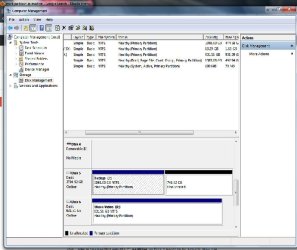
But while the 1tb works fine, the 3TB only allowed me to use 2TB and the rest unallocated. I can neither render the unallocated space into a partition I can then shrink, nor will windows allow me to extend the 2TB section.

Screen shot included.

OS Name Microsoft Windows 7 Home Premium
Version 6.1.7601 Service Pack 1 Build 7601
Other OS Description Not Available
OS Manufacturer Microsoft Corporation
System Name DAN-HP
System Manufacturer Hewlett-Packard
System Model p6745f
System Type x64-based PC
Processor Intel(R) Core(TM) i5-2300 CPU @ 2.80GHz, 2801 Mhz, 4 Core(s), 4 Logical Processor(s)
BIOS Version/Date AMI 7.13, 5/4/2011
SMBIOS Version 2.6
Windows Directory C:\Windows
System Directory C:\Windows\system32
Boot Device \Device\HarddiskVolume1
Locale Canada
Hardware Abstraction Layer Version = "6.1.7601.17514"
User Name Dan-HP\Dan
Time Zone Eastern Standard Time
Installed Physical Memory (RAM) 6.00 GB
Total Physical Memory 5.91 GB
Available Physical Memory 2.95 GB
Total Virtual Memory 11.8 GB
Available Virtual Memory 8.80 GB
Page File Space 5.91 GB
Page File C:\pagefile.sys
 

Attachments

  • unallocated.jpg
    unallocated.jpg
    108.5 KB · Views: 276

My Computer

Computer Manufacturer/Model Number
HP Pavilion p6745f
OS
Microsoft Windows 7 Home Premium 64-bit 7601 Multiprocessor Free Service Pack 1
CPU
Intel(R) Core(TM) i5-2300 CPU @ 2.80GHz
Motherboard
PEGATRON CORPORATION 2AB6
Memory
6 GB
Graphics Card(s)
Radeon 6750 1gb
Sound Card
(1) IDT High Definition Audio CODEC (2) Intel(R) Display A
Monitor(s) Displays
Acer x193w
Hard Drives
(1) WDC WD15EARS-60MVWB0 (2) Generic- Compact Flash USB Device (3) Generic- MS/MS-Pro USB Device (4) Generic- SD/MMC USB Device (5) Generic- SM/xD-Picture USB Device (6) WD My Book 1110 USB Device
PSU
Internal 500W (100V-240V)
Case
Mid-size ATX
Cooling
unknown
Keyboard
HP usb multimedia keyboard
Mouse
HP usb compliant mouse
Internet Speed
256 kbps
Other Info
Ver: CHI_713.bin vCHI7.13
Hello PX,

You could convert your 3 TB drive (Disk 5) to be a GPT disk instead of MBR disk (default) to allow you to be able to use all 3TB of that drive in one or more partitions afterwards. :)

Before you convert the disk, be sure to backup anything that you do not want to lose on that disk to another separate physical disk location first. Converting the disk requires that all partitions and volumes are deleted on the disk.

http://www.sevenforums.com/tutorials/26193-convert-mbr-disk-gpt-disk.html

Hope this helps,
Shawn
 

My Computer

Computer type
PC/Desktop
Computer Manufacturer/Model Number
Self built custom
OS
64-bit Windows 11 Pro for Workstations
CPU
Intel i7-8700K OC'd to 5 GHz
Motherboard
ASUS ROG Maximus XI Formula Z390
Memory
64 GB (4x16GB) G.SKILL TridentZ RGB DDR4 3600 MHz
Graphics Card(s)
ASUS ROG-STRIX-GTX1080TI-O11G-GAMING
Sound Card
Integrated
Monitor(s) Displays
2 x Samsung Odyssey G7 27"
Screen Resolution
2560x1440
Hard Drives
1TB Samsung 990 PRO M.2,
4TB Samsung 990 PRO PRO M.2,
TerraMaster F8 SSD Plus NAS
PSU
Seasonic Prime Titanium 850W
Case
Thermaltake Core P3
Cooling
Corsair Hydro H115i
Keyboard
Logitech wireless K800
Mouse
Logitech MX Master 4
Internet Speed
2 Gb/s Download and 100 Mb/s Upload
Antivirus
Malwarebyte Anti-Malware Premium
Browser
Google Chrome
Other Info
Logitech Z625 speaker system,
Logitech BRIO 4K Pro webcam,
HP Color LaserJet Pro MFP M477fdn,
APC SMART-UPS RT 1000 XL - SURT1000XLI,
Galaxy S23 Plus phone
Many thanks, Brink. I just read in the Mediasonic RAID cabinet instructions: "Note: For 3TB Hard drive, users must format in GPT Partitions and use Windows Vista or Windows 7 in 64bit."

I can't believe I missed this.

But is it OK (I don't know much about this) to keep the other drive in the RAID cabinet as an MBR disk or will it cause a conflict?
 

My Computer

Computer Manufacturer/Model Number
HP Pavilion p6745f
OS
Microsoft Windows 7 Home Premium 64-bit 7601 Multiprocessor Free Service Pack 1
CPU
Intel(R) Core(TM) i5-2300 CPU @ 2.80GHz
Motherboard
PEGATRON CORPORATION 2AB6
Memory
6 GB
Graphics Card(s)
Radeon 6750 1gb
Sound Card
(1) IDT High Definition Audio CODEC (2) Intel(R) Display A
Monitor(s) Displays
Acer x193w
Hard Drives
(1) WDC WD15EARS-60MVWB0 (2) Generic- Compact Flash USB Device (3) Generic- MS/MS-Pro USB Device (4) Generic- SD/MMC USB Device (5) Generic- SM/xD-Picture USB Device (6) WD My Book 1110 USB Device
PSU
Internal 500W (100V-240V)
Case
Mid-size ATX
Cooling
unknown
Keyboard
HP usb multimedia keyboard
Mouse
HP usb compliant mouse
Internet Speed
256 kbps
Other Info
Ver: CHI_713.bin vCHI7.13
You're most welcome.

It doesn't matter, you can mix MBR and GPT disks in a RAID setup, or have some in a RAID and others not in RAID. :)
 

My Computer

Computer type
PC/Desktop
Computer Manufacturer/Model Number
Self built custom
OS
64-bit Windows 11 Pro for Workstations
CPU
Intel i7-8700K OC'd to 5 GHz
Motherboard
ASUS ROG Maximus XI Formula Z390
Memory
64 GB (4x16GB) G.SKILL TridentZ RGB DDR4 3600 MHz
Graphics Card(s)
ASUS ROG-STRIX-GTX1080TI-O11G-GAMING
Sound Card
Integrated
Monitor(s) Displays
2 x Samsung Odyssey G7 27"
Screen Resolution
2560x1440
Hard Drives
1TB Samsung 990 PRO M.2,
4TB Samsung 990 PRO PRO M.2,
TerraMaster F8 SSD Plus NAS
PSU
Seasonic Prime Titanium 850W
Case
Thermaltake Core P3
Cooling
Corsair Hydro H115i
Keyboard
Logitech wireless K800
Mouse
Logitech MX Master 4
Internet Speed
2 Gb/s Download and 100 Mb/s Upload
Antivirus
Malwarebyte Anti-Malware Premium
Browser
Google Chrome
Other Info
Logitech Z625 speaker system,
Logitech BRIO 4K Pro webcam,
HP Color LaserJet Pro MFP M477fdn,
APC SMART-UPS RT 1000 XL - SURT1000XLI,
Galaxy S23 Plus phone
Much appreciated. But just one more question. I can't combine the two to be one huge 4gb disc, eh? The manual (for the RAID cabinet) says that JOBD writes first on one disc then the other so they'd have to be the same size and type, right?

Anyway it worked except when I rebooted strangely it was "offline." I just restarted and everything was ok again. Picky things, these computers but I guess they're still newish.
 

My Computer

Computer Manufacturer/Model Number
HP Pavilion p6745f
OS
Microsoft Windows 7 Home Premium 64-bit 7601 Multiprocessor Free Service Pack 1
CPU
Intel(R) Core(TM) i5-2300 CPU @ 2.80GHz
Motherboard
PEGATRON CORPORATION 2AB6
Memory
6 GB
Graphics Card(s)
Radeon 6750 1gb
Sound Card
(1) IDT High Definition Audio CODEC (2) Intel(R) Display A
Monitor(s) Displays
Acer x193w
Hard Drives
(1) WDC WD15EARS-60MVWB0 (2) Generic- Compact Flash USB Device (3) Generic- MS/MS-Pro USB Device (4) Generic- SD/MMC USB Device (5) Generic- SM/xD-Picture USB Device (6) WD My Book 1110 USB Device
PSU
Internal 500W (100V-240V)
Case
Mid-size ATX
Cooling
unknown
Keyboard
HP usb multimedia keyboard
Mouse
HP usb compliant mouse
Internet Speed
256 kbps
Other Info
Ver: CHI_713.bin vCHI7.13
They do not have to be the same size or type, but it would be best if they were to avoid wasting space on larger HDD's, and not slowing down faster HDD's in the RAID setup. By default, the RAID setup will be as slow as the slowest HDD added to the RAID, and the smallest size HDD will cause only the same small amount to be use by the larger HDD's in the RAID.
 

My Computer

Computer type
PC/Desktop
Computer Manufacturer/Model Number
Self built custom
OS
64-bit Windows 11 Pro for Workstations
CPU
Intel i7-8700K OC'd to 5 GHz
Motherboard
ASUS ROG Maximus XI Formula Z390
Memory
64 GB (4x16GB) G.SKILL TridentZ RGB DDR4 3600 MHz
Graphics Card(s)
ASUS ROG-STRIX-GTX1080TI-O11G-GAMING
Sound Card
Integrated
Monitor(s) Displays
2 x Samsung Odyssey G7 27"
Screen Resolution
2560x1440
Hard Drives
1TB Samsung 990 PRO M.2,
4TB Samsung 990 PRO PRO M.2,
TerraMaster F8 SSD Plus NAS
PSU
Seasonic Prime Titanium 850W
Case
Thermaltake Core P3
Cooling
Corsair Hydro H115i
Keyboard
Logitech wireless K800
Mouse
Logitech MX Master 4
Internet Speed
2 Gb/s Download and 100 Mb/s Upload
Antivirus
Malwarebyte Anti-Malware Premium
Browser
Google Chrome
Other Info
Logitech Z625 speaker system,
Logitech BRIO 4K Pro webcam,
HP Color LaserJet Pro MFP M477fdn,
APC SMART-UPS RT 1000 XL - SURT1000XLI,
Galaxy S23 Plus phone
Ah! Thanks again, Sean. They're both 7200 but here's the rub: "the smallest size HDD will cause only the same small amount to be use by the larger HDD's in the RAID"

Yup. That would certainly defeat the purpose. LOL! Thanks for your help. How do you find the time to be kind to so many strangers?
 

My Computer

Computer Manufacturer/Model Number
HP Pavilion p6745f
OS
Microsoft Windows 7 Home Premium 64-bit 7601 Multiprocessor Free Service Pack 1
CPU
Intel(R) Core(TM) i5-2300 CPU @ 2.80GHz
Motherboard
PEGATRON CORPORATION 2AB6
Memory
6 GB
Graphics Card(s)
Radeon 6750 1gb
Sound Card
(1) IDT High Definition Audio CODEC (2) Intel(R) Display A
Monitor(s) Displays
Acer x193w
Hard Drives
(1) WDC WD15EARS-60MVWB0 (2) Generic- Compact Flash USB Device (3) Generic- MS/MS-Pro USB Device (4) Generic- SD/MMC USB Device (5) Generic- SM/xD-Picture USB Device (6) WD My Book 1110 USB Device
PSU
Internal 500W (100V-240V)
Case
Mid-size ATX
Cooling
unknown
Keyboard
HP usb multimedia keyboard
Mouse
HP usb compliant mouse
Internet Speed
256 kbps
Other Info
Ver: CHI_713.bin vCHI7.13
You're most welcome. :)

When it's something that you love to do, the time is just there.
 

My Computer

Computer type
PC/Desktop
Computer Manufacturer/Model Number
Self built custom
OS
64-bit Windows 11 Pro for Workstations
CPU
Intel i7-8700K OC'd to 5 GHz
Motherboard
ASUS ROG Maximus XI Formula Z390
Memory
64 GB (4x16GB) G.SKILL TridentZ RGB DDR4 3600 MHz
Graphics Card(s)
ASUS ROG-STRIX-GTX1080TI-O11G-GAMING
Sound Card
Integrated
Monitor(s) Displays
2 x Samsung Odyssey G7 27"
Screen Resolution
2560x1440
Hard Drives
1TB Samsung 990 PRO M.2,
4TB Samsung 990 PRO PRO M.2,
TerraMaster F8 SSD Plus NAS
PSU
Seasonic Prime Titanium 850W
Case
Thermaltake Core P3
Cooling
Corsair Hydro H115i
Keyboard
Logitech wireless K800
Mouse
Logitech MX Master 4
Internet Speed
2 Gb/s Download and 100 Mb/s Upload
Antivirus
Malwarebyte Anti-Malware Premium
Browser
Google Chrome
Other Info
Logitech Z625 speaker system,
Logitech BRIO 4K Pro webcam,
HP Color LaserJet Pro MFP M477fdn,
APC SMART-UPS RT 1000 XL - SURT1000XLI,
Galaxy S23 Plus phone
How to Create a New Partition or Volume in Windows 7 Tutorial By Brink

Hi, there

In your tutorial :

Using Disk Management
1. You will first need to shrink a partition or volume from the free space on a disk to create unallocated space on that disk to use to create the new partition or volume with on the same disk.
NOTE: If this is a new HDD that is all unallocated space, then you can skip this step and go straight to step 2.

I have about 130 GB in my drive C, do I go to step 2? Thanks.
 

My Computer

OS
window 7 64 bit
Please post back a screenshot of your maximized Disk management drive map and listings, using the Snipping Tool in Start Menu: Screen Shots

Tell us exactly what it is you want to do and we will give you the steps.
 
Back
Top