Partition or Volume - Create New

How to Create a New Partition or Volume in Windows 7

   Information
This will show you how to create a new primary partition using Disk Management or Diskpart in Windows 7 from a empty unallocated partition or volume.
   Note
A primary partition is a type of partition created on a hard drive that can have a operating system installed on it. A primary partition functions as though it were a physically separate hard drive.

By default on a basic MBR disk, you can create a maximum of 4 Primary partitions, or 3 Primary partitions and 1 Extended partition with up to 128 logical volumes in the extended partition on a single hard disk.

*You must be logged on in an administrator account to be able to do this tutorial.
   Warning
If you disable the Disk Defragmenter service, then you will get the error below when you try to do anything in Disk Management. If you get this error, then make sure that the Disk Defragmenter service is set to only Manual.

Error.jpg


OPTION ONE

Create Primary Partition using Disk Management

1. You will first need to shrink a partition or volume from the free space on a disk to create unallocated space on that disk to use to create the new partition or volume with on the same disk.

   Note
If this is a disk that is unallocated, then skip this step and go straight to step 2.


2. Open the Control Panel (icons view), and click on the Administrative Tools icon. then close the Control Panel window.

3. Click on Computer Management in Administrative Tools, then close the Administrative Tools window.

4. In the left pane under Storage, click on Disk Management. (See screenshot below) Create_Step1.jpg
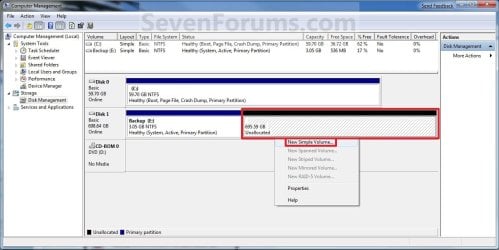
5. In the middle pane, right click on the empty unallocated partition or volume and click on New Simple Volume. (See screenshot above)

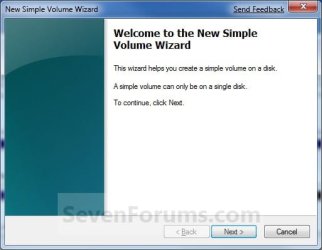
6. Click on the Next button. (See screenshot below) Create_Step2.jpg
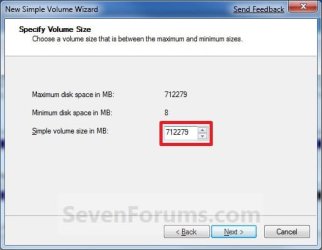
7. Type in how many MB (1 GB = 1024 MB) you want to use from the unallocated partition to create the new partition with, then click on the Next button. (See screenshot below)
NOTE: If you want to use all of the unallocated partition to create the new partition with, then type all of the maximum disk space shown for the unallocated partition. If you do not use all of the maximum disk space, then you can use the left over space from the unallocted partition to create another new partition with. Create_Step3.jpg
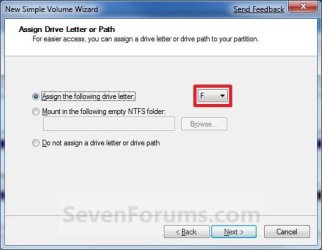
8. Select an available drive letter that you want to be assigned to the new partition in Computer, then click on the Next button. (See screenshot below) Create_Step4.jpg
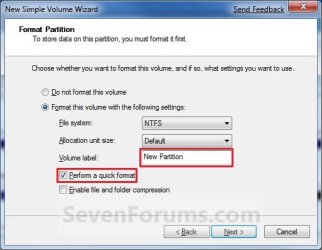
9. Type in a volume label name that you want for the new partition, check the Perform a quick format box, and click on the Next button. (See screenshot below) Create_Step5.jpg
10. Click on the Finish button. (See screenshot below)

   Warning
If you get a pop-up with the message below, then click on No. You DO NOT want to convert the disk to dynamic. Doing so could render Windows 7 unbootable. A clean install of Windows 7 would be the only way to fix this afterwards if you were to click on Yes.

The operation selected will convert the disk to dynamic... are you sure you want to continue?
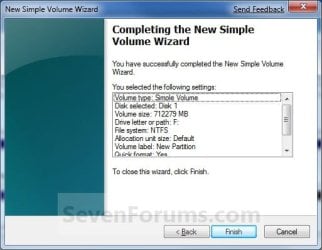
Create_Step6.jpg
11. The new primary partition or volume has now been created with the assigned unallocted partition space (step 7). (See screenshot below) Create_Step7.jpg
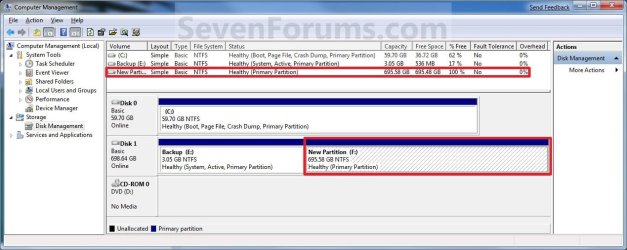
12. Close the Computer Management window. (See screenshot above)


OPTION TWO

Create Primary Partition using Diskpart in Elevated Command Prompt

1. You will first need to shrink a partition or volume to create a unallocated partition to use to create the new partition or volume with.

2. Open an elevated command prompt, or a command prompt at boot.

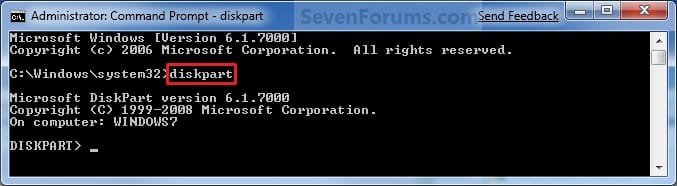
3. In the elevated command prompt, type diskpart and press Enter. (See screenshot below) CMD_Create_Step1.jpg
4. In the elevated command prompt, type list disk and press Enter. (See screenshot below)
NOTE: This is to help you ID the disk number that has Free unallocated space that you want to create a new partition with. For example, Disk 1 with 80 GB of free space. CMD_Create_Step2.jpg
5. In the elevated command prompt, type select disk # and press Enter. (See screenshot below)
NOTE: You would substitute # for the disk number listed that you want to create a new partition with the free unallocated space there. For example, I want to create a new partition with the 80 GB of free space, so I would type select disk 2 and press Enter. CMD_Create_Step3.jpg
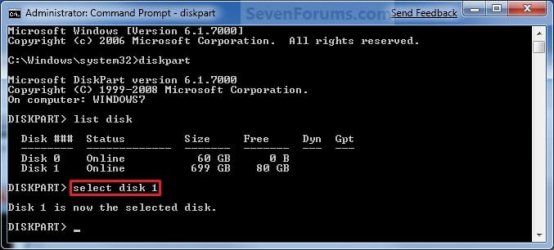
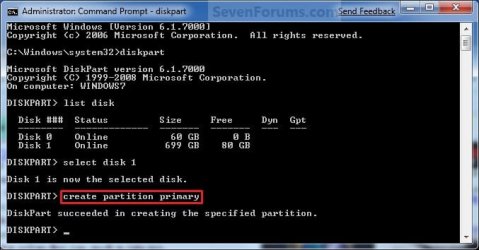
6. In the elevated command prompt, type create partition primary and press Enter. (See screenshot below)
NOTE: This will create a new blank RAW partition with selected disk (step 5) that contains the unallocated partition free space. CMD_Create_Step4.jpg
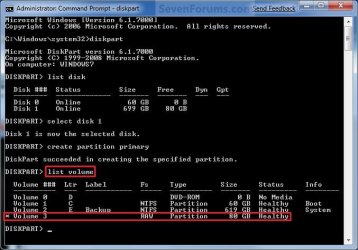
7. In the elevated command prompt, type list volume and press Enter. (See screenshot below)
NOTE: Look for the volume number that has the same Size as from the Free space in step 4. For example, Volume 3. CMD_Create_Step5.jpg
8. To Format the Partition or Disk as a NTFS File System
NOTE: This would be good for using with a HDD as an example. A) In the elevated command prompt, type format fs=ntfs quick and press Enter. (See screenshot below)
NOTE: Having quick added at the end of the command will do a quick format instead of a full format on the new blank RAW partition (step 6) to make it a new partition. CMD_Create_Step6.jpg
B) Go to step 10.
9. To Format the Partition or Disk as a FAT32 File System
NOTE: This would be good for using with a USB key drive as an example. The FAT32 file system has size limitations. You cannot create a FAT32 partition greater than 32 GB. In addition, you cannot store a file larger than 4 GB on a FAT32 partition. For more information, see Comparing NTFS and FAT file systems. A) In the elevated command prompt, type format fs=fat32 quick and press Enter. (See screenshot below)
NOTE: Having quick added at the end of the command will do a quick format instead of a full format on the new blank RAW partition (step 6) to make it a new partition.
10. When it is finished formatting, type exit in the elevated command prompt and press Enter. (See screenshot below) CMD_Create_Step7.jpg
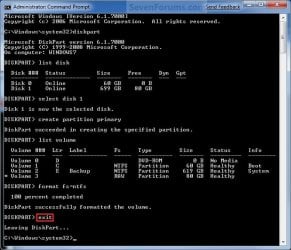
11. Close the elevated command prompt.

12. The new primary partition has now been created. You can now see the new partition in Computer with a drive letter.
That's it,
Shawn


Last edited:
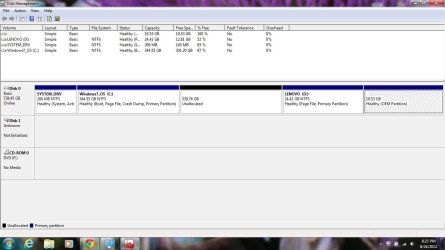
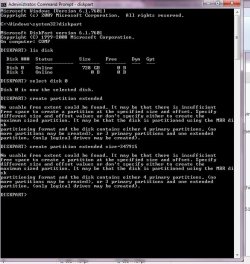
Thank you for your quick answer. Indeed I have 4 primary partitions. But in command prompt/diskpart when I choose disk 0 (the only one I have) there is no free space for extended partition... Although Disk Management clearly shows 339.76GB unallocated space... When I type "create partition extended" or "create partition extended size= and MB of unallocated space taken from Disk Management, there is information "No usable free extend could be found. It may be that there is insufficient free space o create a partition at the specified size and offset. Specify different size (...)" and something about MBR format.
 

My Computer

OS
Widows 7 Home Premium 64 bit
Please post back a screenshot of your maximized Disk Management drive map and listings:

1. Type Disk Management in Start Search box.
2. Open Disk Mgmt. window and maximize it.
3. Type Snipping Tool in Start Search box.
4. Open Snipping Tool, choose Rectangular Snip, draw a box around full map and all listings.
5, Save Snip, attach using paper clip in Reply Box.

Tell us what is on each partition and what you'd like to do exactly.
 
I took 2 screenshoots, hope it will help.
as you see I have 4 primary partitions and 1 unallocated space.


I bought my computer about a week ago, and everything was set up here my lenovo, all partitions. So, partions SYSTEM_DRV probably contains drivers, Windows7_OS - operating system and few other programs (it had about 700GB but I shrinkaged it to Windows7_OS and unallocated), LENOVO - drivers, aplications and the last one is rescue partition probaly, with backup.
I don't have any other data on my computer yet.
I would like to create a partition from unallocated space.

Additionally, I would like to shrinkage more my Windows partition to 100GB (it has now over 300) but disk managemet doesn't allow me to do it although I use only about 40GB from 300). But let's focus on the first problem now - creating a partition from an unallocate space.
 

Attachments

  • disk management.jpg
    disk management.jpg
    185.2 KB · Views: 516
  • diskpart.jpg
    diskpart.jpg
    153.6 KB · Views: 1,364

My Computer

OS
Widows 7 Home Premium 64 bit

My Computer

Computer type
PC/Desktop
Computer Manufacturer/Model Number
Self built custom
OS
64-bit Windows 11 Pro for Workstations
CPU
Intel i7-8700K OC'd to 5 GHz
Motherboard
ASUS ROG Maximus XI Formula Z390
Memory
64 GB (4x16GB) G.SKILL TridentZ RGB DDR4 3600 MHz
Graphics Card(s)
ASUS ROG-STRIX-GTX1080TI-O11G-GAMING
Sound Card
Integrated
Monitor(s) Displays
2 x Samsung Odyssey G7 27"
Screen Resolution
2560x1440
Hard Drives
1TB Samsung 990 PRO M.2,
4TB Samsung 990 PRO PRO M.2,
TerraMaster F8 SSD Plus NAS
PSU
Seasonic Prime Titanium 850W
Case
Thermaltake Core P3
Cooling
Corsair Hydro H115i
Keyboard
Logitech wireless K800
Mouse
Logitech MX Master 4
Internet Speed
2 Gb/s Download and 100 Mb/s Upload
Antivirus
Malwarebyte Anti-Malware Premium
Browser
Google Chrome
Other Info
Logitech Z625 speaker system,
Logitech BRIO 4K Pro webcam,
HP Color LaserJet Pro MFP M477fdn,
APC SMART-UPS RT 1000 XL - SURT1000XLI,
Galaxy S23 Plus phone
Hi Ania,

First, you can change your windows 7 partition into a logical drive with partition wizard - mentioned in the tutorial.

When you have done that - you will need to use partition wizard to shrink it , if you wish.

Then you can also use partition wizard to create another logical drive from that unallocated space.
 

My Computers

System One System Two

  • Computer type
    PC/Desktop
    OS
    7 X64
    CPU
    i5 8400
    Motherboard
    gigabyte b365m ds3h
    Memory
    2x8gb 3200mhz
    Hard Drives
    various
    PSU
    pure power 11 400w cm
    Case
    Coolermaster
    Cooling
    cryorig m9i
  • Computer type
    PC/Desktop
    OS
    7x64
    CPU
    g5400
    Motherboard
    ga b365m ds3h
    Memory
    8gb ddr4 2400
    PSU
    xfx pro 450w
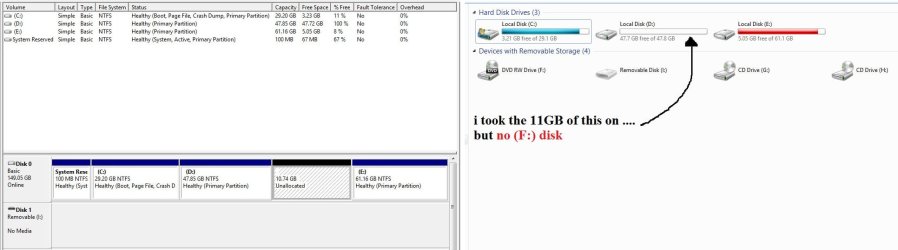
i did your steps ... i manage to create 11GB disk (Unallocated) but, then created the partition with the name F
but I GOT NOTHING .... take a look:


help please :sick:
 

Attachments

  • Problem.jpg
    Problem.jpg
    172.9 KB · Views: 508

My Computer

OS
Windows 7 Ultimate Service Pack 1 64bit
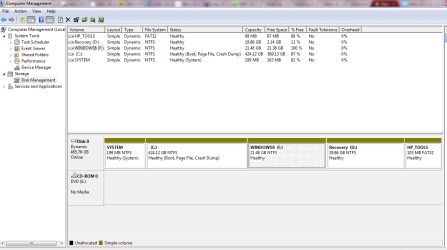
Hi, I am having problems installing Windows 8 on the partition I created - Keep on getting this Error - "Windows can not be installed to this hard disk space. The Partition contains one or more dynamic volumes that are not supported for installation."

See my Partition setup.


Thank You
 

Attachments

  • Win7 Partition.PNG
    Win7 Partition.PNG
    127.3 KB · Views: 442

My Computer

OS
Windows 7 Home Premium 32bit.

My Computer

Computer Manufacturer/Model Number
Customized build from CyberPower
OS
Windows 7 Home Premium 64bit SP 1
CPU
Intel i5 2500k
Motherboard
Asus P8P67 Deluxe
Memory
8 gigabytes Corsair PC3-12800 DDR3
Graphics Card(s)
EVGA GeForce GTX 460 superclocked
Sound Card
Integrated
Monitor(s) Displays
ViewSonic 23" LCD
Screen Resolution
1980 x 1080
Hard Drives
120 Gb Samsung 840 Pro SSD
120 Gb Kingston Hyper X SSD
1 Tb WD Caviar Black HDD
PSU
Coolermaster 1000 watt modular
Case
Coolermaster HAF X full tower
Cooling
Coolermaster Hyper 212 plus
Keyboard
Logitech USB
Mouse
Microsoft 3 button
Internet Speed
download 1.5 Mb/sec upload 300Kb/sec
Hi, I am having problems installing Windows 8 on the partition I created - Keep on getting this Error - "Windows can not be installed to this hard disk space. The Partition contains one or more dynamic volumes that are not supported for installation."

See my Partition setup.


Thank You

The problem is that you converted your HD to Dynamic which is only meant to be used to span a partition across multiple HD's. Apparently you didn't see the warning message.

The solution to solve this non-destructively is to boot free Partition Wizard CD version 4.2 which is the last one which offers this as a free feature: pw422.zip ISO - Windows Live.

Download the ISO, rightclick to burn it to CD using Windows Image Burner, or use ImgBurn.

Boot CD. You will need to delete the extra partition(s) for Win8 you created which tipped it to convert to Dynamic before it will convert back to Basic.

Then follow these video steps: How to convert dynamic disk to basic disk with Partition Wizard?

With HP the way to keep the Recovery and Diagnostics tools partitions bootable while adding a fifth partition is to convert C to Logical then shrink it to add another adjacent Logical partition for Win8. You can only have four Primary partitions, but if you convert the fourth to Logical can add as many adjacent sub-partitions as you want. How to set partition as Primary or Logical.
 
Last edited by a moderator:
Thank You Very Much...

You are a STAR - it worked perfectly
 

My Computer

OS
Windows 7 Home Premium 32bit.
i can't able to make partition in my laptop hp g6 2010ax, win 7 64 -bit is installed
there is alreay 4 partition done i want make 2 more partition ,i tried many time by shrinking volume then msg comes
thats error your disk will be converted to dynamic if you click yes
 

My Computer

OS
window 7 ultimate 64bit

My Computer

Computer type
PC/Desktop
Computer Manufacturer/Model Number
Self built custom
OS
64-bit Windows 11 Pro for Workstations
CPU
Intel i7-8700K OC'd to 5 GHz
Motherboard
ASUS ROG Maximus XI Formula Z390
Memory
64 GB (4x16GB) G.SKILL TridentZ RGB DDR4 3600 MHz
Graphics Card(s)
ASUS ROG-STRIX-GTX1080TI-O11G-GAMING
Sound Card
Integrated
Monitor(s) Displays
2 x Samsung Odyssey G7 27"
Screen Resolution
2560x1440
Hard Drives
1TB Samsung 990 PRO M.2,
4TB Samsung 990 PRO PRO M.2,
TerraMaster F8 SSD Plus NAS
PSU
Seasonic Prime Titanium 850W
Case
Thermaltake Core P3
Cooling
Corsair Hydro H115i
Keyboard
Logitech wireless K800
Mouse
Logitech MX Master 4
Internet Speed
2 Gb/s Download and 100 Mb/s Upload
Antivirus
Malwarebyte Anti-Malware Premium
Browser
Google Chrome
Other Info
Logitech Z625 speaker system,
Logitech BRIO 4K Pro webcam,
HP Color LaserJet Pro MFP M477fdn,
APC SMART-UPS RT 1000 XL - SURT1000XLI,
Galaxy S23 Plus phone
want make 6 partition in my hp laptop win7 os

4 logical partition is alreay created i want to make 2 more partition when i tried to shrink the volume it gives error that your entire disk will be converted to dynamic.
 

My Computer

OS
window 7 ultimate 64bit
Please post back a screenshot of your maximized Disk Management drive map and listings:

http://www.sevenforums.com/tutorials/9733-screenshots-files-upload-post-seven-forums.html

1. Type Disk Management in Start :orb: Search box.
2. Open Disk Mgmt. window and maximize it.
3. Type Snipping Tool in Start Search box.
4. Open Snipping Tool, choose Rectangular Snip, click New, draw a box around full drive map and all listings.
5, Save Snip, attach using paper clip in Reply Box.

Tell us what is on each partition.
 
4 logical partition is alreay created i want to make 2 more partition when i tried to shrink the volume it gives error that your entire disk will be converted to dynamic.
With the standard MBR partition structure you can only have up to 4 primary partitions. After that the drive wants to go dynamic (Do not do it!). If you let one of your primary partitions be an extended partition then you can create just about as many logical drives/partitions within in this as you like. You must manipulate your extended partition to fit in more logicals. It sounds like you are attempting to create a 5th primary partition.
Of course it is up to you but do you really need 6 partitions? Partitions have their place but I wouldn't use them in place of a sensible directory structure.
Many here find Partition Wizard boot CD or mini tool very reliable.
 

My Computer

Computer type
PC/Desktop
Computer Manufacturer/Model Number
Own build
OS
Windows 7x64 Home Premium SP1
CPU
Intel i7 2600k
Motherboard
ASUS P8Z68 Deluxe
Memory
G.Skill Ripjaws (DDR3-1600) 2x4GB
Graphics Card(s)
Nvidia GeForce GTS 450; Intel HD Graphics 3000(GT2+)
Monitor(s) Displays
Dell Ultrasharp IPS panel U2311H, Samsung SyncMaster P2350
Screen Resolution
1920x1080
Hard Drives
Samsung 850 Pro SSD 256GB, Samsung SSD 840 120GB, Seagates 1TB Barracuda ST31000528AS x2
PSU
Seasonic M12II 520W
Case
Lian Li Lancool PC-K60
Cooling
Case: 1x120mm, 3x140mm CPU: Hyper 212+
Keyboard
Logitech MK520 (wireless)
Mouse
Logitech MK520
Internet Speed
6-7 Mbps
Antivirus
Norton Security Premium, Malwarebytes on 2 (MSE on 3rd PC)
Browser
FireFox
Other Info
Audio: Logitech Z523 2.1
Yikes I kind of screwed up big guy
How to reclaim deleted 150 gigs partition volume :/
View attachment 336933
 
Last edited:

My Computer

Computer type
PC/Desktop
Computer Manufacturer/Model Number
Custom assembled by me :}
OS
Win-7-Pro64bit 7-H-Prem-64bit
CPU
i7-5930K 2nd i9-9940x both water blocked VRM's too
Motherboard
ASUS SABERTOOTH X99 2nd ASUS x299 Apex
Memory
Trident-z 3200C14 2nd Trident-z 3600C16
Graphics Card(s)
EVGA 1080ti ftw3 2nd Titan Xp both water blocked
Sound Card
Built-in Realtek
Monitor(s) Displays
1-AOC G2460PG 24"G-Sync 144Hz/ 2nd 1-ASUS VG248QE 24" 144Hz
Screen Resolution
1920 x 1080 144Hz
Hard Drives
2-Samsung M.2 Evo & Evo Plus
2-Samsung 850 EVO 500GB SSD's/ 3-2.5 W.D. Black 1tb-&3-1tb/3-3.5 WD Black 1tb hdd's
PSU
EVGA SuperNOVA 1000-P2 2nd 1200-P2
Case
2-Corsair Obsidian Series 450D Black ATX Mid Tower
Cooling
Custom water loops
Keyboard
Logitech G710+/ 2nd Logitech G910
Mouse
2-RedDragon M901 Perdition 16400 dpi Gaming mouse = wired
Internet Speed
Comcast Ping 19ms 89.31mbps download speed 6.12mbps upload
Antivirus
Malwarebytes Pro/ Superantispyware Pro
Browser
FireFox & Pale moon
Other Info
2nd ASUS X299 Apex/Intel i9-9940x with Custom water loop/7H-Prem-x64/Corsair 450D case/Ram Trident-z 3600C16 4x8gb / Samsung970Evo plus 500gb SSD/Dual ssd EZ swap evo/PSU EVGA SuperNova 1200w-P2 80+Platinum/GPU Titan Xp /8-ML-140 on push-pull on 2-280GTX rads
Thanks Greg I don't know what I was thinking deleting my partition :o
Cheers.
 

My Computer

Computer type
PC/Desktop
Computer Manufacturer/Model Number
Custom assembled by me :}
OS
Win-7-Pro64bit 7-H-Prem-64bit
CPU
i7-5930K 2nd i9-9940x both water blocked VRM's too
Motherboard
ASUS SABERTOOTH X99 2nd ASUS x299 Apex
Memory
Trident-z 3200C14 2nd Trident-z 3600C16
Graphics Card(s)
EVGA 1080ti ftw3 2nd Titan Xp both water blocked
Sound Card
Built-in Realtek
Monitor(s) Displays
1-AOC G2460PG 24"G-Sync 144Hz/ 2nd 1-ASUS VG248QE 24" 144Hz
Screen Resolution
1920 x 1080 144Hz
Hard Drives
2-Samsung M.2 Evo & Evo Plus
2-Samsung 850 EVO 500GB SSD's/ 3-2.5 W.D. Black 1tb-&3-1tb/3-3.5 WD Black 1tb hdd's
PSU
EVGA SuperNOVA 1000-P2 2nd 1200-P2
Case
2-Corsair Obsidian Series 450D Black ATX Mid Tower
Cooling
Custom water loops
Keyboard
Logitech G710+/ 2nd Logitech G910
Mouse
2-RedDragon M901 Perdition 16400 dpi Gaming mouse = wired
Internet Speed
Comcast Ping 19ms 89.31mbps download speed 6.12mbps upload
Antivirus
Malwarebytes Pro/ Superantispyware Pro
Browser
FireFox & Pale moon
Other Info
2nd ASUS X299 Apex/Intel i9-9940x with Custom water loop/7H-Prem-x64/Corsair 450D case/Ram Trident-z 3600C16 4x8gb / Samsung970Evo plus 500gb SSD/Dual ssd EZ swap evo/PSU EVGA SuperNova 1200w-P2 80+Platinum/GPU Titan Xp /8-ML-140 on push-pull on 2-280GTX rads
Back
Top