Partition or Volume - Create New

How to Create a New Partition or Volume in Windows 7

   Information
This will show you how to create a new primary partition using Disk Management or Diskpart in Windows 7 from a empty unallocated partition or volume.
   Note
A primary partition is a type of partition created on a hard drive that can have a operating system installed on it. A primary partition functions as though it were a physically separate hard drive.

By default on a basic MBR disk, you can create a maximum of 4 Primary partitions, or 3 Primary partitions and 1 Extended partition with up to 128 logical volumes in the extended partition on a single hard disk.

*You must be logged on in an administrator account to be able to do this tutorial.
   Warning
If you disable the Disk Defragmenter service, then you will get the error below when you try to do anything in Disk Management. If you get this error, then make sure that the Disk Defragmenter service is set to only Manual.

Error.jpg


OPTION ONE

Create Primary Partition using Disk Management

1. You will first need to shrink a partition or volume from the free space on a disk to create unallocated space on that disk to use to create the new partition or volume with on the same disk.

   Note
If this is a disk that is unallocated, then skip this step and go straight to step 2.


2. Open the Control Panel (icons view), and click on the Administrative Tools icon. then close the Control Panel window.

3. Click on Computer Management in Administrative Tools, then close the Administrative Tools window.

4. In the left pane under Storage, click on Disk Management. (See screenshot below) Create_Step1.jpg
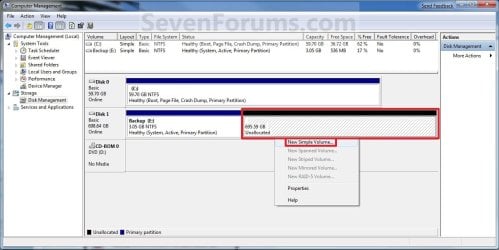
5. In the middle pane, right click on the empty unallocated partition or volume and click on New Simple Volume. (See screenshot above)

6. Click on the Next button. (See screenshot below) Create_Step2.jpg
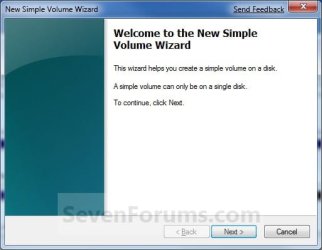
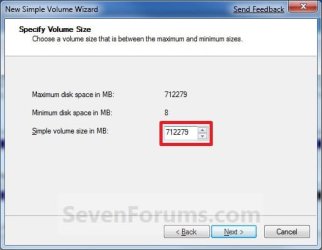
7. Type in how many MB (1 GB = 1024 MB) you want to use from the unallocated partition to create the new partition with, then click on the Next button. (See screenshot below)
NOTE: If you want to use all of the unallocated partition to create the new partition with, then type all of the maximum disk space shown for the unallocated partition. If you do not use all of the maximum disk space, then you can use the left over space from the unallocted partition to create another new partition with. Create_Step3.jpg
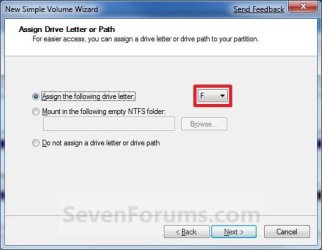
8. Select an available drive letter that you want to be assigned to the new partition in Computer, then click on the Next button. (See screenshot below) Create_Step4.jpg
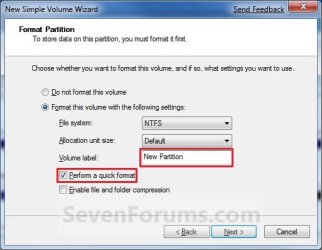
9. Type in a volume label name that you want for the new partition, check the Perform a quick format box, and click on the Next button. (See screenshot below) Create_Step5.jpg
10. Click on the Finish button. (See screenshot below)

   Warning
If you get a pop-up with the message below, then click on No. You DO NOT want to convert the disk to dynamic. Doing so could render Windows 7 unbootable. A clean install of Windows 7 would be the only way to fix this afterwards if you were to click on Yes.

The operation selected will convert the disk to dynamic... are you sure you want to continue?
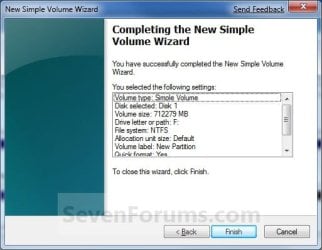
Create_Step6.jpg
11. The new primary partition or volume has now been created with the assigned unallocted partition space (step 7). (See screenshot below) Create_Step7.jpg
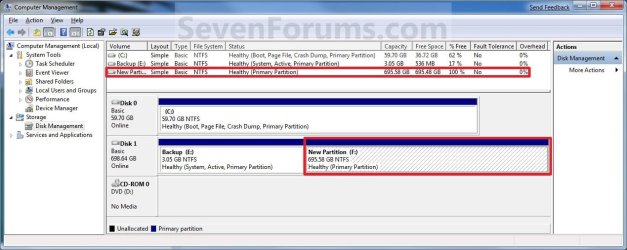
12. Close the Computer Management window. (See screenshot above)


OPTION TWO

Create Primary Partition using Diskpart in Elevated Command Prompt

1. You will first need to shrink a partition or volume to create a unallocated partition to use to create the new partition or volume with.

2. Open an elevated command prompt, or a command prompt at boot.

3. In the elevated command prompt, type diskpart and press Enter. (See screenshot below) CMD_Create_Step1.jpg
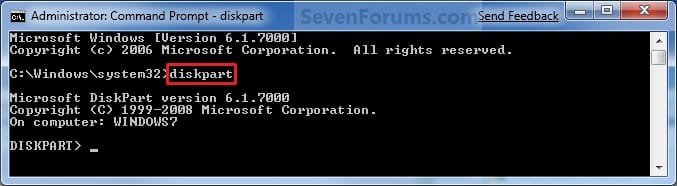
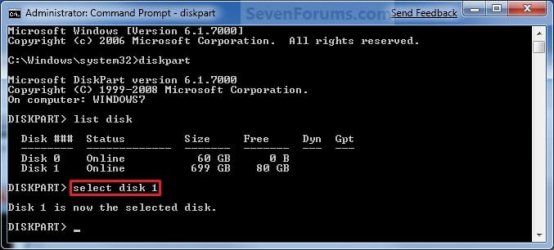
4. In the elevated command prompt, type list disk and press Enter. (See screenshot below)
NOTE: This is to help you ID the disk number that has Free unallocated space that you want to create a new partition with. For example, Disk 1 with 80 GB of free space. CMD_Create_Step2.jpg
5. In the elevated command prompt, type select disk # and press Enter. (See screenshot below)
NOTE: You would substitute # for the disk number listed that you want to create a new partition with the free unallocated space there. For example, I want to create a new partition with the 80 GB of free space, so I would type select disk 2 and press Enter. CMD_Create_Step3.jpg
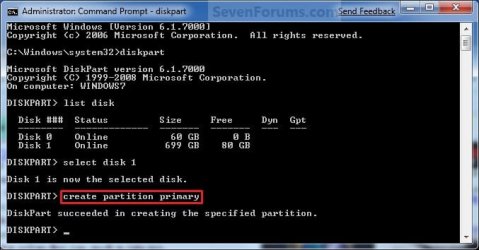
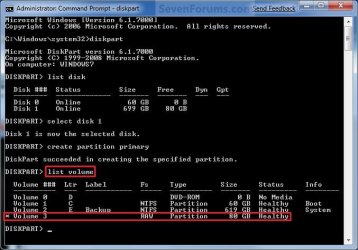
6. In the elevated command prompt, type create partition primary and press Enter. (See screenshot below)
NOTE: This will create a new blank RAW partition with selected disk (step 5) that contains the unallocated partition free space. CMD_Create_Step4.jpg
7. In the elevated command prompt, type list volume and press Enter. (See screenshot below)
NOTE: Look for the volume number that has the same Size as from the Free space in step 4. For example, Volume 3. CMD_Create_Step5.jpg
8. To Format the Partition or Disk as a NTFS File System
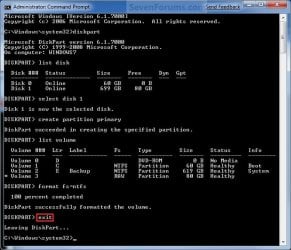
NOTE: This would be good for using with a HDD as an example. A) In the elevated command prompt, type format fs=ntfs quick and press Enter. (See screenshot below)
NOTE: Having quick added at the end of the command will do a quick format instead of a full format on the new blank RAW partition (step 6) to make it a new partition. CMD_Create_Step6.jpg
B) Go to step 10.
9. To Format the Partition or Disk as a FAT32 File System
NOTE: This would be good for using with a USB key drive as an example. The FAT32 file system has size limitations. You cannot create a FAT32 partition greater than 32 GB. In addition, you cannot store a file larger than 4 GB on a FAT32 partition. For more information, see Comparing NTFS and FAT file systems. A) In the elevated command prompt, type format fs=fat32 quick and press Enter. (See screenshot below)
NOTE: Having quick added at the end of the command will do a quick format instead of a full format on the new blank RAW partition (step 6) to make it a new partition.
10. When it is finished formatting, type exit in the elevated command prompt and press Enter. (See screenshot below) CMD_Create_Step7.jpg
11. Close the elevated command prompt.

12. The new primary partition has now been created. You can now see the new partition in Computer with a drive letter.
That's it,
Shawn


Last edited:
Another issue: In the "My Computer" it shows a partition as "Local Disk (Q
smile.gif
" which is not in the Disk management. When I tried to open or do anything in that drive, I got warning messages like 'Invalid Function'. Any idea about that?
This is most likely a virtuel partition which is used for e.g. Office 2010 installation, mounting of an image (Macrium or Paragon), etc. It will disappear when you reboot.

Is there any way I can allocate this space to C drive and later can I make a bigger partition?


Difficult to judge without a picture of your Disk Management.
 

My Computer

Computer Manufacturer/Model Number
HP, Dell, Gateway, Toshiba - 4 laptops and 2 desktops
OS
Vista, Windows7, Mint Mate, Zorin, Windows 8
CPU
from 1.6GHz Duo to i7
Monitor(s) Displays
2x HP w2207
Hard Drives
5x HDD, 7x SSD, 12x Externals
Keyboard
with trackball - no mices
Mouse
Trackball mice
Internet Speed
DSL 6000
Problem after creating new volume

I have created new volume in my laptop as per method 1. The new drive had been created. However the system does not allow me to allocate a letter to the drive. Hence it does not appear in My computer as a drive. Now i have created a short cut to the drive in desktop through i which i access that drive. Kindly let me know what is the way out?

regards,
Suresh Krishna
 

My Computer

OS
Windows 7
Hello Suresh, and welcome to Seven Forums.

Could you post a screenshot of your Disk Management (diskmgmt.msc) window with it showing all of your drives layout?

Thank you,
Shawn
 

My Computer

Computer type
PC/Desktop
Computer Manufacturer/Model Number
Self built custom
OS
64-bit Windows 11 Pro for Workstations
CPU
Intel i7-8700K OC'd to 5 GHz
Motherboard
ASUS ROG Maximus XI Formula Z390
Memory
64 GB (4x16GB) G.SKILL TridentZ RGB DDR4 3600 MHz
Graphics Card(s)
ASUS ROG-STRIX-GTX1080TI-O11G-GAMING
Sound Card
Integrated
Monitor(s) Displays
2 x Samsung Odyssey G7 27"
Screen Resolution
2560x1440
Hard Drives
1TB Samsung 990 PRO M.2,
4TB Samsung 990 PRO PRO M.2,
TerraMaster F8 SSD Plus NAS
PSU
Seasonic Prime Titanium 850W
Case
Thermaltake Core P3
Cooling
Corsair Hydro H115i
Keyboard
Logitech wireless K800
Mouse
Logitech MX Master 4
Internet Speed
2 Gb/s Download and 100 Mb/s Upload
Antivirus
Malwarebyte Anti-Malware Premium
Browser
Google Chrome
Other Info
Logitech Z625 speaker system,
Logitech BRIO 4K Pro webcam,
HP Color LaserJet Pro MFP M477fdn,
APC SMART-UPS RT 1000 XL - SURT1000XLI,
Galaxy S23 Plus phone
Problem as screen shot

Dear Mr Shawn,

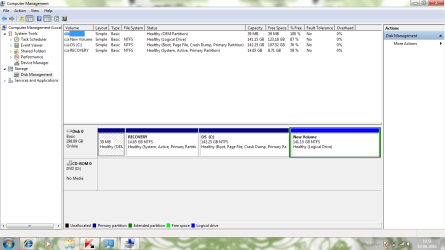
I am attaching the screen shots as described.

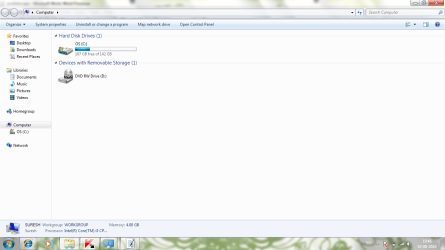
The new volume is created. Whenever a letter is to be assigned, it gives error called "the parameter incorrect". The my computer screen shot is also attached showing only c drive:(..

Please help,

Thanks for your time,

regards,
Suresh
 

Attachments

  • my computer.png
    my computer.png
    57.2 KB · Views: 261
  • error.png
    error.png
    63.8 KB · Views: 291
  • partition.png
    partition.png
    53.5 KB · Views: 271

My Computer

OS
Windows 7
Suresh,

If you right click on it, do you have the "Format" option available and not grayed out? If so, see if formatting that partition may help.

If not, then try the free program Partition Manager Home Edition to see if it may be able to assign the drive letter instead.
 

My Computer

Computer type
PC/Desktop
Computer Manufacturer/Model Number
Self built custom
OS
64-bit Windows 11 Pro for Workstations
CPU
Intel i7-8700K OC'd to 5 GHz
Motherboard
ASUS ROG Maximus XI Formula Z390
Memory
64 GB (4x16GB) G.SKILL TridentZ RGB DDR4 3600 MHz
Graphics Card(s)
ASUS ROG-STRIX-GTX1080TI-O11G-GAMING
Sound Card
Integrated
Monitor(s) Displays
2 x Samsung Odyssey G7 27"
Screen Resolution
2560x1440
Hard Drives
1TB Samsung 990 PRO M.2,
4TB Samsung 990 PRO PRO M.2,
TerraMaster F8 SSD Plus NAS
PSU
Seasonic Prime Titanium 850W
Case
Thermaltake Core P3
Cooling
Corsair Hydro H115i
Keyboard
Logitech wireless K800
Mouse
Logitech MX Master 4
Internet Speed
2 Gb/s Download and 100 Mb/s Upload
Antivirus
Malwarebyte Anti-Malware Premium
Browser
Google Chrome
Other Info
Logitech Z625 speaker system,
Logitech BRIO 4K Pro webcam,
HP Color LaserJet Pro MFP M477fdn,
APC SMART-UPS RT 1000 XL - SURT1000XLI,
Galaxy S23 Plus phone
creating a new partition after deleting old one

I created unallocated space from my c drive as explained in the first page of the thread. however i could not create a new partition as i already had four partitions. i realise that i need to delete one partition and then merge the 2 unallocated spaces together into one fresh partition. But i am not sure which partition to delete. i would like to keep my recovery partiton. can i delete the hp tools partition instead. if i have to delete the recovery partition can i use an external usb hard drive to create recovery discs instead of dvds? help would be greatly appreciated.
 

Attachments

  • screen shot.png
    screen shot.png
    30.6 KB · Views: 270

My Computer

OS
windows 7 home basic 64 bit
Hello Swastikagrawal, and welcome to Seven Forums.

If you like, try the free program Partition Manager Home Edition to see if it may be able to create a partition from the unallocated space. If you are asked to convert the disk to a Dynamic disc during the process, then be sure to NOT DO SO.

If it will not and you decide to delete the D; and E: partitions, then be sure that you create a set of HP Windows 7 "Recovery" and "Applications and Drivers" discs first.

Hope this helps,
Shawn
 

My Computer

Computer type
PC/Desktop
Computer Manufacturer/Model Number
Self built custom
OS
64-bit Windows 11 Pro for Workstations
CPU
Intel i7-8700K OC'd to 5 GHz
Motherboard
ASUS ROG Maximus XI Formula Z390
Memory
64 GB (4x16GB) G.SKILL TridentZ RGB DDR4 3600 MHz
Graphics Card(s)
ASUS ROG-STRIX-GTX1080TI-O11G-GAMING
Sound Card
Integrated
Monitor(s) Displays
2 x Samsung Odyssey G7 27"
Screen Resolution
2560x1440
Hard Drives
1TB Samsung 990 PRO M.2,
4TB Samsung 990 PRO PRO M.2,
TerraMaster F8 SSD Plus NAS
PSU
Seasonic Prime Titanium 850W
Case
Thermaltake Core P3
Cooling
Corsair Hydro H115i
Keyboard
Logitech wireless K800
Mouse
Logitech MX Master 4
Internet Speed
2 Gb/s Download and 100 Mb/s Upload
Antivirus
Malwarebyte Anti-Malware Premium
Browser
Google Chrome
Other Info
Logitech Z625 speaker system,
Logitech BRIO 4K Pro webcam,
HP Color LaserJet Pro MFP M477fdn,
APC SMART-UPS RT 1000 XL - SURT1000XLI,
Galaxy S23 Plus phone
I have tried that. it has also failed to create a new partition. i am woilling to delete one of the old partitions. the question is which one to delete? i dont want to touch the recovery partition as it has the original recovery data that came with the laptop, and i would like to preserve that.
 

My Computer

OS
windows 7 home basic 64 bit
If you are going to delete one of the partitions, I would delete (E) (HP_Tools). As Shawn has said, I strongly recommend that you make the system recovery disks, if you have not already done so.
 

My Computer

Computer type
PC/Desktop
Computer Manufacturer/Model Number
Dwarf Dwf/11/2012 r09/2013
OS
Windows 8.1 Pro RTM x64
CPU
Intel Core-i5-3570K 4-core @ 3.4GHz (Ivy Bridge) (OC 4.4GHz)
Motherboard
ASRock Z77 Extreme4-M
Memory
4 x 4GB DDR3-1600 Corsair Vengeance CMZ8GX3M2A1600C9B (16GB)
Graphics Card(s)
MSI GeForce GTX770 Gaming OC 2GB
Sound Card
Realtek High Definition on board solution (ALC 898)
Monitor(s) Displays
ViewSonic VA1912w Widescreen (VGA)
Screen Resolution
1440x900
Hard Drives
OCZ Agility 3 SSD 120GB SATA III x2 (RAID 0)
Samsung HD501LJ 500GB SATA II x2
Hitachi HDS721010CLA332 1TB SATA II
Iomega 1.5TB Ext USB 2.0
WD 2.0TB Ext USB 3.0
PSU
XFX Pro Series 850W Semi-Modular
Case
Gigabyte IF233
Cooling
1 x 120mm Front Inlet 1 x 120mm Rear Exhaust
Keyboard
Microsoft Comfort Curve Keyboard 3000 (USB)
Mouse
Microsoft Comfort Mouse 3000 for Business (USB)
Internet Speed
NetGear DG834Gv3 ADSL Modem/Router (Ethernet) ~4.0 Mb/s (O2)
Antivirus
Avast! 8.0.1497
Browser
IE 11
Other Info
Optical Drive: HL-DT-ST BD-RE BH10LS30 SATA Bluray
Lexmark S305 Printer/Scanner/Copier (USB)
WEI Score: 8.1/8.1/8.5/8.5/8.25
Asus Eee PC 1011PX Netbook (Windows 7 x86 Starter)
Thanks a lot guys. I deleted the hp tools drive and and made a new drove from he space carved out from c drive. However i cannot extend any of the drives to incorporate the 102mb creatd fo the hp tools drive. that option is greyed out.
 

My Computer

OS
windows 7 home basic 64 bit
Can you please post another screen of the disk management window?
 

My Computers

System One System Two

  • Computer type
    PC/Desktop
    Computer Manufacturer/Model Number
    PowerSpec G164
    OS
    WIN10
    CPU
    AMD Ryzen 5 3600 6-Core Processor 3.59 GHz
    Memory
    16.0 GB
    Internet Speed
    VERY FAST>>>!!!
  • Antivirus
    ESET Security Premium
in c drive ad the new volume h driv theexted driv opton is blanked out. onky the recovry drive has the option availble.
 

Attachments

  • screen shot.png
    screen shot.png
    19.9 KB · Views: 312

My Computer

OS
windows 7 home basic 64 bit

My Computers

System One System Two

  • Computer type
    PC/Desktop
    Computer Manufacturer/Model Number
    PowerSpec G164
    OS
    WIN10
    CPU
    AMD Ryzen 5 3600 6-Core Processor 3.59 GHz
    Memory
    16.0 GB
    Internet Speed
    VERY FAST>>>!!!
  • Antivirus
    ESET Security Premium
You also have to make sure that the space is unallocated - not only available.
 

My Computer

Computer Manufacturer/Model Number
HP, Dell, Gateway, Toshiba - 4 laptops and 2 desktops
OS
Vista, Windows7, Mint Mate, Zorin, Windows 8
CPU
from 1.6GHz Duo to i7
Monitor(s) Displays
2x HP w2207
Hard Drives
5x HDD, 7x SSD, 12x Externals
Keyboard
with trackball - no mices
Mouse
Trackball mice
Internet Speed
DSL 6000
hi all dear
thanks alot for enlightening us!
firs i apologize if my text have mistake(because my en. language is weak!)
i have dell vostro 3500 laptop with win7 32 bit and 500 gb of hdd.
from first i bought my laptop it has the only one drive named : c.
i want another drive and partition to save my video and music and etc. how can i solve this problem and make at least 4 another drive to archive.
i heard from some that they lose their hdd containers or win!
id one want catch this.
meanwhile i have recovery dvd.
if i recover or change win. later dont lose my win. or other container?
thanks alot again:)
 

My Computer

Computer Manufacturer/Model Number
dell vostro 3500
OS
Windows 7 Home Premium 32bit
CPU
ci5
Memory
4 gb
Graphics Card(s)
310
Hello Mjsalehi, and welcome to Seven Forums.

Could you post a screenshot of your Disk Management (diskmgmt.msc) showing all drive layouts? This will give us a better idea of what you will be able to do with it. :)
 

My Computer

Computer type
PC/Desktop
Computer Manufacturer/Model Number
Self built custom
OS
64-bit Windows 11 Pro for Workstations
CPU
Intel i7-8700K OC'd to 5 GHz
Motherboard
ASUS ROG Maximus XI Formula Z390
Memory
64 GB (4x16GB) G.SKILL TridentZ RGB DDR4 3600 MHz
Graphics Card(s)
ASUS ROG-STRIX-GTX1080TI-O11G-GAMING
Sound Card
Integrated
Monitor(s) Displays
2 x Samsung Odyssey G7 27"
Screen Resolution
2560x1440
Hard Drives
1TB Samsung 990 PRO M.2,
4TB Samsung 990 PRO PRO M.2,
TerraMaster F8 SSD Plus NAS
PSU
Seasonic Prime Titanium 850W
Case
Thermaltake Core P3
Cooling
Corsair Hydro H115i
Keyboard
Logitech wireless K800
Mouse
Logitech MX Master 4
Internet Speed
2 Gb/s Download and 100 Mb/s Upload
Antivirus
Malwarebyte Anti-Malware Premium
Browser
Google Chrome
Other Info
Logitech Z625 speaker system,
Logitech BRIO 4K Pro webcam,
HP Color LaserJet Pro MFP M477fdn,
APC SMART-UPS RT 1000 XL - SURT1000XLI,
Galaxy S23 Plus phone
Untitled.png
thanks alot brink!
 

My Computer

Computer Manufacturer/Model Number
dell vostro 3500
OS
Windows 7 Home Premium 32bit
CPU
ci5
Memory
4 gb
Graphics Card(s)
310
Mjsalehi,

You will be able to use this tutorial to shrink your C: drive by how much you want to use for the other partitions as unallocated space. Afterwards, you can create a logical (light blue) partition from the unallocated space, then repeat the process on each logical partition to shrink and create a new one for how many logical partitions you want. If you get asked to convert the drive to a dynamic disk, then DO NOT DO SO. It will make your Windows 7 unbootable.

However, considering that you only have 451GB on your C drive, you might consider getting a new hard drive and split that up into how many partitions you want on it instead. This way it can be a good backup drive as well.

Hope this helps,
Shawn
 

My Computer

Computer type
PC/Desktop
Computer Manufacturer/Model Number
Self built custom
OS
64-bit Windows 11 Pro for Workstations
CPU
Intel i7-8700K OC'd to 5 GHz
Motherboard
ASUS ROG Maximus XI Formula Z390
Memory
64 GB (4x16GB) G.SKILL TridentZ RGB DDR4 3600 MHz
Graphics Card(s)
ASUS ROG-STRIX-GTX1080TI-O11G-GAMING
Sound Card
Integrated
Monitor(s) Displays
2 x Samsung Odyssey G7 27"
Screen Resolution
2560x1440
Hard Drives
1TB Samsung 990 PRO M.2,
4TB Samsung 990 PRO PRO M.2,
TerraMaster F8 SSD Plus NAS
PSU
Seasonic Prime Titanium 850W
Case
Thermaltake Core P3
Cooling
Corsair Hydro H115i
Keyboard
Logitech wireless K800
Mouse
Logitech MX Master 4
Internet Speed
2 Gb/s Download and 100 Mb/s Upload
Antivirus
Malwarebyte Anti-Malware Premium
Browser
Google Chrome
Other Info
Logitech Z625 speaker system,
Logitech BRIO 4K Pro webcam,
HP Color LaserJet Pro MFP M477fdn,
APC SMART-UPS RT 1000 XL - SURT1000XLI,
Galaxy S23 Plus phone
Thanks...
But could you tell me the solutions step by step that how can i do that?
How can i do everything that you told me to achieve my goal?
 

My Computer

Computer Manufacturer/Model Number
dell vostro 3500
OS
Windows 7 Home Premium 32bit
CPU
ci5
Memory
4 gb
Graphics Card(s)
310
Back
Top