
Partition or Volume - Create New

How to Create a New Partition or Volume in Windows 7

   Information
This will show you how to create a new primary partition using Disk Management or Diskpart in Windows 7 from a empty unallocated partition or volume.
   Note
A primary partition is a type of partition created on a hard drive that can have a operating system installed on it. A primary partition functions as though it were a physically separate hard drive.

By default on a basic MBR disk, you can create a maximum of 4 Primary partitions, or 3 Primary partitions and 1 Extended partition with up to 128 logical volumes in the extended partition on a single hard disk.

*You must be logged on in an administrator account to be able to do this tutorial.
   Warning
If you disable the Disk Defragmenter service, then you will get the error below when you try to do anything in Disk Management. If you get this error, then make sure that the Disk Defragmenter service is set to only Manual.

Error.jpg


OPTION ONE

Create Primary Partition using Disk Management

1. You will first need to shrink a partition or volume from the free space on a disk to create unallocated space on that disk to use to create the new partition or volume with on the same disk.

   Note
If this is a disk that is unallocated, then skip this step and go straight to step 2.


2. Open the Control Panel (icons view), and click on the Administrative Tools icon. then close the Control Panel window.

3. Click on Computer Management in Administrative Tools, then close the Administrative Tools window.

4. In the left pane under Storage, click on Disk Management. (See screenshot below) Create_Step1.jpg
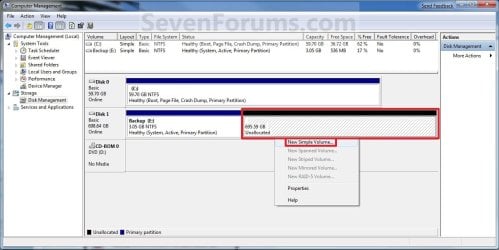
5. In the middle pane, right click on the empty unallocated partition or volume and click on New Simple Volume. (See screenshot above)

6. Click on the Next button. (See screenshot below) Create_Step2.jpg
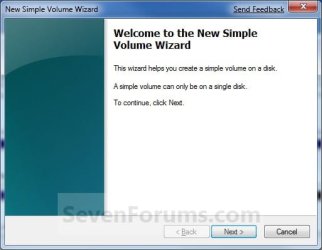
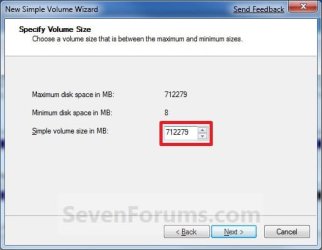
7. Type in how many MB (1 GB = 1024 MB) you want to use from the unallocated partition to create the new partition with, then click on the Next button. (See screenshot below)
NOTE: If you want to use all of the unallocated partition to create the new partition with, then type all of the maximum disk space shown for the unallocated partition. If you do not use all of the maximum disk space, then you can use the left over space from the unallocted partition to create another new partition with. Create_Step3.jpg
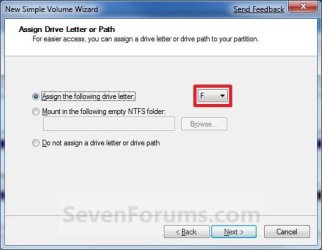
8. Select an available drive letter that you want to be assigned to the new partition in Computer, then click on the Next button. (See screenshot below) Create_Step4.jpg
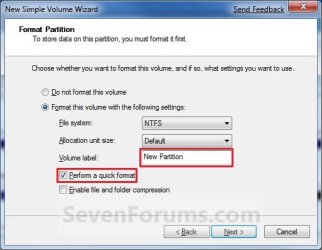
9. Type in a volume label name that you want for the new partition, check the Perform a quick format box, and click on the Next button. (See screenshot below) Create_Step5.jpg
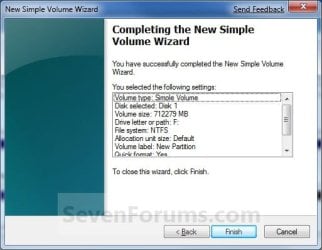
10. Click on the Finish button. (See screenshot below)

   Warning
If you get a pop-up with the message below, then click on No. You DO NOT want to convert the disk to dynamic. Doing so could render Windows 7 unbootable. A clean install of Windows 7 would be the only way to fix this afterwards if you were to click on Yes.

The operation selected will convert the disk to dynamic... are you sure you want to continue?
Create_Step6.jpg
11. The new primary partition or volume has now been created with the assigned unallocted partition space (step 7). (See screenshot below) Create_Step7.jpg
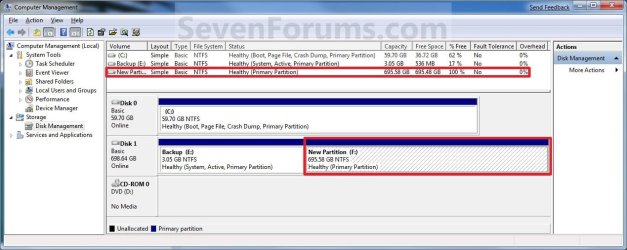
12. Close the Computer Management window. (See screenshot above)


OPTION TWO

Create Primary Partition using Diskpart in Elevated Command Prompt

1. You will first need to shrink a partition or volume to create a unallocated partition to use to create the new partition or volume with.

2. Open an elevated command prompt, or a command prompt at boot.

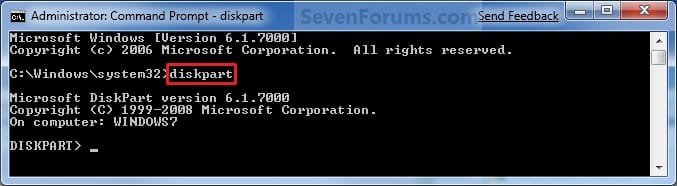
3. In the elevated command prompt, type diskpart and press Enter. (See screenshot below) CMD_Create_Step1.jpg
4. In the elevated command prompt, type list disk and press Enter. (See screenshot below)
NOTE: This is to help you ID the disk number that has Free unallocated space that you want to create a new partition with. For example, Disk 1 with 80 GB of free space. CMD_Create_Step2.jpg
5. In the elevated command prompt, type select disk # and press Enter. (See screenshot below)
NOTE: You would substitute # for the disk number listed that you want to create a new partition with the free unallocated space there. For example, I want to create a new partition with the 80 GB of free space, so I would type select disk 2 and press Enter. CMD_Create_Step3.jpg
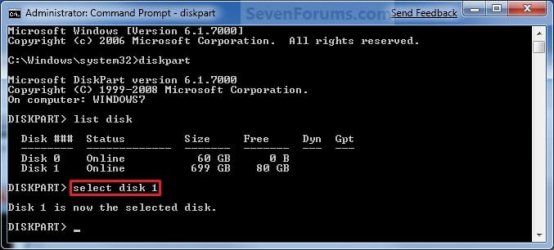
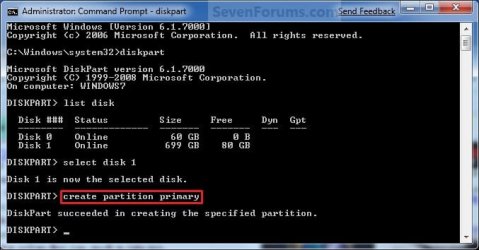
6. In the elevated command prompt, type create partition primary and press Enter. (See screenshot below)
NOTE: This will create a new blank RAW partition with selected disk (step 5) that contains the unallocated partition free space. CMD_Create_Step4.jpg
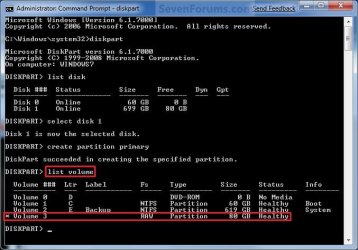
7. In the elevated command prompt, type list volume and press Enter. (See screenshot below)
NOTE: Look for the volume number that has the same Size as from the Free space in step 4. For example, Volume 3. CMD_Create_Step5.jpg
8. To Format the Partition or Disk as a NTFS File System
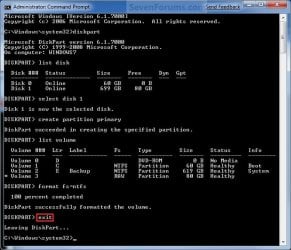
NOTE: This would be good for using with a HDD as an example. A) In the elevated command prompt, type format fs=ntfs quick and press Enter. (See screenshot below)
NOTE: Having quick added at the end of the command will do a quick format instead of a full format on the new blank RAW partition (step 6) to make it a new partition. CMD_Create_Step6.jpg
B) Go to step 10.
9. To Format the Partition or Disk as a FAT32 File System
NOTE: This would be good for using with a USB key drive as an example. The FAT32 file system has size limitations. You cannot create a FAT32 partition greater than 32 GB. In addition, you cannot store a file larger than 4 GB on a FAT32 partition. For more information, see Comparing NTFS and FAT file systems. A) In the elevated command prompt, type format fs=fat32 quick and press Enter. (See screenshot below)
NOTE: Having quick added at the end of the command will do a quick format instead of a full format on the new blank RAW partition (step 6) to make it a new partition.
10. When it is finished formatting, type exit in the elevated command prompt and press Enter. (See screenshot below) CMD_Create_Step7.jpg
11. Close the elevated command prompt.

12. The new primary partition has now been created. You can now see the new partition in Computer with a drive letter.
That's it,
Shawn


Last edited:
What are you looking to do?
 

My Computers

System One System Two

  • Computer type
    PC/Desktop
    Computer Manufacturer/Model Number
    PowerSpec G164
    OS
    WIN10
    CPU
    AMD Ryzen 5 3600 6-Core Processor 3.59 GHz
    Memory
    16.0 GB
    Internet Speed
    VERY FAST>>>!!!
  • Antivirus
    ESET Security Premium
Mjsalehi,

You will be able to use this tutorial to shrink your C: drive by how much you want to use for the other partitions as unallocated space. Afterwards, you can create a logical (light blue) partition from the unallocated space, then repeat the process on each logical partition to shrink and create a new one for how many logical partitions you want. If you get asked to convert the drive to a dynamic disk, then DO NOT DO SO. It will make your Windows 7 unbootable.

However, considering that you only have 451GB on your C drive, you might consider getting a new hard drive and split that up into how many partitions you want on it instead. This way it can be a good backup drive as well.

Hope this helps,
Shawn

Thanks...
But could you tell me the solutions step by step that how can i do that?
How can i do everything that you told me to achieve my goal?

It depends on which option you want to go with.

If you wanted to go with the second option by adding a new 2nd hard drive, then you can just use the steps in OPTION ONE in the tutorial on the first page on the new hard drive to shrink and create your partitions on it.
 

My Computer

Computer type
PC/Desktop
Computer Manufacturer/Model Number
Self built custom
OS
64-bit Windows 11 Pro for Workstations
CPU
Intel i7-8700K OC'd to 5 GHz
Motherboard
ASUS ROG Maximus XI Formula Z390
Memory
64 GB (4x16GB) G.SKILL TridentZ RGB DDR4 3600 MHz
Graphics Card(s)
ASUS ROG-STRIX-GTX1080TI-O11G-GAMING
Sound Card
Integrated
Monitor(s) Displays
2 x Samsung Odyssey G7 27"
Screen Resolution
2560x1440
Hard Drives
1TB Samsung 990 PRO M.2,
4TB Samsung 990 PRO PRO M.2,
TerraMaster F8 SSD Plus NAS
PSU
Seasonic Prime Titanium 850W
Case
Thermaltake Core P3
Cooling
Corsair Hydro H115i
Keyboard
Logitech wireless K800
Mouse
Logitech MX Master 4
Internet Speed
2 Gb/s Download and 100 Mb/s Upload
Antivirus
Malwarebyte Anti-Malware Premium
Browser
Google Chrome
Other Info
Logitech Z625 speaker system,
Logitech BRIO 4K Pro webcam,
HP Color LaserJet Pro MFP M477fdn,
APC SMART-UPS RT 1000 XL - SURT1000XLI,
Galaxy S23 Plus phone
for example i want to have more than drive:c. means i want to have drive :d,e and f to divide my empty space on c drive.
 

My Computer

Computer Manufacturer/Model Number
dell vostro 3500
OS
Windows 7 Home Premium 32bit
CPU
ci5
Memory
4 gb
Graphics Card(s)
310
Mjsalehi,

From your Disk Management screenshot, you should be able to shrink your C: dirve by how how much space you want to be used by the other partitons as unallocated space. From this unallocated space, you can create logical partitions like you wanted using this tutorial. :)
 

My Computer

Computer type
PC/Desktop
Computer Manufacturer/Model Number
Self built custom
OS
64-bit Windows 11 Pro for Workstations
CPU
Intel i7-8700K OC'd to 5 GHz
Motherboard
ASUS ROG Maximus XI Formula Z390
Memory
64 GB (4x16GB) G.SKILL TridentZ RGB DDR4 3600 MHz
Graphics Card(s)
ASUS ROG-STRIX-GTX1080TI-O11G-GAMING
Sound Card
Integrated
Monitor(s) Displays
2 x Samsung Odyssey G7 27"
Screen Resolution
2560x1440
Hard Drives
1TB Samsung 990 PRO M.2,
4TB Samsung 990 PRO PRO M.2,
TerraMaster F8 SSD Plus NAS
PSU
Seasonic Prime Titanium 850W
Case
Thermaltake Core P3
Cooling
Corsair Hydro H115i
Keyboard
Logitech wireless K800
Mouse
Logitech MX Master 4
Internet Speed
2 Gb/s Download and 100 Mb/s Upload
Antivirus
Malwarebyte Anti-Malware Premium
Browser
Google Chrome
Other Info
Logitech Z625 speaker system,
Logitech BRIO 4K Pro webcam,
HP Color LaserJet Pro MFP M477fdn,
APC SMART-UPS RT 1000 XL - SURT1000XLI,
Galaxy S23 Plus phone
thanks alot,
i'll do this. might be helpfull.
thanks;)
 

My Computer

Computer Manufacturer/Model Number
dell vostro 3500
OS
Windows 7 Home Premium 32bit
CPU
ci5
Memory
4 gb
Graphics Card(s)
310
Thanks a lot for another great tutorial.
 

My Computer

OS
Windows 7 Ultimate 32bit
CPU
AMD Phenom II x4 965 3.4GHz
Motherboard
Gigabyte GA-890FXA-UD5 rev2.0
Memory
G.SKILL F3-16000CL8D-4GBPIS (2GBx2)
Graphics Card(s)
Inno3d GTX480 1.5GB GDDR5
Monitor(s) Displays
LG FLATRON W2486L
Screen Resolution
1920x1080@60Hz
Hard Drives
Western Digital Caviar Black WD1002FAEX 1TB 64MB 7200RPM Sata III x3
PSU
Enermax MODU82+ 625W
Case
Thermaltake Element G Middle Tower
Hi there, I recently just installed Win7 x64 and I want to create a partition from my main C:/ drive. It's a RAID 0 configuration with 2x 320gb hard drives. When I open up disk management to shrink the volume it only allows me to shrink up about 49% of it. I want to partition my Windows into a 60 or 80gb partition and organize my drives the way I had them in XP. I was able to do that and split the remainder into 2 partitions with XP. I have 2 other slower drives as well that I use for storage and other stuff that I don't want to install Win7 on.
Thanks for the help!

update: since i was fresh install after fresh install... I formatted and used the cmd during install to format my OS drive and just make partitions with diskpart

all set! thanks for the nice guide!
 
Last edited:

My Computer

OS
Windows 7 Ultimate x64
You're most welcome Cowman. I'm happy to hear that you got it sorted. :)
 

My Computer

Computer type
PC/Desktop
Computer Manufacturer/Model Number
Self built custom
OS
64-bit Windows 11 Pro for Workstations
CPU
Intel i7-8700K OC'd to 5 GHz
Motherboard
ASUS ROG Maximus XI Formula Z390
Memory
64 GB (4x16GB) G.SKILL TridentZ RGB DDR4 3600 MHz
Graphics Card(s)
ASUS ROG-STRIX-GTX1080TI-O11G-GAMING
Sound Card
Integrated
Monitor(s) Displays
2 x Samsung Odyssey G7 27"
Screen Resolution
2560x1440
Hard Drives
1TB Samsung 990 PRO M.2,
4TB Samsung 990 PRO PRO M.2,
TerraMaster F8 SSD Plus NAS
PSU
Seasonic Prime Titanium 850W
Case
Thermaltake Core P3
Cooling
Corsair Hydro H115i
Keyboard
Logitech wireless K800
Mouse
Logitech MX Master 4
Internet Speed
2 Gb/s Download and 100 Mb/s Upload
Antivirus
Malwarebyte Anti-Malware Premium
Browser
Google Chrome
Other Info
Logitech Z625 speaker system,
Logitech BRIO 4K Pro webcam,
HP Color LaserJet Pro MFP M477fdn,
APC SMART-UPS RT 1000 XL - SURT1000XLI,
Galaxy S23 Plus phone
Hi All, I'm redoing a desktop and wish to create an even 800 gigabyte partition, however it seems when you try to make these larger partitions the 1000x24 rule doesn't work for them, ...they're always smaller by few 100 megs.

Is there a different multiple value (x24) that can be used or is a guessing game with the larger partitions?

Thnx,
-OEM
 

My Computer

Computer Manufacturer/Model Number
POS
OS
OS3.5
CPU
celery
Motherboard
Good Question ...Unknown
Memory
memory never forgets
Graphics Card(s)
OB
Sound Card
OB
Monitor(s) Displays
HUGE
Screen Resolution
168000000x105000000
Hard Drives
full
PSU
OEM 65watt
Case
N/A
Cooling
OB
Keyboard
OB
Mouse
mouse
Internet Speed
1 Trillion MBps
Other Info
Still An Awesome Forum!
Hello Tim,

Did you mean 1024 MB x 800 GB = 819200 MB?
 

My Computer

Computer type
PC/Desktop
Computer Manufacturer/Model Number
Self built custom
OS
64-bit Windows 11 Pro for Workstations
CPU
Intel i7-8700K OC'd to 5 GHz
Motherboard
ASUS ROG Maximus XI Formula Z390
Memory
64 GB (4x16GB) G.SKILL TridentZ RGB DDR4 3600 MHz
Graphics Card(s)
ASUS ROG-STRIX-GTX1080TI-O11G-GAMING
Sound Card
Integrated
Monitor(s) Displays
2 x Samsung Odyssey G7 27"
Screen Resolution
2560x1440
Hard Drives
1TB Samsung 990 PRO M.2,
4TB Samsung 990 PRO PRO M.2,
TerraMaster F8 SSD Plus NAS
PSU
Seasonic Prime Titanium 850W
Case
Thermaltake Core P3
Cooling
Corsair Hydro H115i
Keyboard
Logitech wireless K800
Mouse
Logitech MX Master 4
Internet Speed
2 Gb/s Download and 100 Mb/s Upload
Antivirus
Malwarebyte Anti-Malware Premium
Browser
Google Chrome
Other Info
Logitech Z625 speaker system,
Logitech BRIO 4K Pro webcam,
HP Color LaserJet Pro MFP M477fdn,
APC SMART-UPS RT 1000 XL - SURT1000XLI,
Galaxy S23 Plus phone
Thanks Brink, :o

Long hours on DT recovery........

..........Problem, A $24.00 Stick of Ram, ......... A nickle holding up a dollar .

And Jonathan_King called it, ...said run memtest86 yesterday, I gotta around to doing it today and sure enough ...1 pos cheap stick. It's a first for a stick to go bad for me, and its just a month old.

Memtest86\Latest Ver. wouldn't even run, and after hardware raid config, OS DVD- error CD_Boot File "Not Found" so couldn't even boot into 7 DVD!

Started pulling sticks out, labeled them, and walla Bad Ram. Everything going like Clockwork Now!

Thanks to both Brink....Your Number Provided was Dead On ;) ...

...& Jon :geek::cool::party:, For Getting it Right with the Ram and running:

(Home Page)_http://www.memtest86.com/.


(Download Page)http://www.memtest86.com/download.html

-OEM
 

My Computer

Computer Manufacturer/Model Number
POS
OS
OS3.5
CPU
celery
Motherboard
Good Question ...Unknown
Memory
memory never forgets
Graphics Card(s)
OB
Sound Card
OB
Monitor(s) Displays
HUGE
Screen Resolution
168000000x105000000
Hard Drives
full
PSU
OEM 65watt
Case
N/A
Cooling
OB
Keyboard
OB
Mouse
mouse
Internet Speed
1 Trillion MBps
Other Info
Still An Awesome Forum!
That's great news OEM. :)
 

My Computer

Computer type
PC/Desktop
Computer Manufacturer/Model Number
Self built custom
OS
64-bit Windows 11 Pro for Workstations
CPU
Intel i7-8700K OC'd to 5 GHz
Motherboard
ASUS ROG Maximus XI Formula Z390
Memory
64 GB (4x16GB) G.SKILL TridentZ RGB DDR4 3600 MHz
Graphics Card(s)
ASUS ROG-STRIX-GTX1080TI-O11G-GAMING
Sound Card
Integrated
Monitor(s) Displays
2 x Samsung Odyssey G7 27"
Screen Resolution
2560x1440
Hard Drives
1TB Samsung 990 PRO M.2,
4TB Samsung 990 PRO PRO M.2,
TerraMaster F8 SSD Plus NAS
PSU
Seasonic Prime Titanium 850W
Case
Thermaltake Core P3
Cooling
Corsair Hydro H115i
Keyboard
Logitech wireless K800
Mouse
Logitech MX Master 4
Internet Speed
2 Gb/s Download and 100 Mb/s Upload
Antivirus
Malwarebyte Anti-Malware Premium
Browser
Google Chrome
Other Info
Logitech Z625 speaker system,
Logitech BRIO 4K Pro webcam,
HP Color LaserJet Pro MFP M477fdn,
APC SMART-UPS RT 1000 XL - SURT1000XLI,
Galaxy S23 Plus phone
Is there a good article that explains "why" one would need to create a new partition in windows 7?


I have discussed this with some folks and no one can make a good argument as to why, rather than simply creating a folder.
 

My Computer

Computer type
PC/Desktop
Computer Manufacturer/Model Number
Main: HP Elite 8000; notebook HP DV 6928
OS
Main: WIN7 Pro, 64 bit; Notebook Windows 7 Home Premium
CPU
Main: 2.8 Core 2 Quad; Notebook, 2.0 ghz duo
Memory
Main 8gb RAM; Notebook 3GB RAM
Monitor(s) Displays
Main: 3 monitors: 2 ACERS workspace; LGTV for streaming
Antivirus
MSE both
Hello RJL24,

It's really just a matter of if someone needs or just wants a new partition.

A partition is treated as a separate drive letter. This allows you to have multiple drive letters on the same physical HDD.

One could have one partiton for Windows 7, then another partition or so for their data. This way if they had to reinstall Windows 7, they wouldn't lose the data partition since it is treated like a separate drive.

Hope this helps,
Shawn
 

My Computer

Computer type
PC/Desktop
Computer Manufacturer/Model Number
Self built custom
OS
64-bit Windows 11 Pro for Workstations
CPU
Intel i7-8700K OC'd to 5 GHz
Motherboard
ASUS ROG Maximus XI Formula Z390
Memory
64 GB (4x16GB) G.SKILL TridentZ RGB DDR4 3600 MHz
Graphics Card(s)
ASUS ROG-STRIX-GTX1080TI-O11G-GAMING
Sound Card
Integrated
Monitor(s) Displays
2 x Samsung Odyssey G7 27"
Screen Resolution
2560x1440
Hard Drives
1TB Samsung 990 PRO M.2,
4TB Samsung 990 PRO PRO M.2,
TerraMaster F8 SSD Plus NAS
PSU
Seasonic Prime Titanium 850W
Case
Thermaltake Core P3
Cooling
Corsair Hydro H115i
Keyboard
Logitech wireless K800
Mouse
Logitech MX Master 4
Internet Speed
2 Gb/s Download and 100 Mb/s Upload
Antivirus
Malwarebyte Anti-Malware Premium
Browser
Google Chrome
Other Info
Logitech Z625 speaker system,
Logitech BRIO 4K Pro webcam,
HP Color LaserJet Pro MFP M477fdn,
APC SMART-UPS RT 1000 XL - SURT1000XLI,
Galaxy S23 Plus phone
Now I fully understand. Thanks for your quick and clear response.
 

My Computer

Computer type
PC/Desktop
Computer Manufacturer/Model Number
Main: HP Elite 8000; notebook HP DV 6928
OS
Main: WIN7 Pro, 64 bit; Notebook Windows 7 Home Premium
CPU
Main: 2.8 Core 2 Quad; Notebook, 2.0 ghz duo
Memory
Main 8gb RAM; Notebook 3GB RAM
Monitor(s) Displays
Main: 3 monitors: 2 ACERS workspace; LGTV for streaming
Antivirus
MSE both
You're most welcome. :)
 

My Computer

Computer type
PC/Desktop
Computer Manufacturer/Model Number
Self built custom
OS
64-bit Windows 11 Pro for Workstations
CPU
Intel i7-8700K OC'd to 5 GHz
Motherboard
ASUS ROG Maximus XI Formula Z390
Memory
64 GB (4x16GB) G.SKILL TridentZ RGB DDR4 3600 MHz
Graphics Card(s)
ASUS ROG-STRIX-GTX1080TI-O11G-GAMING
Sound Card
Integrated
Monitor(s) Displays
2 x Samsung Odyssey G7 27"
Screen Resolution
2560x1440
Hard Drives
1TB Samsung 990 PRO M.2,
4TB Samsung 990 PRO PRO M.2,
TerraMaster F8 SSD Plus NAS
PSU
Seasonic Prime Titanium 850W
Case
Thermaltake Core P3
Cooling
Corsair Hydro H115i
Keyboard
Logitech wireless K800
Mouse
Logitech MX Master 4
Internet Speed
2 Gb/s Download and 100 Mb/s Upload
Antivirus
Malwarebyte Anti-Malware Premium
Browser
Google Chrome
Other Info
Logitech Z625 speaker system,
Logitech BRIO 4K Pro webcam,
HP Color LaserJet Pro MFP M477fdn,
APC SMART-UPS RT 1000 XL - SURT1000XLI,
Galaxy S23 Plus phone
Hi..Iam not clear about "shrink a partition or volume" mentioned in the 1st post. my system is new and Iam using a 500gb HD. I have only 2 drives now. C drive having ~450GB, and a recovery D drive with a small space. I want to have 2 more drives E, F. To do partition do i need to do "shrink a partition or volume" or straight away go to step 2.

Thanks in advance

For C drive i need to have lesser space..and E, F with more space..
 
Last edited by a moderator:

My Computer

Computer Manufacturer/Model Number
HP G42 478TX
OS
Windows 7 Home Basic
CPU
Intel I3
Memory
500 GB
Graphics Card(s)
512MB ATI Radeon
Monitor(s) Displays
14"
Hello Ajith, and welcome to Seven Forums.

Could you post a screenshot of your Disk Management window showing all of your drives layout?

Afterwards, we'll take a look and see what we can do to help. :)
 

My Computer

Computer type
PC/Desktop
Computer Manufacturer/Model Number
Self built custom
OS
64-bit Windows 11 Pro for Workstations
CPU
Intel i7-8700K OC'd to 5 GHz
Motherboard
ASUS ROG Maximus XI Formula Z390
Memory
64 GB (4x16GB) G.SKILL TridentZ RGB DDR4 3600 MHz
Graphics Card(s)
ASUS ROG-STRIX-GTX1080TI-O11G-GAMING
Sound Card
Integrated
Monitor(s) Displays
2 x Samsung Odyssey G7 27"
Screen Resolution
2560x1440
Hard Drives
1TB Samsung 990 PRO M.2,
4TB Samsung 990 PRO PRO M.2,
TerraMaster F8 SSD Plus NAS
PSU
Seasonic Prime Titanium 850W
Case
Thermaltake Core P3
Cooling
Corsair Hydro H115i
Keyboard
Logitech wireless K800
Mouse
Logitech MX Master 4
Internet Speed
2 Gb/s Download and 100 Mb/s Upload
Antivirus
Malwarebyte Anti-Malware Premium
Browser
Google Chrome
Other Info
Logitech Z625 speaker system,
Logitech BRIO 4K Pro webcam,
HP Color LaserJet Pro MFP M477fdn,
APC SMART-UPS RT 1000 XL - SURT1000XLI,
Galaxy S23 Plus phone
Thanks Brink for ur quick response. I am at office now. Its morning here, after i reach home i shall post the screenshot..
i went through 'shrinking' thread and i got a better understanding. Can i shrink the C drive just like the drive in the eg: provided? i.e shrink 400gb, and later allocate this to 2 new drives?
 

My Computer

Computer Manufacturer/Model Number
HP G42 478TX
OS
Windows 7 Home Basic
CPU
Intel I3
Memory
500 GB
Graphics Card(s)
512MB ATI Radeon
Monitor(s) Displays
14"
Ok. I'll just wait until later then whan I can see the screenshot before giving a suggestion. It would just be a guess without the screenshot, and you do not want to guess about this. ;)
 

My Computer

Computer type
PC/Desktop
Computer Manufacturer/Model Number
Self built custom
OS
64-bit Windows 11 Pro for Workstations
CPU
Intel i7-8700K OC'd to 5 GHz
Motherboard
ASUS ROG Maximus XI Formula Z390
Memory
64 GB (4x16GB) G.SKILL TridentZ RGB DDR4 3600 MHz
Graphics Card(s)
ASUS ROG-STRIX-GTX1080TI-O11G-GAMING
Sound Card
Integrated
Monitor(s) Displays
2 x Samsung Odyssey G7 27"
Screen Resolution
2560x1440
Hard Drives
1TB Samsung 990 PRO M.2,
4TB Samsung 990 PRO PRO M.2,
TerraMaster F8 SSD Plus NAS
PSU
Seasonic Prime Titanium 850W
Case
Thermaltake Core P3
Cooling
Corsair Hydro H115i
Keyboard
Logitech wireless K800
Mouse
Logitech MX Master 4
Internet Speed
2 Gb/s Download and 100 Mb/s Upload
Antivirus
Malwarebyte Anti-Malware Premium
Browser
Google Chrome
Other Info
Logitech Z625 speaker system,
Logitech BRIO 4K Pro webcam,
HP Color LaserJet Pro MFP M477fdn,
APC SMART-UPS RT 1000 XL - SURT1000XLI,
Galaxy S23 Plus phone
Back
Top