Partition or Volume - Shrink

How to Shrink a Partition or Volume in Windows 7

   Information
This will show you how to shrink an existing partition or volume using Disk Management or Diskpart in Windows 7 to create unallocated disk space, from which you can create a new partition or volume with.
   Warning
You must be logged on in an administrator account to be able to do this tutorial.

If while shrinking a partition below, you get a Convert to Dynamic disks? type prompt, do not do so.

If you disable the Disk Defragmenter service, then you will get the error below when you try to do anything in Disk Management. If you get this error, then make sure that the Disk Defragmenter service is set to only Manual.
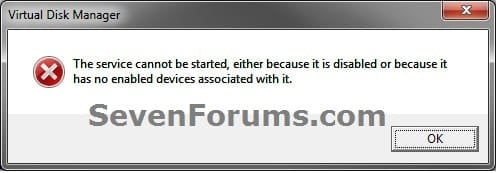
Error.jpg


OPTION ONE

Using Disk Management


1. Open the Control Panel (icons view), and click on the Administrative Tools icon. then close the Control Panel window.

2. Click on Computer Management in Administrative Tools, then close the Administrative Tools window.

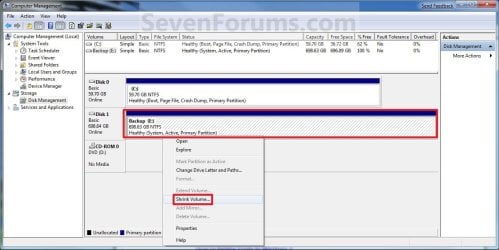
3. In the left pane under Storage, click on Disk Management. (See screenshot below)
Shrink_Step1.jpg
4. In the middle pane, right click on the partition that you want to shrink and click on Shrink Volume. (See screenshot above)

5. Type in how many MB (1 GB = 1024 MB) of the available shrink space shown that you want to shrink the partition or volume by to be used for the new unallocated space, then click on the Shrink button. (See screenshot below)
   Warning
The size of the available shrink space can be restricted by the amount of space currently allocated to on the hard drive for the virtual memory page file, System Protection maximum storage space size, and hibernation files. The location of the files on the hard drive plays a big part here because these files are marked as unmovable, and Disk Management is unable to relocate them. As such, if these unmovable files are located in the middle of the total amount of free space on the disk, then only the amount of free space on the other side (to the right) of these files will actually be available for the new partition. This will result in you showing that you have x amount of free space, but not being able to use it for your partition. The only way around this is to use a 3rd party hard drive partition management program, or setup the partition when installing Vista.

Shrink_Step2.jpg
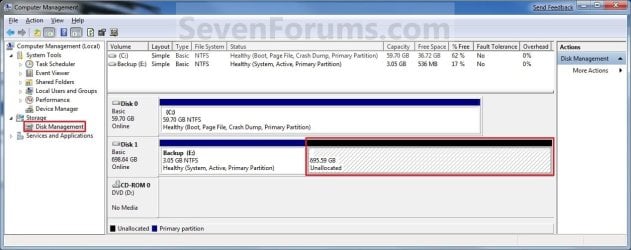
6. The selected partition (step 4) has now been shrunk to create a new empty unallocated space. You can use this new unallocated space to create a new partition with. (See screenshot below)
Shrink_Step3.jpg
7. Close the Computer Management window. (See screenshot above)


OPTION TWO

Using Diskpart in a Elevated Command Prompt


1. Open a elevated command prompt, or a command prompt at boot.

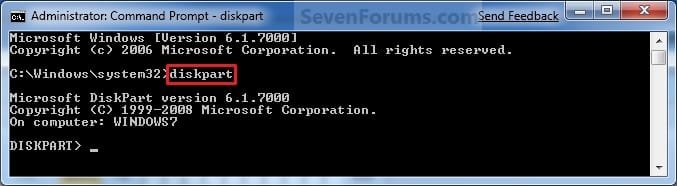
2. In the elevated command prompt, type diskpart and press Enter. (See screenshot below)
CMD_Shrink_Step1.jpg
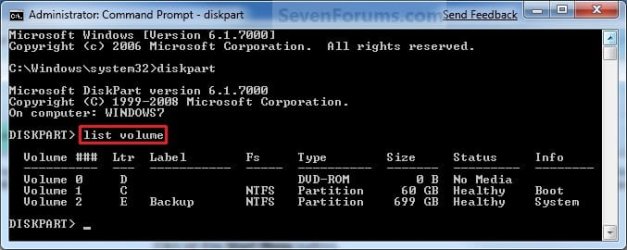
3. In the elevated command prompt, type list volume and press Enter. (See screenshot below)
NOTE: This will give you a list of volume numbers to select from to shrink.
CMD_Shrink_Step2.jpg
4. In the elevated command prompt, type select volume # and press Enter. (See screenshot below)
NOTE: You would substitute # for the volume number listed that you want to shrink. For example, I want to shrink the listed volume 2, so I would type select volume 2 and press Enter.
CMD_Shrink_Step3.jpg
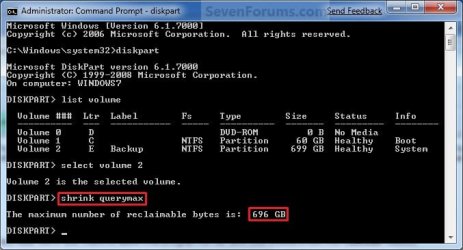
5. In the elevated command prompt, type shrink querymax and press Enter. (See screenshot below)
NOTE: This will give you the maximum amount of size in MB that you can shrink the selected partition or volume (step 4) by to be used as the new unallocated space. For example, I have 696 GB available to shrink.
CMD_Shrink_Step4.jpg
6. To Shrink All of the Available Space
A) In the elevated command prompt, type shrink and press Enter.
NOTE: This will shrink the selected partition or volume by all of the maximum number of reclaimable bytes (step 4) to be used for the new unallocated space.

B) Go to step 8.
7. To Shrink the Available Space by a Specified Size
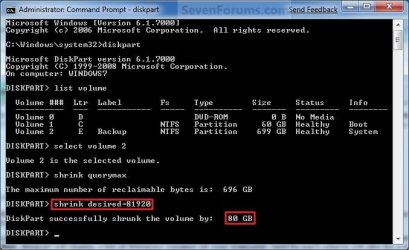
A) In the elevated command prompt, type shrink desired=(# in MB) and press Enter. (See screenshot below)
NOTE: You would substitute (# in MB) for how many MB (1 GB = 1024 MB) you want to shrink the selected partition or volume (step 4) by to be used for the new unallocated space. For example, if I only wanted to shrink the partition or volume by 81920 MB (80 GB), then I would type shrink desired=81920 and press Enter.
CMD_Shrink_Step5.jpg
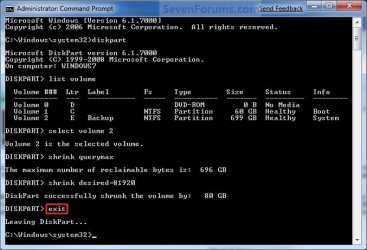
8. In the elevated command prompt, type exit and press Enter. (See screenshot below)
CMD_Shrink_Step6.jpg
9. Close the elevated command prompt.

10. The selected partition (step 4) has now been shrunk to create a new empty unallocated space. You can use this new unallocated space to create a new partition with.
That's it,
Shawn


Last edited:
whs,
I've tried it on all varieties of partitions. As said, I've recently done some rather intensive testing under different scenarios.
 

My Computer

Computer Manufacturer/Model Number
Toshiba Satellite S875D-S7239 laptop
OS
MS Windows 7 Ultimate SP1 64-bit
CPU
AMD A10-4600M
Motherboard
AMD Pumori (Socket FT1)
Memory
6.00 GB Dual-Channel DDR3 @ 798MHz (11-11-12-28)
Graphics Card(s)
AMD Radeon HD 7660G
Sound Card
High Definition Audio Device
Monitor(s) Displays
Generic PnP Monitor (1600x900@60Hz)
Screen Resolution
1600x900@60Hz
Hard Drives
SSD 119GB Corsair CSSD-V128GB2 ATA Device
Keyboard
Standard PS/2 Keyboard
Mouse
HP Wireless Optical Mobile Mouse Model FHA-3410
Internet Speed
What the local pub, local coffee shop offers.
Other Info
Optical Drive:MATSHITA BD-CMB UJ160B ATA Device


Also have an Asus ha1002xp netbook with Win 7 Ultimate installed.
whs,
I've tried it on all varieties of partitions. As said, I've recently done some rather intensive testing under different scenarios.
Were you able to gather some data that you can share?
 

My Computer

Computer Manufacturer/Model Number
HP, Dell, Gateway, Toshiba - 4 laptops and 2 desktops
OS
Vista, Windows7, Mint Mate, Zorin, Windows 8
CPU
from 1.6GHz Duo to i7
Monitor(s) Displays
2x HP w2207
Hard Drives
5x HDD, 7x SSD, 12x Externals
Keyboard
with trackball - no mices
Mouse
Trackball mice
Internet Speed
DSL 6000
If i want to link my D:\ drive to C:\ drive, how i can i do it???
 

My Computer

Computer Manufacturer/Model Number
HP Pavilion DV7-3197.eo
OS
Windows 7 NVIDIA Edition x64
CPU
Intel Core i7 Q720 1,60GHZ @ 1,60GHZ
Memory
6GB DDR3
Graphics Card(s)
NVIDIA GeForce GT 230M
Screen Resolution
1600 x 900
Hard Drives
500GB + 1000GB
Internet Speed
10 megabyte ADSL
Other Info
Current Windows 7 visual style:

Dark Soft
Hello TheAslan,

I'm not quite sure of what you mean or want. Do you mean that you want to shrink your D: drive to add to your C: drive, or ???? :confused:
 

My Computer

Computer type
PC/Desktop
Computer Manufacturer/Model Number
Self built custom
OS
64-bit Windows 11 Pro for Workstations
CPU
Intel i7-8700K OC'd to 5 GHz
Motherboard
ASUS ROG Maximus XI Formula Z390
Memory
64 GB (4x16GB) G.SKILL TridentZ RGB DDR4 3600 MHz
Graphics Card(s)
ASUS ROG-STRIX-GTX1080TI-O11G-GAMING
Sound Card
Integrated
Monitor(s) Displays
2 x Samsung Odyssey G7 27"
Screen Resolution
2560x1440
Hard Drives
1TB Samsung 990 PRO M.2,
4TB Samsung 990 PRO PRO M.2,
TerraMaster F8 SSD Plus NAS
PSU
Seasonic Prime Titanium 850W
Case
Thermaltake Core P3
Cooling
Corsair Hydro H115i
Keyboard
Logitech wireless K800
Mouse
Logitech MX Master 4
Internet Speed
2 Gb/s Download and 100 Mb/s Upload
Antivirus
Malwarebyte Anti-Malware Premium
Browser
Google Chrome
Other Info
Logitech Z625 speaker system,
Logitech BRIO 4K Pro webcam,
HP Color LaserJet Pro MFP M477fdn,
APC SMART-UPS RT 1000 XL - SURT1000XLI,
Galaxy S23 Plus phone
And .. In a HP Pavilion, the D Partition might be the HP Recovery Partition.
If this is the Case, the answer is NO ... Don't mess with it
 

My Computer

Computer Manufacturer/Model Number
HP d4996t (upgraded)
OS
XP MCE .... XP Pro 64 .... W7 U x64
CPU
E6750, 2.67GHz C2D
Memory
4GB, PC2 6400
Graphics Card(s)
GeForce 9400GT
Monitor(s) Displays
Twin Samsung 2443BWT
Screen Resolution
1920x1200
Hard Drives
Many .. 3 Installed
PSU
460W
Internet Speed
Cable
Yes, D:\ is the recovery partition, but i don't need that at all, it's empty all the time....

C:\ 446 gb
D:\ 19gb

How i can add that 19 gb space to my C:\ drive or is it even possible?? So it will come as 465 gb??
 

My Computer

Computer Manufacturer/Model Number
HP Pavilion DV7-3197.eo
OS
Windows 7 NVIDIA Edition x64
CPU
Intel Core i7 Q720 1,60GHZ @ 1,60GHZ
Memory
6GB DDR3
Graphics Card(s)
NVIDIA GeForce GT 230M
Screen Resolution
1600 x 900
Hard Drives
500GB + 1000GB
Internet Speed
10 megabyte ADSL
Other Info
Current Windows 7 visual style:

Dark Soft
It's not empty .. You just can't see what's in it.
Have you made your HP recovery DVDs yet ???
What Operating system originally came in this HP??
 

My Computer

Computer Manufacturer/Model Number
HP d4996t (upgraded)
OS
XP MCE .... XP Pro 64 .... W7 U x64
CPU
E6750, 2.67GHz C2D
Memory
4GB, PC2 6400
Graphics Card(s)
GeForce 9400GT
Monitor(s) Displays
Twin Samsung 2443BWT
Screen Resolution
1920x1200
Hard Drives
Many .. 3 Installed
PSU
460W
Internet Speed
Cable
Yes, D:\ is the recovery partition, but i don't need that at all, it's empty all the time....

C:\ 446 gb
D:\ 19gb

How i can add that 19 gb space to my C:\ drive or is it even possible?? So it will come as 465 gb??
As Noyb says it is not empty and you might need it later. But if you insist, go into Disk Management, delete D to get unallocated space and extend C with the unallocated space. It's not going to make you much richer and you will regret it the day you have to reinstall the system.
 

My Computer

Computer Manufacturer/Model Number
HP, Dell, Gateway, Toshiba - 4 laptops and 2 desktops
OS
Vista, Windows7, Mint Mate, Zorin, Windows 8
CPU
from 1.6GHz Duo to i7
Monitor(s) Displays
2x HP w2207
Hard Drives
5x HDD, 7x SSD, 12x Externals
Keyboard
with trackball - no mices
Mouse
Trackball mice
Internet Speed
DSL 6000
TheAslan,

I would strongly recommend to leave the D: partition as is. If you insist on deleting it to add it to the C: drive, then be sure to use the link from HP below to create a set of HP Recovery discs first to be able to do a factory restore of Windows 7 with. Otherwise you will have no way to reinstall the Windows 7 that came with your HP computer.

Using HP Backup and Recovery Manager in Vista - HP Customer Care (United States - English)
 

My Computer

Computer type
PC/Desktop
Computer Manufacturer/Model Number
Self built custom
OS
64-bit Windows 11 Pro for Workstations
CPU
Intel i7-8700K OC'd to 5 GHz
Motherboard
ASUS ROG Maximus XI Formula Z390
Memory
64 GB (4x16GB) G.SKILL TridentZ RGB DDR4 3600 MHz
Graphics Card(s)
ASUS ROG-STRIX-GTX1080TI-O11G-GAMING
Sound Card
Integrated
Monitor(s) Displays
2 x Samsung Odyssey G7 27"
Screen Resolution
2560x1440
Hard Drives
1TB Samsung 990 PRO M.2,
4TB Samsung 990 PRO PRO M.2,
TerraMaster F8 SSD Plus NAS
PSU
Seasonic Prime Titanium 850W
Case
Thermaltake Core P3
Cooling
Corsair Hydro H115i
Keyboard
Logitech wireless K800
Mouse
Logitech MX Master 4
Internet Speed
2 Gb/s Download and 100 Mb/s Upload
Antivirus
Malwarebyte Anti-Malware Premium
Browser
Google Chrome
Other Info
Logitech Z625 speaker system,
Logitech BRIO 4K Pro webcam,
HP Color LaserJet Pro MFP M477fdn,
APC SMART-UPS RT 1000 XL - SURT1000XLI,
Galaxy S23 Plus phone
i guess i dont know how to do math, if my main C parition with vista has 465.76 and i want to shrink it down to 80GB and leaving me with a data partition of 385.76GB, what value do i enter in the section "enter the amount of space to shrink in MB" window of the disk management
 

My Computers

System One System Two

  • Computer type
    PC/Desktop
    Computer Manufacturer/Model Number
    PowerSpec G164
    OS
    WIN10
    CPU
    AMD Ryzen 5 3600 6-Core Processor 3.59 GHz
    Memory
    16.0 GB
    Internet Speed
    VERY FAST>>>!!!
  • Antivirus
    ESET Security Premium
Hello Eldin,

You would want to shrink your C: drive by how much you want to create the new partition with. 1024 MB equals 1 GB, so you would have 1024 x 385.76 to equal about 395018 MB to shrink your C: drive by.

Hope this helps,
Shawn
 

My Computer

Computer type
PC/Desktop
Computer Manufacturer/Model Number
Self built custom
OS
64-bit Windows 11 Pro for Workstations
CPU
Intel i7-8700K OC'd to 5 GHz
Motherboard
ASUS ROG Maximus XI Formula Z390
Memory
64 GB (4x16GB) G.SKILL TridentZ RGB DDR4 3600 MHz
Graphics Card(s)
ASUS ROG-STRIX-GTX1080TI-O11G-GAMING
Sound Card
Integrated
Monitor(s) Displays
2 x Samsung Odyssey G7 27"
Screen Resolution
2560x1440
Hard Drives
1TB Samsung 990 PRO M.2,
4TB Samsung 990 PRO PRO M.2,
TerraMaster F8 SSD Plus NAS
PSU
Seasonic Prime Titanium 850W
Case
Thermaltake Core P3
Cooling
Corsair Hydro H115i
Keyboard
Logitech wireless K800
Mouse
Logitech MX Master 4
Internet Speed
2 Gb/s Download and 100 Mb/s Upload
Antivirus
Malwarebyte Anti-Malware Premium
Browser
Google Chrome
Other Info
Logitech Z625 speaker system,
Logitech BRIO 4K Pro webcam,
HP Color LaserJet Pro MFP M477fdn,
APC SMART-UPS RT 1000 XL - SURT1000XLI,
Galaxy S23 Plus phone
i guess i dont know how to do math, if my main C parition with vista has 465.76 and i want to shrink it down to 80GB and leaving me with a data partition of 385.76GB, what value do i enter in the section "enter the amount of space to shrink in MB" window of the disk management
With Disk Management, you will not be able to shrink it down that much because the MFT is in the way (only about 50% is possible). You may try with Partition Wizard though. Make sure you backup everything before you do - just in case.
 

My Computer

Computer Manufacturer/Model Number
HP, Dell, Gateway, Toshiba - 4 laptops and 2 desktops
OS
Vista, Windows7, Mint Mate, Zorin, Windows 8
CPU
from 1.6GHz Duo to i7
Monitor(s) Displays
2x HP w2207
Hard Drives
5x HDD, 7x SSD, 12x Externals
Keyboard
with trackball - no mices
Mouse
Trackball mice
Internet Speed
DSL 6000
Hello Eldin,

You would want to shrink your C: drive by how much you want to create the new partition with. 1024 MB equals 1 GB, so you would have 1024 x 385.76 to equal about 395018 MB to shrink your C: drive by.

Hope this helps,
Shawn


yea it wont let me shrink by that much, max is like 58GB because of restrictions and paging file. looks like i have to try partition wizard

the drive is a 500G total. and max is 58GB, thats crazy.

thanks guys
 

My Computers

System One System Two

  • Computer type
    PC/Desktop
    Computer Manufacturer/Model Number
    PowerSpec G164
    OS
    WIN10
    CPU
    AMD Ryzen 5 3600 6-Core Processor 3.59 GHz
    Memory
    16.0 GB
    Internet Speed
    VERY FAST>>>!!!
  • Antivirus
    ESET Security Premium
yea it wont let me shrink by that much, max is like 58GB because of restrictions and paging file. looks like i have to try partition wizard

I always Defragg my W7 disc using XP's Defragger ..
Then I don't have the W7 Shrink min size restrictions.

Not sure if the other 3rd party Defraggers will help .. But I think so.
Maybe Also .. I'm defragging the W7 disc when it's not running.
 

My Computer

Computer Manufacturer/Model Number
HP d4996t (upgraded)
OS
XP MCE .... XP Pro 64 .... W7 U x64
CPU
E6750, 2.67GHz C2D
Memory
4GB, PC2 6400
Graphics Card(s)
GeForce 9400GT
Monitor(s) Displays
Twin Samsung 2443BWT
Screen Resolution
1920x1200
Hard Drives
Many .. 3 Installed
PSU
460W
Internet Speed
Cable
how are u able to defrag with windows xp defragger? and how can u degrag without windows running, by the way im running vista.
 

My Computers

System One System Two

  • Computer type
    PC/Desktop
    Computer Manufacturer/Model Number
    PowerSpec G164
    OS
    WIN10
    CPU
    AMD Ryzen 5 3600 6-Core Processor 3.59 GHz
    Memory
    16.0 GB
    Internet Speed
    VERY FAST>>>!!!
  • Antivirus
    ESET Security Premium
how are u able to defrag with windows xp defragger?
I also have a XP system disc .. and can boot from any disc I choose.
Or can run other discs in a USB adapter on my Primary XP computer.

If I'm deffragging W7 from another system disc ..
then W7 is not running .. It's not the operating system at that time.

It all depends on the tools you have.
 

My Computer

Computer Manufacturer/Model Number
HP d4996t (upgraded)
OS
XP MCE .... XP Pro 64 .... W7 U x64
CPU
E6750, 2.67GHz C2D
Memory
4GB, PC2 6400
Graphics Card(s)
GeForce 9400GT
Monitor(s) Displays
Twin Samsung 2443BWT
Screen Resolution
1920x1200
Hard Drives
Many .. 3 Installed
PSU
460W
Internet Speed
Cable
i guess i dont know how to do math, if my main C parition with vista has 465.76 and i want to shrink it down to 80GB and leaving me with a data partition of 385.76GB, what value do i enter in the section "enter the amount of space to shrink in MB" window of the disk management
With Disk Management, you will not be able to shrink it down that much because the MFT is in the way (only about 50% is possible). You may try with Partition Wizard though. Make sure you backup everything before you do - just in case.


the program worked EXCELLENTLY. many thanks:D:D:D
 

Attachments

  • Untitled.jpg
    Untitled.jpg
    54.8 KB · Views: 246

My Computers

System One System Two

  • Computer type
    PC/Desktop
    Computer Manufacturer/Model Number
    PowerSpec G164
    OS
    WIN10
    CPU
    AMD Ryzen 5 3600 6-Core Processor 3.59 GHz
    Memory
    16.0 GB
    Internet Speed
    VERY FAST>>>!!!
  • Antivirus
    ESET Security Premium
No problem eldinv. I am glad you got your problem solved. Come see us any time.
 

My Computer

Computer Manufacturer/Model Number
HP, Dell, Gateway, Toshiba - 4 laptops and 2 desktops
OS
Vista, Windows7, Mint Mate, Zorin, Windows 8
CPU
from 1.6GHz Duo to i7
Monitor(s) Displays
2x HP w2207
Hard Drives
5x HDD, 7x SSD, 12x Externals
Keyboard
with trackball - no mices
Mouse
Trackball mice
Internet Speed
DSL 6000
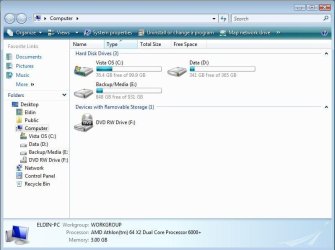
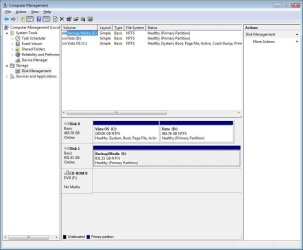
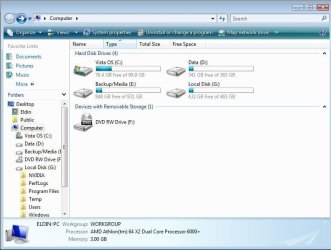
i spoke to soon? i dont know what happen but all of a sudden something showed up under my computer and i cant explain it.
 

Attachments

  • disk.jpg
    disk.jpg
    76.4 KB · Views: 321
  • mycomputer.jpg
    mycomputer.jpg
    59 KB · Views: 230

My Computers

System One System Two

  • Computer type
    PC/Desktop
    Computer Manufacturer/Model Number
    PowerSpec G164
    OS
    WIN10
    CPU
    AMD Ryzen 5 3600 6-Core Processor 3.59 GHz
    Memory
    16.0 GB
    Internet Speed
    VERY FAST>>>!!!
  • Antivirus
    ESET Security Premium
i restarted and it was gone, lol.. i wonder what i did. lol.
 

My Computers

System One System Two

  • Computer type
    PC/Desktop
    Computer Manufacturer/Model Number
    PowerSpec G164
    OS
    WIN10
    CPU
    AMD Ryzen 5 3600 6-Core Processor 3.59 GHz
    Memory
    16.0 GB
    Internet Speed
    VERY FAST>>>!!!
  • Antivirus
    ESET Security Premium
Back
Top