Partition or Volume - Shrink

How to Shrink a Partition or Volume in Windows 7

   Information
This will show you how to shrink an existing partition or volume using Disk Management or Diskpart in Windows 7 to create unallocated disk space, from which you can create a new partition or volume with.
   Warning
You must be logged on in an administrator account to be able to do this tutorial.

If while shrinking a partition below, you get a Convert to Dynamic disks? type prompt, do not do so.

If you disable the Disk Defragmenter service, then you will get the error below when you try to do anything in Disk Management. If you get this error, then make sure that the Disk Defragmenter service is set to only Manual.
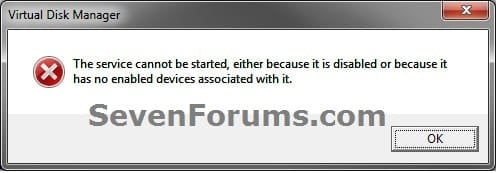
Error.jpg


OPTION ONE

Using Disk Management


1. Open the Control Panel (icons view), and click on the Administrative Tools icon. then close the Control Panel window.

2. Click on Computer Management in Administrative Tools, then close the Administrative Tools window.

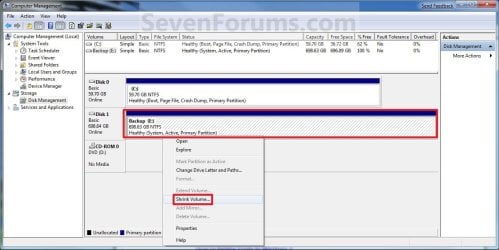
3. In the left pane under Storage, click on Disk Management. (See screenshot below)
Shrink_Step1.jpg
4. In the middle pane, right click on the partition that you want to shrink and click on Shrink Volume. (See screenshot above)

5. Type in how many MB (1 GB = 1024 MB) of the available shrink space shown that you want to shrink the partition or volume by to be used for the new unallocated space, then click on the Shrink button. (See screenshot below)
   Warning
The size of the available shrink space can be restricted by the amount of space currently allocated to on the hard drive for the virtual memory page file, System Protection maximum storage space size, and hibernation files. The location of the files on the hard drive plays a big part here because these files are marked as unmovable, and Disk Management is unable to relocate them. As such, if these unmovable files are located in the middle of the total amount of free space on the disk, then only the amount of free space on the other side (to the right) of these files will actually be available for the new partition. This will result in you showing that you have x amount of free space, but not being able to use it for your partition. The only way around this is to use a 3rd party hard drive partition management program, or setup the partition when installing Vista.

Shrink_Step2.jpg
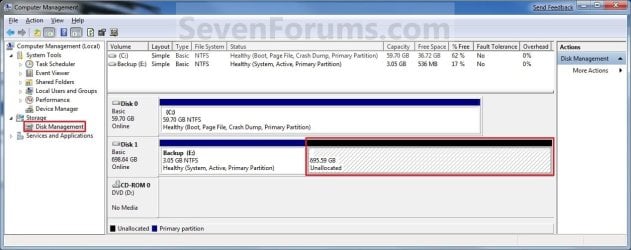
6. The selected partition (step 4) has now been shrunk to create a new empty unallocated space. You can use this new unallocated space to create a new partition with. (See screenshot below)
Shrink_Step3.jpg
7. Close the Computer Management window. (See screenshot above)


OPTION TWO

Using Diskpart in a Elevated Command Prompt


1. Open a elevated command prompt, or a command prompt at boot.

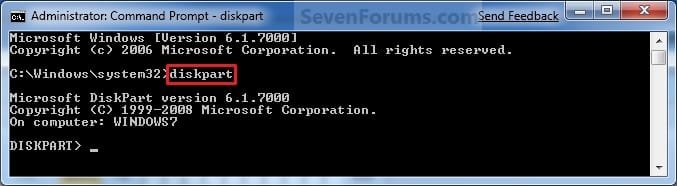
2. In the elevated command prompt, type diskpart and press Enter. (See screenshot below)
CMD_Shrink_Step1.jpg
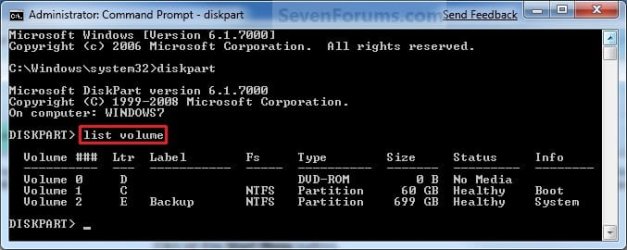
3. In the elevated command prompt, type list volume and press Enter. (See screenshot below)
NOTE: This will give you a list of volume numbers to select from to shrink.
CMD_Shrink_Step2.jpg
4. In the elevated command prompt, type select volume # and press Enter. (See screenshot below)
NOTE: You would substitute # for the volume number listed that you want to shrink. For example, I want to shrink the listed volume 2, so I would type select volume 2 and press Enter.
CMD_Shrink_Step3.jpg
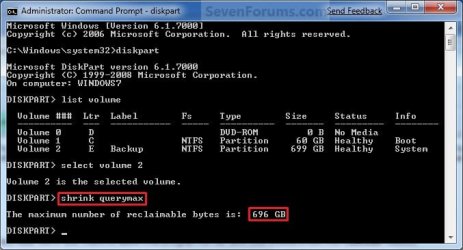
5. In the elevated command prompt, type shrink querymax and press Enter. (See screenshot below)
NOTE: This will give you the maximum amount of size in MB that you can shrink the selected partition or volume (step 4) by to be used as the new unallocated space. For example, I have 696 GB available to shrink.
CMD_Shrink_Step4.jpg
6. To Shrink All of the Available Space
A) In the elevated command prompt, type shrink and press Enter.
NOTE: This will shrink the selected partition or volume by all of the maximum number of reclaimable bytes (step 4) to be used for the new unallocated space.

B) Go to step 8.
7. To Shrink the Available Space by a Specified Size
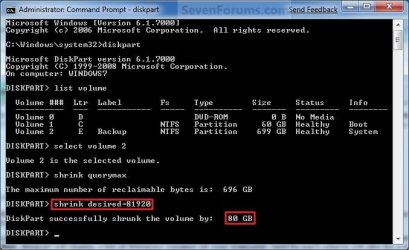
A) In the elevated command prompt, type shrink desired=(# in MB) and press Enter. (See screenshot below)
NOTE: You would substitute (# in MB) for how many MB (1 GB = 1024 MB) you want to shrink the selected partition or volume (step 4) by to be used for the new unallocated space. For example, if I only wanted to shrink the partition or volume by 81920 MB (80 GB), then I would type shrink desired=81920 and press Enter.
CMD_Shrink_Step5.jpg
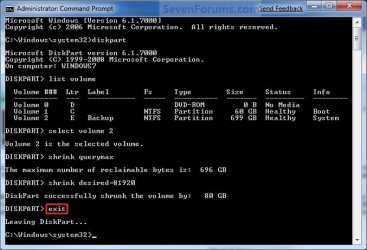
8. In the elevated command prompt, type exit and press Enter. (See screenshot below)
CMD_Shrink_Step6.jpg
9. Close the elevated command prompt.

10. The selected partition (step 4) has now been shrunk to create a new empty unallocated space. You can use this new unallocated space to create a new partition with.
That's it,
Shawn


Last edited:
That was a virtual disk. Those are created e.g. when you mount a Macrium image (each time) or when you install Office 2010. But as you saw, they disappear after the first reboot.
 

My Computer

Computer Manufacturer/Model Number
HP, Dell, Gateway, Toshiba - 4 laptops and 2 desktops
OS
Vista, Windows7, Mint Mate, Zorin, Windows 8
CPU
from 1.6GHz Duo to i7
Monitor(s) Displays
2x HP w2207
Hard Drives
5x HDD, 7x SSD, 12x Externals
Keyboard
with trackball - no mices
Mouse
Trackball mice
Internet Speed
DSL 6000
hi there,

I also have problem in shrinking my partition. I went through all the pages in this topic but still not sure of what I can do.

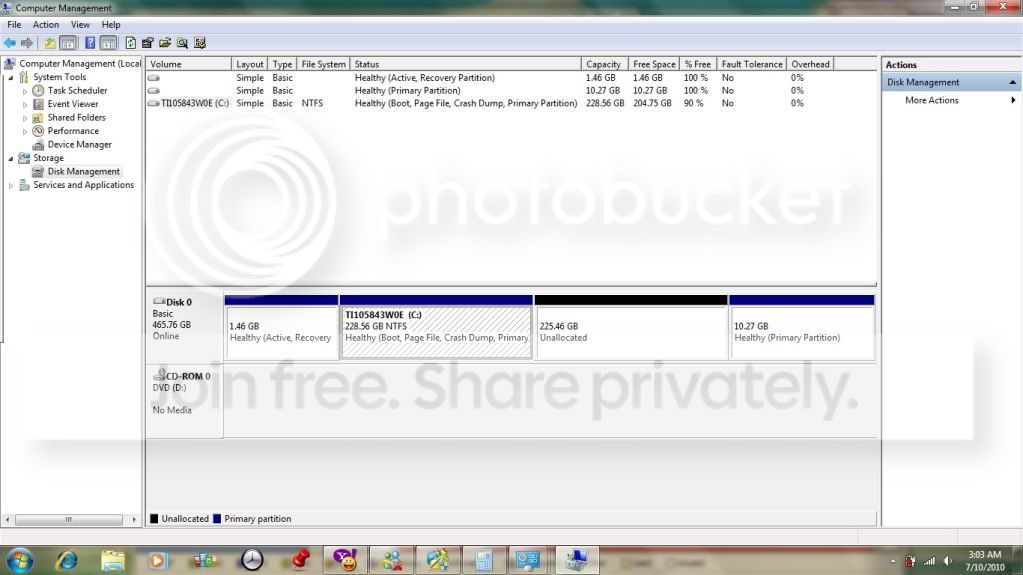
here is the image of my hard drive
harddrive.jpg


my laptop is TOSHIBA L630, 500GB hard drive, WINDOWS 7-64bit
now I have some question to ask you guys about
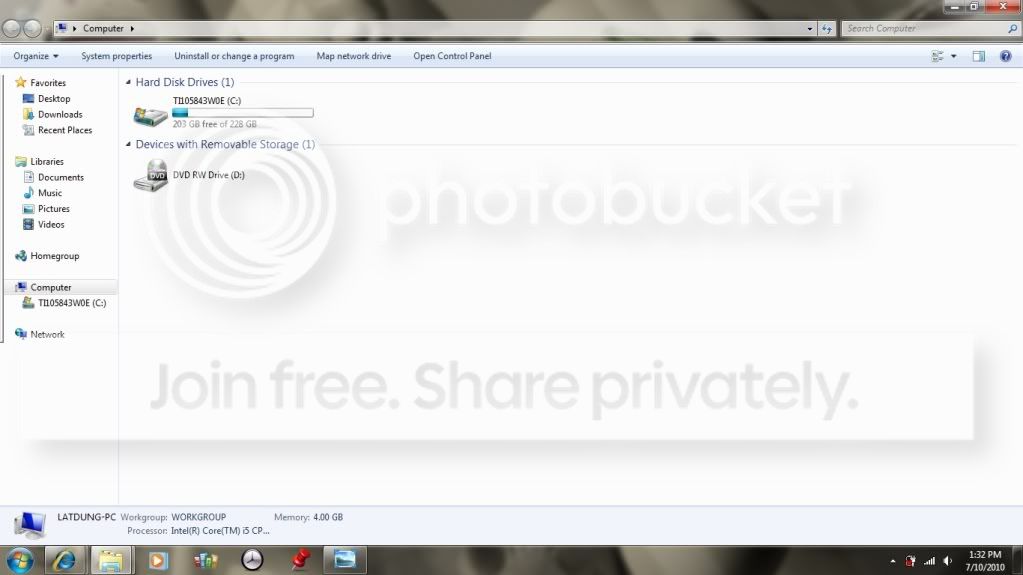
1. I have 500gb hard drive but why it only shows 465.75 GB, I just wonder where is the other?
2. I want to shrink my C to around 80GB, but I don't know how to do it. as u can see in the picture, the unallocated there is the maximum GB that I can shrink
3. about the 2 other partition: the 1.46GB and 10Gb both ard hidden partition, what can I do with them, can I format one of them? when I click on the 10Gb there is only one option that I can do is to delete it.
harddrive2.jpg
 

My Computer

OS
windows 7
A2) You can do that with Partition Wizard - not with Disk Management. Make sure you backup the partition to an external drive before you fumble with it, just in case.

If you create new partitions, make an extended partition first - not another primary partition.
 

My Computer

Computer Manufacturer/Model Number
HP, Dell, Gateway, Toshiba - 4 laptops and 2 desktops
OS
Vista, Windows7, Mint Mate, Zorin, Windows 8
CPU
from 1.6GHz Duo to i7
Monitor(s) Displays
2x HP w2207
Hard Drives
5x HDD, 7x SSD, 12x Externals
Keyboard
with trackball - no mices
Mouse
Trackball mice
Internet Speed
DSL 6000
thank you THEOG and WHS for ur help, I finally shrinked the C to 80gb and created 2 more partitions.
thanks hipsssssssssss
 

My Computer

OS
windows 7
Error during partition

my laptop is Dell Inspiron 15R, 500GB hard drive, 64bit
I have some question to ask you
1. I have 500gb hard drive with which I was able to create a new drive E: with 100 GB space
2. I want to shrink my C to around 80GB, currently it is 350 GB and E drive is 100 GB.
When I try to shrink the C drive, it allows me to create an unallocated space of only 129GB but still it does not allow me to create a new volume for this unallocated space,
Also I see a virtual Drive Q : which I am unable to delete

Please help me out on this
 

My Computer

Computer Manufacturer/Model Number
Dell Inspiron
OS
Windows 7 Home Premium 64bit
Memory
4 GB

My Computer

Computer Manufacturer/Model Number
HP, Dell, Gateway, Toshiba - 4 laptops and 2 desktops
OS
Vista, Windows7, Mint Mate, Zorin, Windows 8
CPU
from 1.6GHz Duo to i7
Monitor(s) Displays
2x HP w2207
Hard Drives
5x HDD, 7x SSD, 12x Externals
Keyboard
with trackball - no mices
Mouse
Trackball mice
Internet Speed
DSL 6000
Thanks,

But can you please elaborate on reboot so that the Q drive disappear.I am new to all this and just want your guidance.
 

My Computer

Computer Manufacturer/Model Number
Dell Inspiron
OS
Windows 7 Home Premium 64bit
Memory
4 GB
Thanks,

But can you please elaborate on reboot so that the Q drive disappear.I am new to all this and just want your guidance.
Just power-off (or shut-off) your PC and then power-on again. Or just "Restart". Let us know whether the virtual drive disappeared.
 

My Computer

Computer Manufacturer/Model Number
HP, Dell, Gateway, Toshiba - 4 laptops and 2 desktops
OS
Vista, Windows7, Mint Mate, Zorin, Windows 8
CPU
from 1.6GHz Duo to i7
Monitor(s) Displays
2x HP w2207
Hard Drives
5x HDD, 7x SSD, 12x Externals
Keyboard
with trackball - no mices
Mouse
Trackball mice
Internet Speed
DSL 6000
No..The virtual Drive is still there after reboot.

Also for the partition tool, Do we need to back up the data before using it?
because I do not have my OS CD to install it again :(
 

My Computer

Computer Manufacturer/Model Number
Dell Inspiron
OS
Windows 7 Home Premium 64bit
Memory
4 GB
I have never lost any data with the Partition Wizard. But it is always prudent to make an image before you manipulate the OS partition. I suggest you use free Macium unless you usually use another imaging program.
Regarding the backup CD/DVD I suggest you burn one from the recovery partition. It takes 2 or 3 DVD-R's. There is a standard procedure on how to do that. Unfortunately it is different with every manufacturer. It should be explained in the little booklet that came with your PC.
 

My Computer

Computer Manufacturer/Model Number
HP, Dell, Gateway, Toshiba - 4 laptops and 2 desktops
OS
Vista, Windows7, Mint Mate, Zorin, Windows 8
CPU
from 1.6GHz Duo to i7
Monitor(s) Displays
2x HP w2207
Hard Drives
5x HDD, 7x SSD, 12x Externals
Keyboard
with trackball - no mices
Mouse
Trackball mice
Internet Speed
DSL 6000
disk management problem
i can extend F drive from my C drive.
but i can not extend my E drive from neither of my drive [from D drive and F drive]

suggest me to extend my E drive
 

Attachments

  • Untitled.jpg
    Untitled.jpg
    126.9 KB · Views: 348

My Computer

Computer Manufacturer/Model Number
compaq cq62
OS
windows 7
CPU
2.3
Memory
2 GB DDR3
Monitor(s) Displays
15.6"
Screen Resolution
1366*768
Hard Drives
320 GB
Internet Speed
BROADBAND
Other Info
PROCESSOR - I5, 320 GB HDD

My Computers

System One System Two

  • Computer type
    PC/Desktop
    Computer Manufacturer/Model Number
    PowerSpec G164
    OS
    WIN10
    CPU
    AMD Ryzen 5 3600 6-Core Processor 3.59 GHz
    Memory
    16.0 GB
    Internet Speed
    VERY FAST>>>!!!
  • Antivirus
    ESET Security Premium
Help need shrinking system volume on W7 64bit system

I have just spent the better part of two days setting up a new W7 Pro 64bit system (HPE-270F). I've already loaded all my software and now wish to shrink the C: partion to +/- 200GB. I've only used 30GB of the C: drive but I'm only able to shrink it to 472gb.

  • I've followed the recommendations on this "How to Geek Page": Working Around Windows Vista’s "Shrink Volume" Inadequacy Problems - How-To Geek.
  • I've tried 3 different defrag programs including Perfect Disk 11. Perfect Disk shows the system files (all "system volume information" files) stuck at the end blocks of the 472 gb Partition.
  • I have also tried three different 3rd parting partitioning programs (Partition Wizard, Paragon and Easeus.)

It is incredible to me that Microsoft makes it so bloody difficult to accomplish this simple administrative task - but then again I guess I should not be surprised :sarc:

None of the trial partition managers I've tried are able to move the system files. I do not want to pay for a partition manager unless I am certain it can do the job.

Any help will be greatly appreciated!
 

My Computer

Computer Manufacturer/Model Number
HPE-270F
OS
Windows 7 Professional 64bit
Solution: "cannot shrink a volume beyond the point where unmovable..."

Brink gives some very helpful info:
The size of the available shrink space can be restricted by the amount of space currently allocated to on the hard drive for the virtual memory page file, System Protection maximum storage space size, and hibernation files.
However, for those of you who - despite empty space - cannot shrink beyond a certain point because "You cannot shrink a volume beyond the point where unmovable files are located.", you may not have put two-and-two together.

If you need to shrink further then Windows will allow, try temporarily turning off the three services above mentioned above (make sure to to it in such a way that it deletes the files a well - Win 7 seem to do better with this then XP) and restarting your computer.

After the restart, you should be able to shrink all available space, although you will want to leave some extra to turn these services back on or for future updates, etc.
 

My Computer

OS
Win 7 Home Prem
Solution: "cannot shrink a volume..." Part 2

I tried shrinking the C: drive on a second machine by turning off the three services above, but still had something "unmovable". After some ore searching, I used disk cleanup to delete all the temporary files on the computer (including the system ones) and also cleared out IE files and logs. Also, when you go to make the shrink query, make sure you don't have any programs running as that will make their files temporarily unmovable as well. If you try the suggestion above and still have issues, try these additional three steps.
 

My Computer

OS
Win 7 Home Prem
Thanks Shawn - went like a dream.

Well Mate, that is yet another set-up 'to do' checked off the list, and it went like a dream. :thumbsup:

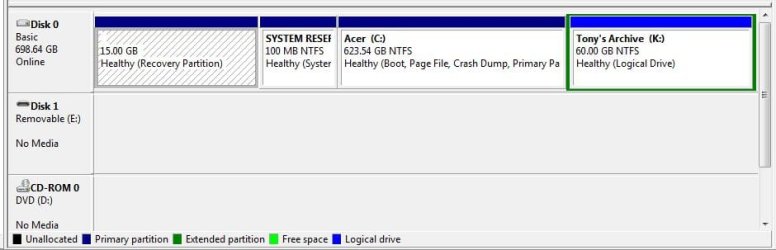
The only query I have is in the page layout. I notice that in the Tutorial screen shots, the Drives are all shown as 'stacked'. Mine however, are displaying 'in-line' like this;

HD Partition Snip 2 20110511.JPG

- a minor gripe I know, but a nuisance all the same. Is there anything I can or need to do to get the Drives into a 'stacked appearance' in that window?

I think I understand why the System Protection Maximum Storage Space etc, etc. is warranted - because all is now on the one drive, whereas in Vista, that flexibility was removed from User choice with the dedicated allocation of space on the Hard Drive with the pre-set and loaded partitions ie. Acer C: and Data D: Drives., and all pertitioning was done via the C: Drive alone.

Thanks again Shawn for another of your typically easy to follow Tutorials. .....and yes I know that I've yet to update my Systems Specs, but I've been flat out doing this sort of stuff.. Cheers T
 

My Computer

Computer Manufacturer/Model Number
Acer Aspire Timeline X Laptop - Model 5820TG - V1.23
OS
Windows 7 Home Premium x64 - SP1
CPU
Intel Core i5 @ 2.67GHz Arrandale 32nm Technology
Motherboard
Acer JM51_CP (CPU) Base Board Version
Memory
8 GB RAM [2 x 4 GB DDR3]
Graphics Card(s)
AMD Radeon HD 6650M, Intel (R) HD Graphics
Sound Card
Realtek HD Audio, ATI HD Audio Device
Monitor(s) Displays
Acer Aspire Notebook - 15.7"; Acer LCD Monitor X223Wsd - 22"
Screen Resolution
1366 x 768 x 60Hertz
Hard Drives
Notebook - 733GB Western Digital WDC WD7500BPVT- 22HXZT1 Sata.
External HDs [4];Maxtor One Touch4 - 500GB External HD [Drive M:\].Western Digital WDXMS1200TA - 120GB External HD. WD My Book 'Elite' 1TB External HD [Windows 7 dedicated - Partitioned
Mouse
Logitech Wireless V320 for Notebooks
Other Info
Brother MFC-465CN; PC to Fax/Scan/Copy/Photo Multi Function Centre. Epson Perfection V300 Photo Scanner.
Siemens Speedstream 6520 Router.
Wacom 'Bamboo Fun' CTE-650 PC Tablet, Stylus and Mouse. Logitech X-230 Notebook Stereo Speakers and Sub-woofer.
UAC - On. Internet - FireFox v13.0.1 & IE8.
Hon.RSM to the 4th [Assault Pioneer] Troop Pune Sepoys , and 3rd Troop Jodhpur Bengali Lancers
Hello Tony,

If you mean with "Disk 0" in your Disk Management, then they are not stacked since those are only partitions on the single HDD (Disk 0) and not separate physical HDDs.
 

My Computer

Computer type
PC/Desktop
Computer Manufacturer/Model Number
Self built custom
OS
64-bit Windows 11 Pro for Workstations
CPU
Intel i7-8700K OC'd to 5 GHz
Motherboard
ASUS ROG Maximus XI Formula Z390
Memory
64 GB (4x16GB) G.SKILL TridentZ RGB DDR4 3600 MHz
Graphics Card(s)
ASUS ROG-STRIX-GTX1080TI-O11G-GAMING
Sound Card
Integrated
Monitor(s) Displays
2 x Samsung Odyssey G7 27"
Screen Resolution
2560x1440
Hard Drives
1TB Samsung 990 PRO M.2,
4TB Samsung 990 PRO PRO M.2,
TerraMaster F8 SSD Plus NAS
PSU
Seasonic Prime Titanium 850W
Case
Thermaltake Core P3
Cooling
Corsair Hydro H115i
Keyboard
Logitech wireless K800
Mouse
Logitech MX Master 4
Internet Speed
2 Gb/s Download and 100 Mb/s Upload
Antivirus
Malwarebyte Anti-Malware Premium
Browser
Google Chrome
Other Info
Logitech Z625 speaker system,
Logitech BRIO 4K Pro webcam,
HP Color LaserJet Pro MFP M477fdn,
APC SMART-UPS RT 1000 XL - SURT1000XLI,
Galaxy S23 Plus phone
hey, um can i decrease the partition size of disk where my OS was located?
 

My Computer

OS
Windows 7 Starter 32bit
Hello Randy, and welcome to Seven Forums.

Please post a screenshot of your Disk Management window showing all of your drive's layout, and I'll be happy to take a look at it to help see if you would be able to or not. :)
 

My Computer

Computer type
PC/Desktop
Computer Manufacturer/Model Number
Self built custom
OS
64-bit Windows 11 Pro for Workstations
CPU
Intel i7-8700K OC'd to 5 GHz
Motherboard
ASUS ROG Maximus XI Formula Z390
Memory
64 GB (4x16GB) G.SKILL TridentZ RGB DDR4 3600 MHz
Graphics Card(s)
ASUS ROG-STRIX-GTX1080TI-O11G-GAMING
Sound Card
Integrated
Monitor(s) Displays
2 x Samsung Odyssey G7 27"
Screen Resolution
2560x1440
Hard Drives
1TB Samsung 990 PRO M.2,
4TB Samsung 990 PRO PRO M.2,
TerraMaster F8 SSD Plus NAS
PSU
Seasonic Prime Titanium 850W
Case
Thermaltake Core P3
Cooling
Corsair Hydro H115i
Keyboard
Logitech wireless K800
Mouse
Logitech MX Master 4
Internet Speed
2 Gb/s Download and 100 Mb/s Upload
Antivirus
Malwarebyte Anti-Malware Premium
Browser
Google Chrome
Other Info
Logitech Z625 speaker system,
Logitech BRIO 4K Pro webcam,
HP Color LaserJet Pro MFP M477fdn,
APC SMART-UPS RT 1000 XL - SURT1000XLI,
Galaxy S23 Plus phone
Back
Top