Partition or Volume - Shrink

How to Shrink a Partition or Volume in Windows 7

   Information
This will show you how to shrink an existing partition or volume using Disk Management or Diskpart in Windows 7 to create unallocated disk space, from which you can create a new partition or volume with.
   Warning
You must be logged on in an administrator account to be able to do this tutorial.

If while shrinking a partition below, you get a Convert to Dynamic disks? type prompt, do not do so.

If you disable the Disk Defragmenter service, then you will get the error below when you try to do anything in Disk Management. If you get this error, then make sure that the Disk Defragmenter service is set to only Manual.
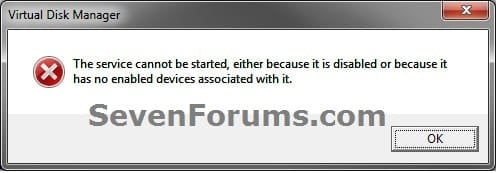
Error.jpg


OPTION ONE

Using Disk Management


1. Open the Control Panel (icons view), and click on the Administrative Tools icon. then close the Control Panel window.

2. Click on Computer Management in Administrative Tools, then close the Administrative Tools window.

3. In the left pane under Storage, click on Disk Management. (See screenshot below)
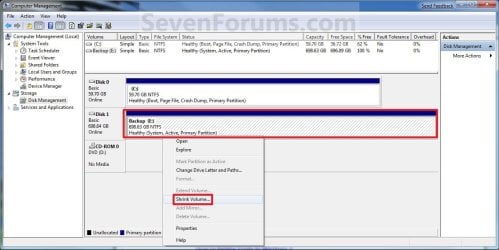
Shrink_Step1.jpg
4. In the middle pane, right click on the partition that you want to shrink and click on Shrink Volume. (See screenshot above)

5. Type in how many MB (1 GB = 1024 MB) of the available shrink space shown that you want to shrink the partition or volume by to be used for the new unallocated space, then click on the Shrink button. (See screenshot below)
   Warning
The size of the available shrink space can be restricted by the amount of space currently allocated to on the hard drive for the virtual memory page file, System Protection maximum storage space size, and hibernation files. The location of the files on the hard drive plays a big part here because these files are marked as unmovable, and Disk Management is unable to relocate them. As such, if these unmovable files are located in the middle of the total amount of free space on the disk, then only the amount of free space on the other side (to the right) of these files will actually be available for the new partition. This will result in you showing that you have x amount of free space, but not being able to use it for your partition. The only way around this is to use a 3rd party hard drive partition management program, or setup the partition when installing Vista.

Shrink_Step2.jpg
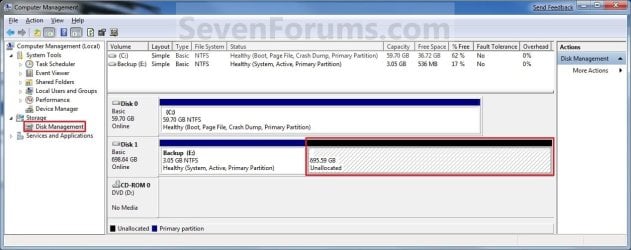
6. The selected partition (step 4) has now been shrunk to create a new empty unallocated space. You can use this new unallocated space to create a new partition with. (See screenshot below)
Shrink_Step3.jpg
7. Close the Computer Management window. (See screenshot above)


OPTION TWO

Using Diskpart in a Elevated Command Prompt


1. Open a elevated command prompt, or a command prompt at boot.

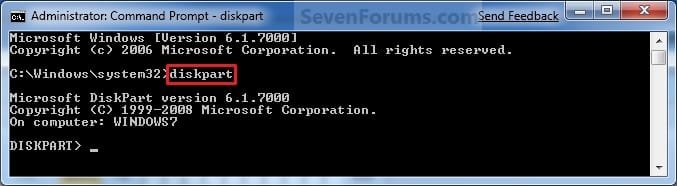
2. In the elevated command prompt, type diskpart and press Enter. (See screenshot below)
CMD_Shrink_Step1.jpg
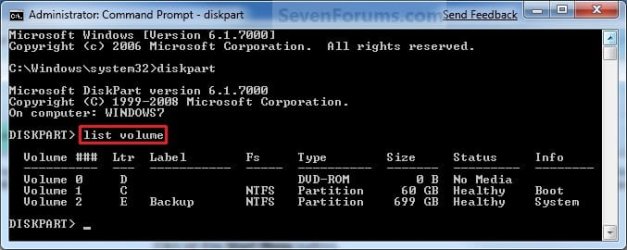
3. In the elevated command prompt, type list volume and press Enter. (See screenshot below)
NOTE: This will give you a list of volume numbers to select from to shrink.
CMD_Shrink_Step2.jpg
4. In the elevated command prompt, type select volume # and press Enter. (See screenshot below)
NOTE: You would substitute # for the volume number listed that you want to shrink. For example, I want to shrink the listed volume 2, so I would type select volume 2 and press Enter.
CMD_Shrink_Step3.jpg
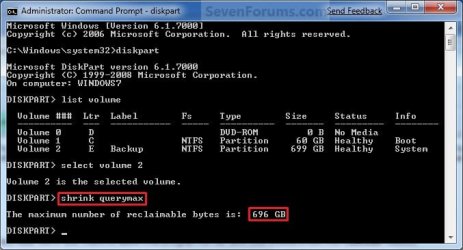
5. In the elevated command prompt, type shrink querymax and press Enter. (See screenshot below)
NOTE: This will give you the maximum amount of size in MB that you can shrink the selected partition or volume (step 4) by to be used as the new unallocated space. For example, I have 696 GB available to shrink.
CMD_Shrink_Step4.jpg
6. To Shrink All of the Available Space
A) In the elevated command prompt, type shrink and press Enter.
NOTE: This will shrink the selected partition or volume by all of the maximum number of reclaimable bytes (step 4) to be used for the new unallocated space.

B) Go to step 8.
7. To Shrink the Available Space by a Specified Size
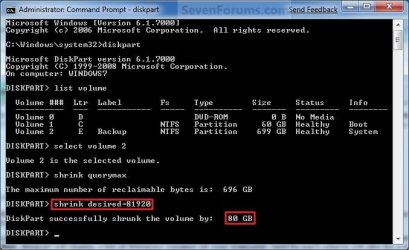
A) In the elevated command prompt, type shrink desired=(# in MB) and press Enter. (See screenshot below)
NOTE: You would substitute (# in MB) for how many MB (1 GB = 1024 MB) you want to shrink the selected partition or volume (step 4) by to be used for the new unallocated space. For example, if I only wanted to shrink the partition or volume by 81920 MB (80 GB), then I would type shrink desired=81920 and press Enter.
CMD_Shrink_Step5.jpg
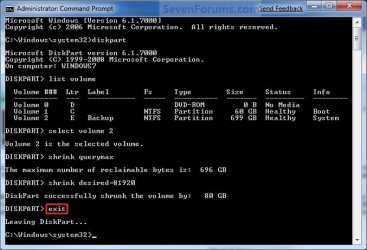
8. In the elevated command prompt, type exit and press Enter. (See screenshot below)
CMD_Shrink_Step6.jpg
9. Close the elevated command prompt.

10. The selected partition (step 4) has now been shrunk to create a new empty unallocated space. You can use this new unallocated space to create a new partition with.
That's it,
Shawn


Last edited:
Hello. I have a question for you.
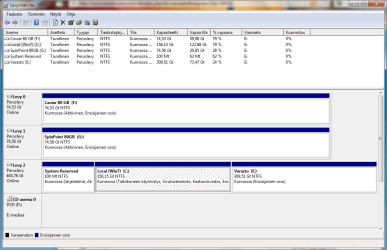
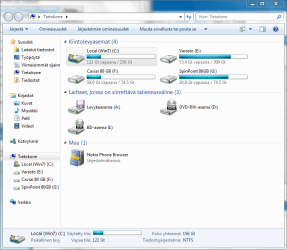
So, I have a WD Caviar 500 Gt hard drive which I have partitioned to 156 Gt C: (OS) and 309 Gt E: (Storage). And now I'm running out of space on the E: drive.

I'm pretty sure I CAN do this but I'm not 100% sure if/how so I decided to ask it here: Can I just shrink the C: drive size from 156 Gt to 56 Gt without it affecting the OS files at all and expand the E: drive with the now unused 100 Gt again without affecting the files? Or do I need to do something more?

Sorry if this has been asked before.
Thanks. :)

PS. The image's are in finnish but I think you guys are geeky enough (no offense ;)) to know every part without even the need to translate. Still, if you need a translation I'll try my best. :p
 

Attachments

  • Sieppaa.PNG
    Sieppaa.PNG
    152.7 KB · Views: 290
  • Sieppaa1.PNG
    Sieppaa1.PNG
    145.6 KB · Views: 348

My Computer

OS
Windows 7 Ultimate 32-bit
CPU
AMD Athlon(tm) 64 Processor 3700+ ~2.2GHz
Motherboard
Asus A8N-E
Memory
2,5GB
Graphics Card(s)
Sapphire Radeon 5750 1GB
Monitor(s) Displays
Acer AL1916
Hard Drives
Western Digital Caviar 500GB,
Western Digital Caviar 80GB,
Samsung Spinpoint 80GB
Hello Shiori,

You will not be able to using Disk Management in Windows 7, but you should be able to shrink C and expand E into that shrunk space using a 3rd party program like the free Partition Wizard Home Edition.

Hope this helps,
Shawn
 

My Computer

Computer type
PC/Desktop
Computer Manufacturer/Model Number
Self built custom
OS
64-bit Windows 11 Pro for Workstations
CPU
Intel i7-8700K OC'd to 5 GHz
Motherboard
ASUS ROG Maximus XI Formula Z390
Memory
64 GB (4x16GB) G.SKILL TridentZ RGB DDR4 3600 MHz
Graphics Card(s)
ASUS ROG-STRIX-GTX1080TI-O11G-GAMING
Sound Card
Integrated
Monitor(s) Displays
2 x Samsung Odyssey G7 27"
Screen Resolution
2560x1440
Hard Drives
1TB Samsung 990 PRO M.2,
4TB Samsung 990 PRO PRO M.2,
TerraMaster F8 SSD Plus NAS
PSU
Seasonic Prime Titanium 850W
Case
Thermaltake Core P3
Cooling
Corsair Hydro H115i
Keyboard
Logitech wireless K800
Mouse
Logitech MX Master 4
Internet Speed
2 Gb/s Download and 100 Mb/s Upload
Antivirus
Malwarebyte Anti-Malware Premium
Browser
Google Chrome
Other Info
Logitech Z625 speaker system,
Logitech BRIO 4K Pro webcam,
HP Color LaserJet Pro MFP M477fdn,
APC SMART-UPS RT 1000 XL - SURT1000XLI,
Galaxy S23 Plus phone
hi bring
i have a trouble
(first of all i have to say my os language is turkish
i translate the error messages it can be different at your system)

i want to shring my hdd and i dıd it.But when i said "New Simple Volume" i took this error message

"selected process converts the selected basic disk to dynamic disk. convert dynamic disk to disk, the disk operating system installed in the unit, starting from any. (Except the current boot volume)
Do you want to continue?"

when i say yes i took this error report:

by dynamic disks do not support this operating system. clusters do not support dynamic disks.

how i solve this problem?
 

My Computer

Computer Manufacturer/Model Number
asus f3sv240dr
OS
vista
CPU
t7700
Memory
2 gb
Graphics Card(s)
8600M
Hard Drives
250 GB
Helllo Nonpasaran,

You do not want to convert it to a dynamic disk. That is for sure. Could you post a screenshot of Disk Management showing your drive layout of the one you want to shrink? This will help us determine what you may be able to do for this. :)
 

My Computer

Computer type
PC/Desktop
Computer Manufacturer/Model Number
Self built custom
OS
64-bit Windows 11 Pro for Workstations
CPU
Intel i7-8700K OC'd to 5 GHz
Motherboard
ASUS ROG Maximus XI Formula Z390
Memory
64 GB (4x16GB) G.SKILL TridentZ RGB DDR4 3600 MHz
Graphics Card(s)
ASUS ROG-STRIX-GTX1080TI-O11G-GAMING
Sound Card
Integrated
Monitor(s) Displays
2 x Samsung Odyssey G7 27"
Screen Resolution
2560x1440
Hard Drives
1TB Samsung 990 PRO M.2,
4TB Samsung 990 PRO PRO M.2,
TerraMaster F8 SSD Plus NAS
PSU
Seasonic Prime Titanium 850W
Case
Thermaltake Core P3
Cooling
Corsair Hydro H115i
Keyboard
Logitech wireless K800
Mouse
Logitech MX Master 4
Internet Speed
2 Gb/s Download and 100 Mb/s Upload
Antivirus
Malwarebyte Anti-Malware Premium
Browser
Google Chrome
Other Info
Logitech Z625 speaker system,
Logitech BRIO 4K Pro webcam,
HP Color LaserJet Pro MFP M477fdn,
APC SMART-UPS RT 1000 XL - SURT1000XLI,
Galaxy S23 Plus phone
sory for late replay
i will post screenshot asap but this problem is not mine I'm still waiting screenshot from my friend too :D

here is screenshots

File


File


File
 
Last edited:

My Computer

Computer Manufacturer/Model Number
asus f3sv240dr
OS
vista
CPU
t7700
Memory
2 gb
Graphics Card(s)
8600M
Hard Drives
250 GB
I do not recommend this for the weak of heart, but I successfully shrunk my C: by

  1. creating a WIM file of C:
  2. booting from a USB stick made from the DVD created by System Repair option of Backup & Restore
  3. using DiskPart to delete, create, format, assign drive letters
  4. applying the WIM I had created (ah yes, forgot to mention I put ImageX onto that USB stick since that is essential and ImageX is available thru WAIK-the Windows Automated Installation Kit)
  5. rebooting the system
  6. going thru a repair boot cycle to let Win7 put the MBR back in order.
I definitely do not recommend this approach for the normal user and have mentioned the procedure to indicate that one can shrink any partition using the tools that MS provides. There use is not easy and not straight-forward.

My experience with the 3rd-party products has been that they only work, without complications, under what I would call ideal conditions.

Brink has written a great tutorial to allow you take advantage of the capabilities of DiskManagement and DiskPart. The problem is that Microsoft has a nasty habit of locating unmovable files near the end of a partition.
 

My Computer

Computer Manufacturer/Model Number
Toshiba Satellite S875D-S7239 laptop
OS
MS Windows 7 Ultimate SP1 64-bit
CPU
AMD A10-4600M
Motherboard
AMD Pumori (Socket FT1)
Memory
6.00 GB Dual-Channel DDR3 @ 798MHz (11-11-12-28)
Graphics Card(s)
AMD Radeon HD 7660G
Sound Card
High Definition Audio Device
Monitor(s) Displays
Generic PnP Monitor (1600x900@60Hz)
Screen Resolution
1600x900@60Hz
Hard Drives
SSD 119GB Corsair CSSD-V128GB2 ATA Device
Keyboard
Standard PS/2 Keyboard
Mouse
HP Wireless Optical Mobile Mouse Model FHA-3410
Internet Speed
What the local pub, local coffee shop offers.
Other Info
Optical Drive:MATSHITA BD-CMB UJ160B ATA Device


Also have an Asus ha1002xp netbook with Win 7 Ultimate installed.
hi shawn
I posted screenshots
 

My Computer

Computer Manufacturer/Model Number
asus f3sv240dr
OS
vista
CPU
t7700
Memory
2 gb
Graphics Card(s)
8600M
Hard Drives
250 GB
Nonpasaran,

The problem is that on Disk 0 you have hit the 4 primary partition limit for a hard disk. Normal for more, you would have 3 primary partitions (DK.navy/purple) and 1 logical partition (blue) that contains separate volumes. The only way for you to create another partition is this:
  • Create a set of HP recovery discs, "Windows 7 Recovery Disc" and "Applications & Drivers Disc". This way you can use these instead to reinstall Windows 7 with instead of the recovery partition.
  • Delete both the "Recovery D:" and "HP_Tools" partitions. You will need to delete the partitions (maybe twice) until they show as unallocated space.
  • With the unallocated space, you should be able to create your partition now using this tutorial.
 

My Computer

Computer type
PC/Desktop
Computer Manufacturer/Model Number
Self built custom
OS
64-bit Windows 11 Pro for Workstations
CPU
Intel i7-8700K OC'd to 5 GHz
Motherboard
ASUS ROG Maximus XI Formula Z390
Memory
64 GB (4x16GB) G.SKILL TridentZ RGB DDR4 3600 MHz
Graphics Card(s)
ASUS ROG-STRIX-GTX1080TI-O11G-GAMING
Sound Card
Integrated
Monitor(s) Displays
2 x Samsung Odyssey G7 27"
Screen Resolution
2560x1440
Hard Drives
1TB Samsung 990 PRO M.2,
4TB Samsung 990 PRO PRO M.2,
TerraMaster F8 SSD Plus NAS
PSU
Seasonic Prime Titanium 850W
Case
Thermaltake Core P3
Cooling
Corsair Hydro H115i
Keyboard
Logitech wireless K800
Mouse
Logitech MX Master 4
Internet Speed
2 Gb/s Download and 100 Mb/s Upload
Antivirus
Malwarebyte Anti-Malware Premium
Browser
Google Chrome
Other Info
Logitech Z625 speaker system,
Logitech BRIO 4K Pro webcam,
HP Color LaserJet Pro MFP M477fdn,
APC SMART-UPS RT 1000 XL - SURT1000XLI,
Galaxy S23 Plus phone
Pre-Partitioning Advice

Hello Shawn,
First of all, thanks for your great help and support :)

I have a new Sony VAIO VGN-NW21MF/W and I'd like to partition it. First I asked the store technical assistant about partitioning and he said that it's not possible unless I format the laptop and reinstall Windows 7 :sarc: but now I see that it's possible through this tutorial that I found by coincidence while browsing the forums.

Before partitioning (I only want to create one additional Drive: D which is equal in size to C; so I basically want to divide my main drive into two partitions) I need some advice and some answers to my questions as I don't want to mess up my new laptop and because I'm not familiar neither with partitioning nor with Windows 7...yet. So here are my questions:

- Very silly/noobish question: Does partitioning mean creating a second Drive (Drive D)?
- Do I really have to defrag my system before shrinking/partitioning?
- What are the risks if I make a mistake when shrinking/partitioning (file loss for example)?
- When using Partition Wizard - Home Edition, will I be able to choose the name of new Drive (I want to name it D) or it's done automatically?

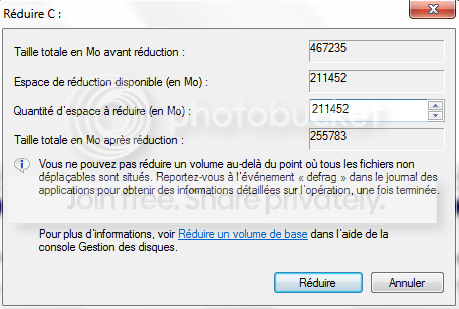
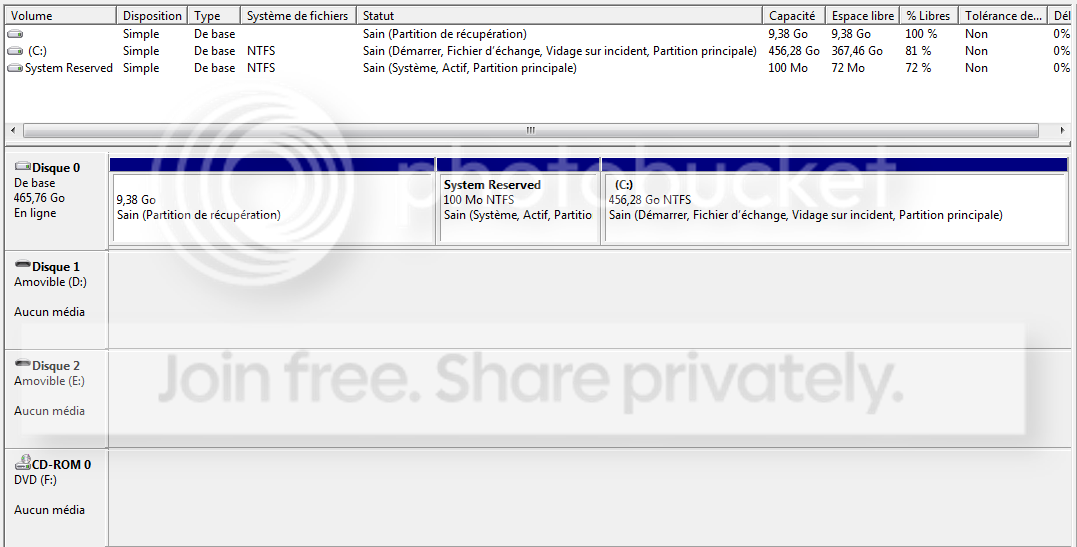
And here are some screenshots that might help you answer my questions:
Shrinking_C.png
Disk_Management.png


I'm really sorry for bothering you with my countless questions (it's just that I also love to learn new things, not only get the job done) and thanks in advance for your precious support, help, and time :)
 

My Computer

OS
Windows 7 Home Premium (64-bit)
Let me try to help out:
1. A new partition is a new partition. The word "drive" is usually used for a physical disk.
2. Defrag is not required. You have about 211GB of space available after shrinking - normally that should be enough and a defrag will not buy you more (because of the MFT)
3. If you shrink with disk management, there are no risks. If you use some OEM product, anything can happen.
4. Partition wizard proposes a drive letter, but you can choose your own.
5. I have made a 12 minute video tutorial just for that purpose. Suggest you have a look.

Bonne chance.

PS: make sure you do not create another primary partition because you already have 3. With 4 you would be stuck and could not create further partitions. Just create a simple partition.
 

My Computer

Computer Manufacturer/Model Number
HP, Dell, Gateway, Toshiba - 4 laptops and 2 desktops
OS
Vista, Windows7, Mint Mate, Zorin, Windows 8
CPU
from 1.6GHz Duo to i7
Monitor(s) Displays
2x HP w2207
Hard Drives
5x HDD, 7x SSD, 12x Externals
Keyboard
with trackball - no mices
Mouse
Trackball mice
Internet Speed
DSL 6000
Danke schön!

Hello whs,
Danke schön!
I watched your video and it was very helpful to me as I am a visual-oriented person :D And I succeeded in shrinking and partitioning my disk/drive/partition/computer? Whatever :o

The new "Local Disk" is called G, though I would have loved to name it D (is that possible or not, because according to your video the D Drive is reserved for system backup) :)

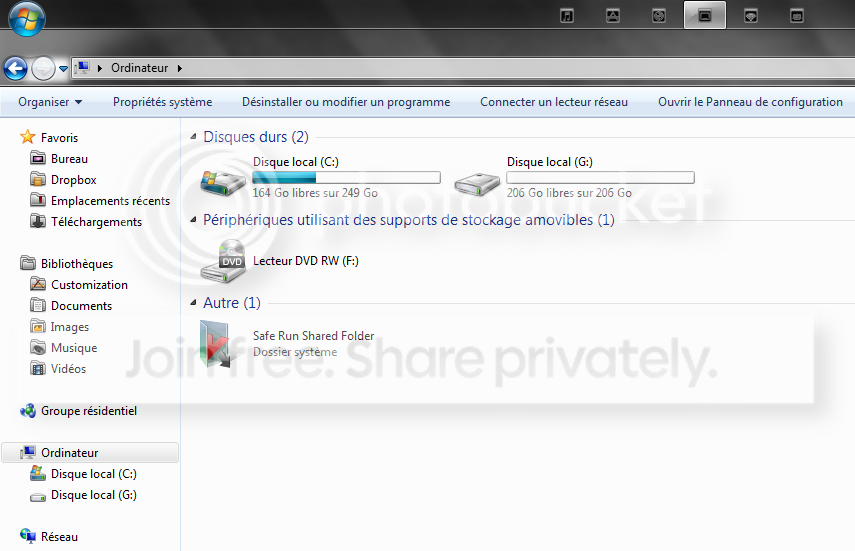
Here are two new screenshots after the changes :cool:

New_Drive.png
Computer_New.png


PS. I'm not French :p
 
Last edited:

My Computer

OS
Windows 7 Home Premium (64-bit)
I would leave it at G - does it really matter? You can change the drive letter, but D is the default drive for file backups onf windows. I would rather not assign D.
How come you have a French Windows? I just assumed you came from a French speaking region. I am glad the video gave you some help.
 

My Computer

Computer Manufacturer/Model Number
HP, Dell, Gateway, Toshiba - 4 laptops and 2 desktops
OS
Vista, Windows7, Mint Mate, Zorin, Windows 8
CPU
from 1.6GHz Duo to i7
Monitor(s) Displays
2x HP w2207
Hard Drives
5x HDD, 7x SSD, 12x Externals
Keyboard
with trackball - no mices
Mouse
Trackball mice
Internet Speed
DSL 6000
It's just that I'm used to having C and D in my computer, but I guess that's a habit that died with Windows XP ;)

I usually have my OS in English (I got used to it when I was at University) but now when I bought my new laptop I got it in French, which I don't really like and is not very practical as most computer customization, tutorials, solutions...etc come in English. I was hoping to change it to English, but it's unfortunately not possible on Windows 7 Home Edition :cry:

And yes, your video was very helpful, thank you! Now I have to give a lil'visit to the guy in the store where I got my laptop from and do some bragging :cool:
 

My Computer

OS
Windows 7 Home Premium (64-bit)
If you have a French Win7, check whether that is a 5 language edition (which it usually is). Then you can change to English with a reinstallation. The sooner you do that, the bettter. But make sure you save all your data first.
If you need help with a reinstallation, start a new thread like "Need help to reinstall Windows7". It would also be helpful then if you told us the make of your PC since every make has their own little procedure.
 

My Computer

Computer Manufacturer/Model Number
HP, Dell, Gateway, Toshiba - 4 laptops and 2 desktops
OS
Vista, Windows7, Mint Mate, Zorin, Windows 8
CPU
from 1.6GHz Duo to i7
Monitor(s) Displays
2x HP w2207
Hard Drives
5x HDD, 7x SSD, 12x Externals
Keyboard
with trackball - no mices
Mouse
Trackball mice
Internet Speed
DSL 6000
thanks shawn
it solved
 

My Computer

Computer Manufacturer/Model Number
asus f3sv240dr
OS
vista
CPU
t7700
Memory
2 gb
Graphics Card(s)
8600M
Hard Drives
250 GB
You're welcome Noparsaran. I'm happy to hear that you got it sorted. :)
 

My Computer

Computer type
PC/Desktop
Computer Manufacturer/Model Number
Self built custom
OS
64-bit Windows 11 Pro for Workstations
CPU
Intel i7-8700K OC'd to 5 GHz
Motherboard
ASUS ROG Maximus XI Formula Z390
Memory
64 GB (4x16GB) G.SKILL TridentZ RGB DDR4 3600 MHz
Graphics Card(s)
ASUS ROG-STRIX-GTX1080TI-O11G-GAMING
Sound Card
Integrated
Monitor(s) Displays
2 x Samsung Odyssey G7 27"
Screen Resolution
2560x1440
Hard Drives
1TB Samsung 990 PRO M.2,
4TB Samsung 990 PRO PRO M.2,
TerraMaster F8 SSD Plus NAS
PSU
Seasonic Prime Titanium 850W
Case
Thermaltake Core P3
Cooling
Corsair Hydro H115i
Keyboard
Logitech wireless K800
Mouse
Logitech MX Master 4
Internet Speed
2 Gb/s Download and 100 Mb/s Upload
Antivirus
Malwarebyte Anti-Malware Premium
Browser
Google Chrome
Other Info
Logitech Z625 speaker system,
Logitech BRIO 4K Pro webcam,
HP Color LaserJet Pro MFP M477fdn,
APC SMART-UPS RT 1000 XL - SURT1000XLI,
Galaxy S23 Plus phone
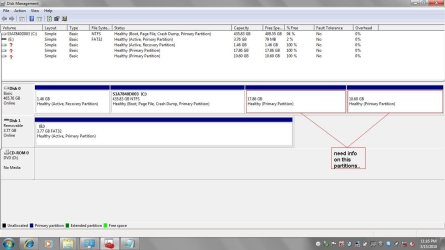
hi. this would be my first post here. I badly need your help regarding my disk partitions [as you can see in the screenshot , I have three other unidentified partitions, 1.46GB, 17.86GB and 10.60GB]. I tried to shrink 435.83 GB partition to create a new partition but the system won't allow because the maximum partitions has already been used. Any advice or tips to divide the 435.83 GB partition? I have no idea what are the other partitions, but I'm willing to delete one of them if they are not necessarily needed to make room for a new partition. BTW, the notebook is a Toshiba Satellite L500D Windows 7 Home Premium.
 

Attachments

  • screenshot.JPG
    screenshot.JPG
    124.2 KB · Views: 409

My Computer

OS
Windows 7 Home Premium
Hello Deathcore, and wecome to Seven Forums.

The problem is that on Disk 0 you have hit the 4 primary partition limit for a hard disk. Normally for more, you would have 3 primary partitions (DK.navy/purple) and 1 logical partition (blue) that contains separate volumes.

The 1.46 GB partition looks like it may be one of your OEM factory recovery partitions. Possibly applications and drivers. If you have created a set of OEM recovery discs from your computer to use instead of the recovery partition, then you can use a program like the free Partition Wizard Free to delete that partition, extend C: into that now unallocated space, and shrink C: by how much you like. If you haven't already and do not know how to create a set of OEM recovery discs, then please post back what brand your computer is. I'll see if I may be able to find detailed instructions on how to from your computer manufacturer's website. :)

Hope this helps,
Shawn
 

My Computer

Computer type
PC/Desktop
Computer Manufacturer/Model Number
Self built custom
OS
64-bit Windows 11 Pro for Workstations
CPU
Intel i7-8700K OC'd to 5 GHz
Motherboard
ASUS ROG Maximus XI Formula Z390
Memory
64 GB (4x16GB) G.SKILL TridentZ RGB DDR4 3600 MHz
Graphics Card(s)
ASUS ROG-STRIX-GTX1080TI-O11G-GAMING
Sound Card
Integrated
Monitor(s) Displays
2 x Samsung Odyssey G7 27"
Screen Resolution
2560x1440
Hard Drives
1TB Samsung 990 PRO M.2,
4TB Samsung 990 PRO PRO M.2,
TerraMaster F8 SSD Plus NAS
PSU
Seasonic Prime Titanium 850W
Case
Thermaltake Core P3
Cooling
Corsair Hydro H115i
Keyboard
Logitech wireless K800
Mouse
Logitech MX Master 4
Internet Speed
2 Gb/s Download and 100 Mb/s Upload
Antivirus
Malwarebyte Anti-Malware Premium
Browser
Google Chrome
Other Info
Logitech Z625 speaker system,
Logitech BRIO 4K Pro webcam,
HP Color LaserJet Pro MFP M477fdn,
APC SMART-UPS RT 1000 XL - SURT1000XLI,
Galaxy S23 Plus phone
Hmm, strange. The 10GB partition is probably your system image from which you can burn the recovery DVDs. If you would do that, then you could delete that partition. In addition I suggest you make an image of your current system. It would be easier to reinstall with the image should the need arise.
As to the 17GB partition, I have no clue what that could be. Right click on the 10 and the 17GB partitions (in Disk Management) and see whether you can open them to see what they are - although you probably only get "Help" as the only option.

PS: Just saw that Shawn thinks that the 1.46GB partition is the system image. I think that would be too small for that. But it has some recovery function - as the name says.
 

My Computer

Computer Manufacturer/Model Number
HP, Dell, Gateway, Toshiba - 4 laptops and 2 desktops
OS
Vista, Windows7, Mint Mate, Zorin, Windows 8
CPU
from 1.6GHz Duo to i7
Monitor(s) Displays
2x HP w2207
Hard Drives
5x HDD, 7x SSD, 12x Externals
Keyboard
with trackball - no mices
Mouse
Trackball mice
Internet Speed
DSL 6000
Thank you Brink!

Toshiba Satellite L500D
. I have already created a recovery disc(it consumed 4 DVD's) using the software that came with the notebook. What about the other 2 partitions do you have an idea what are they?

To whs,

Only delete and Help is available during right click. I can delete one of those partitions but I still need some insights from you guys. Thank you.
 
Last edited:

My Computer

OS
Windows 7 Home Premium
Back
Top