Partition the Hard Drive in a Windows 7 Install

How to Partition the Hard Drive in a Windows 7 Install


   Information
The purpose of this tutorial is to see what tools are available to partition the hard drive while installing Windows 7. Although not a complete partitioning utility, you can delete existing partitions, create new partitions, extend partitions into unallocated space, shrink existing partitions, and format.
   Tip
It is not necessary to create the Windows 7 partitions on a new (empty) hard drive or format the partitions before installing Windows 7 as the installer will do that automatically.


Here's How:
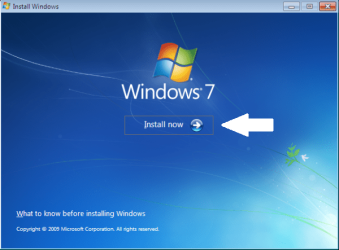
1. Boot your computer to the Windows 7 DVD. At this screen choose to install now.
partition_01.png
partition_02.png
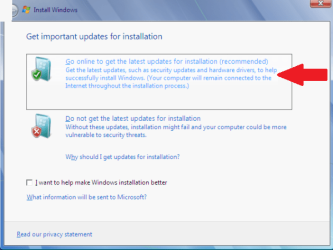
2. Select to "Go online" for latest updates.
partition_03.png
partition_04.png
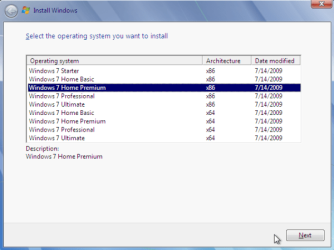
3. Select the Operating System you wish to install.
partition_05.png
4. Accept the license terms and click next.
partition_06.png
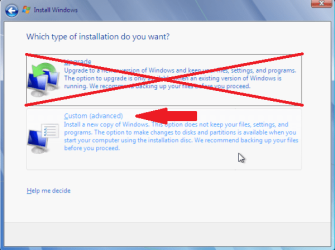
5. Select "Custom (advanced)".
partition_07.png
6. In this screen you see existing partitions (my test setup). Click "Drive options (advanced)".
partition_08.png
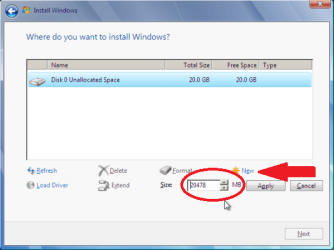
7. I used "Delete" to remove the existing partitions. Now select "New" to create new partitions in the Unallocated space.
partition_09.png
8. You can choose to use the entire empty space, or just a part of the space.
partition_10.png
9. In this screen, I have chosen to use half of the 20 GB available.
partition_11.png
10. Windows will, by default, create the "System Reserved" partition.
partition_12.png
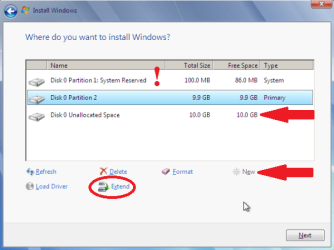
11. In this screen you see the "Reserved Partition" of 100 MB. I recommend keeping this. Next, you have the options of creating a new partition in the unallocated space, extending the selected partition into the unallocated space, shrinking the selected partition, or deleting one or all existing partitions.
partition_13.png
12. I have chosen to extend the partition into all the unallocated space.
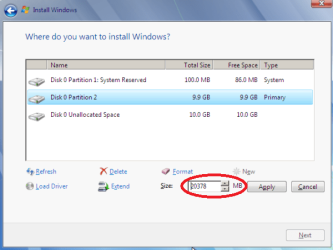
partition_14.png
Now you can complete your Windows 7 installation in the partitions you have created. You can also cancel the installation process here while leaving the newly created partitions intact. Useful if you intend to install a different Operating System into one of the newly created partitions.

Conclusion:

While the Windows 7 hard drive partition utility is limited, it offers a convenient way to install Windows 7 without filling the entire hard drive. The leftover space can then be used for other purposes.


Last edited by a moderator:
maximum numbers of partitions

Hi,

What is the maximum number of partitions that can be created (and windows 7 installed) on a single HDD with windows 7?


Thanks in advance
 

My Computer My Computer

At a glance

xp
OS
xp
Hi,

What is the maximum number of partitions that can be created (and windows 7 installed) on a single HDD with windows 7?
Thanks in advance
Hello pablo91011, and welcome to Windows Seven Forums.

Windows allows four "Primary" partitions on a single hard drive.

However, one of those could be an "Extended" partition, and you can create as many "Logical Partitions" inside the "Extended" partition as there are letters of the alphabet!! So figure C is used, and D for your CD-Rom, that leaves you E through Z, or 22 "Logical Partitions".

So you can create three "Primary" partitions plus 20 "Logical" partitions.

Note: In order to be able to boot to an OS like Windows 7 when installed in a "Logical" partition, you would need to use the 100MB "System Reserved" partition as the first "Primary" partition containing all of the boot code.


Cheers!
Robert
 
Last edited:

My Computer My Computer

At a glance

...
OS
...
Creating logical partitions

Thanks for this Robert, much appreciated!

On installation, how do I create logical partitions, or do they have to be created in Disk Management when the first windows 7 is installed?

Thanks in advance
 

My Computer My Computer

At a glance

xp
OS
xp
Thanks for this Robert, much appreciated!

On installation, how do I create logical partitions, or do they have to be created in Disk Management when the first windows 7 is installed?

Thanks in advance
I found the Windows Disk Management Utility to be limited in features when working with "Logical" partitions. A third party utility will be needed to create the partitions before installation. I would need to see a snap shot of your current hard drive partitions to be more specific.

Two well known free utilities are GParted, for Windows and Linux, and Partition Wizard for Windows only. You would need to go to their web site, download the ISO file, burn it to a CD and boot to the CD to use the utility. Once the "Extended" partition and the "Logical Partitions" are created inside the "Extended" partition, Windows has no problems seeing the partitions and installing to them.

You have many options. For example I was able to use Partition Wizard to create the "Extended" and "Logical" partitions, copy XP and 7 partitions to the Logical partitions, and after making sure I could boot to the new logical partitions, delete the previous partitions and move into the empty space. You would have other options as well, so please let us know if we can be of any help?

Cheers!
Robert
 
Last edited:

My Computer My Computer

At a glance

...
OS
...
logical partitions

Thanks Robert,

worked perfectly !!!

Keep up the good work.
 

My Computer My Computer

At a glance

xp
OS
xp

My Computer My Computer

At a glance

...
OS
...
Hi ieeuu, I got one problem, When I using Win7 installation disk to install new window, in the drive option, I can't delete and create new partitions, the format, delete and create new button are all turn gray colour.
Inside the Window, I can create new partition and delete it for disk management.
My question is, I want to do a clean installation, that's mean I want to delete all of the other partitions and create new one for my new window.
Please help
 

My Computer My Computer

At a glance

Window 7 Ultimate 32bit
Computer Manufacturer/Model Number
BenQ S32
OS
Window 7 Ultimate 32bit
Hi ieeuu, I got one problem, When I using Win7 installation disk to install new window, in the drive option, I can't delete and create new partitions, the format, delete and create new button are all turn gray colour.
Inside the Window, I can create new partition and delete it for disk management.
My question is, I want to do a clean installation, that's mean I want to delete all of the other partitions and create new one for my new window.
Please help
Hello lonelyseason, and welcome to Windows Seven Forums.

When you are in Windows 7 and you put the DVD in the drive and select "Install", you will not be able to use the "Hard drive utility". You must reboot (or restart) your computer and boot from the DVD and then begin the Install. Then you will be able to delete all of the existing partitions before installing Windows 7.

Hope this helps!

Cheers!
Robert
 

My Computer My Computer

At a glance

...
OS
...
Hi ieeuu, I got one problem, When I using Win7 installation disk to install new window, in the drive option, I can't delete and create new partitions, the format, delete and create new button are all turn gray colour.
Inside the Window, I can create new partition and delete it for disk management.
My question is, I want to do a clean installation, that's mean I want to delete all of the other partitions and create new one for my new window.
Please help
Hello lonelyseason, and welcome to Windows Seven Forums.

When you are in Windows 7 and you put the DVD in the drive and select "Install", you will not be able to use the "Hard drive utility". You must reboot (or restart) your computer and boot from the DVD and then begin the Install. Then you will be able to delete all of the existing partitions before installing Windows 7.

Hope this helps!

Cheers!
Robert

Thank, I solved it:D
 

My Computer My Computer

At a glance

Window 7 Ultimate 32bit
Computer Manufacturer/Model Number
BenQ S32
OS
Window 7 Ultimate 32bit
That is good news! Glad to hear it!

Cheers!
Robert
 

My Computer My Computer

At a glance

...
OS
...
Hi all,

So I've been on this forum, read everything I could to make sure I wouln't run into hurdles in order to do a clean re-install of Windows 7. Before we go any further, I had extended a partition earlier when I bought the computer and at the time I didn't know (I guess it's part of the learning process) that I couldn't have more then 4 primary partitions until the HD changed to a dynamic HD. Now I'm stuck with a dynamic HD and I want to get rid of it and start from scratch.

So I get ready, boot from the dvd re-install and get to step 5 of this page: Select "Custom (advanced)". Well, to my knowledge, the option for "Delete" is gray and I cannot delete a partition. Is this typical?

Thanks for the help.
 

My Computer My Computer

At a glance

Windows 7 Home Premium 64bit
OS
Windows 7 Home Premium 64bit

My Computer My Computer

At a glance

64-bit Windows 11 Pro for WorkstationsIntel i7-8700K OC'd to 5 GHz64 GB (4x16GB) G.SKILL TridentZ RGB DDR4 3600...ASUS ROG-STRIX-GTX1080TI-O11G-GAMING
Computer type
PC/Desktop
Computer Manufacturer/Model Number
Self built custom
OS
64-bit Windows 11 Pro for Workstations
CPU
Intel i7-8700K OC'd to 5 GHz
Motherboard
ASUS ROG Maximus XI Formula Z390
Memory
64 GB (4x16GB) G.SKILL TridentZ RGB DDR4 3600 MHz
Graphics Card(s)
ASUS ROG-STRIX-GTX1080TI-O11G-GAMING
Sound Card
Integrated
Monitor(s) Displays
2 x Samsung Odyssey G7 27"
Screen Resolution
2560x1440
Hard Drives
1TB Samsung 990 PRO M.2,
4TB Samsung 990 PRO PRO M.2,
TerraMaster F8 SSD Plus NAS
PSU
Seasonic Prime Titanium 850W
Case
Thermaltake Core P3
Cooling
Corsair Hydro H115i
Keyboard
Logitech wireless K800
Mouse
Logitech MX Master 4
Internet Speed
2 Gb/s Download and 100 Mb/s Upload
Antivirus
Malwarebyte Anti-Malware Premium
Browser
Google Chrome
Other Info
Logitech Z625 speaker system,
Logitech BRIO 4K Pro webcam,
HP Color LaserJet Pro MFP M477fdn,
APC SMART-UPS RT 1000 XL - SURT1000XLI,
Galaxy S23 Plus phone
Hello everyone, I have some basic questions regarding this topic that I`d like to clarify before I do my first Win7 installation. So I`d like to have one primary partition for my win7 installation and another one for my data (probably an extended partition). I understand that I can create the primary partition in the installation process, but does it give the option to create an extended partition? If it doesn`t what should I do, leave all the unallocated space alone and then create an extended partition out of it in the disk management after installation? Also can I create a primary partition in the extended partition, in case I want to multi-boot in the future, trying to figure out the disk setup :) Thanks in advance!
 

My Computer My Computer

At a glance

Windows 7 x64 SP1Intel Core i5 - 2410M, 2,3 GHznVIDIA GeForce GT 540M
OS
Windows 7 x64 SP1
CPU
Intel Core i5 - 2410M, 2,3 GHz
Motherboard
K53SV
Graphics Card(s)
nVIDIA GeForce GT 540M
Hello DoubleZ, and welcome to Seven Forums.

If you do not have a OEM computer with a factory recovery partition and these will be the only partitions on the single HDD (disk), then you could do either option below if you like:


OPTION ONE:
  • At step 7 in the tutorial, you could delete all partitions for the Disk# that you want to install Windows 7 until there's only one "Unallocated Space" entry for that Disk#.
  • Install Windows 7.
  • After installation, shrink and create any partitions you like in Disk Management.
OPTION TWO:
  • At step 7 in the tutorial, you could delete all partitions for the Disk# that you want to install Windows 7 until there's only one "Unallocated Space" entry for that Disk#.
  • Format the now first partition.
  • Use the Extend option to shrink it by how much you want to use for the other paritions.
  • Format the new second partiton.
  • Repeat extend and format if you wanted to create another partition from the second one.
  • When finished, finish the installation of Windows 7 to the first partition.
Hope this helps,
Shawn
 

My Computer My Computer

At a glance

64-bit Windows 11 Pro for WorkstationsIntel i7-8700K OC'd to 5 GHz64 GB (4x16GB) G.SKILL TridentZ RGB DDR4 3600...ASUS ROG-STRIX-GTX1080TI-O11G-GAMING
Computer type
PC/Desktop
Computer Manufacturer/Model Number
Self built custom
OS
64-bit Windows 11 Pro for Workstations
CPU
Intel i7-8700K OC'd to 5 GHz
Motherboard
ASUS ROG Maximus XI Formula Z390
Memory
64 GB (4x16GB) G.SKILL TridentZ RGB DDR4 3600 MHz
Graphics Card(s)
ASUS ROG-STRIX-GTX1080TI-O11G-GAMING
Sound Card
Integrated
Monitor(s) Displays
2 x Samsung Odyssey G7 27"
Screen Resolution
2560x1440
Hard Drives
1TB Samsung 990 PRO M.2,
4TB Samsung 990 PRO PRO M.2,
TerraMaster F8 SSD Plus NAS
PSU
Seasonic Prime Titanium 850W
Case
Thermaltake Core P3
Cooling
Corsair Hydro H115i
Keyboard
Logitech wireless K800
Mouse
Logitech MX Master 4
Internet Speed
2 Gb/s Download and 100 Mb/s Upload
Antivirus
Malwarebyte Anti-Malware Premium
Browser
Google Chrome
Other Info
Logitech Z625 speaker system,
Logitech BRIO 4K Pro webcam,
HP Color LaserJet Pro MFP M477fdn,
APC SMART-UPS RT 1000 XL - SURT1000XLI,
Galaxy S23 Plus phone
Hey Shawn, oh yeah I forgot to mention that I`m gonna be doing it on a brand new laptop with a fresh, raw hdd in it. So hmm, I think I should go with the first option, but shouldnt I at least create a partition for windows upon installation?
 

My Computer My Computer

At a glance

Windows 7 x64 SP1Intel Core i5 - 2410M, 2,3 GHznVIDIA GeForce GT 540M
OS
Windows 7 x64 SP1
CPU
Intel Core i5 - 2410M, 2,3 GHz
Motherboard
K53SV
Graphics Card(s)
nVIDIA GeForce GT 540M
No need to. Windows 7 will automatically format the selected disk# unallocated space and install on it. :)
 

My Computer My Computer

At a glance

64-bit Windows 11 Pro for WorkstationsIntel i7-8700K OC'd to 5 GHz64 GB (4x16GB) G.SKILL TridentZ RGB DDR4 3600...ASUS ROG-STRIX-GTX1080TI-O11G-GAMING
Computer type
PC/Desktop
Computer Manufacturer/Model Number
Self built custom
OS
64-bit Windows 11 Pro for Workstations
CPU
Intel i7-8700K OC'd to 5 GHz
Motherboard
ASUS ROG Maximus XI Formula Z390
Memory
64 GB (4x16GB) G.SKILL TridentZ RGB DDR4 3600 MHz
Graphics Card(s)
ASUS ROG-STRIX-GTX1080TI-O11G-GAMING
Sound Card
Integrated
Monitor(s) Displays
2 x Samsung Odyssey G7 27"
Screen Resolution
2560x1440
Hard Drives
1TB Samsung 990 PRO M.2,
4TB Samsung 990 PRO PRO M.2,
TerraMaster F8 SSD Plus NAS
PSU
Seasonic Prime Titanium 850W
Case
Thermaltake Core P3
Cooling
Corsair Hydro H115i
Keyboard
Logitech wireless K800
Mouse
Logitech MX Master 4
Internet Speed
2 Gb/s Download and 100 Mb/s Upload
Antivirus
Malwarebyte Anti-Malware Premium
Browser
Google Chrome
Other Info
Logitech Z625 speaker system,
Logitech BRIO 4K Pro webcam,
HP Color LaserJet Pro MFP M477fdn,
APC SMART-UPS RT 1000 XL - SURT1000XLI,
Galaxy S23 Plus phone
Hope you don't mind me cutting in, but you will be given the opportunity to create your Windows partition size when you get to step 7 of the tutorial.

When you create your first partition Windows will also create a 100 MB boot partition in front of your main Windows partition so you'll have no worries on setting up a dual-boot configuration in the future.

I'd recommend af least 100 GB for your Windows 7 partition and possibly more depending on how many applications you intend installing.

I'd also advise you create your data partition at this stage and give it a quick format before you click Next to install Windows.

You should now have three partitions, make sure you select the right one for Windows (it'll be the second one).
 

My Computer My Computer

At a glance

Windows 7 Ultimate SP1 64-BitIntel Core i7 870 @ 2.93GHz8Gb Dual-Channel DDR3 @ 664MHznVidia GeForce GTX 460 1024MB dedicated RAM
Computer Manufacturer/Model Number
HP Pavilion Elite 495UK
OS
Windows 7 Ultimate SP1 64-Bit
CPU
Intel Core i7 870 @ 2.93GHz
Motherboard
MSI 2A9C (CPU1)
Memory
8Gb Dual-Channel DDR3 @ 664MHz
Graphics Card(s)
nVidia GeForce GTX 460 1024MB dedicated RAM
Sound Card
Realtek HD Audio
Monitor(s) Displays
HP2310i
Screen Resolution
1920 x 1080
Hard Drives
1x1954GB Hitachi HDS22020ALA 330 (RAID), 1x1954GB Hitachi External for backup and storage
PSU
460W
Case
HP Elite
Cooling
Air cooled
Keyboard
Logitech K750 solar-powered keyboard
Mouse
Logitech Wireless M180 mouse
Internet Speed
2Mb
Other Info
Pure Avanti Flow Internet Radio with iPod Dock, 64Gb iPod, HP USB Speakers, Sony MDR-V500 Headphones, Sony Vaio F-Series Laptop
So it doesnt really matter if my data partition is a primary partition or a logical drive?
 

My Computer My Computer

At a glance

Windows 7 x64 SP1Intel Core i5 - 2410M, 2,3 GHznVIDIA GeForce GT 540M
OS
Windows 7 x64 SP1
CPU
Intel Core i5 - 2410M, 2,3 GHz
Motherboard
K53SV
Graphics Card(s)
nVIDIA GeForce GT 540M

My Computer My Computer

At a glance

Windows 7 Ultimate SP1 64-BitIntel Core i7 870 @ 2.93GHz8Gb Dual-Channel DDR3 @ 664MHznVidia GeForce GTX 460 1024MB dedicated RAM
Computer Manufacturer/Model Number
HP Pavilion Elite 495UK
OS
Windows 7 Ultimate SP1 64-Bit
CPU
Intel Core i7 870 @ 2.93GHz
Motherboard
MSI 2A9C (CPU1)
Memory
8Gb Dual-Channel DDR3 @ 664MHz
Graphics Card(s)
nVidia GeForce GTX 460 1024MB dedicated RAM
Sound Card
Realtek HD Audio
Monitor(s) Displays
HP2310i
Screen Resolution
1920 x 1080
Hard Drives
1x1954GB Hitachi HDS22020ALA 330 (RAID), 1x1954GB Hitachi External for backup and storage
PSU
460W
Case
HP Elite
Cooling
Air cooled
Keyboard
Logitech K750 solar-powered keyboard
Mouse
Logitech Wireless M180 mouse
Internet Speed
2Mb
Other Info
Pure Avanti Flow Internet Radio with iPod Dock, 64Gb iPod, HP USB Speakers, Sony MDR-V500 Headphones, Sony Vaio F-Series Laptop
Back
Top