
How to Partition the Hard Drive in a Windows 7 Install
Information
The purpose of this tutorial is to see what tools are available to partition the hard drive while installing Windows 7. Although not a complete partitioning utility, you can delete existing partitions, create new partitions, extend partitions into unallocated space, shrink existing partitions, and format.
Tip
It is not necessary to create the Windows 7 partitions on a new (empty) hard drive or format the partitions before installing Windows 7 as the installer will do that automatically.
Here's How:
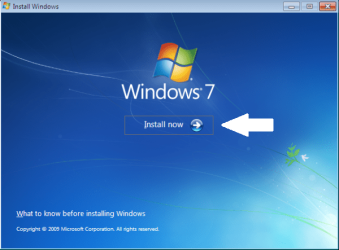
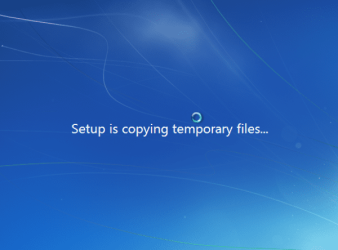
1. Boot your computer to the Windows 7 DVD. At this screen choose to install now.
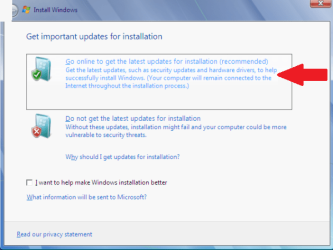
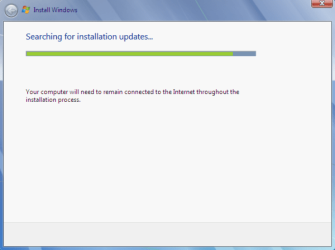
2. Select to "Go online" for latest updates.
3. Select the Operating System you wish to install.
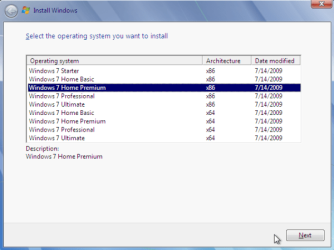
4. Accept the license terms and click next.

5. Select "Custom (advanced)".
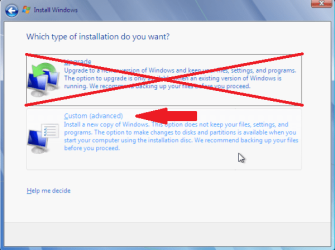
6. In this screen you see existing partitions (my test setup). Click "Drive options (advanced)".

7. I used "Delete" to remove the existing partitions. Now select "New" to create new partitions in the Unallocated space.

8. You can choose to use the entire empty space, or just a part of the space.
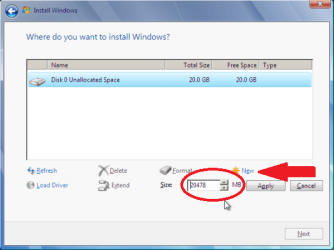
9. In this screen, I have chosen to use half of the 20 GB available.

10. Windows will, by default, create the "System Reserved" partition.

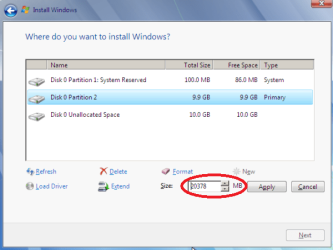
11. In this screen you see the "Reserved Partition" of 100 MB. I recommend keeping this. Next, you have the options of creating a new partition in the unallocated space, extending the selected partition into the unallocated space, shrinking the selected partition, or deleting one or all existing partitions.
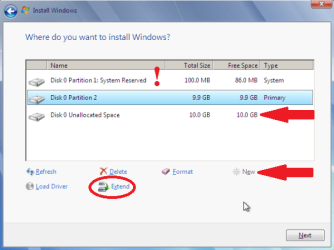
12. I have chosen to extend the partition into all the unallocated space.
Now you can complete your Windows 7 installation in the partitions you have created. You can also cancel the installation process here while leaving the newly created partitions intact. Useful if you intend to install a different Operating System into one of the newly created partitions.
Conclusion:
While the Windows 7 hard drive partition utility is limited, it offers a convenient way to install Windows 7 without filling the entire hard drive. The leftover space can then be used for other purposes.
Related Tutorials
- How to Do a Clean Install with a Upgrade Windows 7 Version
- How to Do a Clean Installation with Windows 7
- How to Do a Custom Installation of Windows 7
- How to Shrink a Partition or Volume in Windows 7
- How to Extend a Partition or Volume in Windows 7
- How to Delete a Partition or Volume in Windows 7
- How to Create a New Partition or Volume in Windows 7
Last edited by a moderator:


