Partition Windows 7 hard drive and run a full image.

Paul Black

I WANT TO BELIEVE!
Guru
Gold Member
VIP
Local time
3:35 PM
Messages
3,823
Location
Planet Earth VGhlIFgtRmlsZXM=
Good evening,

I have spent the last couple of days cleaning up my computer.
It's amazing what you keep because you think you might need it one day.
Weekly housekeeping is certainly the way to go from now on.
What is the best way please to partition my C: drive and fully image my system to that partition.
Can this be done as the hard drive only has C: at the moment or is it best to reinstall Windows 7 and create two partitions on reinstall.

Thanks in advance :).
 

My Computer My Computer

At a glance

Win 7 HP SP1 64-bit Vista HB SP2 32-bit Linux...Intel(R) Pentium(R) CPU P6200 @ 2.13GHz4.00 GBIntel(R) Graphics Media Accelerator HD
Computer type
Laptop
Computer Manufacturer/Model Number
Fujitsu LIFEBOOK
OS
Win 7 HP SP1 64-bit Vista HB SP2 32-bit Linux Mint 18.3
CPU
Intel(R) Pentium(R) CPU P6200 @ 2.13GHz
Motherboard
FUJITSU FJNBB06
Memory
4.00 GB
Graphics Card(s)
Intel(R) Graphics Media Accelerator HD
Sound Card
[1] Realtek High Definition Audio [2] Intel(R) Display Audio
Screen Resolution
1366 x 768 x 32 bits (4294967296 colors) @ 59 Hz
Hard Drives
TOSHIBA MK5076GSX
Antivirus
AVG FREE
You can't image to the drive in use is c you can shrink it create another drive and image to that
 

My Computer My Computer

At a glance

win 8 32 bit
Computer type
PC/Desktop
OS
win 8 32 bit
Thank you for taking the time to answer samuria, I appreciate it.

I do realise that I can't store an image on the same partition as the OS.
I want to partition the C: drive to setup a partition Z: for example, and then save the image there.
What I really want to know is can I, and how do I go about this please?
Is Windows 7 adequate to do this within its system or is there another more stable and better alternative?

Thanks in advance.
 

My Computer My Computer

At a glance

Win 7 HP SP1 64-bit Vista HB SP2 32-bit Linux...Intel(R) Pentium(R) CPU P6200 @ 2.13GHz4.00 GBIntel(R) Graphics Media Accelerator HD
Computer type
Laptop
Computer Manufacturer/Model Number
Fujitsu LIFEBOOK
OS
Win 7 HP SP1 64-bit Vista HB SP2 32-bit Linux Mint 18.3
CPU
Intel(R) Pentium(R) CPU P6200 @ 2.13GHz
Motherboard
FUJITSU FJNBB06
Memory
4.00 GB
Graphics Card(s)
Intel(R) Graphics Media Accelerator HD
Sound Card
[1] Realtek High Definition Audio [2] Intel(R) Display Audio
Screen Resolution
1366 x 768 x 32 bits (4294967296 colors) @ 59 Hz
Hard Drives
TOSHIBA MK5076GSX
Antivirus
AVG FREE

My Computers My Computers

  • At a glance

    7 X64i5 84002x8gb 3200mhz
    Computer type
    PC/Desktop
    OS
    7 X64
    CPU
    i5 8400
    Motherboard
    gigabyte b365m ds3h
    Memory
    2x8gb 3200mhz
    Hard Drives
    various
    PSU
    pure power 11 400w cm
    Case
    Coolermaster
    Cooling
    cryorig m9i
  • At a glance

    7x64g54008gb ddr4 2400
    Computer type
    PC/Desktop
    OS
    7x64
    CPU
    g5400
    Motherboard
    ga b365m ds3h
    Memory
    8gb ddr4 2400
    PSU
    xfx pro 450w
Thanks for the reply, I will look into that later.

I have spent the afternoon playing detective with regards to this.
Can I not though use the Disk Management to shrink C:?
Then could I not though use Partition or Volume - Create New and then image to that?

Thanks in advance.
 

My Computer My Computer

At a glance

Win 7 HP SP1 64-bit Vista HB SP2 32-bit Linux...Intel(R) Pentium(R) CPU P6200 @ 2.13GHz4.00 GBIntel(R) Graphics Media Accelerator HD
Computer type
Laptop
Computer Manufacturer/Model Number
Fujitsu LIFEBOOK
OS
Win 7 HP SP1 64-bit Vista HB SP2 32-bit Linux Mint 18.3
CPU
Intel(R) Pentium(R) CPU P6200 @ 2.13GHz
Motherboard
FUJITSU FJNBB06
Memory
4.00 GB
Graphics Card(s)
Intel(R) Graphics Media Accelerator HD
Sound Card
[1] Realtek High Definition Audio [2] Intel(R) Display Audio
Screen Resolution
1366 x 768 x 32 bits (4294967296 colors) @ 59 Hz
Hard Drives
TOSHIBA MK5076GSX
Antivirus
AVG FREE
Can I not though use the Disk Management to shrink C:?

Possibly, but Diskmgmt is very limited. 3rd party programs do more.
 

My Computers My Computers

  • At a glance

    7 X64i5 84002x8gb 3200mhz
    Computer type
    PC/Desktop
    OS
    7 X64
    CPU
    i5 8400
    Motherboard
    gigabyte b365m ds3h
    Memory
    2x8gb 3200mhz
    Hard Drives
    various
    PSU
    pure power 11 400w cm
    Case
    Coolermaster
    Cooling
    cryorig m9i
  • At a glance

    7x64g54008gb ddr4 2400
    Computer type
    PC/Desktop
    OS
    7x64
    CPU
    g5400
    Motherboard
    ga b365m ds3h
    Memory
    8gb ddr4 2400
    PSU
    xfx pro 450w
I just read...

https://www.sevenforums.com/tutorials/2672-partition-volume-shrink.html

which does seem to do what I want, which is just to make a new partition, say Z: and then image C: to it.
Is the Windows 7 Disk Management not sufficient for my needs?
I was hoping to get this done tomorrow if possible.

Thanks again for taking the time to respond to my request, it is appreciated.
 

My Computer My Computer

At a glance

Win 7 HP SP1 64-bit Vista HB SP2 32-bit Linux...Intel(R) Pentium(R) CPU P6200 @ 2.13GHz4.00 GBIntel(R) Graphics Media Accelerator HD
Computer type
Laptop
Computer Manufacturer/Model Number
Fujitsu LIFEBOOK
OS
Win 7 HP SP1 64-bit Vista HB SP2 32-bit Linux Mint 18.3
CPU
Intel(R) Pentium(R) CPU P6200 @ 2.13GHz
Motherboard
FUJITSU FJNBB06
Memory
4.00 GB
Graphics Card(s)
Intel(R) Graphics Media Accelerator HD
Sound Card
[1] Realtek High Definition Audio [2] Intel(R) Display Audio
Screen Resolution
1366 x 768 x 32 bits (4294967296 colors) @ 59 Hz
Hard Drives
TOSHIBA MK5076GSX
Antivirus
AVG FREE
You just go to the start menu, right click my computer, and go to manage, and disk manager is going to be on the left-hand side near the bottom. It should tell you how much you can shrink to a new partition. Shouldn't take long at all. The full system image can likely be speedily copied to the partition using CloneZilla. I'd recommend looking up some tutorials.
 

My Computer My Computer

At a glance

Windows 7 Ultimate x643rd Generation i58GB GDDR3
Computer type
PC/Desktop
Computer Manufacturer/Model Number
Gateway
OS
Windows 7 Ultimate x64
CPU
3rd Generation i5
Memory
8GB GDDR3
Hard Drives
Samsung 840 Evo 250GB
Antivirus
None
Browser
Firefox Extended Support Release
Diskmgmt may be able to do what you want.

Then just run windows system image.

If you prefer more flexibility and ease for your imaging, you can use Best Free Backup Software for Windows 10, Windows 8.1/8, Windows 7, Vista, XP

Creating the partition takes a few seconds. Making an image takes a few minutes. Depending on the speed of your machine and how much data you have, likely do the whole job in 10-15 mins.

I just read...

https://www.sevenforums.com/tutorials/2672-partition-volume-shrink.html

which does seem to do what I want, which is just to make a new partition, say Z: and then image C: to it.
Is the Windows 7 Disk Management not sufficient for my needs?
I was hoping to get this done tomorrow if possible.

Thanks again for taking the time to respond to my request, it is appreciated.
 

My Computers My Computers

  • At a glance

    7 X64i5 84002x8gb 3200mhz
    Computer type
    PC/Desktop
    OS
    7 X64
    CPU
    i5 8400
    Motherboard
    gigabyte b365m ds3h
    Memory
    2x8gb 3200mhz
    Hard Drives
    various
    PSU
    pure power 11 400w cm
    Case
    Coolermaster
    Cooling
    cryorig m9i
  • At a glance

    7x64g54008gb ddr4 2400
    Computer type
    PC/Desktop
    OS
    7x64
    CPU
    g5400
    Motherboard
    ga b365m ds3h
    Memory
    8gb ddr4 2400
    PSU
    xfx pro 450w
Thanks SIW2,

I have just read both articles from AOMEI with regard to partitioning and imaging, they both sound extremely good. I will do some more investigating this evening with the view to using them tomorrow maybe (I can't believe they are both FREE).

One quick question please.
If I was to go with the Windows Disk Management and Imaging, and in three months time I wanted to do another Image, can I overwrite the previous Image or will I have to name it something else, ending up with two Images, and also using more disk space?

I know AOMEI also covers Full, Incremental and Differential Backup which is attractive.

Thanks in advance.
 

My Computer My Computer

At a glance

Win 7 HP SP1 64-bit Vista HB SP2 32-bit Linux...Intel(R) Pentium(R) CPU P6200 @ 2.13GHz4.00 GBIntel(R) Graphics Media Accelerator HD
Computer type
Laptop
Computer Manufacturer/Model Number
Fujitsu LIFEBOOK
OS
Win 7 HP SP1 64-bit Vista HB SP2 32-bit Linux Mint 18.3
CPU
Intel(R) Pentium(R) CPU P6200 @ 2.13GHz
Motherboard
FUJITSU FJNBB06
Memory
4.00 GB
Graphics Card(s)
Intel(R) Graphics Media Accelerator HD
Sound Card
[1] Realtek High Definition Audio [2] Intel(R) Display Audio
Screen Resolution
1366 x 768 x 32 bits (4294967296 colors) @ 59 Hz
Hard Drives
TOSHIBA MK5076GSX
Antivirus
AVG FREE
Windows imaging does differential. It works ok.

Aomei is simpler to use and much easier if you want to e.g. restore the image somewhere else - a different or new drive for example. The image files are also smaller. You can select for even more compression, but it takes longer. The default settings are fine.

The free version sounds like all you need. There are paid versions with esoteric features for advanced users.
 

My Computers My Computers

  • At a glance

    7 X64i5 84002x8gb 3200mhz
    Computer type
    PC/Desktop
    OS
    7 X64
    CPU
    i5 8400
    Motherboard
    gigabyte b365m ds3h
    Memory
    2x8gb 3200mhz
    Hard Drives
    various
    PSU
    pure power 11 400w cm
    Case
    Coolermaster
    Cooling
    cryorig m9i
  • At a glance

    7x64g54008gb ddr4 2400
    Computer type
    PC/Desktop
    OS
    7x64
    CPU
    g5400
    Motherboard
    ga b365m ds3h
    Memory
    8gb ddr4 2400
    PSU
    xfx pro 450w
It seems you are planning to store an image on a different partition , but same hard drive. All imaging programs will take a bit longer to do that, because they are reading from and writing to the same Disk.

That will help if your windows installation is corrupted, you can restore from the image.

It won't help if your hard drive fails.

In the longer term, it makes sense to store images(s) on a separate drive.
 

My Computers My Computers

  • At a glance

    7 X64i5 84002x8gb 3200mhz
    Computer type
    PC/Desktop
    OS
    7 X64
    CPU
    i5 8400
    Motherboard
    gigabyte b365m ds3h
    Memory
    2x8gb 3200mhz
    Hard Drives
    various
    PSU
    pure power 11 400w cm
    Case
    Coolermaster
    Cooling
    cryorig m9i
  • At a glance

    7x64g54008gb ddr4 2400
    Computer type
    PC/Desktop
    OS
    7x64
    CPU
    g5400
    Motherboard
    ga b365m ds3h
    Memory
    8gb ddr4 2400
    PSU
    xfx pro 450w
Before you undertake any repartition operation ensure your data is backed up in case things go wrong. When repartitioning your OS drive you should have a reliable system image stored on an external HDD.
When you store system images on an OS drive partition be aware that if/when that drive fails you have lost your image.
In addition to Windows Disk Management other popular disk management software include (free) Partition Wizard mini Tool.

As for system imaging the Windows inbuilt software is really quite limited. When using this software I would make single images. To make multiple images rename [WindowsImageBackup] or store the folder in a separate folder eg Image1_1_xx. An image must be renamed to [WindowsImageBackup] and moved back to the root directory. To make multiple images Windows uses difference imaging and shadow storage. I would not use this approach - just make multiple once off images.
See these tutorials if you haven't already:
Backup Complete Computer - Create an Image Backup
System Image Recovery

Many forum members (including myself) use the flexible and reliable free (or paid) version of Macrium Reflect for system images:
https://www.macrium.com/reflectfree
 

My Computer My Computer

At a glance

Windows 7x64 Home Premium SP1Intel i7 2600kG.Skill Ripjaws (DDR3-1600) 2x4GBNvidia GeForce GTS 450; Intel HD Graphics 300...
Computer type
PC/Desktop
Computer Manufacturer/Model Number
Own build
OS
Windows 7x64 Home Premium SP1
CPU
Intel i7 2600k
Motherboard
ASUS P8Z68 Deluxe
Memory
G.Skill Ripjaws (DDR3-1600) 2x4GB
Graphics Card(s)
Nvidia GeForce GTS 450; Intel HD Graphics 3000(GT2+)
Monitor(s) Displays
Dell Ultrasharp IPS panel U2311H, Samsung SyncMaster P2350
Screen Resolution
1920x1080
Hard Drives
Samsung 850 Pro SSD 256GB, Samsung SSD 840 120GB, Seagates 1TB Barracuda ST31000528AS x2
PSU
Seasonic M12II 520W
Case
Lian Li Lancool PC-K60
Cooling
Case: 1x120mm, 3x140mm CPU: Hyper 212+
Keyboard
Logitech MK520 (wireless)
Mouse
Logitech MK520
Internet Speed
6-7 Mbps
Antivirus
Norton Security Premium, Malwarebytes on 2 (MSE on 3rd PC)
Browser
FireFox
Other Info
Audio: Logitech Z523 2.1
Thank you SIW2 and mjf for taking the time out to answer me.

I will consider the options given and hopefully make the right choice tomorrow.
There is a lot to think about when you do something like this, isn't there?
What size is an image in general?
I just have Windows 7 Home Premium SP1 and Office 2010 with very few extra installed programs.
I have a Kingston 32Gig USB, would that be sufficent to hold an image, or maybe even a 8Gig stick. Both are firmatted as NTFS.
Then this would obviously not need me to partition my C: drive.

Thanks again.
 

My Computer My Computer

At a glance

Win 7 HP SP1 64-bit Vista HB SP2 32-bit Linux...Intel(R) Pentium(R) CPU P6200 @ 2.13GHz4.00 GBIntel(R) Graphics Media Accelerator HD
Computer type
Laptop
Computer Manufacturer/Model Number
Fujitsu LIFEBOOK
OS
Win 7 HP SP1 64-bit Vista HB SP2 32-bit Linux Mint 18.3
CPU
Intel(R) Pentium(R) CPU P6200 @ 2.13GHz
Motherboard
FUJITSU FJNBB06
Memory
4.00 GB
Graphics Card(s)
Intel(R) Graphics Media Accelerator HD
Sound Card
[1] Realtek High Definition Audio [2] Intel(R) Display Audio
Screen Resolution
1366 x 768 x 32 bits (4294967296 colors) @ 59 Hz
Hard Drives
TOSHIBA MK5076GSX
Antivirus
AVG FREE
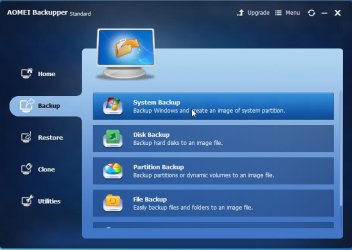
Imaging is a very simple process, particularly with Aomei - the easiest to use, which is why I suggested it.

Just follow the simple GUI.

Click System Backup.

A1.jpg


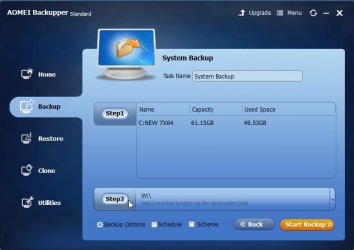
Select where to save the image ( it will probably have suggested your new partition - for me, it suggests W because there is lot of space on W )

A2.jpg

Click Start Backup.

That's it.
 

My Computers My Computers

  • At a glance

    7 X64i5 84002x8gb 3200mhz
    Computer type
    PC/Desktop
    OS
    7 X64
    CPU
    i5 8400
    Motherboard
    gigabyte b365m ds3h
    Memory
    2x8gb 3200mhz
    Hard Drives
    various
    PSU
    pure power 11 400w cm
    Case
    Coolermaster
    Cooling
    cryorig m9i
  • At a glance

    7x64g54008gb ddr4 2400
    Computer type
    PC/Desktop
    OS
    7x64
    CPU
    g5400
    Motherboard
    ga b365m ds3h
    Memory
    8gb ddr4 2400
    PSU
    xfx pro 450w
You always make boot media for your imaging program. If you install Aomei Part assist as well - that will create boot media including both Part Assist and Backupper.

Aomei part assist is the best free partitioner - it includes partition recovery and works in pe boot media
 

My Computers My Computers

  • At a glance

    7 X64i5 84002x8gb 3200mhz
    Computer type
    PC/Desktop
    OS
    7 X64
    CPU
    i5 8400
    Motherboard
    gigabyte b365m ds3h
    Memory
    2x8gb 3200mhz
    Hard Drives
    various
    PSU
    pure power 11 400w cm
    Case
    Coolermaster
    Cooling
    cryorig m9i
  • At a glance

    7x64g54008gb ddr4 2400
    Computer type
    PC/Desktop
    OS
    7x64
    CPU
    g5400
    Motherboard
    ga b365m ds3h
    Memory
    8gb ddr4 2400
    PSU
    xfx pro 450w
The size of the image depends partly on what compression level you choose. More compression takes longer. Aomei is already set at medium by default. It is fine as it is.

Some files can't be compressed much, if at all - photo and video files, iso files, wim files etc.

On average, the image will be about 50-60% the size of the used space on the source partition(s)
 

My Computers My Computers

  • At a glance

    7 X64i5 84002x8gb 3200mhz
    Computer type
    PC/Desktop
    OS
    7 X64
    CPU
    i5 8400
    Motherboard
    gigabyte b365m ds3h
    Memory
    2x8gb 3200mhz
    Hard Drives
    various
    PSU
    pure power 11 400w cm
    Case
    Coolermaster
    Cooling
    cryorig m9i
  • At a glance

    7x64g54008gb ddr4 2400
    Computer type
    PC/Desktop
    OS
    7x64
    CPU
    g5400
    Motherboard
    ga b365m ds3h
    Memory
    8gb ddr4 2400
    PSU
    xfx pro 450w
Thanks again SIW2,

I might just try imaging to my 32Gig USB using Aomei and Backupper to get a feel for it then.
Will it also create a bootable file as well please, and if so, will I be able to burn it to a CD?

Thanks again.
 

My Computer My Computer

At a glance

Win 7 HP SP1 64-bit Vista HB SP2 32-bit Linux...Intel(R) Pentium(R) CPU P6200 @ 2.13GHz4.00 GBIntel(R) Graphics Media Accelerator HD
Computer type
Laptop
Computer Manufacturer/Model Number
Fujitsu LIFEBOOK
OS
Win 7 HP SP1 64-bit Vista HB SP2 32-bit Linux Mint 18.3
CPU
Intel(R) Pentium(R) CPU P6200 @ 2.13GHz
Motherboard
FUJITSU FJNBB06
Memory
4.00 GB
Graphics Card(s)
Intel(R) Graphics Media Accelerator HD
Sound Card
[1] Realtek High Definition Audio [2] Intel(R) Display Audio
Screen Resolution
1366 x 768 x 32 bits (4294967296 colors) @ 59 Hz
Hard Drives
TOSHIBA MK5076GSX
Antivirus
AVG FREE
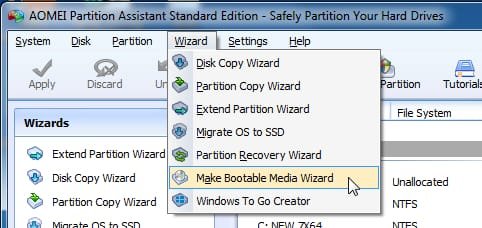
To create boot media you need either a usb or a cd/dvd.

The advatage of using part assist media creator is that it will include Backupper as well

From Part Assist , select
PA1.jpg

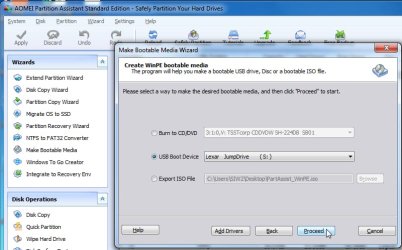
Click Next if it asks about windows to go ( that is only for win8 &10)

Then
PA2.jpg
 

My Computers My Computers

  • At a glance

    7 X64i5 84002x8gb 3200mhz
    Computer type
    PC/Desktop
    OS
    7 X64
    CPU
    i5 8400
    Motherboard
    gigabyte b365m ds3h
    Memory
    2x8gb 3200mhz
    Hard Drives
    various
    PSU
    pure power 11 400w cm
    Case
    Coolermaster
    Cooling
    cryorig m9i
  • At a glance

    7x64g54008gb ddr4 2400
    Computer type
    PC/Desktop
    OS
    7x64
    CPU
    g5400
    Motherboard
    ga b365m ds3h
    Memory
    8gb ddr4 2400
    PSU
    xfx pro 450w
Or you could borrow a copy of my boot media as an iso file (lots of extra tools on it ), and burn it to cd/dvd or apply it to a usb stick.


Writing an image across a usb2 connection will be fairly slow, it is a lot of data to copy. Nevertheless a lot of people do it.
 

My Computers My Computers

  • At a glance

    7 X64i5 84002x8gb 3200mhz
    Computer type
    PC/Desktop
    OS
    7 X64
    CPU
    i5 8400
    Motherboard
    gigabyte b365m ds3h
    Memory
    2x8gb 3200mhz
    Hard Drives
    various
    PSU
    pure power 11 400w cm
    Case
    Coolermaster
    Cooling
    cryorig m9i
  • At a glance

    7x64g54008gb ddr4 2400
    Computer type
    PC/Desktop
    OS
    7x64
    CPU
    g5400
    Motherboard
    ga b365m ds3h
    Memory
    8gb ddr4 2400
    PSU
    xfx pro 450w
Back
Top