Solved Partitioning Problem

Kamranashraf2

New member
Local time
3:51 PM
Messages
18
Hi,
i have shrinked C drive but now if i try to make new volumn out of it an error comes whichs says u cant create a new volumn as the disk already contains the max no. of volumns.

i am attaching a snap of disk managment, plz guide me so that i can convert the unallocated 66.58GBto a new volumn

thanks in advance
 

Attachments

  • partion.png
    partion.png
    51.1 KB · Views: 358

My Computer

Computer Manufacturer/Model Number
HP Pavillion DV-6 2150US
OS
Windows 7 Home Premium 64-bit
CPU
Corei3 2.13GHz
Memory
4096MB
A basic disk cannot contain more than FOUR "primary" partitions. You've already got four allocated... even though you have unallocated space (66GB in the middle of the drive and then also a small 102MB at the extreme right end) that you'd like to make into a new partition.

You can't do that right now, because you can' allocate another partition.

However, you can restructure your drive, to accomplish what you want... as well as to open the door to even more partitions in the future, if you want to.

The solution is that you have to convert the 68GB unallocated space with 141GB E partition to its right (which is currently a "primary" partition) to be part of one large "primary" partition consisting of both areas (i.e. about 209GB combined), but referred to as the "extended partition". This is a special type of "primary" partition which supports ANY NUMBER of "logical" partitions then sub-defined inside of it.

Once the "extended partition" is defined, then you can sub-define any number of logical partitions inside of it. The plan here is to thus convert your "primary" E partition to a "logical" E on the right side of the "extended partition" space. And then you will define a new "logical" partition" in the unallocated space on the left side of the "extended partition".

First, you need to download and install [free] Partition Wizard Home Edition v6.0.

You also need to download the matching ISO from which you can burn a standalone bootable CD of Paritition Wizard. This standalone bootable CD can be used to do anything the program can do under Win7, but it can also perform operations on your boot partition C, which the version under Win7 can't do immediately but must be performed only after you first re-boot to allow completion.

Anyway, I believe that the partition restructuring you want to do to your drive can be done while under Win7. Or, if you want, you can also do it from the standalone boot CD.


So... first step is you need to "convert from primary to logical" partition type, for your E partition. Once you're in Partition Wizard, if you select that E partition you should see "set partition as logical" as one of the operations on the left side of the screen. Or, you select the E partition and right-click on it and you should see the same option.

I haven't done something like you're wanting to do so I don't know if that unallocated space immediately to the left of where E is will simply be incorporated into the one large "extended partition" and then your E will be make "logical" inside of it with the free space to its left simply being unallocated within the "extended partition" from which you can then create a second logical partition", or if you'll have to do all of this in several steps.

Worst case, you probably will be offered the option to resize the partition as well, and you can add all of the current unallocated space to its left to E, converting it into one large "logical" E partition of 141+66=207GB, taking up all of what is now the "extended partition" (replacing your current unallocated space plus what was the E primary partition).

Then, you can re-size E to back to what it was, freeing up that 66GB again as unallocated... but definitely now inside of the "extended partition".

And now you can create a new "logical" partition inside of that unallocated space inside the "extended" partition.


You can do this all with Partition Wizard, in what I hope are the intuitive steps I've described above. I've tried to be clear, but if you have any questions please ask first.

I think you'll find the GUI of Partition Wizard to be very intuitive and easy to understand. You simply specify your operations in advance and they get "queued up" in the bottom left corner. If you change your mind or make a mistake, you can UNDO one operation at a time from the queued list. Eventually, you push the APPLY button and it all is performed in sequence. Then you can start over, with a new list of queued operations, etc.

As you specify your operations to be performed the pictures of your drive will change to show you what it WILL look like eventually... but the operations themselves have not been applied yet, and can still be undone from the queued list. Only after you push the APPLY button and they are performed and completed, are they actually performed and completed.

I have 100% confidence in PW, but you might want to first be sure you have adequate data backups if there's anything critical that you would be devastated about if you lost... say if the electricity went off in the middle of the operations.

 

My Computer

Computer type
PC/Desktop
Computer Manufacturer/Model Number
Home-built, two systems (1) and (2)
OS
Windows 7 Pro x64 (1), Win7 Pro X64 (2)
CPU
i5-3350p 3.1Ghz/6MB-cache (1); E8400 3.0Ghz/6MB-cache (2)
Motherboard
ASUS P8Z77-V Pro (1); ASUS P5Q3 (2)
Memory
8GB PC3-12800 DDR3 (1); 4GB PC3-10600 DDR3 (2)
Graphics Card(s)
ATI HD7750 (1), (see TV cards); ATI R7 250 (2)
Sound Card
Realtek ALC892 HD Audio (1); Realtek ALC1200 HD Audio (2)
Monitor(s) Displays
Eizo HD2441W LCD, Eizo S2433W (1); Eizo 24" S2433W (2)
Screen Resolution
1920x1200, 1920x1200 (1); 1920x1200 (2)
Hard Drives
(1) 1TB SATA-II (7200RPM), 2x2TB SATA-III (7200RPM), 250GB SATA-III (10000RPM) for OS; 2x2TB external USB 3.0

(2) 320GB SATA-II (7200RPM), 750GB SATA-II (7200RPM), 150GB SATA-II (10000RPM) for OS; 2TB external USB 3.0
PSU
Nesteq ECS-6001 600W (1); Nesteq ECS-5001 500W (2)
Case
Acousti-Case 360 (1) and (2)
Cooling
Noctua NH-U12P SE2 for CPU, 2x120mm case fans (1) and (2)
Keyboard
IBM PS/2 (1) and (2)
Mouse
Logitech MX Revolution wireless (1); Microsoft wired (2)
Internet Speed
100mbps down / 10mbps up
Antivirus
Microsoft Security Essentials; Malwarebyte Anti-Malware Pro
Browser
Firefox
Other Info
Ceton InfiniTV 4-tuner cablecard-enabled TV card as well as Hauppauge HVR-2250 OTA/ATSC 2-tuner TV card in (1), running under Win7 WMC
The best way to fix this problem is to reduce the number of partitions by extending C: and extend D:, your only allowed 4 partitions on a single drive. Your system and recovery and os are fixed partitions, then you made a new volumn E: so that's your 4. Suggestion hdd's are really cheap so i would get another drive for storage. Just my advice hope this helps.:)
 

My Computer

Computer Manufacturer/Model Number
Dell XPS 730
OS
Windows 7 Home Premium 64 bit
CPU
Intel Core 2 quad Extreme Q9770 @ 3.2 GHz
Memory
4x2 GB Muskin 1600 MHz ram
Graphics Card(s)
NVidia GTX 250
Sound Card
Soundblaster X-Fi Fatality Champion
Monitor(s) Displays
2 Dell 2007WFP Ultrascans
Screen Resolution
3360 x 1050
Hard Drives
WD Black 1TB sata, 2-WD Black 500 sata, 2-Seagate 500 Go external
PSU
1000 Watt
Cooling
air
Keyboard
MS Natrual Keyboard Pro
Mouse
Logitech Wireless Trackball
Internet Speed
DSL Elite
The best way to fix this problem is to reduce the number of partitions by extending C:
His original post said that he'd just finished shrinking C. I'm sure he doesn't want to extend it back.

He just wanted to make a new partition on his drive, and did not know about the true essential difference and consequences of "primary" vs. "logical", and what happens when you do partition restructuring.


you're only allowed 4 partitions on a single drive.
Not true. You are only allowed FOUR PRIMARY PARTITIONS on a single drive.... not four TOTAL partitions.

If one of those four "primary" partitions is treated as an "extended partition", then you can now sub-define ANY NUMBER OF "LOGICAL" PARTITIONS inside of that one "extended partition".

So in this latter arrangement, you are limited to THREE PRIMARY PARTITIONS that get their own drive letters, and then you can have 1-to-n "logical" partitions sub-defined within the fourth "primary partition", i.e. the 'extended partition", with each of those "logical" partitions then getting its own drive letter.

In fact, other than on the BIOS-set "hard disk #1" boot drive, no other hard drive needs ANY real "primary" partitions. You could define nothing but one "extended partition" on every one of your secondary hard drives, and then nothing but "logical" partitions inside of every one of those "extended partitions".

You don't really need "primary" for any partition other than the "active" partition on "hard disk #1". Even the Win7 system boot partition can be "logical" (say, in a "logical" partition on a second hard drive... different from the WinXP boot partition on your primary hard drive, for example if you install Win7 as a second OS on an existing WinXP machine and had added a second hard drive for it plus more data).

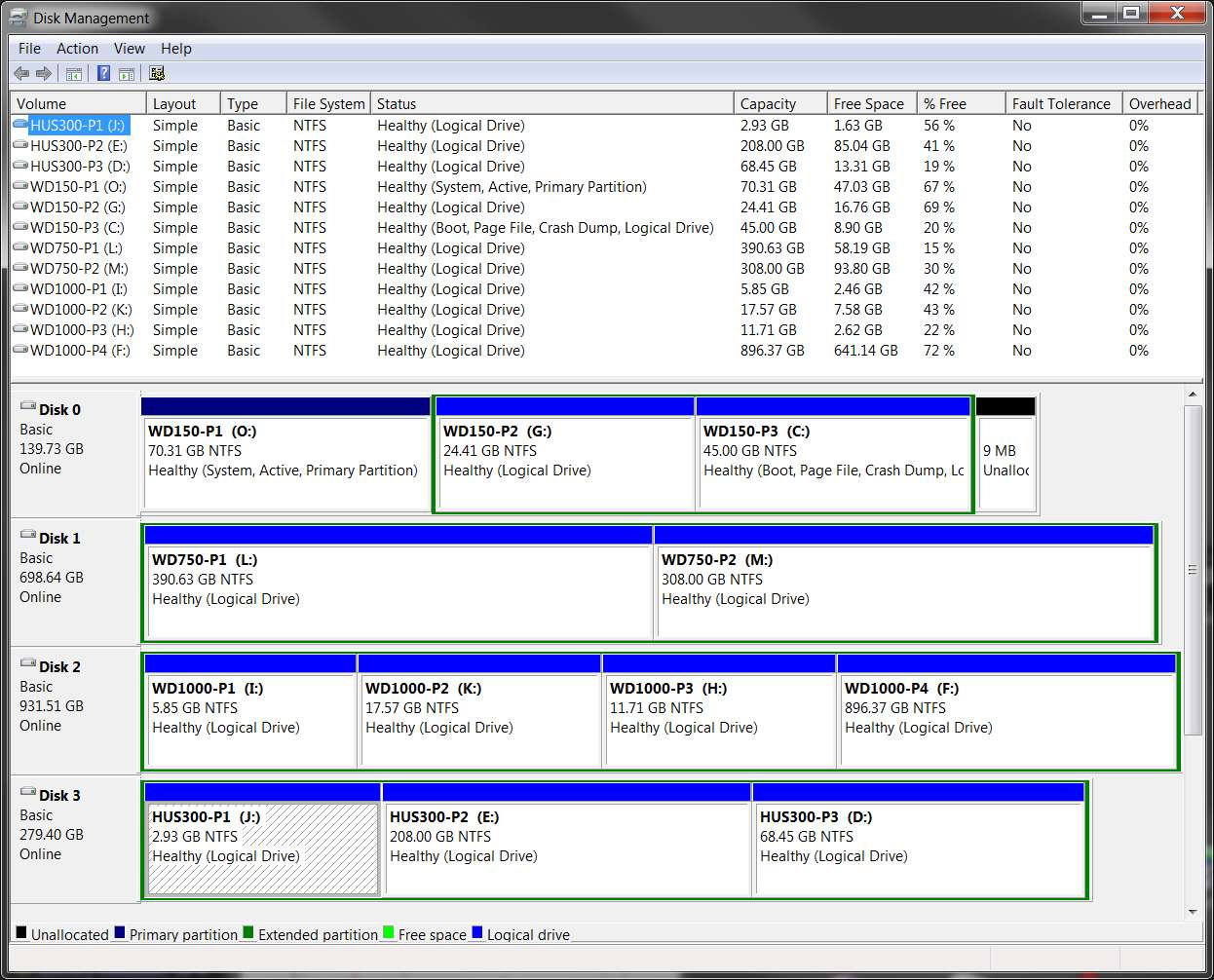
In fact, Win7 installed as a second OS on the SAME "hard disk #1" as WinXP is already installed on can go into a "logical" partition on that same hard drive. It doesn't have to be in a primary partition. Again, only the "active' partition on "hard disk #1" is required to be "primary" for Windows. Everything else can be in a "logical" partition, which therefore allows MAXIMUM FLEXIBILITY in terms of partitioning now or in the future.

For example:

harddrives.jpg


WinXP is on O (active) above, and Win7 is on C.
 

My Computer

Computer type
PC/Desktop
Computer Manufacturer/Model Number
Home-built, two systems (1) and (2)
OS
Windows 7 Pro x64 (1), Win7 Pro X64 (2)
CPU
i5-3350p 3.1Ghz/6MB-cache (1); E8400 3.0Ghz/6MB-cache (2)
Motherboard
ASUS P8Z77-V Pro (1); ASUS P5Q3 (2)
Memory
8GB PC3-12800 DDR3 (1); 4GB PC3-10600 DDR3 (2)
Graphics Card(s)
ATI HD7750 (1), (see TV cards); ATI R7 250 (2)
Sound Card
Realtek ALC892 HD Audio (1); Realtek ALC1200 HD Audio (2)
Monitor(s) Displays
Eizo HD2441W LCD, Eizo S2433W (1); Eizo 24" S2433W (2)
Screen Resolution
1920x1200, 1920x1200 (1); 1920x1200 (2)
Hard Drives
(1) 1TB SATA-II (7200RPM), 2x2TB SATA-III (7200RPM), 250GB SATA-III (10000RPM) for OS; 2x2TB external USB 3.0

(2) 320GB SATA-II (7200RPM), 750GB SATA-II (7200RPM), 150GB SATA-II (10000RPM) for OS; 2TB external USB 3.0
PSU
Nesteq ECS-6001 600W (1); Nesteq ECS-5001 500W (2)
Case
Acousti-Case 360 (1) and (2)
Cooling
Noctua NH-U12P SE2 for CPU, 2x120mm case fans (1) and (2)
Keyboard
IBM PS/2 (1) and (2)
Mouse
Logitech MX Revolution wireless (1); Microsoft wired (2)
Internet Speed
100mbps down / 10mbps up
Antivirus
Microsoft Security Essentials; Malwarebyte Anti-Malware Pro
Browser
Firefox
Other Info
Ceton InfiniTV 4-tuner cablecard-enabled TV card as well as Hauppauge HVR-2250 OTA/ATSC 2-tuner TV card in (1), running under Win7 WMC
Thanks for the insight, but i would rather have more drives and less partitions, but that's just me.:o
 

My Computer

Computer Manufacturer/Model Number
Dell XPS 730
OS
Windows 7 Home Premium 64 bit
CPU
Intel Core 2 quad Extreme Q9770 @ 3.2 GHz
Memory
4x2 GB Muskin 1600 MHz ram
Graphics Card(s)
NVidia GTX 250
Sound Card
Soundblaster X-Fi Fatality Champion
Monitor(s) Displays
2 Dell 2007WFP Ultrascans
Screen Resolution
3360 x 1050
Hard Drives
WD Black 1TB sata, 2-WD Black 500 sata, 2-Seagate 500 Go external
PSU
1000 Watt
Cooling
air
Keyboard
MS Natrual Keyboard Pro
Mouse
Logitech Wireless Trackball
Internet Speed
DSL Elite
Hello.


If you really want to do this, have a look at this tutorial at the link below, it shows how to recover the "System" partition to the far left into the Windows 7 C: partition, giving you an additional Primary partition to use; follow the steps exactly and be sure to post back with any further questions you may have and to keep us informed.

Be advised:

I don't know for sure how it will affect the system as a whole being a factory OEM system.


Partition : Recover Space Used by an Older OS
 

My Computer

Computer Manufacturer/Model Number
* BFK Customs *
OS
W 7 64-bit Ultimate
CPU
Intel Q9550 Yorkfield
Motherboard
ASUS P5Q Pro
Memory
8GB Dominator 8500C5D
Graphics Card(s)
ATI : XFX 5870
Sound Card
Realtek HD Audio 7-1
Monitor(s) Displays
1x 47" LCD HDMI & 3x 26" LCD HDMI
Screen Resolution
1920x1080P & 1920x1200
Hard Drives
1x 80GB Intel X25-M G2 SSD : 1x 500GB & 1x 640GB WD Caviar Black(s)
PSU
Corsair 620HX
Case
Cooler Master RC-690
Cooling
Tuniq Tower 120, 2x 140mm and 3x 120mm case fans
Keyboard
Microsoft 500
Mouse
Razer Diamondback 3G
Internet Speed
14 Mb/s
Other Info
1x Koutech 3Gb/s SATA HDD Hot Swap Rack
The best way to fix this problem is to reduce the number of partitions by extending C:
His original post said that he'd just finished shrinking C. I'm sure he doesn't want to extend it back.

He just wanted to make a new partition on his drive, and did not know about the true essential difference and consequences of "primary" vs. "logical", and what happens when you do partition restructuring.


you're only allowed 4 partitions on a single drive.
Not true. You are only allowed FOUR PRIMARY PARTITIONS on a single drive.... not four TOTAL partitions.

If one of those four "primary" partitions is treated as an "extended partition", then you can now sub-define ANY NUMBER OF "LOGICAL" PARTITIONS inside of that one "extended partition".

So in this latter arrangement, you are limited to THREE PRIMARY PARTITIONS that get their own drive letters, and then you can have 1-to-n "logical" partitions sub-defined within the fourth "primary partition", i.e. the 'extended partition", with each of those "logical" partitions then getting its own drive letter.

In fact, other than on the BIOS-set "hard disk #1" boot drive, no other hard drive needs ANY real "primary" partitions. You could define nothing but one "extended partition" on every one of your secondary hard drives, and then nothing but "logical" partitions inside of every one of those "extended partitions".

You don't really need "primary" for any partition other than the "active" partition on "hard disk #1". Even the Win7 system boot partition can be "logical" (say, in a "logical" partition on a second hard drive... different from the WinXP boot partition on your primary hard drive, for example if you install Win7 as a second OS on an existing WinXP machine and had added a second hard drive for it plus more data).

In fact, Win7 installed as a second OS on the SAME "hard disk #1" as WinXP is already installed on can go into a "logical" partition on that same hard drive. It doesn't have to be in a primary partition. Again, only the "active' partition on "hard disk #1" is required to be "primary" for Windows. Everything else can be in a "logical" partition, which therefore allows MAXIMUM FLEXIBILITY in terms of partitioning now or in the future.

For example:

harddrives.jpg


WinXP is on O (active) above, and Win7 is on C.

thanks for the invaluable information. i have been wanting to make certain folders appear as individual drives in computer but even with 4 internal drives i thought i was stuck with only 4 partitions per drive. thanks again
 

My Computer

OS
Windows 7 Ultimate
CPU
Core2Duo E8400
Motherboard
Asus Rampage Formula Rev. 1
Memory
5 Gigs
Graphics Card(s)
Asus Nvidia 9500 Gt
Sound Card
Creative X-Fi Extreme Audio
Monitor(s) Displays
18 Inch LCD
Screen Resolution
1366x768
Hard Drives
c: wd 300 gig velociaptor, wd 1tb, wd 500 gig, wd 320 gig, and 2 wd 40 gig ide drives
PSU
600 watts
thanks for the invaluable information. i have been wanting to make certain folders appear as individual drives in computer but even with 4 internal drives i thought i was stuck with only 4 partitions per drive. thanks again
Hello DalekOverSeer, welcome to Seven Forums!


You may care to have a look at this tutorial at the link below.


Partition / Extended : Logical Drives
 

My Computer

Computer Manufacturer/Model Number
* BFK Customs *
OS
W 7 64-bit Ultimate
CPU
Intel Q9550 Yorkfield
Motherboard
ASUS P5Q Pro
Memory
8GB Dominator 8500C5D
Graphics Card(s)
ATI : XFX 5870
Sound Card
Realtek HD Audio 7-1
Monitor(s) Displays
1x 47" LCD HDMI & 3x 26" LCD HDMI
Screen Resolution
1920x1080P & 1920x1200
Hard Drives
1x 80GB Intel X25-M G2 SSD : 1x 500GB & 1x 640GB WD Caviar Black(s)
PSU
Corsair 620HX
Case
Cooler Master RC-690
Cooling
Tuniq Tower 120, 2x 140mm and 3x 120mm case fans
Keyboard
Microsoft 500
Mouse
Razer Diamondback 3G
Internet Speed
14 Mb/s
Other Info
1x Koutech 3Gb/s SATA HDD Hot Swap Rack
thanks for the invaluable information. i have been wanting to make certain folders appear as individual drives in computer but even with 4 internal drives i thought i was stuck with only 4 partitions per drive. thanks again
Glad to have helped.

Those must be fairly large folders, for you to want to segregate them into their own "drives" (aka "partition") for some reason.

But whatever your motivations, if you simply define nothing but "logical" partitions from now on you'll never be limited by 4 as the maximum number of partitions on any single hard drive.

And on the first hard drive which is at the center of the discussion on this thread from OP, as I described earlier it's just a matter of converting your "primary" E partition (in the middle of the drive, along with that currently unallocated space which you got by shrinking your "primary" C partition) to "logical" and combining it with the unallocated space into a single large "extended partition". This will then allow you to do anything you want with the remaining unallocated space (but now inside the "extended partition"), including defining one or more new additional "logical" partitions to go along with your now "logical" E partition inside of the same "extended partition".

Hope this is clear.

Good luck on your own drive/partition restructuring.
 

My Computer

Computer type
PC/Desktop
Computer Manufacturer/Model Number
Home-built, two systems (1) and (2)
OS
Windows 7 Pro x64 (1), Win7 Pro X64 (2)
CPU
i5-3350p 3.1Ghz/6MB-cache (1); E8400 3.0Ghz/6MB-cache (2)
Motherboard
ASUS P8Z77-V Pro (1); ASUS P5Q3 (2)
Memory
8GB PC3-12800 DDR3 (1); 4GB PC3-10600 DDR3 (2)
Graphics Card(s)
ATI HD7750 (1), (see TV cards); ATI R7 250 (2)
Sound Card
Realtek ALC892 HD Audio (1); Realtek ALC1200 HD Audio (2)
Monitor(s) Displays
Eizo HD2441W LCD, Eizo S2433W (1); Eizo 24" S2433W (2)
Screen Resolution
1920x1200, 1920x1200 (1); 1920x1200 (2)
Hard Drives
(1) 1TB SATA-II (7200RPM), 2x2TB SATA-III (7200RPM), 250GB SATA-III (10000RPM) for OS; 2x2TB external USB 3.0

(2) 320GB SATA-II (7200RPM), 750GB SATA-II (7200RPM), 150GB SATA-II (10000RPM) for OS; 2TB external USB 3.0
PSU
Nesteq ECS-6001 600W (1); Nesteq ECS-5001 500W (2)
Case
Acousti-Case 360 (1) and (2)
Cooling
Noctua NH-U12P SE2 for CPU, 2x120mm case fans (1) and (2)
Keyboard
IBM PS/2 (1) and (2)
Mouse
Logitech MX Revolution wireless (1); Microsoft wired (2)
Internet Speed
100mbps down / 10mbps up
Antivirus
Microsoft Security Essentials; Malwarebyte Anti-Malware Pro
Browser
Firefox
Other Info
Ceton InfiniTV 4-tuner cablecard-enabled TV card as well as Hauppauge HVR-2250 OTA/ATSC 2-tuner TV card in (1), running under Win7 WMC
Boot Partition Wizard CD, rightclick E, select Resize, drag left grey border to the left to take up the space you shrunk from C, click OK. Apply all steps.
 
Boot Partition Wizard CD, rightclick E, select Resize, drag left grey border to the left to take up the space you shrunk from C, click OK. Apply all steps.
His original objective was not to enlarge E. It was to add a new partition (which would be #5 on the drive) in the now unallocated space freed up by shrinking C.

He needs to convert E to logical, get that unallocated space included into the "extended partition" so that it covers both the unallocated space and the now-converted-to-logical E, and then he can create another "logical" partition in the unallocated space on the left side of the now "extended partition" which will be a total of about 209GB.
 

My Computer

Computer type
PC/Desktop
Computer Manufacturer/Model Number
Home-built, two systems (1) and (2)
OS
Windows 7 Pro x64 (1), Win7 Pro X64 (2)
CPU
i5-3350p 3.1Ghz/6MB-cache (1); E8400 3.0Ghz/6MB-cache (2)
Motherboard
ASUS P8Z77-V Pro (1); ASUS P5Q3 (2)
Memory
8GB PC3-12800 DDR3 (1); 4GB PC3-10600 DDR3 (2)
Graphics Card(s)
ATI HD7750 (1), (see TV cards); ATI R7 250 (2)
Sound Card
Realtek ALC892 HD Audio (1); Realtek ALC1200 HD Audio (2)
Monitor(s) Displays
Eizo HD2441W LCD, Eizo S2433W (1); Eizo 24" S2433W (2)
Screen Resolution
1920x1200, 1920x1200 (1); 1920x1200 (2)
Hard Drives
(1) 1TB SATA-II (7200RPM), 2x2TB SATA-III (7200RPM), 250GB SATA-III (10000RPM) for OS; 2x2TB external USB 3.0

(2) 320GB SATA-II (7200RPM), 750GB SATA-II (7200RPM), 150GB SATA-II (10000RPM) for OS; 2TB external USB 3.0
PSU
Nesteq ECS-6001 600W (1); Nesteq ECS-5001 500W (2)
Case
Acousti-Case 360 (1) and (2)
Cooling
Noctua NH-U12P SE2 for CPU, 2x120mm case fans (1) and (2)
Keyboard
IBM PS/2 (1) and (2)
Mouse
Logitech MX Revolution wireless (1); Microsoft wired (2)
Internet Speed
100mbps down / 10mbps up
Antivirus
Microsoft Security Essentials; Malwarebyte Anti-Malware Pro
Browser
Firefox
Other Info
Ceton InfiniTV 4-tuner cablecard-enabled TV card as well as Hauppauge HVR-2250 OTA/ATSC 2-tuner TV card in (1), running under Win7 WMC
Or he can Resize or drag E intact to the left so that a Logical sub-partition can be added to D since it will now be contiguous, or resize D to the left if he wants to add the space to D. This avoids converting E to Logical.

He may have thought he had to create a partition there since Disk Mgmt cannot resize E to the left. Since he's using Partiiton Wizard anyway, now he's got options.
 
Last edited:
All that really needs done is to mark the Windows 7 C: partition as the Active partition and run the 3 separate startup repairs with restarts to make C: "System / Active" as outlined in this tutorial at the link below.

Startup Repair - Run 3 Separate Times


Then delete the old "System" partition to the far left using Windows 7 disk management and then right click the 66GB unallocated space to the right of C: to create a Primary partition there.


That's not really all that complicated.
 

My Computer

Computer Manufacturer/Model Number
* BFK Customs *
OS
W 7 64-bit Ultimate
CPU
Intel Q9550 Yorkfield
Motherboard
ASUS P5Q Pro
Memory
8GB Dominator 8500C5D
Graphics Card(s)
ATI : XFX 5870
Sound Card
Realtek HD Audio 7-1
Monitor(s) Displays
1x 47" LCD HDMI & 3x 26" LCD HDMI
Screen Resolution
1920x1080P & 1920x1200
Hard Drives
1x 80GB Intel X25-M G2 SSD : 1x 500GB & 1x 640GB WD Caviar Black(s)
PSU
Corsair 620HX
Case
Cooler Master RC-690
Cooling
Tuniq Tower 120, 2x 140mm and 3x 120mm case fans
Keyboard
Microsoft 500
Mouse
Razer Diamondback 3G
Internet Speed
14 Mb/s
Other Info
1x Koutech 3Gb/s SATA HDD Hot Swap Rack
But he doesn't need to be limited to 4 partitions, just to create this particular partition in the space freed up by shrinking C. He doesn't need to eliminate the "system reserved" partition. He doesn't need to have only "primary" partitions.

He's just got to convert E to logical, and then he's just about home free... with maximum future flexibility achieved as well as solving his current goal.


I haven't done it to be absolutely sure that step #2 will work as I think it will (given the cleverness of Partition Wizard), but I suspect all that needs to be done is:

Step #1: right-click on E and convert E from "primary" to "logical".

This is accomplished by creating an "extended partition" around E, including only sufficient room for the E partition at the moment .

The conversion to "logical" will either (a) take about 8MB away from E to be used as the "prefix" area in front of an "extended partition" and keep the unallocated space to its left exactly the same size, or (b) take 8MB away from the high-end of the unallocated space for the "prefix" of the new "extended partition which will include the converted E exactly the same size in "logical" as it was when "primary".

One way or the other, the conversion of E from "primary" to "logical" will create an "extended partition" just large enough to hold the now "logical" E.

Step #2: right-click on unallocated space and "create partition, type logical".

Partition Wizard will almost certainly recognize that immediately to the right of this space is already an "extended partition", and will surely automatically increase the size of the "extended partition" to the left, to include the unallocated space to its left.

The 8MB "prefix" for the "extended partition" which previously was immediately in front of the "logical" E partition will now be moved by Partition Wizard, to the extreme left of what is at the moment the unallocated space and which has just been "annexed" into the newly enlarged 207GB "extended partition". The remaining unallocated space will thus be added to the total combined new size of the enlarged "extended partition", and from this unallocated space now inside the newly enlarged "extended partition" the newly requested "logical" partition will be created.


In other words, I don't think it is necessary to perform multiple additional steps to do what I know is really going on and that needs to be done. I think Partition Wizard will figure it all out instantly... once (a) E is converted to "logical" thus creating an "extended partition" in which the "logical" E will live, and which is adjacent to the unallocated space to its left, and (b) a new "logical" partition is requested to be created in this unallocated space, which is instantly seen as solvable by just enlarging the size of the "extended partition" currently including only "logical" E, to also now include the unallocated space to its left, and then creating the newly requested partition from this unallocated space which is now inside of the "extended partition" instead of being outside of it as it was just a moment ago.

Net result: 208GB "extended partition", inside of which is (1) new 66GB "logical" partition, and (2) 142GB "logical" E converted from "primary".

I'm sure PW can recognize what to do in step #2, once E is converted to "logical", thus freeing the user of having to be a wizard on partitions.
 

My Computer

Computer type
PC/Desktop
Computer Manufacturer/Model Number
Home-built, two systems (1) and (2)
OS
Windows 7 Pro x64 (1), Win7 Pro X64 (2)
CPU
i5-3350p 3.1Ghz/6MB-cache (1); E8400 3.0Ghz/6MB-cache (2)
Motherboard
ASUS P8Z77-V Pro (1); ASUS P5Q3 (2)
Memory
8GB PC3-12800 DDR3 (1); 4GB PC3-10600 DDR3 (2)
Graphics Card(s)
ATI HD7750 (1), (see TV cards); ATI R7 250 (2)
Sound Card
Realtek ALC892 HD Audio (1); Realtek ALC1200 HD Audio (2)
Monitor(s) Displays
Eizo HD2441W LCD, Eizo S2433W (1); Eizo 24" S2433W (2)
Screen Resolution
1920x1200, 1920x1200 (1); 1920x1200 (2)
Hard Drives
(1) 1TB SATA-II (7200RPM), 2x2TB SATA-III (7200RPM), 250GB SATA-III (10000RPM) for OS; 2x2TB external USB 3.0

(2) 320GB SATA-II (7200RPM), 750GB SATA-II (7200RPM), 150GB SATA-II (10000RPM) for OS; 2TB external USB 3.0
PSU
Nesteq ECS-6001 600W (1); Nesteq ECS-5001 500W (2)
Case
Acousti-Case 360 (1) and (2)
Cooling
Noctua NH-U12P SE2 for CPU, 2x120mm case fans (1) and (2)
Keyboard
IBM PS/2 (1) and (2)
Mouse
Logitech MX Revolution wireless (1); Microsoft wired (2)
Internet Speed
100mbps down / 10mbps up
Antivirus
Microsoft Security Essentials; Malwarebyte Anti-Malware Pro
Browser
Firefox
Other Info
Ceton InfiniTV 4-tuner cablecard-enabled TV card as well as Hauppauge HVR-2250 OTA/ATSC 2-tuner TV card in (1), running under Win7 WMC
Boot Partition Wizard CD, rightclick E, select Resize, drag left grey border to the left to take up the space you shrunk from C, click OK. Apply all steps.

If i resize E to take up all the shrunked space to make a larger E, is it safe to do???
 

My Computer

Computer Manufacturer/Model Number
HP Pavillion DV-6 2150US
OS
Windows 7 Home Premium 64-bit
CPU
Corei3 2.13GHz
Memory
4096MB
Boot Partition Wizard CD, rightclick E, select Resize, drag left grey border to the left to take up the space you shrunk from C, click OK. Apply all steps.
His original objective was not to enlarge E. It was to add a new partition (which would be #5 on the drive) in the now unallocated space freed up by shrinking C.

He needs to convert E to logical, get that unallocated space included into the "extended partition" so that it covers both the unallocated space and the now-converted-to-logical E, and then he can create another "logical" partition in the unallocated space on the left side of the now "extended partition" which will be a total of about 209GB.

Sir thanks alot for being such guidence but i just dont want C drive to be big, so its fine if i add unallocated space with E to make E 209GB. Converting to logical and so on is a bit difficult than the resizing E to take the unallocated space. So i will go with resizing E as Mr. Gregrocker said if you please tell me wil it be safe to do are not??? i mean simply the unallocated space will be added to E with any loss of data which is already in E or formation will be needed after resizing E???

Thanks
 

My Computer

Computer Manufacturer/Model Number
HP Pavillion DV-6 2150US
OS
Windows 7 Home Premium 64-bit
CPU
Corei3 2.13GHz
Memory
4096MB
and please tell me for what use is System drive ( 199 MB)??? when i bought this laptop this system drive was visiable in Computer and it contained a folder named "HP Tools" but then i reinstalled Win7 and the system drive was no more visiable in Computer but it is visiable in disk-managment. I see that it is labled as primary partion so incase it has nothong to do with booting windows or something else is it possible that i delete this partion and then may b i will be able to make 68GB unallocated space as a partion??? As there willl be one less primary partition.

Thanks
 

My Computer

Computer Manufacturer/Model Number
HP Pavillion DV-6 2150US
OS
Windows 7 Home Premium 64-bit
CPU
Corei3 2.13GHz
Memory
4096MB
and please tell me for what use is System drive ( 199 MB)??? when i bought this laptop this system drive was visiable in Computer and it contained a folder named "HP Tools" but then i reinstalled Win7 and the system drive was no more visiable in Computer but it is visiable in disk-managment. I see that it is labled as primary partion so incase it has nothong to do with booting windows or something else is it possible that i delete this partion and then may b i will be able to make 68GB unallocated space as a partion??? As there willl be one less primary partition.

Thanks

All that really needs done is to mark the Windows 7 C: partition as the Active partition and run the 3 separate startup repairs with restarts to make C: "System / Active" as outlined in this tutorial at the link below.

Startup Repair - Run 3 Separate Times


Then delete the old "System" partition to the far left using Windows 7 disk management and then right click the 66GB unallocated space to the right of C: to create a Primary partition there.


That's not really all that complicated.

That would be the easiest way to proceed and I told you how, just follow these steps here; forget all that mumbo-jumbo about converting E: and dragging grey borders and do it the easy way.
 

My Computer

Computer Manufacturer/Model Number
* BFK Customs *
OS
W 7 64-bit Ultimate
CPU
Intel Q9550 Yorkfield
Motherboard
ASUS P5Q Pro
Memory
8GB Dominator 8500C5D
Graphics Card(s)
ATI : XFX 5870
Sound Card
Realtek HD Audio 7-1
Monitor(s) Displays
1x 47" LCD HDMI & 3x 26" LCD HDMI
Screen Resolution
1920x1080P & 1920x1200
Hard Drives
1x 80GB Intel X25-M G2 SSD : 1x 500GB & 1x 640GB WD Caviar Black(s)
PSU
Corsair 620HX
Case
Cooler Master RC-690
Cooling
Tuniq Tower 120, 2x 140mm and 3x 120mm case fans
Keyboard
Microsoft 500
Mouse
Razer Diamondback 3G
Internet Speed
14 Mb/s
Other Info
1x Koutech 3Gb/s SATA HDD Hot Swap Rack
If you use the Partition Wizard boot CD then it is safe to Resize E to the left into the Unallocated space. It doesn't touch your Win7 so there is no risk to the Operating System.

However any time you do a partitioning operation you should back up your data involved. That said, we have never had a failure helping here with hundreds of complicated partitioning operations using the PW boot disk. It is our most valuable tool.

So back up your files on E, download and burn the Partition Wizard ISO to CD using ImgBurn at 4x speed with Verify: ImgBurn - Free software downloads and software reviews - CNET Download.com

Now boot PW CD, select 1 for screen resolution, rightclick E, choose REsize, drag the left grey border to the left to take up the Unallocated space, click OK, look over the map to make sure everything looks correct, then cllick Apply.

Your 200mb System Reserved partition is important because it holds the boot files and also places the Repair console normally only on the DVD or Repair CD on the F8 Advanced Boot Options. There's no reason to risk trying to remove it when you have other easier and safer options.
 
i would add one thing. the only thing i didn't really know was that i could have more that 4 partitions on a hdd as long as i used logical partitions. what i would add is get yourself a copy of partition wizard 5.0 and no higher. i have never been able to get 5.1 or 5.2 to actually run during boot. it probably has to do with my particular setup, but err on the side of caution i would use the 5.0. if you have a hard time finding it i have a copy that i got from my roommate that i can upload.
 

My Computer

OS
Windows 7 Ultimate
CPU
Core2Duo E8400
Motherboard
Asus Rampage Formula Rev. 1
Memory
5 Gigs
Graphics Card(s)
Asus Nvidia 9500 Gt
Sound Card
Creative X-Fi Extreme Audio
Monitor(s) Displays
18 Inch LCD
Screen Resolution
1366x768
Hard Drives
c: wd 300 gig velociaptor, wd 1tb, wd 500 gig, wd 320 gig, and 2 wd 40 gig ide drives
PSU
600 watts
Back
Top