Partitions are corrupted

Supermicro

Thanks for the link. I got fairly good support from Sonny at [email protected] but he didn't understand (nor did I) the issue with the Windows partitions that you know about.
 

My Computer

Computer type
PC/Desktop
OS
Microsoft Windows 7 Professional 64-bit 7601 Multiprocessor Free Service Pack 1
CPU
Intel(R) Core(TM) i7-4930K CPU @ 3.40GHz
Motherboard
ASUSTeK COMPUTER INC. X79-DELUXE
Memory
32.00 GB
Graphics Card(s)
NVIDIA GeForce GTX 650 Ti BOOST
Sound Card
(1) NVIDIA High Definition Audio (2) High Definition Audio
Screen Resolution
1280 x 1024 x 32 bits (4294967296 colors) @ 75 Hz
Hard Drives
(1) Samsung SSD 840 Series SCSI Disk Device (2) WDC WD1000DHTZ-04N21 SCSI Disk Device (3) TOSHIBA External USB 3.0 USB Device
PSU
Corsair RM 850
Case
Cooler Master HAF932 Advanced
Cooling
Cooler Master Eisberg 240L Prestige
Keyboard
TypeMatrix 2030
Mouse
Logitech MS10 wireless
Internet Speed
high speed
Antivirus
System Suite 10; Trend Micro
Browser
several
From the Manual page 4-43 you launch the boot override from BIOS

When you did a Clean Install:
- Did you delete ALL partitions till you have one and only one unallocated space?
- Did you detach ALL other drives, leaving on only the target drive?

Reset BIOS or load defaults.
Set Disk mode to AHCI, not RAID
Select OS mode = UEFI or Select OS mode = other + UEFI (depends on BIOS).
Disable fast boot and secure boot (you can turn it on after installation)

Windows can be installed in two ways: Legacy-MBR or UEFI-GPT
To install as Legacy-MBR you must boot the installation drive as Legacy
To install as UEFI-GPT you must boot the installation drive as UEFI.

If you have a UEFI BIOS, you should install as UEFI-GPT
Detach any other drives (SATA or Power cable) from the MB.

During POST, press F11(?) to launch the boot menu. You will see two options for the USB drive. USB UEFI (Name) and USB (Name). Select USB UEFI (Name) if you want to install as UEFI-GPT or select USB (name) if you want to install as Legacy-MBR.
Go to install and delete ALL partitions on the main drive till you have one and only one unallocated space and then proceed.
If you don't want to use MS account, don't enable updates or connect to the internet during installation.
 

My Computers

System One System Two

  • Computer type
    PC/Desktop
    Computer Manufacturer/Model Number
    custom build
    OS
    Windows 7 HP 64
    CPU
    i5 6600K - 800MHz to 4200MHz
    Motherboard
    GA-Z170-HD3P
    Memory
    4+4G GSkill DDR4 3000
    Graphics Card(s)
    IG - Intel 530
    Monitor(s) Displays
    Samsung 226BW
    Screen Resolution
    1680x1050
    Hard Drives
    (1) -1 SM951 – 128GB M.2 AHCI PCIe SSD drive for Windows 7 and Lubuntu
    (2) -1 WD SATA 3 - 1T for Data
    (3) -1 WD SATA 3 - 1T for backup
    PSU
    Thermaltake 450W TR2 gold
    Keyboard
    Old and good Chicony mechanical keyboard
    Mouse
    Logitech mX performance - 9 buttons (had to disable some)
    Internet Speed
    500Mb/s
    Browser
    Firefox 64
    Other Info
    TinyWall firewall
  • Computer type
    Laptop
    System Manufacturer/Model Number
    Asus Q550LF
    OS
    Windows 7 Pro
    CPU
    i7-4500U 800MHz to 3.0GHz
    Motherboard
    Asus Q550LF
    Memory
    (4+4)G DDR3 1600
    Graphics Card(s)
    IG intel 4400 + NVIDIA GeForce GT 745M
    Sound Card
    Realtek
    Monitor(s) Displays
    LG Display LP156WF4-SPH1
    Screen Resolution
    1920 x 1080
    Hard Drives
    BX500 120G SSD for Windows and programs +
    1T HDD for data
    Internet Speed
    500 Mb/s
    Browser
    Firefox
    Other Info
    TinyWall firewall
Mega: Your post looks very interesting. I will work on this, likely the coming weekend. Today I tried the following idea from Macrium Reflect tech:
I am posting the result so that you, SIW2 and other experts can see where I stand.
Boot into Macrium Reflect Windows PE. Open a Windows command window. To open a command window click the icon on the taskbar.
Type: diskpart
Type: list disk
Select the disk number that you want to restore to. For example:select disk 0
Clean the selected disk: cleanBy default, "clean" creates an empty MBR disk.
Convert it to GPT:convert gpt
Create the EFI partition: create partition efi size=200Format the EFI partition:
format fs=fat32
Create the MSR partition:
create partition msr size=128
Exit Diskpart: 2/28/23
I did up to here successfully. Since I don't have the restore files anymore, I again tried Windows 10 install from usb stick to no avail. I still boot into EFI Shell.

There is clearly some kind of disconnect between the BIOS and the internal HDs, since Windows Boot Mgr never shows up in BIOS.

 

My Computer

Computer type
PC/Desktop
OS
Microsoft Windows 7 Professional 64-bit 7601 Multiprocessor Free Service Pack 1
CPU
Intel(R) Core(TM) i7-4930K CPU @ 3.40GHz
Motherboard
ASUSTeK COMPUTER INC. X79-DELUXE
Memory
32.00 GB
Graphics Card(s)
NVIDIA GeForce GTX 650 Ti BOOST
Sound Card
(1) NVIDIA High Definition Audio (2) High Definition Audio
Screen Resolution
1280 x 1024 x 32 bits (4294967296 colors) @ 75 Hz
Hard Drives
(1) Samsung SSD 840 Series SCSI Disk Device (2) WDC WD1000DHTZ-04N21 SCSI Disk Device (3) TOSHIBA External USB 3.0 USB Device
PSU
Corsair RM 850
Case
Cooler Master HAF932 Advanced
Cooling
Cooler Master Eisberg 240L Prestige
Keyboard
TypeMatrix 2030
Mouse
Logitech MS10 wireless
Internet Speed
high speed
Antivirus
System Suite 10; Trend Micro
Browser
several
Mega: Your post looks very interesting. I will work on this, likely the coming weekend. Today I tried the following idea from Macrium Reflect tech:
I am posting the result so that you, SIW2 and other experts can see where I stand.
Boot into Macrium Reflect Windows PE. Open a Windows command window. To open a command window click the icon on the taskbar.
Type: diskpart
Type: list disk
Select the disk number that you want to restore to. For example:select disk 0
Clean the selected disk: cleanBy default, "clean" creates an empty MBR disk.
Convert it to GPT:convert gpt
Create the EFI partition: create partition efi size=200Format the EFI partition:
format fs=fat32
Create the MSR partition:
create partition msr size=128
Exit Diskpart: 2/28/23
I did up to here successfully. Since I don't have the restore files anymore, I again tried Windows 10 install from usb stick to no avail. I still boot into EFI Shell.

There is clearly some kind of disconnect between the BIOS and the internal HDs, since Windows Boot Mgr never shows up in BIOS.

You don't need to use diskpart.
If you boot the Win 10 USB installation drive as UEFI, delete all partitions and then proceed it will initialize the drive as GPT and will install as UEFI-GPT.
I don't know how did you created the Win 10 USB installation drive. - Let MCT create the Win 10 USB installation drive. You need a 8G (or bigger) flash drive.
 

My Computers

System One System Two

  • Computer type
    PC/Desktop
    Computer Manufacturer/Model Number
    custom build
    OS
    Windows 7 HP 64
    CPU
    i5 6600K - 800MHz to 4200MHz
    Motherboard
    GA-Z170-HD3P
    Memory
    4+4G GSkill DDR4 3000
    Graphics Card(s)
    IG - Intel 530
    Monitor(s) Displays
    Samsung 226BW
    Screen Resolution
    1680x1050
    Hard Drives
    (1) -1 SM951 – 128GB M.2 AHCI PCIe SSD drive for Windows 7 and Lubuntu
    (2) -1 WD SATA 3 - 1T for Data
    (3) -1 WD SATA 3 - 1T for backup
    PSU
    Thermaltake 450W TR2 gold
    Keyboard
    Old and good Chicony mechanical keyboard
    Mouse
    Logitech mX performance - 9 buttons (had to disable some)
    Internet Speed
    500Mb/s
    Browser
    Firefox 64
    Other Info
    TinyWall firewall
  • Computer type
    Laptop
    System Manufacturer/Model Number
    Asus Q550LF
    OS
    Windows 7 Pro
    CPU
    i7-4500U 800MHz to 3.0GHz
    Motherboard
    Asus Q550LF
    Memory
    (4+4)G DDR3 1600
    Graphics Card(s)
    IG intel 4400 + NVIDIA GeForce GT 745M
    Sound Card
    Realtek
    Monitor(s) Displays
    LG Display LP156WF4-SPH1
    Screen Resolution
    1920 x 1080
    Hard Drives
    BX500 120G SSD for Windows and programs +
    1T HDD for data
    Internet Speed
    500 Mb/s
    Browser
    Firefox
    Other Info
    TinyWall firewall
Hi Mega:
I tried your ideas today. I first unplugged the two internal SSDs (physical disks 2 & 3). In BIOS, I noted that a BIOS Feature/Re-try Boot was set to "EFI Boot", though it could have been Legacy.
In UEFI mode I booted into the Windows Installation stick, which showed only Drive 0 (a good thing).

Partition 1 200 MB System; Partition 2 128 MB MSR (Reserved); Partition 3 unallocated 372 GB. I chose Partition 3. The Windows installation completed successfully.

I removed the Win 10 Installation USB stick and went into BIOS, which did not show "Windows Boot Mgr, a bad sign. Boot menu showed "UEFI USB Hard Disk" and "UEFI Hard disk" among others. When I rebooted, system went immediately into EFI Shell. No success.
I went into Legacy Mode in BIOS and tried Windows installation. It refused to install on Partition 3 because is was MSR, not GPT.
 

My Computer

Computer type
PC/Desktop
OS
Microsoft Windows 7 Professional 64-bit 7601 Multiprocessor Free Service Pack 1
CPU
Intel(R) Core(TM) i7-4930K CPU @ 3.40GHz
Motherboard
ASUSTeK COMPUTER INC. X79-DELUXE
Memory
32.00 GB
Graphics Card(s)
NVIDIA GeForce GTX 650 Ti BOOST
Sound Card
(1) NVIDIA High Definition Audio (2) High Definition Audio
Screen Resolution
1280 x 1024 x 32 bits (4294967296 colors) @ 75 Hz
Hard Drives
(1) Samsung SSD 840 Series SCSI Disk Device (2) WDC WD1000DHTZ-04N21 SCSI Disk Device (3) TOSHIBA External USB 3.0 USB Device
PSU
Corsair RM 850
Case
Cooler Master HAF932 Advanced
Cooling
Cooler Master Eisberg 240L Prestige
Keyboard
TypeMatrix 2030
Mouse
Logitech MS10 wireless
Internet Speed
high speed
Antivirus
System Suite 10; Trend Micro
Browser
several
To install as UEFI - GPT you must:
- Boot the Win 10 installation drive as UEFI so the installation drive must be Fat32 not NTFS
- You must delete all partitions on the drive till you have one and only one unallocated space and then proceed. When you delete all partitions it guarantees that the drive will be initiated as GPT and it will install as UEFI - GPT
 

My Computers

System One System Two

  • Computer type
    PC/Desktop
    Computer Manufacturer/Model Number
    custom build
    OS
    Windows 7 HP 64
    CPU
    i5 6600K - 800MHz to 4200MHz
    Motherboard
    GA-Z170-HD3P
    Memory
    4+4G GSkill DDR4 3000
    Graphics Card(s)
    IG - Intel 530
    Monitor(s) Displays
    Samsung 226BW
    Screen Resolution
    1680x1050
    Hard Drives
    (1) -1 SM951 – 128GB M.2 AHCI PCIe SSD drive for Windows 7 and Lubuntu
    (2) -1 WD SATA 3 - 1T for Data
    (3) -1 WD SATA 3 - 1T for backup
    PSU
    Thermaltake 450W TR2 gold
    Keyboard
    Old and good Chicony mechanical keyboard
    Mouse
    Logitech mX performance - 9 buttons (had to disable some)
    Internet Speed
    500Mb/s
    Browser
    Firefox 64
    Other Info
    TinyWall firewall
  • Computer type
    Laptop
    System Manufacturer/Model Number
    Asus Q550LF
    OS
    Windows 7 Pro
    CPU
    i7-4500U 800MHz to 3.0GHz
    Motherboard
    Asus Q550LF
    Memory
    (4+4)G DDR3 1600
    Graphics Card(s)
    IG intel 4400 + NVIDIA GeForce GT 745M
    Sound Card
    Realtek
    Monitor(s) Displays
    LG Display LP156WF4-SPH1
    Screen Resolution
    1920 x 1080
    Hard Drives
    BX500 120G SSD for Windows and programs +
    1T HDD for data
    Internet Speed
    500 Mb/s
    Browser
    Firefox
    Other Info
    TinyWall firewall
I don't understand. I did boot in UEFI mode and did install into the unallocated space. How does one " delete all partitions on the drive till you have one and only one unallocated space and then proceed"?
I did not see that option in the Windows Install boot media program?
Thanks, CMA
 

My Computer

Computer type
PC/Desktop
OS
Microsoft Windows 7 Professional 64-bit 7601 Multiprocessor Free Service Pack 1
CPU
Intel(R) Core(TM) i7-4930K CPU @ 3.40GHz
Motherboard
ASUSTeK COMPUTER INC. X79-DELUXE
Memory
32.00 GB
Graphics Card(s)
NVIDIA GeForce GTX 650 Ti BOOST
Sound Card
(1) NVIDIA High Definition Audio (2) High Definition Audio
Screen Resolution
1280 x 1024 x 32 bits (4294967296 colors) @ 75 Hz
Hard Drives
(1) Samsung SSD 840 Series SCSI Disk Device (2) WDC WD1000DHTZ-04N21 SCSI Disk Device (3) TOSHIBA External USB 3.0 USB Device
PSU
Corsair RM 850
Case
Cooler Master HAF932 Advanced
Cooling
Cooler Master Eisberg 240L Prestige
Keyboard
TypeMatrix 2030
Mouse
Logitech MS10 wireless
Internet Speed
high speed
Antivirus
System Suite 10; Trend Micro
Browser
several
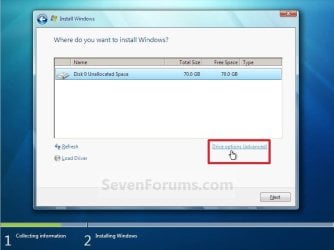
How does one " delete all partitions on the drive till you have one and only one unallocated space and then proceed"?
I did not see that option in the Windows Install boot media program?


click "Drive Options Avanced"

2440d1231630464-clean-install-windows-7-a-step7.jpg

then you get options to delete, format, etc


2441d1231630473-clean-install-windows-7-a-step8.jpg
 

My Computers

System One System Two

  • Computer type
    PC/Desktop
    OS
    7 X64
    CPU
    i5 8400
    Motherboard
    gigabyte b365m ds3h
    Memory
    2x8gb 3200mhz
    Hard Drives
    various
    PSU
    pure power 11 400w cm
    Case
    Coolermaster
    Cooling
    cryorig m9i
  • Computer type
    PC/Desktop
    OS
    7x64
    CPU
    g5400
    Motherboard
    ga b365m ds3h
    Memory
    8gb ddr4 2400
    PSU
    xfx pro 450w
Thanks, I didn't see that "Drive options (advanced), but I used Diskpart to clean Disk 0 so that I now have only one unallocated space on Disk 0.
I then tried Windows Clean install again. It completed successfully, but still no luck--still boots immediately into EFI Shell.
Does Windows install Windows Boot Mgr. on the HD? Because if not, then maybe Windows Boot Manager is missing from the BIOS chip where it should be on this system.
Is it possible to install or copy Windows Boot Manager onto the HD partition where I just installed Windows.
The Macrium Reflect PMAP USB stick hold 3 files that may be relevant: bootmgr 407 KB; bootmgfw.eft (EFI file) 1522 KB; and bootmgr.efi (EFI file) 1535 KB.

(Unfortunately I also cleaned one of my Reflect recovery USB sticks and now cannot format the 64 GB stick.)
 

My Computer

Computer type
PC/Desktop
OS
Microsoft Windows 7 Professional 64-bit 7601 Multiprocessor Free Service Pack 1
CPU
Intel(R) Core(TM) i7-4930K CPU @ 3.40GHz
Motherboard
ASUSTeK COMPUTER INC. X79-DELUXE
Memory
32.00 GB
Graphics Card(s)
NVIDIA GeForce GTX 650 Ti BOOST
Sound Card
(1) NVIDIA High Definition Audio (2) High Definition Audio
Screen Resolution
1280 x 1024 x 32 bits (4294967296 colors) @ 75 Hz
Hard Drives
(1) Samsung SSD 840 Series SCSI Disk Device (2) WDC WD1000DHTZ-04N21 SCSI Disk Device (3) TOSHIBA External USB 3.0 USB Device
PSU
Corsair RM 850
Case
Cooler Master HAF932 Advanced
Cooling
Cooler Master Eisberg 240L Prestige
Keyboard
TypeMatrix 2030
Mouse
Logitech MS10 wireless
Internet Speed
high speed
Antivirus
System Suite 10; Trend Micro
Browser
several

My Computers

System One System Two

  • Computer type
    PC/Desktop
    OS
    7 X64
    CPU
    i5 8400
    Motherboard
    gigabyte b365m ds3h
    Memory
    2x8gb 3200mhz
    Hard Drives
    various
    PSU
    pure power 11 400w cm
    Case
    Coolermaster
    Cooling
    cryorig m9i
  • Computer type
    PC/Desktop
    OS
    7x64
    CPU
    g5400
    Motherboard
    ga b365m ds3h
    Memory
    8gb ddr4 2400
    PSU
    xfx pro 450w
Back
Top