Possible to scan documents wirelessly

tech291083

New member
Member
Local time
7:04 PM
Messages
46
Hi friends!

I have 3 HP all-in-one printers, which are a few years old, but in perfect working order.

HP DeskJet 1510 (no Wi-Fi )
HP DeskJet 2622 (with Wi-Fi )
HP DeskJet Ink Advantage 3635 (with Wi-Fi )

I have stopped using all of them for printing or photocopying purposes and I now use them only for scanning documents. I normally do this scanning by connecting all these 3 printer via a cable and I connect them to different devices such as PCs and laptops at work and home and not only that, these PCs and laptops run different operating systems such as Windows 7 Home Basic 64 bit, Windows 10 Home 64 bit and Fedora Workstation 33 64 bit. So far scanning has never been an issue with any of the devices.

Just a few days ago, I visited a friend who suggest that I use the Wi-Fi facility with 2 of my printers to scan documents and I got excited and asked him to show me how I can do so, but he had no clue and he only said that he has seen people taking print-outs with Wi-Fi. I did a bit of online searching, but I could not find anything meaningful.

I even installed HP Smart app from Google Play on my Android mobile, but I could not go any further.

So, please let me know the answers to the following questions.

1. Is it possible to scan documents wirelessly?
2. Can wireless only be used to take print-outs?

Many thanks in advance.
 

My Computer

Computer type
PC/Desktop
OS
Windows 7 Home Basic 64 bit

My Computer

Computer type
PC/Desktop
Computer Manufacturer/Model Number
HP Desktop & Compaq Laptop
OS
Win 10 x64, Linux Lite, Win 7 x64, BlackArch, & Kali
Hard Drives
Samsung 850 Pro 256Gb,
Hitachi HDD 1Tb,
Crucial MX SSD 250Gb
Segate 3Tb USB 3.0 Ext. Backup HDD
Internet Speed
150Mbps dn, 20Mbps up
Antivirus
Avast Free, Malwarebytes Anti-Exploit & Anti-Ransomware
Browser
Firefox, Chrome, Opera, & VPN
When I first read the OP's post, I thought to answer similarly to what Snick posted but after reading again, I believe the OP is really asking whether scanning can be done from his phone since there is a mention that the HP Smart app was downloaded from Google Play.

I am not familiar with the HP Smart app. I have a Brother laser printer and the app from Brother for my phone can be used to control the printer to Print, Scan or Fax. According to the description on Google Play, the HP Smart app has the same capabilities.
 

My Computer

Computer type
PC/Desktop
Computer Manufacturer/Model Number
Home Built desktop, Dell G15 5511 Gaming laptop,MS Surface Pro 7 tablet
OS
W10 Pro desktop, W11 laptop, W11 Pro tablet (all 64-bit)
CPU
3.7Ghz 8700K i7, i7-11800H, i7-1065G7
Motherboard
ASUS TUF Z370-Pro Gaming in desktop
Memory
16G desktop, 16G laptop, 4G tablet
Graphics Card(s)
AMD Radeon RX580, RTX 3060, Intel Iris Plus
Sound Card
High Definition Audio (Built-in to mobo)
Monitor(s) Displays
Samsung U32J59 32" (2x), 15.6", 12"
Screen Resolution
3840x2160, 3840x2160, 1920x1080, 2160x1440
Hard Drives
500G SSD for OS; 2T, 10T & 15T HDDs for Data on Desktop, 1TB SSD laptop, 128G SSD tablet.
PSU
Corsair CX 750M
Case
Antec 100
Cooling
CM 212+
Keyboard
IBM Model M - used continuously since 1986
Mouse
Microsoft Pro IntelliMouse
Internet Speed
400M down 8M up
Antivirus
Windows Defender
Browser
FireFox
Other Info
Built my first computer (8Mhz 8088cpu, 640K RAM, 20MB HDD, 2 360K floppy drives) in 1985 and have been building them for myself, relatives and friends ever since.
strollin

You may be correct regarding the app. I don't own a smart phone and the correlation slipped past my old brain. LOL

I still believe that would work with the WiFi capable machine via WiFi. The other two printers may be able to connect with a USB cable. Maybe OP will clarify if/when posting again.

These videos may help:

How to Connect an HP Printer to a Wi-Fi Network with HP Smart

Setup an HP Printer with Optional HP+ on a Wireless Network ...

HP printer setup (Wi-Fi network) | HP® Customer Support


My Computer

Computer type
PC/Desktop
Computer Manufacturer/Model Number
HP Desktop & Compaq Laptop
OS
Win 10 x64, Linux Lite, Win 7 x64, BlackArch, & Kali
Hard Drives
Samsung 850 Pro 256Gb,
Hitachi HDD 1Tb,
Crucial MX SSD 250Gb
Segate 3Tb USB 3.0 Ext. Backup HDD
Internet Speed
150Mbps dn, 20Mbps up
Antivirus
Avast Free, Malwarebytes Anti-Exploit & Anti-Ransomware
Browser
Firefox, Chrome, Opera, & VPN
Hi strollin and Snick!

Sorry to reply so late.

Thanks a lot to both of you for your replies and the links to the videos. They were really useful.

I am glad to say that I have made some progress. I have come across a very interesting connection method on my Android mobile called Wi-Fi Direct using which I have managed to connect this very mobile to one of my printers wirelessly and that printer is HP DeskJet 2622, but I am still to scan anything wirelessly. I will keep you updated.

The HP Smart app on my Android mobile looks promising, but I am yet to figure it out to my satisfaction.

Another printer of mine, which is also Wi-Fi capable is HP DeskJet Ink Advantage 3635, but I am not trying to connect it wirelessly as of now and my entire focus is on HP DeskJet 2622. The 3rd and last printer is HP DeskJet 1510, which has no Wi-Fi capability so I am not worried about it at all as I scan my documents by connecting this very printer via a USB cable to all of my laptops and PCs without any issues whatsoever.

I must apologize, if I have caused any confusions in your minds regarding any of the 3 printers.

I am also sending you a link to some of the screenshots and photos of HP DeskJet 2622, and my entire focus is on this printer only.

Album — Postimages

Thanks a lot.
 

My Computer

Computer type
PC/Desktop
OS
Windows 7 Home Basic 64 bit
For the printer with no WIFI, you need to be willing to learn and get your hands dirty. There's Tomato, Open-WRT, DD-WRT or ASUS Merlin. I run ASUS Merlin, but I don't recall the USB printer option. [HOWTO] Turn your USB Printer into a Wireless Printer (using Tomato Router) - YouTube


Your solution is Mopria to the rescue.

How to print and scan with Android | Computerworld

Mopria Print Service - Apps on Google Play

Mopria Scan - Apps on Google Play

Print servers if you need one: Amazon.com

- - - Updated - - -

Select mobile Printing Options. Mobile printing solutions for HP printers | HP(R) Customer Support
 

My Computer

Computer type
PC/Desktop
OS
Windows 7 Ultimate x64
Hi all!

I have gone a step further and managed to connect the same HP DeskJet 2622 printer to my Windows 10 laptop using Wi-Fi Direct and the process was not a big issue at all. I am also sending you a link to some of the screenshots showing you this connection process.

Album — Postimages

Now, my only worry is the HP Smart app, which offers many features on my Android mobile phone, but 2 features are giving me a headache and they are called "Camera Scan" and "Printer Scan". Even if my HP DeskJet 2622 printer is connected to my Android mobile phone using Wi-Fi Direct, I am not able to use these 2 features ("Camera Scan" and "Printer Scan") and I am not sure whether I am making some mistake here or not. I am also sending you a link to some of the screenshots showing you this issue. Thanks a lot.

Album — Postimages

- - - Updated - - -

Hi F22 Simpilot!

Thanks a lot.
 

My Computer

Computer type
PC/Desktop
OS
Windows 7 Home Basic 64 bit
The first thing I see is the printer is not ready to print. What's up with the "Cartridges missing message? You can't use the printer until that is corrected. I have heard of some HP printers that won't work at all even scanning if there are not a good set of ink cartridges installed.

I have an HP OfficeJet Pro 6975 all-in-one printer/scanner. I have always used it with a wireless connection. I can print or scan with it from any of my computers whether they are running Windows 7 or Windows 10.

I just installed the HP Smart App on my phone. I had no problems starting a scan on my phone using HP Smart App.

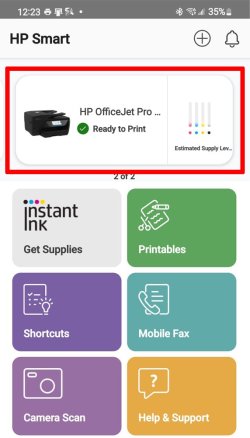
On phone open HP Smart App

HPSmart1b.jpg

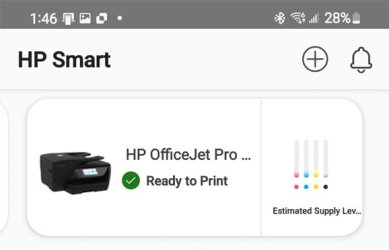
Make sure printer is "Ready to Print"

HPSmart2b.jpg

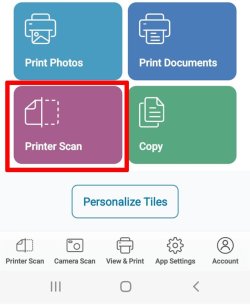
To scan select "Printer Scan"

HPSmart3b.jpg

To start scan select "Scan"

HPSmart4b.jpg

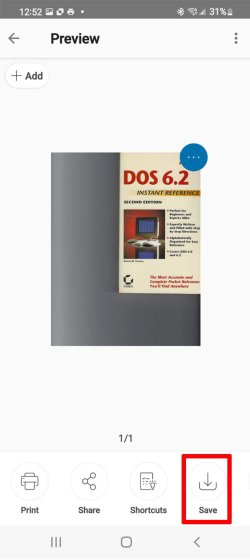
When the scan is done you will see a preview of it.
You will have the option of saving the scan on your phone.

HPSmart5b.jpg

- - - Updated - - -

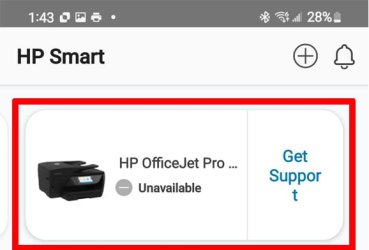
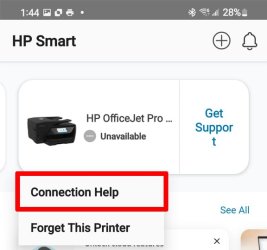
Sometimes it says the printer is not available even though you know it is. To fix...

Tap on the printer in the app

HPSmart6b.jpg

Select "Connection Help"

HPSmart7b.jpg

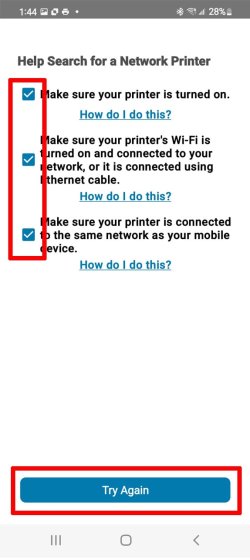
Select the 3 check boxes and select "Try Again"

HPSmart8b.jpg

If all goes well the printer will be "Ready to Print" again. :-)

HPSmart9b.jpg

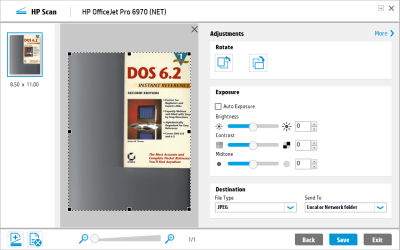
Here is the same scan using an HP laptop I bought in 2004 running Windows 7 Home. Note both the laptop and printer are wireless.
BookScan.png
 
Last edited:

My Computers

System One System Two

  • Computer type
    PC/Desktop
    Computer Manufacturer/Model Number
    Custom build
    OS
    Windows 7 Home Premium 64-bits
    CPU
    AMD FX-8350
    Motherboard
    Gigabyte GA-990FXA-UD3 (AM3+)
    Memory
    GSKILL Ripjaw-X PC3 12800 8GB (2x4GB)
    Graphics Card(s)
    ASUS ROG STRIX GTX 1060 6GB
    Sound Card
    Integrated
    Monitor(s) Displays
    Asus VE228H (21.5-in)
    Screen Resolution
    1920x1080 60Hz
    Hard Drives
    SAMSUNG 870 EVO 2.5 Inch SATA SSD (1TB)
    SAMSUNG 870 EVO 2.5 Inch SATA SSD (1TB)
    SAMSUNG 870 EVO 2.5 Inch SATA SSD (1TB)
    PSU
    Corsair RM750x (750 watts)
    Case
    Corsair Carbide Series 200R
    Cooling
    Corsair Hydro Series H60 (CWCH60)
    Keyboard
    Logitech Elite
    Mouse
    Logitech M510 Wireless Mouse
    Internet Speed
    Comcast Gigabit Extra (1200Mbps down / 35Mbps up)
    Antivirus
    Malwarebytes
    Browser
    Firefox, Edge, Chrome
    Other Info
    ASUS DRW-24B1ST DVD-RW (24X) optical drive
    Seagate Expansion Desk (5TB) external SATA/USB HDD
    Comcast XB8 Internet Gateway
  • Computer type
    PC/Desktop
    System Manufacturer/Model Number
    Custom
    OS
    Windows 7 Pro (64-bit)
    CPU
    AMD Phenom II 960T X4
    Motherboard
    ASUS M4N82 Deluxe
    Memory
    Corsair XMS2 DDR2-800 8GB (4x2GB)
    Graphics Card(s)
    ASUS ENGTX560 DCII OC/2DI/1GD5 1GB
    Monitor(s) Displays
    Samsung 930B 19-inch LCD
    Screen Resolution
    1280x1024
    Hard Drives
    Samsung SSD 870 EVO 1000 GB (Windows 10)
    Seagate ST1000DM003 1000 GB (Windows 7)
    PSU
    Antec TruePower (new) TP-650
    Case
    Antec Three Hundred
    Cooling
    AMD stock cooler from FX8350
    Mouse
    Logitech M100
    Internet Speed
    Xfinity Gigabit Extra 1200/35 Mbps
Hi MisterEd!

Thanks a lot for your reply. It makes a lot of sense to me. Thanks a lot for taking the trouble of posting your reply with the detailed screenshots. Really nice of you. I want to clarify a few things.

1. I used up both the cartridges almost a year ago and since then I have been using this printer for scanning documents only. I normally do this scanning by connecting all these 3 printer via the USB cable and I connect them to different devices such as PCs and laptops at work and home and not only that, these PCs and laptops run different operating systems such as Windows 7 Home Basic 64 bit, Windows 10 Home 64 bit and Fedora Workstation 33 64 bit. So far scanning has never been an issue with any of the devices.


2. Now, I want to use this printer for scanning only and not for printing or photocopying for the next few months. And I want to learn as to how I can scan documents wirelessly and so far I have had success in wirelessly scanning documents when I connected this very printer to one of my new laptops using Windows 10 64 bit and that too using the Wi-Fi Direct of my laptop and I could not use the actual wireless option and I guess that both wireless and Wi-Fi Direct are different concepts. I know for sure that wireless connection to this printer is very much possible.

3. I also tried to scan wirelessly by installing that HP Smart app on my Android mobile and that time too I connected this very printer to my mobile phone using the Wi-Fi Direct option (not wireless). But I could not scan the documents.

4. I am too of the opinion that some all in one printers including the one we are discussing about i.e. HP DeskJet 2622 do not scan without full or certain amount of ink in at least one of the two cartridges, but I am not sure as some people on the Internet seem to disagree with this notion. I can see that you had enough ink in one of your HP printer app screenshots as it says "Ready to print"

Many thanks again and please keep guiding me. Have a good day.
 

My Computer

Computer type
PC/Desktop
OS
Windows 7 Home Basic 64 bit
You are right in realizing that Wi-Fi Direct is different.
Wi-Fi Direct - Make a direct wireless connection to printer
Wireless printing - Makes a connection though you home network to the printer

On my old phone I had two print apps. One that used Wi-Fi Direct and the other that used the regular wireless printing. Both methods worked fine.

Wi-Fi Direct does have the advantage that the mobile device doesn't even have to connect to your network to use the printer. For security reasons that may be an advantage for some people.

I just did an experiment with my printer. I released the latches on all 4 of my ink cartridges. I then got the same cartridge error message as you did. Naturally the printer was unavailable to print. However, I could still scan with both my computer and my phone.

With the HP Smart app on my phone it did show Cartridge error. When I selected "Printer Scan" it show function not available. I then tapped on the printer picture, checked the three boxes, and selected "try again". The app still showed the cartridge error but I was then able to select "Printer Scan" and perform a normal scan. That showed that my printer could still scan even with no functioning ink cartridges.

The question is did you try these steps with HP Smart app on your phone?
 

My Computers

System One System Two

  • Computer type
    PC/Desktop
    Computer Manufacturer/Model Number
    Custom build
    OS
    Windows 7 Home Premium 64-bits
    CPU
    AMD FX-8350
    Motherboard
    Gigabyte GA-990FXA-UD3 (AM3+)
    Memory
    GSKILL Ripjaw-X PC3 12800 8GB (2x4GB)
    Graphics Card(s)
    ASUS ROG STRIX GTX 1060 6GB
    Sound Card
    Integrated
    Monitor(s) Displays
    Asus VE228H (21.5-in)
    Screen Resolution
    1920x1080 60Hz
    Hard Drives
    SAMSUNG 870 EVO 2.5 Inch SATA SSD (1TB)
    SAMSUNG 870 EVO 2.5 Inch SATA SSD (1TB)
    SAMSUNG 870 EVO 2.5 Inch SATA SSD (1TB)
    PSU
    Corsair RM750x (750 watts)
    Case
    Corsair Carbide Series 200R
    Cooling
    Corsair Hydro Series H60 (CWCH60)
    Keyboard
    Logitech Elite
    Mouse
    Logitech M510 Wireless Mouse
    Internet Speed
    Comcast Gigabit Extra (1200Mbps down / 35Mbps up)
    Antivirus
    Malwarebytes
    Browser
    Firefox, Edge, Chrome
    Other Info
    ASUS DRW-24B1ST DVD-RW (24X) optical drive
    Seagate Expansion Desk (5TB) external SATA/USB HDD
    Comcast XB8 Internet Gateway
  • Computer type
    PC/Desktop
    System Manufacturer/Model Number
    Custom
    OS
    Windows 7 Pro (64-bit)
    CPU
    AMD Phenom II 960T X4
    Motherboard
    ASUS M4N82 Deluxe
    Memory
    Corsair XMS2 DDR2-800 8GB (4x2GB)
    Graphics Card(s)
    ASUS ENGTX560 DCII OC/2DI/1GD5 1GB
    Monitor(s) Displays
    Samsung 930B 19-inch LCD
    Screen Resolution
    1280x1024
    Hard Drives
    Samsung SSD 870 EVO 1000 GB (Windows 10)
    Seagate ST1000DM003 1000 GB (Windows 7)
    PSU
    Antec TruePower (new) TP-650
    Case
    Antec Three Hundred
    Cooling
    AMD stock cooler from FX8350
    Mouse
    Logitech M100
    Internet Speed
    Xfinity Gigabit Extra 1200/35 Mbps
Back
Top