How to Change the Windows 7 Display Presentation Mode
Information
This will show you how to either display the Windows 7 desktop on the Computer only, Duplicate on both computer monitor and external display, Extend to all displays, or show only on a second screen or Projector.
Note
The application file for this is located at:
C:\Windows\System32\DisplaySwitch.exe.
C:\Windows\System32\DisplaySwitch.exe.
OPTION ONE
To Change Display Presentation Mode in GUI
1. Press the Windows Key + P.
A) Go to step 3.
OR
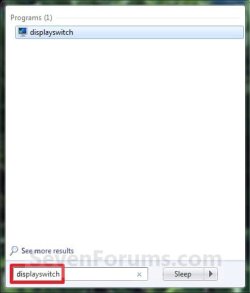
2. Open the Start Menu, then type displayswitch.exe in the search box and press Enter. (see screenshot below)
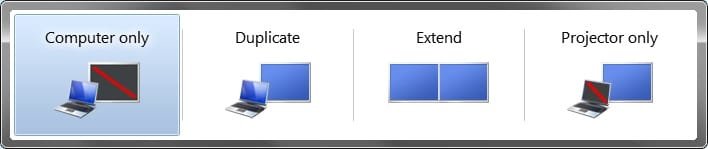
3. Select the option that you want Windows 7 to be displayed on. (see screenshot below)
NOTE: If you wanted to cancel and close this without making or selecting an option, then you can just click on a empty area on your desktop to do so.
- Computer only - This shows your desktop only on your main display screen.
- Duplicate - This shows your same desktop on both your computer display screen(s) and a connected external projector.
- Extend - This extends your desktop from your computer display screen(s) and a connected external projector.
- Projector only - This shows your desktop only on an external projector.
OPTION TWO
To Change Display Presentation Mode in Command Prompt
1. Open a command prompt.
2. In the command prompt, copy and paste the command in bold below for what you would like to do, and press Enter.
- DisplaySwitch.exe /internal
- (Computer only) This shows your desktop only on your main display screen.
- DisplaySwitch.exe /clone
- (Duplicate) This shows your same desktop on both your computer display screen(s) and a connected external display or projector.
- DisplaySwitch.exe /extend
- (Extend) This extends your desktop from your computer display screen(s) and a connected external display or projector.
- DisplaySwitch.exe /external
- (Projector only) This shows your desktop only on an external display or projector.
That's it,
Shawn
Related Tutorials
- How to Create a Display Switch Shortcut in Windows 7
- How to Turn Presentation Settings On or Off in Windows 7
- How to Create a "Presentation Settings" Shortcut in Windows 7 and Windows 8
- How to Open and Use Windows 7 Mobility Center
- How to Change the Main Display in Windows 7
- How to Create a Connect to a Network Projector Shortcut in Windows 7
Last edited: