Printing to Canon pro9500 attached to Mac SL

monomaniacpat

New member
Local time
3:46 AM
Messages
10
Hi guys,

Mac running Snow Leopard latest version and PC running Windows 7 Home (I think?)

My Dad recently bought a new computer and would like to print his photographs on my printer. I have successfully networked printers in the past, but this simply is not working.

I have connected the printer direct to his computer and it happily found the right driver, installed it and printed a test page.

I have followed the Windows wizard for installing a network printer and the printer is found by the wizard (the Mac is set to share the printer) and I install it using the same driver as used with direct connection. After setting it up I click the "print test page" button in the wizard and it shows up in the print queue and disappears when it finishes. My Mac is showing Network activity at this point and downloading from the network a 800KB/sec, suggesting to me that is being received. The printer does not print though.

Furthermore, after exiting the wizard, new attempts to print simply do not show up in the queue at all.

I have tried a couple of solutions I've seen around and tried deleting and reinstalling and nothing works.

Any ideas why this is not working?

Thanks all.
 

My Computer My Computer

At a glance

7 Home
OS
7 Home
Anybody able to help me solve this mystery?
 

My Computer My Computer

At a glance

7 Home
OS
7 Home

My Computer My Computer

At a glance

Windows 7 Enterprise (x64); Windows Server 20...16GB
Computer type
PC/Desktop
Computer Manufacturer/Model Number
Dell OP7010
OS
Windows 7 Enterprise (x64); Windows Server 2008 R2 (x64)
Memory
16GB
Monitor(s) Displays
4 Dell 24" LCD
Screen Resolution
1280x1024
Keyboard
Dell
Mouse
Dell Optical
Internet Speed
40meg
Yes, that's exactly how I set it up. I know it's being shared on the Mac end, too, because it was found on the network when I set it up on Windows.

Thanks for the response.
 

My Computer My Computer

At a glance

7 Home
OS
7 Home
there are so many extra features within Windows 7 that may be blocking your ability to print, for instance 'Home' network classifications and the enhanced 'two way' filewall amongst others. however with this in mind,

I am also new here and don't know this sites rules on posting external links however if you google "windows 7 home premium mac printing" (without speech marks) and choose the 4th selection, a posting on a blog by YOURMACGUY explains your exact issues and how to deal with it...

hth.
 

My Computer My Computer

At a glance

windows 7 enterprise 32bit
OS
windows 7 enterprise 32bit
Thanks to you for replying.

Unfortunately I found that guide on the weekend and it also did not work. I got near to the end but it failed I think when it tried to verify.

I will look into the two-way firewall and network classifications.
 

My Computer My Computer

At a glance

7 Home
OS
7 Home
ah cool it sounds like you know more about macs than i...

I know quite a bit about network printers and queues so maybe we can crack this one, could you let me know how it is set up on the mac?
you said you followed the instructions in the blog posting ?
did it fail on the windows side or the mac side ?
if windows which part ??


also the other thing that sprang to mind was, is the printer wifi/lan enabled?
what manufacturer and model is it, so I could have a gander..

cheers

ant.
 

My Computer My Computer

At a glance

windows 7 enterprise 32bit
OS
windows 7 enterprise 32bit
It failed on the Windows wizard, near the end. Step 5/6 I think.

My Mac is simply set up by selecting Printer Sharing from the Sharing preference pane:

screenshot20110120at141.png


The printer is a Canon Pro9500 mk1. It's USB only.
 

My Computer My Computer

At a glance

7 Home
OS
7 Home
hey MMP.

I am very green with Macs so bear with me, but in that guide it mentions verifying the macs LPR print queue in CUPS admin. http://127.0.0.1:631....is that the same as the screenshot above ?
It would appear from what you have said that this is the bit where it is falling down on.

An LPR print queue is a VERY old protocol (but still valid) for sending print jobs over a network, I much prefer using them, to the bloated software bundled with printers these days.

I have around 5-600 networked printers with LPR print queues within the network I administer.


My Computer My Computer

At a glance

windows 7 enterprise 32bit
OS
windows 7 enterprise 32bit
also can you confirm that your mac's firewall is allowing LPR printing (inbound),
my understanding is that 10.5/6 snow leopard moved away from the old style port and protocol firewall to the a newer generation type of application based filtering.

after this we will probably need to get into the nitty gritty, ipaddresses, for both mac and windows7, etc...
 

My Computer My Computer

At a glance

windows 7 enterprise 32bit
OS
windows 7 enterprise 32bit
Sorry, no, I forgot about CUPS.

I've looked in cups and it says the same thing:

screenshot20110120at150.png


I'll go and get the PC in a minute and check all the steps through again.

Thanks. :)
 

My Computer My Computer

At a glance

7 Home
OS
7 Home
At this point as I have recommend too many on this forum is to get an Ethernet to USB adaptor and just add the printer to your network. Then any computer can print directly to the printer via the network. No need to share the printer from any computer, no need for any computer to turned on and running (not in sleep mode) for someone to print. In the long run you will be much happier and it will just work.

See the links below; please note that I have not use any of these devices because I am in a mostly PC only environment:

Amazon.com: Arkview USB 2.0 10/100 Ethernet USB 2.0 Print Server (1 Port) PC/MAC: Electronics
Amazon.com: IOGear USB 2.0 Print Server, 1-Port GPSU21 (Silver): Electronics
 

My Computer My Computer

At a glance

Windows 7 Enterprise (x64); Windows Server 20...16GB
Computer type
PC/Desktop
Computer Manufacturer/Model Number
Dell OP7010
OS
Windows 7 Enterprise (x64); Windows Server 2008 R2 (x64)
Memory
16GB
Monitor(s) Displays
4 Dell 24" LCD
Screen Resolution
1280x1024
Keyboard
Dell
Mouse
Dell Optical
Internet Speed
40meg
Hi, thanks for the idea. I did not know this was possible. I may well get one at some point. In the mean time I would like to proceed with this method.

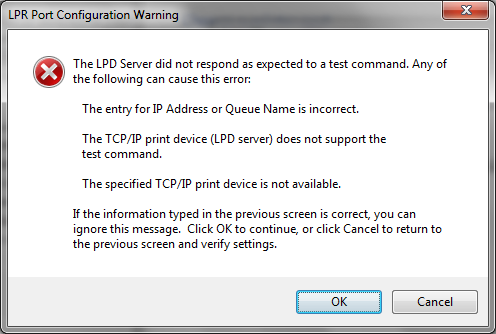
I have tried to do it again. The step I failed was 5/6 as stated. I get the error mentioned:

error.png


He says to check the settings on the Mac. I do not know which settings he is referring to...?

I am pretty sure I'm putting the address (IP or name "Patrick") correctly, as if I enter something other than those I get a different warning ("server name could not be resolved").

EDIT: My Mac's firewall is currently off.
 

My Computer My Computer

At a glance

7 Home
OS
7 Home
Hi, thanks for the idea. I did not know this was possible. I may well get one at some point. In the mean time I would like to proceed with this method.

I have tried to do it again. The step I failed was 5/6 as stated. I get the error mentioned:

error.png


He says to check the settings on the Mac. I do not know which settings he is referring to...?

I am pretty sure I'm putting the address (IP or name "Patrick") correctly, as if I enter something other than those I get a different warning ("server name could not be resolved").

EDIT: My Mac's firewall is currently off.

In Windows this is broken down like this:

Machine Name: \\JERRYS-PC
Printer Share Name: Canon9500onJerrysDesk
Note you can use spaces (i.e. Canon 9500 on Jerry's Desk) however I have found this to be more problems than it is worth.
Port Number: 515
Queue Name: print or lpt or lpt1 or raw or or or, every vendor tends to use a different queue name. You may have to google search it.

So in mapping the printer you use \\jerrys-pc\Canon9500onJerrysDesk, then in the print queue settings you make sure you have the correct port and queue name (i.e. lpt)

I hope this helps -WS
 

My Computer My Computer

At a glance

Windows 7 Enterprise (x64); Windows Server 20...16GB
Computer type
PC/Desktop
Computer Manufacturer/Model Number
Dell OP7010
OS
Windows 7 Enterprise (x64); Windows Server 2008 R2 (x64)
Memory
16GB
Monitor(s) Displays
4 Dell 24" LCD
Screen Resolution
1280x1024
Keyboard
Dell
Mouse
Dell Optical
Internet Speed
40meg
Sorry MMP was commuting...

the other setting was related to the firewall on your mac. it could be that it's not set correctly to allow connection via the lpr port.

check on mac;

  1. Open System Preferences
  2. Click Security
  3. Click the Firewall tab.
  4. On the Firewall tab, click [Advanced...]
  5. uncheck Block all incoming connections. apply this setting briefly.


    this will prove whether the firewall is the cause of the issue. you will need to test again, if you still can't connect using the IP ADDRESS of your mac and printerqueue name into the windows configuration (for example \\192.168.0.99\myprinter)
then test again.

Once you have tested, whether it works or not, turn your FIREWALL back on. it's quite important...lol. we'll get it working properly if that's the problem.


also as per above the connection should be done using an ip address. AFAIK Netbios isn't supported on a mac.

let us know how that goes.

ant.
 

My Computer My Computer

At a glance

windows 7 enterprise 32bit
OS
windows 7 enterprise 32bit
Hi Guys,

I am somewhat confused by your responses. This is the one and only window where I can enter the relevant information:

dialog1.png


I understand the info posted above, but I don't see what I'm supposed to do with it...?

I already know the print queue name ("Canon_Pro9500" - as per the macguy blog) and I know the IP address ***.***.1.2) or name of the computer ("Patrick"), but entering this info fails. I'm sure the name/IP address are working because it gives a different response if I enter incorrect info (see previous post). I have tried both the IP address and the name with the same dialog box response.

I tried checking/unchecking the firewall option as suggested, although I'm not sure of the relevance of that since the firewall has not been on while getting these issues.
 

My Computer My Computer

At a glance

7 Home
OS
7 Home
Hey MMP,
was thinking about this all day...in amongst other techy type tasks.
can you add another print queue for the same printer to your mac using CUPS, this time can you keep the name of the port below 12 characters..just call it something like 'macprint' or similar, then follow the windows macguy script from the windows config bit.

let us know how you go?

Ant.
 

My Computer My Computer

At a glance

windows 7 enterprise 32bit
OS
windows 7 enterprise 32bit
Hi,

Thanks again. Have tried as you suggest and simply get the same problem. :(
 

My Computer My Computer

At a glance

7 Home
OS
7 Home
Scratch that. I think this is solved now. :D

After trying the LPR method with my new printer called "macprint" I just gave it another whirl by adding "macprint" through the normal, Windows wireless printer dialogue. It worked!

Because I was not happy with the printer being called that I set up a third printer with a more accurate name "CanonPro". I also followed the CUPS instruction to fill in a description and location. For some reason this second attempt failed, and this was either because the description of the printer was what Windows needed and so I had the wrong one, or because Windows needed restarting before it could see it on the network. Not sure which it was as it's been a long day.

The good part is that I now have this working. Thanks to you both and to anta in particular for his tireless efforts. :thumbsup:
 

My Computer My Computer

At a glance

7 Home
OS
7 Home
Nice!
I wasn't really looking forward to learning MAC on a VM to solve this one.
really pleased it's sorted for you.

Happy printing, lol.:D
 

My Computer My Computer

At a glance

windows 7 enterprise 32bit
OS
windows 7 enterprise 32bit
Back
Top